
Windows users sometimes encounter problems with Microsoft Edge, where it may crash or fail to open. Such problems may arise from corrupt browser files or an outdated system, which can prevent regular browsing. This way, Microsoft Edge may fail to start, and it will cause interruptions to normal browsing and website access.
Luckily, users can fix Microsoft Edge not working without losing bookmarks and other important data with different methods. This guide explores simple methods and advanced solutions to troubleshoot the problem and restore Microsoft Edge to normal operation.
Table of Contents
Part 1. Microsoft Edge Not Working: Overview
Many users experience Microsoft Edge not responding when they open multiple tabs and overload browser caches. These situations can cause slow performance and crashes that make it difficult to browse websites or complete tasks. The first step toward a proper solution is identifying common symptoms and reasons behind such problems.
Some Common Symptoms
Firstly, let’s explore the common symptoms that appear when Microsoft Edge stops working correctly.
- Freezing: Microsoft Edge becomes unresponsive mid‑session, with pages stuck while scrolling or loading, and mouse clicks are ignored.
- Crashing: The browser just closes unexpectedly and swallows all the tabs in the process, halting the process of further browsing.
- Not Opening: Edge fails to launch from the Start menu, taskbar, or shortcuts, sometimes flashing briefly and then disappearing altogether.
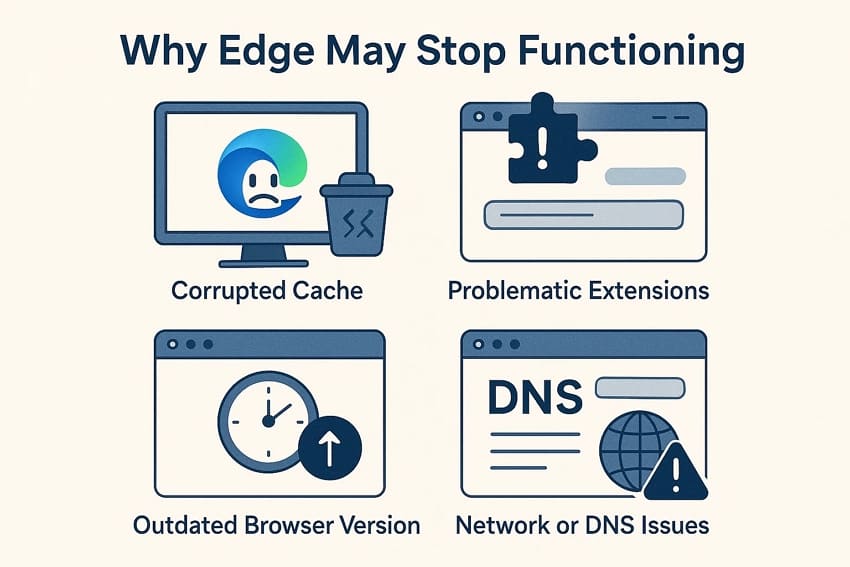
Why Edge May Stop Functioning
Next, let’s look at the reasons why Microsoft Edge quit working and how these issues affect normal browsing.
- Corrupted Cache/Data: Old or damaged cache files build up in Edge and eventually cause pages to break or stop loading altogether.
- Problematic Extensions: A single bad extension can interfere with tabs, so some sites refuse to open while others behave unpredictably.
- Outdated Browser Version: When Edge stays on an older build, new web standards don't work, and everyday browsing starts showing random errors.
- Damaged Edge Installation: If key program files are missing during an update, Edge may fail to start or close seconds after appearing.
- Network or DNS Issues: Misconfigured DNS or gateway settings block web addresses, so Edge appears broken even though the internet connection is working.
Part 2. 6 Quick Solutions to Fix Microsoft Edge Freezing or Quitting
Once you know the reasons behind the Microsoft Edge not opening problem, let’s explore the easy methods to fix this issue.
Method 1. Force Stop Edge and Restart PC
Force-stopping Microsoft Edge closes every stuck background process so the browser can release locked system resources. This fresh stop removes temporary glitches that build up when tabs hang or crash repeatedly. After that, restarting the PC reloads Windows services cleanly, often restoring smooth and stable Edge performance. Next, follow the instructions below to force stop Microsoft Edge and restart your PC:
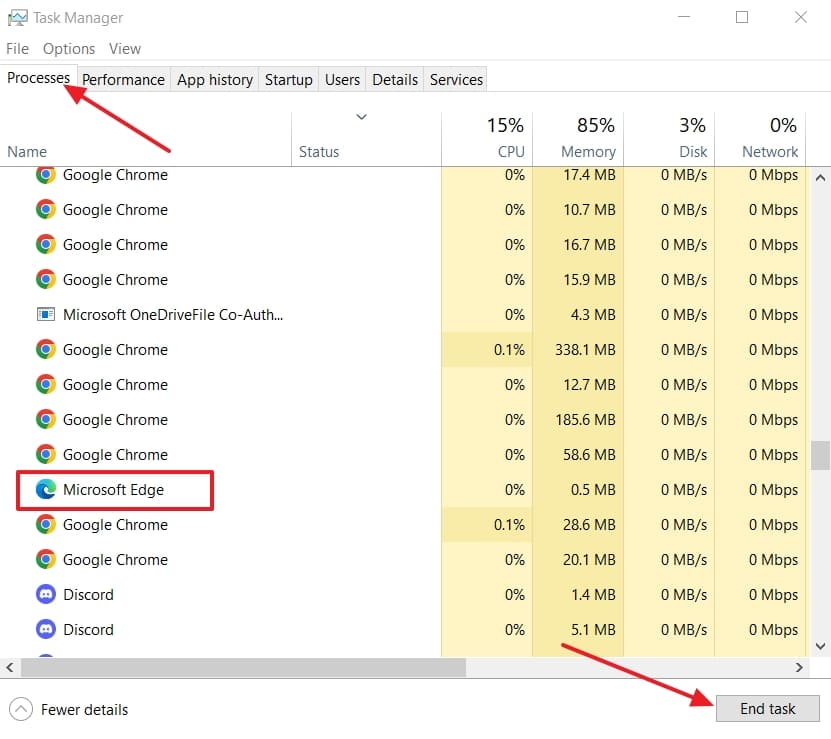
Instructions. First, open the Task Manager of your PC by holding the "Ctrl+Shift+Esc" keys together. Next, hit the "Processes" tab and scroll down to locate Microsoft Edge. Afterwards, hit the "End Task" button in the bottom left corner and restart the PC to fix the problem.
Method 2. Disable Extensions and Clear Cache
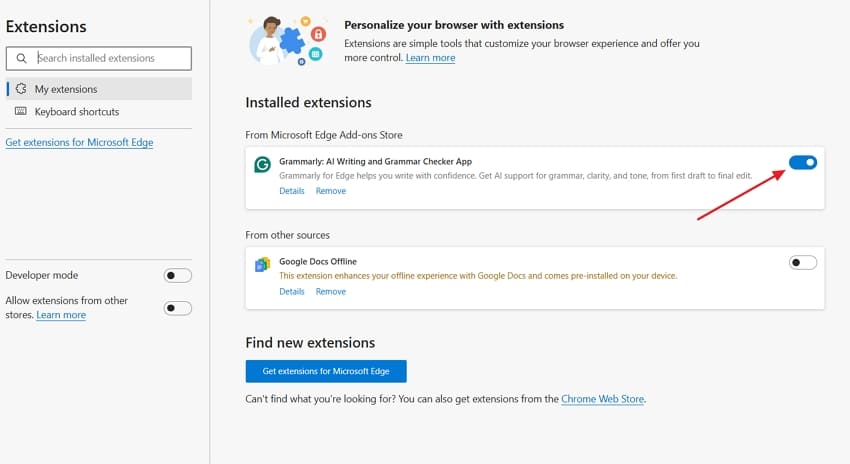
Many users see Microsoft Edge not working because extensions conflict with normal browser processes and overload resources. Problem add-ons can hijack pages and block scripts, so Edge becomes unstable and closes. Clearing built-up cache removes damaged temporary files and reduces random freezes or blank screens. Go through the guide below to disable extensions and clear caches for fixing such issues:
Step 1. Once you open the Edge browser, hit the "Extensions" icon and press the "Manage Extensions" option.
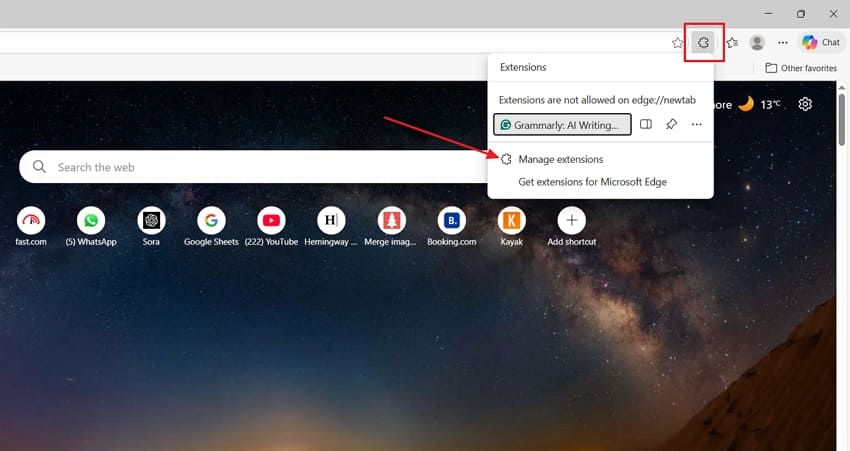
Step 2. Next, move the sliders to disable the enabled extensions.
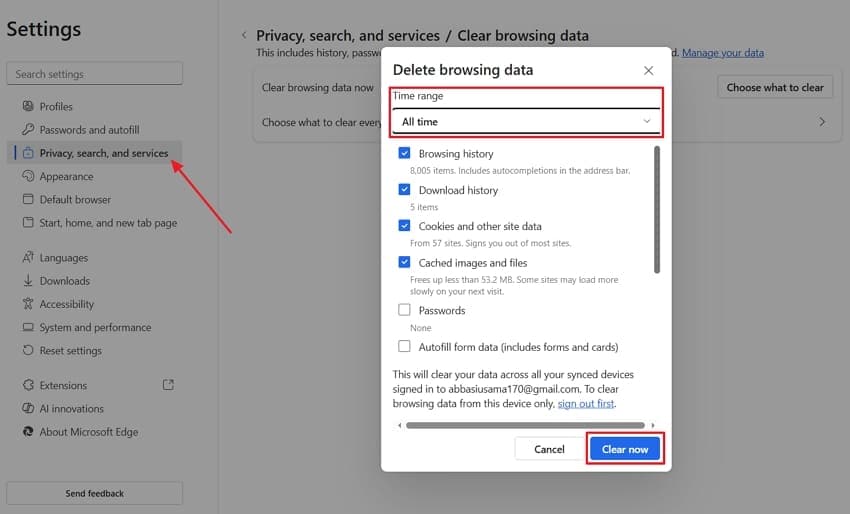
Step 3. Afterwards, access the Edge "Settings" and proceed to the "Privacy, Searches, and Services" section. Hit the "Clear Browsing Data" option, select the "Time Range," and choose the "Clear Now" button to clear all caches. Make sure not to select "Passwords" if you have saved important passwords.
Method 3. Stop Edge from Running in the Background
Edge background control reduces the number of hidden processes that stay active after you close the browser. These extra tasks keep using memory and CPU, so the system feels slower and less responsive. Strict limits on background activity help Edge start fresh and reduce unexpected closes during normal use. Next, follow the steps below to apply this setting where Microsoft Edge does not work properly:
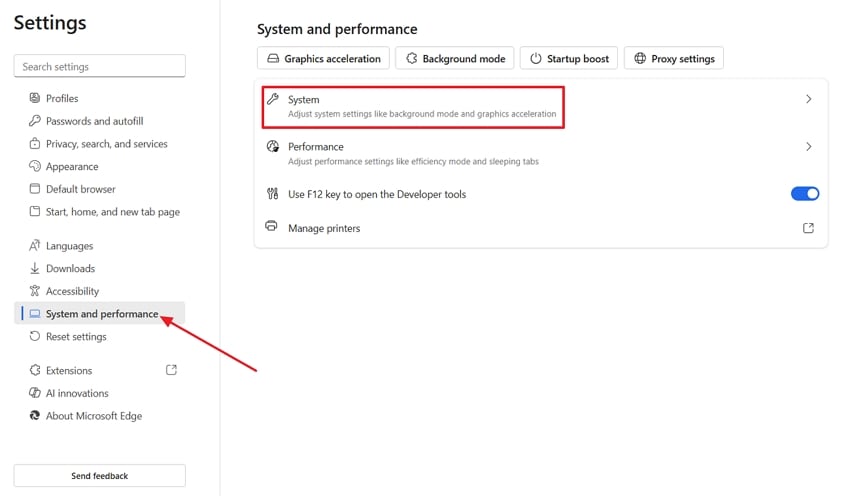
Step 1. First, open Edge’s "Settings" and proceed to the "System and Performance" section in the left panel. Afterwards, hit the "System" option to view background activity controls.
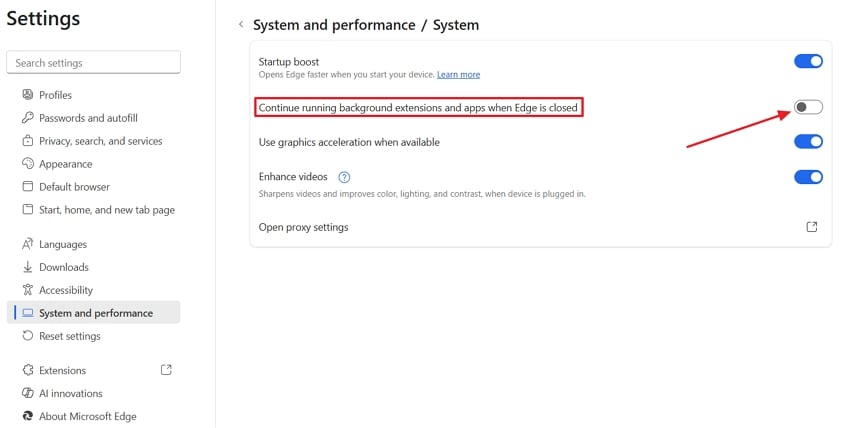
Step 2. Next, you need to disable the "Continue Running Background Extensions and Apps When Edge is Closed" option and restart the program.
Method 4. Reset Edge Settings
Resetting Edge settings clears problematic custom changes that build up over time. Old flags and conflicting options often cause freezing or random quits during normal browsing. A fresh default state removes many hidden conflicts, so Edge can load pages and stay stable longer. Go through the instructions below to fix issues that lead to Microsoft Edge not opening.
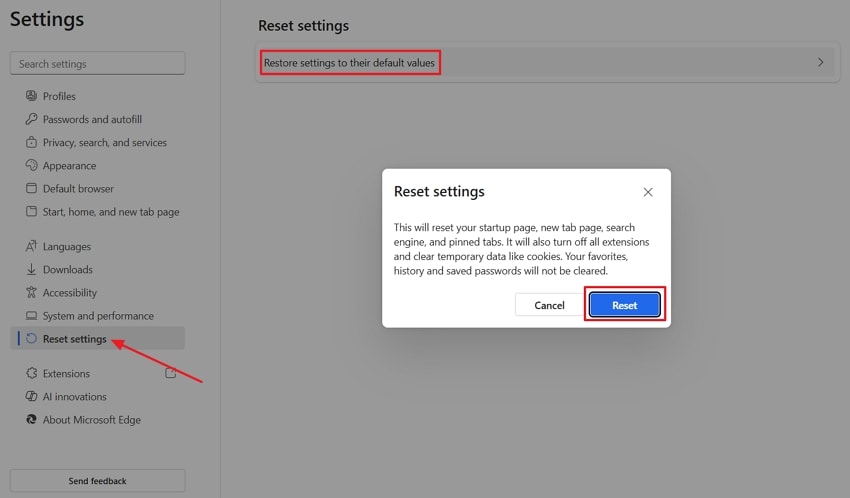
Instructions. Once you enter the browser’s "Settings," hit the "Reset Settings" section in the left panel and press the "Restore Settings to Their Default Values" option to view a confirmation message. Hit the "Reset" button present in the confirmation message and restart Microsoft Edge to fix any recurring issues.
Method 5. Repair Microsoft Edge on Windows
Microsoft Edge quit working for many users after its core files became damaged or unstable, so this method targets those problems directly. The process refreshes the browser’s built‑in code while keeping your personal data safe, so normal operation can resume. Many persistent crashes and loading errors then disappear to make every day browsing feel stable again. Follow the steps below to make Microsoft Edge work again:
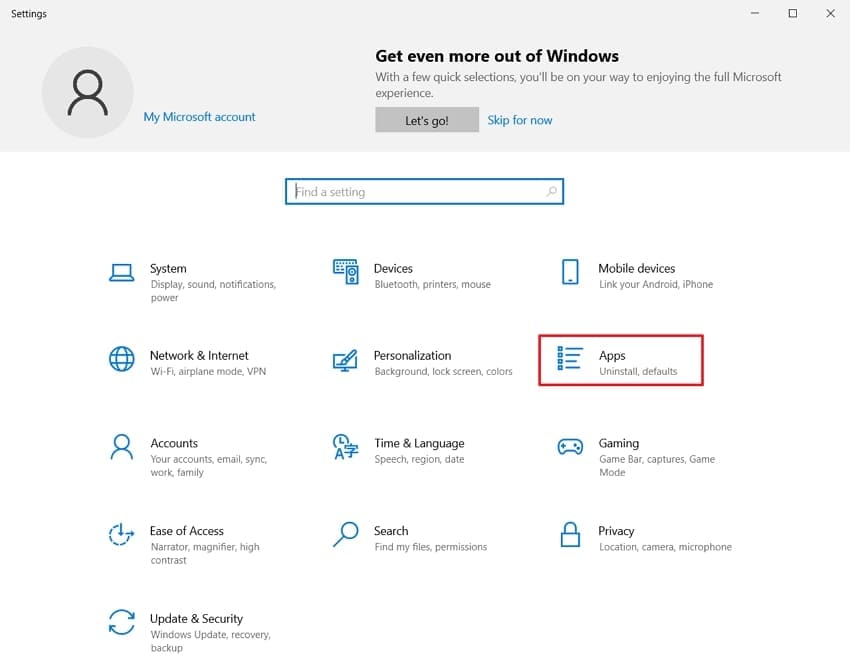
Step 1. Firstly, access Windows "Settings" and select the "Apps" option to proceed further.
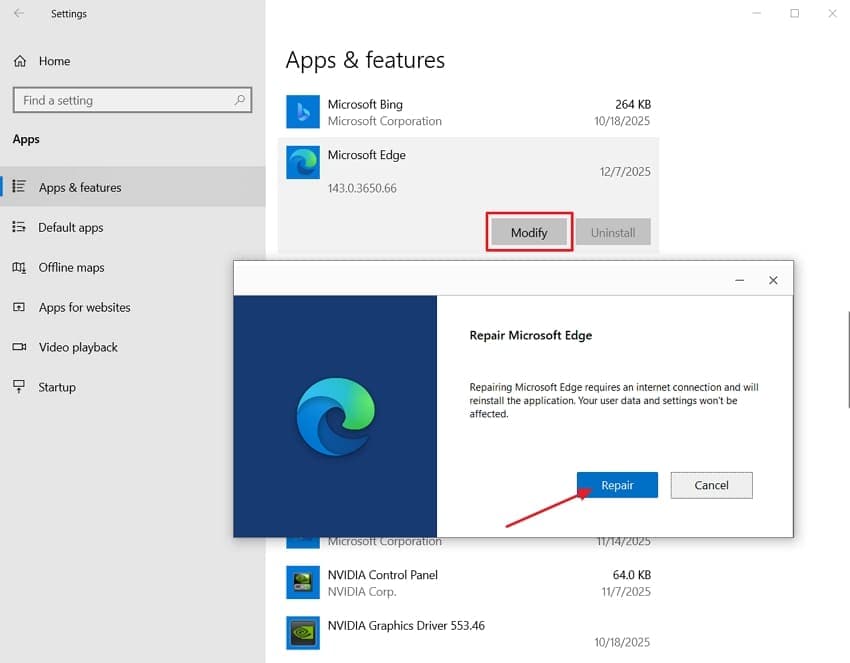
Step 2. Next, scroll down to locate the Microsoft Edge and hit the "Modify" button. You’ll see a new pop-up where you need to hit the "Repair" option to start the repair process. Once done, start the browser and check if it is working.
Method 6. Create a New Edge Profile or Reset User Data (Last Resort)
Microsoft Edge not working errors sometimes come from a damaged profile or corrupted personal browsing data. Creating a fresh profile or resetting stored data clears hidden conflicts that simpler fixes cannot touch. This last‑resort step removes persistent freezes and lets Edge behave more predictably again. Now, go through the steps below to create a new profile for fixing this problem:
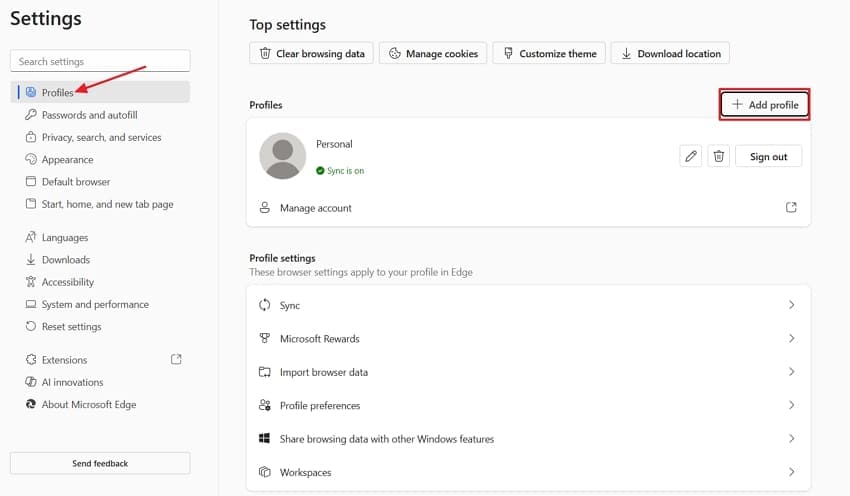
Step 1. Start by opening Microsoft Edge and accessing the "Settings" window. Next, hit the "Profiles" option from the left panel and choose "Add Profile" to create a new profile.
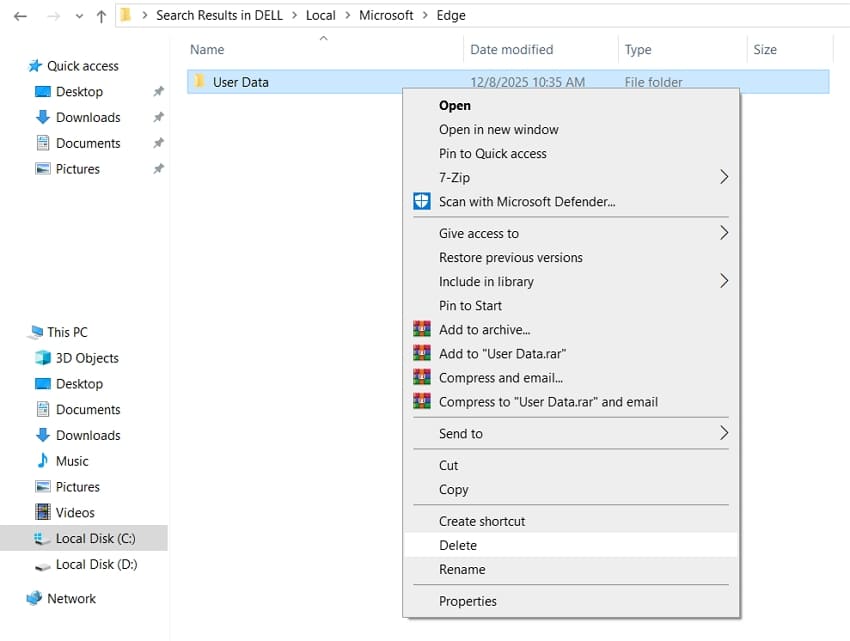
Step 2. If required, delete app data from "C:\Users<Username>\AppData\Local\Microsoft\Edge\User Data" address.
Pro Tip. Restore Damaged Files to Get Microsoft Edge Opening Again
Many users reach a point where basic fixes fail, and Microsoft Edge not responding still appears regularly, suggesting deeper file issues. At this stage, corruption often affects downloaded documents, media, or other files that Edge tries to open, even after resets. In this situation, Repairit offers a dependable way to repair those damaged user files so they open correctly again in the browser.
Additionally, Repairit checks corrupted videos, photos, documents, and similar items to rebuild their internal structure. Instead of simply failing to open a bad file, it reconstructs key elements, so content becomes readable or playable once more. The tool focuses on the data inside your files rather than Edge’s own program code, helping restore normal viewing of important documents and media.
Key Features

-
Batch File Repair: Repairs multiple files at once to manage large inventories and save valuable time.
-
Repairs Engineering Documents: This repair program even handles complex project files with layers and metadata for quick recovery, showing the tool's diversity.
-
Document File Repair: Repairs a wide range of document formats like Word, Excel, PDF, PowerPoint, and iWork files.
Guide to Repair Microsoft Edge Damaged Files With Repairit
To begin restoring stability and fix Microsoft Edge not opening, follow the guided steps below to repair damaged browser files:
Step 1. Access the Document Repair Module
After you open the tool, hit the "More Types Repair" tab and press the "Start" button in the "Document Repair" section.

Step 2. Begin the Robust File Repair Process
Once you have led further, press the "+Add" button to import all the corrupted Edge files to the platform. Next, click on the "Repair" button at the bottom to start the process.

Step 3. Preview and Save Repaired Fixed Files
After all damaged files are repaired, "Preview" the results and click the "Save" button to export the repaired Edge files.

Repair Corrupted Files Due to Microsoft Edge not opening
 Security Verified. Over 7,302,189 people have downloaded it.
Conclusion
In conclusion, Microsoft Edge not working errors can usually be resolved with a mix of simple and advanced fixes applied in the right order. This guide walks through practical methods for clearing bad data, repairing damaged components, and stabilizing everyday browsing without risking your bookmarks or settings. If crashes continue due to file corruption, use Repairit to restore those files and help prevent more workflow interruptions.
Frequently Asked Questions
-
Q1. Why does Edge fail only on some sites?
Edge may fail on specific sites when your settings block scripts, cookies, or media codecs. Site errors, expired certificates, or regional limits can also break only a few websites. -
Q2. What to do when downloads open as corrupted?
First, check your internet connection and pause strict antivirus or firewall scanning on downloads. If files are still open as corrupted after new downloads, use Repairit to rebuild them so the content is accessible. -
Q3. What to check after Edge breaks post-update?
Start by reviewing recent Windows and driver updates installed just before Edge stopped working. Then use Edge repair or reset, and run system checks to fix any update-related file damage. -
Q4. Why does Edge misbehave on one account only?
If the issue appears on one Windows account, the profile or user data there is likely corrupted. Testing Edge with a new account confirms this and often resolves cases where Microsoft Edge is not responding.




