
“Hello everyone, I have 3 drives in my PC right now. Windows is installed on an SSD, and I also have 2 separate storage devices. I am trying to format the WD drive but I keep getting the error; Windows was unable to complete the format.” r/techsupport
Encountering the “Windows Was Unable to Complete the Format” error indicates an underlying issue with your drive. It leads to the inability to execute essential day-to-day activities on a PC. From the loss of the available space on your device to the inability to transfer files, this error hinders lots of tasks.
Luckily, there are various ways to make this issue go away. You can either use the built-in Windows repair tools or third-party platforms to make this issue go away. This article is a detailed guide to fixing this error promptly.
Table of Contents
-
- Fix 1. Check for Write Protection and Unlock the Drive
- Fix 2. Try Formatting from Disk Management
- Fix 3. Use CHKDSK to Scan and Repair Bad Sectors
- Fix 4. Force Format the Drive with Diskpart (Command Prompt)
- Fix 5. Check and Repair Errors for the Storage Drivers
- Fix 6. Update or Reinstall USB/SD Card Drivers
- Fix 7. Test the Drive on Another PC to Rule Out Physical Damage
Part 1. Why Windows Was Unable to Complete the Format
Before we start fixing the error, it is important to understand the causes of the issue. The following section explains the major factors that lead to the “unable to format pen drive” error:
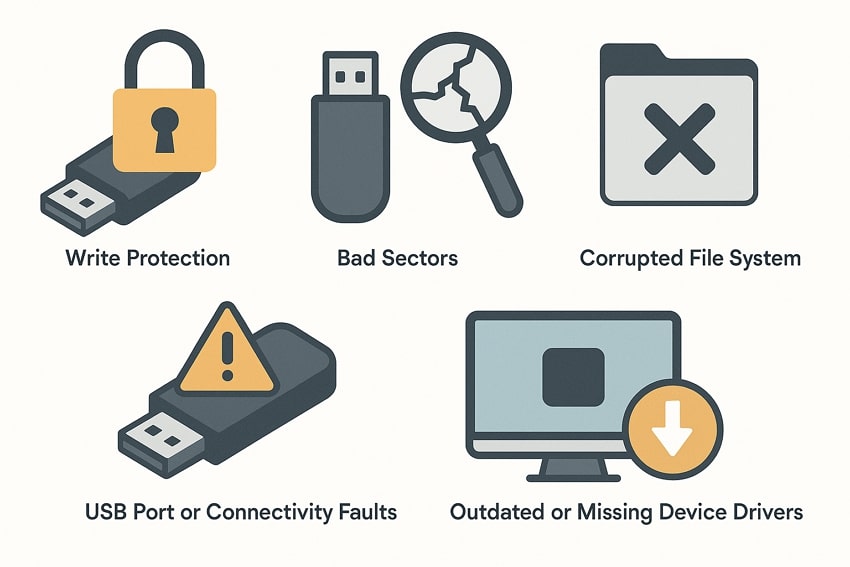
- Write Protection Enabled: Write protection prevents Windows from modifying the drive, causing immediate format failures during attempts. Disabling this protection is necessary before Windows can apply any formatting changes successfully.
- Bad Sectors on the Drive: Bad sectors disrupt data writing operations, making Windows unable to complete the formatting sequence smoothly. These sectors usually indicate physical damage or corruption that requires specialized repair tools.
- Corrupted File System: A corrupted file system stops Windows from recognizing the drive structure, resulting in repeated format errors. Repairing the file system helps Windows rebuild proper storage architecture before applying new formatting.
- USB Port or Connectivity Faults: Faulty ports or loose connections interrupt communication, forcing Windows to abandon formatting commands mid-process. Changing the port or cable restores stable communication and enables successful formatting action.
- Outdated or Missing Device Drivers: System drivers control communication between Windows and storage devices, and outdated ones cause unexpected formatting errors. Updating or reinstalling drivers re-establishes compatibility and improves successful formatting chances.
Part 2. 7 Easy Fixes for Windows Unable to Complete Format
Once you have learned enough about the factors causing this error, you can easily fix the issues. The following section suggests the 7 best tried and tested fixes to make the error go away:
Fix 1. Check for Write Protection and Unlock the Drive
Write protection prevents Windows from writing to the drive, causing formatting failures. Unlocking this restriction is essential because the system cannot modify data structures while protection is enabled. Removing physical or software write protection ensures Windows can properly execute all formatting commands without interruption. Follow the guide below and learn how to check for write protection and unlock your drive for fixing the “Windows Was Unable to Complete the Format” error:
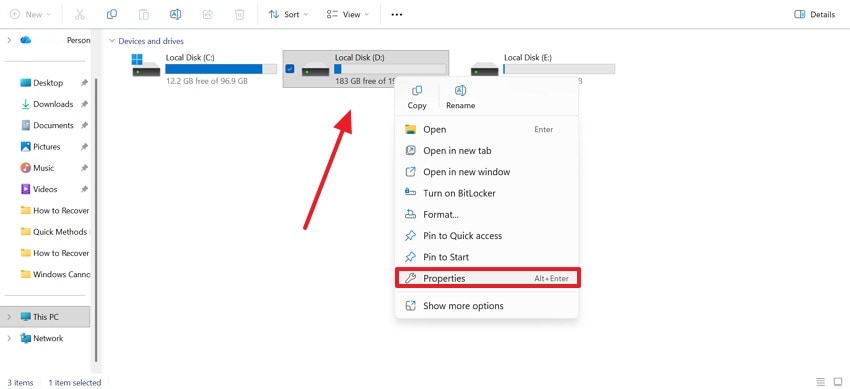
Step 1. To start the process, locate the faulty drive and right-click on it to open a pop-up menu. In this menu, select the “Properties” option and proceed to the following window.
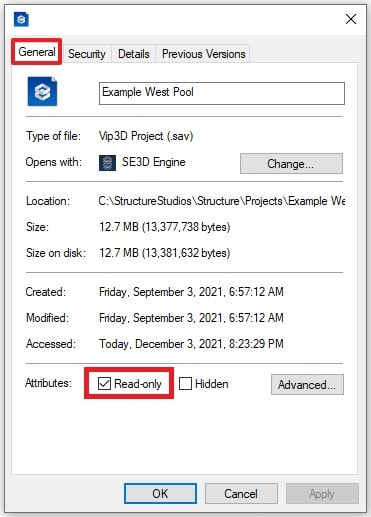
Step 2. In this window, enter the “General” tab and uncheck the “Read-Only” box to click “OK.”
Fix 2. Try Formatting from Disk Management
Disk Management offers a more stable environment than File Explorer because it works directly with system-level storage controls. It helps bypass common graphical errors or incomplete formatting attempts. It also lets you change file systems and partitions, giving Windows a cleaner path to complete the format. If you want to learn how to try formatting from Disk Management to fix the “Windows Unable to Complete Format USB” error, follow the guide below:
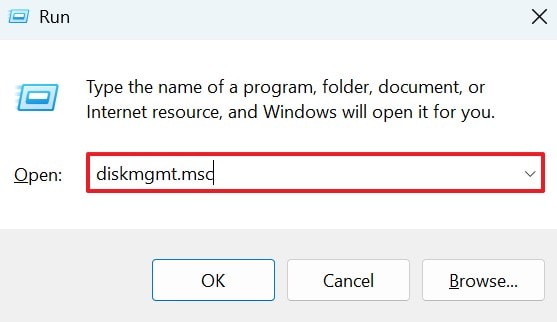
Step 1. To start, open the Run window using the “Win + R” keys and type in the "diskmgmt.msc” command.
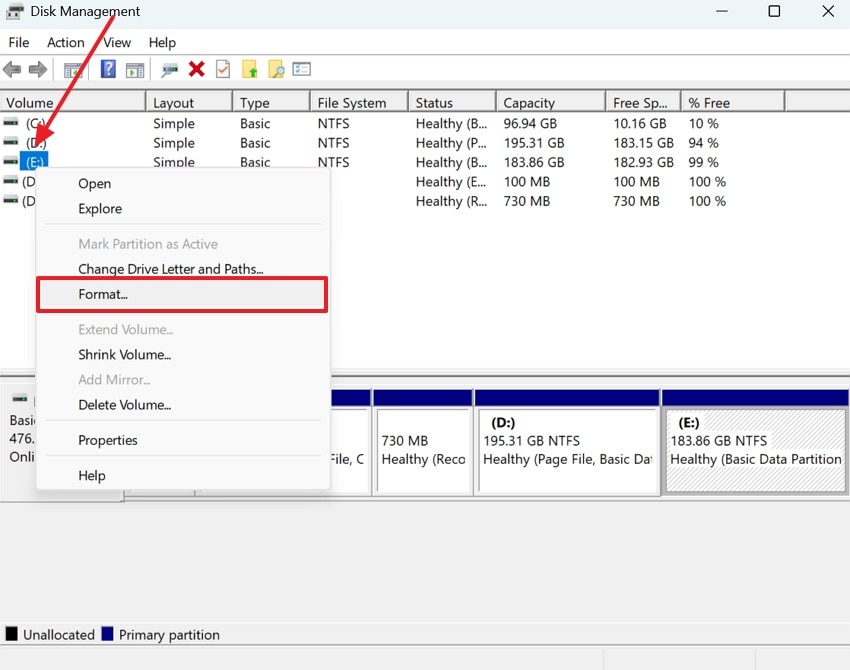
Step 2. When the “Disk Management” window opens, right-click on the faulty drive and select the “Format” option.
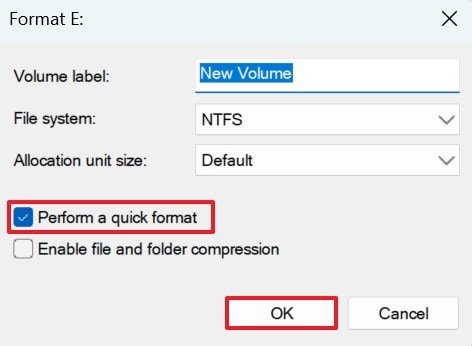
Step 3. In the following window, check the “Perform a Quick Format” if you want a quick process. If you want an in-depth format, uncheck this box. After making your selection, select “OK” to start formatting.
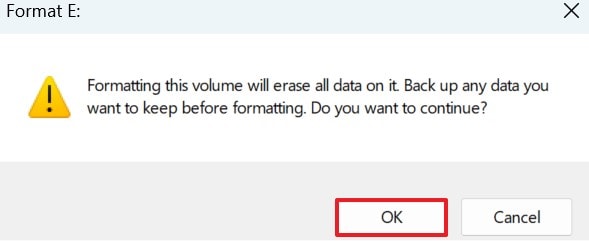
Step 4. When a warning dialogue box appears, click “OK” to approve data erasure from the selected drive.
Fix 3. Use CHKDSK to Scan and Repair Bad Sectors
Bad sectors often block formatting because Windows cannot write new data structures on damaged areas. CHKDSK repairs logical errors and isolates unusable sectors, restoring a stable surface for formatting. Running this scan ensures the drive’s internal map is corrected, preventing interruptions during the format. Follow the guide below to scan and repair bad sectors to fix the “unable to format pen drive” error:
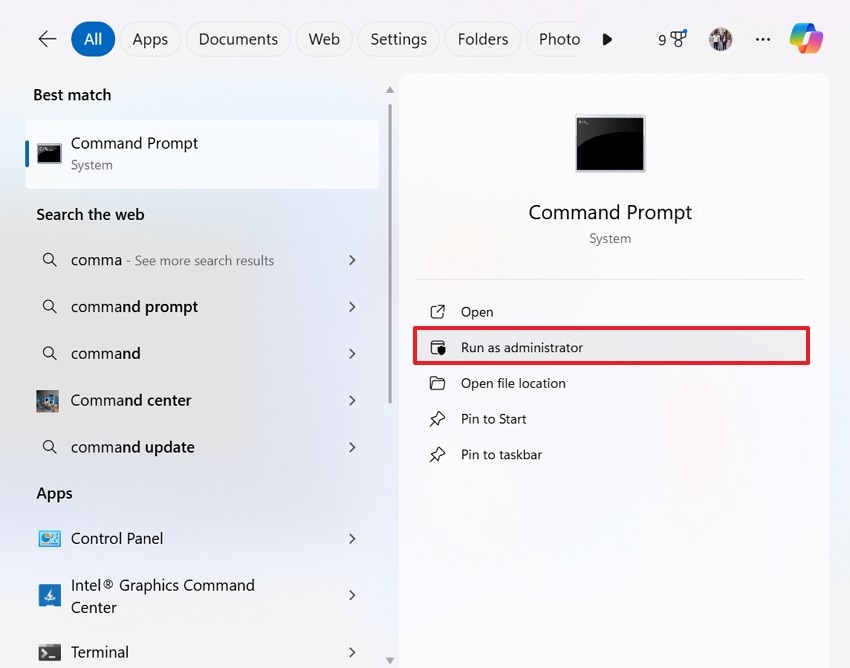
Step 1. In the search bar, look for Command Prompt and select the “Run As Administrator” option to open the CMD window.
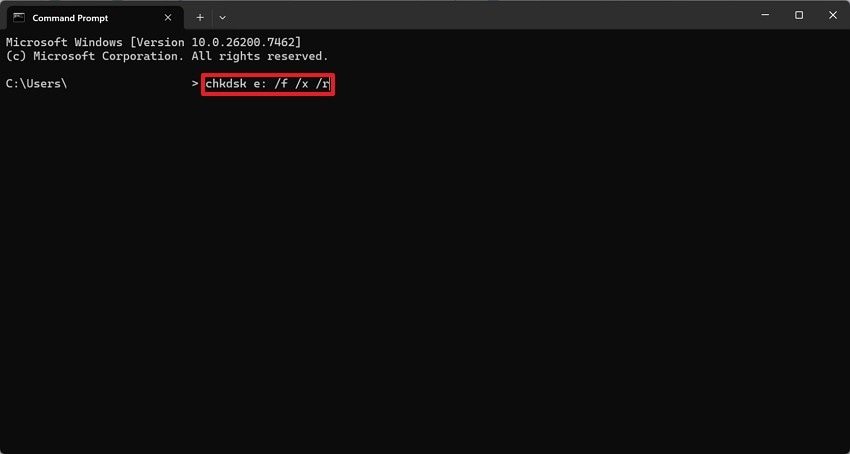
Step 2. Enter the “chkdsk [DriveLetter]: /f /x /r” command and hit the “Enter” key to proceed. Now, wait until the system scans and repairs the system files within the drive.
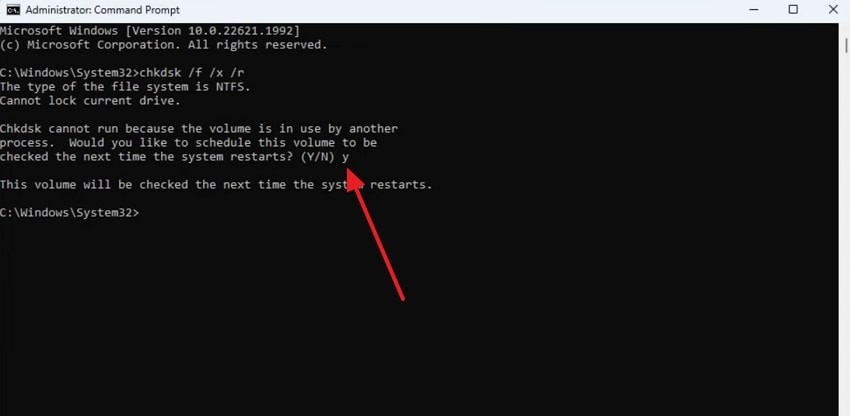
Step 3. If your drive is in use, the system will schedule the process on the next reboot. When asked, press “y” and the “Enter” key. Now, restart your device and let the scan and repair process fix the bad sectors.
Fix 4. Force Format the Drive with Diskpart (Command Prompt)
Diskpart bypasses most interface limitations and performs low-level drive cleaning operations. It can remove hidden partitions, corrupted allocation tables, and stubborn formatting barriers that File Explorer can’t handle. Using Diskpart ensures a completely fresh start, giving Windows a direct method to rebuild the drive structure from scratch. The steps below explain how you can force format the drive using Diskpart on the command line:
Step 1. Open the CMD window as an administrator and give the “diskpart” command to start.
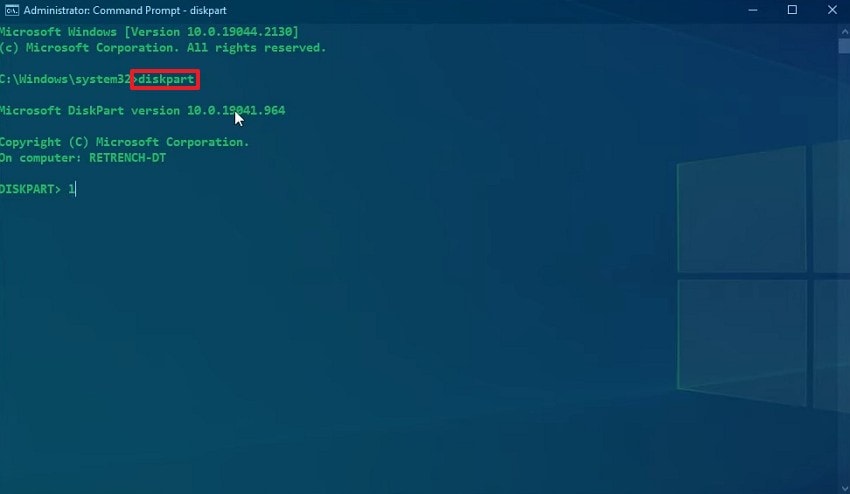
Step 2. Following that, give the “list disk” command and wait for the disk names on your device to appear. Once done, locate the faulty drive and enter the “select disk X” code to convey your selection to the system.
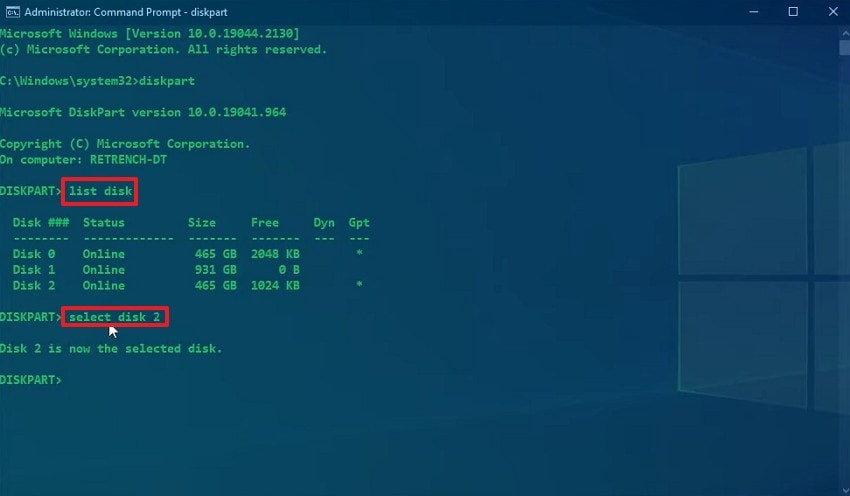
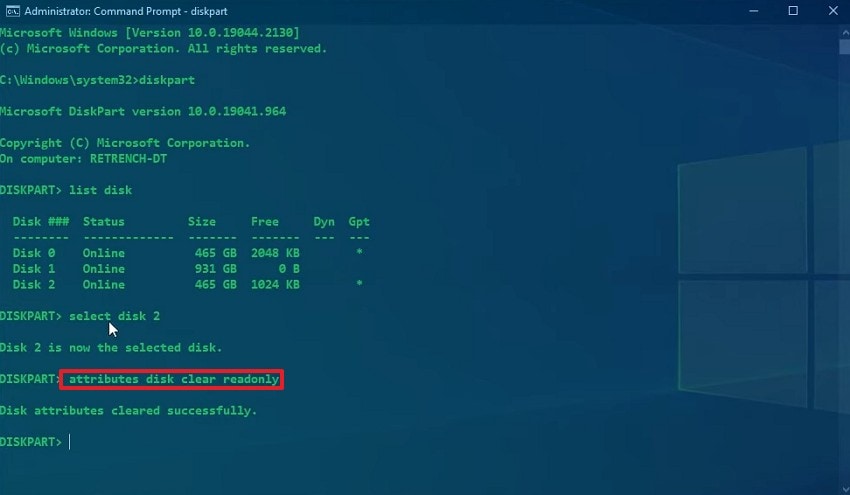
Step 3. When CMD displays your selected disk, enter the “attributes disk clear readonly” command to format the disk.
Fix 5. Check and Repair Errors for the Drive
General drive errors can cause incomplete formatting attempts. Using built-in repair tools helps Windows restore normal access and rebuild damaged internal structures. Fixing these issues ensures the drive responds properly to system commands, reducing failures and supporting a smooth formatting. The guide below explores how to check and repair errors for the drive to fix the “Windows unable to complete format USB” error:
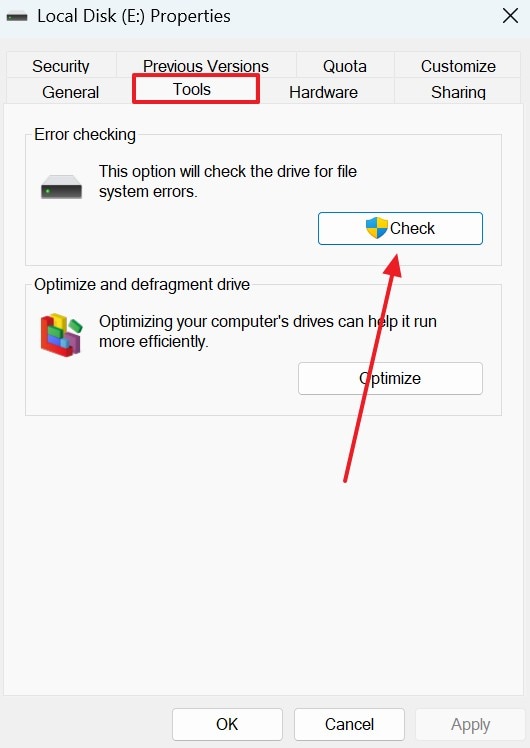
Step 1. First, find the problematic drive and enter the “Properties” window using the right-click menu. In this window, enter the “Tools” tab and click “Check” to scan errors in the drive.
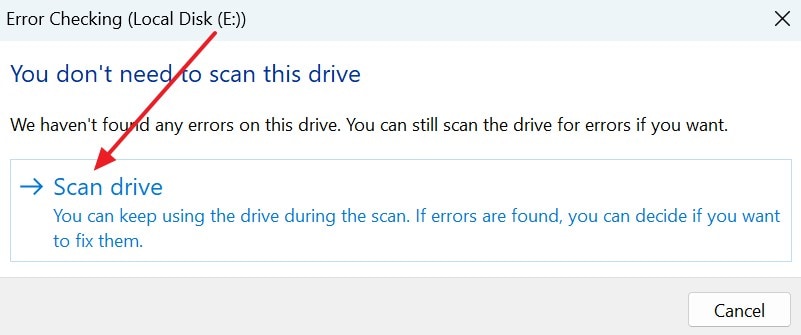
Step 2. Using the following window, click the “Scan Drive” option to let the system find issues and fix them in continuance.
Fix 6. Update or Reinstall USB/SD Storage Drivers
Outdated or faulty drivers disrupt communication between Windows and the storage device. Updating or reinstalling drivers restores compatibility and eliminates software-level communication errors. This fix ensures Windows can correctly read, write to, and manage the device, which is crucial for a successful format. Follow the guide below to learn how to update and reinstall storage drivers:
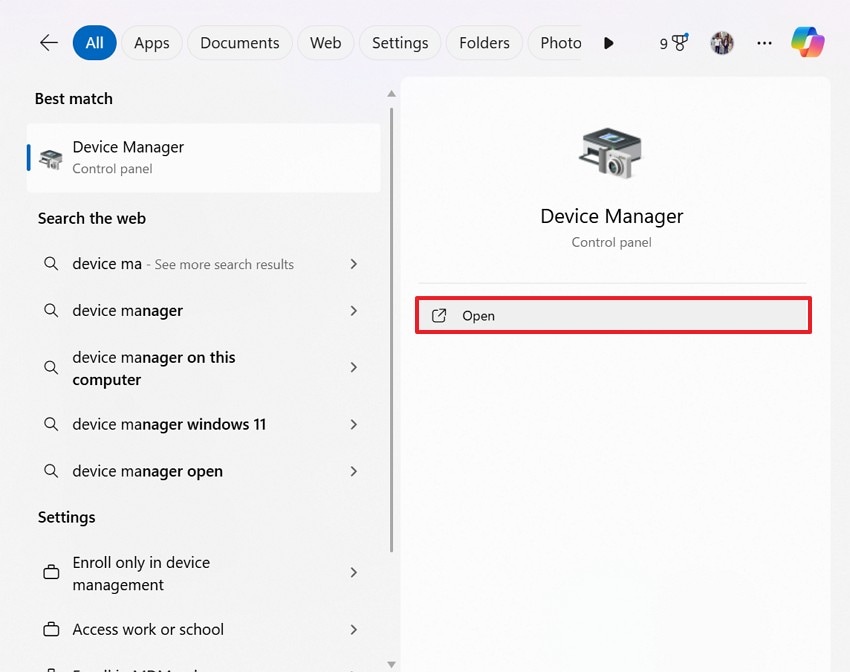
Step 1. In the search bar at the bottom, search for and open “Device Manager.”
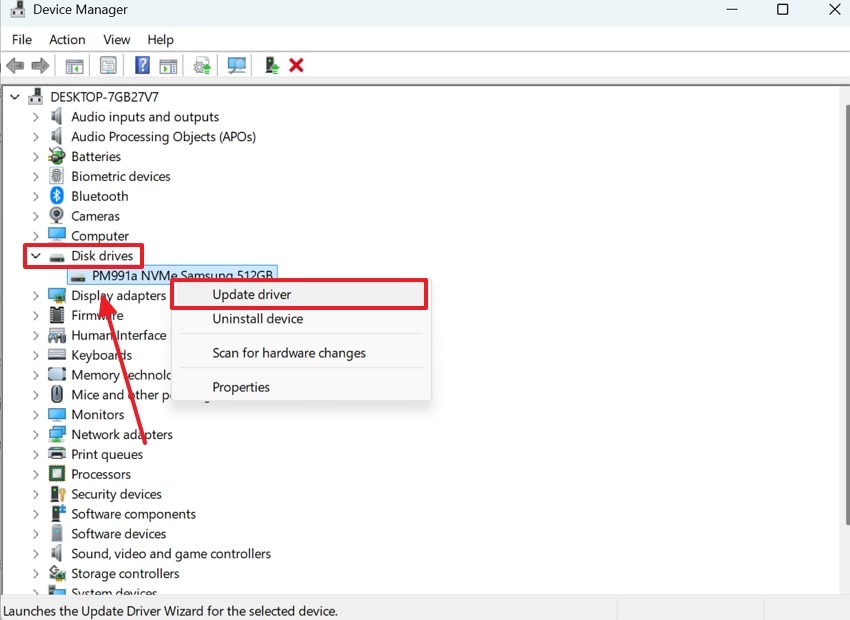
Step 2. When the “Device Manager” window opens, find and expand the “Disk Drivers” menu and right-click on your driver. Using the following pop-up menu, select the “Update Driver” option.
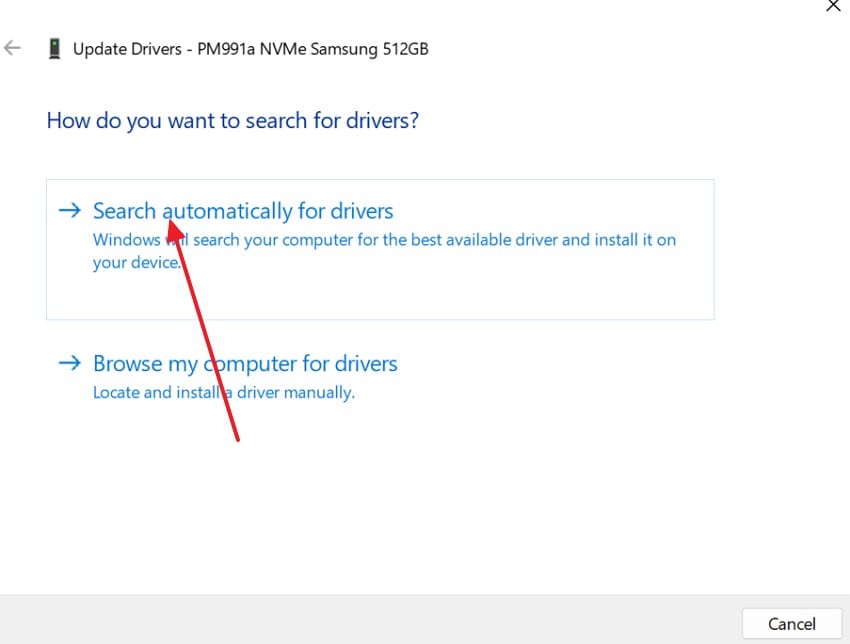
Step 3. In the following window, click the “Search Automatically for Drivers” option and wait for the system to update the driver.
Fix 7. Test the Drive on Another PC to Rule Out Physical Damage
Trying the drive on another computer helps determine whether the issue is with the PC or the device itself. If the drive also fails elsewhere, it likely has internal physical damage. Confirming this is important because physically failing devices cannot be fixed with software methods and may require replacement. Thus, this is an effective fix to the “unable to format pen drive” issue.
Pro Tip. Repair Damaged USB and Pen Drive Files Without Losing Data
By now, you have learned repairing the drive formatting error using the built-in tools of Windows. If the damage is extensive, it could be due to corrupted USB and pen drive files. To fix the error and make the files usable again, use Repairit. This platform is safe to use and does not deteriorate the file quality after the fix.
From unreadable files to files not opening, a variety of issues can be dealt with using Repairit. This tool supports more than 30 file types, be it multimedia or document files. You can also fix engineering and archive documents on Repairit. After you have fixed the files, they can be easily accessed in the designated cloud storage for easy navigation.
Key Features

-
Repairs Archive Files: This tool offers a direct ability to restore corrupted ZIP, RAR, and ISO files by keeping the folder and details intact.
-
Batch File Repair: Repairit prevents excessive time consumption by allowing you to repair multiple files in a single go.
-
Advanced Repair Mode: Users can enable the Advanced Repair Mode to repair files with extensive damage.
A Guide to Using Repairit to Fix Corrupted Pen Drive and USB Files
This platform is an easy-to-use tool that offers a straightforward method of file repair. Follow the steps below and learn how to use Repairit for effective file repair after resolving the “Windows was unable to complete the format” issue:
Step 1. Import the Corrupted USB File in the Document Repair Interface
To start the process, enter the “More Types Repair” tab from the left panel and select the “Document Repair” option from the right.

Step 2. Import and Repair Damaged Files
Once you have imported batch-damaged files, wait for them to appear and press the “Repair” button to start fixing them.

Step 3. Save or Preview the Files to End the Process
Once the files are repaired, a dialogue box will appear next. Here, click “Save” to download the fixed file, or “Preview” to view it before saving.

Fix Corrupted Pen Drive and USB Files
 Security Verified. Over 7,302,189 people have downloaded it.
Conclusion
Many of your daily tasks on a PC cannot occur if you encounter a “Windows was Unable to Complete the Format” error. This article suggested the top fixes for this error, including comprehensive guides to resolve all errors involving formatting the drive. However, if there are issues involving corrupted drive files, Repairit features as a reliable repair tool offering support for multimedia files and documents.
Frequently Asked Questions
-
1. Why does Windows show the ‘Unable to Complete the Format’ error?
This error appears when the drive has file system issues or corrupted sectors, preventing proper formatting. Windows stops the process to avoid further data damage or system instability. -
2. Can write protection cause the format to fail?
Write protection blocks all modifications, making it impossible for Windows to perform formatting actions. Removing the lock or disabling protection usually restores normal formatting ability. -
3. Is it possible to repair multiple USB and pen drive files from a device?
To fix multiple damaged USB and pen drive files from your device, you can use Repairit. Using its batch repair tool, users can save time and enhance productivity. -
4. Which file repair tool is the most reliable for USB and pen drive file issues?
Repairit is a robust file repair tool that offers reliable results by preserving the original file quality. This platform offers a file preview feature to help you analyze the results before downloading them.




