
"When I got this error, games like GTA V, DS3, Sekiro, Tekken 7, and Doom 2016 are unplayable. First, I tried to reinstall the games, reinstall .net framework, full factory reset of my laptop, and run chkdsk, but the error still occur. Windows update doesn't help either. 2 weeks ago, I tried reinstalling Microsoft Visual C++ Redistributable x86 and x64, 2005-2019, and the DirectX End-User Runtime, from the microsoft website. This time, I've got to run Tekken 7 and Doom 2016, but the other 3 games still get the error"…- spwnsaurus
It feels frustrating when an app refuses to launch and shows a strange code. This type of startup issue often appears without warning and makes normal tasks slow or stressful. Most people are unsure why it happens or what to try next, which adds even more worry during busy work moments.
In most instances, the message is displayed due to missing parts of the program or an interweaving with other files. This issue is noted in the code 0xc00007b and indicates an obvious solution. By the end of this article, you’ll be able to successfully revive the app and resume work.
Table of Contents
-
- Fix 1. Restart PC for a Quick Fix
- Fix 2. Download and Replace the DLL File in the Exact Folder
- Fix 3. Fix Compatibility Issues Between System and Application
- Fix 4. Run CHKDSK Scan to Locate Bad Drive Sector
- Fix 5. Install DirectX Mode
- Fix 6. Install and Freshly Download the Latest Microsoft Visual C++
- Fix 7. Enable the .NET Framework
Part 1. The Application Was Unable to Start Correctly 0xc00007b: Common Causes
This error is experienced when Windows fails to load the required components of an application on startup. It usually occurs because program files, system files, or critical libraries do not interact properly. In case of this mismatch, Windows blocks the startup and displays the Windows message associated with 0xc00007b, indicating a failure to load. Let’s explore the main causes behind "the application was unable to start correctly 0xc00007b" issue:
- Format Mismatch: Windows rejects mixed program types because the files use different internal structures. This mismatch stops the app since Windows cannot load the required format.
- Broken Files: App files may break when updates stop early, or downloads fail somewhere. These missing parts prevent the program from loading its needed resources correctly.
- Missing Libraries: Some apps rely on shared files that support many basic software functions. When these files disappear, Windows cannot start the app without those helpers.
- System Damage: Core Windows parts sometimes break due to incorrect settings or unwanted changes. This damage affects how apps load because the required rules fail to apply.
- Disk Errors: Drives with damaged areas may block Windows from reading essential program data. These unreadable spots prevent smooth loading and trigger repeated startup failures.
- Wrong Dependencies: Large apps need correct support tools that match their internal design fully. When these tools mismatch versions, Windows cannot prepare the app’s startup path.
Part 2. Resolve ‘The Application Was Unable to Start Correctly 0xc00007b’ Fast
Review the following fixes to resolve "the application was unable to start correctly 0xc00007b" issue:
Fix 1. Restart PC For a Quick Fix
Restarting your PC offers a simple way to clear short-term glitches that block apps from loading. Moreover, a restart refreshes system memory, reloads core services, and removes temporary conflicts that often trigger the 0xc00007b error. Stick to the instructions below to restart your PC for a quick fix:
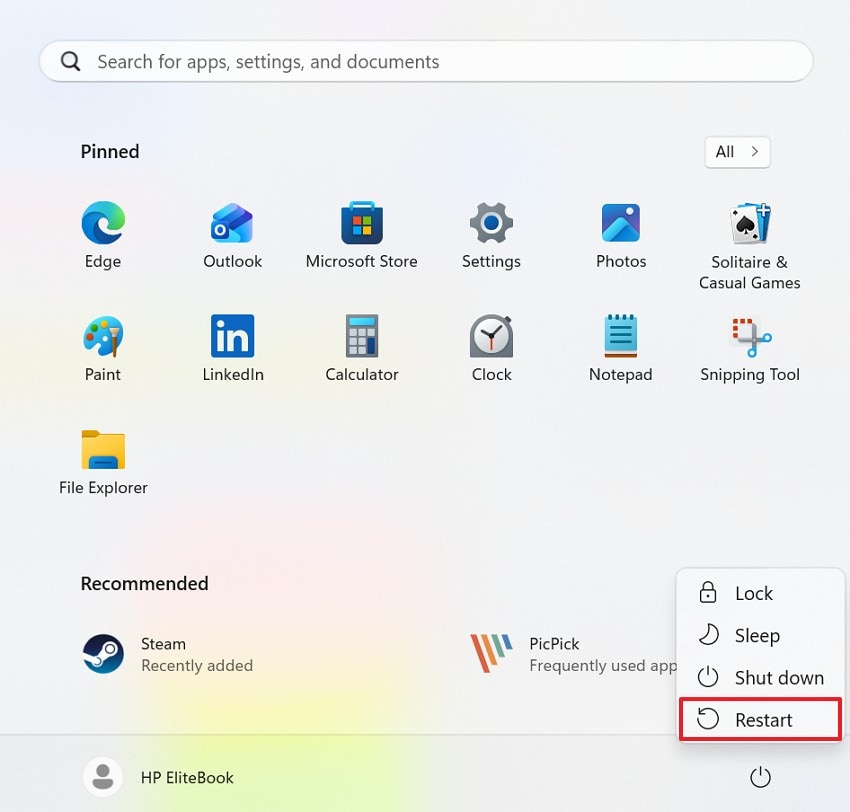
Instructions. First, click the "Start Menu" icon on the taskbar to open the main menu. After that, select the "Power" button at the bottom-right corner, and choose "Restart."
Fix 2. Download and Replace the DLL File in the Exact Folder
A broken or missing DLL can trigger the 0xc00007b error during startup. Replacing the correct DLL restores important functions the program needs for smooth loading. Moreover, this quick fix repairs one faulty file without reinstalling everything again. It is effective when corruption affects only a single library. Now, follow the steps below to replace the DLL file safely to resolve the application error:
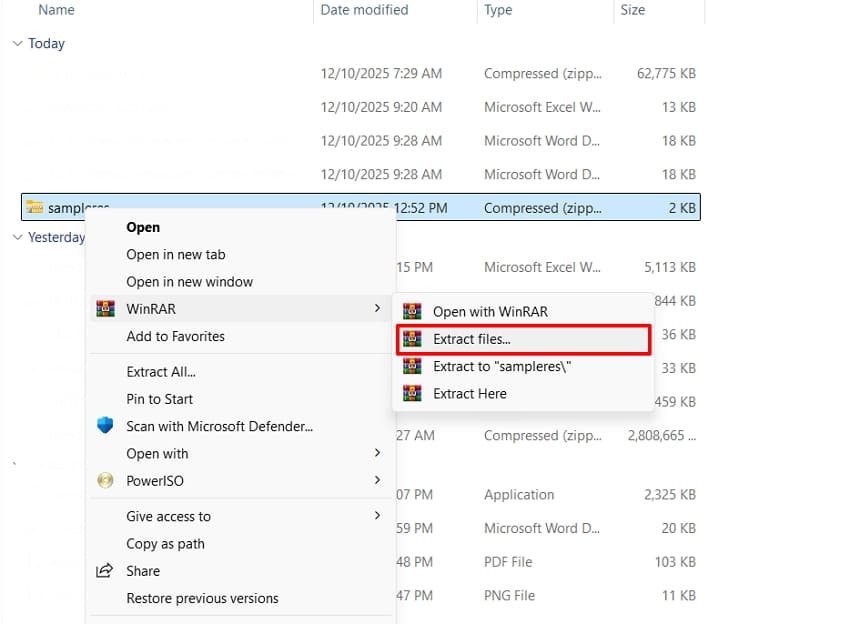
Step 1. First, right-click the downloaded "ZIP" file and select "Extract files…" from the menu.
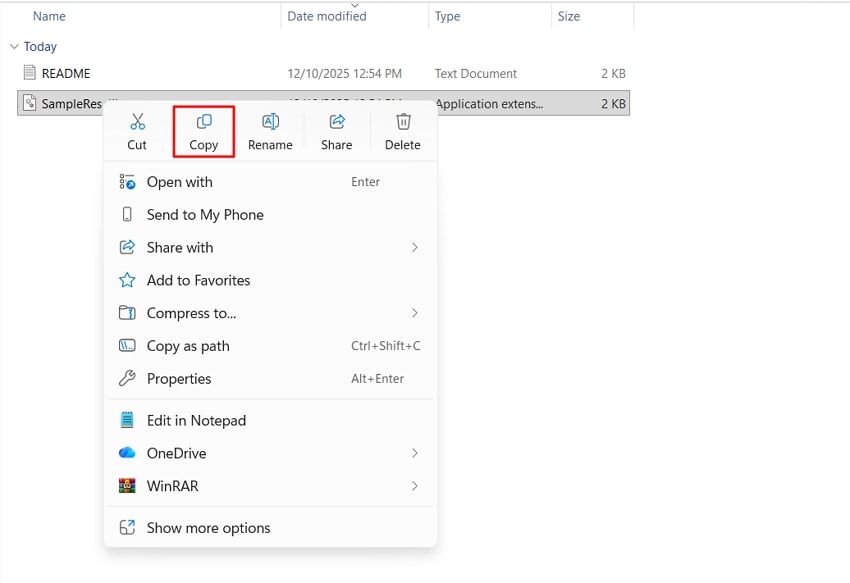
Step 2. Next, open the extracted folder, right-click the DLL file inside (or the folder containing it), and click "Copy."
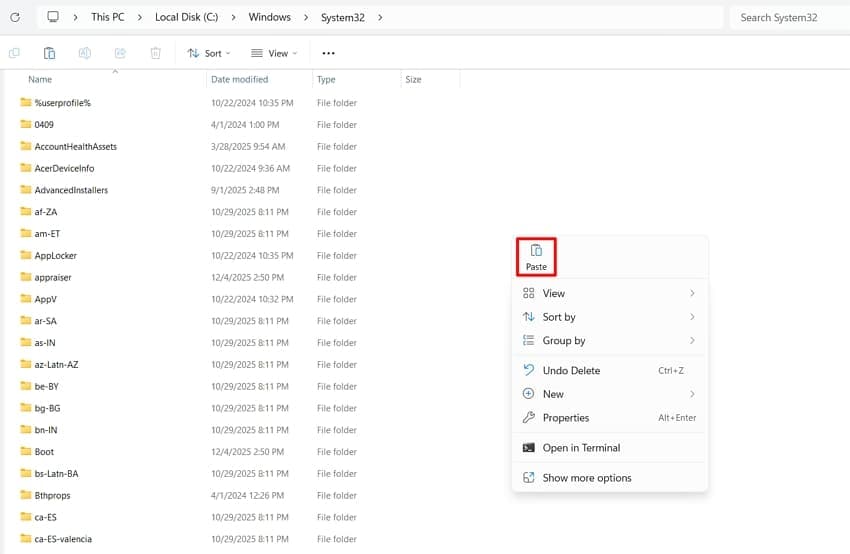
Step 3. After that, navigate to the correct system directory, usually "C:\Windows\System32," depending on your app. Later, right-click inside the folder and choose "Paste" to replace the old DLL.
Fix 3. Fix Compatibility Issues Between System and Application
Older software may get corrupted and show "the application was unable to start correctly, 0xc00007b" error. Compatibility mode makes Windows act like an older version, so programs run normally. Additionally, this helps outdated apps access older system behaviours they expect. Adhere to the following steps to adjust your compatibility settings:
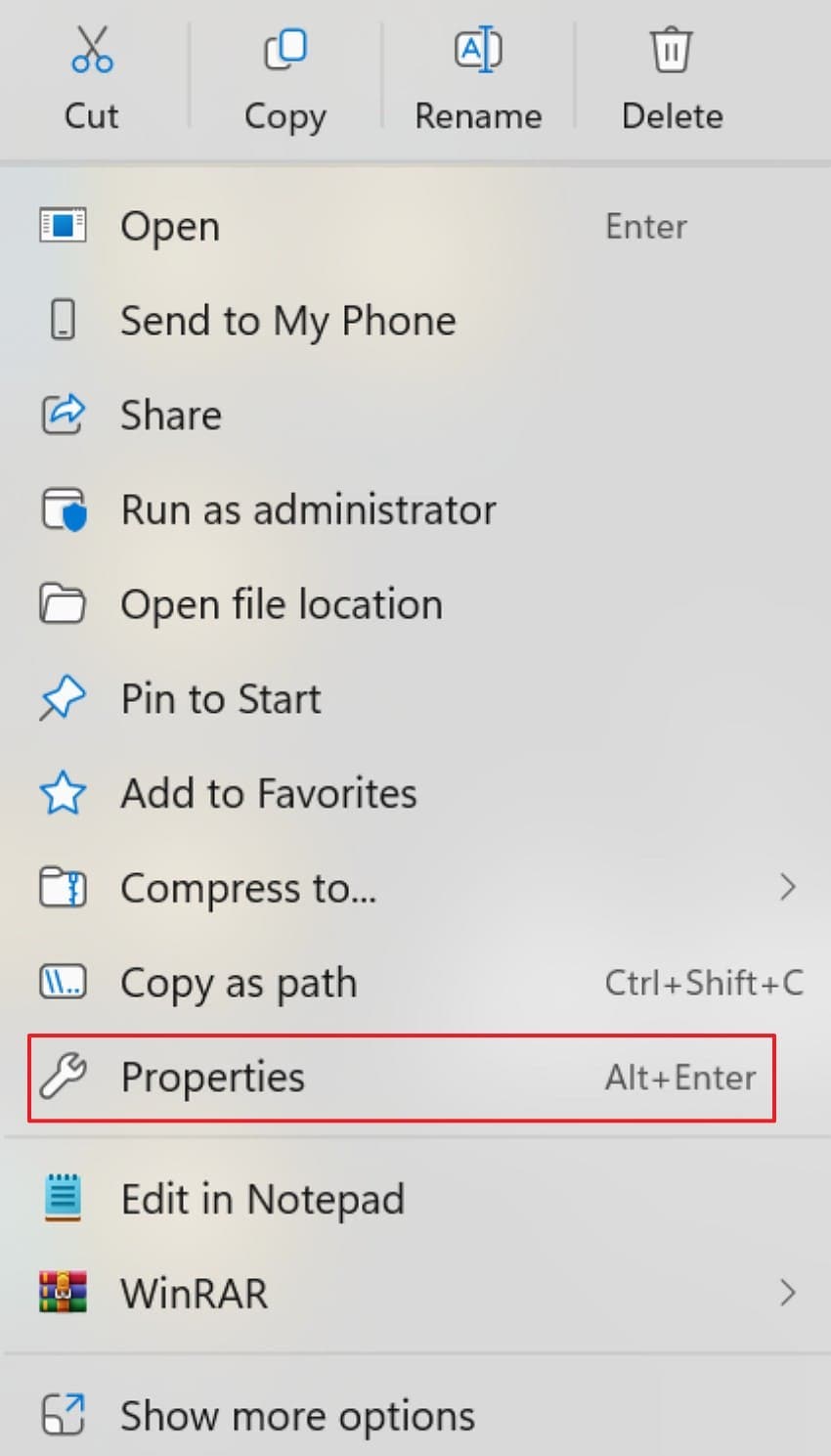
Step 1. To start, right-click the application file and choose "Properties" from the list.
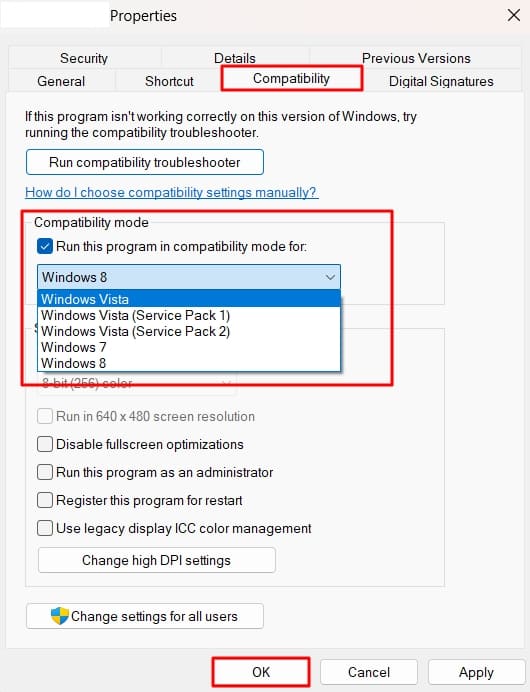
Step 2. Later, go to the "Compatibility" tab, enable the "Run this program in compatibility mode for:" option, choose your preferred Windows OS, and click "OK" at the bottom.
Fix 4. Run CHKDSK Scan to Locate Bad Drive Sector
Damaged drive sectors can corrupt required files and cause 0xc00007b repeatedly. CHKDSK scans your disk, repairs file issues, and marks unstable areas safely. Furthermore, it prevents future crashes by blocking Windows from using bad regions. Continue by using the steps below to run a full CHKDSK scan for locating bad drive sectors:
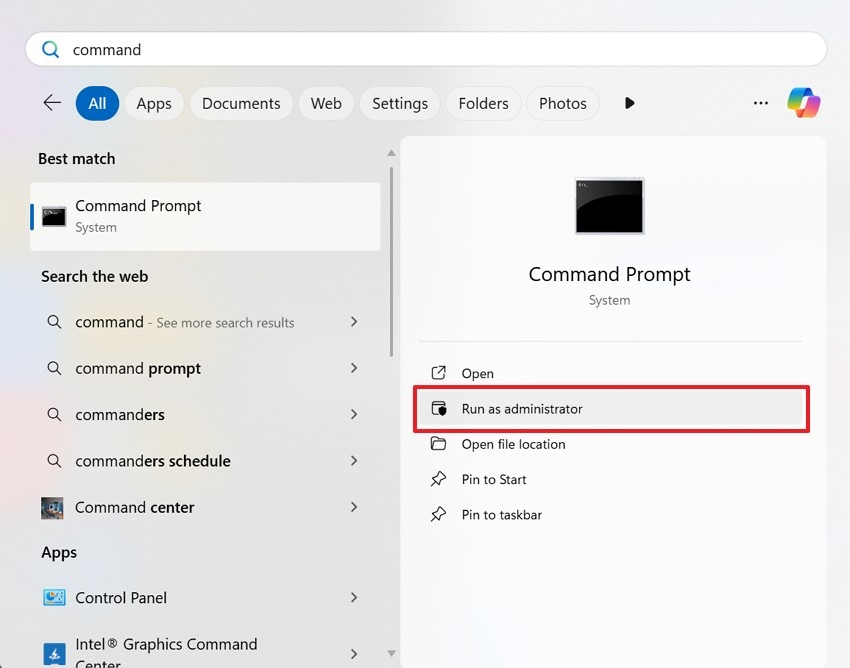
Step 1. First, access the "Command Prompt" and choose the "Run as administrator" option to proceed.
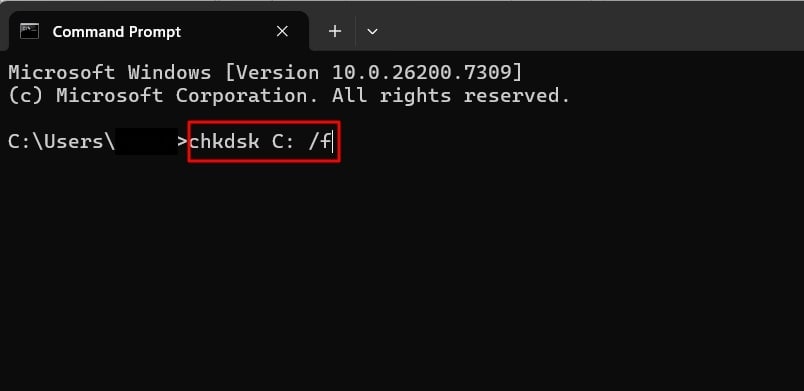
Step 2. Next, in the Command Prompt, type the command "chkdsk c /f" and hit the "Enter" key. Do not forget to replace the letter "c" with your drive letter.
Fix 5. Install DirectX Module
Missing DirectX components may make apps display "the application was unable to start correctly 0xc00007b" error. Installing the needed DirectX version restores graphics and audio functions instantly. Consequently, games can load expected features correctly and avoid freezing issues. Proceed with the steps below to install the required DirectX module:
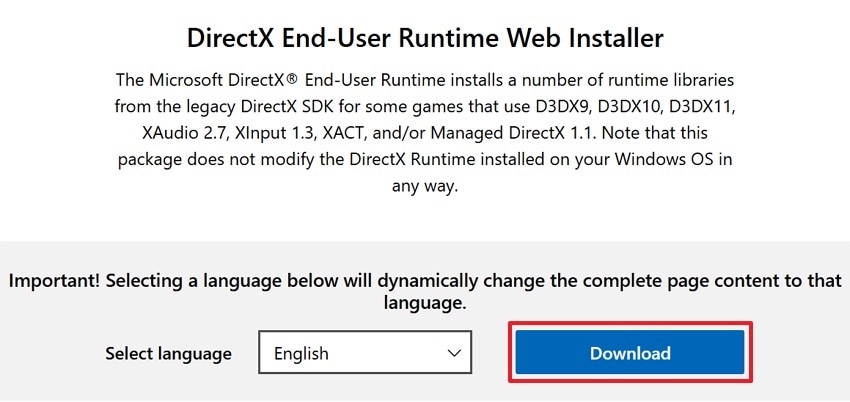
Step 1. First, open the official DirectX End-User Runtime page, select your language, and click the "Download" button.
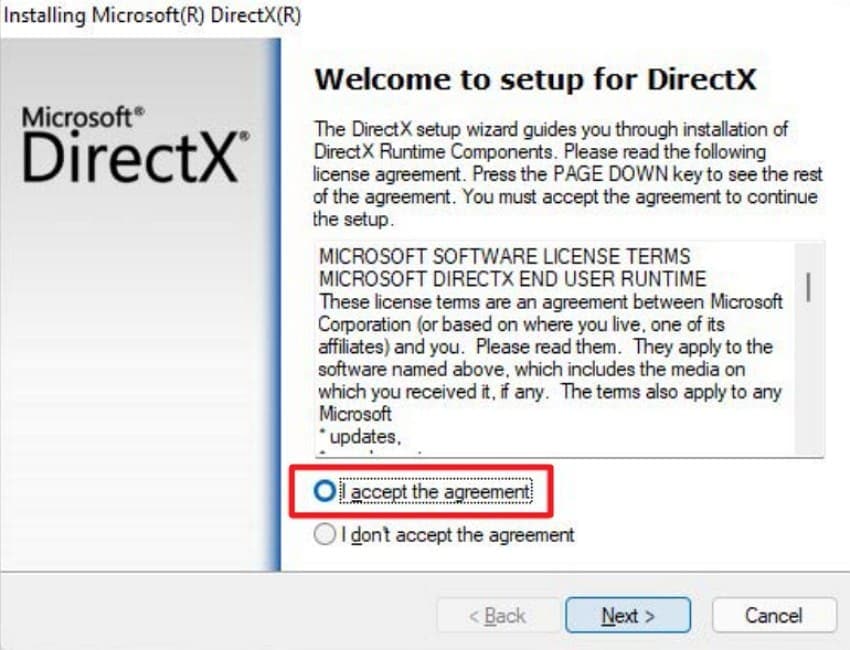
Step 2. Afterwards, access the installer and select "I accept the agreement," then click "Next" to continue.
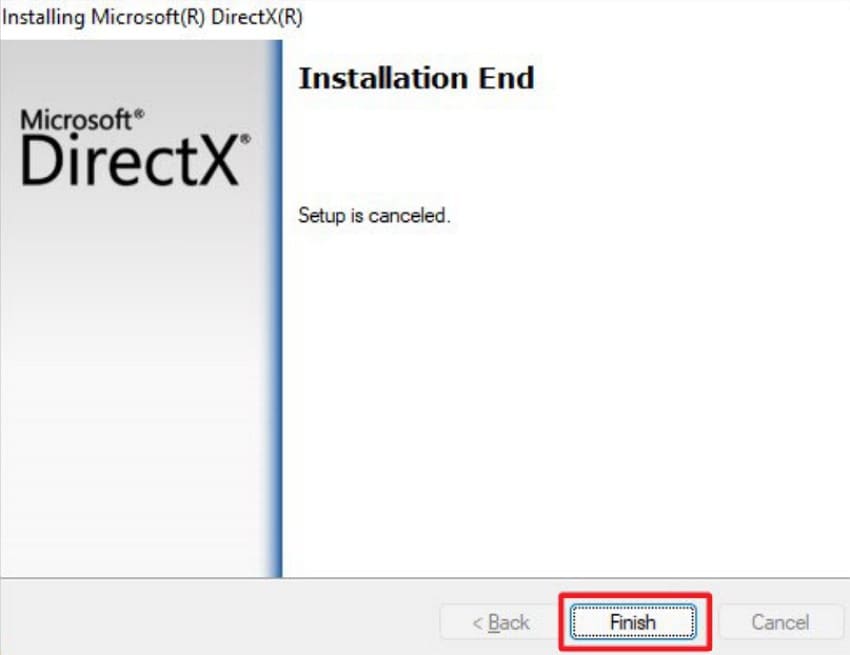
Step 3. Lastly, when the setup completes, click "Finish" on the final screen to close the DirectX installer.
Fix 6. Uninstall and Freshly Download the Latest Microsoft Visual C++
Corrupted runtime libraries often trigger the 0xc00007b launch problem for many games. Reinstalling Visual C++ replaces broken files and refreshes core system components. Additionally, it restores libraries that were removed during faulty installs or updates. This fix is reliable when programs need clean C++ environments. Now, follow the steps below to reinstall your Visual C++ packages:
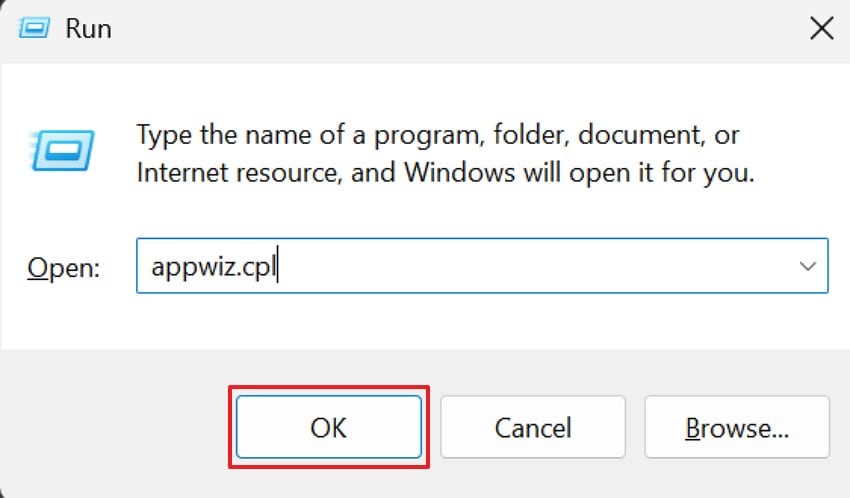
Step 1. First, press "Windows + R", type "appwiz.cpl" in the Run program, and click "OK" to open "Programs and Features."
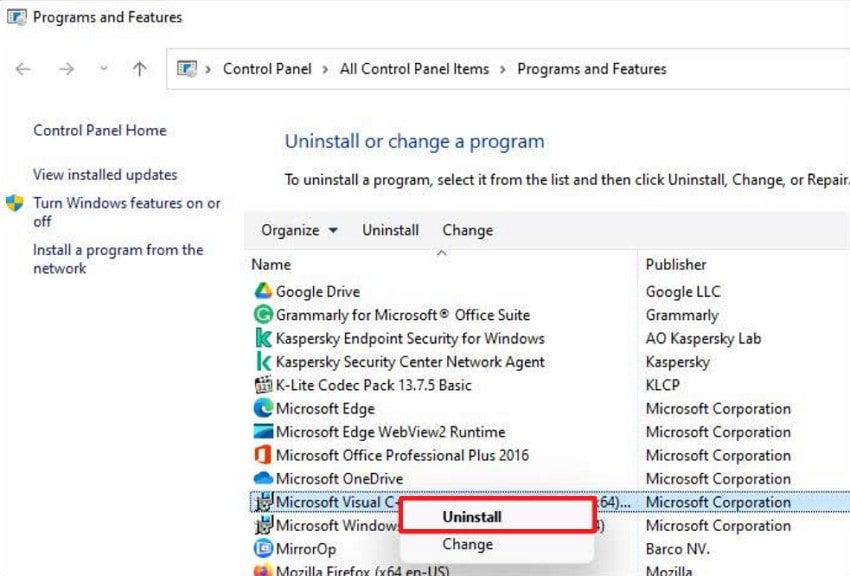
Step 2. Next, find "Microsoft Visual C++" in the list, right-click it, and choose "Uninstall" to remove the old runtime.
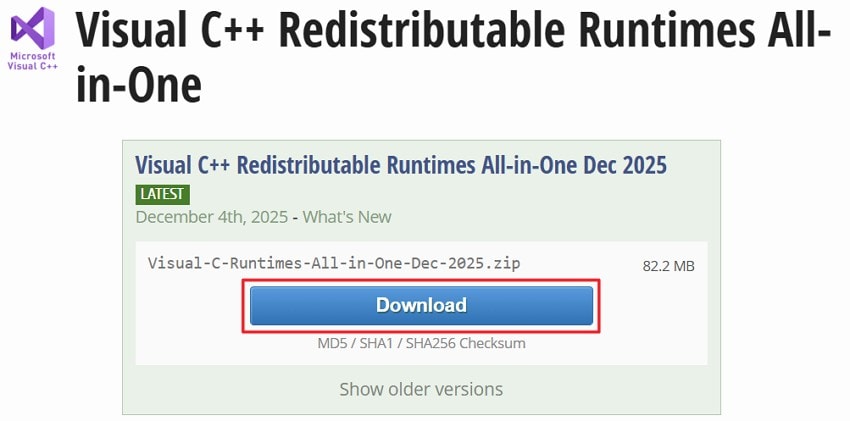
Step 3. Lastly, visit the Visual C++ Redistributable Runtimes All-in-One page and click the "Download" button.
Fix 7. Enable the .NET Framework
Missing .NET versions can make apps show "the application was unable to start correctly, 0xc00007b" error. Enabling the required framework loads needed libraries and restores smooth app behavior. Moreover, this ensures .NET programs can run their managed code correctly. It is essential for software that requires specific framework versions, which can be activated using the steps below:
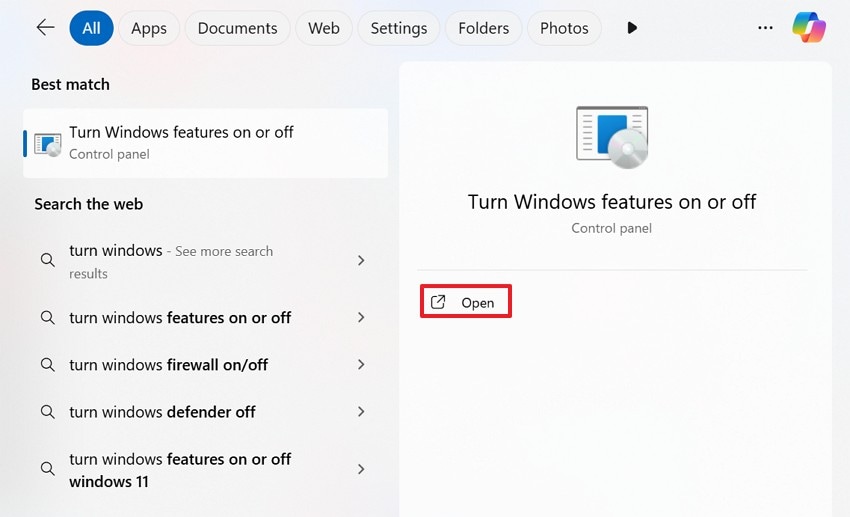
Step 1. Start by searching for "Turn Windows features on or off" in the Start menu and click "Open".
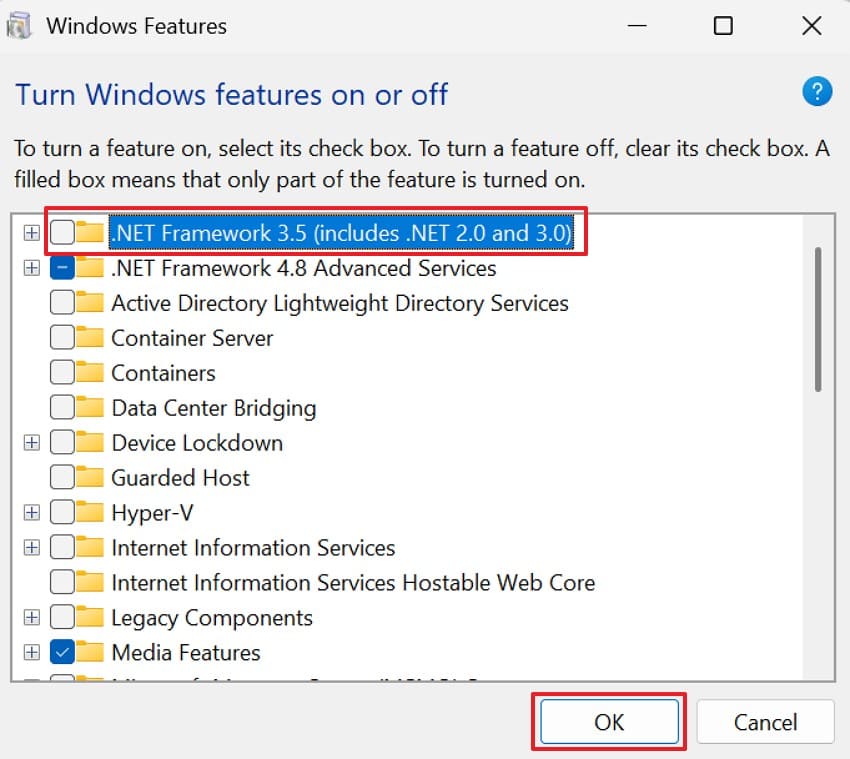
Step 2. In the "Windows Features" window, check ".NET Framework 3.5 (includes .NET 2.0 and 3.0)" and click "OK" to enable it.
Pro Tip: "0xc00007b Error? Heal Corrupted System Files with Repairit
When damaged media files break or go missing, apps may fail to load and show errors like "the application was unable to start correctly 0xc00007b." These broken files can interrupt normal startup and confuse Windows during basic checks. Thus, repairing them becomes important because healthy files support smoother loading. As a result, fixing damaged items often improves the full startup process.
Therefore, Repairit offers an easy way to repair photos, videos, and audio files that cause loading trouble. The tool checks each file, finds damaged areas, and rebuilds missing parts. With clear steps and simple controls, the repairing software helps users fix media issues without technical skill.
Key Features

-
Batch Processing: Repairs many system files at once, allowing users to save time and keep the workflow smooth.
-
Smart Repair: Finds broken sections inside system files and restores missing data for stable results with an advanced algorithm.
-
Engineering File Repair: Features the option of repairing complex CAD and PPROJ files with complex layers.
Ultimate Guide to Repair Corrupted Files with Repairit
Let’s go through the step-by-step guide below to repair damaged files easily with Repairit:
Step1. Import the Corrupted Files to Proceed
First, click the "Add" button on the main Repairit screen and select the damaged system files. You can also drag and drop the files directly into the "Unrepaired Files" section.

Step 2. Run the Repairing Process
After that, the files appear in the list and press the "Repair" button at the bottom right. Next, Repairit will start analyzing and repairing each file, with progress shown for each.

Step 3. Preview the Files and Save Them
Lastly, once the repair process is done, choose "Preview" to review the repaired files. Once you can see that the files are as they appear, then you can save them by clicking on "Save" or "Save all."

Repair Corrupted Files Now
 Security Verified. Over 7,302,189 people have downloaded it.
Conclusion
In conclusion, "the application was unable to start correctly 0xc00007b" error is frequent when the key files are faulty or cannot fit the system. In this article, we have discussed straightforward causes of the problem and obvious solutions to restore apps. When damaged media files add more trouble, Repairit offers an easy way to fix them without stress.
FAQs
-
1. Why does the 0xc00007b error appear on Windows?
This error appears when important program files break or fail to match system rules. Windows then blocks the launch because the required parts cannot load in the correct way. -
2. Can mixed 32-bit and 64-bit files cause this issue?
Yes, mixed program types confuse Windows because their internal designs do not match. This mismatch stops the app since Windows cannot load the needed startup parts. -
3. How does Repairit help when files cause 0xc00007b problems?
Repairit restores damaged media files that interrupt startup and trigger repeated loading failures. The tool rebuilds missing sections, helping Windows read files correctly during every launch. -
4. How can users reduce the chance of this error appearing again?
Keeping Windows updated and matching program versions helps reduce this error significantly. Clean installs and healthy disks also prevent missing parts that block normal startup.




