
The need to address the SecurityHealthSSO.dll Bad Image error 0xc000012f becomes critical when it starts interfering with core Windows security processes. It typically arises from damaged DLL files or system inconsistencies, all of which compromise the functioning of your operating system. Besides, if it isn’t resolved promptly, the results are application failures and weakened security defenses on your Windows system.
In this context, a tested guide will be provided below that covers everything from its causes to symptoms and proven solutions. Most importantly, you'll learn how to prevent the 0xc000012f error in the future for a secure, dependable Windows environment.
Table of Contents
Part 1. What Is SecurityHealthSSO.dll and Its Role in Windows
SecurityHealthSSO.dll is a Windows system file that is part of the built‑in Windows Security (Microsoft Defender) platform. In simple terms, it helps Windows manage the “Security & Health” feature you see in the Windows Security app. As it's a Microsoft‑signed DLL, it loads with the operating system and works in the background to support Windows’ security interface.
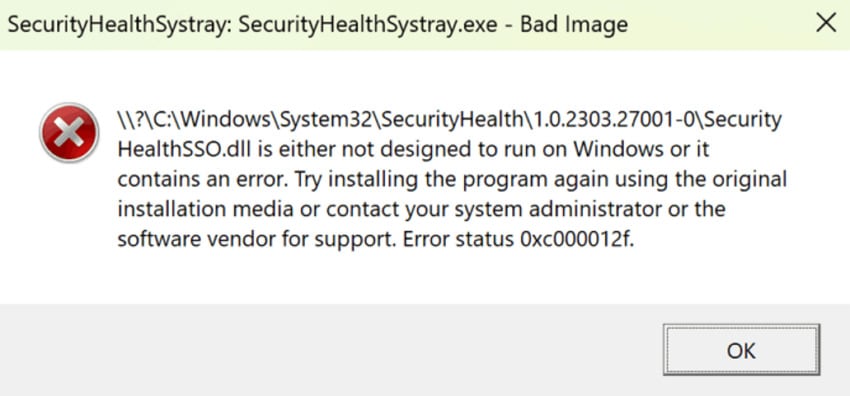
The SSO refers to “single-sign-on,” and this DLL helps Windows Security integrate smoothly with your user accounts and sign-in. This way, the security feature knows which user is logged in or can show the right status and settings. Once SecurityHealthSSO.dll is damaged or missing, Windows may display errors at startup, and the Windows Security app may appear blank. Finally, it indicates that some security and login-related checks are not functioning correctly.
Part 2. 5 Common Causes Behind the Bad Image Error
The following section highlights the most frequent reasons behind the SecurityHealthSSO.dll Bad Image Error 0xc000012f. This way, you’ll have clarity on what triggers this problem and why timely resolution is essential:
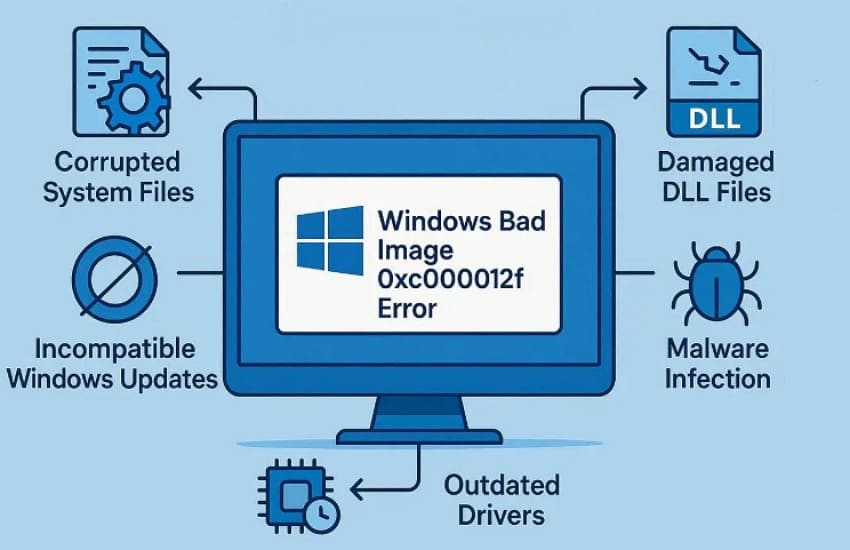
- Corrupted SecurityHealthSSO.dll File: If the SecurityHealthSSO.dll file becomes corrupted or incomplete, Windows cannot load it and displays the Bad Image error. Corruption might occur after sudden shutdowns, disk errors, or failed operations that modify files under "C:\Windows\System32\SecurityHealth.”
- Incomplete or Faulty Windows Update: A Windows update that partially installs or contains bugs can replace the SecurityHealthSSO.dll file with a broken version. This occurs after cumulative updates or security patches, when Windows Security stops opening and displays a blank page.
- System File Corruption in Windows: The Bad Image 0xc000012f error is also linked to general system file corruption, not only this one DLL. When core Windows libraries or dependencies on which SecurityHealthSSO.dll relies are damaged, the DLL cannot load properly.
- Conflicting or Third‑Party Security Software: Third‑party antivirus or security tools can interfere with Windows Security components, sometimes locking SecurityHealthSSO.dll or related files. Such conflicts can cause Windows to fail when loading the DLL at startup, producing repeated Bad Image pop‑ups for SecurityHealthSSO.dll.
- Incorrect File Version or Manual Replacement: An incorrect version of the DLL can leave you with a mismatched or unsigned SecurityHealthSSO.dll that Windows treats as invalid. If the DLL's version number does not match the folder version used by Windows Security, the system displays the 0xc000012f error during login.
Part 3. Symptoms You Might Notice When This Error Occurs
Explore the common symptoms below, you might notice when the 0xc000012f error occurs, alarming that system components aren’t functioning as intended:
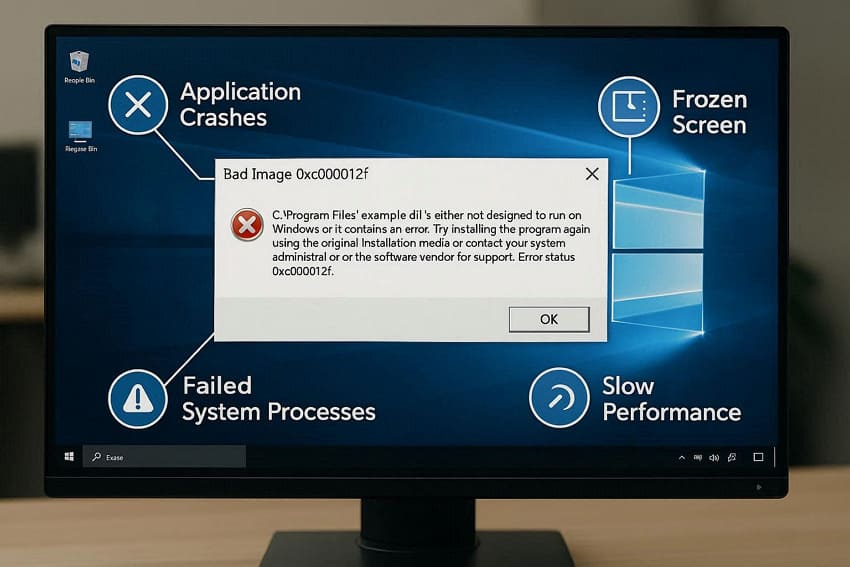
- Repeated “Bad Image” Pop‑Up: You’ll see “SecurityHealthSSO.dll is either not designed to run on Windows or it contains an error. Error status 0xc000012f.” This message appears every time you start Windows or log in, and sometimes it keeps reappearing even after you close it.
- Windows Security Icon Not Working: The Windows Security (shield) icon in the taskbar may be missing, greyed out, or not respond when you click it. As SecurityHealthSystray.exe depends on SecurityHealthSSO.dll, the tray icon can fail to load or show your protection status correctly.
- Windows Security App Not Opening Properly: When you open the Windows Security app, it may fail to start, close immediately, or display a blank/partially loaded screen. Moreover, sometimes sections like Virus & Threat protection or Device Performance & health might not load properly.
- Slower Startup or Login: Users might notice Windows taking longer than usual because it is trying to load this DLL during login and failing. Sometimes, the error dialog appears on top of the desktop, which must be closed before you can use the PC.
- General System Instability: Other apps or tools that depend on Windows Security, such as settings pages, might behave erratically or crash. At times, you might see additional Bad Image errors for related processes, making the system feel unstable or unreliable.
Part 4. How to Fix SecurityHealthSSO.dll Bad Image Error 0xc000012f - 5 Solutions
Given the need, the section below focuses on resolving the SecurityHealthSSO.dll Bad Image Error 0xc000012f. Here, each solution offers a distinct benefit to ensure your system operates smoothly and securely:
Fix 1: Restart Windows to Refresh Core System Services
A complete Windows restart clarifies all temporary system glitches, refreshes memory, and reloads essential services. Even a simple restart can quickly restore system functionality, improve performance, and prevent minor errors from escalating. To do so, follow the guided tutorial and restart Windows to refresh your core system services:
Instructions. Initially, click the “Start” menu, access the “Power” icon, and choose the “Restart” option. Once the reboot completes, check if the 0xc000012f error persists or resolves after a restart.
Fix 2: Repair Corrupted System Files Using SFC Scan
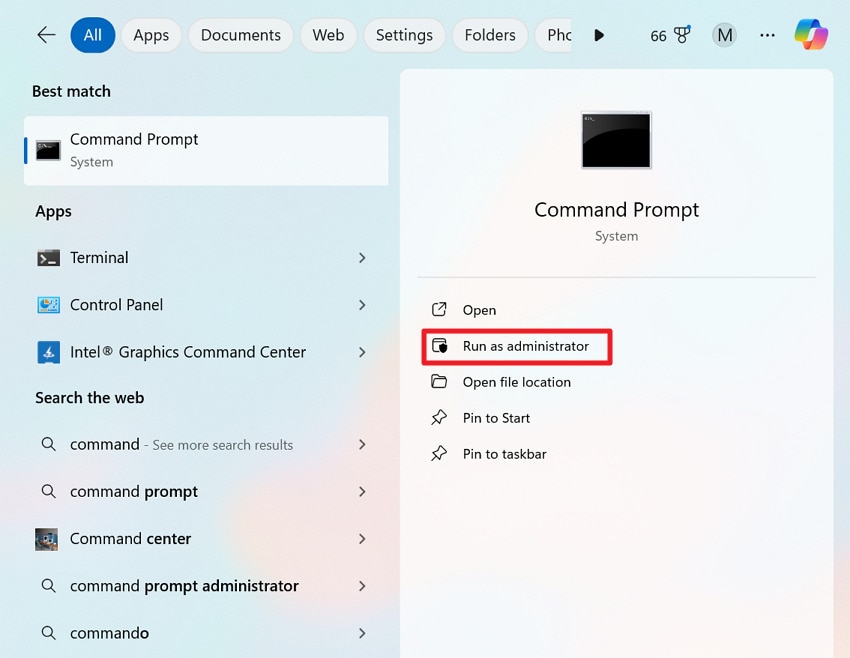
The SFC scan not only identifies and replaces corrupted or missing system files, but also ensures the integrity of Windows system components. This method improves system performance by repairing inconsistencies that could slow down operations or affect stability. To fix the SecurityHealthSSO.dll Bad Image Error 0xc000012f, follow the provided tutorial as guided:
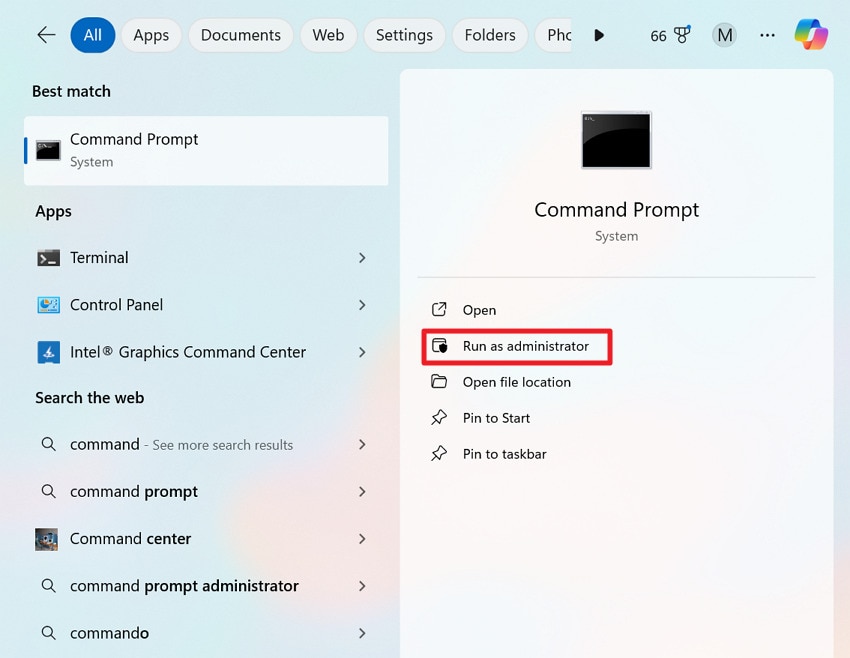
Step 1. Search Command Prompt and choose the “Run as an Administrator” option for the admin rights.
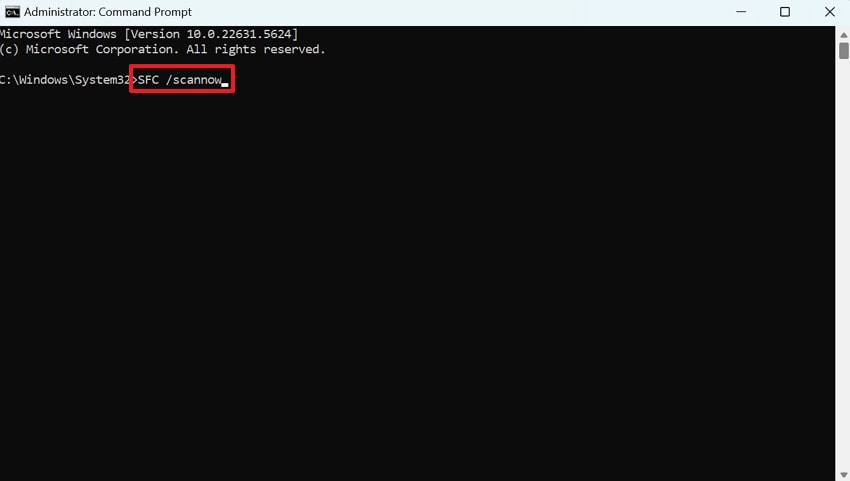
Step 2. In the Command Prompt window, type “sfc /scannow” and press Enter to start the scan. After this, wait for the scan to reach 100%, then restart your PC to check the error.
Fix 3: Restore Windows Image Health Using the DISM Tool
While SFC fixes individual corrupted files, the DISM tool addresses deeper system-level issues by repairing the Windows image itself. It ensures that all underlying system components are intact, prevents future occurrences of such errors, and maintains system reliability. For clarity, dive into the instructions and learn how to restore Windows image health with the DISM tool:
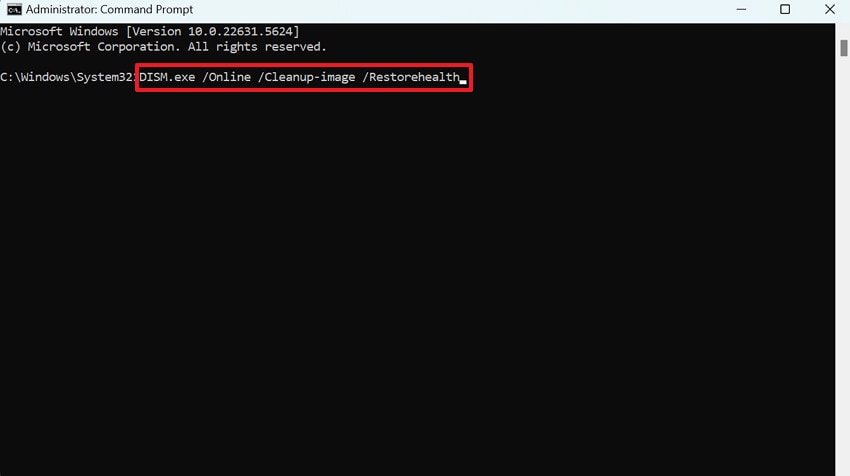
Instructions. Access Command Prompt as an administrator, type “DISM /Online /Cleanup-Image /RestoreHealth” and press Enter. Now, wait for the process to complete (may take 15-30 minutes), then restart your computer for the 0xc000012f error.
Fix 4: Manually Replace the SecurityHealthSSO.dll System File
Once the SecurityHealthSSO.dll file is corrupted beyond repair, manually replacing it ensures that the system has a functional version. This targeted solution directly eliminates the source of the 0xc000012f error, restores dependent security and system services. For a how-to guide, follow the given tutorial and manually replace the system security file for overall stability:
Step 1. First, get a clean copy of SecurityHealthSSO.dll for the same Windows version and build. After this, create a new folder in the C Drive called “Temp” and extract the file into this folder by choosing the location.
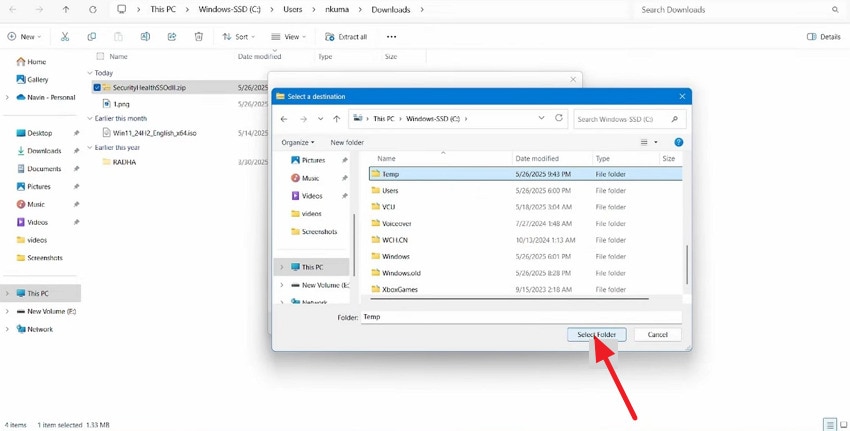
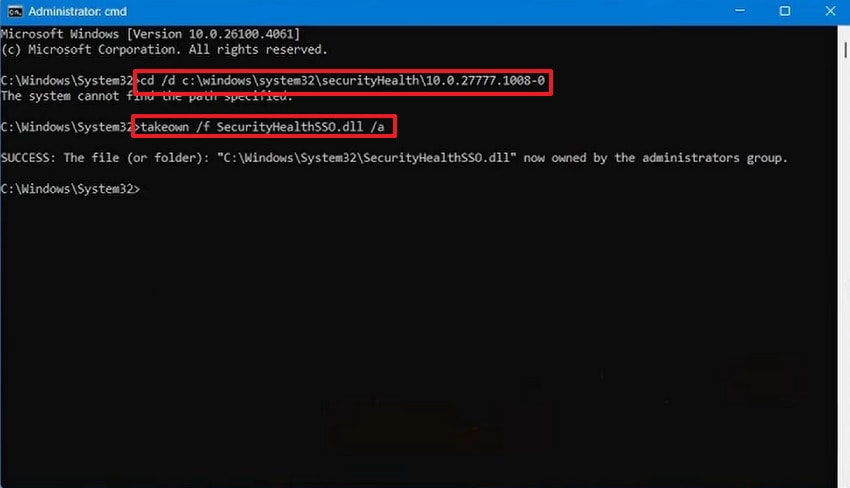
Step 2. Now, run Command Prompt as an administrator and copy/paste the following commands in the given order:
- “cd /d C:\Windows\System32\SecurityHealth\<your-version-folder>”
- “takeown /f SecurityHealthSSO.dll /a”
- “icacls SecurityHealthSSO.dll /grant *S-1-5-32-544:(F)”
- “copy /y C:\Temp\SecurityHealthSSO.dll SecurityHealthSSO.dll”
Once done, close the Command Prompt window and restart your PC to apply the change automatically.
Fix 5: Perform a Clean Boot to Isolate Conflicting Services
Clean Boot starts Windows with only essential services and disables third-party software that could interfere with system processes. This method isolates the source of the conflict causing the SecurityHealthSSO.dll Bad Image Error 0xc000012f, and reduces unexpected crashes. To identify conflicting programs and prevent future errors, explore the stepwise tutorial below:
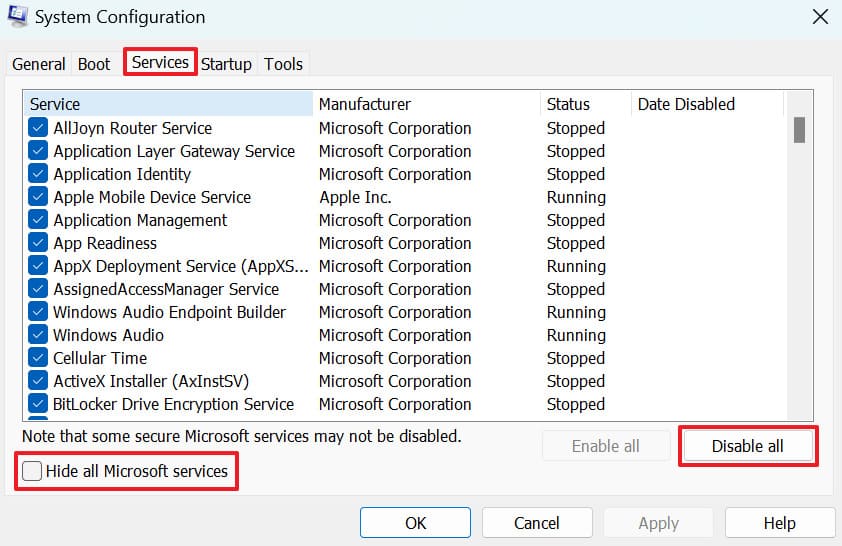
Step 1. Press the “Windows and R” keys together, then type “msconfig” and hit the Enter key to open System Configuration. Access the Services tab, check “Hide all Microsoft services,” then click “Disable all” to turn off non-Microsoft services.
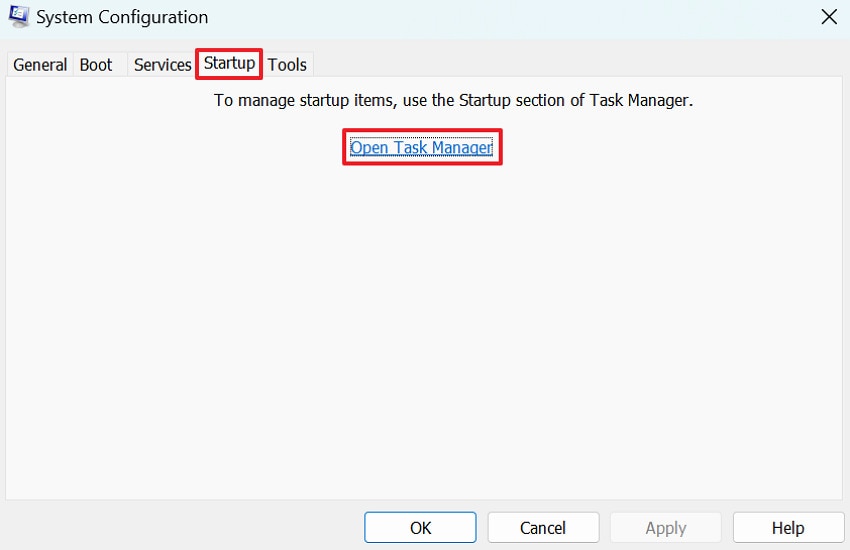
Step 2. Next, open the “Startup” tab and press the “Open Task Manager” option to access Task Manager.
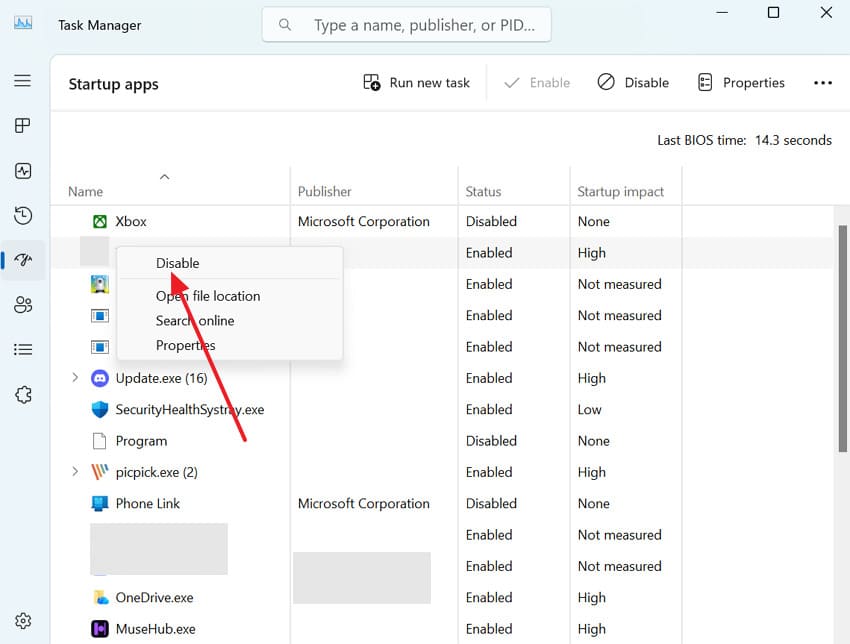
Step 3. In the Task Manager window, right-click each startup app and select the “Disable” option.
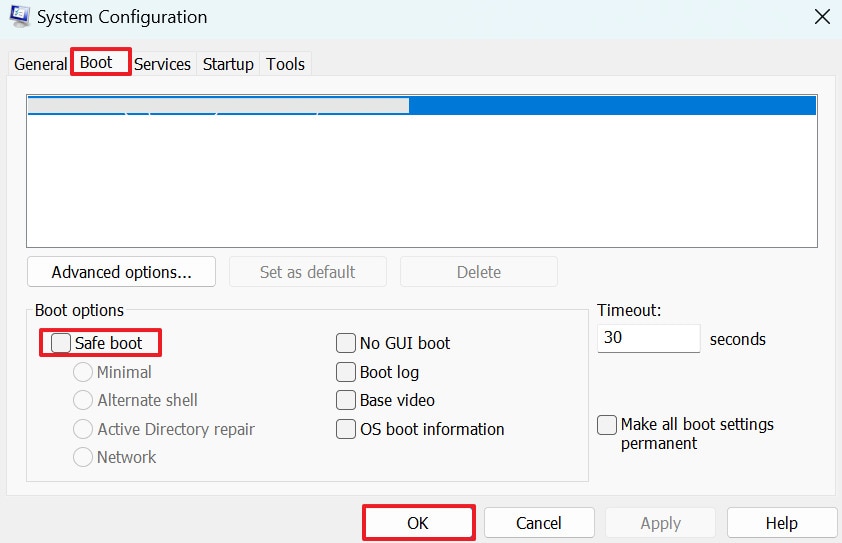
Step 4. Next, access the “Boot” tab, choose the “Safe Boot,” and click the “OK” button for confirmation. Here, restart your PC and gradually re-enable services and startup items one by one to identify the conflicting program.
Pro Tip. Use Repairit to Fix Corrupted DLL Files and Bad Image Errors
Soon, when a Bad Image 0xc000012f error indicates wider file corruption on your PC, you can use Repairit as a proven solution. Even though it doesn’t directly repair Windows DLL files, it can be useful for fixing other corrupted files that started failing. This program can be used alongside system tools, such as SFC or DISM, to repair your work files that were corrupted alongside.
It's especially useful if crashes, power cuts, or disk issues that triggered the SecurityHealthSSO.dll error also damaged your project files. Most importantly, it uses advanced AI to improve repair quality, reconstruct damaged structures, or metadata in your files. The program is completely supported on both Windows and macOS with no feature loss across platforms. Impressively, you can choose between desktop software and online convenience for complete file repair, whenever, wherever.
Key Features

-
Post Error File Recovery: Repairs documents corrupted after SecurityHealthSSO.dll Bad Image crashes and failed system updates safely and quickly.
-
Shutdown Damage Repair: Fixes work files broken by 0xc000012f shutdowns and interrupted Windows updates with accurate structure restoration.
-
Batch Project Protection: Recovers multiple documents affected when security services block applications with a reliable preview and fast repair.
Comprehensive Guide to Repair Corrupted System Files Efficiently
Follow the stepwise guidelines and restore system integrity or performance by repairing corrupted files with Repairit:
Step 1. Access the Document Repair Tool to Start Repair
After launching, open the “More Types Repair” tab and click the “Start” button for the Document Repair.

Step 2. Insert All the Corrupted Files for Repair
Move forward and press the “+Add" button to add all the corrupted files, then begin the repair.

Step 3. Repair and Export Your Fixed Files
Once you're done adding files, click the “Repair” button to start the repair process. After this, preview the repaired version and download it when you’re convinced of the results.

Repair Corrupted Files Due to 0xc000012f Error
 Security Verified. Over 7,302,189 people have downloaded it.
Part 5. Preventing Future 0xc000012f Errors - 5 Tips to Follow
Once you have successfully resolved the SecurityHealthSSO.dll Bad Image Error 0xc000012f, consider the provided measures to maintain an error-free Windows environment:
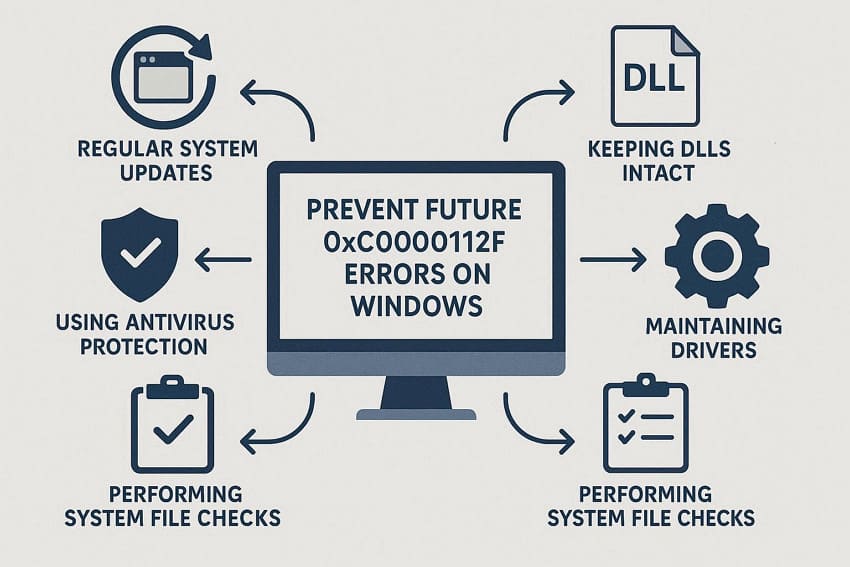
- Keep Windows Updated: Turn on automatic updates, so Windows regularly installs security patches and bug fixes, reducing the risk of Bad Image errors. After big updates, restart your PC promptly so all new system files and services load correctly.
- Run Regular System File Checks: From time to time, run SFC scan and if needed use DISM tool to detect and repair early system file corruption. Doing this monthly keeps core Windows DLLs healthy and reduces the risk of Bad Image 0xc000012f issues.
- Protect Against Malware and Unsafe Software: Always keep Windows Security or another trusted antivirus enabled and updated, and run full scans regularly to block malware. Also, avoid cracked and unknown software, as they may replace or inject DLLs, increasing the chance of a Bad Image.
- Shut Down and Update Windows Properly: Use normal Shutdown or Restart instead of forcing power‑offs, especially when Windows shows “Working on Updates.” Additionally, if updates seem stuck, be patient or follow official guidance to troubleshoot rather than hard‑resetting.
- Back Up and Maintain Your System: Create regular backups with File History or system images so you can roll back if a new update starts causing 0xc000012f errors. Plus, keep enough free disk space, check drives, and avoid running the system on a failing HDD/SSD.
Conclusion
In conclusion, you now understand that error 0xc000012f can significantly impact system performance and disrupt essential Windows operations if left unresolved. Considering this, the guide above outlines solutions ranging from simple restarts to advanced tools like SFC, DISM, and manual DLL replacement. For a reliable repair process, you're suggested to use Repairit and simplify the task of fixing multiple corrupted files in one go.
Frequently Asked Questions
-
1. Can this error affect system performance?
Indeed, the 0xc000012f error can slow down your PC, cause frequent crashes, and prevent applications from opening. Subsequently, users may notice longer boot times, delayed application responses, or even frequent system crashes. -
2. Is the SecurityHealthSSO.dll error dangerous?
While it usually does not pose an immediate threat to hardware, it can compromise Windows security services. This SecurityHealthSSO.dll Bad Image Error 0xc000012f eventually leaves your PC vulnerable to unauthorized access or other software conflicts. -
3. Can I continue using my PC safely if this error occurs?
While your PC may still function, ignoring the Bad Image error 0xc000012f is still not recommended. The error can compromise Windows security services, lead to crashes, and affect system performance. Therefore, it is always advisable to seek prompt resolution and ensure your system remains stable and secure.




