
A common need to convert VLC MKV to MP4 arises when high-quality MKV videos fail to play on standard devices. Even though MKV is famous for storing rich multimedia content, its limited compatibility can restrict playback on mobile phones or smart TVs. For this reason, VLC Media Player offers a professional yet accessible solution, allowing users to convert their files to a suitable format.
With precise control over output settings and a trusted interface, VLC lets users convert MKV files to MP4 with confidence. For ready-to-use content, explore the entire guide, which is thoroughly packed with everything you need to know about VLC conversion.
Table of Contents
Part 1. What Is an MKV File and Why Is MKV to MP4 VLC Conversion Needed
An MKV file (Matroska Video) is a container that can store several videos, audio, subtitle tracks, and chapters in one file. It’s high-quality but not universally supported, so some phones and apps may not play without additional codecs. Given this, VLC Media Player is widely used to convert MKV to MP4 because it’s free and natively supports MKV. Most importantly, it can play and transcode these files without installing additional codec packs.
What Is an MP4 File and Why Convert MKV to MP4 Using VLC?
MP4 is a widely supported container for compressed video, audio, and metadata. It balances quality with smaller file sizes and works out of the box on smartphones, browsers, and all media players. VLC Media Player converts MKV to MP4 to turn a less compatible video into a broadly playable video using a player you already have. It not only improves streaming compatibility but also preserves most of the original quality.
Part 2. Why Convert MKV to MP4 Using VLC Media Player Instead of Online Tools
To understand why many users prefer offline solutions, it’s essential to review both the benefits and limitations of this conversion. To convert MKV to MP4 in VLC, explore the section and reveal, while promising quick results, where the platform falls short:
Benefits of VLC Media Player: Convert MKV to MP4 Offline
- VLC converts entirely on your PC, so you do not upload personal videos to third‑party servers.
- You can convert MKV to MP4 for free because it's open-source and available on Windows/Mac/Linux.
- Conversion runs locally; you are not limited by website size caps or internet speed.
- Users can preview MKV files, adjust basic options, and convert them to MP4 on the same platform.
- With sensible H.264/MP4 profiles and enough bitrate, VLC can produce visually solid MP4 files.
Limitations of VLC Convert MKV to MP4 Compared to Dedicated Converters
- It exposes only limited encoding options and lacks rich presets for specific devices or platforms.
- Reports indicate frequent crashes, hangs, output tiny 1 KB files, or broken video during conversion.
- VLC re‑encodes rather than cleanly remuxes, so quality can drop if settings are not tuned.
- The platform gives less control over which audio/subtitle tracks to keep and may mishandle some streams.
- All transcoding is handled by your CPU, which can increase conversion time for high-resolution MKV files.
Part 3. Things to Know Before You Convert MKV to MP4 in VLC
Before VLC MKV-to-MP4 conversion, it's important to understand how VLC handles video formats and the trade-offs involved. Being aware of these technical details helps avoid unexpected quality loss, missing subtitles, and oversized output files:
Remux vs Re-Encode When You Convert MKV to MP4 in VLC
| Key Considerations | Remux in VLC | Re-Encode in VLC |
| What It Does | Only changes the container from MKV to MP4; video/audio data remains original. | Decodes and re‑compresses video/audio into new MP4 streams. |
| Quality | Lossless; no quality change | Lossy (usually H.264/AAC); quality depends on bitrate and settings. |
| Speed and CPU Usage | Very fast and light | Slower and CPU‑heavy, especially for HD/4K videos. |
| When It Works | Only if MKV uses codecs that MP4 supports. | Works with almost any MKV codecs, because data is re‑encoded. |
Quality and File Size Considerations for MKV to MP4 VLC Conversion
In VLC, quality and file size are tightly linked to whether you remux or re‑encode and what bitrate you choose. A pure remux keeps quality identical to the MKV and leaves file size almost unchanged, because compressed data isn’t altered. Re-encoding can reduce file size by lowering bitrate and resolution, but every re-encode with H.264 or similar discards some detail.
Subtitle and Audio Track Limits When Using VLC Media Player MKV to MP4
MKV often carries multiple audio languages and several subtitle tracks, but the VLC converter has limitations. To keep it simple, VLC conversions usually preserve only one or a few selected audio and subtitle tracks. Users may sometimes face issues such as the wrong track being selected or overlapping subtitles, especially with multilingual files.
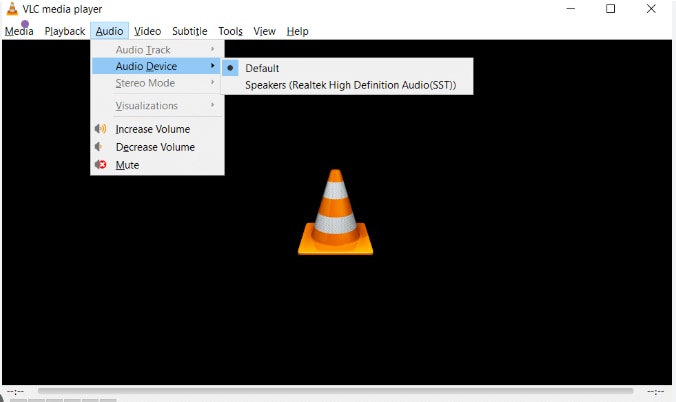
Part 4. Quick Answer: Best Way to Convert MKV to MP4 Using VLC Media Player
To convert MKV to MP4 in VLC, the provided stepwise guidelines ensure you avoid unnecessary settings, yet achieve a high-quality output:
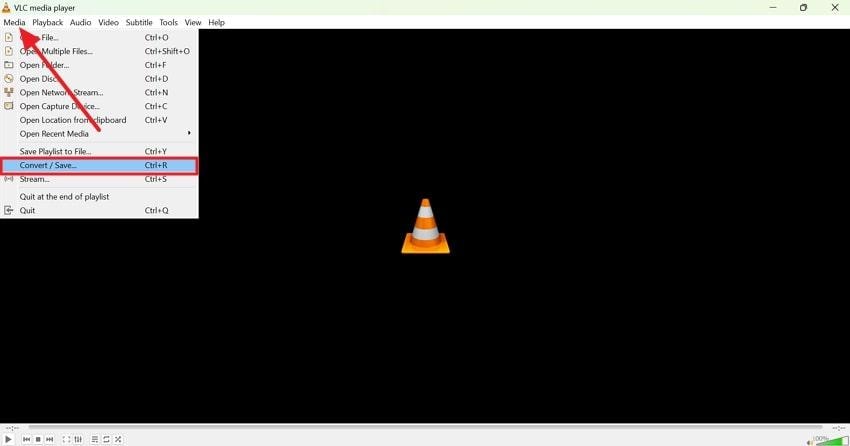
Step 1. Initially, access VLC on your Windows, and navigate to the “Media” option at the top right. Here, choose the “Convert/Save” option to proceed with the conversion process.
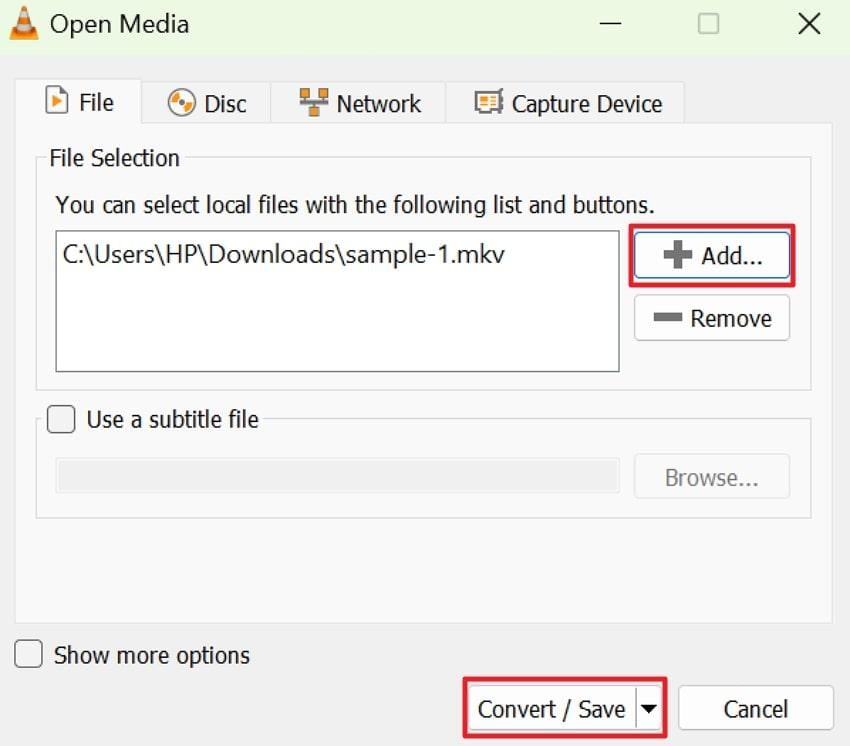
Step 2. Next, press the “+Add” button to insert your MKV file, then click the “Convert/Save” button when done.
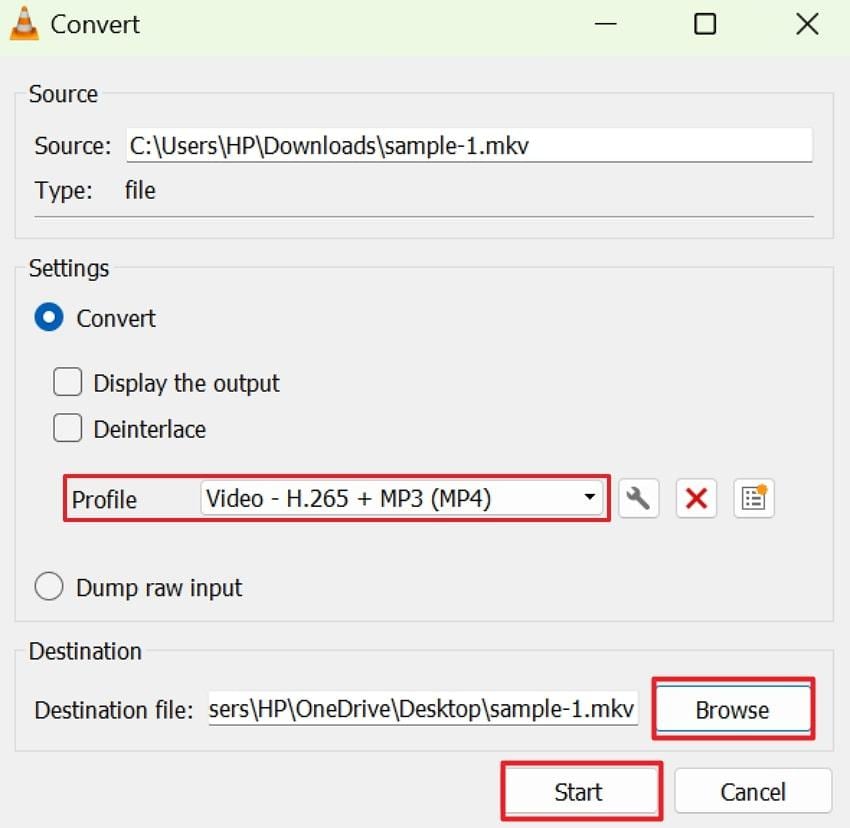
Step 3. In the Convert window, expand the “Profile” menu to select your video codec and format. Once done, press the “Browse” button to choose your download destination, then click the “Save” button. Afterward, your MKV file will automatically be converted to MP4 and be saved to the desired location.
Part 5. Advanced Guide: Convert MKV to MP4 in VLC With Subtitles and Multiple Audio Tracks
For users dealing with complex MKV files, a basic conversion might not be enough to preserve all embedded content. Subtitles, multiple language tracks, and special audio settings require following the guidelines below to change MKV to MP4 using VLC effectively:
How to Keep Subtitles When You Convert MKV to MP4 Using VLC
To retain subtitles during the conversion, VLC requires manual configuration and subtitles enabled in the codec setting, as shown ahead:
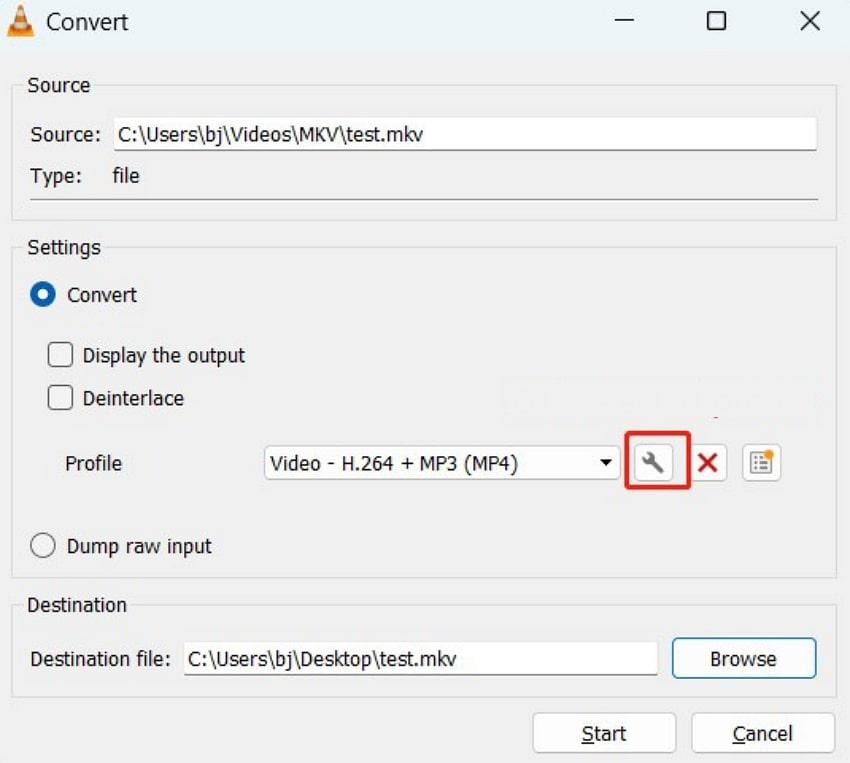
Step 1. In the Convert window, press the “Profile Edition” icon and reveal the profile edit window later.
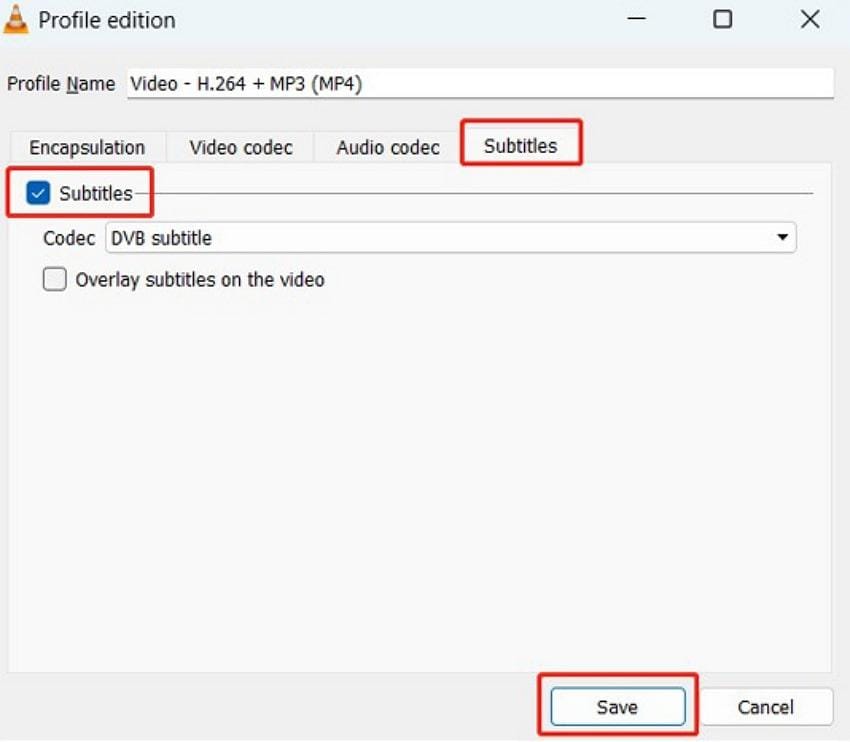
Step 2. Now, switch from the Encapsulation tab to the “Subtitles” section and tick the “Subtitles” option. After this, click the “Save” button to start the conversion and save your MP4 with subtitles.
How to Select Audio Tracks When Using VLC Player Convert MKV to MP4
The following tutorial shows how to convert MKV to MP4 in VLC with correct audio track selection, retaining the intended sound experience:
Step 1. Once the MKV file is imported into VLC, access the “Profile Edition” icon for further possibilities.
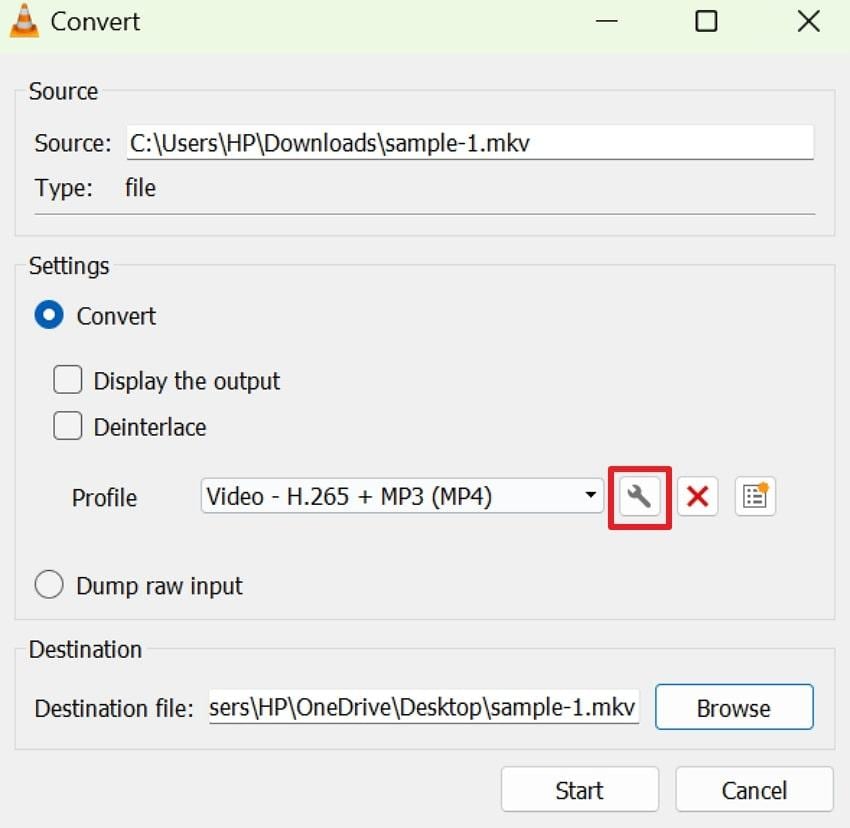
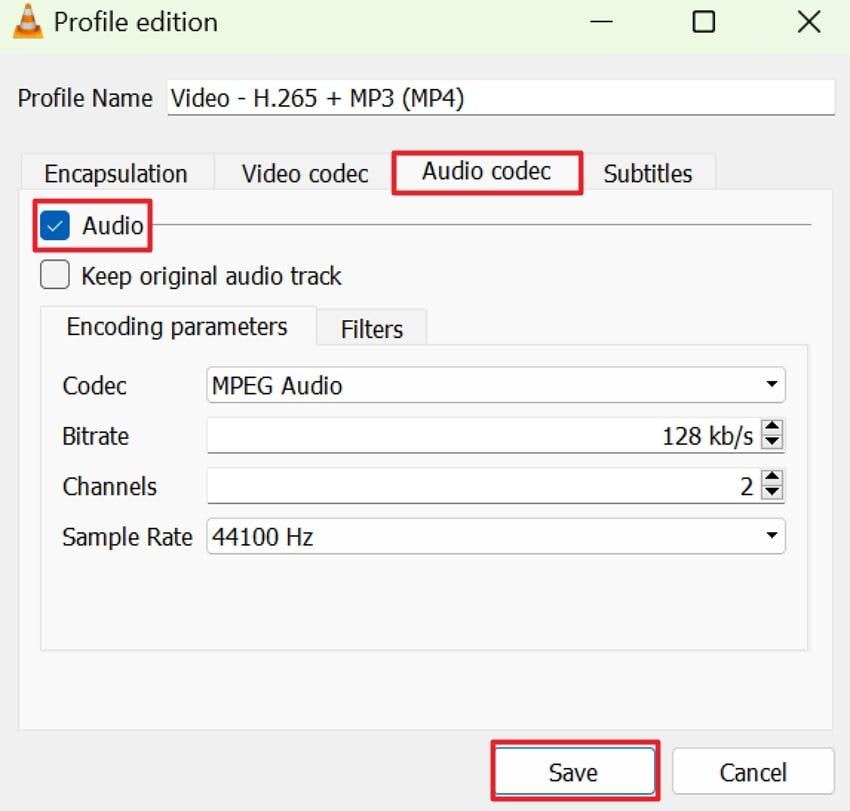
Step 2. Move forward, choose the “Audio Codec” section, check the box for “Audio”, and select a suitable audio codec. Alternatively, you can even select the “Keep Original Audio Track” option for the same audio codec and press “Save.”
Why VLC MKV to MP4 Sometimes Drops Subtitles or Audio
- MKV can carry ASS or other subtitle types that MP4 does not support, causing tracks to drop.
- VLC’s Convert/Save dialog does not let you explicitly map each subtitle and audio stream.
- It renders a single selected subtitle stream over the video, losing all other subtitle tracks.
- Sometimes, the VLC conversion outputs MP4/M4V files without expected subtitles or with the wrong audio track.
- This media player may struggle with very long or high-bitrate MKV files, resulting in desynchronized audio.
Pro Tip. What If MKV Videos Get Corrupted During VLC MKV to MP4 Conversion?
Even with a stable media player, file corruption is evident; it might happen after the process or when the VLC player converts MKV to MP4. To handle this corruption smartly, first explore early warning signs that are often overlooked during conversion:
- The video will not play, displaying messages such as “cannot play video” or “file not supported.”
- MP4 may open, but the player freezes, closes, or stops responding after a few seconds.
- You might hear sound on a black screen or a video with no audio because tracks may be missing.
- Playback shows pixelation, strange colors, or heavy stuttering, even on a powerful device.
- Parts of the video jump, or go silent, and dialogue doesn’t match the character’s lips.
When these signs appear, simply re-converting the file might not resolve the issue, because damage has been done. For this, a dedicated program like Repairit Video Repair is required that supports a wide range of corruption scenarios. More impressively, it supports multiple formats, including mainstream, device-specific, and pro-level options. You can add multiple corrupted videos simultaneously to repair them instantly, without further delays.
Proper repair guidelines below can save time and prevent permanent data loss when performing the “convert MKV to MP4 using VLC” task:
Step 1. At first, open the “Video Repair” tab and press the “Start” button to insert all the damaged MKV files.

Step 2. Proceed and click the “Repair” button to start fixing the added MKV videos for smooth conversion later.

Step 3. Once the process completes, press the “Preview” button in the prompt window, then save the videos after reviewing.

Fix Corrupted MKV Videos During VLC MKV to MP4 Conversion
 Security Verified. Over 7,302,189 people have downloaded it.
Part 7. VLC Player Convert MKV to MP4: Quality and Performance Optimization Tips
All the listed strategies are essential when you convert MKV to MP4 VLC, as properly applied settings can improve playback performance:
- Consider the Correct Codec: When you select the right codec, like H.264 or H.265 for videos, it ensures high compression without significant quality loss. These codecs are widely supported and help maintain smooth playback across devices or media players.
- Adjust Bitrate Level Carefully: Higher bitrates preserve video detail but increase file size, while lower bitrates reduce size but may affect clarity. Therefore, determine the optimal bitrate based on your storage and playback requirements to achieve optimal results.
- Select Resolution Wisely: Maintaining the original resolution means maximum visual fidelity, especially for your HD and 4K content. VLC allows precise control over output resolution during conversion, making it easier to customize videos as per needs.
- Enable Hardware Acceleration: The platform supports hardware-accelerated decoding, offloading processing from the CPU to the GPU. This accelerates conversion times for HD and 4K videos, preventing system overload and ensuring smoother performance.
- Preview Footage Before Complete Conversion: Instead of committing to a full conversion, convert a short segment of your MKV file to check video quality. This precaution helps identify and correct potential issues early, saving time and avoiding frustration after full conversion.
Conclusion
In summary, VLC MKV to MP4 offers a practical solution for anyone who wants to make videos universally accessible across devices. With proper settings and attention to optimization, the process ensures high-quality MP4 files that are ready for playback or streaming. However, MKVs can occasionally become corrupted during conversion for any reason, requiring Repairit at the end.
Frequently Asked Questions
-
Q1. Can VLC convert MKV to MP4 without losing quality?
Definitely, VLC can convert MKV to MP4 with minimal quality loss if the correct settings are applied. When you choose the same video codec as the original file and avoid unnecessary re-encoding, VLC preserves most of the original quality. Whereas, if you change codecs, resolution, or apply heavy compression, there may be a noticeable drop in detail. -
Q2. Why is the VLC MKV to MP4 conversion so slow?
The conversion process in VLC can be slow for several reasons, including large file sizes, high-resolution videos, or older hardware. To improve performance, consider using lower-resolution settings, enabling hardware acceleration, or converting smaller segments first. -
Q3. Does VLC Media Player keep subtitles when converting MKV to MP4?
It may not automatically preserve all subtitles when you change “MKV to MP4 VLC.” By default, it may include only the selected subtitle track or require you to burn the subtitles into the video. If the MKV contains multiple subtitle streams, additional configuration is needed to retain them during conversion.




