
Video compatibility is an important aspect for seamless playback and content sharing across multiple platforms. Although MKV files offer impressive quality and support advanced features, they are not always supported by standard devices. This eventually creates a clear need for an MKV to MP4 converter online for users who require compatibility.
Considering an online converter, despite a desktop program, further removes the hassle of installing software and simplifies overall tasks. With quick uploads and reliable output quality, each platform discussed below makes editing and sharing content much easier. The following guide identifies common problems encountered during conversions and offers a reliable solution as well.
Table of Contents
Part 1. Why Convert MKV to MP4 Online Instead of Using Desktop Software
Either you opt for an online converter or a desktop software, both require a balanced understanding of convenience and control. Users who prefer MKV to MP4 online converters, the sections below reveal key benefits and shortfalls associated with it:
Benefits of Using an MKV to MP4 Converter Online Free
- The online converter runs in the browser without requiring any downloads or configuration.
- They work on any device, whether you prefer conversion on Windows, Mac, or Linux.
- Conversion is relatively seamless, rather than having to learn desktop video software.
- Many online MKV-to-MP4 converters offer free tiers with no additional payment for conversions.
- A few online converters also support basic batch conversion, allowing you to convert multiple MKVs.
Limitations of MKV to MP4 Online Converters You Should Know
- Free web tools often cap file size (estimated around 500MB-1GB) for video length.
- Large MKV conversions can be slower over an average connection than desktop programs.
- Some online converters usually offer limited control over codecs, bitrates, or audio tracks.
- A few web tools always re-encode the video instead of just changing the container.
- Converting or uploading personal videos to third-party servers carries major privacy risks.
Part 2. How MKV to MP4 Online Converters Work (Simple Technical Explanation)
When you use an online video converter MKV to MP4, your video is uploaded to the service’s server over the internet. The server reads the MKV container and checks the codecs (H.264/H.265 for video and AAC for audio) used inside.
If those streams are already compatible with MP4, the converter often remuxes them without changing the actual data. Conversely, if the codecs aren’t supported, the tool re-encodes the MKV frames, decoding them and re-encoding them as MP4.
Is Online MKV to MP4 Conversion Lossless or Lossy?
Online MKV-to-MP4 conversion is lossless only when the service preserves the original video and audio streams. In that “remux” case, quality remains identical because nothing is recompressed, with no changes to the codec or resolution. However, many online converters always re-encode when you alter settings, using lossy codecs like H.264/H.265. Unless the converter explicitly states it supports lossless conversion, it is safer to assume your online conversion is lossy.
Part 3. Best MKV to MP4 Converter Online Free: Features You Should Look For
Being familiar with the benefits and limitations of online MKV-to-MP4 converters, now let's focus on key features you should consider:
- Clear Browser-Based Tool: Look for a converter that runs completely in your browser, with no installation, and works on every device. The interface should be simple: upload, choose format, convert, and download, with clear progress feedback.
- Reasonable Limits and Performance: A free tool should handle at least a few hundred megabytes per file and not limit you to a single video. It should process files quickly on the server and avoid long queues for everyday, fair-use workflows.
- Quality and Basic Settings: Consider a converter that preserves as much quality as possible and, where possible, supports lossless conversion. Basic controls, such as resolution or bitrate/quality level, can help you balance file size and quality, rather than accepting the default.
- Batch Conversion and Format Support: If you prefer to convert multiple videos, batch upload and batch conversion are helpful features to consider. Broad format support further gives more flexibility for future projects, not only for MKV to MK4 conversion.
- Privacy and Security Measures: Online converters should clearly state that files are transferred over HTTPS and automatically deleted after conversion. Ideally, it will not require signing up for basic conversion and will explain how it handles large or sensitive uploads.
Part 4. How to Convert MKV to MP4 Online Free: Step-by-Step Using Popular
With essential features in mind, explore the following MKV to MP4 converter online free to experience actual conversion yourself:
1. Convert MKV File to MP4 Online Using Media.io
This browser-based converter supports over 30 video formats, enabling conversions from MKV to MP4 and more. The platform converts multiple files in one session, so you can process several MKVs instead of handling each one separately.
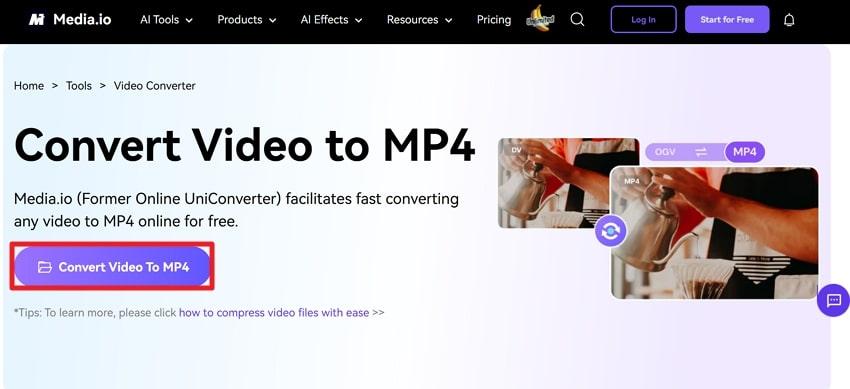
Step 1. Search for the Media.io video converter page and press the “Convert Video to MP4” button to proceed.
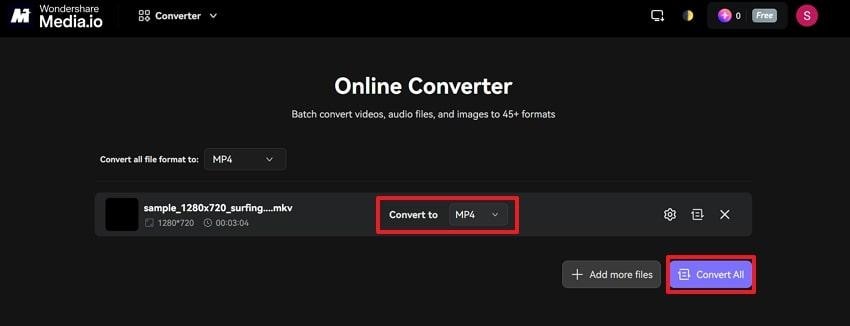
Step 2. Once you’ve uploaded your MKV, extend the menu for “Convert To” and choose the “MP4” format. Now, move forward to the “Convert All” button to begin the conversion with Media.io.
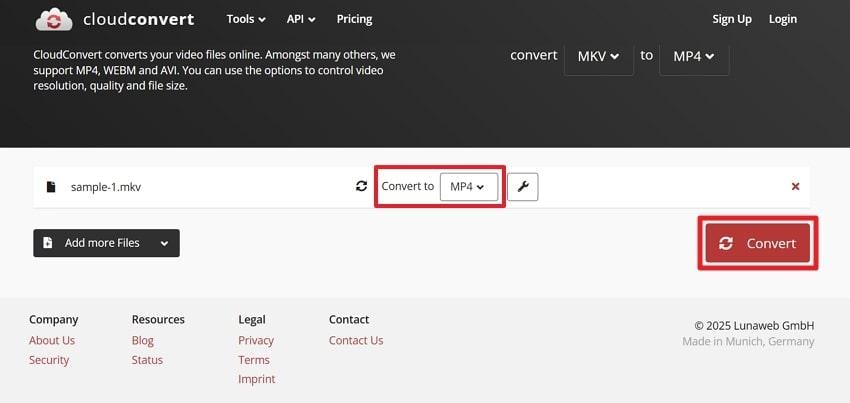
2. MKV to MP4 Online Free with CloudConvert
Another MKV-to-MP4 converter online that offers additional fine-tune options, including aspect ratio and Constant Quality (CRF). Besides this, you can edit your MKV video by adding subtitles or trimming it at the start or end.
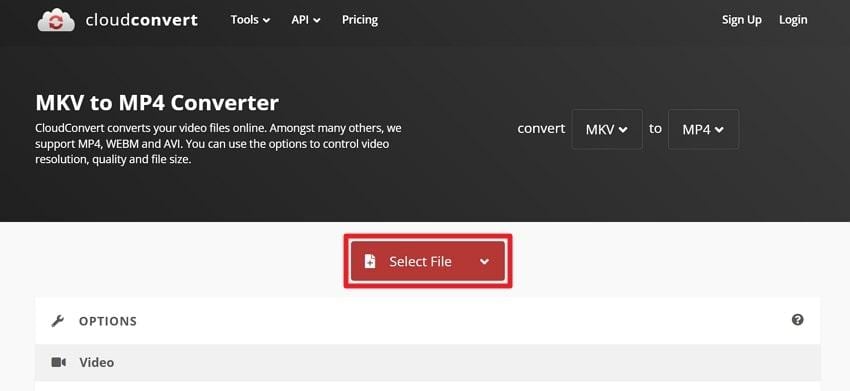
Step 1. Visit CloudConvert from your browser and click the “Select File” button to upload your MKV for conversion.
Step 2. Next, access the “Convert To” menu, select “MP4" from the format options, and press the "Convert” button. Once the conversion completes, click the “Download” button to save the generated MP4 file.
3. Online MKV to MP4 Converter Using FreeConvert
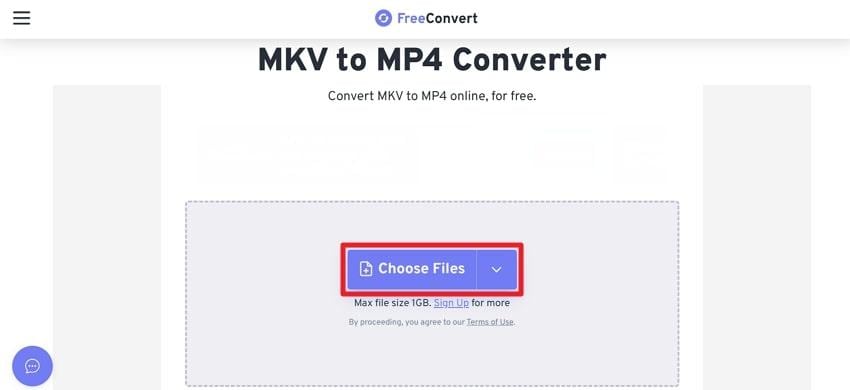
This MKV-to-MP4 converter online free offers advanced quality and codec options, including target size and compression level adjustments. With support for more than 1,500 video/audio formats, you can upload multiple files at once for transformation.
Step 1. Access the main conversion interface for FreeConvert, and press the “Choose Files” button to add MKV.
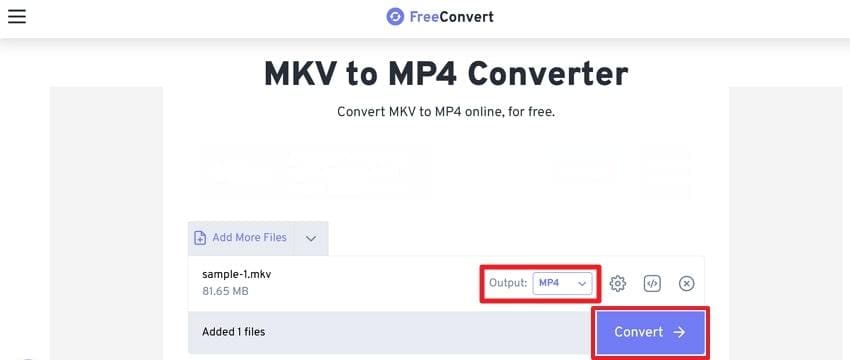
Step 2. Proceed and select the “MP4” option in the Output section as your conversion format. Once done, click the “Convert” button to begin MKV to MP4 conversion through FreeConvert.
4. Convert MKV to MP4 Online Using VEED
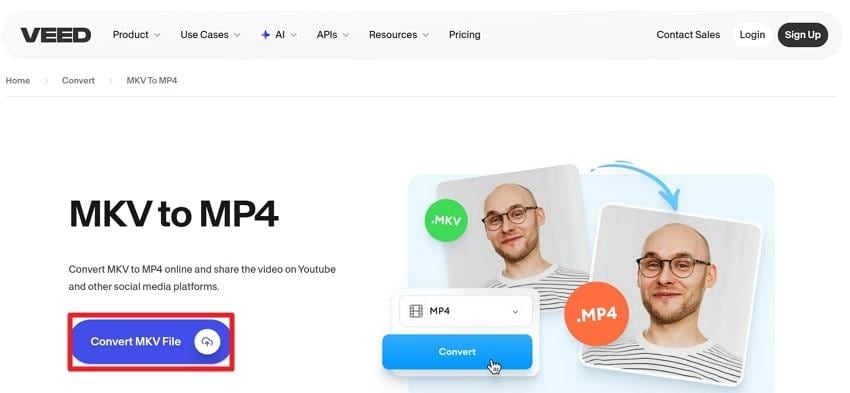
Veed is a convert-and-edit-in-one-place MKV to MP4 converter online, offering sample rate and audio channel adjustment options. After conversion, within the same interface, you can add text, music, and other effects before exporting the final MP4.
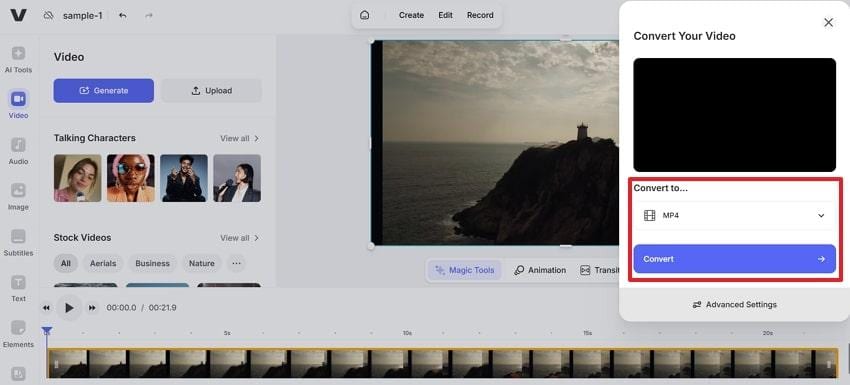
Step 1. Enter the conversion workspace for VEED and click the “Convert MKV File” button to insert your file.
Step 2. Once the file is uploaded, expand the menu for Convert To and select the “MP4” option. Afterward, press the “Convert” button to proceed with the MKV-to-MP4 conversion.
5. Online Video Format Converter MKV to MP4 with Restream
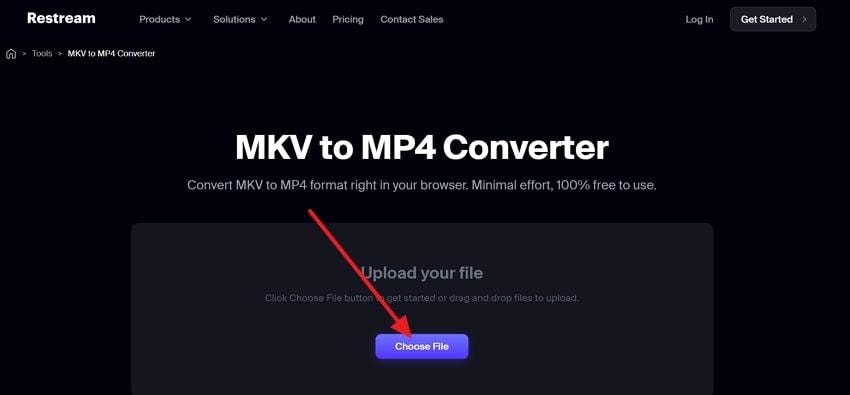
With its minimal interface, you can upload an MKV file from your computer and download an MP4 once processing is complete. Once converted, the MP4 can be stored in Restream’s Video Storage and scheduled as a pre-recorded stream.
Step 1. At first, press the “Choose File” button and upload your MKV file to the working space for Restream.
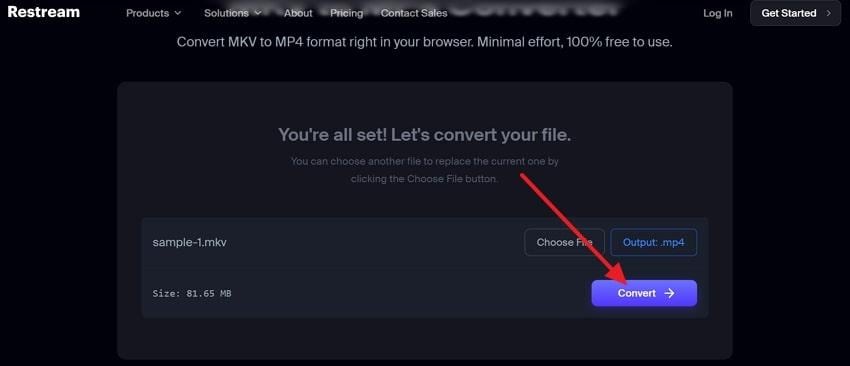
Step 2. Soon, when the file is uploaded, click the “Convert” button to transform it into MP4 format.
6. Convert MKV to MP4 Free Online Using Zamzar
Zamzar can convert MKV files to MP4 online and into many other formats, as part of its 1100+ supported conversion types. All files are uploaded via encrypted connections, processed on Zamzar’s servers, and typically deleted after 24 hours.
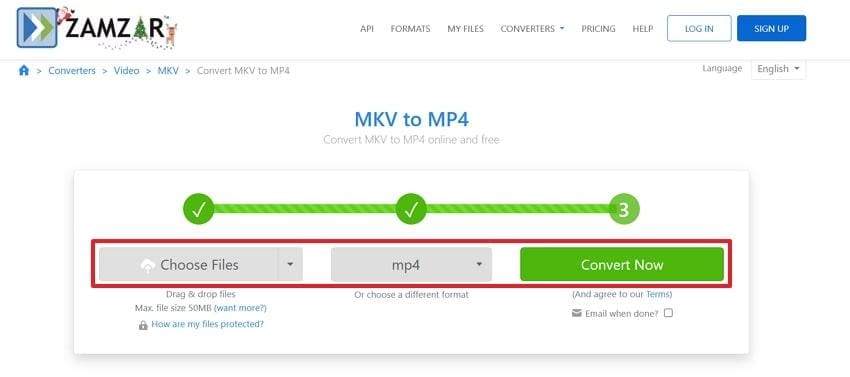
Instructions: Search for Zamzar, select your MKV file, choose the “MP4” format, and click the “Convert Now” button to convert.
Part 5. Common Problems When Using an MKV to MP4 Converter Online
Even with the convenience of an online MKV to MP4 converter, many users might face the provided challenges during the process:
- Upload and File Size Limits: Many online converters limit file size, so extensive MKVs might not upload at all or fail partway through.
- Slow Uploads and Downloads: As conversion happens on a remote server, uploading MKV or downloading MP4 might be slower due to an unstable internet connection.
- Quality Loss and Playback Issues: Users might also encounter playback or missing frames in the converted MP4 when the conversion or codec settings are not ideal.
- Audio Sync and Track Problem: After conversion, audio can end up slightly out of sync with the video, especially for long clips or variable frame rate sources.
- Risk of Corruption During Conversion: In worst cases, with a slight internet connection drop, the resulting MP4 can be structurally broken (corrupted), even if it downloads.
Part 6. MKV to MP4 Conversion Failed or Video Corrupted? How to Fix It
Given the risk of failed conversions or corrupted videos during MKV-to-MP4 online conversion, it’s better to use a reliable solution. Regardless of your device type or corruption scenarios, Repairit Video Repair is suggested as a professional video repair program. After conversion, if your downloaded MP4 has no sound or displays choppy playback, you’re completely sorted. Most importantly, you’re allowed to address multiple corrupted videos at once for immediate repair.

-
Repair damaged videos with all levels of corruption, such as video not playing, video no sound, out-of-sync video or audio, playback errors, header corruption, flickering video, missing video codec, etc.
-
Repair full HD, 4K, and 8K videos and support 20+ popular formats, including MOV, MP4, M2TS, MDT, RSV, WMV, MPEG, DAT, etc.
-
Repair damaged or corrupted videos caused by video compression, system crash, video format change, etc.
-
Repair critically damaged or corrupted RAW/Log/HDR videos from professional cameras such as Blackmagic Design, RED Digital, and ARRI, etc.
-
Repairit has a quick and advanced scanning mode. You can use either depending on the level of corruption the video file has undergone.
-
No limit to the number and size of the repairable videos.
-
Repaired videos are more compatible with professional editing software such as DaVinci, Composer, Final Cut Pro, and Premiere Pro.
-
Support Windows 11/10/8/7/Vista, Windows Server 2003/2008/2012/2016/2019/2022, and macOS 10.12~macOS 15.
The stepwise guidelines provided below ensure that you can effectively restore broken videos, anytime the corruption happens:
Step 1. Initially, access the “Video Repair” section and press the “Start” button to insert all your corrupted MKV videos for repair.

Step 2. Once the MKV videos are added, cross-check their names against the details on your screen for verification. After this, press the “Repair” button to initiate the repair process on all the corrupted videos.

Step 3. Soon, when the repair action completes, click the “Preview” button to review, then save the MKV videos if convinced.

Fix Corrupted MKV or MP4 Videos
 Security Verified. Over 7,302,189 people have downloaded it.
Conclusion
In summary, the article has explored how converting MKV to MP4 online offers greater convenience and accessibility than desktop converters. While online converters are effective for everyday use, there remains a small risk of conversion errors or file corruption. Therefore, if you pair online MKV to MP4 converters with Repairit, you get a hassle-free video experience from start to finish.
Frequently Asked Questions
-
Q1. Is there a truly free MKV to MP4 converter online with no limit?
Yes, several online tools offer free MKV-to-MP4 conversion, but most have limitations, such as daily usage caps. Platforms like Media.io or FreeConvert allow you to convert multiple files, but they may fall short when it comes to file size. -
Q2. Which MKV to MP4 online converter keeps the best quality?
The best online MKV-to-MP4 converter is Media.io, which preserves the original video resolution, frame rate, and audio quality. Not only this, but it also offers customization of output settings and supports high-definition video, generally of high quality. -
Q3. Why does my MKV to MP4 online conversion fail at 99%?
Conversion failures near completion often result from file corruption, unstable internet connections, or unsupported codecs in the MKV file. Whenever this occurs, use a reliable video repair program, such as Repairit, to fix your MKV files before conversion.




