
Many people feel stuck when a simple file refuses to open or copy. This becomes awful when Windows shows a "can't read from the source file or disk" error message. Some users fear losing data because they do not understand why the issue appears. However, these problems often seem complex, yet simple checks can reveal a way to recover. Thus, this guide helps you understand the situation and restore your files.
Table of Contents
Part 1. Common Causes of Can't Read From the Source File or Disk
The issue appears when the system struggles to read files correctly during transfers. Below, you will explore why files become unreadable during copying or opening tasks:
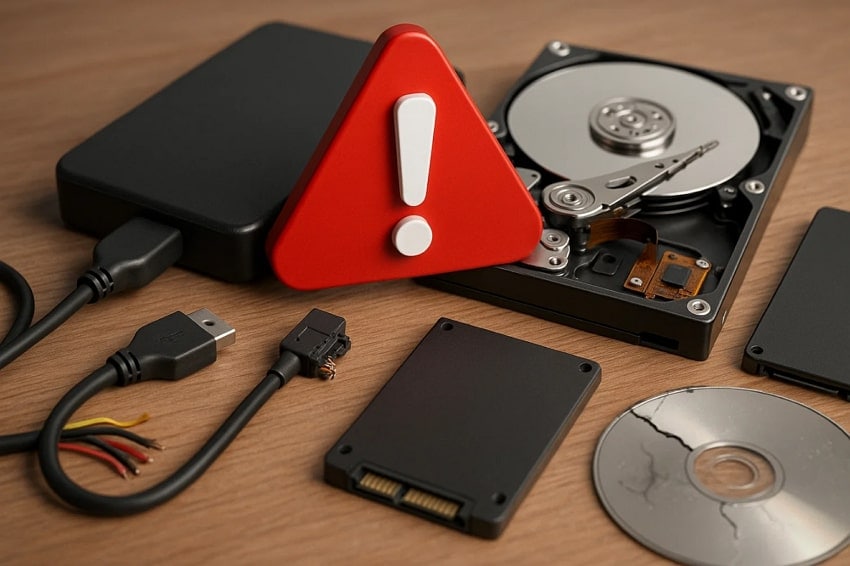
- File Size Limits: FAT32 blocks files larger than four gigabytes, stopping transfers without splitting. In addition, such a problem occurs, resulting in the "can't read from the source file or disk" error.
- System Type Clash: Source and target drivers with different formats often clash. Therefore, NTFS-to-FAT32 copies fail midway through the process, preventing steady file movement entirely.
- Disk Damage: Bad drive spots also prevent steady reading and create repeated stopping during file moves. These damaged areas interrupt normal access and confuse simple transfer attempts.
- Weak Cables: Unstable USB or SATA cables disturb drive connections and disconnect without notice. Drives often drop offline and instantly halt file reading during simple transfers.
- File Corrupt: Broken file data prevents normal loading and stops reading beyond damaged parts. These corrupt sections confuse the system and force it to stop handling transfers.
Part 2. 7 Proven Fixes for "Can't Read From the Source File or Disk" Error
A lot of users face the "can't read from the source file or disk error" while accessing files. Thus, this part shows the top 7 ways to fix the problem and recover files safely:
Fix 1. Run CHKDSK to Repair Disk Errors
The CHKDSK tool scans (MFT, FAT, indexes, metadata) to find hidden damage or errors. It repairs broken file maps that often block Windows from accessing files. As a result, this stops Windows from repeatedly trying to read files from unsafe areas. It also marks problematic areas to prevent future read or write errors. So, follow the steps below to repair the disk via CHKDSK:
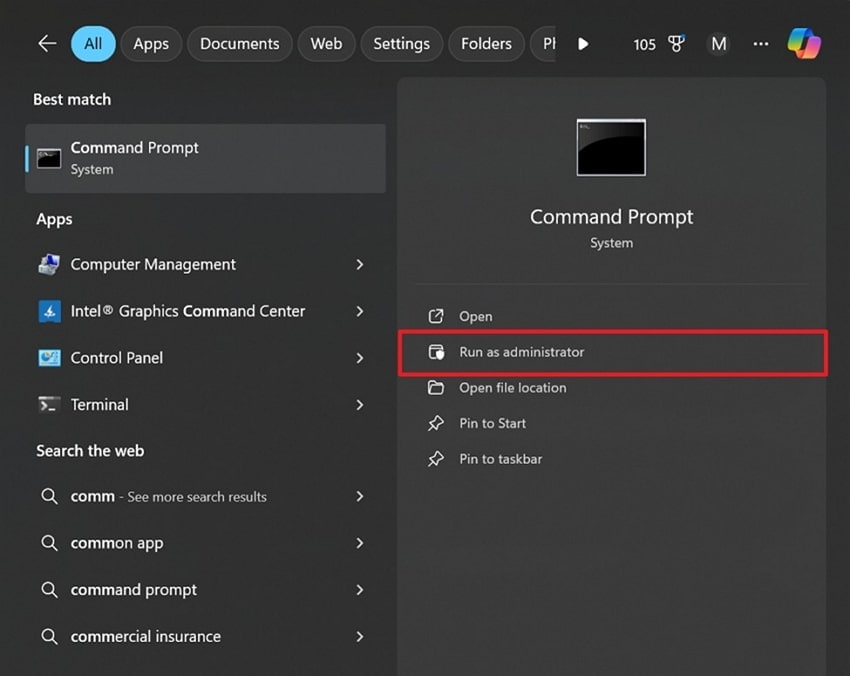
Step 1. Upon searching for the "Command Prompt" on your computer, opt for "Run as Administrator."
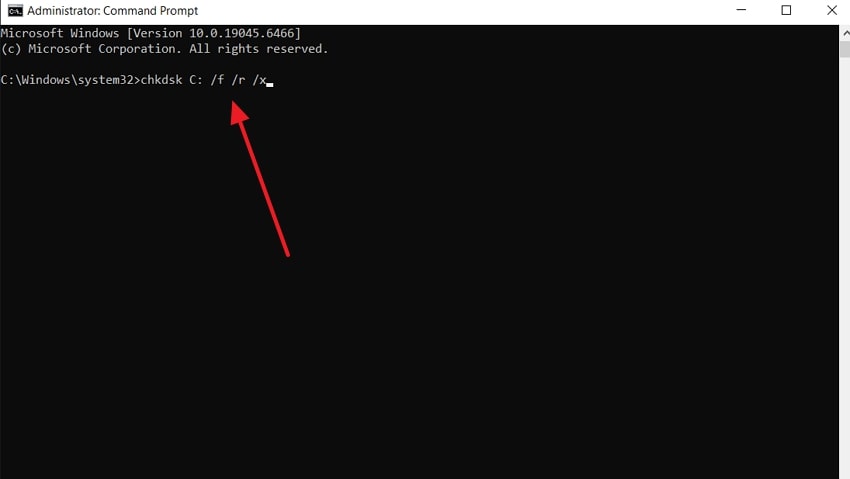
Step 2. Heren, input "chkdsk X: /f /r /x" while replacing "X" with your drive letter and press "Enter." Once it succeeds, restart your computer to allow CHKDSK to scan and fix disk errors.
Fix 2. Check File and Drive Permissions
Each file and folder has specific permissions that control access on NTFS drives. Sometimes, the "can't read from the source file or disk" error happens because your account lacks proper rights. Therefore, checking these permissions helps identify ownership issues and ensure Windows can copy or delete files. Plus, permission problems often occur after upgrades or account changes. Thus, go through the given guide to check file and drive permissions:
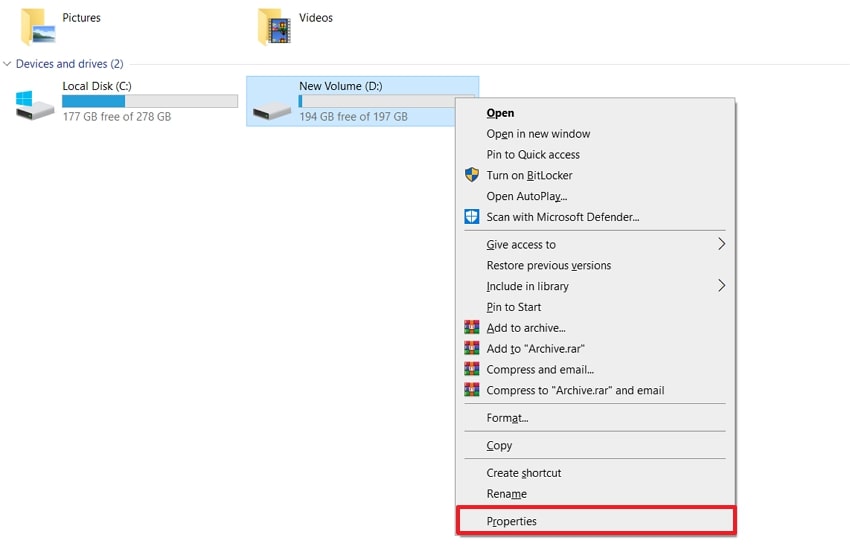
Step 1. Find the file or drive causing the issue, then right-click it. Inside the context menu, select "Properties" at the bottom.
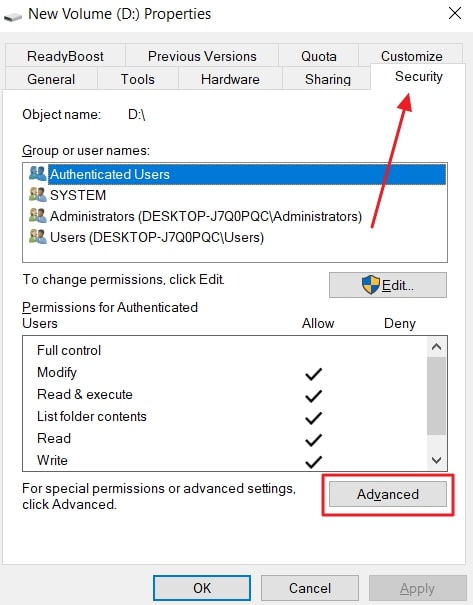
Step 2. In the Properties window, click the "Security" tab to see which users and groups are listed. Afterward, hit the "Advanced" button to view permission settings.
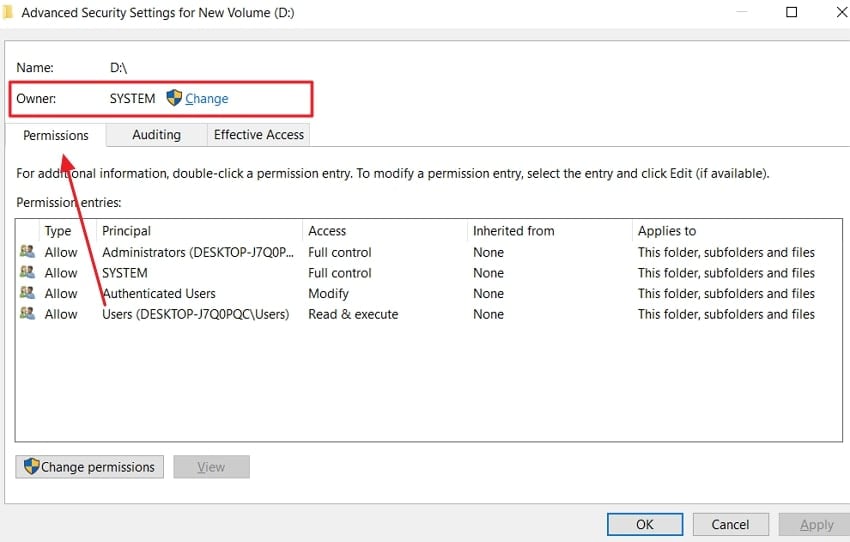
Step 3. Afterward, you can view all permissions in the "Permission" section or the "Owner" name as well. Here, you can also modify the permissions of a specific user by selecting it and pressing the "Change permissions" button.
Fix 3. Try Copying in Safe Mode
Safe Mode basically skips extra programs that sometimes block file copying efficiently. It loads only basic drivers to prevent software clashes from occurring. This process clears the path for smoother reading of files every time. Moreover, it fixes the "can't read from source file or disk" error. Thus, copying completes without software hurdles slowing down the operation later. Hence, read the given steps below to go into Safe Mode:
Step 1. To initiate, press "Windows + R" together to enter "msconfig" and then hit the "OK" button.
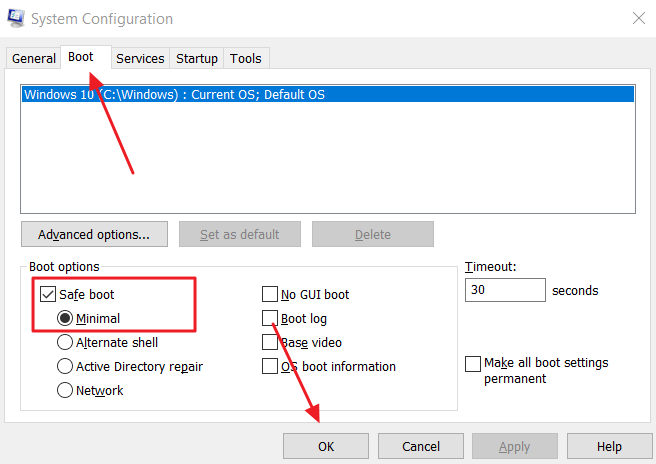
Step 2. Inside the "Boot" tab, check the "Safe Boot" option, and select "Minimal." Then, hit the "OK" and "Restart" buttons to enter safe mode. You can then try to open or copy the file after entering safe mode.
Fix 4. Rename Files or Folders
Files or folders can be renamed, and this can often correct the can't read from source file or disk error by deleting invalid characters or trailing spaces. Besides, the Windows API does not accept filenames with trailing spaces, and access issues will occur. Additionally, paths longer than 260 characters may prevent copying, so renaming helps compatibility. Follow the instructions below to rename files on the computer:
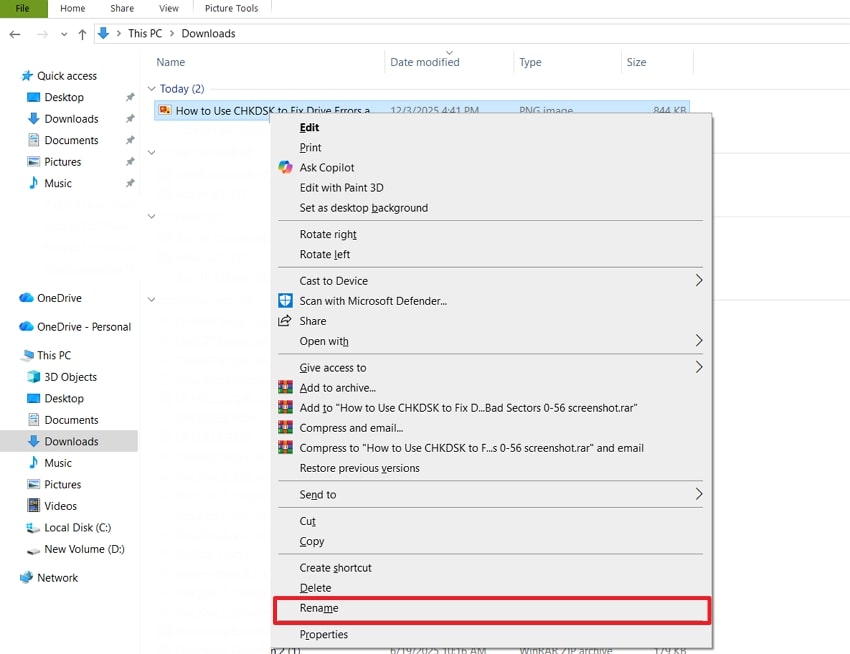
Instructions. Right-click on the file or folder, scroll to the bottom of the menu, then select "Rename."
Fix 5. Move File to Different Location or Drive
New locations bypass damaged sectors or corrupted areas on the original drive. Additionally, placing files on a more reliable drive with simpler paths or a better file system improves read success. Moreover, this method resolves the "can't read from the source file or disk" issue effectively. Consequently, it protects data before running repairs or recovery tools. Thus, go through the steps below to move a file to another location:
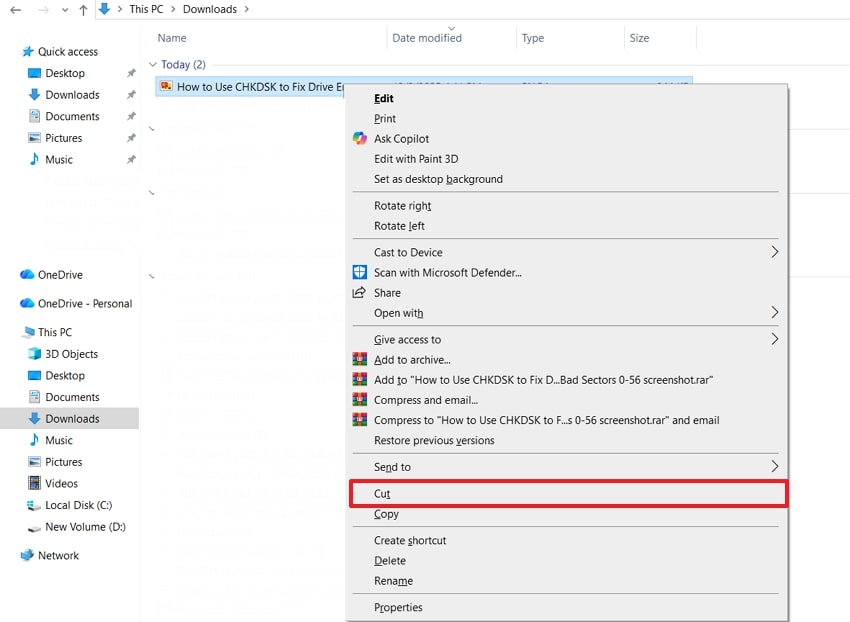
Step 1. Right-click the file that shows the "can't read from source file or disk" error, and select "Cut."
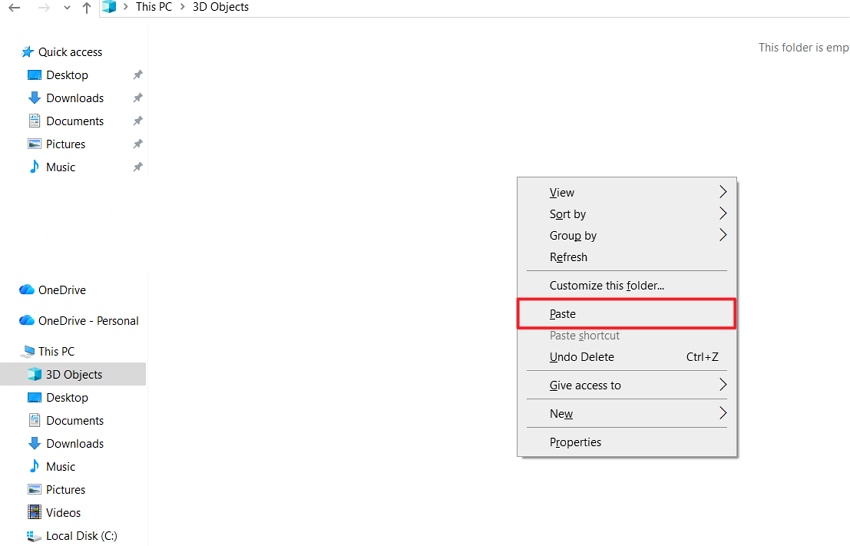
Step 2. Open the folder where you want to place the file. Right-click inside the destination location and choose "Paste" to move the file.
Fix 6. Use a Different Computer or OS
If you still see the "can't read from the source file or disk" error, trying another computer can help. Different disks and file systems respond differently based on hardware and operating systems. Moreover, an alternative system often handles minor disk errors, improving access to your files or folders. Additionally, hardware differences, such as USB controllers or memory, can help keep the drive stable and avoid read errors.
Fix 7. Reformat the Drive
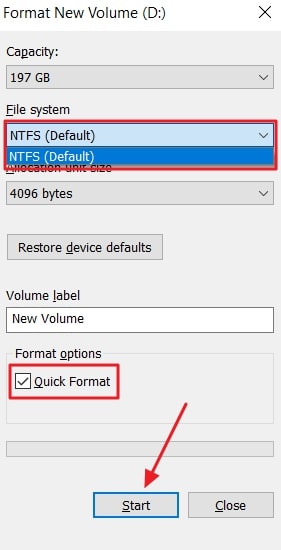
Reformatting the drive can also fix the "can't read from the source file or disk" error by rebuilding damaged file system structures. Besides, switching from FAT32 to NTFS or exFAT removes the file size limit. Furthermore, modern file systems support larger files and improve permission controls. They also include journaling, which reduces recurring read/write issues and improves data integrity. Hence, follow the steps below to reformat the drive:
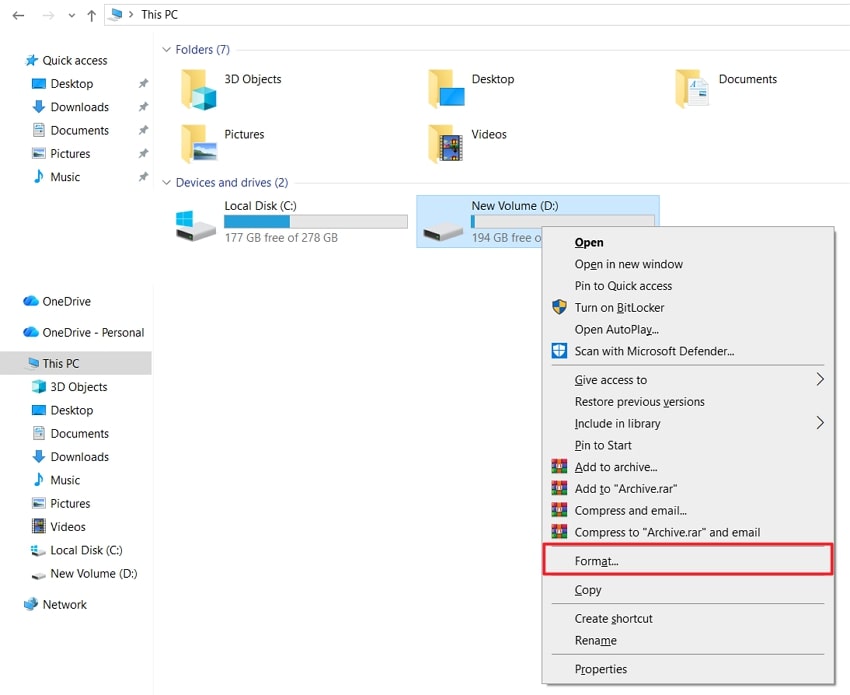
Step 1. Open "File Explorer," locate the drive you want to format, then right-click it. Next, choose the "Format" option from the right-click menu.
Step 2. Now, select "NTFS" or "exFAT" to remove limitations and improve compatibility. Lastly, tick "Quick Format" for faster formatting and click the "OK" button.
Advanced File Repair. Restore Unreadable or Damaged Files with Repairit!
Apart from that, many people also get stressed when their important files get damaged or broken. In such a case, Repairit is the top choice for efficiently repairing corrupted or unreadable files. This advanced tool repairs damaged or unreadable DOC and DOCX files without modification. Moreover, it offers users the ability to repair either damaged or corrupted files, even larger than 1GB.
You can also recover text, hyperlinks, forms, headers, footers, and watermarks easily. Plus, all the objects of the PPT and PPTX files, such as tables and charts, can be fixed by Repairit. You are also able to repair several large files simultaneously with no size or quantity constraint. Moreover, it lets you preview repaired files prior to saving them to ensure that all content has been restored.
Key Features

-
Repair damaged files with all levels of corruption, including blank files, files not opening, unrecognizable format, unreadable content, files layout changed, etc.
-
Support to repair all formats of PDF, Word, Excel, PowerPoint, Zip, and Adobe files.
-
Perfectly repair corrupted files with a very high success rate, without modifying the original file.
-
No limit to the number and size of the repairable files.
-
Support Windows 11/10/8/7/Vista, Windows Server 2003/2008/2012/2016/2019/2022, and macOS 10.13~macOS 15.
Tutorial to Fix Damage or Corrupt All Types of Files via Repairit
This part helps you restore your damaged or broken files without any harm and fix the "can't read from the source file or disk" error:
Step 1. Access Repairit to Fix Damaged Files
Go to the "More Types Repair" tab, select the "Document Repair" tool, and press the "Start" button.

Step 2. Select & Repair Your Corrupted Files
On the next screen, click "+Add" to select your corrupted documents, then hit "Repair" to begin restoration.

Step 3. Export Your Repaired Files Safely
Once the repair finishes, check the restored files using the "Preview" feature and press "Save All" to download your fixed files.

Fix Damage or Corrupt All Types of Files
 Security Verified. Over 7,302,189 people have downloaded it.
Conclusion
To conclude, people feel frustrated when Windows displays "cant read from the source file or disk". Yet, this article has explored several quick and easy solutions to address this issue. Besides, many users also want a reliable solution to repair their broken or corrupted files. To address it, try Repairit immediately to restore damaged or unreadable files. Using this dedicated tool ensures files open and work without repeated errors.
FAQs
-
Q1. Can antivirus programs cause this error on a Windows system?
Yes, the antivirus software prevents access to files because it is a security concern. They may quarantine files in the wrong format, and they are not able to read a source file or disk. One can temporarily turn off the antivirus and determine whether it is the source of errors. -
Q2. Does the error appear only on external drivers or USB sticks?
No, it can happen on the internal hard drives, SSDs, or network drives too. Any storage device with damaged sectors or improper formatting may trigger this error. Windows reports the issue when it can not read files during copying or opening. -
Q3. How can I recover files if normal fixes don’t work?
An advanced program such as Repairit can be used to restore your damaged or corrupted files. It accepts various file formats such as DOCX, ZIP, and others. Also, previews of repaired files can be viewed prior to saving so as to guarantee total content recovery.




