
A user opens a shared network folder for an important project update and is suddenly met with the frustrating message, "You can't access this shared folder." This error instantly disrupts workflow, blocks collaboration, and creates uncertainty about whether the issue stems from permissions, network settings, or device conflicts.
The problem appears across Windows, making it a common headache for teams and individuals working across shared environments. This guide breaks down why the error occurs, how to fix it quickly, and what steps you can take to prevent future access issues.
Table of Contents
-
- Fix 1. Turn on Network Discovery and File Sharing
- Fix 2. Correct Share Permissions (Everyone/Specific Users)
- Fix 3. Fix NTFS Security Permissions on the Folder
- Fix 4. Remove or Update Saved Credentials in Credential Manager
- Fix 5. Allow SMB or File Sharing Through Firewall/Antivirus
- Fix 6. Enable Insecure Guest Logons (Only If You Intentionally Use Guest Shares)
Part 1. Why Windows Shows ‘You Can't Access This Shared Folder'
Even a small misconfiguration can block a device from reaching a shared directory, causing Windows to stop the connection for security or compatibility reasons. Understanding the root cause of the "Windows cannot access the shared folder " error helps you troubleshoot faster and prevents repeated interruptions:
- Incorrect Folder Permissions: When the shared folder lacks the proper read or write permissions for your account, Windows immediately denies access. Adjusting user or group permissions typically restores full visibility.
- Disabled Network Discovery: If "Network Discovery" is turned off, your device cannot detect or communicate with other computers on the network. This interruption triggers access errors when trying to open shared folders.
- Mismatched User Credentials: Windows may reject the connection if the username or password used to authenticate doesn't match the host computer's expectations. Re-entering credentials or clearing stored logins often resolves the issue.
- Firewalls or Securi ty Software Blocking Access: Firewalls sometimes treat file-sharing attempts as potentially unsafe traffic, intentionally blocking the connection. Tweaking inbound and outbound sharing rules usually fixes it.
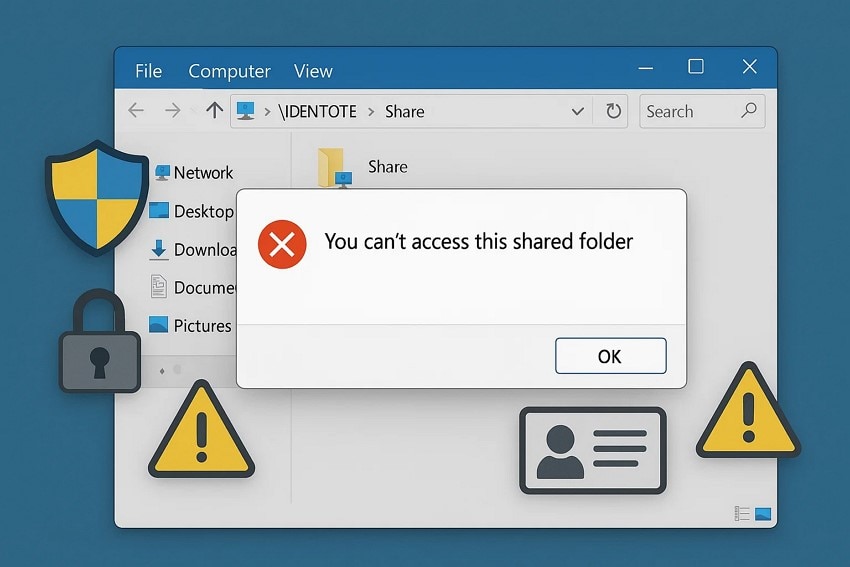
Part 2. 6 Expert Fixes for Windows Cannot Access the Shared Folder
Now that the underlying causes are clear, you can move on to proven remedies that tackle the issue. Let's explore the most reliable methods to resolve the "cannot access the shared folder Windows 11" problem:
Fix 1. Turn On Network Discovery and File Sharing
When Windows displays the "You can't access this shared folder" message, simple settings often stand in the way of smooth file sharing. Turning on "Network Discovery" and "File Sharing" helps your PC locate nearby devices and make itself visible on the network. Enabling these options ensures proper communication between systems, reducing access conflicts and connection issues. Follow the steps mentioned next to learn how to turn on these options:
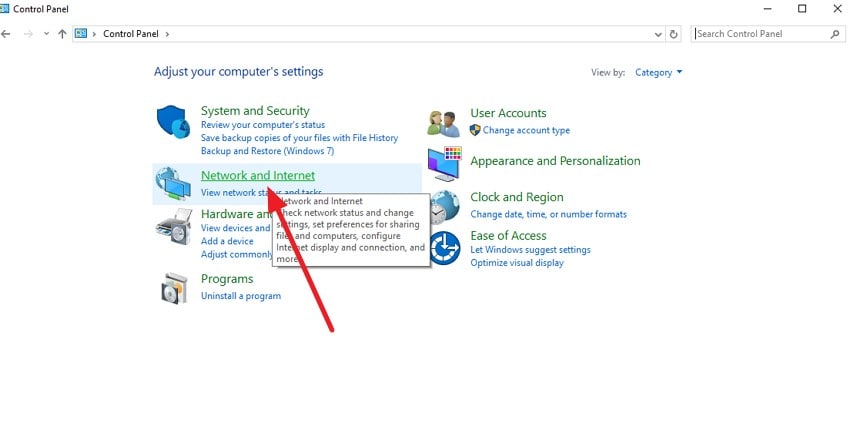
Step 1. Begin by opening the "Control Panel" and choosing the "Network and Internet" option.
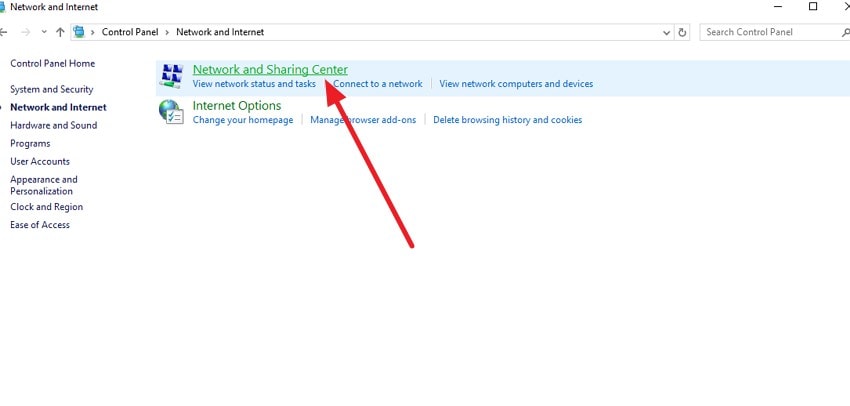
Step 2. In the following interface, click the "Network and Sharing Center" to proceed.
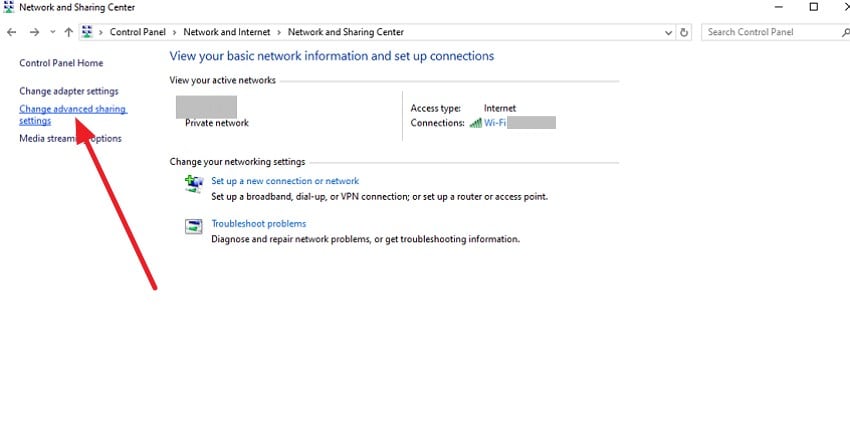
Step 3. Now, head to the section on the left and press the "Change Advanced Sharing Settings" option.
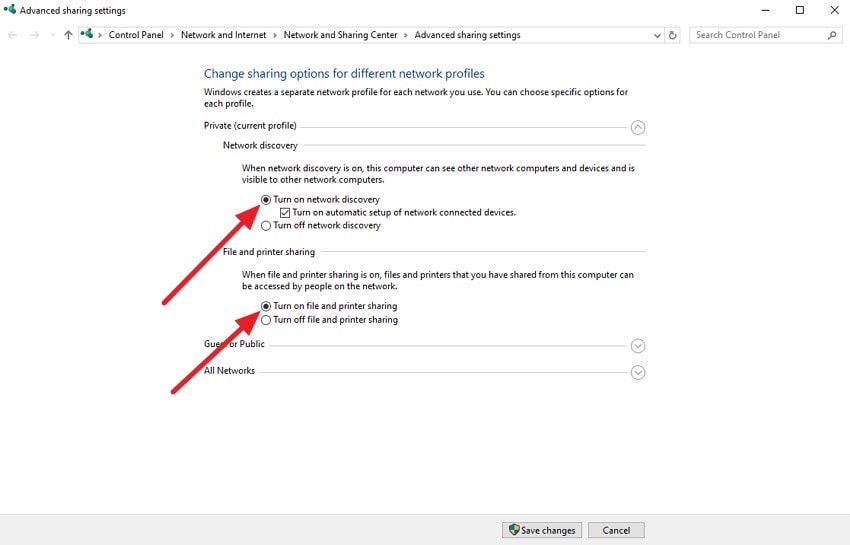
Step 4. Here, enable the radio buttons for "Turn on Network Discovery" and "Turn on File and Printer Sharing." Press the "Save Changes" button located at the bottom to apply the settings.
Fix 2. Correct Share Permissions (Everyone/Specific Users)
Correcting share permissions is essential when Windows cannot access a shared folder. Ensuring the folder is shared with everyone or only the required specific users helps remove unnecessary restrictions that trigger access errors. Setting the right permission level restores smooth connectivity across your network without repeated authorization issues. If you do not know how to resolve the issue with changing share permissions, read the steps provided below:
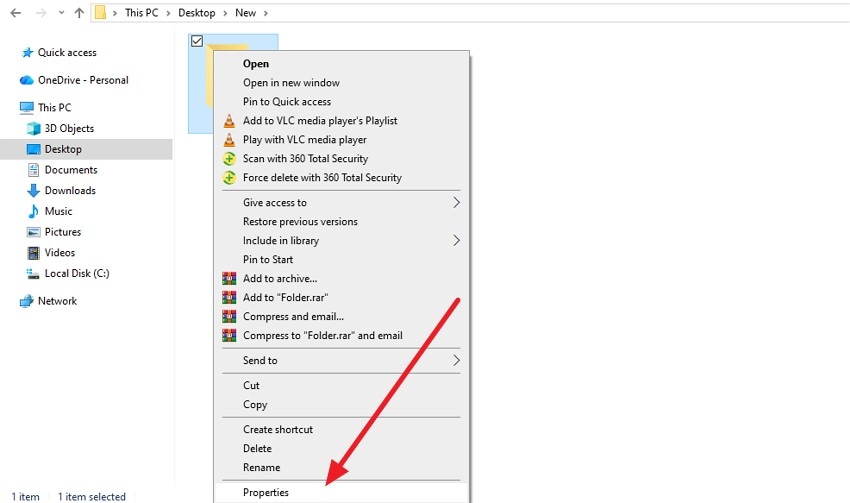
Step 1. Right-click on the folder and locate the "Properties" option at the bottom.
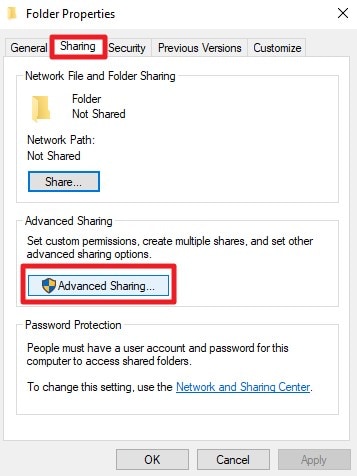
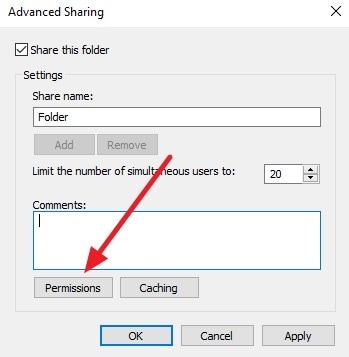
Step 2. In the "Properties" window, access the "Sharing" tab and press the "Advanced Sharing" button.
Step 3. Next, locate and click the "Permissions" option to proceed to the following interface.
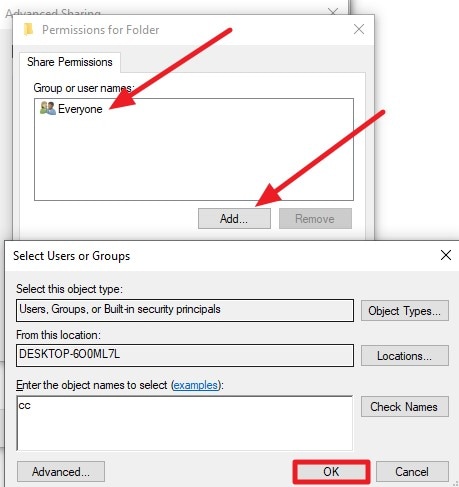
Step 4. Here, select "Everyone" or press "Add" to add a specific user. Once the user device is added, press "OK" to confirm.
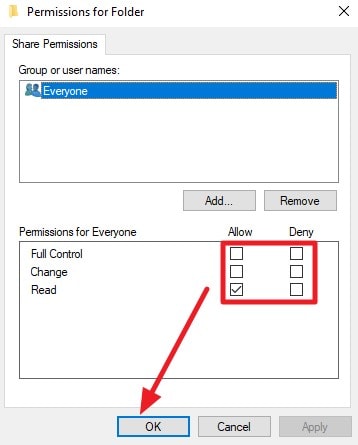
Step 5. After selecting the user or everyone, tick the checkboxes for "Allow" or "Deny" of the permissions. Once all the settings are configured, press the "O K" button to save the changes.
Fix 3. Fix NTFS Security Permissions on the Folder
Even if sharing is enabled, restrictive NTFS permissions can still prevent access. These permissions control who can read, modify, or open the actual files inside the folder. Adjusting them to include the correct user accounts resolves mismatched security rules, ensuring Windows can grant access without hitting permission conflicts. Follow the instructions below to learn how to grant this permission for resolving the "You Can't Access This Shared Folder" error:
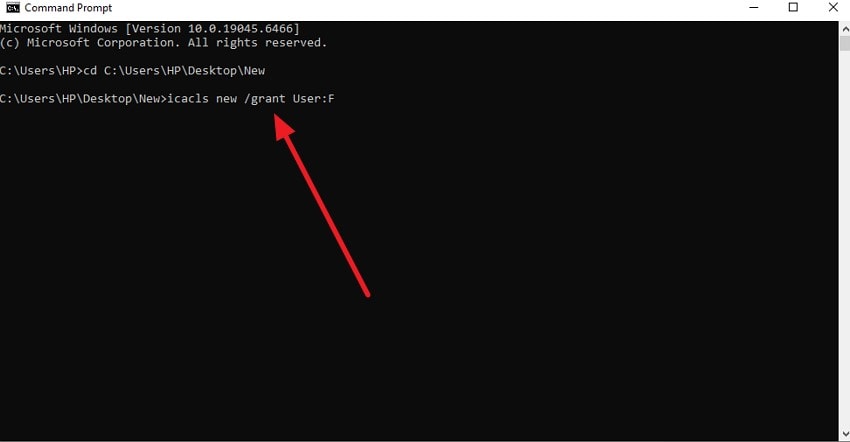
Instructions. Access "Command Prompt" on your device and type "cd [folder path]" to navigate into the specific folder. Now enter the prompt "icacls . / grant [User] : ( [F or M or RX] )" and press the "Enter" key to fix NTFS security permissions.
Key
"." represents current folder.
"F" represents Full Access
"M" represents Modified Permissions
"RX" represents Read & Execute
Fix 4. Remove or Update Saved Credentials in Credential Manager
Windows may store outdated or incorrect login credentials, causing repeated authentication failures when connecting to a shared folder. Clearing or updating these saved entries allows Windows to request fresh credentials. Once the incorrect password or username is removed, the shared folder typically becomes accessible again. Follow the steps mentioned next to learn how to use this fix to resolve the "Windows cannot access shared folder" error:
Step 1. Access "Control Panel" on your PC and locate the "User Accounts" option.
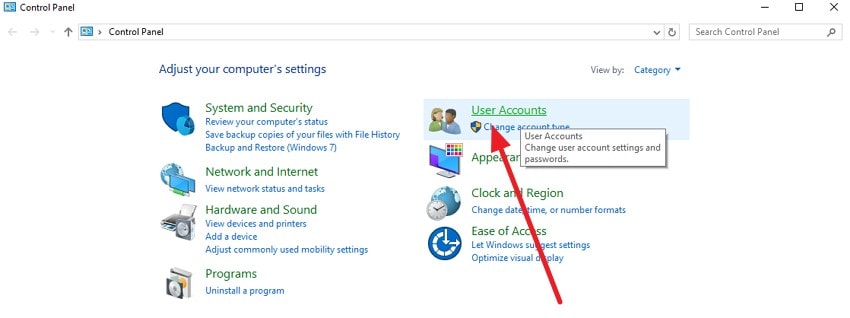
Step 2. Upon accessing it, press the "Credential Manager" option in the following interface.
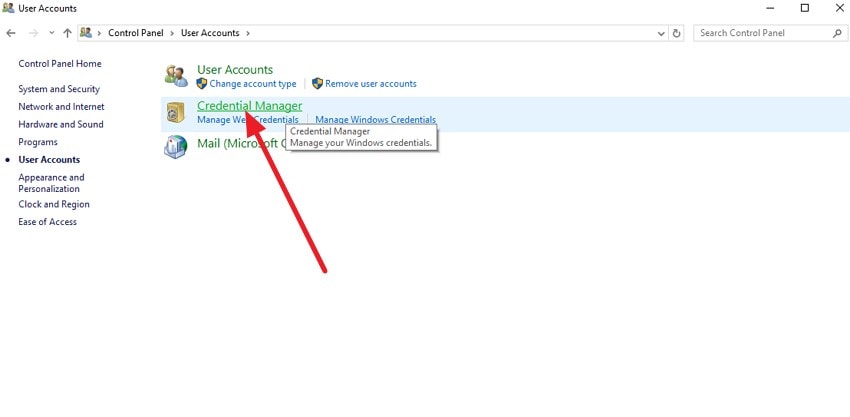
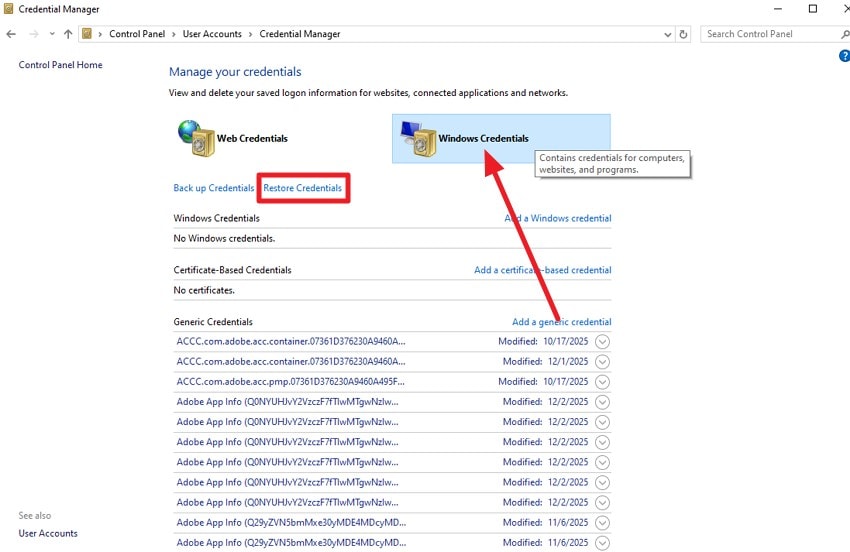
Step 3. Now, access the "Windows Crede ntials" section and click on the "Restore Credentials" option to remove the new passwords from the system.
Fix 5. Allow SMB and File Sharing Through Firewall/Antivirus
Firewalls or antivirus tools may block SMB traffic, preventing shared folders from responding correctly. Allowing file sharing protocols through security software ensures network communication isn't interrupted. Once SMB is permitted, Windows can establish proper connections with shared directories. Follow the steps mentioned next to learn how to allow SMD and file sharing to resolve the "cannot access shared folder W indows 11" error:
Step 1. Open your computer's "Control Panel" and press the "System and Security" option.
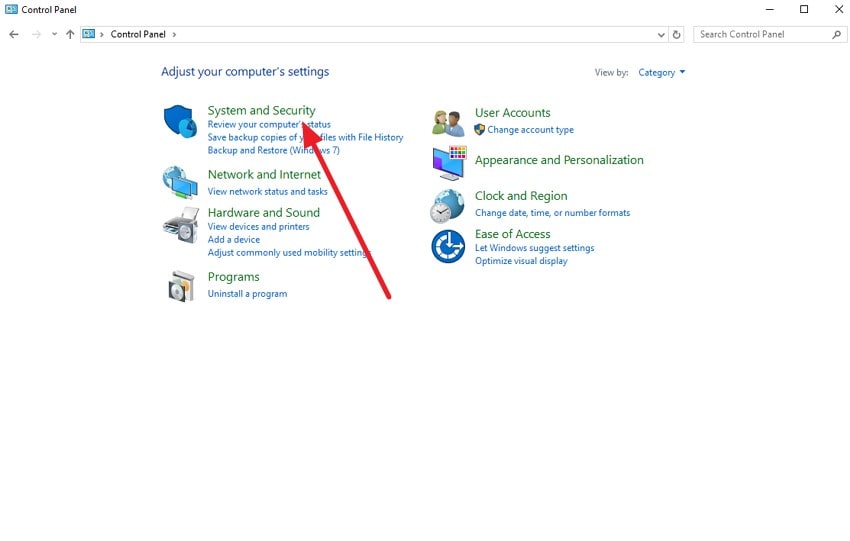
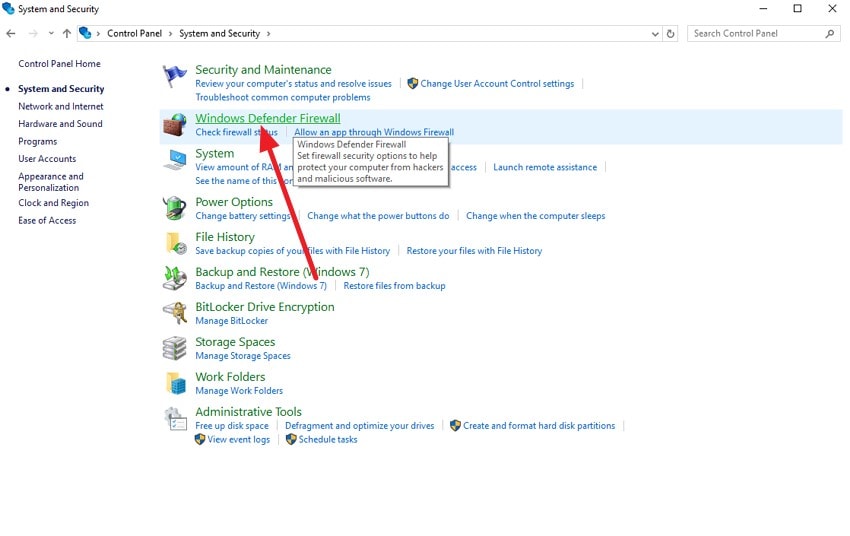
Step 2. In the following interface, access the "Windows Defender Firewall" option.
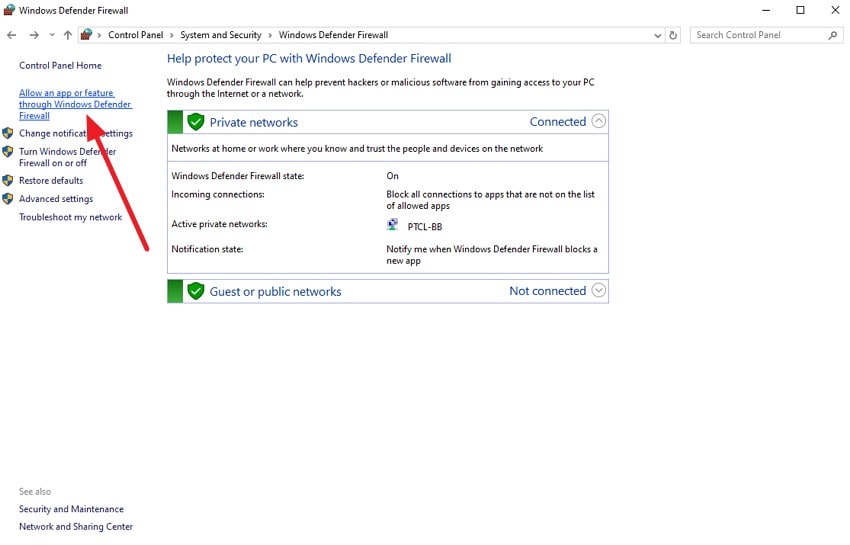
Step 3. Next, head to the section on the left and choose "Allow an App or Feature Through Windows Defender Firewall ."
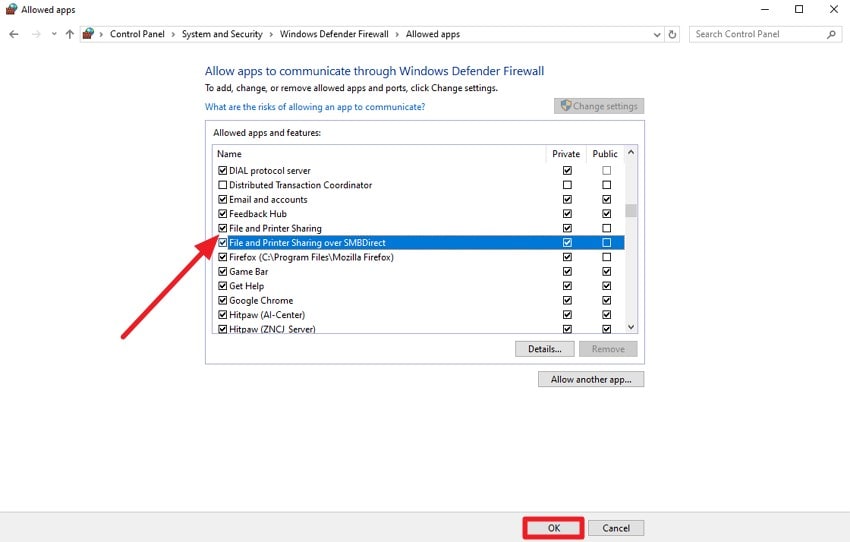
Step 4. Now scroll through the list in the following interface and tick the checkboxes next to "File and Printer Sharing" and "File and Printer Sharing over SMBDirect." Once done, press the "OK" button located at the bottom to save the applied changes.
Fix 6. Enable Insecure Guest Logons (Only If You Intentionally Use Guest Shares)
Some networks rely on guest-accessible shared folders without requiring credentials. If guest logons are disabled, Windows instantly blocks such connections. Enabling this option restores access but should only be used on trusted networks, as it lowers security by allowing anonymous users to reach shared resources. Here is how you can resolve the "Y ou C an't A ccess this S hared F older" issue by enabling the Insecure Guest Logons:
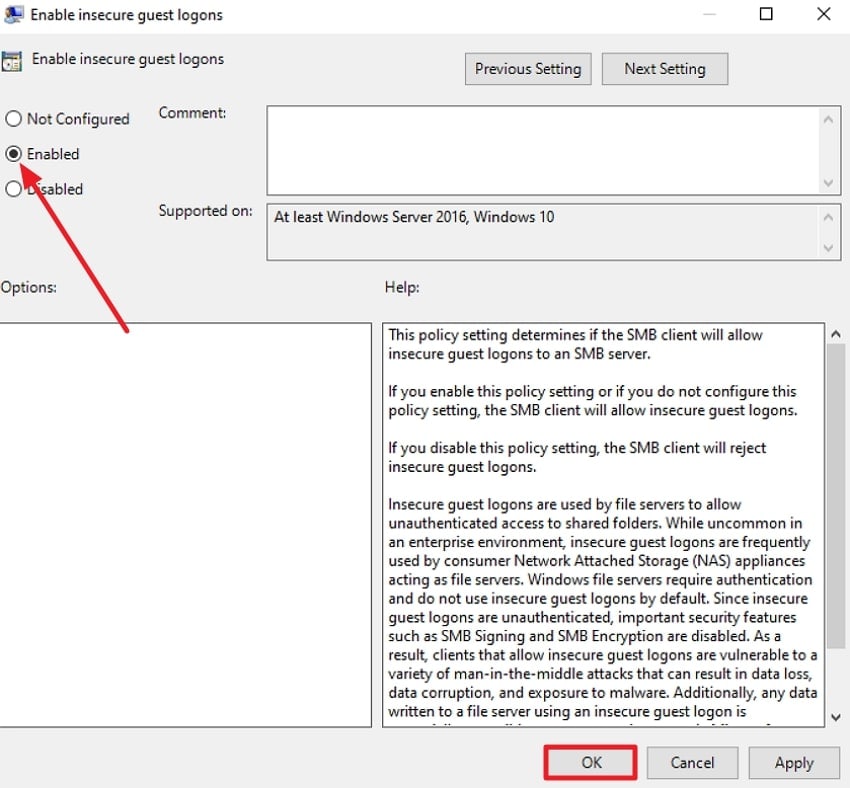
Step 1. Begin by opening the "Local Group Policy Editor" and scrolling through the directory on the left. Locate "Lanman Workstation ," head to the right side, and press the "Enable Insecure Guest Logons" option.
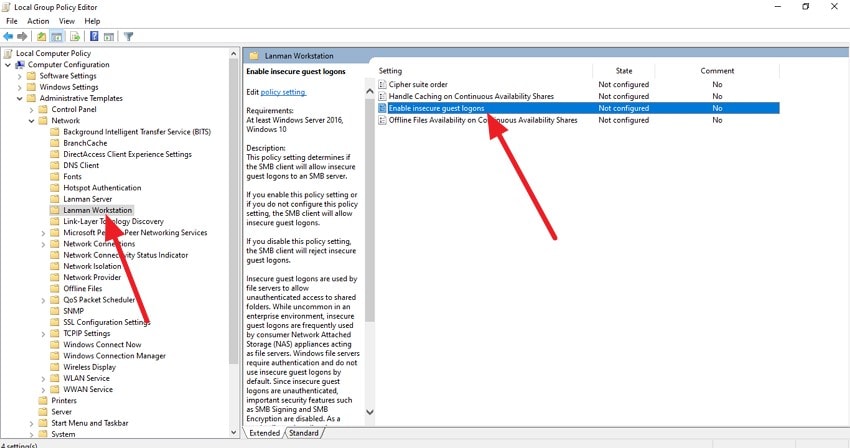
Step 2. In the following interface, configure the settings and press the radio button next to the "Enabled" option. Once done, press the "OK" button at the bottom to save the changes.
Pro Tip. Repair Files Causing Shared Folder Access Errors in Windows
A corrupted file inside a shared directory can instantly trigger access blocks, and this is where Repairit steps in with remarkable precision. Its advanced repair engine restores damaged documents, videos, images, and emails that Windows may flag as unsafe, causing the "Windows can't access this shared folder" error. Repairit analyzes file structure, rebuilds missing components, and recovers content without affecting original data quality.
The tool supports batch repair, allowing multiple corrupted files to be fixed in one go. Once these problematic files are repaired, shared folders typically reopen smoothly, eliminating the conflicts that caused Windows to restrict access.
Coherent Features Offered by Repairit

-
Maximum File Repair Accuracy: The accuracy rate of this tool is 99.5% in data recovery, which is way higher than that of other file repairing tools.
-
Engineering File Repair: From PSD to CAD files, you can find exclusive support for engineering file repair across Repairit with layer-by-layer accuracy.
-
Archive File Repair: This tool allows you to repair archive file formats such as ZIP, RAR, and ISO with an internal hierarchy preview during repair.
Step-by-Step Instructions to Repair Corrupted Files Using Repairit
After understanding the tool's capabilities, let's walk through the process of fixing damaged files efficiently:
Step 1. Choose the Required Repair Mode
Select the repair mode, like "Document Repair," from the homepage and click the "Start" button. Add the corrupted shared files you want to fix within the interface.

Step 2. Add Files and Begin Repair
After adding files, select them and click the "Repair" button at the bottom to initiate the recovery process.

Step 3. Check and Save Repaired Files
Once the repair is complete, preview the fixed files in the tool, then click "Save" to store them on your device.

Repair Corrupted Files Now!
 Security Verified. Over 7,302,189 people have downloaded it.
Conclusion
To wrap it up, this article provided a complete guide on resolving the "You Can't Access This Shared Folder." These fixes will definitely help you get the task done in no time. However, if you have any damaged files that are restricting access to the shared folder, you can use Repairit. This advanced file repairing tool lets users repair documents in no time, while keeping the quality maintained.
FAQs
-
1. Why does Windows keep showing "You can't access this shared folder"?
This usually happens due to incorrect permissions, blocked SMB traffic, outdated credentials, or corrupted files inside the shared directory. Checking share settings and verifying network configurations often resolves the issue. -
2. Can corrupted files inside a shared folder cause access errors?
Yes, damaged or unreadable files may trigger Windows to block the folder for security reasons. Using a repair tool like Repairit helps restore those files and prevents repeated access failures. -
3. How do I fix permission conflicts on a shared folder?
You must configure both "Share Permissions" and "NTFS Security Permissions" correctly for the user or group accessing the folder. If the folder still refuses to open, scan it with Repairit to repair any problematic files inside. -
4. What should I do if Windows keeps asking for credentials when accessing a shared folder?
This happens when stored credentials are outdated or mismatched. Clearing or updating entries in "Credential Manager" helps to resolve this.




