
A user tries to open an important folder on their Windows PC, only to see the frustrating message: “The file name, directory name, or volume label syntax is incorrect.” Confusion and urgency quickly set in as they wonder how to access their files. Such interruptions can derail work, delay projects, and create unnecessary stress.
Dealing with this error requires a clear, practical approach that anyone can follow, whether they are tech-savvy or not. This guide provides simple, step-by-step instructions to help users quickly overcome this issue and regain full access to their files and folders without hassle.
Table of Contents
Part 1. Why Your Files or Folders Trigger Windows Syntax Errors
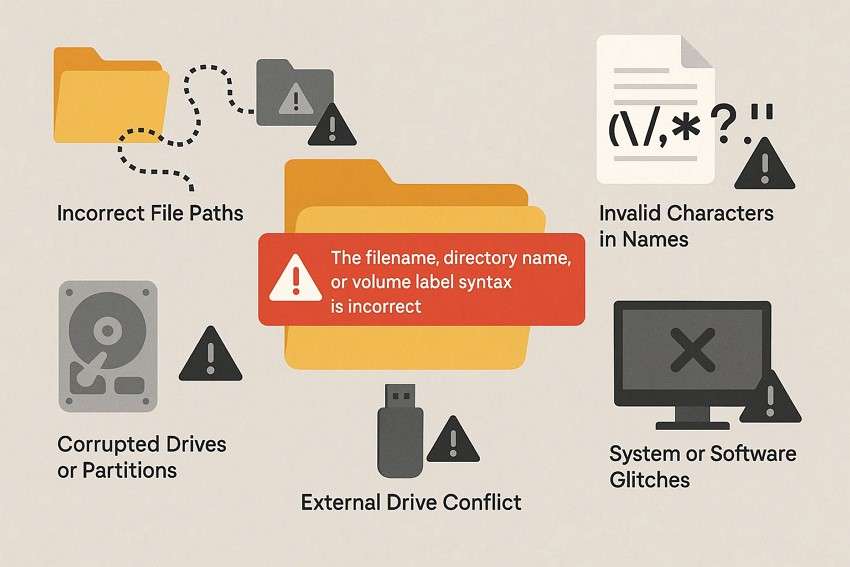
Sometimes, even simple actions like opening, renaming, or moving files can trigger the error: “The filename, directory name, or volume label syntax is incorrect." The following are some of the root causes due to which this error occurs:
- Incorrect File Paths: Files or folders with excessively long paths can exceed Windows’ character limit, causing errors. Shortening the path or moving the file can resolve the issue.
- Invalid Characters in Names: Using forbidden characters like \ / : *? " < > | in file or folder names can trigger syntax errors. Renaming the item with allowed characters usually fixes it.
- Corrupted Drives or Partitions: Damaged storage drives or partitions may prevent Windows from reading file names correctly. Running disk repair tools can help restore access.
- External Drive Conflicts: Connecting USB drives formatted for different file systems can cause syntax mismatches. Ensuring proper formatting or safely ejecting devices often solves the problem.
- System or Software Glitches: Temporary system bugs or software conflicts can interfere with file access. Restarting Windows or performing system updates often clears these glitches.
Part 2. Step-by-Step Fix for Filename, Directory, or Volume Syntax Errors
After understanding why Windows triggers syntax errors with files, folders, or drives, the next step is to take practical action. The following step-by-step fixes provide clear instructions that anyone can follow, ensuring you can tackle “the filename, directory name, or volume label syntax is incorrect” error:
Fix 1. Rename Files/Folders to Remove Illegal Characters
Renaming files or folders can quickly resolve errors triggered by unsupported symbols in Windows. When special characters appear in a file path, you may encounter messages like “the filename, directory name, or volume label syntax is incorrect.” Assigning a clean, simple name removes these conflicts and allows Windows to recognize the item properly. Follow the steps provided next if you do not know how to rename a file:
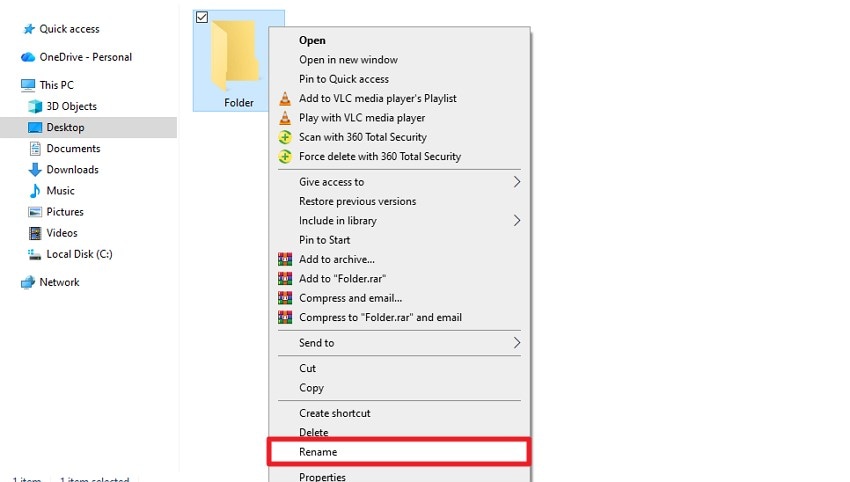
Step 1. Begin by accessing the file or the folder and right-clicking on it to open a list of options. Next, locate the “Rename” option and click on it.
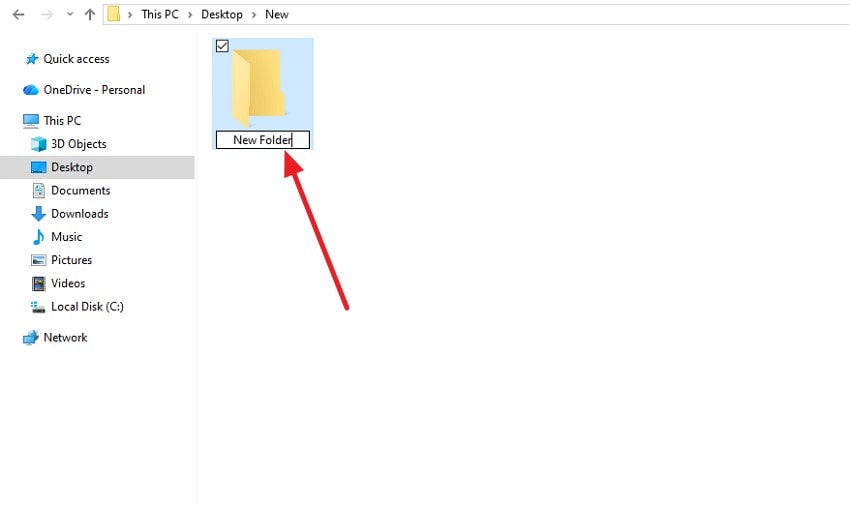
Step 2. Now, type in the new name carefully without any special or illegal characters and press “Enter” to save.
Fix 2. Shorten and Correct the Full Path
Long, complex folder paths can confuse Windows and lead to errors such as “the filename, directory name or volume label syntax is incorrect.” Shortening the full path by reducing nested folders or renaming directories helps Windows interpret it correctly.
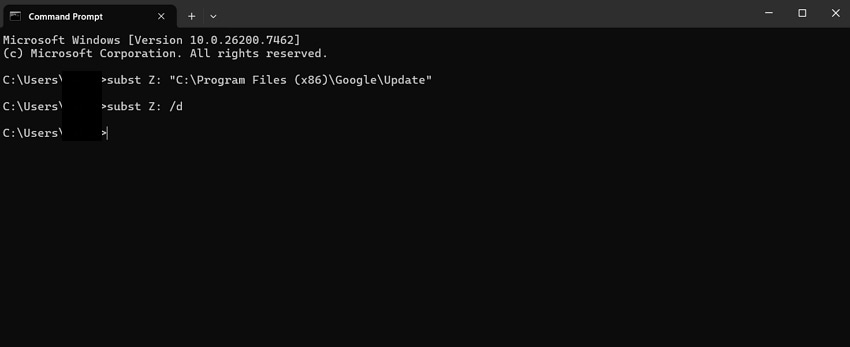
Using the “subst” command in CMD helps substitute the long path directory into a temporary location, allowing easier access. Read the instructions mentioned below to learn how to shorten the file path using the command prompt:
Instructions. Open CMD and type in the command: “subst Z: "[file path]".” This will create a temporary “Z:” drive in your drives, which leads directly to the full path showing error otherwise. To remove it from CMD, you need to type in the command: “subst Z: /d.”
Fix 3. Fix Paths and Quotes in Scripts/Commands
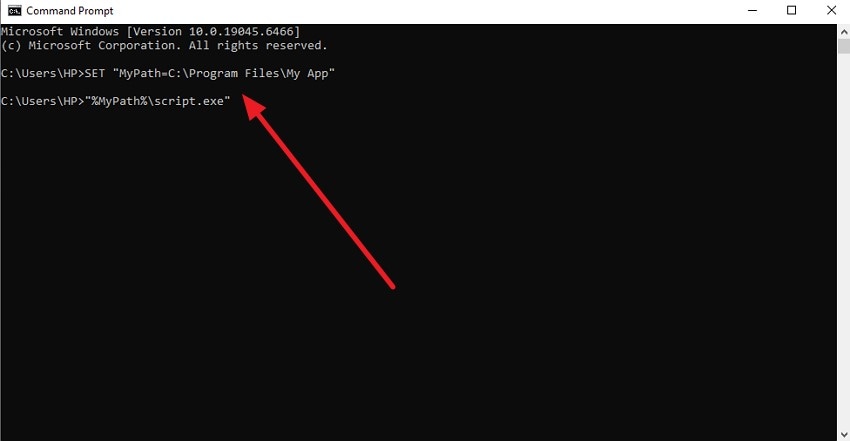
Incorrectly formatted paths or missing quotation marks in scripts and command-line operations can easily trigger errors during execution. When Windows encounters malformed input, it may display messages like “the filename, directory name or volume label syntax is incorrect.” Reviewing your command syntax and correcting typos ensures smooth script execution and prevents path-related failures. To learn how to fix the path and quotes in CMD, read the steps mentioned below:
Instructions. After accessing the command prompt on your device, type in the command:
SET "MyPath=C:\Program Files\My App"
"%MyPath%\script.exe".
Now press the “Enter” key on your device to run the command for fixing the syntax issue.
Pro Tip. Fix Syntax Errors by Repairing Corrupted System or Drive Files
Corrupted system or drive files often lead to frustrating Windows syntax errors, but a reliable tool can restore them efficiently. With a user-friendly interface, Repairit lets users scan affected drives, detect damaged files, and recover important documents, photos, videos, and more. The tool simplifies complex repair processes of files being damaged due to “the file name, directory name, or volume label syntax is incorrect” error.
One of Repairit’s standout features is its ability to preview files before restoring them, giving users control over what gets recovered. It supports multiple file formats while maintaining data integrity throughout the repair process. Whether dealing with internal or external storage, Repairit offers a fast, efficient solution to fix corrupted files and eliminate errors, helping users regain access to their files.
Incredible Features of Repairit

-
Maximum Repairing Accuracy: Repairit ensures the highest possible accuracy when restoring corrupted files, minimizing data loss.
-
All Corruption Scenario Support: It can handle a wide range of corruption scenarios, including damaged documents, photos, videos, and drives.
-
AI-Powered Repair: Leveraging advanced AI technology, Repairit intelligently detects and fixes file errors for faster and more reliable recovery.
Step-by-Step Instructions to Repair Corrupted Files Using Repairit
After learning about this tool in detail, let us now have a look at the step-by-step guide on how to repair a file using it:
Step 1. Choose Repair Mode Across Repairit
Begin by picking the appropriate category, such as “Document Repair,” from the main dashboard. Hit the “Start” button, then upload the corrupted files directly.

Step 2. Add Files and Begin Repair
Next, select the imported files and press the “Repair” option at the bottom. Repairit will immediately begin processing and restoring the damaged data.

Step 3. Check and Save Repaired Files
After the repair completes, view the restored documents through the preview window. Once satisfied, click “Save” to download the repaired versions to your device.

Repair Corrupted Files Now
 Security Verified. Over 7,302,189 people have downloaded it.
Conclusion
To conclude, this article provided a complete guide on how to resolve the “the filename directory name or volume label syntax is incorrect” error. The article also suggested the main causes behind the occurrence of this issue. However, one of the most reliable ways to fix the damaged file is using Repairit. This advanced file repairing tool provides high-quality file repair while keeping its formatting intact.
FAQs
-
1. What causes the “The filename, directory name, or volume label syntax is incorrect” error?
This error occurs due to invalid file paths, forbidden characters in names, corrupted drives, external drive conflicts, or temporary system glitches. Repairing corrupted files can often resolve the issue. -
2. Can renaming files or shortening paths solve the syntax error?
Yes, renaming files to remove invalid characters or shortening excessively long file paths can fix many instances of this error without additional tools. -
3. Can Repairit fix syntax errors caused by corrupted drives or system files?
Yes, Repairit can scan corrupted drives or system files, detect damaged items, and restore them safely, eliminating syntax errors and restoring access to your data.




