
 TL;DR:
Resolve an unresponsive Windows key on Windows 11 by verifying hardware integrity with an alternate USB keyboard, disabling restrictive typing settings, and executing automated system repairs.
- Toggle off Filter Keys in the Accessibility menu to stop the OS from ignoring rapid taps, and disable your keyboard's hardware Game Mode or Win Lock (typically Fn + F10 or Fn + G) which intentionally blocks the key.
- Run the sfc /scannow command as an Administrator or use the native Windows Keyboard Troubleshooter to identify and replace corrupted internal operating system files causing software conflicts.
- Use the Repairit application to analyze and rebuild deeply damaged system documents or archives if the standard system file checker command fails to restore functionality.
Ask AI for a summary
 ChatGPT
 Perplexity
 Gemini
 Claude
 Grok
Grok
The Windows key is a vital tool for navigating your device. This shortcut is used to open the Start menu and various Action keys for the system. When it stops responding, your daily workflow can feel much more difficult. Searching for the Windows key not working on Windows 11 brings up many different solutions. Thus, in this guide, you will learn easy and tested methods to get your keyboard back in order.
In this article
Part 1. What the Windows Key Does in Microsoft Windows 11
The Windows key serves as a central hub for navigating your modern system. It launches the Start menu and activates many helpful shortcuts for your work. Therefore, learning how to fix the Windows key not working ensures you stay productive daily. Explore the tables below to see how these essential shortcuts improve your experience:
Popular Windows 11 Shortcuts
| Shortcut | Action Performed |
| Windows Key | Open or close the Start menu instantly |
| Windows + I | Open the main Settings app for your PC |
| Windows + E | Launch File Explorer to find your local files |
| Windows + L | Lock your computer screen for better data security |
| Windows + S | Open the Windows search bar to find apps |
Multitasking and Management
| Shortcut | Action Performed |
| Windows + D | Show or hide the desktop by minimizing windows |
| Windows + Tab | Open Task View to see all active desktops |
| Windows + Left Arrow | Snaps the window toward the left screen side |
| Windows + Right Arrow | Snaps the window toward the right screen side |
| Windows + V | Access your clipboard history to paste older items |
| Windows + X | Open the Power User menu for system tools |
| Windows + Shift + S | Capture a screenshot of your current computer screen |
Common Reasons the Windows Key Stops Working
Review these 5 common factors that often stop your keyboard keys from working properly and interrupt your daily typing, shortcuts, and overall system navigation experience:
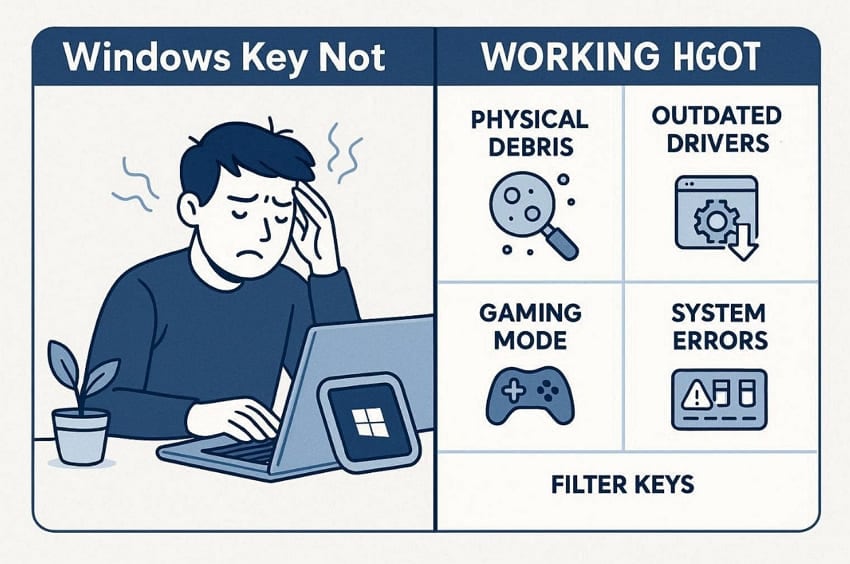
- Physical Debris: Small crumbs can get stuck inside your mechanical keyboard switches. This heavy buildup often prevents the physical contact needed to send a signal.
- Outdated Drivers: Your computer hardware needs the latest software to communicate. Old software files cause communication errors between the keyboard and the motherboard.
- Gaming Mode: Modern keyboards have a special mode that locks the Windows key. This intentional design feature stops users from minimizing their active game screens.
- System Errors: Corrupted files within your Windows installation might disable certain features. Broken registry keys often block the Start menu from opening when you click.
- Filter Keys: This specific Windows setting can ignore brief or repeated taps on your keyboard. It often causes the system to miss fast key presses during daily typing.
Part 2. How to Repair a Non-Working Windows Key in Windows 11
Resolving a Windows Start button not working Windows 11 issue requires a systematic approach. Discover these 7 methods below to restore full functionality to your computer keyboard:
Way 1. Restart PC
A simple restart is often the most effortless way to fix the Windows key not responding in Windows 11. This basic process clears out temporary data and refreshes all your system files. It resets the connection between your hardware and the operating system. Microsoft Q&A also links many keyboard failures to Fast Startup problems. Anyways, go through the given instructions below to perform a proper restart on your device:
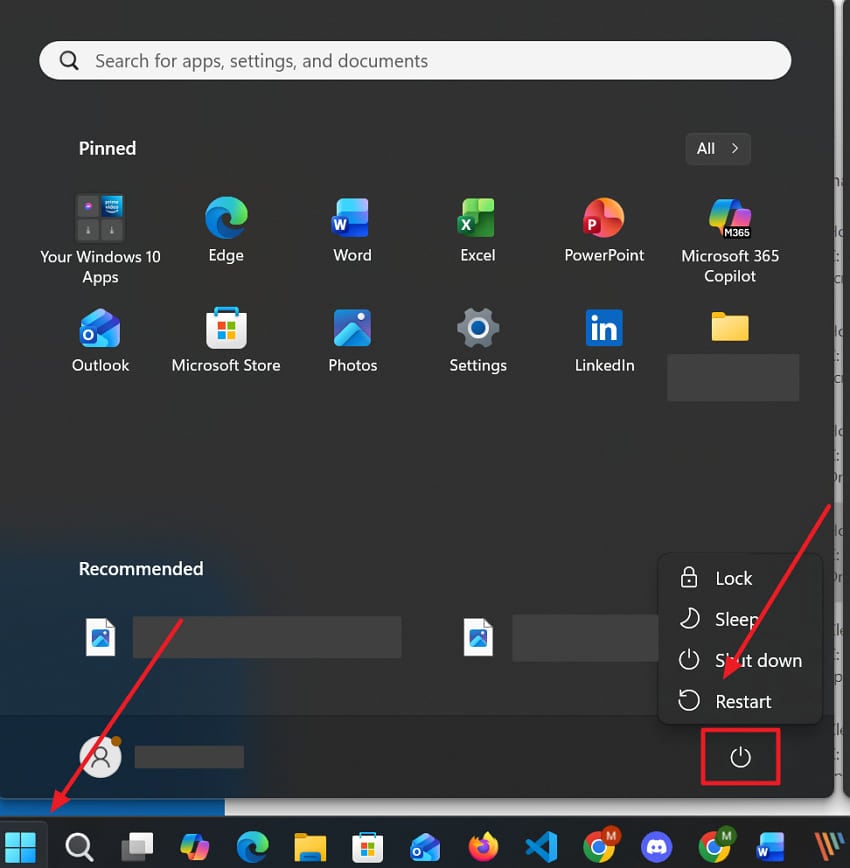
Instructions. Head to the "Start" menu and opt for the "Power" icon to select "Restart."
Way 2. Check Keyboard Hardware Connection
Sometimes, physical cables or wireless receivers cause simple communication failures. So, you should check the connection to ensure that your keyboard has a steady stream of power. A loose plug might cause the Win Key not to work after updating Windows 11. Hardware inspection helps you rule out any physical damage to the USB ports. This method is very effective for both wired and modern wireless keyboard models.
Way 3. Turn Off Filter Keys in Settings
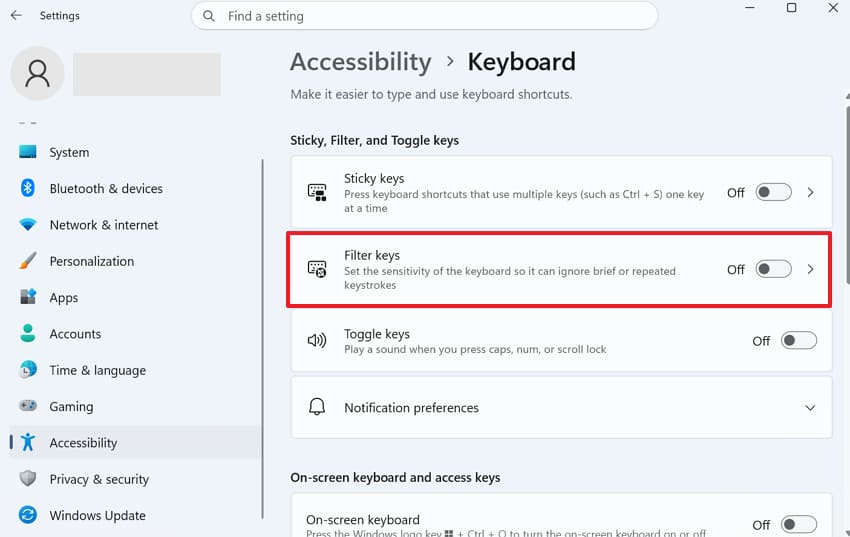
Filter Keys is an accessibility feature that tells the system to ignore quick taps. This setting often causes the common issue of the Windows key not working in Windows 11. In such cases, turning this off helps the computer register every single button press you make. It ensures that your keyboard remains highly responsive during fast typing sessions. Use the following steps to disable this feature within your computer settings menu:
Step 1. Upon pressing "Windows + I" key together, go to the "Accessibility" tab. Upon accessing its chosen settings, opt for the "Keyboard" option.
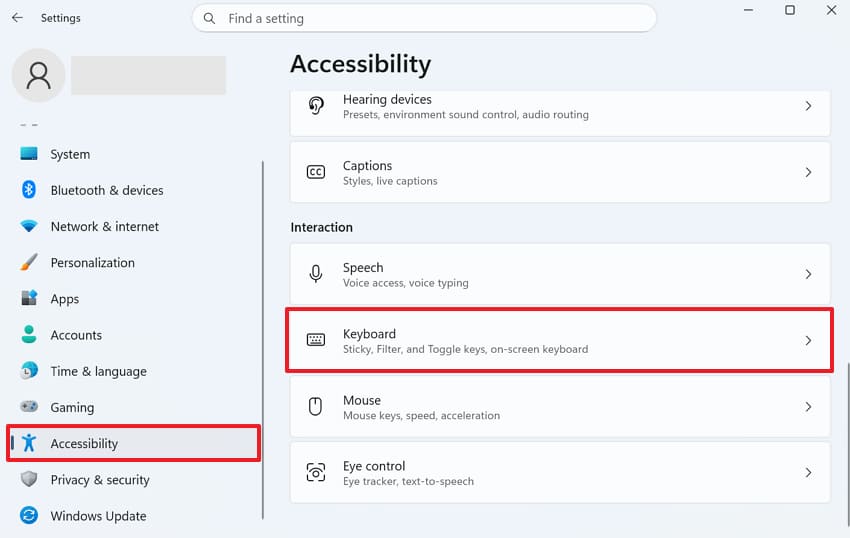
Step 2. Going ahead, you need to turn off the "Filter Keys" toggle.
Way 4. Run Keyboard Troubleshooter
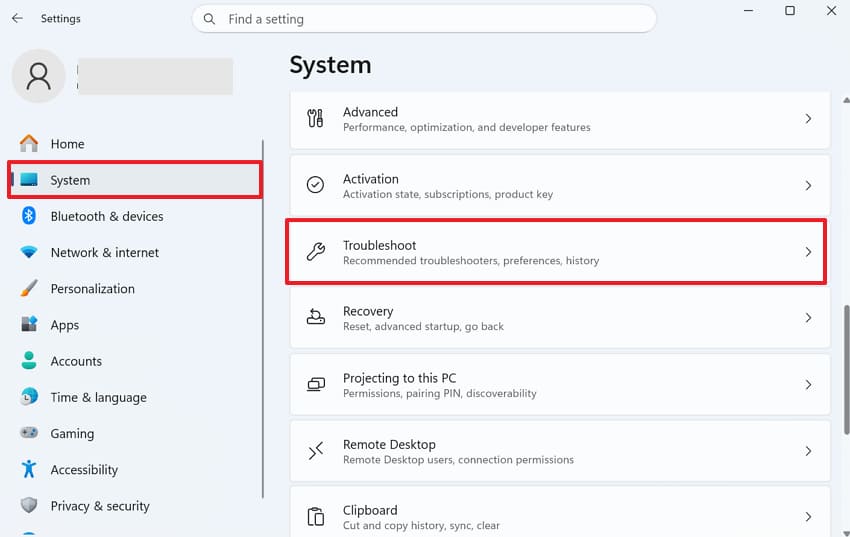
Windows also includes a native tool that finds and repairs common hardware errors. This smart utility scans your system to see how to fix the Windows key not working. It can detect hidden software conflicts that might stop your keyboard from responding. The troubleshooter applies the best fixes without requiring you to do much work. Thus, adhere to the simple directions to start the automated repair process:
Step 1. Upon navigating to the "System" section on settings, access "Troubleshoot."
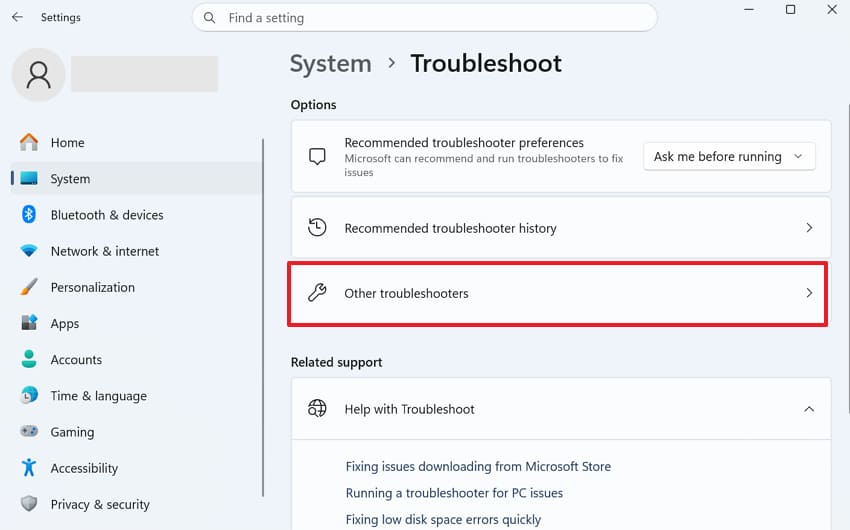
Step 2. When the new options appear, head to the "Other Troubleshooters" section.
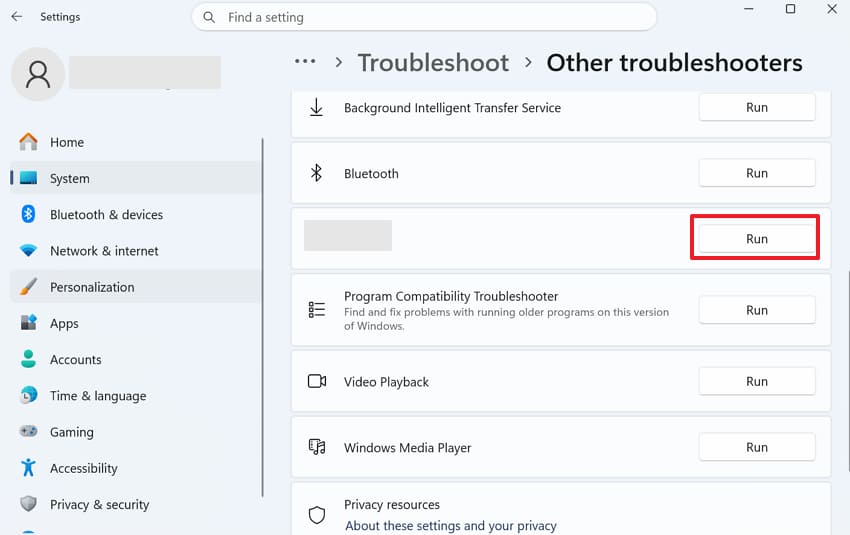
Step 3. Going ahead, find the "Keyboard" option and press "Run" next to it.
Way 5. Update Keyboard Drivers
Drivers are basically a bridge between your physical keyboard and the operating system. New software updates usually fix bugs like the Windows Start button not working in Windows 11. This process improves the speed and overall reliability of your typing experience. Modern drivers ensure your device works perfectly with the latest security system patches. Follow these easy steps to update your keyboard drivers to the latest version:
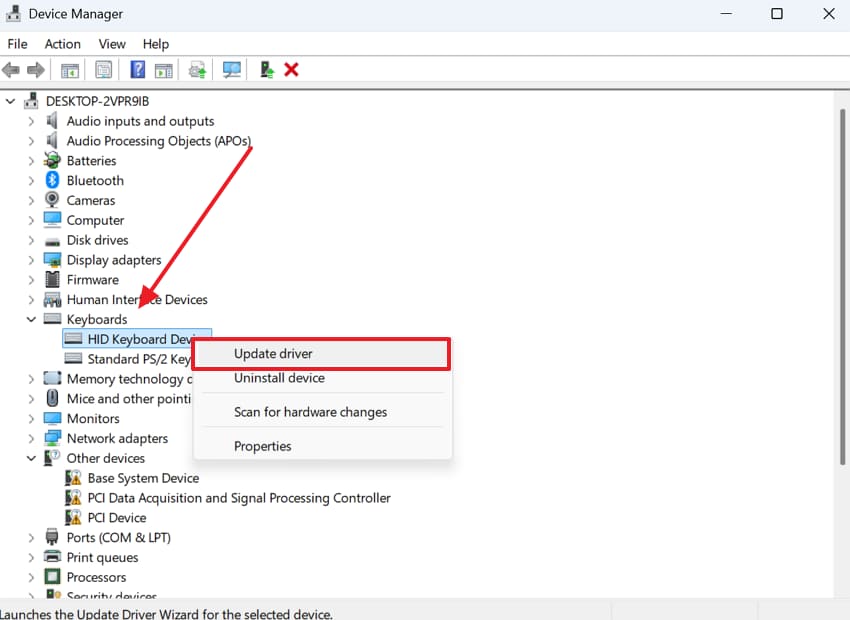
Step 1. Locate and expand the "Keyboard" section in the "Device Manager." Subsequently, right-click on your keyboard driver and opt for "Update Driver."
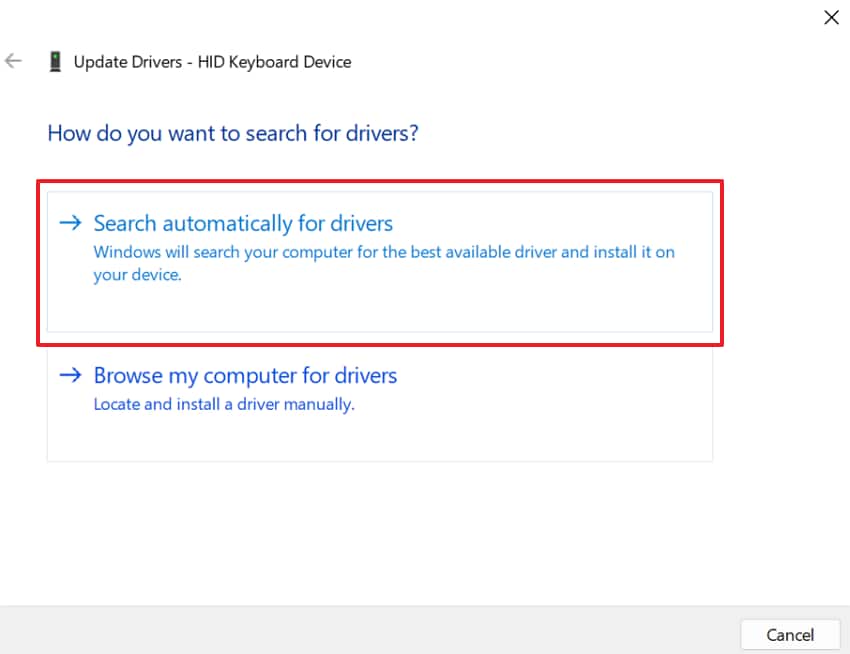
Step 2. As you see the upcoming display, click "Search Automatically for Drivers."
Way 6. Disable Gaming Mode on Keyboard
Beyond the above, gaming keyboards often include a built-in feature to lock the main shortcut keys. This mode stops users from leaving their games during heavy sessions. However, this feature might cause the Windows key not responding on Windows 11. It is advisable to disable this function to restore the normal behavior of your computer keyboard button. Hence, look at the instructions below to learn how to turn off this mode:
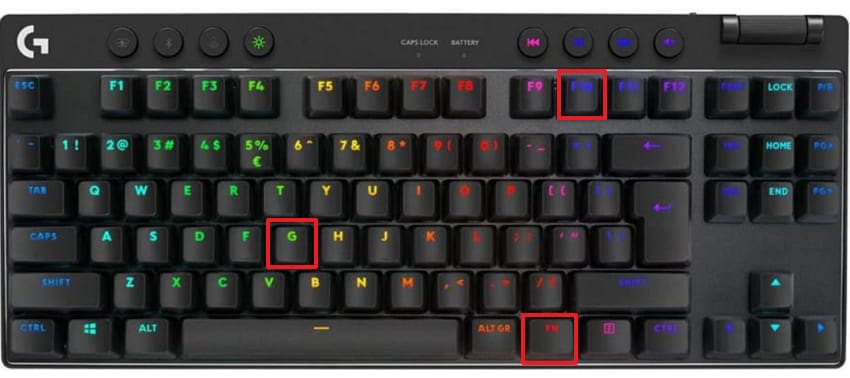
Instruction. Check your keyboard’s "Game Mode" or "Win Lock" key. Press your keyboard's specific shortcut, such as "Fn + F10" or "Fn + G," to toggle gaming mode off. After that, test the Windows key to confirm it works normally.
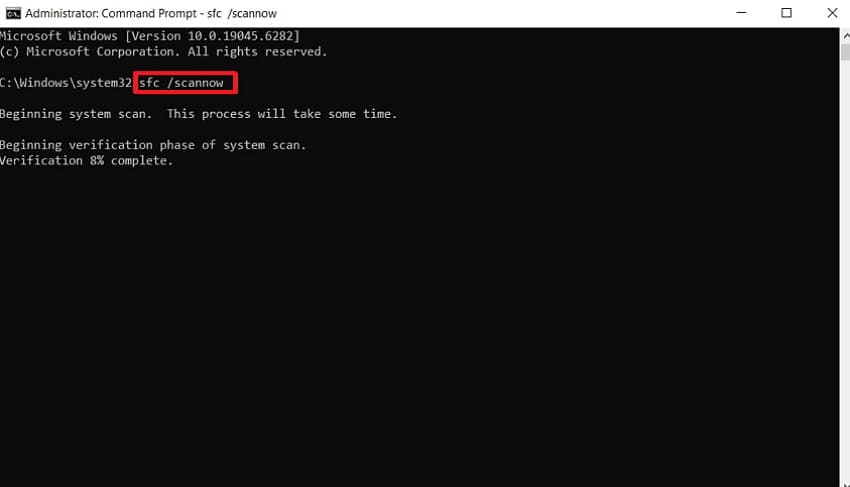
Way 7. Use SFC Scan (System File Checker)
It is a powerful command tool that repairs your broken internal files. This scan identifies and replaces corrupted data that stops your system from working. Broken files often result in the Win key not working after updating Windows 11. It restores the original versions of important files to keep your PC very stable. So, adhere to the given steps to run this specific command on your device:
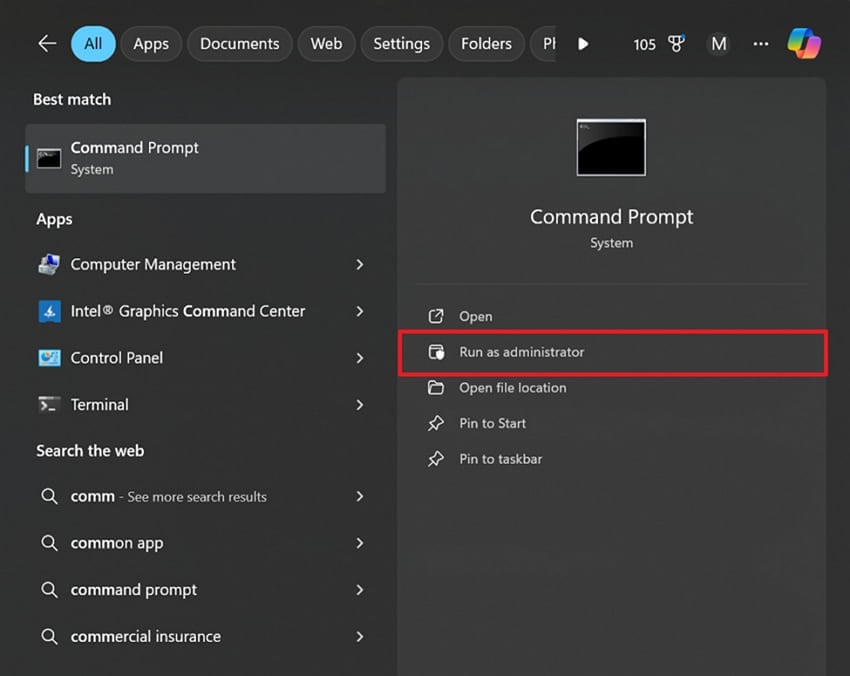
Step 1. Select "Run as Administrator" after typing "Command Prompt" into the search bar.
Step 2. Finally, run "sfc /scannow" and hit the "Enter" key to begin scanning.
Pro Tip. Use Repairit if Corrupted System Files Affect Windows Key
Sometimes, the above solution, like an SFC scan, cannot fully resolve deep system file corruption issues. Broken files often remain hidden and continue blocking your Windows key from working. Many users still wonder how to fix the Windows key not working after trying the manual method. In such cases, tools like Repairit enable users to repair deeply corrupted system files.
This tool focuses on repairing damaged personal files that may indirectly impact system stability and usability. It works by analyzing affected documents, media files, and archives that fail to open or behave unexpectedly. By fixing these corrupt files, users can eliminate potential conflicts that sometimes interfere with normal system operations. The tool follows a safe recovery process that keeps original data intact while restoring usable versions of the affected files.
Key Features

-
Keyboard Issue Recovery: The software repairs corrupted files responsible for blocked shortcuts and unresponsive Windows keyboard buttons across different operating systems.
-
Intelligent Repair Technology: Repairit intelligently rebuilds corrupted system structures responsible for blocked keyboard shortcuts and malfunctioning Windows navigation features.
-
File Integrity Repair: It targets and repairs damaged documents, videos, and images that fail to open or function properly across different systems.
Guide to Use Repairit if Corrupted System Files Affect Windows Key
Repairit provides a very simple way to restore your broken system files. Hence, adhere to these clear steps below to fix your computer using this tool:
Step 1. Add the Affected Files to Repairit
As you head to the "More Types Repair" tab, locate the "Document Repair" feature. Choose this feature by clicking "Start" and use "+Add" to import the corrupted files.

Step 2. Start Repairing System Files via Repairit
Once the damaged files appear, press the "Repair" button to start the recovery process. The program will scan and restore any corrupt, broken, or missing data.
Step 3. Export the Repaired System Files
Use the "Preview" feature to inspect the recovered files. If the results are satisfactory, click the "Save All" button to export the repaired files.

Repair Corrupted Files
 Security Verified. Over 7,302,189 people have downloaded it.
Conclusion
In summary, navigating your modern computer becomes much harder when your keyboard shortcuts fail. Restoring your device ensures that you stay productive during your daily work. Most issues, including Windows Key not working in Windows 11, are easy to resolve with the right steps. For deeper corruption issues like system files, you should program like Repairit to repair them.
-
Will using an external USB keyboard help identify the main problem?
Plugging in a different keyboard helps you see if the hardware is broken. If the new device works, your original keyboard will likely have a physical defect. This simple test is the fastest way to check for internal hardware damage. -
Can malware infections disable the Windows key on my current computer system?
Certain types of malicious software target your system navigation to block your access. So, perform a full antivirus scan to remove any hidden threats from your PC. Removing these viruses often restores the normal function of your desktop shortcut keys. -
How can I repair broken system documents that block my navigation tools?
Corrupted system files or keyboard settings often stop the Windows key from responding. To cater to this issue, tools such as Repairit help you fix complex, broken files with great ease. Use this software to regain full control over your Windows 11 system.




