
- Core Meaning: Roblox encountered an unexpected error, which usually signals an app or server crash.
- Initial Fixes: Perform a clean restart and run the game using full administrator permissions now.
- System Optimization: Clear your temporary cache files and update graphics drivers to prevent sudden crashes.
- Deep Repair: Use professional file repair software to fix stubborn data corruption and restore games.
- Quick Answer: Roblox encountered an unexpected error, which usually means a local crash or connection issue. Fix it by restarting the game, updating drivers, clearing the cache, and checking network settings.
Facing errors while playing Roblox can be frustrating for many gamers. One common issue is that Roblox encountered an unexpected error message. This problem can stop your game and ruin the overall gaming experience. Many players feel confused because the error appears without any clear reason.
According to SQ Magazine, Roblox registered over 151 million daily users in late 2025 across all global regions. Nonetheless, fixing this issue is much easier than it looks for most regular players. This guide provides simple steps to get you back into your favorite games. Along with that, you will even understand what causes this issue before fixing it.
In this article
Part 1. What The "Unexpected Error" Means in Roblox
The "Unexpected Error" message is a generic crash notification for the Roblox application. This signal means the game stopped because of an issue it did not expect. The problem usually occurs at either the app level or the server level. When the app crashes, it indicates a local problem on your personal computer.
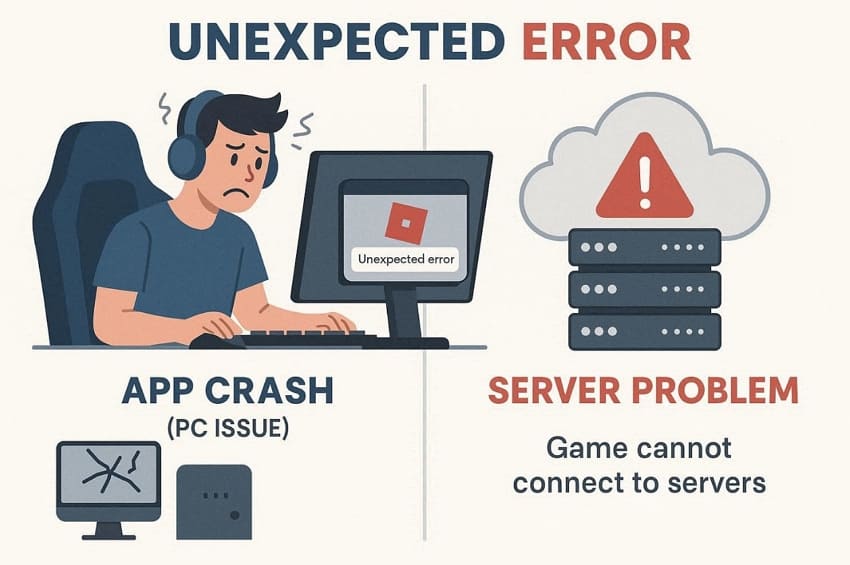
Many times, a server error means the Roblox website cannot finish your specific digital request. Thus, knowing these signals is the first step toward a Roblox unexpected error fix. The game often quits because it cannot communicate with the main online servers.
Common Causes of Roblox Unexpected Error
Several factors can trigger crashes, such as the Roblox needs to quit unexpected error. Below are a few common reasons that trigger such annoying crashes:
- Temporary Glitches: Small digital bugs can cause the game client to stop working. These glitches often occur due to unstable app states or background conflicts.
- Corrupted Files: Missing game data prevents the program from loading necessary digital assets. This damage occurs after a failed update or sudden power loss.
- Old Drivers: Outdated graphics drivers can cause compatibility problems with Roblox software. Such component versions often fail to support new updates or required features.
- Permission Issues: Lack of administrator rights can stop Roblox from accessing system resources. This limitation may lead to sudden crashes or incomplete game launches.
- Server Issues: Roblox servers may crash due to heavy traffic or service outages. Such issues prevent requests from completing and display error messages.
Part 2. How to Fix Roblox Unexpected Error on PC: Step-by-Step Troubleshooting
It is annoying when the "Unexpected Error Occurred, Roblox Needs to Quit" alert shows. Yet, follow these 6 simple repair methods to fix your game and start playing again:
Way 1. Restart Roblox and PC
A simple restart is often the best Roblox memory dump error fix for gamers. This basic action clears out the temporary memory and refreshes your entire system. It stops any stuck background processes that might be interfering with your game files. Roblox DevForum also reports that hidden performance problems reduce player retention in premium gaming. So, adhere to the steps below to restart both your game and computer:
Restart Roblox
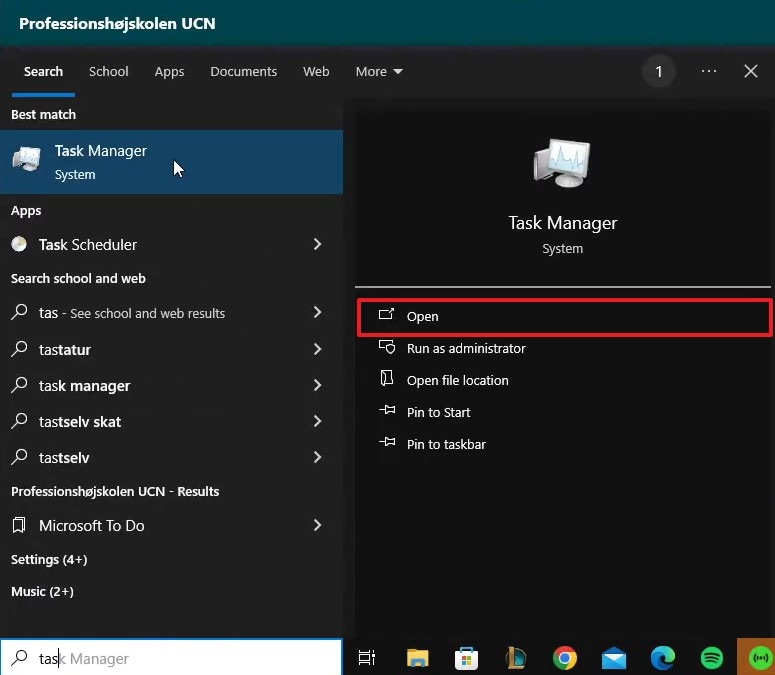
Step 1. Search for "Task Manager" on your device and click the "Open" option.
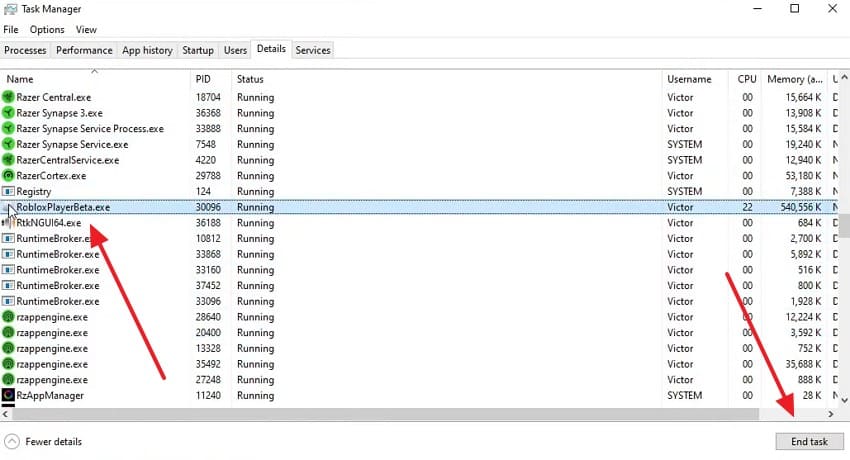
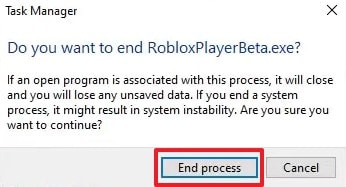
Step 2. Later on, choose the running exe file like "RobloxPlayerBeta" and press "End Task."
Step 3. From the upcoming popup, click the "End Process" button.
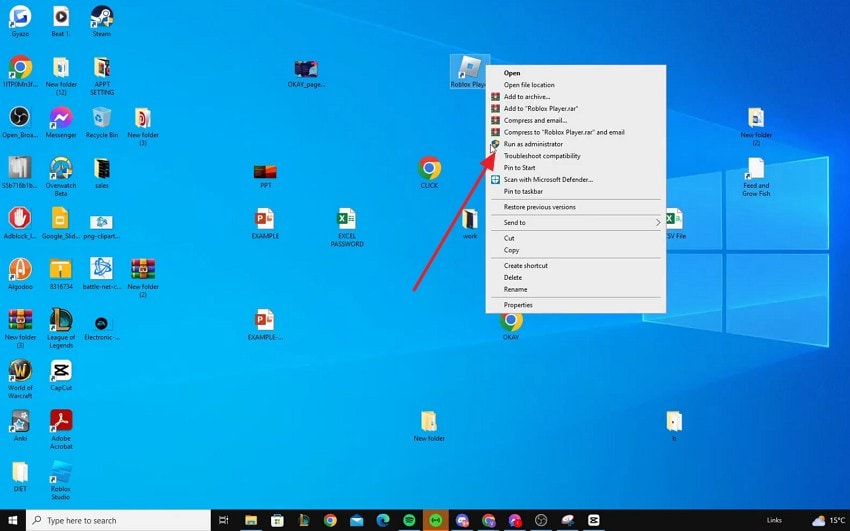
Step 4. Upon doing this, right-click the game icon and choose "Run as Administrator."
Restart PC
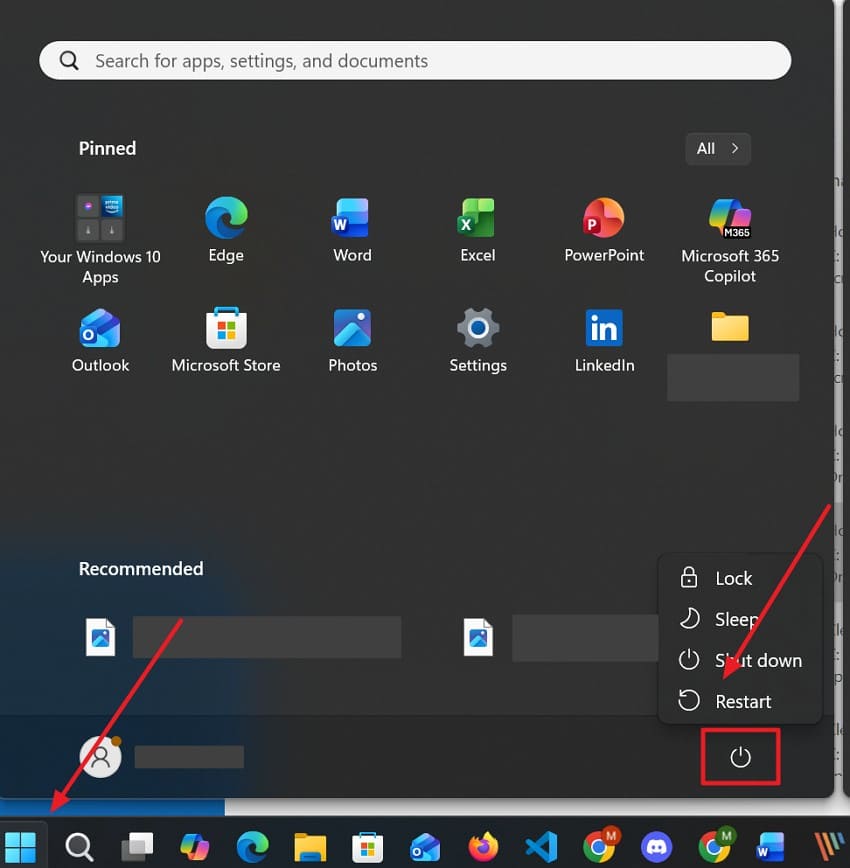
Instructions. Click the "Power" icon upon pressing the "Start" menu, and select "Restart."
Way 2. Run Roblox as Administrator
Running Roblox as an administrator gives the game full system access permissions. It helps remove restrictions that block important files and background processes. This method is useful when Roblox keeps showing unexpected error during startup. Many permission-related crashes can be solved using this simple method. Go through these easy steps to run your game as a system administrator:
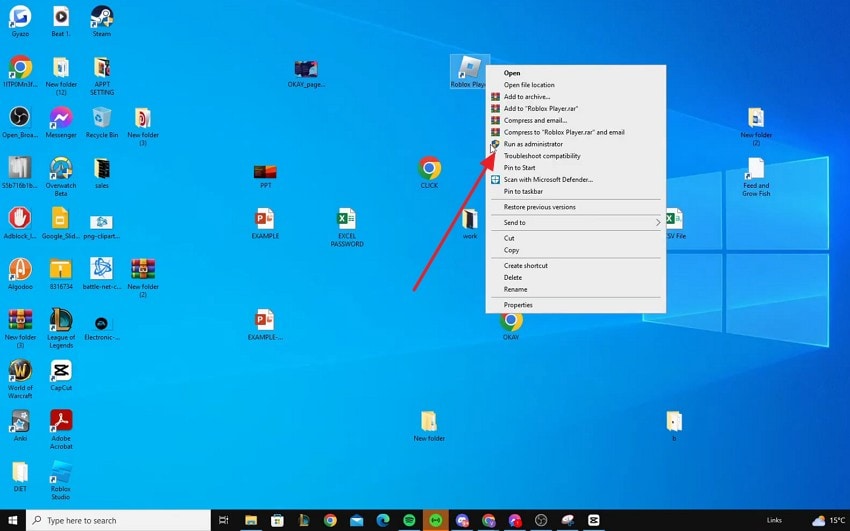
Instructions. When you right-click the "Roblox" game, opt for "Run as Administrator."
Way 3. Clear Roblox Cache Files
Clearing Roblox cache files removes old temporary data that may cause problems. This helps fix loading issues when "Unexpected Error Occurred, Roblox Needs to Quit." Cache cleanup can improve game speed and remove broken stored information. Moreover, gamers will see better performance after deleting these unnecessary files. This process does not delete your saved games or any account information. Use the following steps to clear the temporary Roblox files:
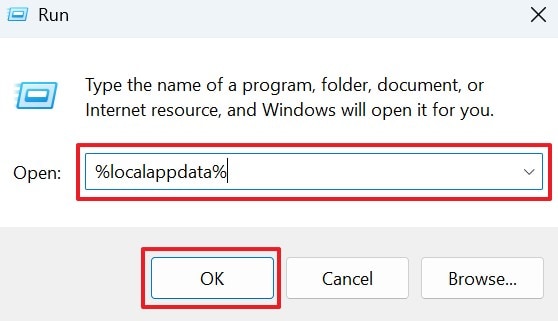
Step 1. Upon pressing "Windows + R" keys, type "%localappdata%" and click "OK."
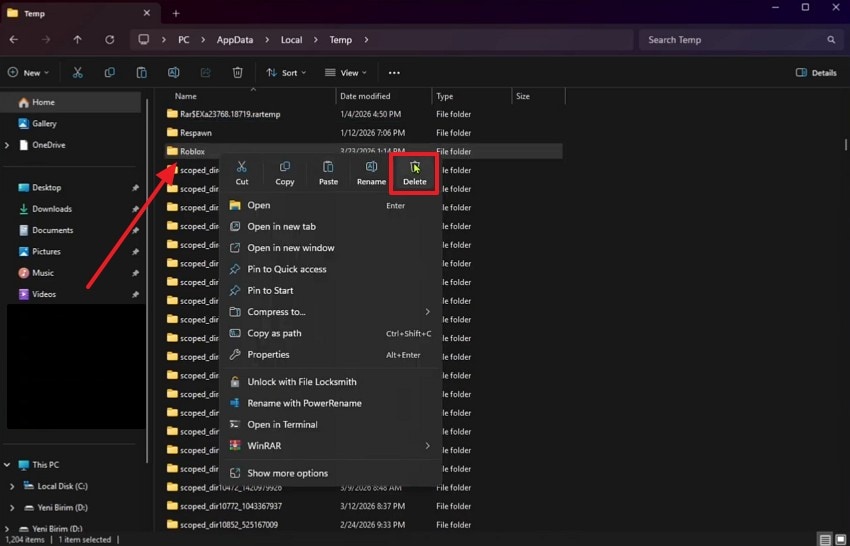
Step 2. Later on, head to the "Temp" section to right-click the "Roblox" folder and press "Delete."
Way 4. Update Graphics Drivers
Updating graphics drivers improves how Roblox communicates with your computer. It can fix display problems, crashes, and slow loading caused by old drivers. This method is helpful when the Roblox unexpected error fix needs stronger compatibility. New drivers support game changes and help your system run Roblox more smoothly. Hence, review these simple directions to update your graphics drivers on your device:
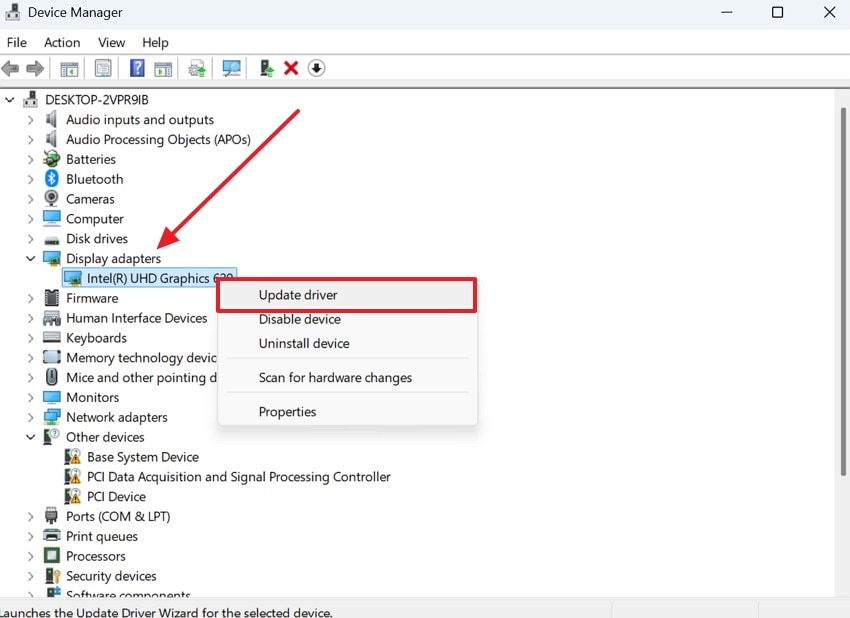
Step 1. You need to run "Device Manager" and expand the "Display Adapters" category. Then, right-click the graphics driver and choose "Update Driver" from available options.
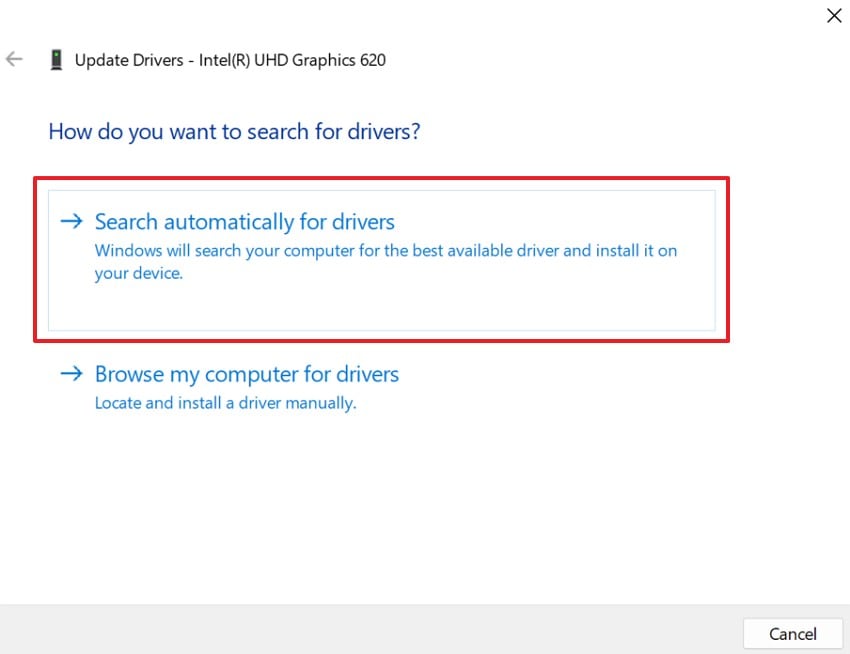
Step 2. In the next window, select "Search Automatically for Drivers" to continue. Reboot your device afterward and try to run the game.
Way 5. Reset Network Settings (DNS Flush)
Resetting network settings removes the previous network connections from your computer. A DNS flush refreshes the link between your device and the game servers. This action also serves as a helpful Roblox memory dump error fix for connection issues. It removes saved paths that might be broken or slow down your internet speed. Thus, follow these easy steps to reset your network settings and resolve the error messages:
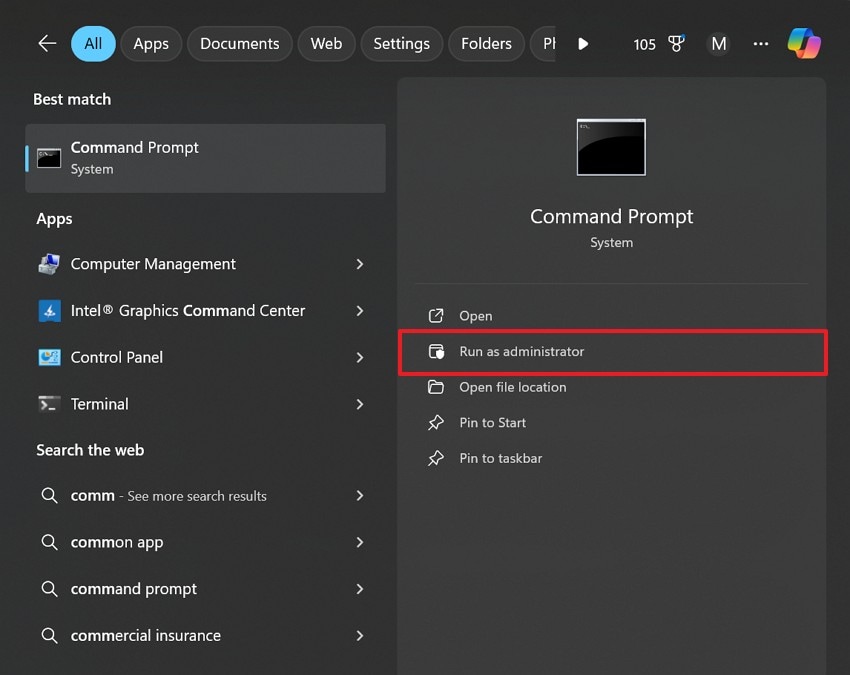
Step 1. Use the "Run as Administrator" option upon typing in "Command Prompt."
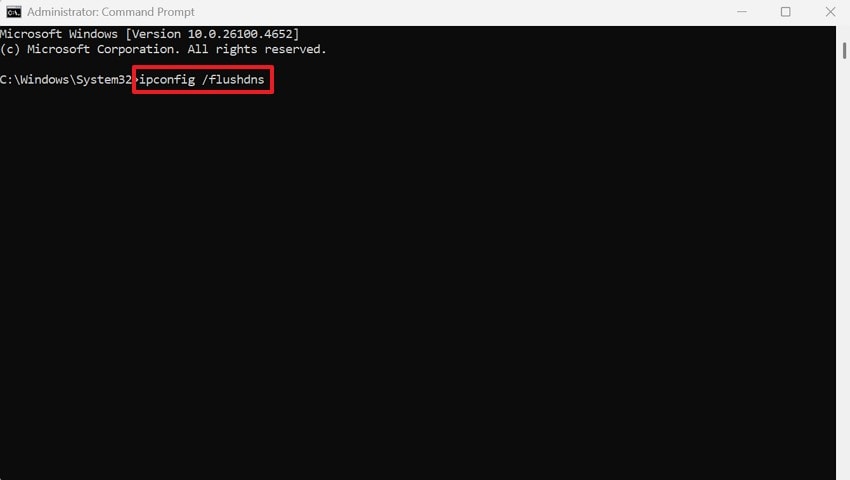
Step 2. Type the "ipconfig /flushdns" command and press the "Enter" key. Wait until the command finishes processing all clearing operations.
Way 6. Use Roblox Repair/Compatibility Mode
Compatibility mode helps your game run on older versions of the Windows system. This feature solves many problems when Roblox keeps showing unexpected errors. It allows the software to function as if it were on an older computer. Such a method also refreshes old DNS data and helps the game reach servers faster. So, review the following simple steps to enable compatibility mode:
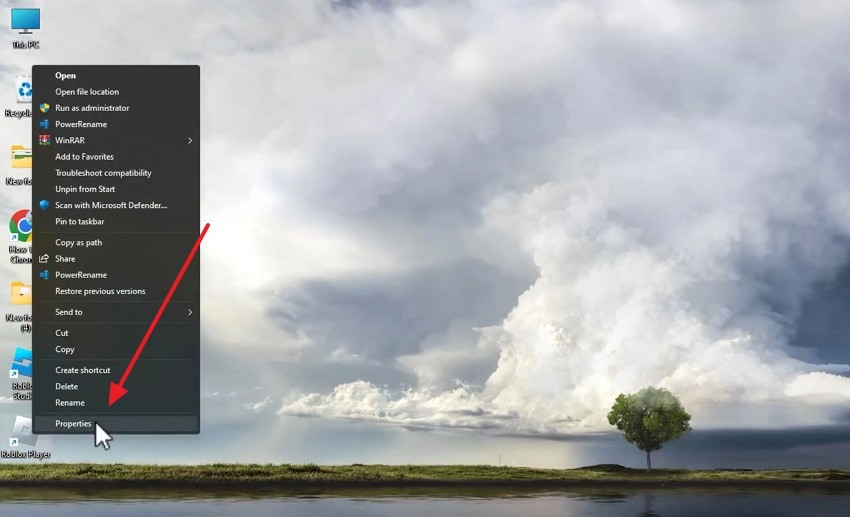
Step 1. Gamers need to opt for "Properties" as they right-click the game's icon.
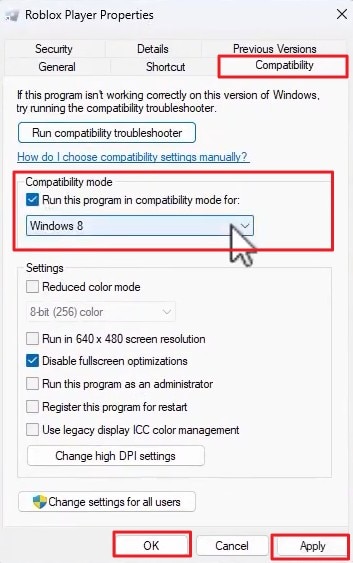
Step 2. From the upcoming panel, access the "Compatibility" tab. Then, enable "Run This Program in Compatibility Mode For:" and select your Windows version. Finally, press both the "Apply" and "OK" buttons to complete the task.
Advanced Tip. Use Repairit to Repair Damaged Files Affecting Roblox
Sometimes, simple settings changes are not enough to fix your broken game files. You might constantly see that Roblox needs to quit unexpected error messages again. This happens when vital game components become damaged beyond any normal manual repair. In such situations, tools like Repairit can help fix corrupted Roblox-related files. Its File Repair can scan and detect broken game data with high accuracy.
Moreover, the tool works on files damaged by crashes or incomplete updates. While repairing, it improves stability by repairing files that affect game loading and performance. Gamers can also fix several Roblox files together and thus save their precious gaming time. Hence, Repairit can improve the gaming experience by making Roblox run smoothly again.

-
Advanced Rebuilding Logic: Smart algorithms rebuild deeply corrupted Roblox files, restoring structure that normal methods cannot repair.
-
Resource Conflict Fix: Removes hidden system conflicts that prevent Roblox from launching properly or running smoothly when administrator permissions are enabled.
-
Log File Restoration: Repairs system log files, helping Roblox communicate with hardware and reducing unexpected error crashes.
Guide to Use Repairit and Repair Damaged Files Affecting Roblox
Repairit makes it very easy for you to fix your damaged gaming files. So, the following steps explain how you can repair corrupted game files:
Step 1. Import Damaged Roblox Files
Once you access "More Types Repair," select "Document Repair" by pressing "Start." Going ahead, import damaged Roblox files using the "+Add" option.

Step 2. Fix Your Damaged Roblox Files
After importing files, click the "Repair" button to begin the fixing process. The software scans documents and restores corrupted or missing file content.
Step 3. Download the Fixed Roblox Files
Use the "Preview" feature to inspect repaired files before saving them. After that, press the "Save" button to export repaired Roblox files onto your system.

Repair Corrupted Files
 Security Verified. Over 7,302,189 people have downloaded it.
Conclusion
In summary, Roblox players often face sudden crashes that interrupt their gaming experience. The guide covered several easy ways to fix the Roblox encountered an unexpected error. Most players can return to their favorite digital worlds by following these methods. In case the issue continues, you may have deeply corrupted files inside your local system. In such cases, using tools like Repairit becomes necessary for restoring damaged Roblox files.
FAQs
-
Is it safe to delete the Roblox folder from my local computer system?
Deleting the main folder is safe and helps you perform clean installations. The application will recreate all necessary files once you launch the game again. This simple process removes old data that might cause your game to crash. -
Can antivirus software block my Roblox game from running correctly?
Yes, antivirus programs may block Roblox processes and trigger sudden crashes. Therefore, adding the game to your whitelist stops the software from blocking active processes. This change allows the application to communicate with servers without interruption. -
How do I know if my game files are deeply corrupted and broken?
Frequent crashes after a fresh install often indicate that your files are damaged. At these points, software like Repairit can scan and fix broken internal data structures. This tool ensures your local files are healthy enough for long gaming sessions.




