
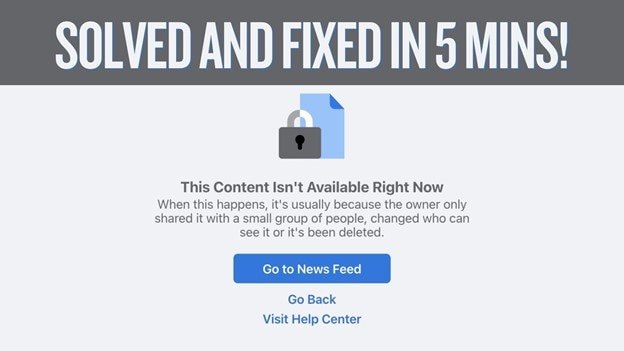
The "this content isn't available right now" Facebook status message is one of the most common errors users encounter when trying to view posts, profiles, or shared links. Instead of loading the expected content, Facebook displays a message like:
- "Sorry, this content isn't available right now"
- "This page is not available right now"
- "This content isn't available at the moment"
This message can be confusing because it does not clearly explain the exact reason behind the issue. In reality, it is a generic access error that appears when Facebook prevents you from viewing specific content due to privacy settings, account changes, or availability issues.
In most cases, the problem is not a technical failure but rather a restriction or change in the content's visibility. However, there are also situations where browser issues, app glitches, or account problems can trigger the same message.
This guide explains what the error means, why it happens, and how to fix it step by step.
In this article
Part 1. What Does "This Content Isn't Available Right Now" Mean?
The "this content isn't available right now" on Facebook means that the platform cannot display the requested content under your current access conditions.
This does not always mean the content is permanently gone. Instead, it indicates that:
- The content exists but is restricted
- The content was removed or deleted
- Your account does not have permission to view it
- The link is outdated or broken
In simple terms, Facebook is telling you: "The content cannot be shown to you right now, for one reason or another."
Part 2. Why This Error Happens (Detailed Causes)
This error can appear in many scenarios, and understanding the exact cause helps you apply the right fix.
- Post or Content Was Deleted: If the original poster deletes a post, photo, or video, the link will no longer work. Anyone trying to access it will see the error message. This is one of the most common reasons behind the error message.
- Privacy Settings: Restrict Access: Facebook allows users to control who can see their posts. If a post is set to "Friends" or a custom audience, you may not have permission to view it. Even if you have the link, the platform will block access if you are not included in the audience.
- You Were Blocked by the User: If someone blocks you on Facebook, you will no longer be able to view their profile or content. Any link to their posts will show the "sorry this content isn't available right now" message.
- The Account Was Deactivated or Deleted: If the account that posted the content is deleted or deactivated, all associated content becomes inaccessible. This includes posts, comments, and shared links.
- Group or Page Restrictions: Content shared in private groups or restricted pages may not be visible to non-members. If you are not part of the group or if the group settings change, the content becomes unavailable.
- Broken or Expired Link: Sometimes, the issue is simply a broken or outdated link. This can happen if the URL was copied incorrectly or if Facebook updated its internal link structure.
- Facebook App or Browser Glitch: Temporary issues in the Facebook app or browser can prevent content from loading. Cached data, outdated apps, or minor bugs can trigger the same error message.
Part 3. Quick Checks Before Fixing
These quick checks can save you time and help you identify whether the issue is related to access restrictions, account settings, or temporary glitches.
- Confirm the Post Still Exists - Reach out to the person who shared the link and ask if the post, photo, or video is still available. If they deleted it or changed its privacy settings, the error is expected and cannot be fixed on your end.
- Check with Another Account - Log in using a different Facebook account (if you have one) and try opening the same link. If the content loads there, it means your main account is restricted from viewing it due to privacy settings, blocking, or group membership rules.
- Verify Group or Page Membership - If the content comes from a private group or restricted page, make sure you are a member. Sometimes groups change their privacy settings, so even if you had access before, you may need to rejoin or request approval again
- Test on Another Device or Browser - Open the link on a different device (phone, tablet, or computer) to rule out local issues. If it works elsewhere, the problem may be tied to cached data, cookies, or browser/app glitches on your primary device.
- Check Internet Connection Stability - A weak or unstable connection can cause Facebook to fail to load certain posts. Refresh the page after ensuring your internet connection is stable.
- Look for Account Restrictions - If your account has been temporarily restricted or flagged by Facebook, certain content may not load. - Check your notifications or account status in the settings to confirm
- Try Incognito/Private Mode - Open the link in an incognito or private browsing window. This bypasses cached data and extensions, helping you determine if the issue is caused by stored cookies or browser add-ons.
- Check for Regional Restrictions - Some content may be restricted based on geographic location. If possible, use a VPN to test whether the content is available in other regions.
These steps help determine whether the issue is access-related or technical.
Part 4. Basic Fixes for Facebook Content Not Available
If the quick checks didn't solve the issue, the next step is to try some basic fixes that often resolve temporary glitches or access problems.
Fix 1. Refresh the Page
Refreshing reloads the content and resolves temporary loading issues.
Step 1. Tap or click the Refresh button in your browser or app.

Step 2. Wait for the page to reload and check if the content appears.
Fix 2. Log Out and Log Back In
Session errors can prevent proper content loading.
Step 1. Tap your profile menu and click Log Out.
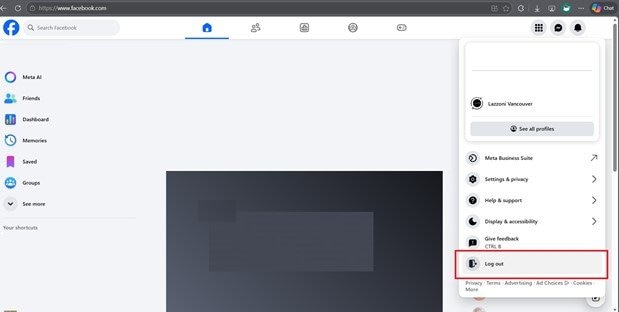
Step 2. Log back in and open the link again.
Part 5. Fix Account and Access Issues
Sometimes the error is tied to account restrictions or privacy settings, so checking your access is the next step.
Fix 1. Check If You Have Permission
The content may be restricted by privacy settings.
Step 1. Ask the owner to check the post's audience settings and click Edit Privacy.
Step 2. Request access or have the post set to Public if appropriate.
Fix 2. Verify If You Were Blocked
Blocking removes access to profiles and posts.
Step 1. Search for the user's profile in Facebook's search bar.
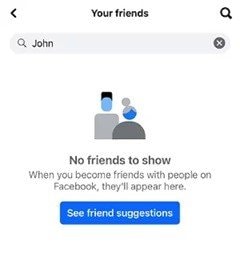
Step 2. If the profile does not appear, you may have been blocked.
Part 6. Fix App and Browser Problems
If account access isn't the issue, the problem may lie in your app or browser setup.
Fix 1. Clear Browser Cache
A corrupted cache can interfere with content loading.
Step 1. Open browser settings and click Clear Browsing Data.
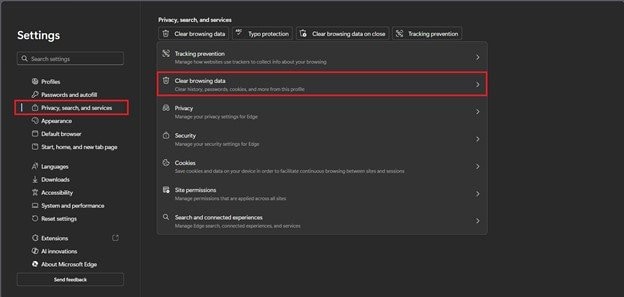
Step 2. Reload Facebook and try accessing the content again.
Fix 2. Update or Reinstall the Facebook App (For Mobile Users)
Outdated apps may contain bugs affecting content display.
Step 1. Open your app store and tap Update on Facebook.
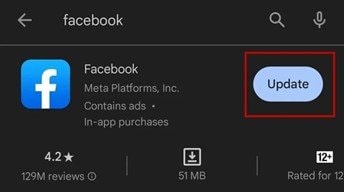
Step 2. If needed, uninstall and reinstall the app.
Part 7. Fix Link and Source Issues
If neither the account nor the app fixes work, the problem may be with the link itself.
Fix 1. Open the Link in a Different Browser or Device
This helps isolate whether the issue is device-specific.
Step 1. Copy the link and open it in another browser or device.
Step 2. Check if the content loads correctly.
Fix 2. Request a New Link
The original link may be broken or outdated.
Step 1. If possible, ask the sender to click Share and generate a new link.
Step 2. Open the updated link and test access.
When the Problem Is on Facebook's Side
Sometimes, the issue is not caused by your account or device. This may include:
- Facebook server outages
- Platform bugs
- Temporary restrictions
- System-wide updates
In these cases, the only solution is to wait until Facebook resolves the issue.
Part 8. When Videos Cause This Error [Bonus]
In some cases, the error appears specifically when opening video posts. While most issues are related to permissions, there are scenarios where the video file itself is the problem. This usually happens when:
- The video upload was interrupted
- The file is partially corrupted
- The format or encoding is not fully supported
- Metadata or structure is damaged
Why Video Issues Trigger This Error
Facebook processes videos before displaying them. If the file structure is broken, the system may fail to process it and display the content as unavailable instead of showing a playback error. Technical reasons include:
- Broken or missing file headers
- Incomplete upload data
- Damaged metadata
- Unsupported encoding structures
If you are uploading the video and encounter this issue, repairing the file first can resolve it. Repairit Video Repair can rebuild damaged video structures and restore compatibility with Facebook.

-
Repair damaged videos with all levels of corruption, such as video not playing, video no sound, out-of-sync video or audio, playback errors, header corruption, flickering video, missing video codec, etc.
-
Repair full HD, 4K, and 8K videos and support 20+ popular formats, including MOV, MP4, M2TS, MDT, RSV, WMV, MPEG, DAT, etc.
-
Repair damaged or corrupted videos caused by video compression, system crash, video format change, etc.
-
Repair critically damaged or corrupted RAW/Log/HDR videos from professional cameras such as Blackmagic Design, RED Digital, and ARRI, etc.
-
Repairit has a quick and advanced scanning mode. You can use either depending on the level of corruption the video file has undergone.
-
No limit to the number and size of the repairable videos.
-
Repaired videos are more compatible with professional editing software such as DaVinci, Composer, Final Cut Pro, and Premiere Pro.
-
Support Windows 11/10/8/7/Vista, Windows Server 2003/2008/2012/2016/2019/2022, and macOS 10.12~macOS 15.
Part 9. How to Prevent This Error in the Future
Preventing the error involves understanding how Facebook manages content visibility and ensuring consistent access conditions when sharing or viewing posts.
- Be Mindful of Privacy Settings - If you frequently share content, ensure your posts are set to the correct audience. Setting posts to "Public" when appropriate allows others to access them without issues. For viewers, understanding that not all content is public helps avoid confusion when links do not open.
- Avoid Relying on Old Links - Facebook links can become invalid if posts are edited, deleted, or moved. Saving outdated links increases the chance of encountering access errors. Always use updated links when sharing or bookmarking content.
- Stay Logged Into the Correct Account - Some content is visible only to specific accounts or friend lists. Using a different account may prevent access to certain posts. Make sure you are logged into the account that has permission to view the content.
- Keep Your App and Browser Updated - Regular updates ensure compatibility with Facebook's latest features and systems. Outdated apps or browsers may fail to load certain content properly. Updating reduces the risk of encountering display or loading errors.
- Join Required Groups or Pages - If content is shared within a private group or page, you must be a member to access it. Joining the group ensures consistent access to shared posts.
Conclusion
The "this content isn't available right now" Facebook status error is usually caused by privacy restrictions, deleted content, or account-related limitations rather than technical failures. While it may seem like a system issue, most cases are simply due to access permissions or unavailable content.
By identifying the cause and applying the correct fix, whether it's checking privacy settings, refreshing the page, or updating your app, you can quickly resolve the issue. Understanding how Facebook controls content visibility also helps prevent the error from happening again.
FAQs
-
Why does Facebook say this content isn't available right now?
This message appears when you do not have permission to view the content or when it has been removed. It can also happen due to temporary app or browser issues. -
Can I fix "sorry this content isn't available right now" on Facebook?
Yes, you can try refreshing the page, checking permissions, or logging into the correct account. If the content is deleted, it cannot be recovered. -
Does this mean I was blocked?
Not always, but being blocked is one possible reason. If you cannot find the user's profile, blocking may be the cause. -
Why does this happen on shared links?
Shared links may point to private, deleted, or restricted content. If your account does not have access, Facebook will show the error. -
Can Facebook glitches cause this error?
Yes, temporary bugs or server issues can sometimes trigger it. In such cases, the issue usually resolves on its own.




