
The NVIDIA application is a popular companion for updating graphics drivers, optimizing game settings, and recording gameplay with features like ShadowPlay. However, users sometimes encounter issues that prevent the app from launching or functioning correctly. One of the most common problems is geforce experience error code 0x0003, which is typically caused by software-level issues rather than GPU hardware failure, such as disabled NVIDIA services, corrupted drivers, network conflicts, or damaged application files.
This guide focuses on diagnosing the correct scenario first and then applying step-by-step fixes, with optional guidance for repairing corrupted gameplay videos only when file damage is confirmed.
Table of Contents
-
- Way 1. Force Reboot NVIDIA Services
- Way 2. Reset Network Adapter with Winsock Reset Command
- Way 3. Install the Latest GeForce Experience Driver
- Way 4. Update the Latest NVIDIA Graphics Driver
- Way 5. Delete NODE_ENV Environment Variables
- Way 6. Start NVIDIA Telemetry Container Service
- Way 7. Reinstall All NVIDIA Components
Part 1. What is GeForce Experience Error Code 0x0003, and Why Does It Happen
The GeForce experience error code 0x0003r message typically appears during application startup or when attempting to install or update GPU drivers. It signals that a required NVIDIA process failed to initialize or cannot connect to necessary system or network resources.
Unlike GPU hardware failures, this error is primarily software-related. It usually involves misconfigured services, corrupted drivers, or blocked communication channels between the app and NVIDIA servers.
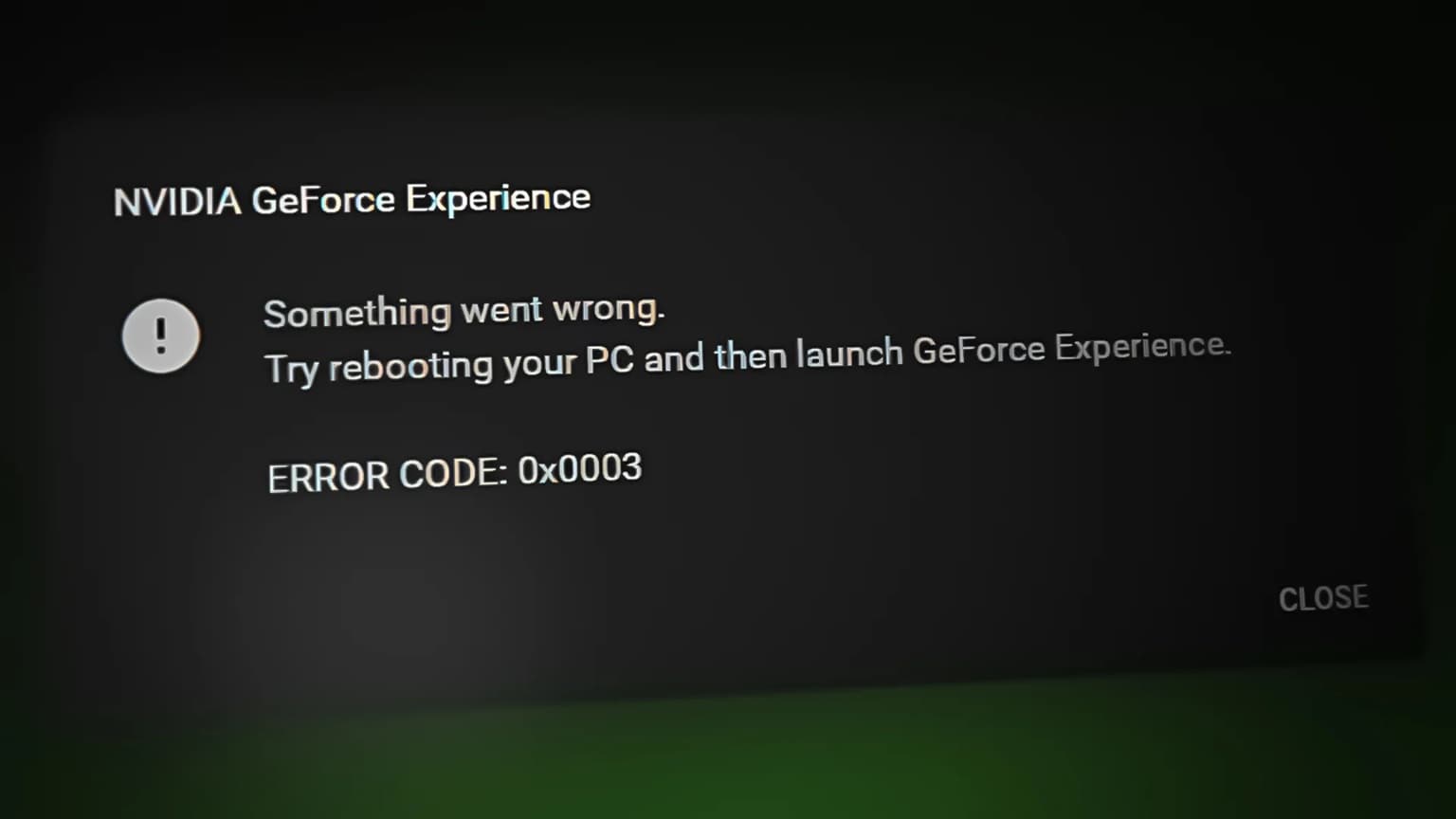
Main Causes of Error Code 0x0003
Several underlying system or software issues can trigger geforce experience error code 0x0003 and prevent the app from running properly. Here are the main causes to check:
- Corrupted or Outdated NVIDIA Drivers: Graphics drivers allow GeForce Experience to communicate with GPU hardware. When driver files become outdated, partially installed, or corrupted, the application may fail to detect GPU capabilities or complete driver updates.
- Disabled NVIDIA Background Services: Several NVIDIA services run in the background to support driver updates, telemetry communication, and recording features. If these services stop running or fail to start automatically, GeForce Experience may display the error immediately.
- Network Adapter or Winsock Configuration Problems: GeForce Experience relies on network connectivity to verify updates, download drivers, and access NVIDIA optimization profiles. Corrupted Winsock settings or faulty network adapters can interrupt these connections.
- Pending or Incomplete Windows Updates: System updates sometimes modify driver compatibility requirements or service startup behaviors. If Windows updates remain incomplete, NVIDIA components may fail to function properly.
- Corrupted Application Installation Files: Damaged GeForce Experience installation files may prevent core application modules from loading correctly, resulting in startup failures or missing features.
Part 2. Quick Check: Which 0x0003 Scenario Are You In?
The following quick checks help determine which solution category applies to your situation.
- Startup failure: If GeForce Experience refuses to open or immediately closes, the issue is commonly caused by disabled NVIDIA services or corrupted application files.
- Driver update failure:If driver installation or update downloads repeatedly fail, outdated or conflicting GPU drivers are the most likely cause.
- Missing features: If game optimization or overlay features are missing, telemetry services or driver communication modules may not be running properly.
- Network-related issue: If the error appeared after installing VPN software or modifying network settings, network configuration, or Winsock corruption may be blocking NVIDIA connections.
- Post-update issue: If the issue started after a Windows update or system restore, service permissions or driver compatibility may have changed.
Identifying the scenario first helps you avoid unnecessary fixes and reduces the risk of system misconfiguration.
Part 3. Signs of Error Code 0x0003
Error code 0x0003 may present multiple signs depending on which NVIDIA component is affected.
- Application Startup Problems - GeForce Experience may fail to launch entirely or crash immediately after opening. In some cases, the app loads but displays an error prompt preventing further interaction.
- Driver Update Failures - Users may notice drivers failing to download, install, or complete installation. Update progress may freeze, restart repeatedly, or display connection errors.
- Missing Gaming Features - Game optimization tools, ShadowPlay recording, and overlay features may become unavailable. Some users may notice that gameplay recording stops working or disappears from the interface.
- Reduced Performance Monitoring - GeForce Experience provides GPU performance monitoring and automatic optimization settings. When error 0x0003 occurs, these features may stop functioning or display incorrect information.
Part 4: Fix GeForce Experience Error Code 0x0003 [7 Ways]
This error can be caused by different things, from services that fail to start to corrupted drivers, or even network settings. The fixes below walk through each scenario step by step, starting with quick checks and moving toward deeper reinstalls if needed.
Way 1. Force Reboot NVIDIA Services
Restarting the application ensures the app has the background processes it needs.
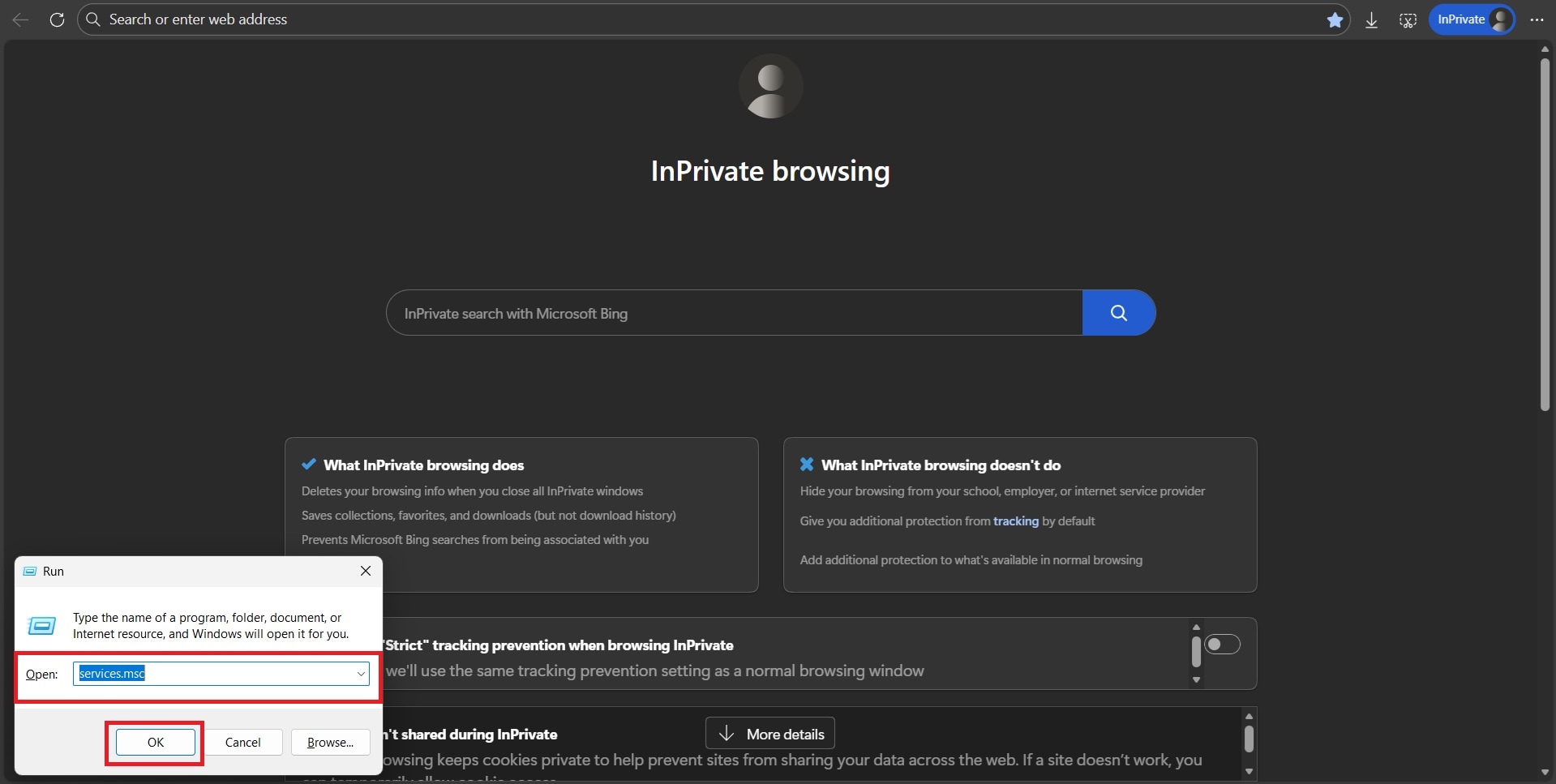
Step 1. Press Win + R, type services.msc, and press OK or Enter.
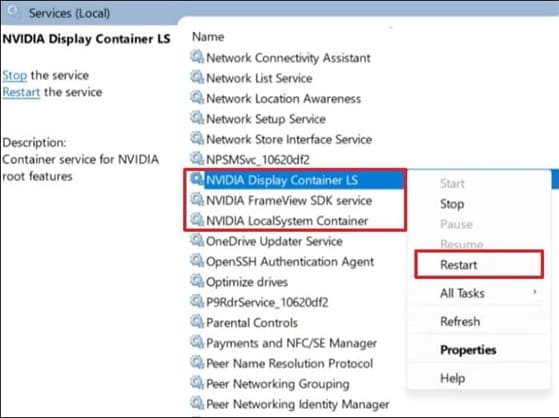
Step 2. Locate all NVIDIA services, right-click each one, and select Restart. Start any service that is stopped.
Way 2. Reset Network Adapter with Winsock Reset Command
Winsock reset removes corrupted network configurations that prevent GeForce Experience from connecting to NVIDIA servers.
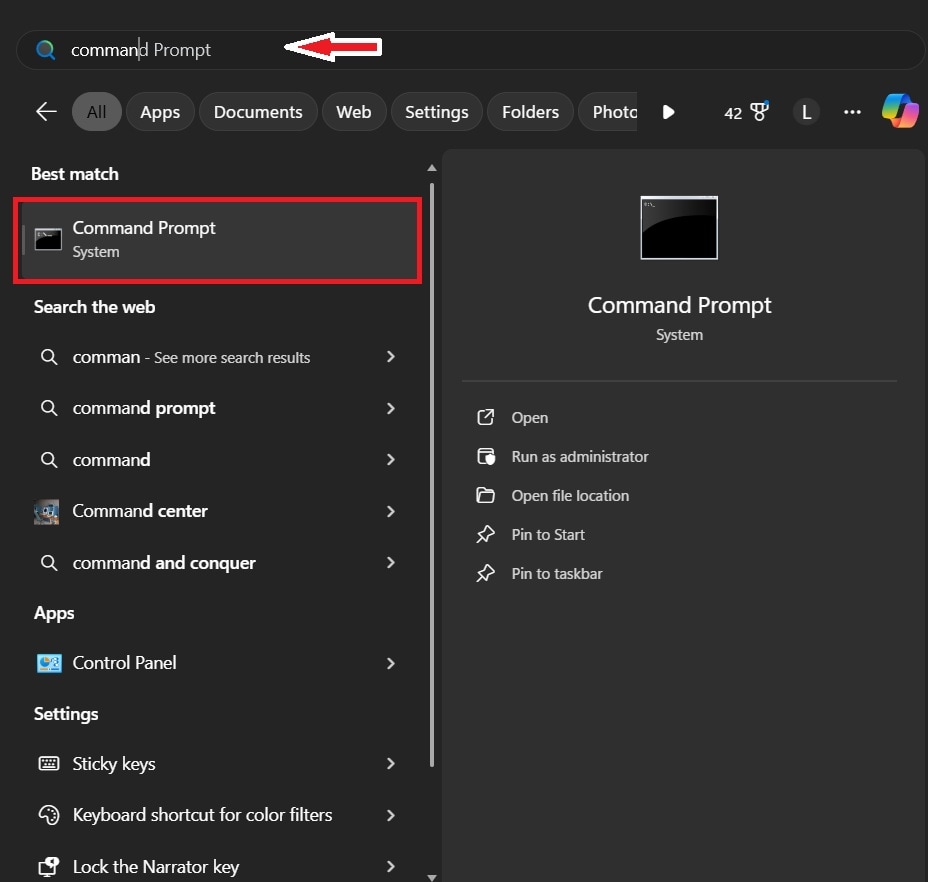
Step 1. Open Command Prompt with administrator privileges.
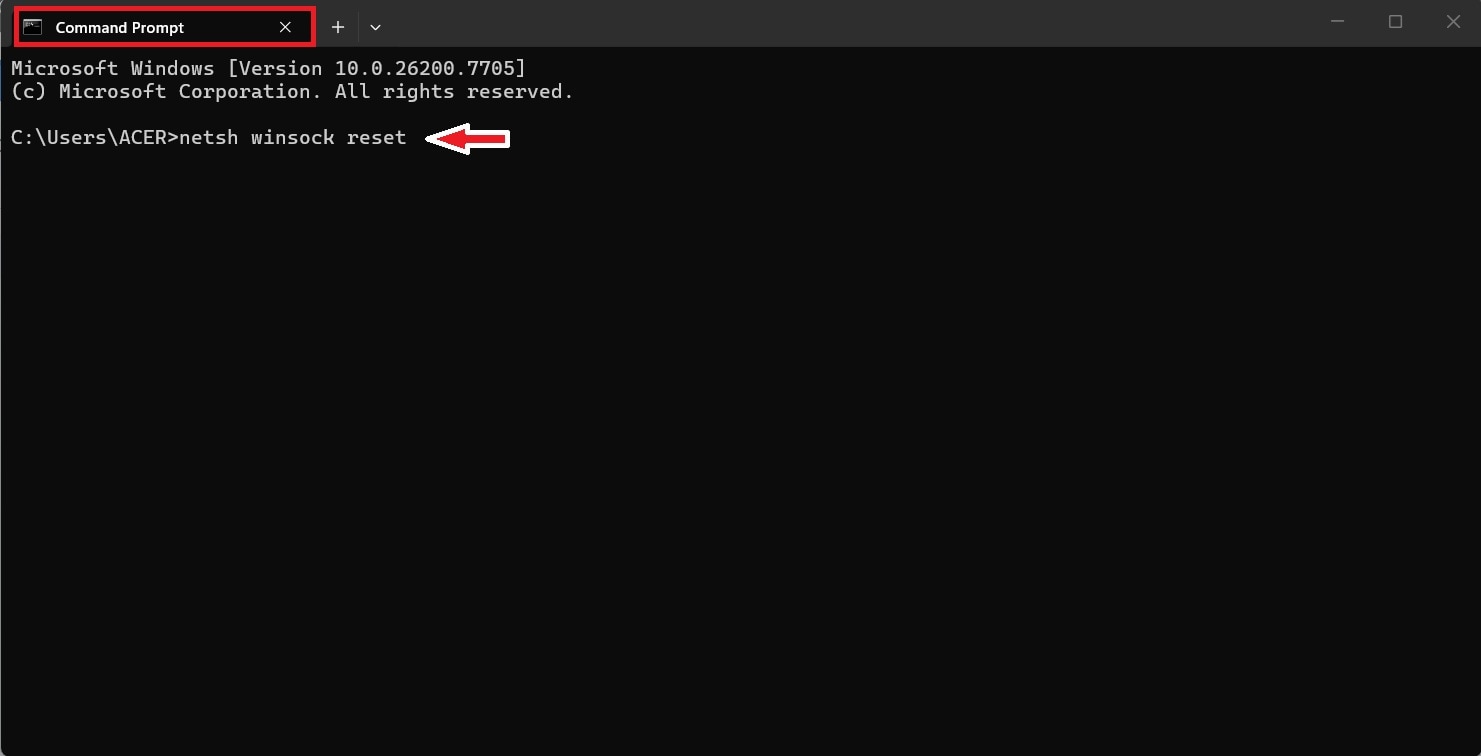
Step 2. Type netsh winsock reset and press Enter. Restart the PC to apply changes.
Way 3. Install the Latest GeForce Experience Driver
Residual driver files from previous installations can cause compatibility conflicts. Performing a clean installation ensures all outdated files are removed.
⚠️ Risk note: Clean installations remove cached driver data. Save custom NVIDIA profiles if needed.
Step 1. Delete cached files from C:\ProgramData\NVIDIA Corporation\NetService.Use an NVIDIA cleanup utility or driver removal tool.
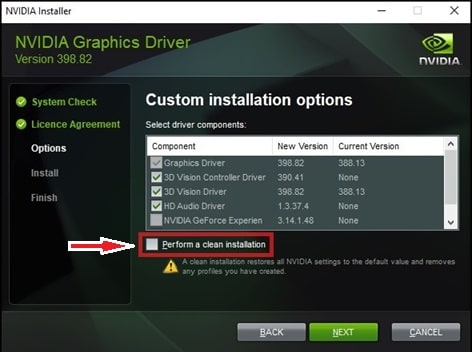
Step 2. Download the latest GPU driver from NVIDIA’s official website. Choose Custom Installation and select Perform a clean installation. Restart the PC after installation completes.
Way 4. Update the Latest NVIDIA Graphics Driver
Updating drivers ensures compatibility with Windows updates and newly released GeForce Experience versions.
⚠️ Risk note: Uninstalling GPU drivers may temporarily reduce display resolution until reinstallation completes.
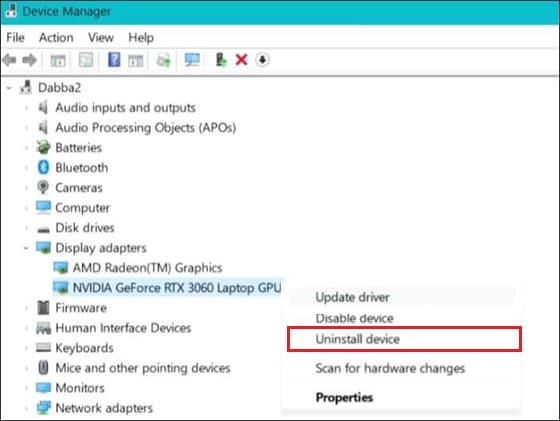
Step 1. Open Device Manager. Expand Display Adapters.
Step 2. Right-click the NVIDIA GPU and select Uninstall Device. Download and install the latest driver from NVIDIA’s website. Restart the system.
Way 5. Delete NODE_ENV Environment Variables
Environment variables influence how applications load configuration settings. Conflicting variables such as NODE_ENV may interfere with GeForce Experience initialization.
⚠️ Risk note: Removing system variables can affect other applications. Delete only NODE_ENV if it exists.
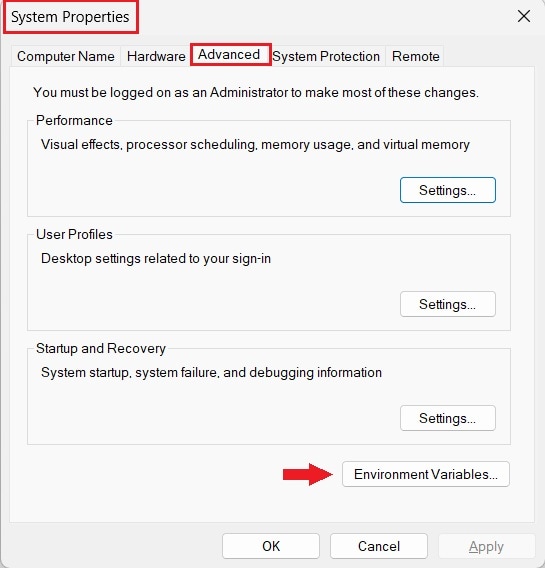
Step 1. Open System Properties (Win + R). Type sysdm.cpl, and press Enter. Navigate to Advanced System Settings and choose Environment Variables.
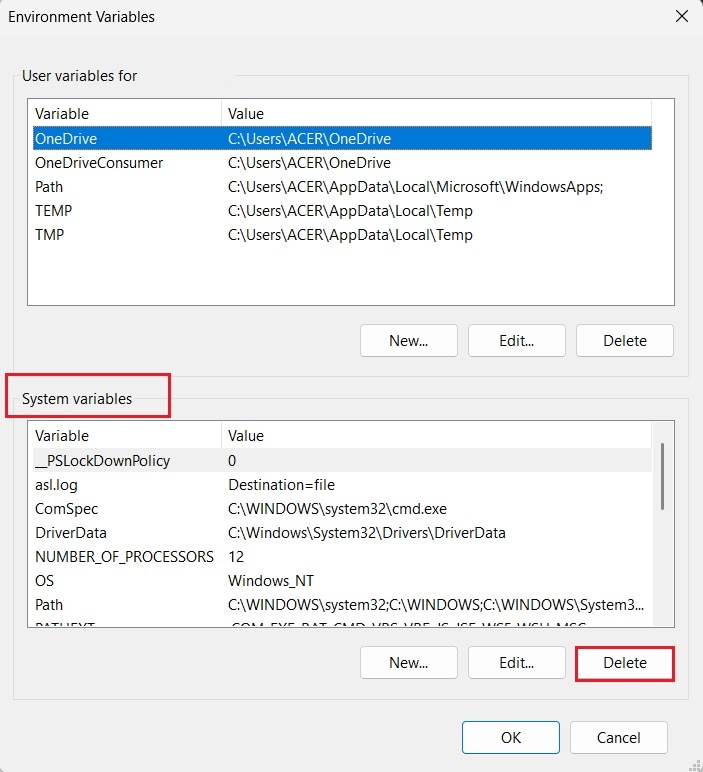
Step 2. Locate and remove NODE_ENV under system variables if present. Restart the PC.
Way 6. Start NVIDIA Telemetry Container Service
The telemetry container service supports driver communication and gameplay recording functions. When disabled, several GeForce Experience features may fail.
Step 1. Press Windows + R and type services.msc. Locate NVIDIA Telemetry Container.
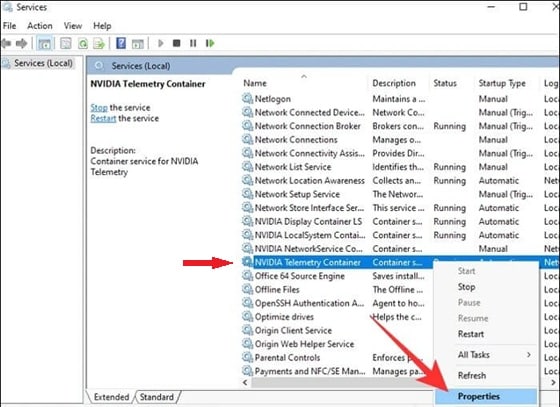
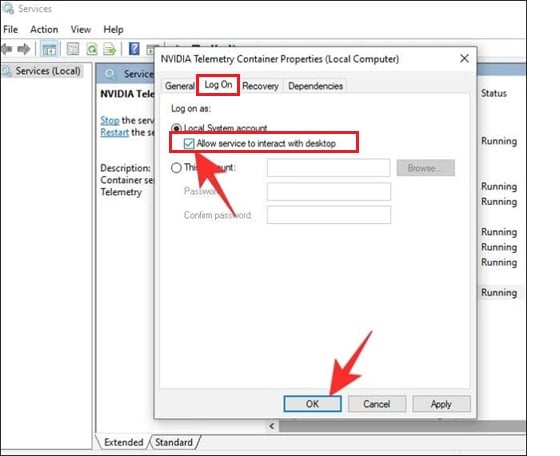
Step 2. Open Properties, then go to the Log On tab. Enable Allow service to interact with the desktop. Apply settings and start the service.
Way 7. Reinstall All NVIDIA Components
Reinstalling all NVIDIA software removes corrupted files and restores missing service components. This method is recommended if previous fixes fail to resolve the error.
Step 1. Uninstall all NVIDIA programs through the Control Panel. Download the latest GeForce Experience and GPU drivers from NVIDIA.
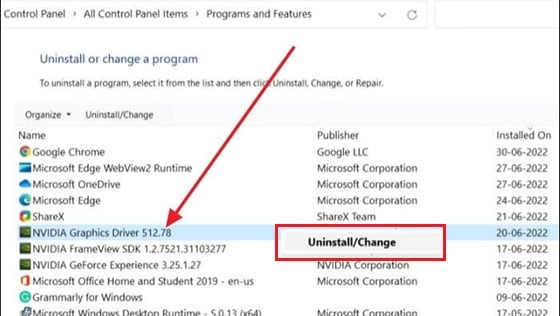
Step 2. Reinstall both components. Restart the PC.
⚠️ Important Note: You do not necessarily need to try every fix listed above. Start with the simpler solutions, such as restarting services or resetting network settings, before moving to driver reinstalls or full component removal. If the error persists after completing all methods, the issue may be related to deeper system conflicts, Windows updates, or hardware compatibility.
More solutions to GeForce issues:
Top Solutions When GeForce Installation Cannot Continue on Your PC
GeForce Experience Driver Download Failed
Part 5: Bonus Tip: Repair Corrupted Gameplay Videos
This section applies only after GeForce Experience launches correctly or when video playback issues persist independently of the app error.
Repeated crashes caused by error 0x0003 may interrupt gameplay recording sessions. These interruptions sometimes damage recorded video files, causing playback failures or visual glitches.
Repair Video Repair is optional and only applies if recorded gameplay files become unreadable or corrupted. This tool typically supports common formats and may fix issues such as freezing, stuttering, missing frames, or video sync errors.
When Video Repair Should Be Considered
- Recorded gameplay files fail to open
- Videos freeze, stutter, or show missing frames
- Recording stops abruptly during application crashes
What Video Repair Can Do
- Repair corrupted video file structures and missing metadata
- Restore playback for formats such as MP4, MOV, AVI, and MKV
- Repair multiple damaged recordings simultaneously
What Video Repair Cannot Do
- Recover permanently deleted gameplay recordings
- Fix GeForce Experience application errors
- Resolve hardware-level recording failures
Step-by-Step (If Needed)
Step 1. Import the corrupted gameplay videos into the software.

Step 2. Start the repair process. Allow the software to analyze and rebuild damaged file structures.

Step 3. Preview repaired recordings before saving them to a new location.

Conclusion
GeForce Experience error code 0x0003 is usually linked to driver conflicts, disabled NVIDIA services, network configuration problems, or corrupted installation files. In most cases, the issue can be resolved by restarting NVIDIA services, resetting network components, updating drivers, or reinstalling the application.
If none of the fixes work, consider testing a new Windows user profile, rolling back recent system updates, or contacting NVIDIA support to rule out deeper compatibility issues. Video repair tools should only be used to recover damaged gameplay recordings, not to resolve application-level errors.
FAQs
-
How do I fix GeForce Experience error code 0x0003 on Windows?
You can fix it by restarting NVIDIA services, resetting network settings, or updating and reinstalling graphics drivers. -
Can outdated drivers cause error 0x0003?
Yes, outdated or corrupted drivers can stop GeForce Experience from working properly and trigger this error. -
Why does GeForce Experience fail to launch after restarting services?
The app may still fail if other NVIDIA services, network settings, or installation files are damaged. Misconfigurations beyond the core services can block it from starting. -
When should I consider repairing corrupted gameplay files?
You should repair gameplay files if recorded videos have playback errors, glitches, or missing audio after crashes. -
Can video repair fix errors caused by GeForce Experience itself?
No, video repair tools only recover damaged video files. They cannot resolve app or driver issues that trigger error 0x0003.




