

Uploading videos to YouTube is simple, but problems can occur. With over 500 hours of video added every minute, YouTube's servers process massive data. As a result, uploads may sometimes fail, freeze, or take longer than usual.
Can't upload video to YouTube or get stuck during processing? Wait a few minutes and try again. If that doesn't work, check your video's format, your internet speed, and for any temporary server issues on YouTube's end. Follow the solutions below to resolve the issue and successfully upload your YouTube videos.
In this article
Part 1. Why Can't I Upload a Video to YouTube?
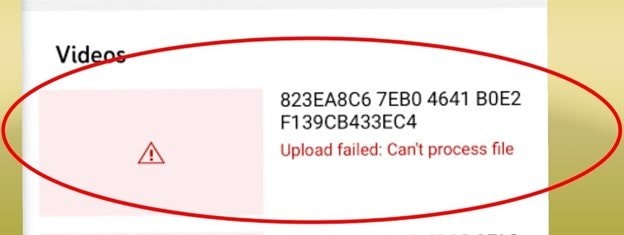
Sometimes, YouTube uploads fail even if your video and connection seem fine. Common issues include network problems, unsupported video settings, or YouTube errors:
- YouTube Server Issues - YouTube can have technical problems or heavy traffic. When this happens, uploads may fail or get stuck.
- Unsupported Video Format or File Size - YouTube supports MP4, AVI, and MOV. If your video is in the wrong format or too large, the upload may fail or stop during processing.
- Slow or Unstable Internet - A weak or unstable connection can interrupt uploads. This causes videos to get stuck at 0%, 95%, or 99%.
- Old or Faulty Network Equipment - Old or broken routers can slow your connection and make uploads unreliable. This can prevent your video from finishing.
- Network Interference - Wi-Fi can be affected by devices like TVs, microwaves, or thick walls. Interference weakens the signal and slows uploads.
- Browser or Cache Problems - Too many cached files, cookies, or browser glitches can stop uploads or make them hang during processing.
- Corrupted Video File - If your video is damaged or incomplete, YouTube may not be able to process it, causing the upload to fail or get stuck.
Part 2. Common Reasons You Can't Upload Videos on YouTube
YouTube sometimes shows upload errors. Check for copyright, duplicate content, account limits, or guideline issues to fix problems quickly.
- Don't upload videos with music, clips, or content you don't own. Get permission before uploading copyrighted material.
- Create original videos. Avoid reusing similar titles, descriptions, or content to prevent duplicate flags.
- Don't post violent, abusive, or harmful videos. YouTube blocks videos that break its rules.
- Avoid strange symbols or unsupported characters in titles and tags, or YouTube may reject your upload.
- Verify your YT account to upload videos longer than 15 minutes. Unverified accounts are limited to 15 seconds to 15 minutes.
- Use the YouTube logo as intended. Don't change colors, add effects, or alter spacing.
- Fix any suspensions or restrictions on your account before uploading.
Part 3. How to Fix "Can't Upload Video to YouTube" Issues
Sometimes, a video fails to upload because of temporary YouTube errors. Below are some common fixes you can try.
Check Video Format and Resolution
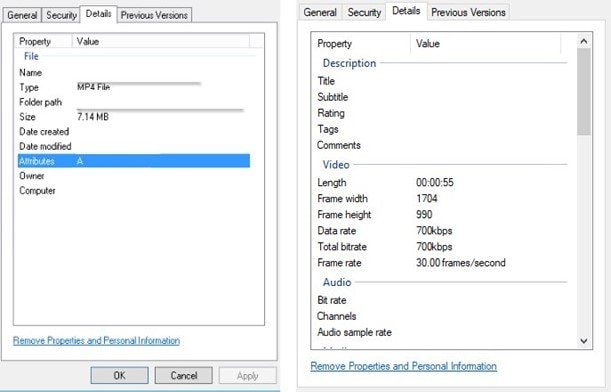
If your YouTube video is stuck at 0% or 99%, the root cause might be the file size or format. YouTube only accepts certain formats and has limits for video size and length. If your video doesn't meet these requirements, the upload may fail or stop during processing.
Make sure your video uses a supported format like MP4, MOV, or AVI. Also, check that the file size and video length are within YouTube's limits. When your video follows these basic requirements, it is more likely to upload and process smoothly.
| Specification | Requirement |
|---|---|
| Supported Formats | MP4, MOV, AVI, WMV, FLV, WebM |
| Maximum Resolution | Up to 8K |
| Recommended Frame Rate | 24, 30, or 60 fps |
| Maximum File Size | Up to 256 GB or 12 hours (for verified accounts) |
| Video Length Limit | Up to 15 minutes for unverified accounts |
| Thumbnail Formats | JPG, PNG, BMP, GIF |
| Minimum Thumbnail Resolution | 720p |
Verify Your YouTube Account
If your account is not verified, YouTube limits how long your uploaded videos can be. Verifying your account removes this limit and allows you to upload longer videos, as long as they stay within YouTube's file size rules.
Step 1: Access and sign in to your YouTube or Google account.
Step 2: Confirm your account using your phone number or email.

Improve Internet Connection
A poor internet connection can cause your YouTube uploads to fail or freeze. Uploading videos needs a stable connection, especially for large files. If your internet speed is low, uploads may pause or take much longer.
You can monitor your internet speed using an online speed test. You can use an Ethernet cable for a faster and more reliable signal. It's also better to upload videos from a computer rather than a mobile device, since computers usually have a more stable connection.
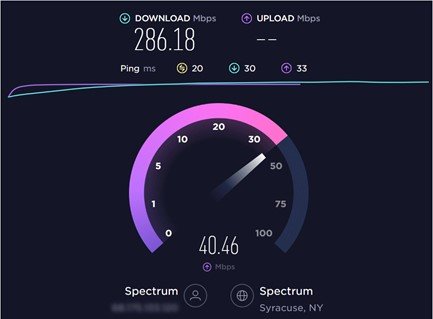
If the internet speed is low, reconnect your router or switch to a better network.
Update the YouTube App
Sometimes videos fail to upload because the YouTube app is outdated. Older YouTube app versions may have bugs or compatibility issues that affect uploads. Update it to fix these problems and improve how it works. It also ensures you have the latest features and performance improvements.
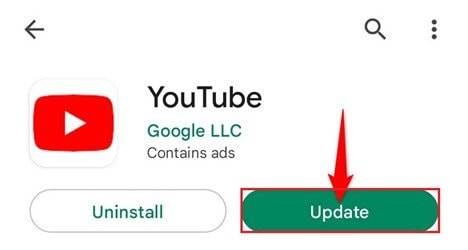
Step 1: Look for YouTube on the App Store or Google Play Store.
Step 2: Hit Update if a new app version is available. Wait for the new update to finish downloading.
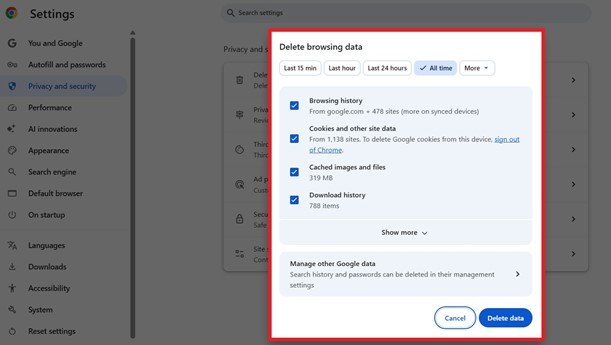
Clear Browser Cache and Cookies
Over time, your browser stores temporary cache and cookies. While these files help websites load faster, they can sometimes become corrupted and cause errors. When this happens, YouTube uploads may fail or behave strangely. Clearing your browser cache and cookies can refresh the system and fix many upload issues.
Step 1: Press the three dots in the top-right corner and look for Delete browsing data.
Step 2: Check the cached images and files, and other files you want to remove. Hit Delete data.
Part 4. What to Do If You Still Can't Upload a Video on YouTube
If your video still won't upload after basic fixes, a deeper issue may be the cause. This could be your browser, the video file, or a YouTube issue. Use these steps to find the problem and upload successfully.
- Try Uploading From Another Browser or Device - Sometimes the issue is related to the browser or device you are using. Certain browser settings, extensions, or glitches can interrupt the upload process. Switching to a different browser or uploading from another device can help determine whether the problem is coming from your system.
- Check YouTube Server Status - At times, the problem may not be on your end. YouTube servers can experience temporary outages or heavy traffic, which may cause uploads to fail or get stuck. When this happens, many users may experience the same issue until YouTube resolves the problem.
- Contact YouTube Support - If none of the solutions work, the issue may be related to your account or a technical error that requires help from YouTube. In this situation, reaching out to YouTube support can help identify the problem and guide you toward the right solution.
Part 5. Repair Corrupted Videos That Won't Upload to YouTube
Videos can fail to upload when the file is corrupted or damaged. This can happen if the upload was interrupted, the file was moved between devices, the codec is faulty, or the software crashed during editing or exporting. When this happens, YouTube may get stuck at 0%, 95%, or 99% while processing the video.
The easiest way to fix a corrupted video is to use a video repair tool. We recommend Repairit Video Repair, which can quickly and safely repair damaged files. Repairing your video ensures it can be uploaded to YouTube smoothly, without losing quality or having to start over.
Key Features:
- Repairit works with videos from PCs, cameras, consoles, and any recording device.
- It supports popular formats like MP4, MOV, AVI, MKV, MTS, MXF, as well as 4K/8K, RAW, HDR, and LOG files.
- Repairit uses advanced AI to restore damaged files, fix corrupted headers, and repair multiple YouTube videos at once.
- It preserves the original YouTube video resolution, quality, and sound.
- The tool fixes YouTube videos that won't open, flicker, freeze, lose sound, or go out of sync.
- Its success rate is over 99%, making it a reliable solution for YouTube upload problems.
Step-by-Step Guide:
Step 1: Press the Add video, or the Add button to input your corrupted videos that won't upload to YouTube.

Step 2: Hit Repair to start fixing the corrupted videos that won't upload to YouTube.

Step 3: Preview the repaired YouTube video. If it looks good, click Save and choose a new location path on your computer. This process makes your video ready to upload to YouTube without errors or quality loss.

Part 6. Tips to Prevent YouTube Upload Problems
Uploading videos can be frustrating, but many problems can be avoided with a few quick tips. Preparing your video and system properly makes uploads smoother and faster.
- Use the right video format. Stick to formats YouTube supports, like MP4. Unsupported formats can fail or take longer to upload.
- Keep file sizes small. Large files take longer to upload and are more likely to fail. Compressing or optimizing your video makes the process quicker and more reliable.
- Use a stable internet connection. A strong connection helps prevent uploads from pausing or failing. Wi-Fi or a wired connection works best.
- Keep your browser or app updated. Old browsers or apps can cause errors. Updating fixes bugs and ensures uploads work properly.
- Upload at off-peak times. The Internet slows down when many people are online. Uploading during quieter hours can make it faster and reduce errors.
Conclusion
Common issues when uploading videos to YouTube include slow internet, unsupported file formats, corrupted videos, or temporary YouTube glitches. Most of these can be fixed by checking your video format, verifying your account, improving your connection, updating the app, or clearing your browser cache.
If a video is corrupted and won't upload, tools like Repairit Video Repair can fix it quickly without losing quality.
FAQs
-
Why does my video fail to upload even after multiple tries?
Repeated upload failures can happen if the file is slightly corrupted, your internet fluctuates, or YouTube servers are busy. Trying a new device or re-exporting the video can help. -
Can using high-resolution videos cause upload problems?
Yes. Very large or high-resolution files, like 4K, can take longer to upload and may fail if your internet isn't stable. Reducing the resolution or compressing the file can help. -
Why does my upload stop mid-way with no error message?
Sometimes uploads pause silently due to Wi-Fi interference, router issues, or temporary YouTube glitches. Switching to a wired connection or restarting the router often fixes this. -
Could my video title or description prevent uploads?
Yes. Titles or tags with unusual symbols or characters can trigger errors. Using simple, clean text usually avoids this problem.




