
Have you ever opened up YouTube to view a favorite video only to realize that it starts and stops every few seconds? You are so aggravated that tutorials, music, or movies do not run smoothly. Well, this issue is common to several users on their phones, tablets, or computers. Alongside common issues, YouTube servers sometimes fail, causing videos to pause even when your connection is working.
Therefore, this article explains why YouTube keeps pausing and how to restore normal playback. As you follow the steps, videos will play continuously on any device, helping you enjoy content without constant interruptions.
Table of Contents
Part 1. Why Does YouTube Keep Pausing: Most Common Causes Explained?
YouTube keeps pausing means videos pause automatically, and you have to restart playback. In some cases, the video just ends abruptly without a spinning indicator, and the play button appears paused. On other occasions, the video stutters or pauses while waiting for data due to a slow or poor connection. You may also see prompts like "Video paused. Continue watching?" that stop playback until you respond.
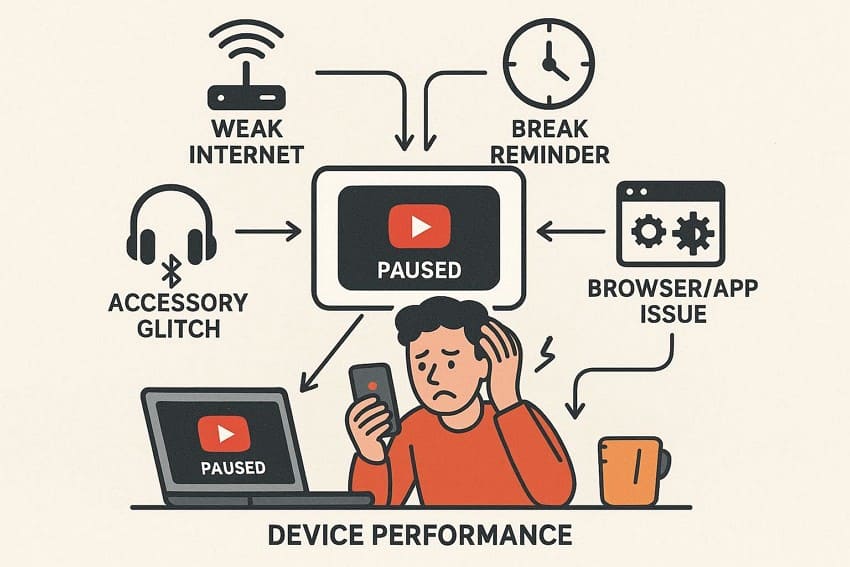
To know why YouTube keeps stopping, review the 5 common causes explained below:
- Poor or Unstable Internet Connection: A slow or weak internet connection prevents YouTube from loading videos fast enough to play. In addition, high usage, distance from the router, or ISP issues can make videos pause or buffer.
- "Remind Me to Take a Break," And "Are You Still Watching?": YouTube may stop videos after a set time if break reminders are active. Thus, prompts like "Continue watching?" appear on the desktop or TV when the system thinks you are idle.
- Headphone, Accessory, or Input Glitches: Loose jacks, a low battery, or a disconnected Bluetooth connection can cause YouTube to pause automatically. Not only that, stuck keys or remote buttons can also send repeated pause commands and stop playback.
- Browser or App Conflicts, Cache, and Extensions: Outdated extensions or browsers can interfere with the YouTube player and cause pauses. Furthermore, old cache or cookies can corrupt playback and make the video freeze or stop.
- Device Performance, Background Apps, and Power/Data Modes: Low memory, full storage, or many apps open can slow YouTube or cause it to pause. Alternatively, battery- or data-saving modes can restrict video playback and interrupt smooth streaming.
Part 2. How to Solve YouTube Playback Stopping Issues - 5 Solutions to Try
When YouTube keeps pausing, here are some quick fixes you can try to have a smooth, uninterrupted viewing experience:
Fix 1. Check Your Internet Speed
Speed tests help you choose the right video quality, avoid buffering, and reveal hidden issues like Wi‑Fi congestion or throttling. They also separate device problems from network problems, so you know whether to focus on the router or the app.
Fix 2. Check Autoplay and Network Settings
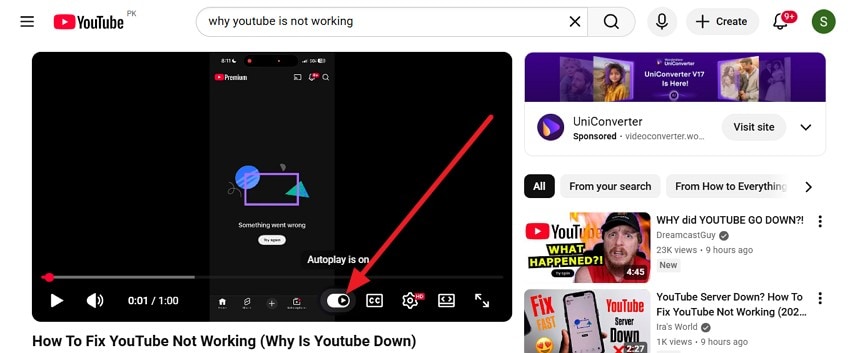
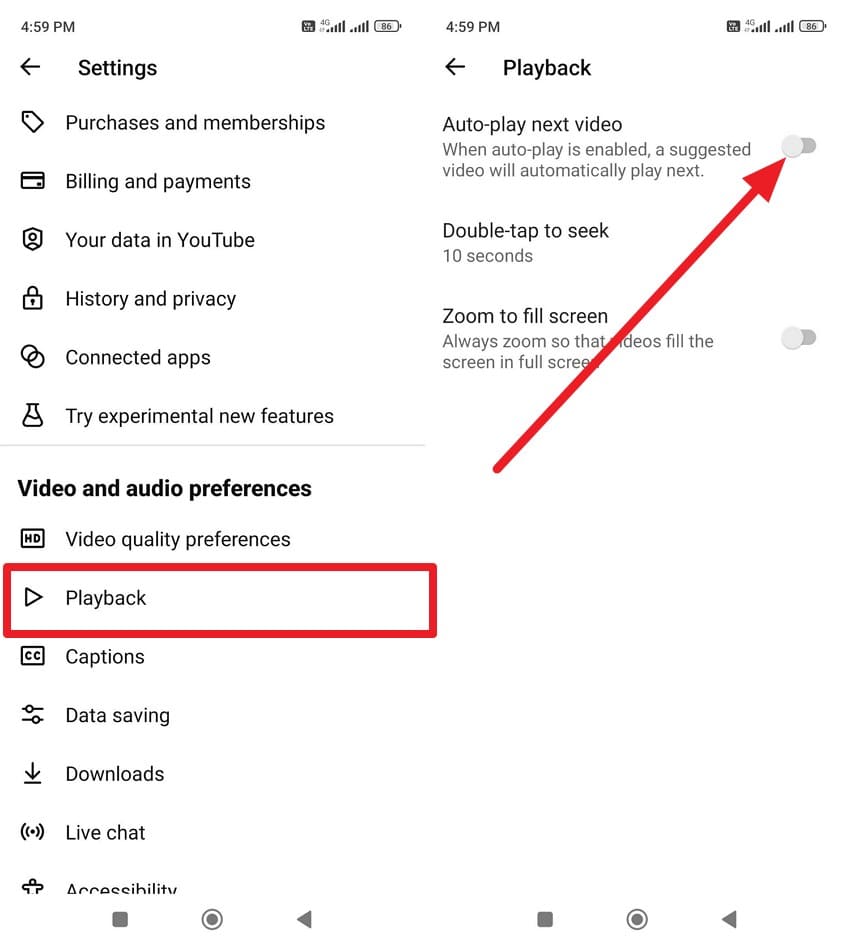
Other than the internet speed, check Autoplay if you wonder, "Why does my YouTube keep pausing?" Autoplay settings prevent "video paused, continue watching" interruptions and stop unwanted pauses between videos. Additionally, these settings ensure consistent playback across phones, TVs, and computers. So, here is how you can quickly check Autoplay settings on some devices:
On Browsers (YouTube Website)
Instructions: In the player, look for the "AutoPlay" icon and switch it to "On" for continuous play or "Off" to watch only one video at a time.
On Android/iPhone (YouTube App)
Instructions: In YouTube settings, select the "Playback" option and toggle the "Auto-play Next Video" option on or off.
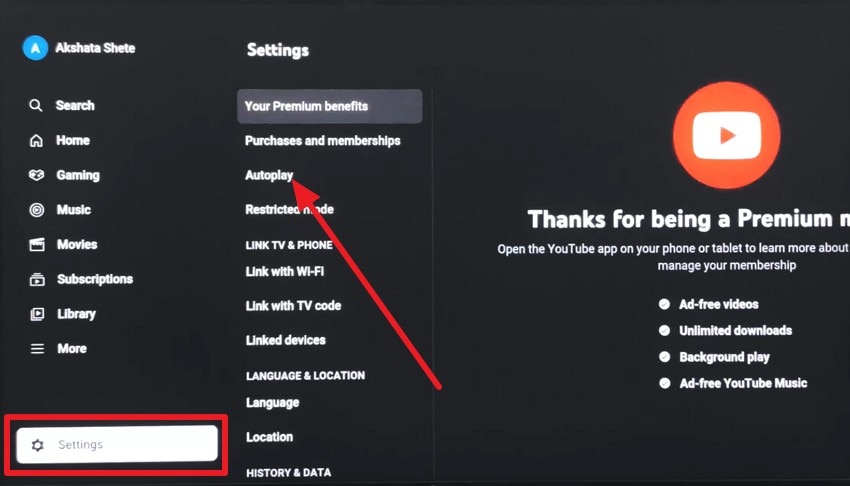
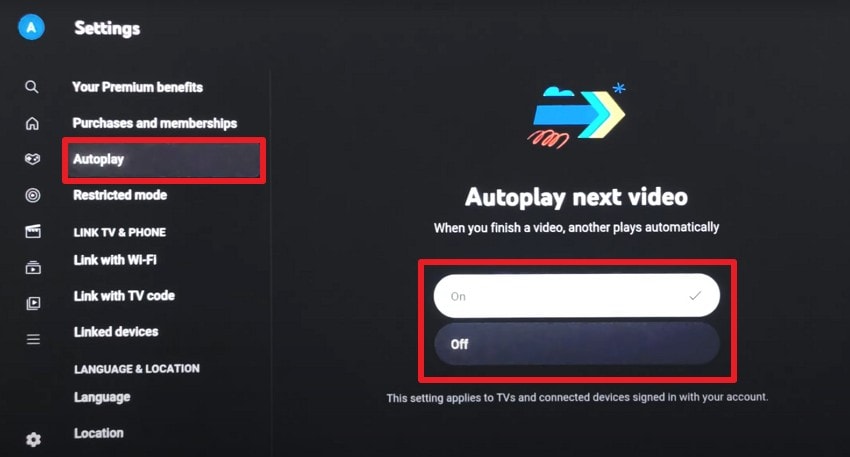
On Smart TV/Streaming Devices (YouTube App)
Step 1. Go to the "Settings" on Smart TV and choose the "Autoplay" option.
Step 2. Here, set it "On" or "Off" to adjust the Autoplay settings accordingly.
Fix 3. Clear Cache and Cookies
Cached scripts, images, and media fragments may conflict with the current site, causing freezes or pauses. Therefore, it is suggested to remove cookies or clear the cache to reset login, preferences, and session data, which prevents hidden accounts or playback glitches. In addition, as you clear the cache, it helps you know why YouTube keeps pausing and improves browser or app performance, as shown:
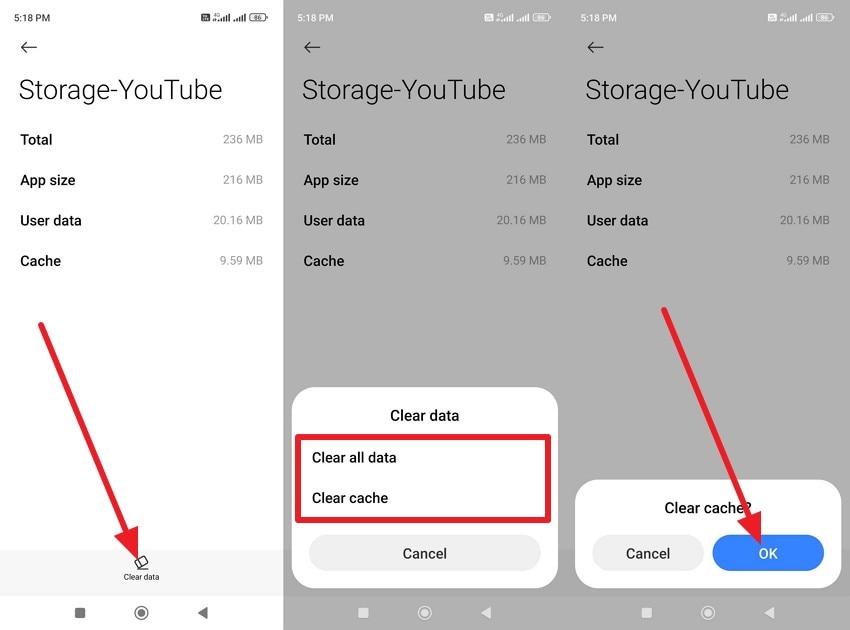
On Android – Clear YouTube App Cache/Data
Instructions: As you choose "Apps > Manage Apps," pick "YouTube" in the list and head to the "Storage." There, press the "Clear Data" option, choose "Clear Cache" or "Clear All Data" in the pop-up menu, and pick "Ok" to confirm.
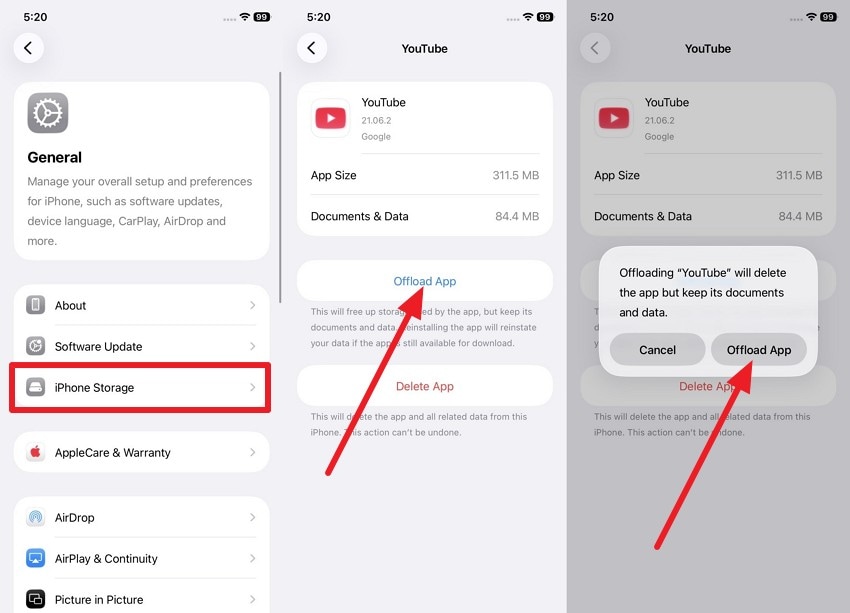
On iPhone/iPad – Refresh/Reset YouTube App
Instructions: After choosing "iPhone Storage" in general settings, pick YouTube from the app list. Here, press the "Offload App" option and tap the "Offload App" option in the pop-up.
On Google Chrome (Windows/macOS)
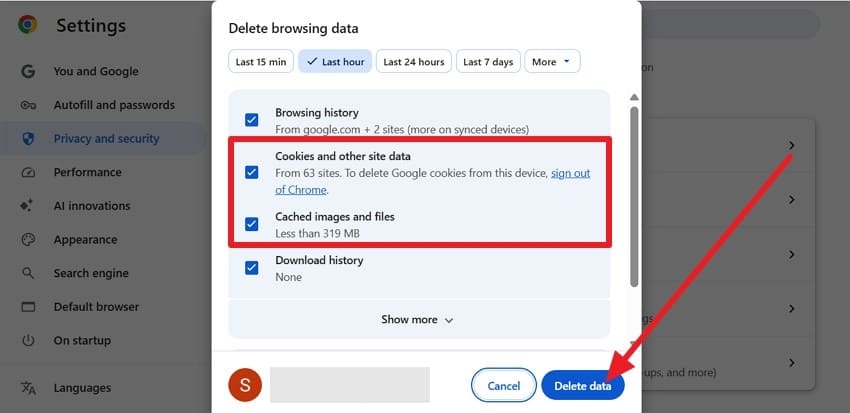
Instructions: Press "Ctrl + Shift + Delete" on Windows or "Command + Shift + Delete" on Mac. In the pop-up menu, press "Cookies and Other Data" and "Cached Image and Files" option, and choose "Delete Data" option.
On Smart TV/Streaming Devices
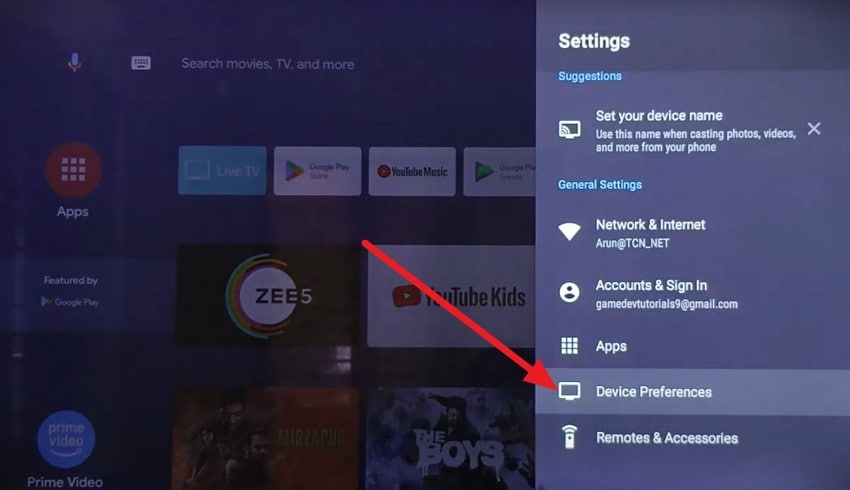
Step 1. On Android TV, go to "Settings" and choose "Device Preferences > Storage > Internal Storage" option.
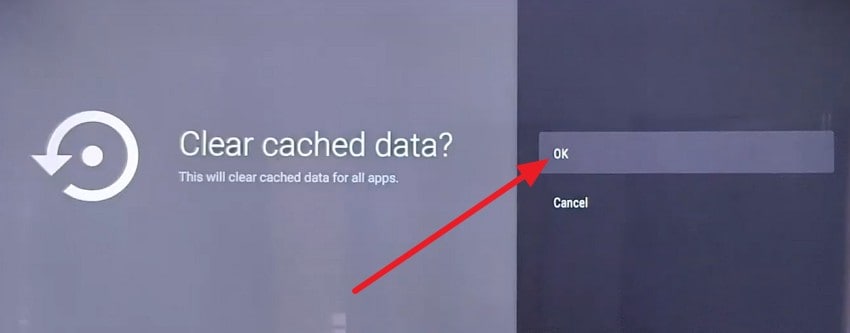
Step 2. Within the list, select the "Cached Data" option, then press "Ok" to delete.
Fix 4. Disable Conflicting Extensions or Background Apps
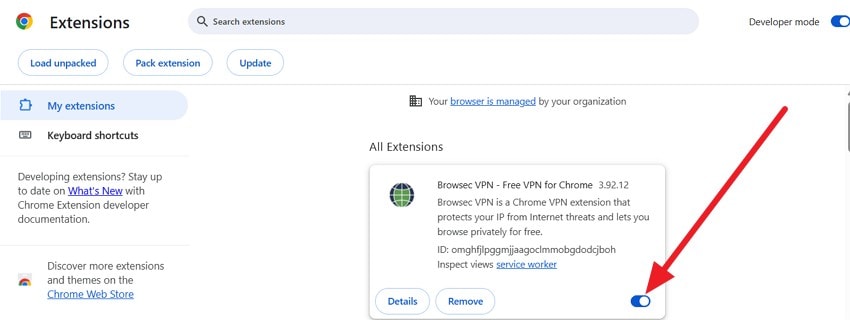
If you still want to know why YouTube keeps stopping, try to disable conflicting extensions or background apps. Extensions like ad blockers, auto-pause tools, or privacy add-ons can break YouTube scripts, causing videos to stop or freeze. In addition, as you close heavy background apps, you free up CPU, memory, and bandwidth. So, here is the basic stepwise guide that you can follow on specific devices:
Disable Browser Extensions [Google Chrome/Edge]
Step 1. Press the "Three Dots" icon to choose the "Extensions > Manage Extensions" option.
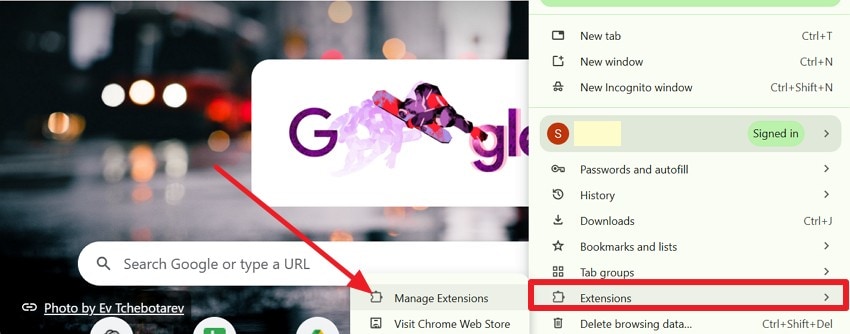
Step 2. Pick the extension you seek to disable and toggle the option "Off."
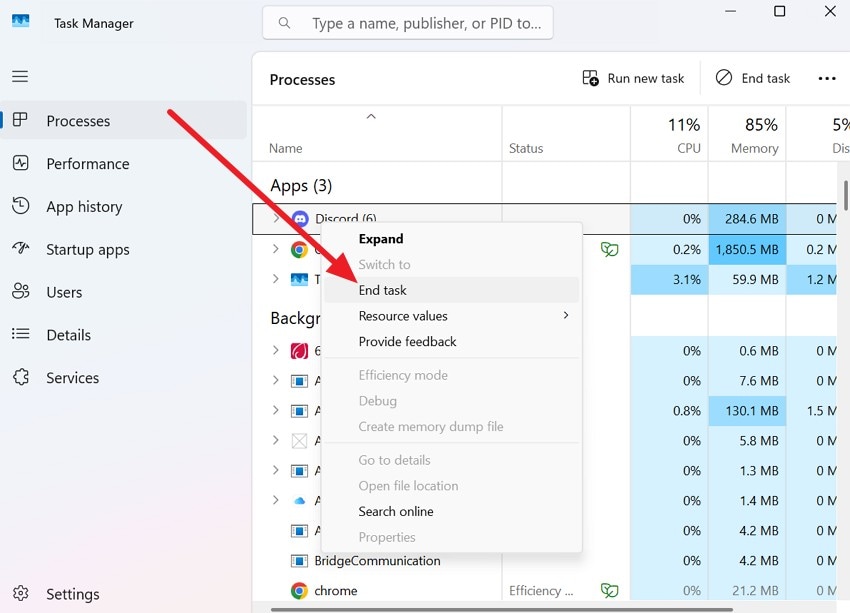
Close Background Apps (Windows/macOS)
Windows: In the Task Manager, look for heavy apps in the "Processes" tab, right-click on them, and choose "End Task."
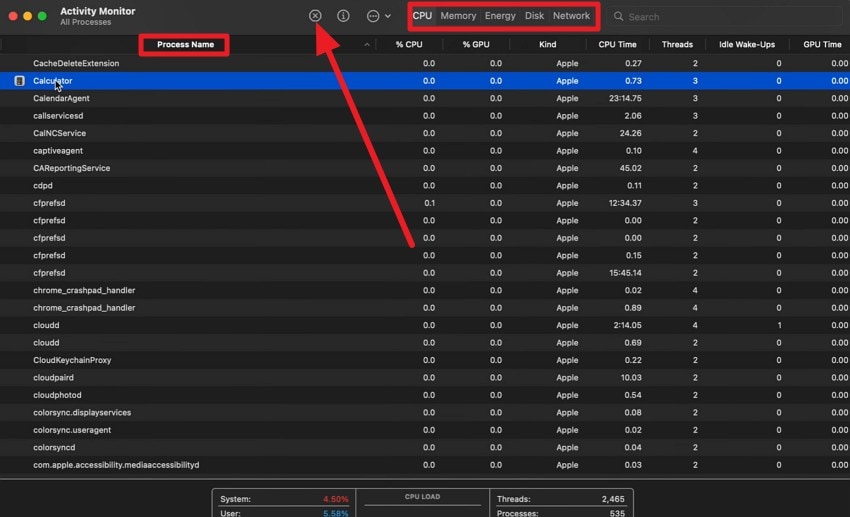
macOS: Press "Command + Option + Esc" for Force Quit Applications, or open Activity Monitor from Utilities. There, sort by "CPU," "Network," or search for an app in the "Process Name" tab. Once located, choose it, and press the "X" icon at the top to end the task.
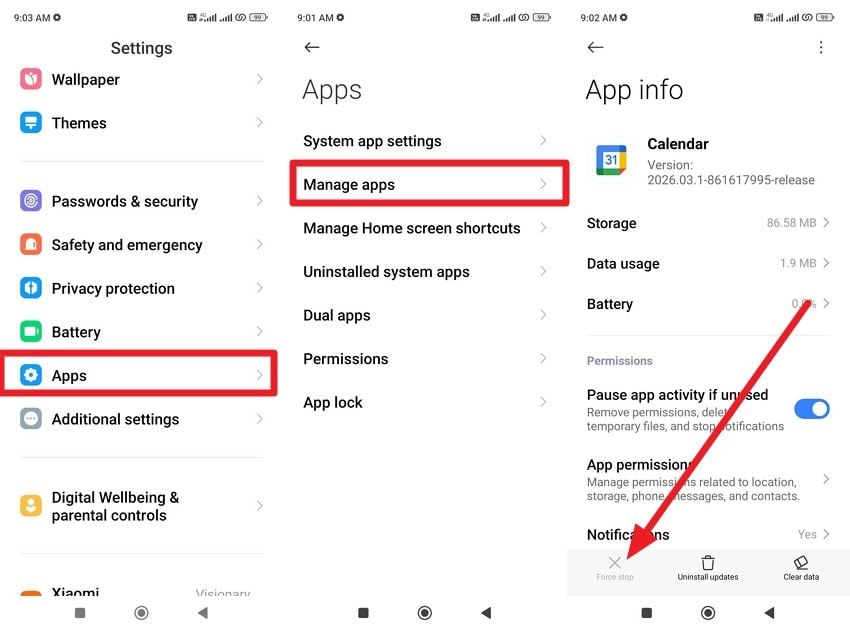
Close Background Apps Android (YouTube App
Instructions: Go to "Apps > Manage Apps," choose the problematic app, and press the "Force Stop" option.
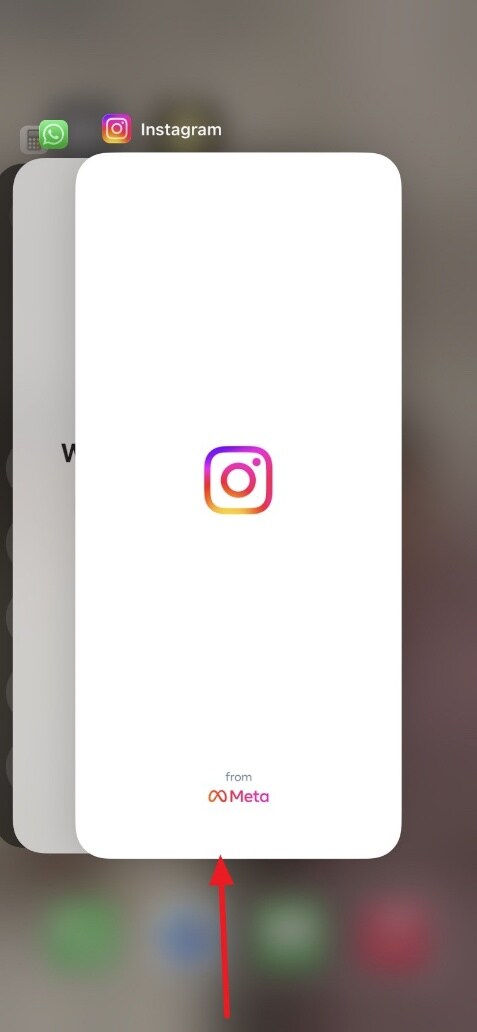
Close Background Apps iPhone/iPad (YouTube App)
Instructions: In the App Switcher, "Swipe Up" on the heavy application to close.
Fix 5. Update or Reinstall the YouTube App or Browser
Despite trying the above fixes, if YouTube keeps pausing, try updating the YouTube app or your browser. It removes bad data, replaces faulty files, and makes sure the app works well with the latest YouTube changes. Moreover, an update can fix known bugs, improve playback stability, and support new system changes, as guided below:
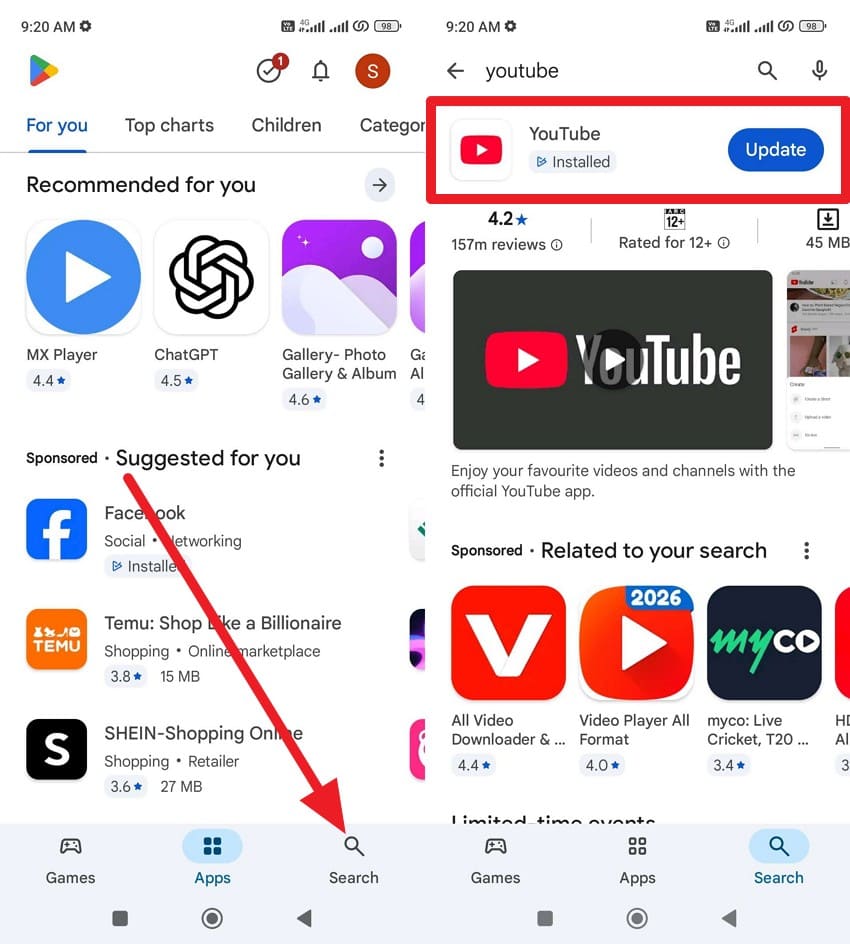
On Android Phone/Tablet (YouTube App)
Instructions: Search for YouTube on the Play Store, then press the "Update" button if available.
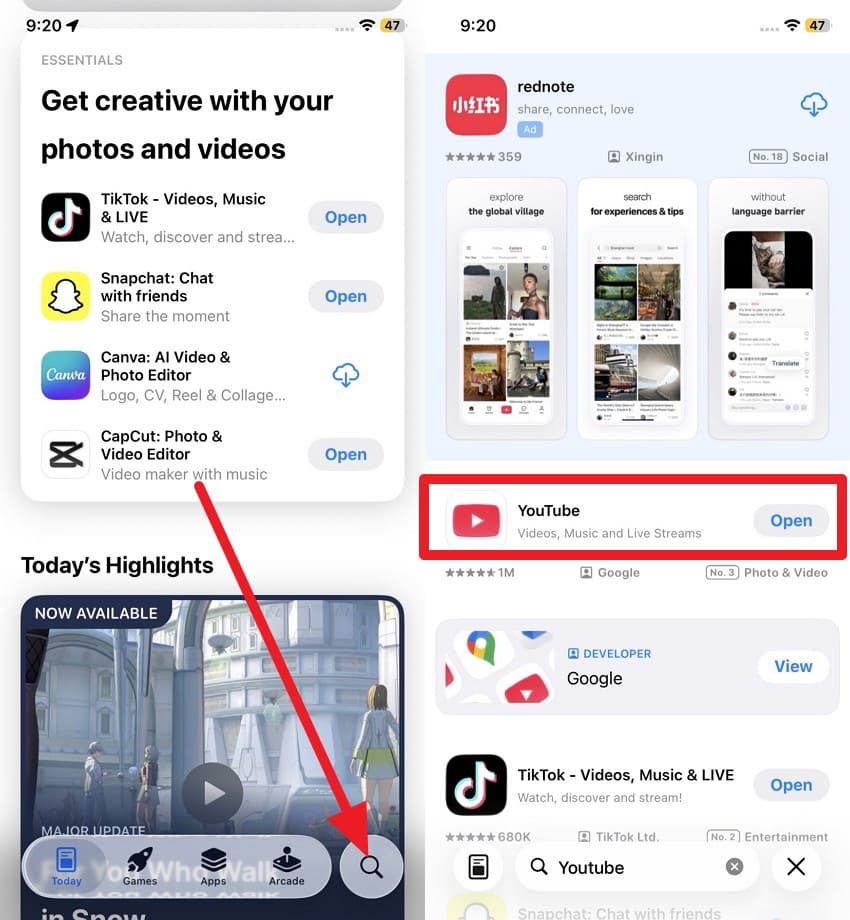
On iPhone/iPad (YouTube App)
Instructions: Tap the "Search" icon, type "YouTube," and tap the "Update" button if it's there.
On Windows/macOS (Browsers for YouTube)
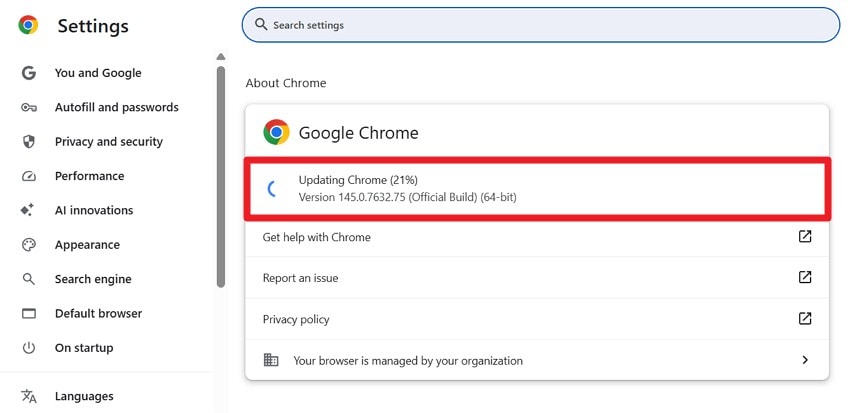
Step 1. Press the "Three Dots" icon and choose "Help > About Google Chrome."
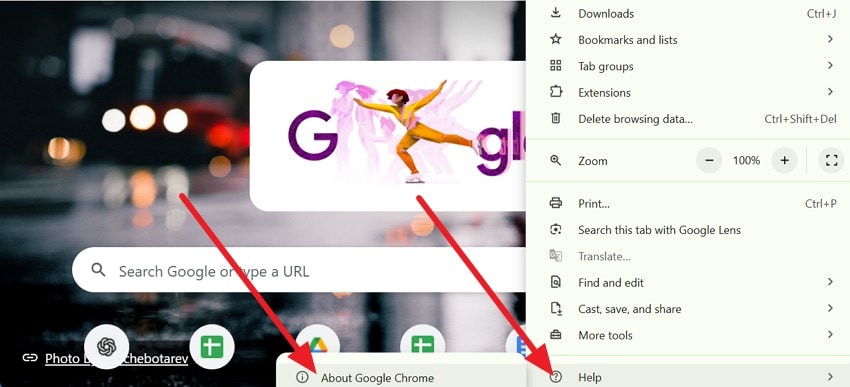
Step 2. This will let Chrome check and update automatically on the new interface.
On Smart TV/Streaming Device
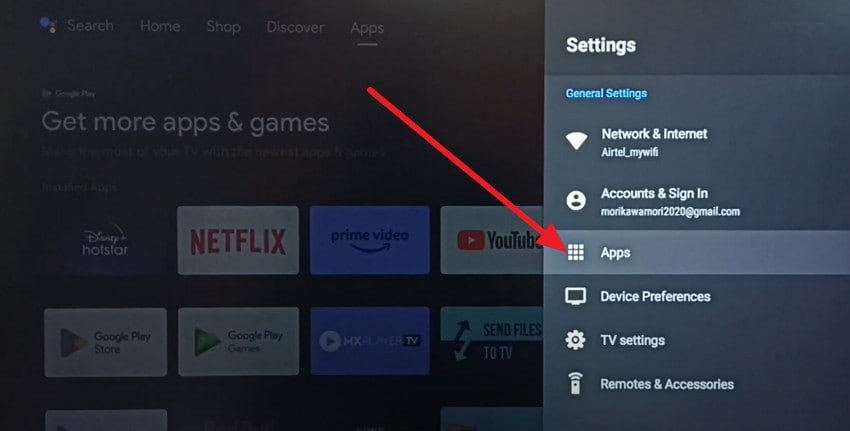
Step 1. Go to Android TV settings, choose "Apps > Google Play Store > Open."
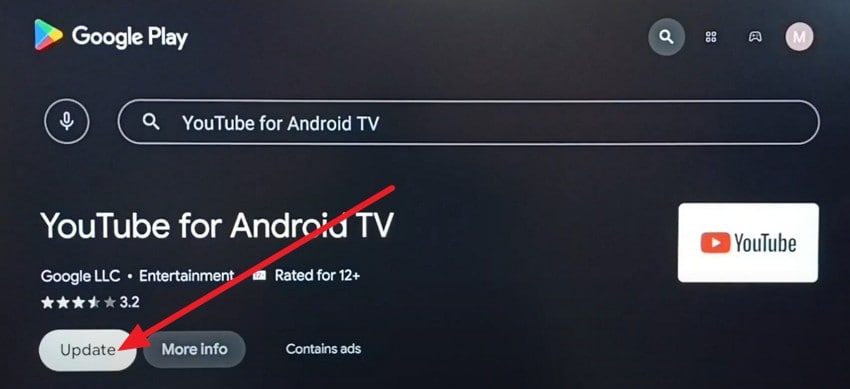
Step 2. Head to the "Apps" section, search for "YouTube," and press "Update."
Part 3. Try System and Network Tweaks to Solve YouTube Keeps Pausing
For those who ask, why does my YouTube keep pausing? Try the 4 listed system fixes to see if they resolve the problem:
Fix 1. Adjust Video Quality
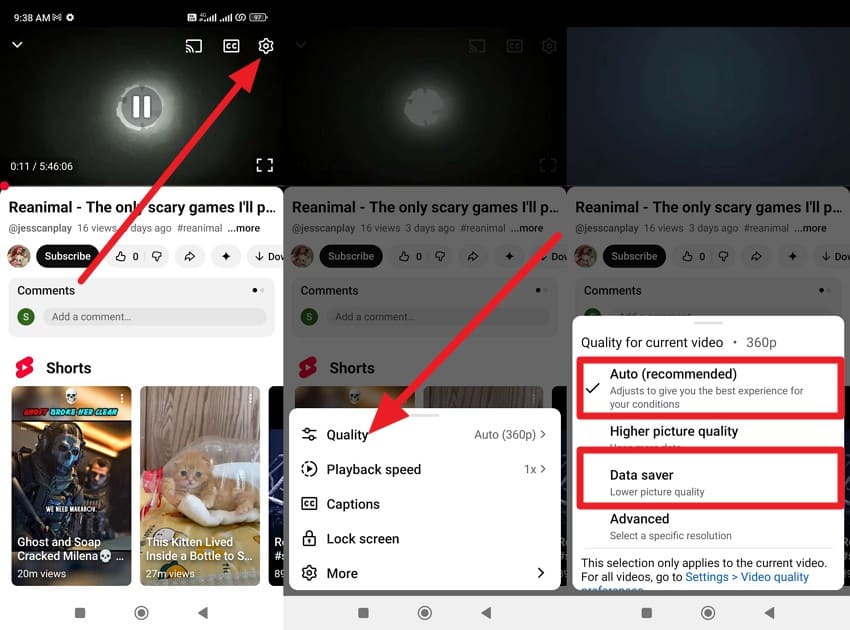
This fix can stop constant pauses by reducing the amount of data and device power required, so your internet and device can handle playback better. Other than high-quality modes like 1080p or 360p (Auto), data saver usually runs smoothly on weak connections. In addition, it reduces strain on old phones, TVs, or PCs, so they do not lag or freeze, once done via the listed steps:
On Android/iPhone (YouTube App)
Instructions: As you play the video, tap the "Settings" icon, then choose the "Quality" option. In the pop-up menu, set it to "Auto (Recommended)" or "Data Saver."
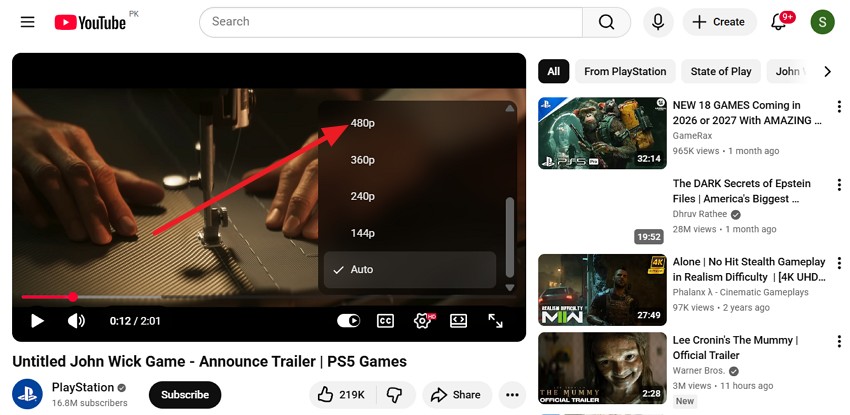
On Computer (Windows/macOS Browser)
Step 1. Press the "Settings" icon on the video and choose the "Quality" option.
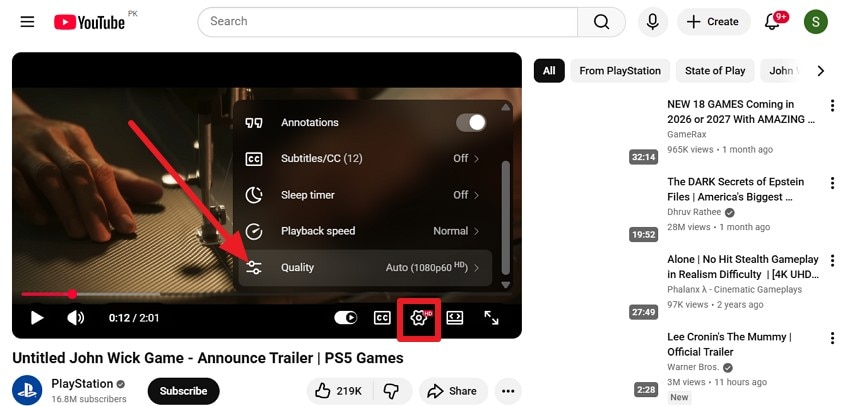
Step 2. Choose between "480p or 720p" so that the video runs smoothly.
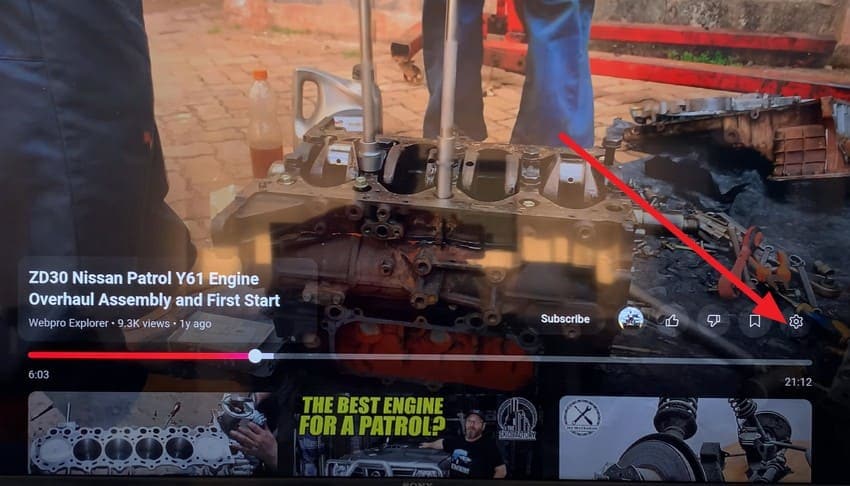
On Smart TV/Streaming Device
Step 1. Press the "Up" button on the remote control while the video is playing on YouTube, then select the "Settings" icon.
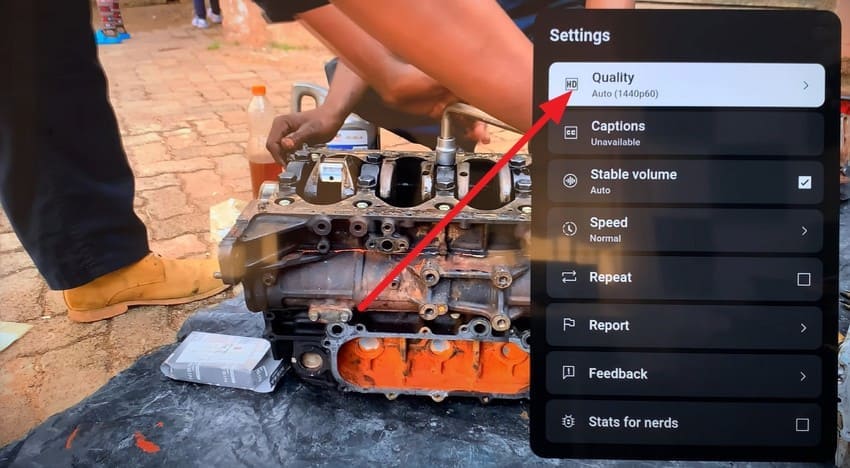
Step 2. Choose the "Quality" option and set it to "480p or 720p" to stop it from pausing repeatedly.
Fix 2. Disable VPN or Proxy
After you know the main reasons why YouTube keeps pausing, disable the VPN to see if it plays smoothly. VPNs add extra servers between you and YouTube, which can increase latency and cause buffering or sudden pauses. Therefore, a direct connection often gives faster speed, steadier playback, smoother seeking, and the simple guide is given below:
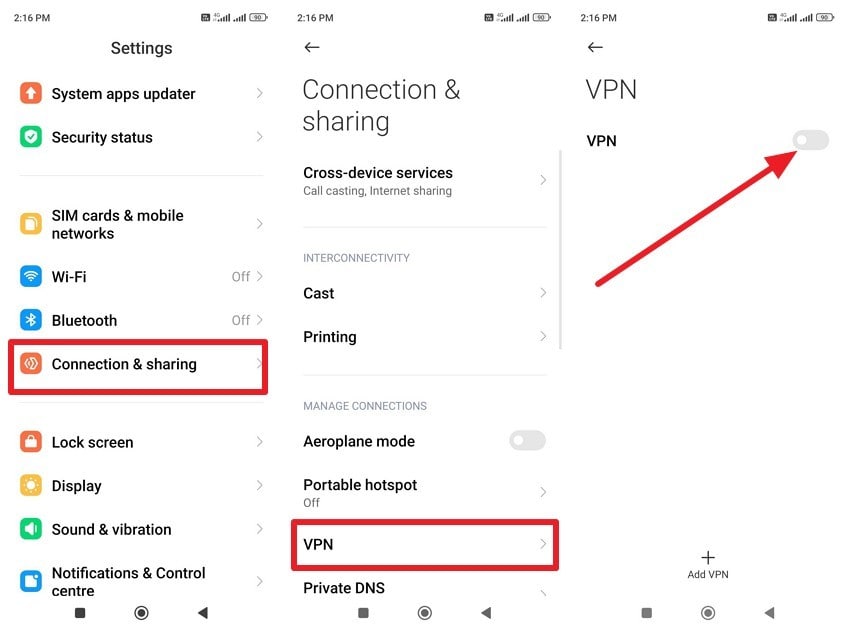
On Android Phones/Tablets
Instructions: Choose "Connection & Sharing > VPN > Turn off VPN" in the settings.
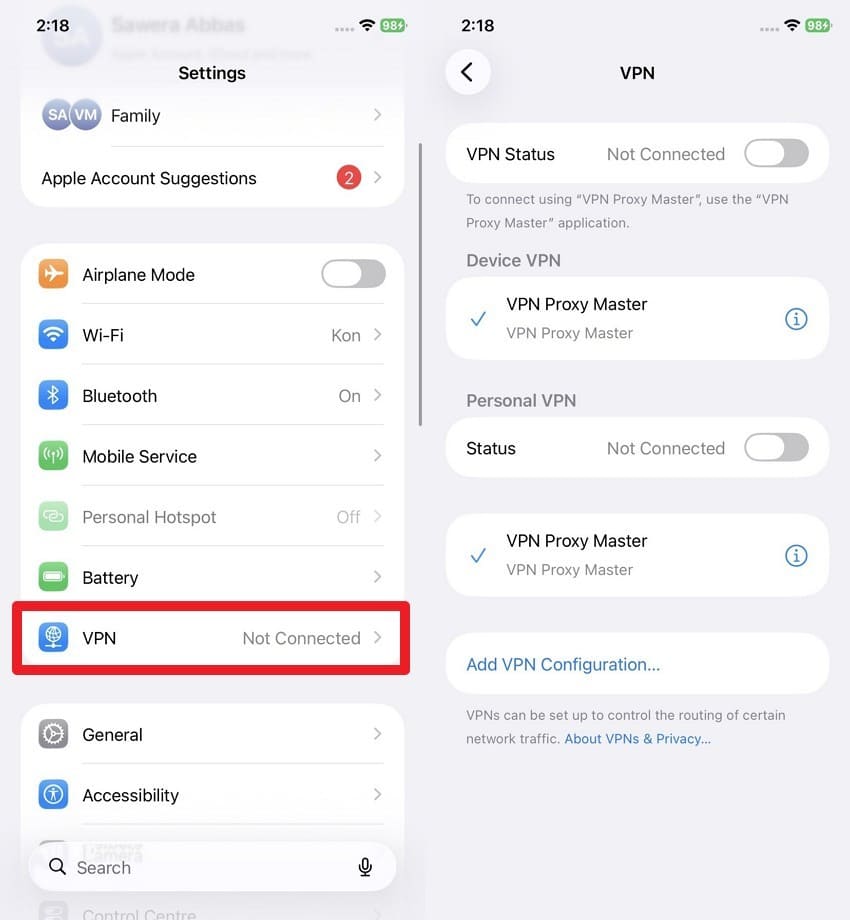
On iPhone/iPad
Instructions: Pick "VPN" from the Settings app and toggle off the given options on the new interface.
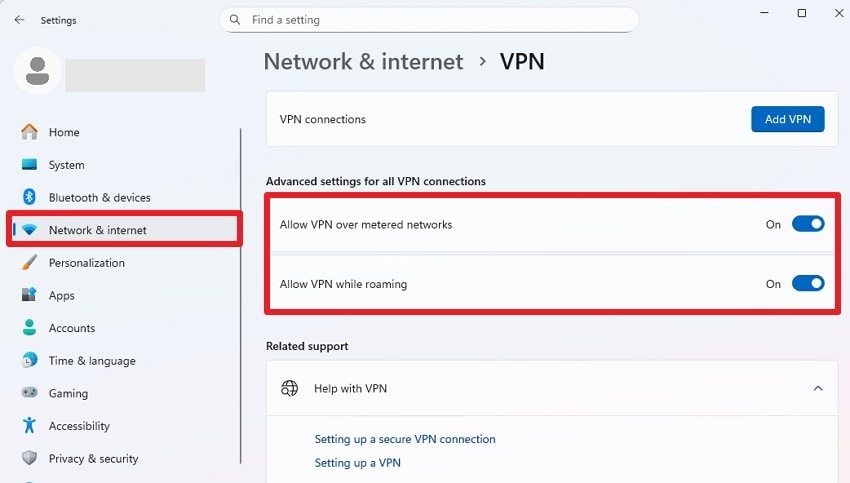
On a Windows PC
Instructions: Go to "Network & Internet" in settings and disable the given VPN options in the "Advanced Settings for All VPN Connections" section.
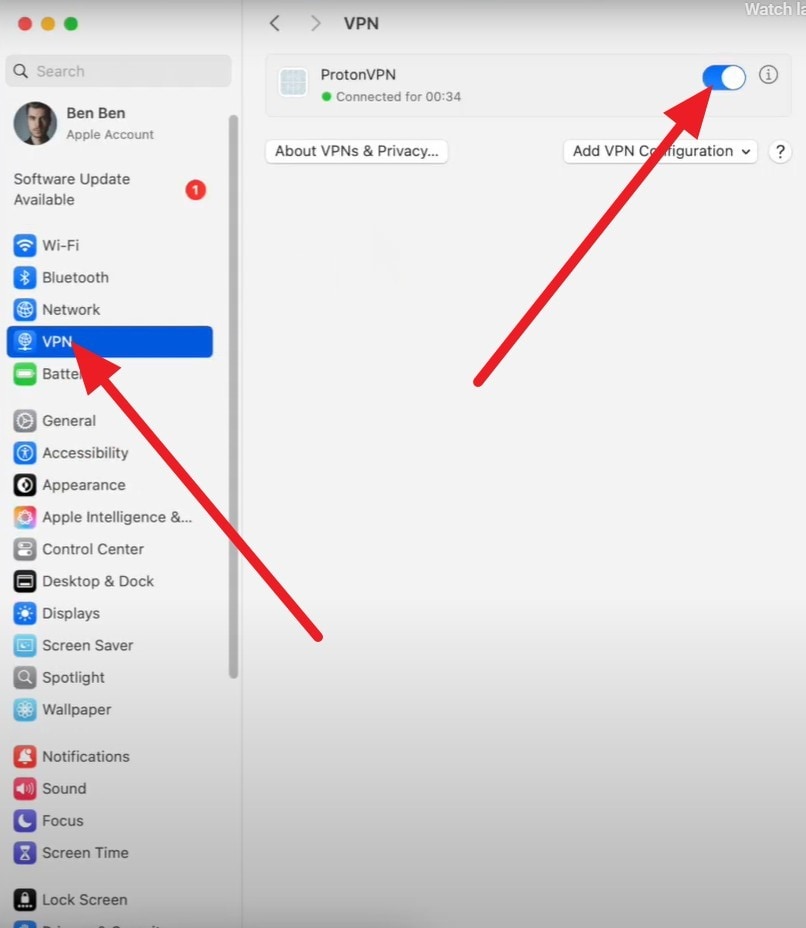
On macOS
Instructions: Press the "Apple" icon on the main screen to access "System Settings." Head to the "VPN" tab and toggle off the listed service.
On Smart TVs/Streaming Devices
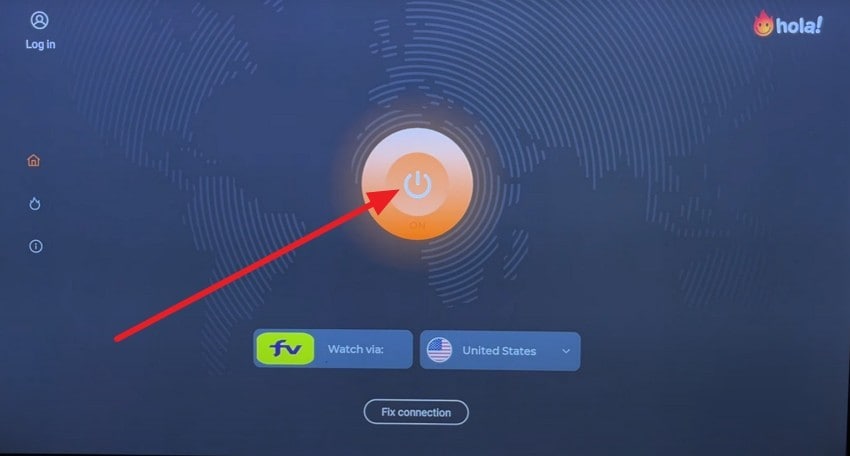
Step 1. On Amazon Fire TV, choose the "Apps" icon with the remote and pick the "VPN" app in the list.
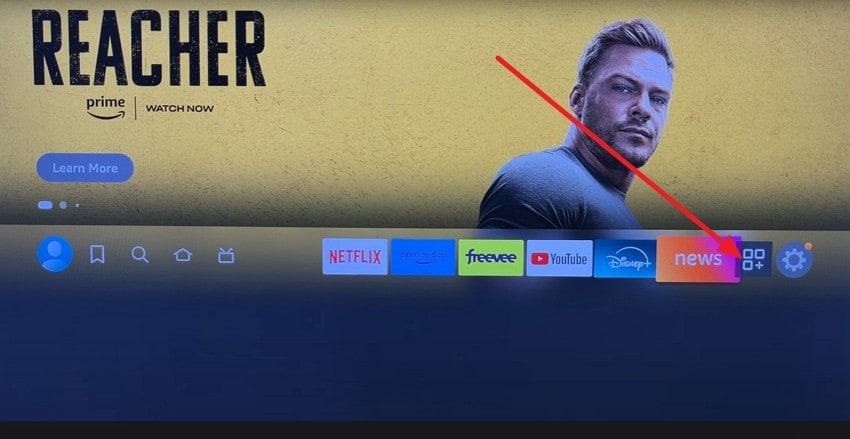
Step 2. Press the "Power" icon in the center to turn off your VPN.
Fix 3. Try a Different Browser or Device
When the YouTube keeps pausing issue remains, switch to another browser or device. A different browser can avoid bad cache, broken updates, or ad blockers that disrupt the player, and it may use a better video engine for your system.
Fix 4. Check for System Updates
Check for system updates to fix YouTube pauses caused by old OS or driver bugs. Know that updates can fix video decode faults, audio sync errors, and playback issues that cause stuttering or stops. Additionally, they also answer the query of why YouTube keeps pausing by improving graphics driver support and network stability, as guided:
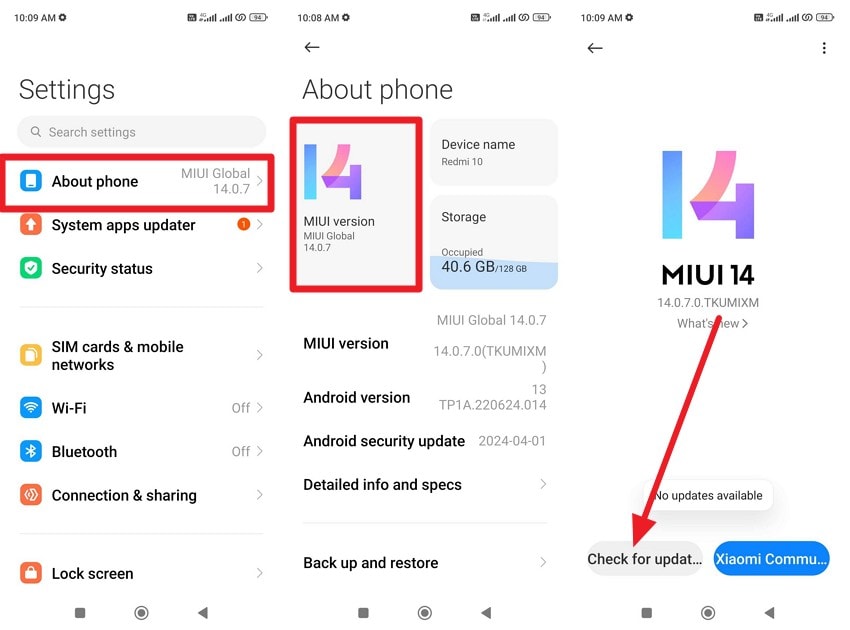
On Android Phones/Tablets
Instructions: To update Redmi, go to "About Phone > MIUI Version > Check for Updates."
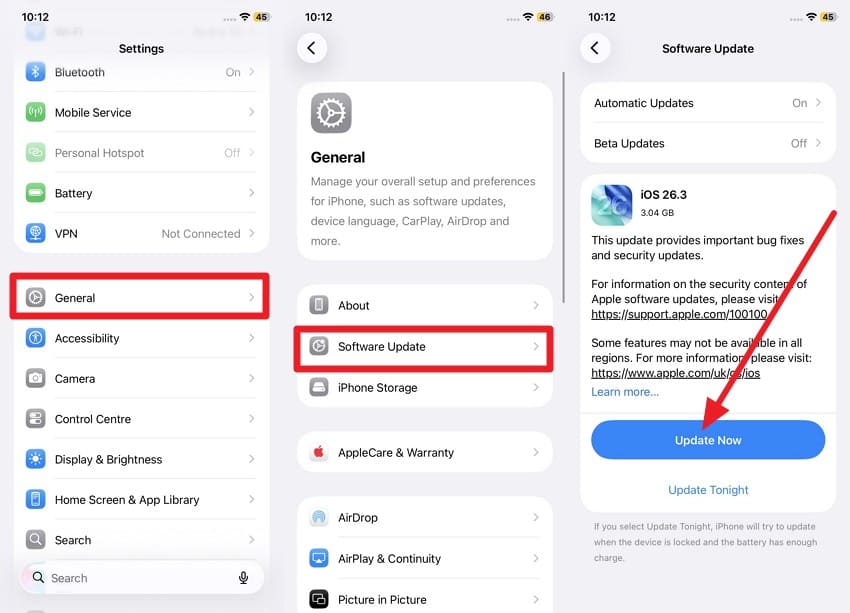
On iPhone/iPad (iOS/iPadOS)
Instructions: Choose "General > Software Update > Update Now" within the settings.
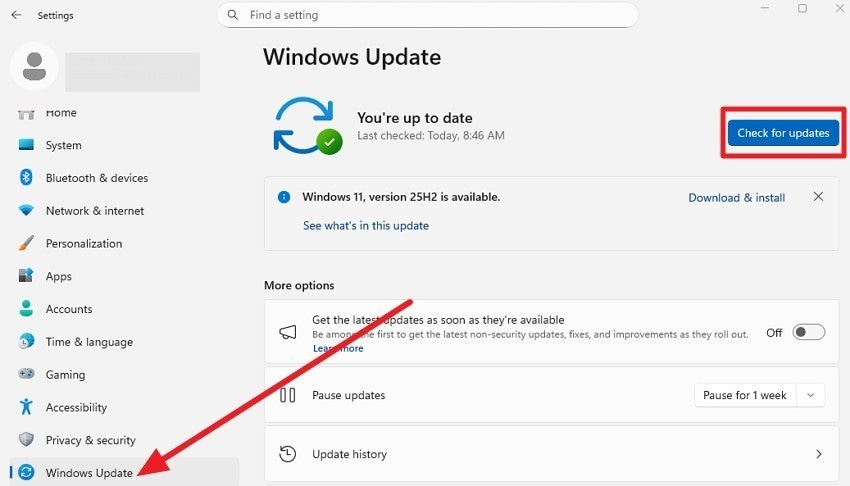
On Windows 11/10 PC
Instructions: Press the "Check for Updates" button as you go to the "Windows Update" tab in the settings.
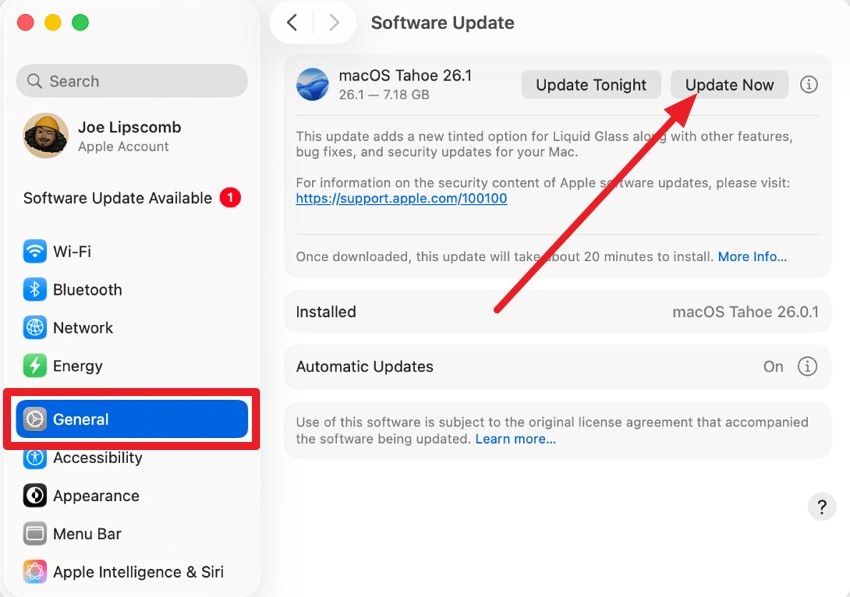
On macOS (Mac)
Instructions: In System Settings, go to the "General > Software Update > Update Now" button to update the macOS.
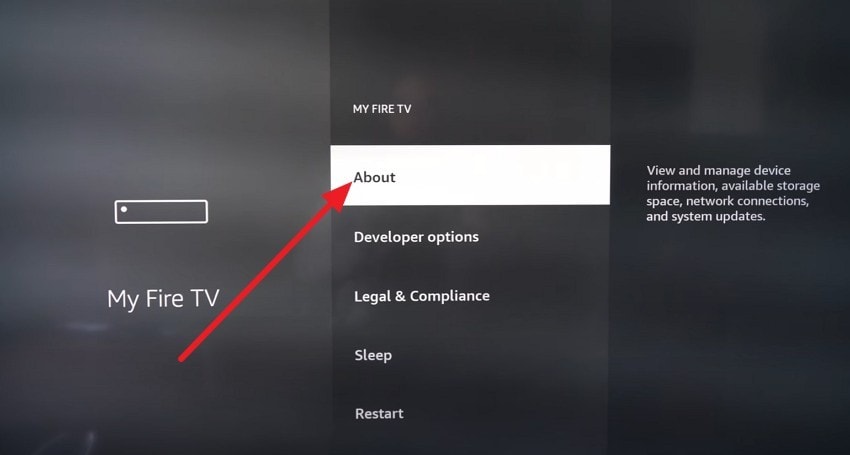
On Smart TVs/Streaming Boxes
Step 1. Within the Fire TV settings, choose "My Fire TV" and "About."
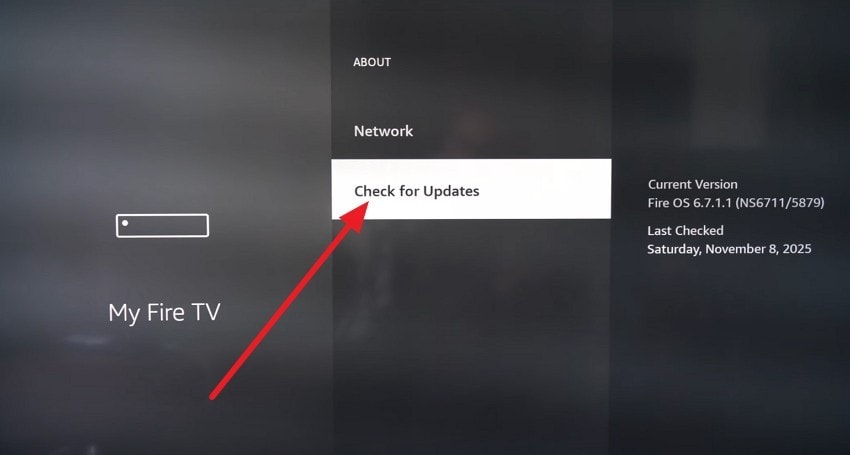
Step 2. Select the "Check for Updates" option in the new interface to begin.
Pro Tip: Use Repairit to Fix Corrupted Downloaded YouTube Videos
While resolving the why does YouTube keep stopping query, if your YouTube downloads become corrupted, use Repairit. This tool supports a wide range of video formats, including MP4, MOV, AVI, MKV, 3GP, FLV, MTS/M2TS, MXF, and more. Additionally, it features bulk repair and allows multiple corrupted videos to be fixed at once, saving time.
Once the videos are fixed, users can leverage the AI video enhancement feature. It uses artificial intelligence to unblur footage, improve quality, reduce noise, and colorize black‑and‑white videos. Furthermore, its preview option before saving lets you check repaired clips in HD, 4K, or 8K, helping you avoid saving poor results.
Key Features
Simple 3‑Step Workflow: The process is simple: add corrupted files, click repair, then preview and save, all in a user-friendly interface.
Advanced/Professional Repair Modes: Special modes support severely corrupted files, RAW, HDR, and LOG footage, as well as professional codecs like DNxHD, DNxHR, XF‑AVC, and XF‑HEVC.
Device‑Agnostic Repair: It can fix videos from cameras, smartphones, memory cards, computers, and other storage devices.

-
Simple 3‑Step Workflow: The process is simple: add corrupted files, click repair, then preview and save, all in a user-friendly interface.
-
Advanced/Professional Repair Modes: Special modes support severely corrupted files, RAW, HDR, and LOG footage, as well as professional codecs like DNxHD, DNxHR, XF‑AVC, and XF‑HEVC.
-
Device‑Agnostic Repair: It can fix videos from cameras, smartphones, memory cards, computers, and other storage devices.
Guide to Fix the Corrupt or Damaged YouTube Videos via Repairit
To learn how you can use this tool in 3 simple steps, adhere to the simple guide given below:
Step 1. Add the Corrupted YouTube Downloads
When you click the "Start" button, add the corrupted YouTube videos to the "Video Repair" toolkit.

Step 2. Start to Repair YouTube Downloads
Now, press the "Repair Now" button to start the process, or choose to add more files before that via the "+ Add Files(s)" button.

Step 3. Preview & Export the Fixed YouTube Downloads
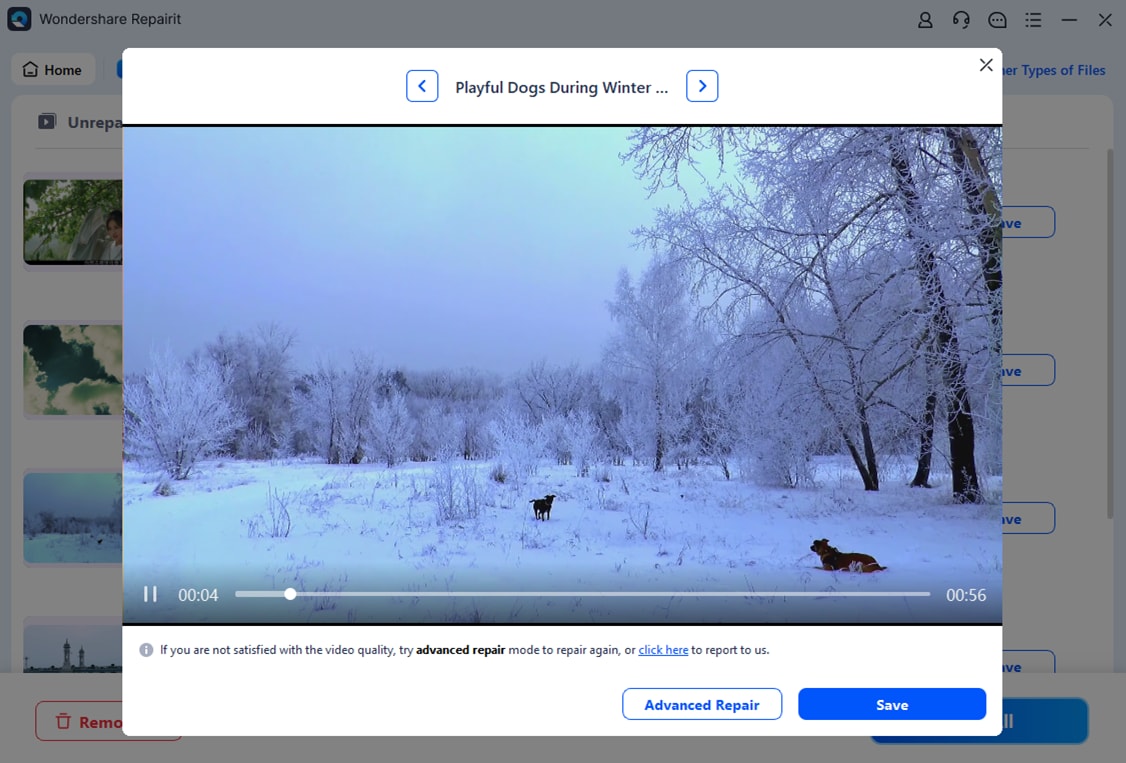
When the process ends after a few seconds, choose the "Preview" button next to the fixed YouTube video. As you determine the changes and accuracy, click the "Save" button to export it.
Fix the Corrupt or Damaged YouTube Videos Files
 Security Verified. Over 7,302,189 people have downloaded it.
Conclusion
In conclusion, why YouTube keeps pausing is a concerning issue, and users wonder why it occurs in the first place. To fix that, basic and system-related solutions are explained, along with detailed guidance to ensure smooth playback. However, if you have corrupted downloads, it is recommended to use Repairit due to its cross-platform and extensive format support.
Frequently Asked Questions
-
1. Do ads make YouTube pause?
Yes, ads can stop videos briefly, and they load before the main video plays. Moreover, long or interactive ads may delay playback, so the video feels like it pauses. -
2. Can YouTube pause because of account limits?
Rarely, expired subscriptions or regional blocks can prevent playback, so videos may not play fully. Furthermore, account restrictions may trigger errors or prompts, causing YouTube to pause unexpectedly. -
3. Can parental controls or network filters pause videos?
Yes, firewalls or filters may block content, and videos cannot play until access is allowed. Besides, restricted networks or safety settings may interrupt streams, causing YouTube to stop suddenly.




