
"I sometimes get an error message from Steam about "Invalid platform" when trying to start any game that's already installed and was working fine yesterday. The only way to fix this that I found is to do a complete reinstall of every game which is a bit annoying. Anyone got any idea what triggers this stupid error and how to fix it?"- michggg
The "Invalid Platform" error on Steam can appear at any moment, usually right when you are excited to launch a new game and start playing it. Instead of actually gaming, you end up staring at an error message that blocks you from even getting to the main menu.
This issue is not only confusing, but it can also interfere with your regular gaming routine. To help you fix "Invalid Platform" on Steam and understand why it happens, we discuss multiple simple yet reliable ways to restore a smooth, hassle-free gaming experience.
In this article
Part 1. What "Invalid Platform" Means on Steam
The "Invalid Platform" Steam error usually means the game you are trying to run is not compatible with your system. In simple terms, Steam detects that the game version does not match your operating system or hardware setup.
In another scenario, if you are trying to launch a game that only supports Windows, but you are on macOS, you might see this message. It can also occur when the installed build targets a different architecture, so Steam blocks the launch to prevent issues.
What Causes the "Invalid Platform" Message on Steam
After getting an idea of what the "Invalid Platform" message means on Steam, we’ll explore some diverse causes that lead to this error:
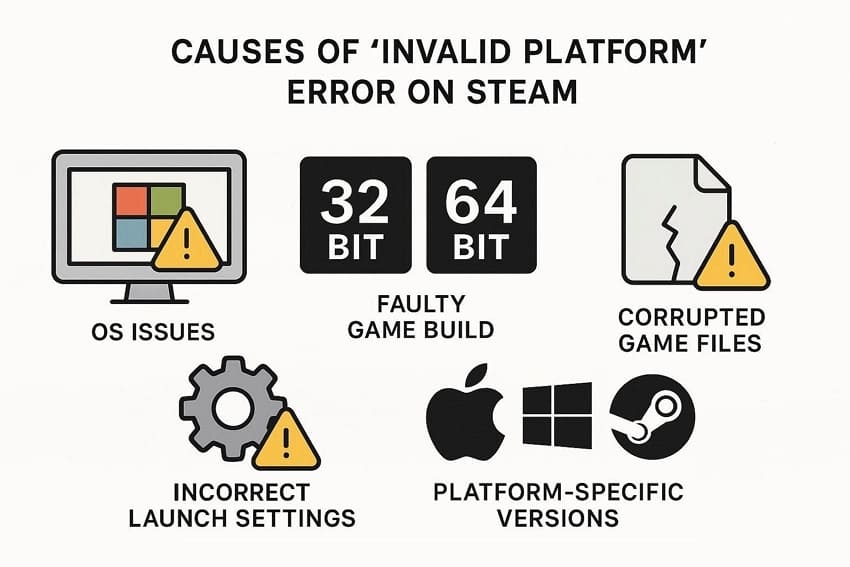
- OS Issues: At times, Steam detects an incompatible OS, which triggers the "Invalid Platform" error. The game may not support older versions of Windows, macOS, or Linux.
- Faulty Game Build: Some games have separate builds for 32-bit and 64-bit systems. If the wrong architecture is installed or selected, Steam may display the "Invalid Platform" message.
- Corrupted Game Files: Damaged, missing, or partially downloaded files can confuse Steam’s platform checks. When file integrity is not ensured, Steam may interpret this as a platform mismatch.
- Incorrect Launch Settings: Custom launch settings or forced compatibility modes can disrupt how Steam recognizes your system. These small details sometimes cause Steam to flag the game with an error message.
- Platform-specific Game Versions: Opting into beta channels or old legacy builds can point Steam to versions meant for different platforms or setups. This mismatch results in the error message instead of a normal launch.
Part 2. 6 Ways to Fix the Invalid Platform Steam Error Quickly
After discussing the various causes for the "Invalid Platform" error, let us now go through some ways to fix the "Invalid Platform" on Steam below:
Way 1. Restart Steam and Your Computer
One of the easiest fixes for getting rid of this error is by restarting your system or Steam. Doing this clears temporary glitches, refreshes system services, and forces Steam to re-detect your hardware and drives. Most users can do this in minutes, without changing any advanced settings. Use the steps below to learn how to restart your computer and Steam:
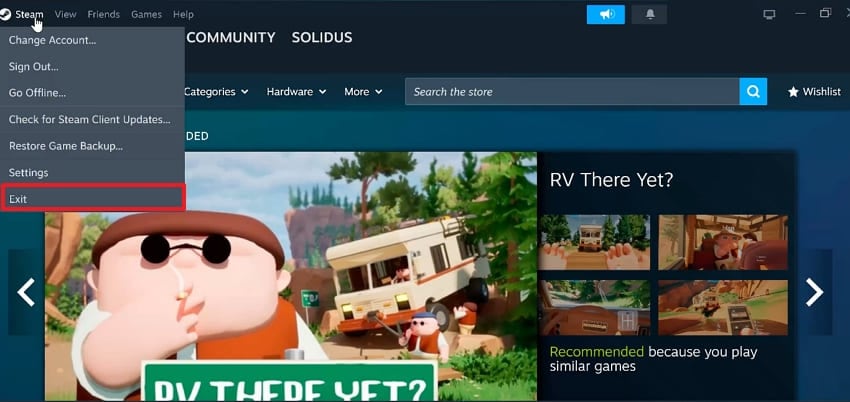
Step 1. Initially, navigate to the "Steam" option at the top left corner and click on the "Exit" button. Now, wait until the Steam icon disappears from the taskbar.
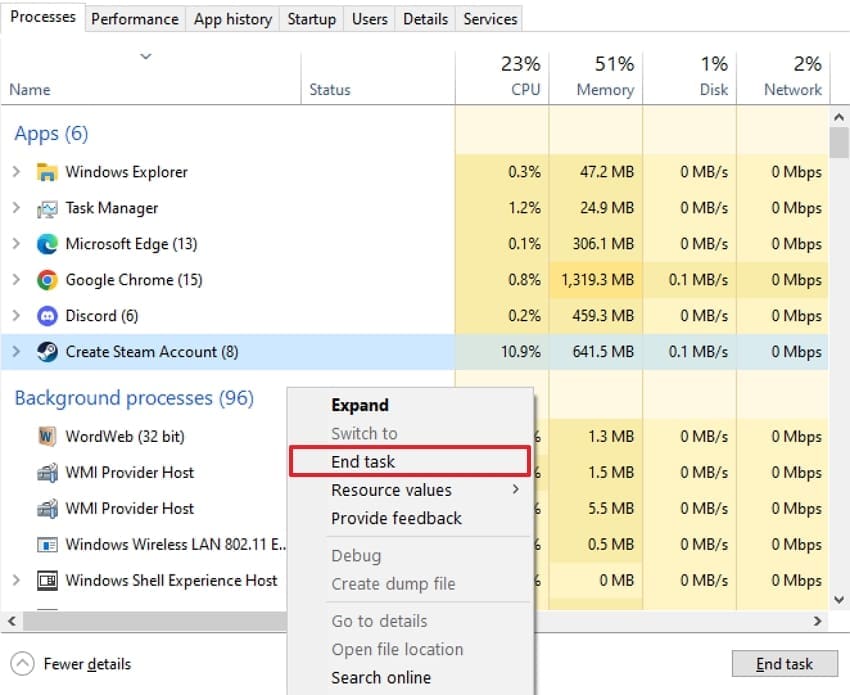
Step 2. Subsequently, press "Ctrl + Shift + Esc" keys to open Task Manager. Next, right-click and press "End Task" to end any remaining Steam.exe processes.
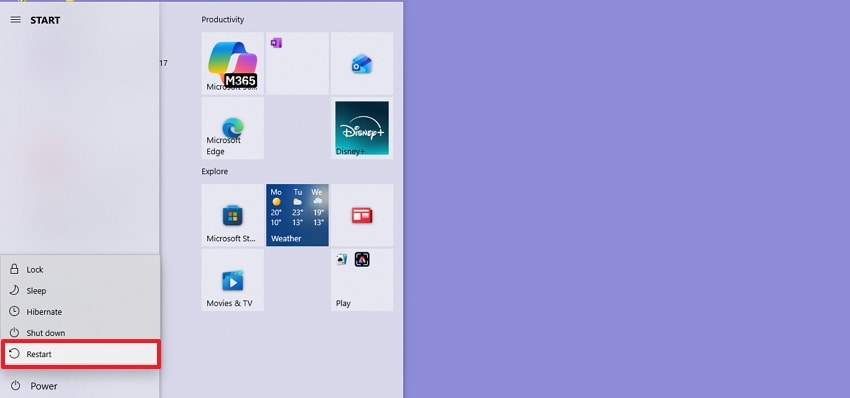
Step 3. To restart your computer, press the "Windows" key and choose the "Power" icon. From there, click on the "Restart" button and let your system reboot.
Way 2. Check if the Game Supports Your Operating System
Sometimes, checking whether your game actually supports your operating system helps you avoid trying the wrong fixes for the "Invalid Platform" Steam error. By confirming the listed OS and bit version on the Steam store page, users can quickly see if compatibility is the real problem. Thus, take guidance to understand how you can check if your game supports your OS:
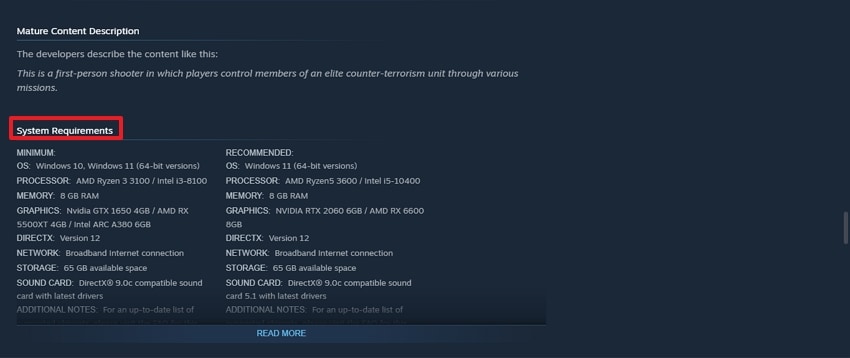
Step 1. To begin, within the Steam app, go to your "Library," and click on the game that you cannot play. Scroll down to the "System Requirements" section and check the OS and processor details.
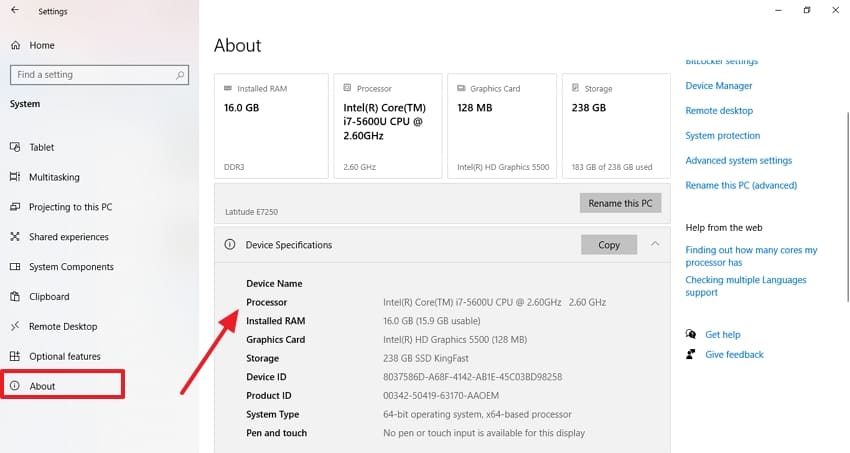
Step 2. Following that, press the "Windows + I" keys to open the Settings. From there, navigate to "System," select the "About" tab, and compare the details.
Way 3. Run Steam as Administrator
To fix the "Invalid Platform" on Steam error, running Steam as an administrator resolves permission issues that block files or drives. By enabling this option, Steam can properly access game folders, libraries, and external drives. This allows some elevated permissions in Windows, which are usually blocked by standard security restrictions. To know how you can turn on this specific feature, follow the steps below:
Step 1. To start, type "Steam" in the Windows search box. Then, choose the "Run as Administrator" option from the window.
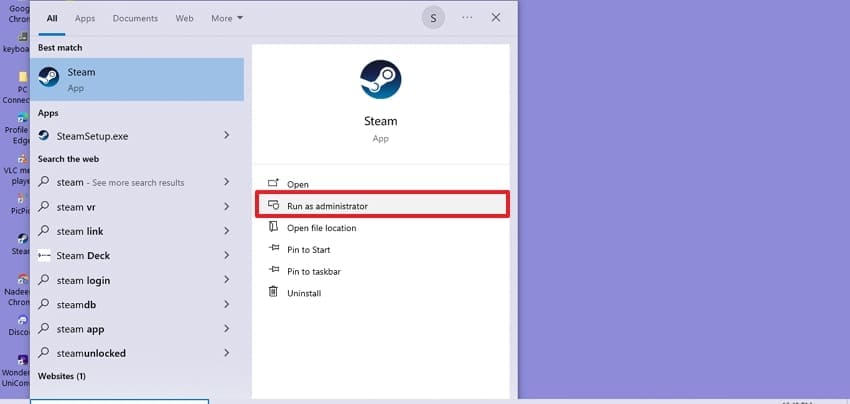
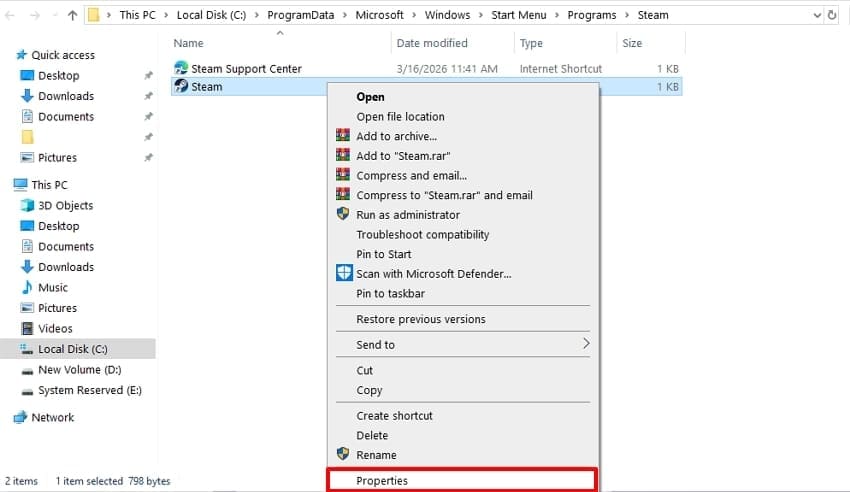
Step 2. To make sure Steam always starts as an administrator program, opt for the "Open file location" option across the "Search" menu. Next, right-click on the program and select the "Properties" option.
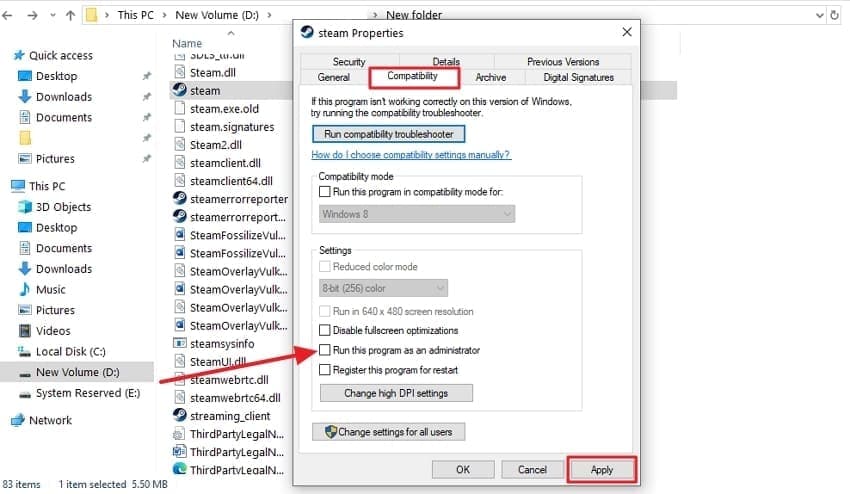
Step 3. Finally, under the "Compatibility" tab, tick the "Run this program as an Administrator" option and choose "Apply."
Way 4. Update the Steam Client to the Latest Version
At times, updating the Steam client guarantees you have the newest bug fixes, platform support, and compatibility improvements. This process is quick, built into Steam itself, and usually only takes a few minutes. Therefore, go through the instructions carefully to learn how to update the Steam client to the latest version:
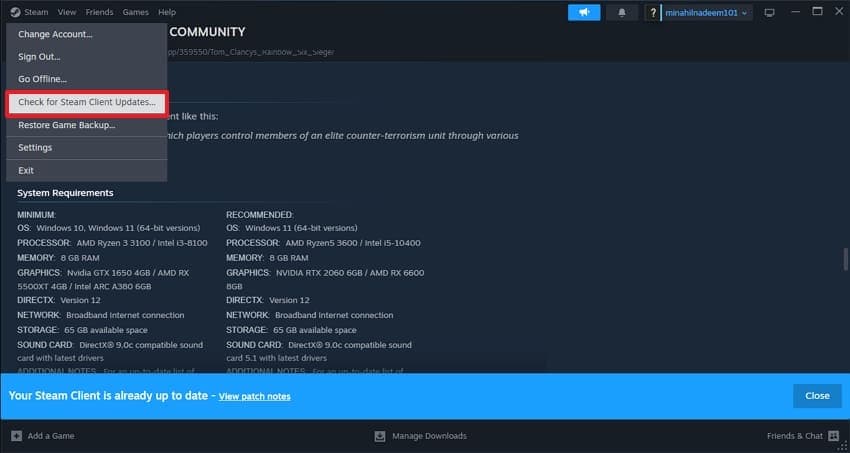
Instructions. First, in the top-left corner of the platform, select "Check for Steam Client Updates" from the dropdown menu. If an update is found, you can install it and then restart the system to apply the settings.
Way 5. Disable Compatibility Mode for Steam
Another easy fix to make the "Invalid Platform" Steam error disappear is by disabling compatibility mode for Steam. This helps when old Windows settings confuse how Steam detects your platform and hardware. Running Steam in normal mode ensures it integrates directly with Windows, which can remove false platform mismatches. For those who want to learn how to disable compatibility mode for Steam, go through the following steps:
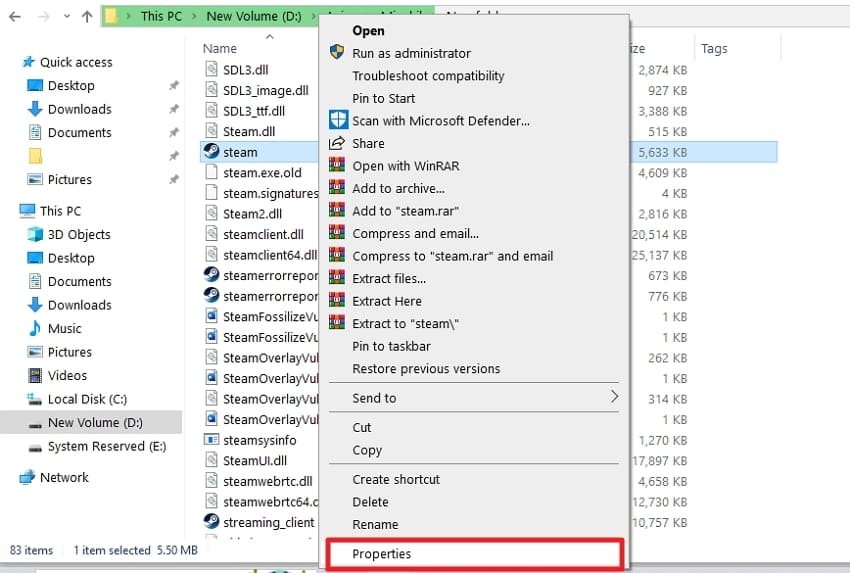
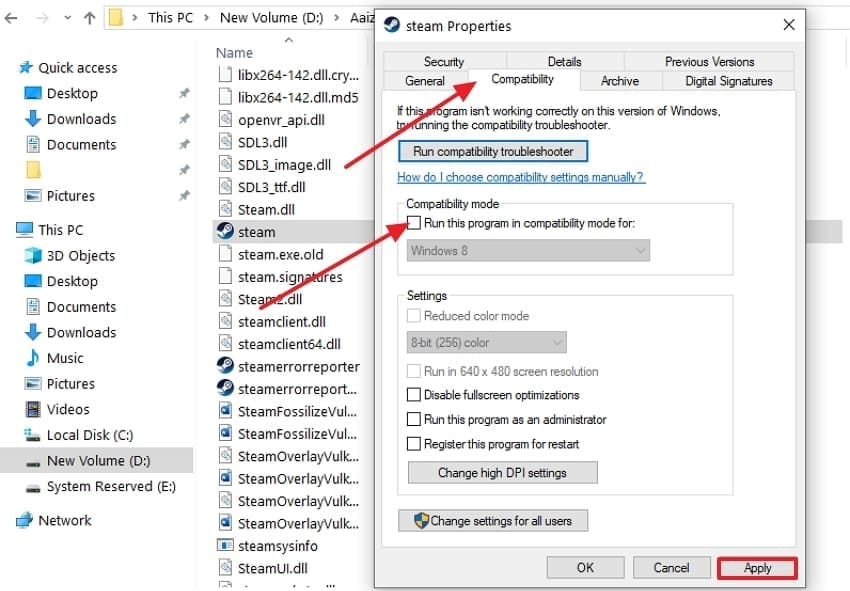
Step 1. First of all, open the Steam folder from File Explorer, right-click the Steam app, and select the "Properties" option.
Step 2. Then, go to the "Compatibility" tab and under "Compatibility mode," uncheck "Run this program in compatibility mode" and select the "Apply" button.
Way 6. Verify the Integrity of Game Files
Steam scans for missing or corrupted data that can trigger the "Invalid Platform" Steam error once you verify the integrity of the game files. Then, it automatically repairs or re-downloads damaged files, making this method easy and effective for users to run. To perform this procedure of verifying game files step-by-step, use the following guide:
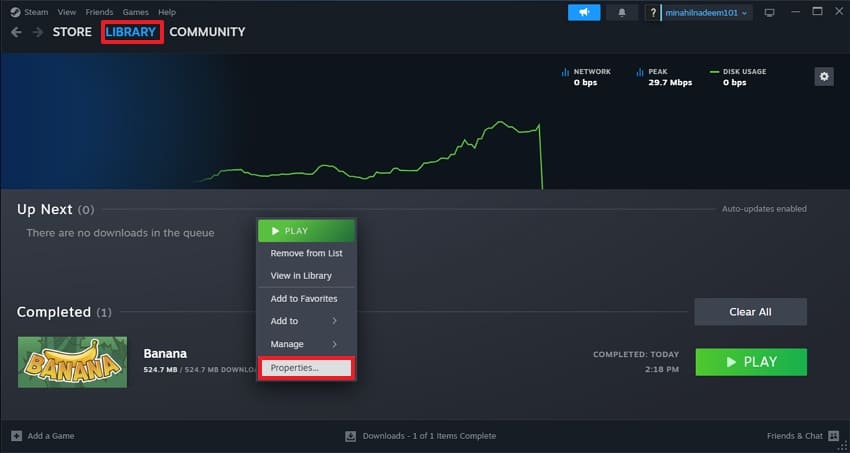
Step 1. Firstly, go to your "Library" tab on Steam and right-click to navigate to "Properties."
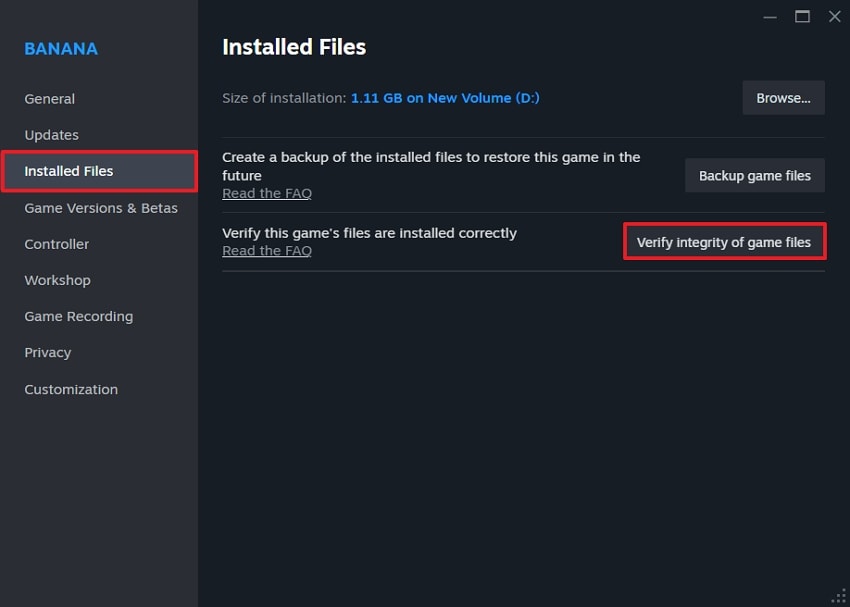
Step 2. From there, click the "Installed Files" tab in the left panel. Then, choose the "Verify integrity of game files" option to scan and automatically repair any problematic files.
Pro Tip. Repair Your Corrupted Game Video Files For Sharing on Social Platforms
Apart from fixing the "Invalid Platform" Steam error, sometimes users face a situation where their game video files become corrupted. To make sure the recording doesn't get wasted, tools like Repairit offer a great video repairing facility. This dedicated tool offers a corrupted game video file repair feature that lets you fix broken or unplayable games from any device or format.
It basically uses smart AI to detect and repair any errors automatically. Furthermore, Repairit supports 25+ formats, making it an ideal option for all users. Additionally, users can fix multiple corrupted game videos simultaneously to save time. After repairing, you can preview as well to ensure the integrity of your game videos.
Key Features

-
Repair for Black Screens: It repairs corrupted or black-screen game recordings caused by crashes, codec issues, or glitches to make sure users do not lose footage.
-
AI Enhancement Feature: This tool uses an AI model to restore details and reduce pixelation to cater to recordings made during Steam issues that come out blurry or visually broken.
-
Heavy File Repairing Facility: Repairit allows gamers to repair multiple heavy game recordings, even long 4K clips, in one go.
Ultimate Guide to Repairing Corrupted Game Video Files Using Repairit
For users anxious to repair their game video files so they can share with others on social platforms, look at the steps below:
Step 1. Select Video Repair to Fix Corrupted Game Videos
First, in the main interface, choose the "Video Repair" tab in the left-side panel. Then, press the "Start" button and click the "+Add" button to import your corrupted videos.

Step 2. Start Repairing the Corrupted Game Videos
Next, once the videos are imported into the "Unrepaired Video" section, click the "Repair" button to start the repairing process.

Step 3. Export All Your Repaired Game Videos
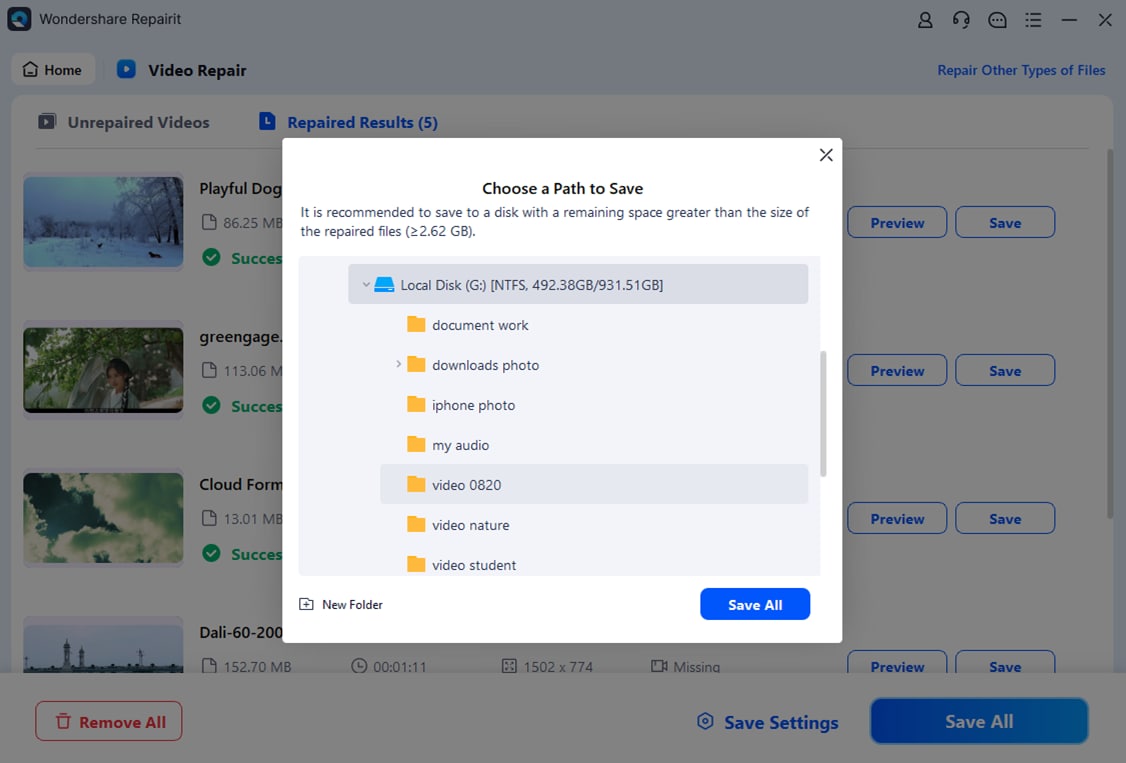
Finally, after all the game videos are repaired, select a path and then press the "Save All" button to export all the game videos at once.
Repair Corrupted Files
 Security Verified. Over 7,302,189 people have downloaded it.
Conclusion
In summary, we have discussed various causes and ways to fix the "Invalid Platform" on Steam error. Once the error is resolved, users can easily resume their gaming without any hassle. If anyone loses game recordings while troubleshooting Steam errors, they can rely on Repairit to save broken clips, preserve highlights, and keep the gaming content library safe for future sharing.
FAQ
-
1. Will reinstalling Steam delete all my downloaded games?
If you back up your "steamapps" folder before uninstalling Steam and then restore it afterward, your downloaded games will remain intact. -
2. Can I fix the "Invalid Platform" on Steam error without changing my Windows version?
Yes, you can verify game files, disable compatibility mode, and reinstall the affected game before considering changing the Windows version. -
3. How will I know if the game will work on my system?
Check the game's system requirements and OS compatibility with your system. If there is a mismatch, you will need to upgrade your system to resolve the "Invalid Platform" Steam error.




