
Helldivers 2 ranks among the most popular games on PC and PS5. Many players enjoy its fast-paced shooting action. However, some encounter "Helldivers 2 not launching Steam" problems.
If you face this issue, don't worry. This guide provides 8 fixes that have helped many players solve the Helldivers 2 not launching issue. Try the solutions below and see which one works for you.
In this article
-
- Fix 1: Verify Integrity of Game Files (Most Effective)
- Fix 2: Repair Easy Anti-Cheat / GameGuard
- Fix 3: Run Steam and Game as Administrator
- Fix 4: Clear Steam Download Cache
- Fix 5: Update GPU Drivers (Clean Install Recommended)
- Fix 6: Disable Steam Overlay & Steam Input
- Fix 7: Disable Antivirus / Firewall / VPN Temporarily
- Fix 8: Reinstall Helldivers 2
Part 1. Why Is Helldivers 2 Not Launching Steam?
Sometimes, Helldivers 2 won't launch on Steam because of small issues with your system or software. The most common reasons are:
- Corrupted game files - Some files might be missing or broken, causing the game to crash or not start.
- Outdated graphics drivers - Your GPU driver needs to be up to date for games to run properly. Old drivers can stop the game from opening.
- Steam glitches - The Steam app itself can have temporary bugs that prevent games from launching.
- Easy Anti-Cheat problems - This anti-cheat tool can block the game if it isn't working correctly.
- Windows or Visual C++ issues - Missing updates or system files can stop the game from starting.
- Firewall, VPN, or overlay conflicts - Security apps, VPNs, or overlays from Steam or Discord can sometimes block the game.
Part 2. 8 Proven Fixes for Helldivers 2 Not Launching
Many players have been troubled with the same "Helldivers 2 not launching on Steam" issue. Luckily, they are easy to fix once you know what to check.
Fix 1: Verify Integrity of Game Files (Most Effective)
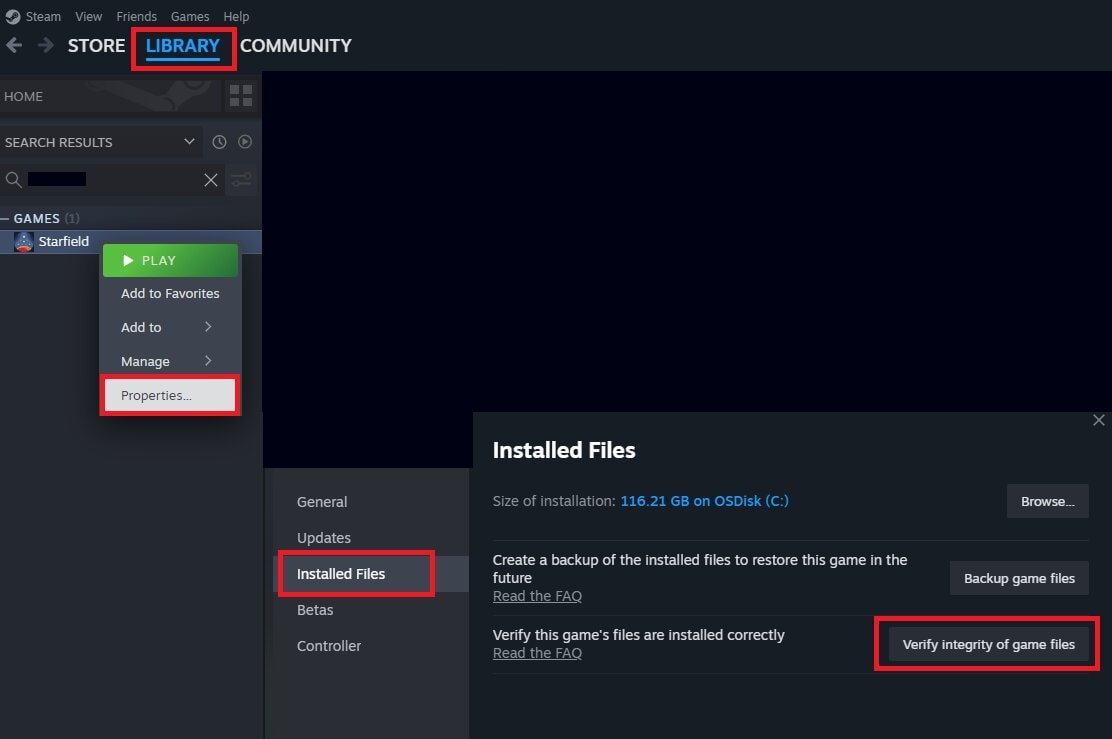
A quick and common fix if Helldivers 2 won't launch on Steam is to verify your game files. This scans the missing or corrupted game files and replaces them automatically.
Here's how to do it:
Step 1: Access your Steam and locate the Library.
Step 2: Right-click Helldivers 2 and select Properties.
Step 3: Look for the Installed Files tab.
Step 4: Press Verify integrity of game files.
Step 5: Wait a few minutes while Steam checks your files.
Fix 2: Repair Easy Anti-Cheat / GameGuard
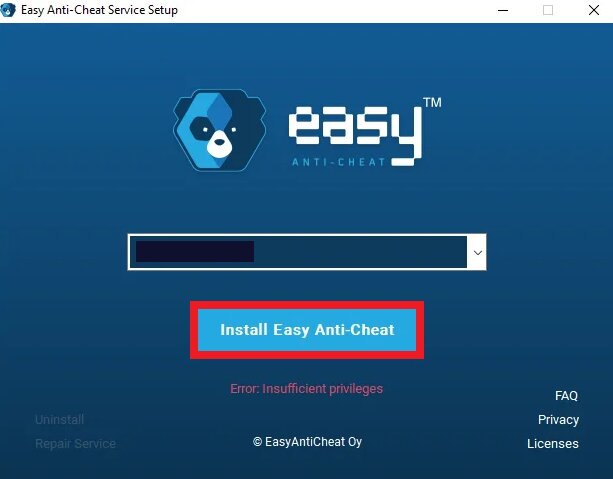
Easy Anti-Cheat helps keep the game fair by preventing cheats. However, if the anti-cheat files are damaged or not working properly, the game may stop launching. Repairing or reinstalling the anti-cheat system can solve this issue quickly.
Here are the repair steps:
Step 1: Open the folder where Helldivers 2 is installed.
Step 2: Find the EasyAntiCheat folder.
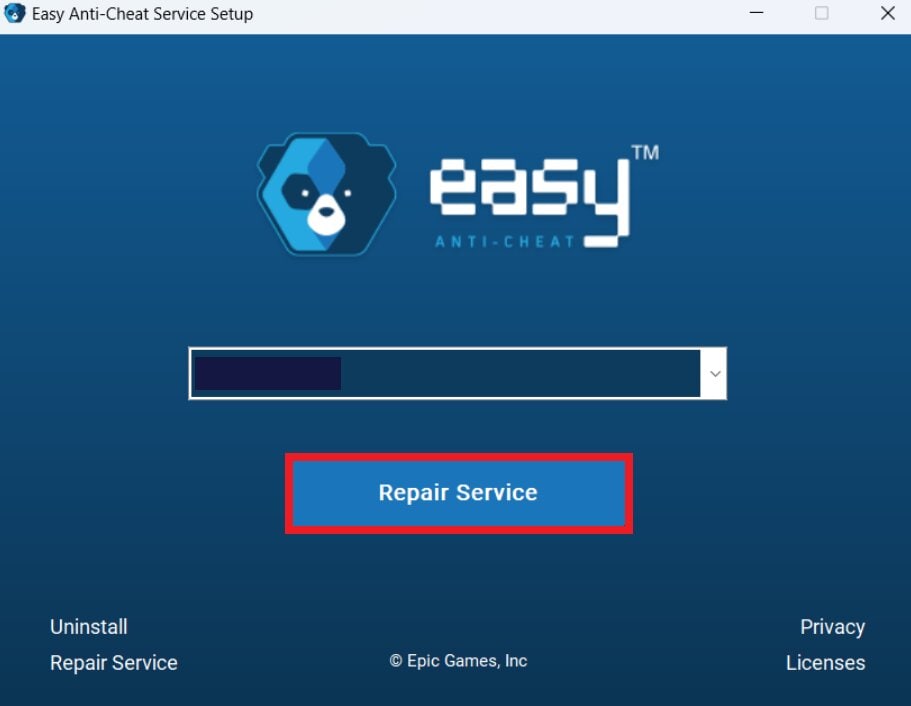
Step 3: Run EasyAntiCheat_Setup.exe.
Step 4: Select Helldivers 2 from the dropdown menu.
Step 5: Click Repair Service. Wait until the process finishes, then try launching the game.
If the repair doesn't work, reinstall Easy Anti-Cheat.
Step 1: In the same EasyAntiCheat folder, run EasyAntiCheat_Setup.exe.
Step 2: Select Helldivers 2.
Step 3: Click Uninstall, then run the setup again and choose Install Easy Anti-Cheat.
Step 4: Launch the game to check if it works.
Fix 3: Run Steam and Game as Administrator
Sometimes Helldivers 2 won't launch because Steam or the game doesn't have the right system permissions. Running them as an administrator can help fix this by giving the game the access it needs.
Follow these steps:
Step 1: Access Steam and navigate to your Library.
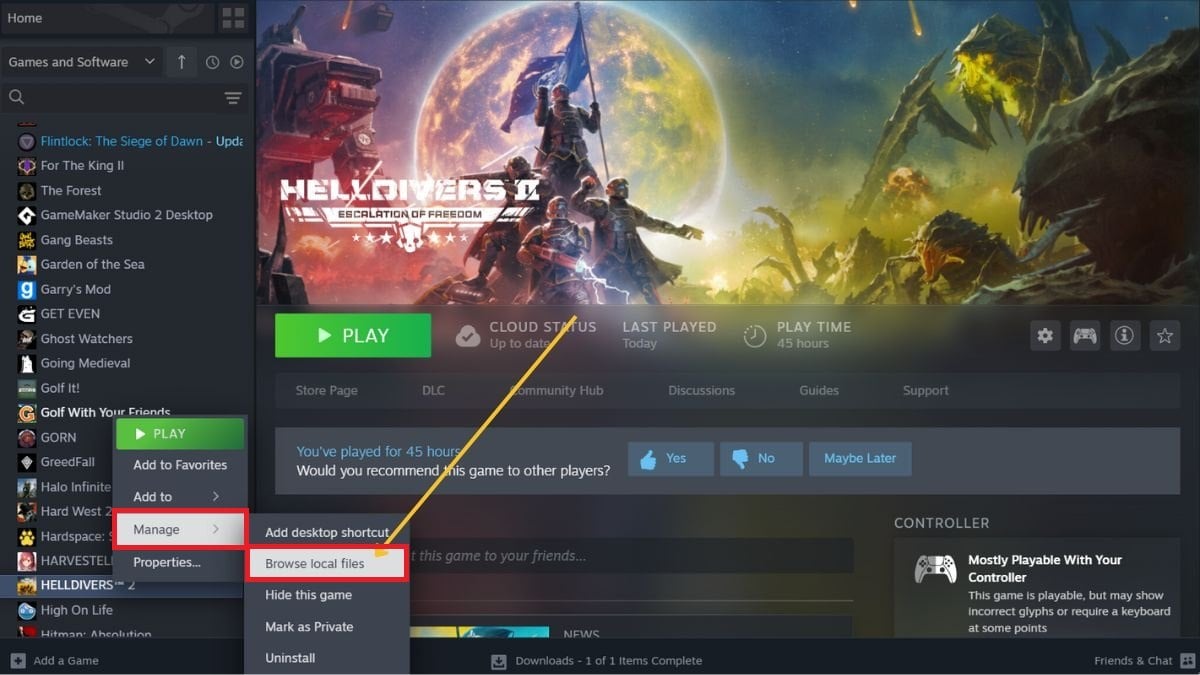
Step 2: Right-click Helldivers 2.
Step 3: Select Manage and Browse local files.
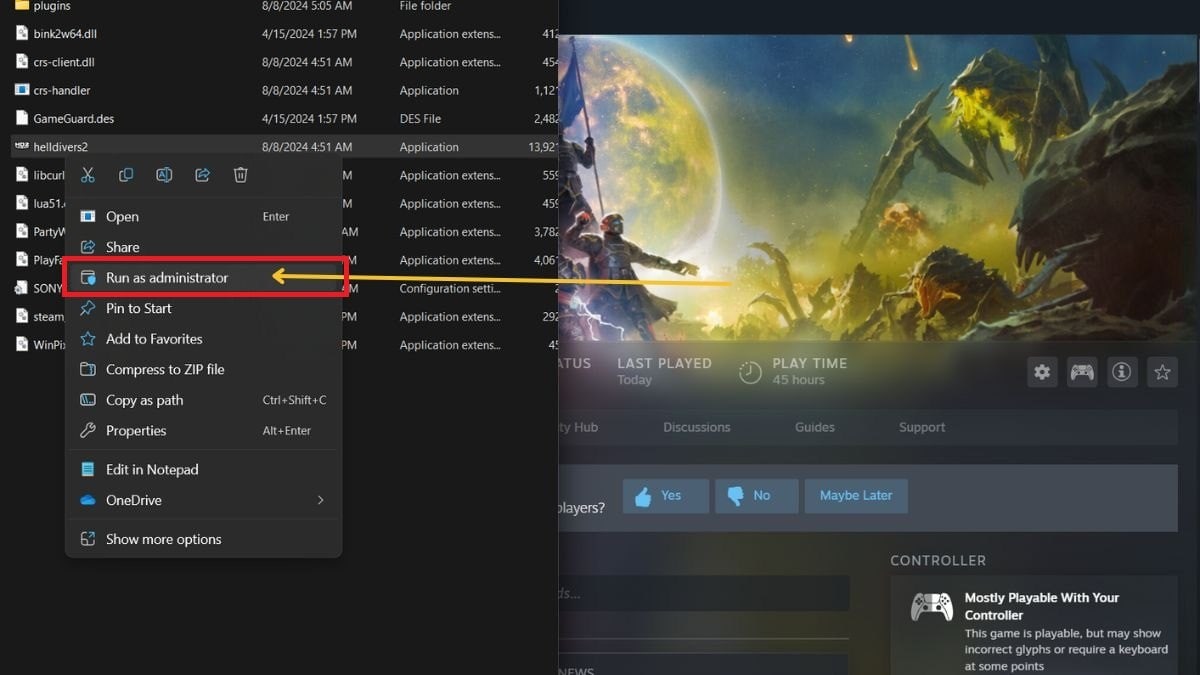
Step 4: Open the bin folder in the File Manager and find the *.exe game file.
Step 5: Right-click the file and select Run as administrator.
Fix 4: Clear Steam Download Cache
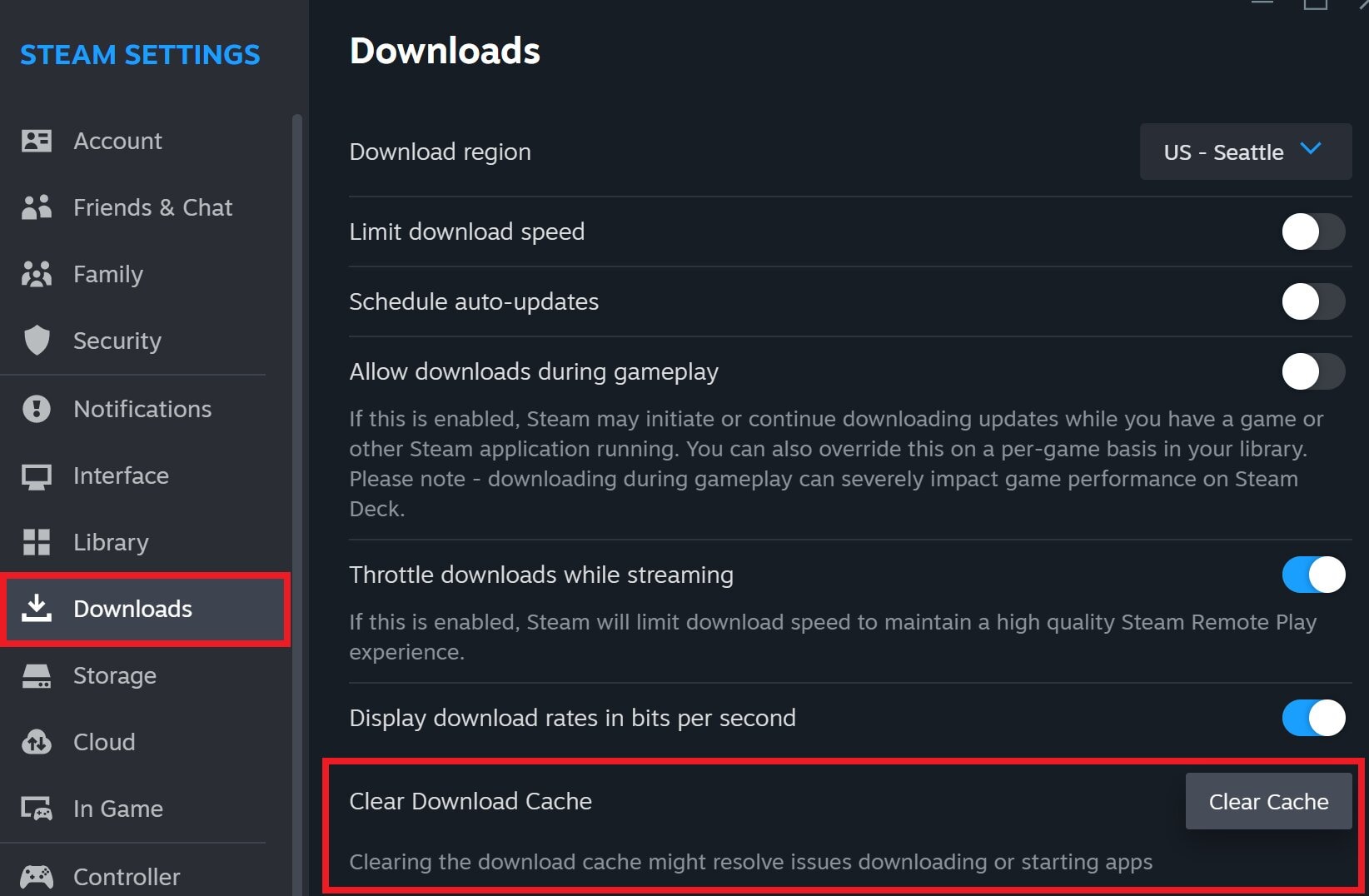
Over time, Steam's temporary cache files can become damaged. When this happens, they may cause issues with downloads, updates, or games not launching. Clearing the Steam download cache refreshes the client and can fix these hidden problems.
Note: This will not delete your installed games, but you will need to log in to Steam again afterward.
Step 1: Open the Steam client.
Step 2: Click Steam in the top-left corner, then choose Settings.
Step 3: Open Downloads and click Clear Download Cache.
Step 4: Hit Confirm.
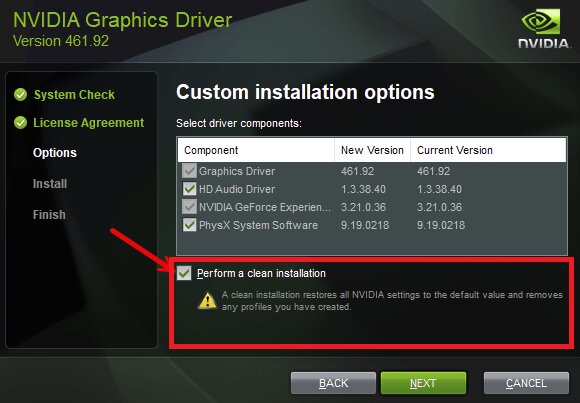
Fix 5: Update GPU Drivers (Clean Install Recommended)
Your graphics driver helps your PC run games properly. If the driver is outdated or installed incorrectly, Helldivers 2 may not launch or could crash during startup. Updating your GPU driver with a clean install fixes many compatibility issues.
Step 1: Find out your graphics card brand (NVIDIA, AMD, or Intel). Go to the official driver download page: NVIDIA, AMD, and Intel.
Step 2: Download the most updated driver for your GPU.
Step 3: Click Perform a clean installation to remove old driver files and run the needed installer.
Fix 6: Disable Steam Overlay & Steam Input
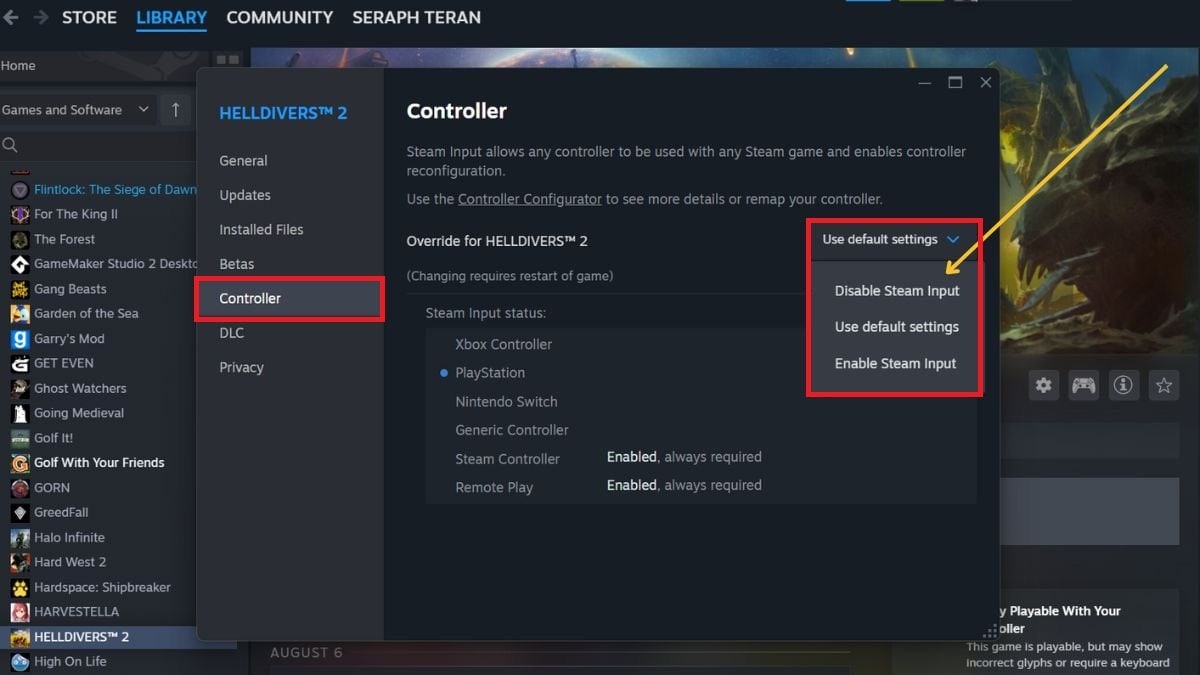
The Steam Overlay and Steam Input features can be helpful, but they can sometimes cause conflicts with certain games. When this happens, Helldivers 2 may fail to launch. Turning these features off for the game can help fix the issue.
Follow these steps:
Step 1: Access your Steam and Library.
Step 2: Right-click Helldivers 2 and tick Properties.
Step 3: Go to the Controller section.
Step 4: Click the dropdown menu under controller settings.
Step 5: Select Disable Steam Input.
Fix 7: Disable Antivirus / Firewall / VPN Temporarily
Security tools like antivirus programs, firewalls, or VPNs can sometimes block game files or connections. When this happens, Helldivers 2 may not launch. Temporarily turning these tools off can help you check if they are causing the problem.
Step 1: Close or pause your antivirus program from its system tray icon.
Step 2: Temporarily disable your firewall in your security settings.
Step 3: Turn off or disconnect your VPN if you are using one.
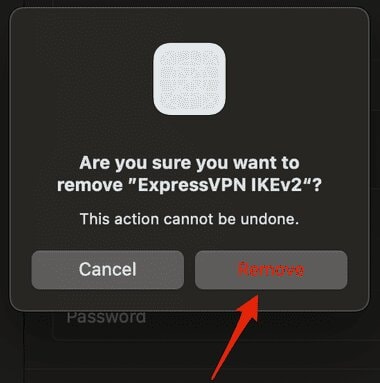
If the game starts normally, one of these tools may be blocking it. You can then add the game or Steam to the allowed list (exceptions) in your security software before turning the protection back on.
Fix 8: Reinstall Helldivers 2
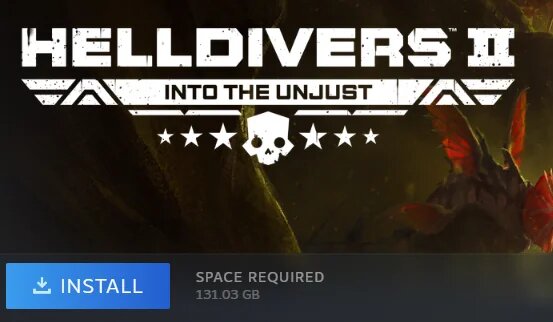
If none of the other fixes work, reinstalling the game may help. A fresh install removes damaged or missing files and replaces them with clean ones. This can fix deeper problems that stop the game from launching.
Keep in mind that this should be a last resort, since you will need to download the whole game again.
Part 3. Advanced Fixes (If Still Not Launching in 2026)
If the basic solutions didn't work, you can try a few advanced fixes. These solutions focus on system settings and files that may affect how the game runs on your PC. They can help resolve deeper issues that stop the game from launching on Steam.
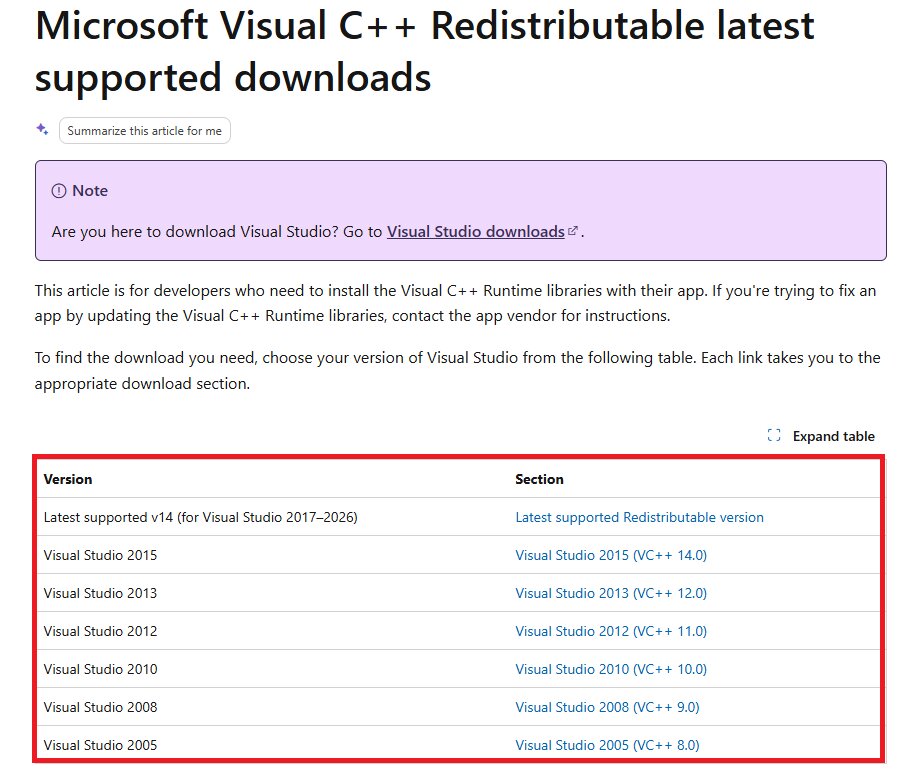
Fix 1: Install Latest Microsoft Visual C++ Redistributables
Some games need Microsoft Visual C++ Redistributables to run properly. These files contain important system libraries that many games depend on. If they are missing, outdated, or damaged, the game may fail to start. Installing the latest version can fix these issues.
Step 1: Download the latest Visual C++ package from the Microsoft Visual C++ Redistributable download page.
Step 2: Double-click the downloaded file and install it.
Step 3: Restart your PC after the installation finishes.
Fix 2: Update Windows
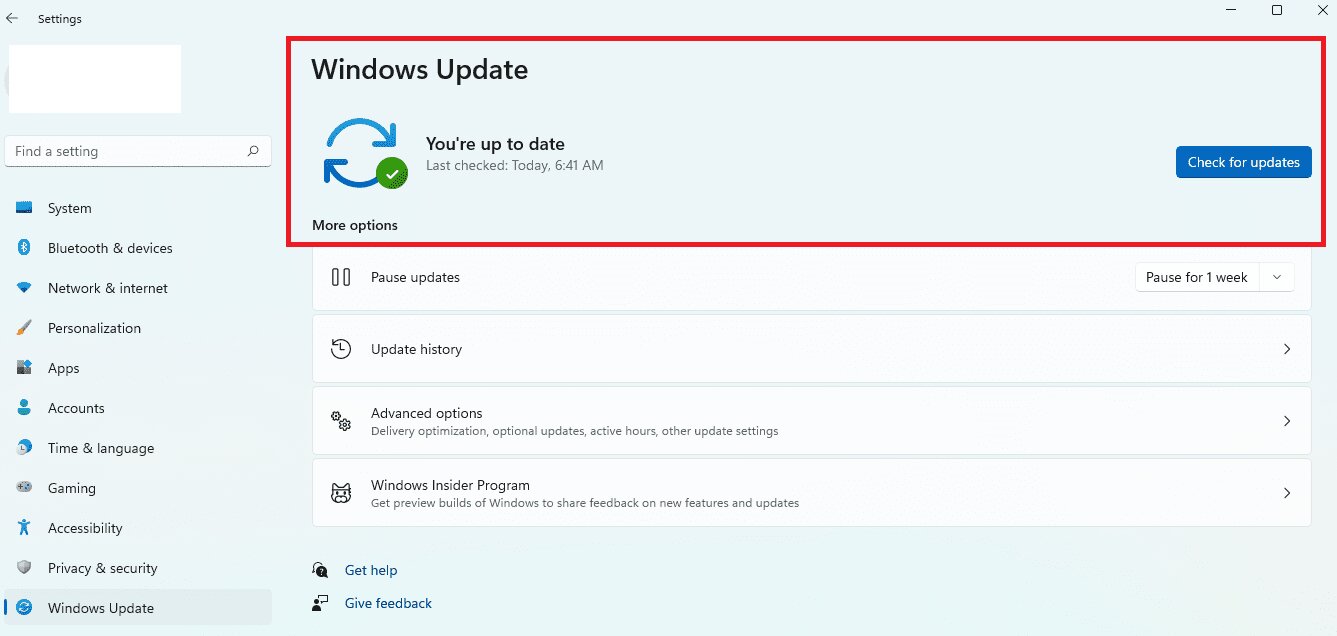
An outdated Windows version can cause problems with newer games. Updates include bug fixes, driver support, and performance improvements. Keeping Windows updated helps games like Helldivers 2 run properly.
Step 1: Click your Windows Settings and select Windows Update.
Step 2: Hit Check for updates.
Step 3: Install and launch any available updates.
Fix 3: Disable Fullscreen Optimization
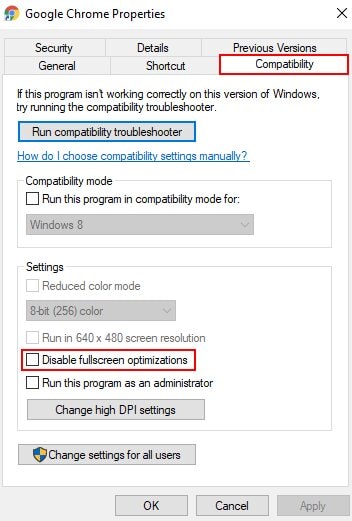
Windows has a feature called Fullscreen Optimization that is meant to improve game performance. However, it can sometimes cause launch problems or crashes. Turn this feature off for Helldivers 2 to start normally.
Step 1: Open Steam and select Browse local files.
Step 2: Find the game's .exe file in the folder.
Step 3: Right-click the file and hit Properties.
Step 4: Click Compatibility and check the box for Disable fullscreen optimizations.
Step 5: Tick Apply, then OK.
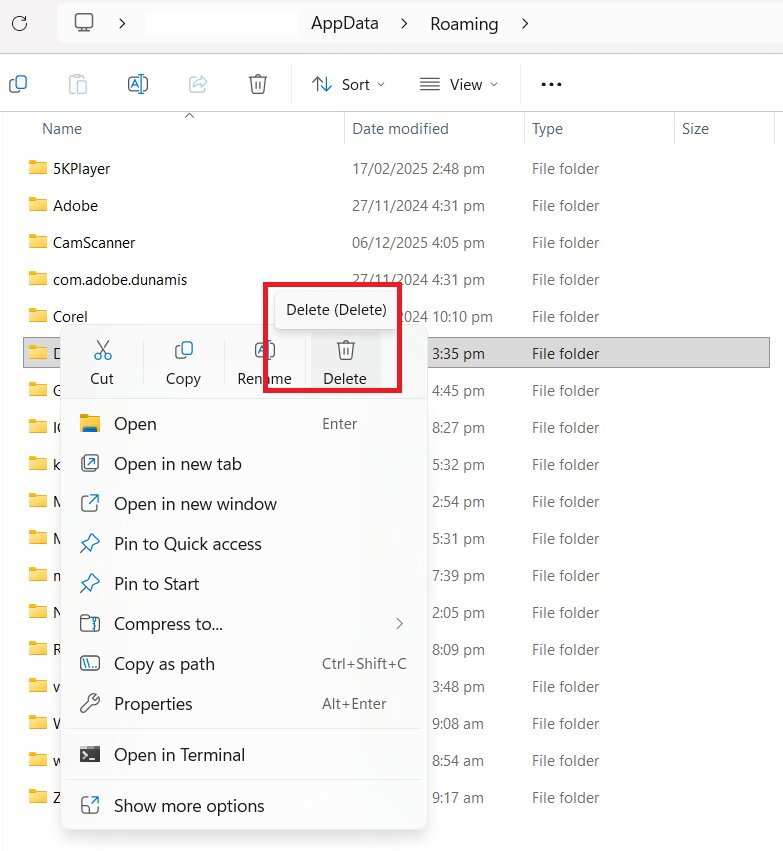
Fix 4: Delete config files in AppData
Game config files store settings like graphics options, controls, and display preferences. If these files become damaged or corrupted, the game may fail to launch. Deleting them allows the game to create new, clean settings files the next time it starts.
Step 1: Press Windows + R and enter %appdata%.
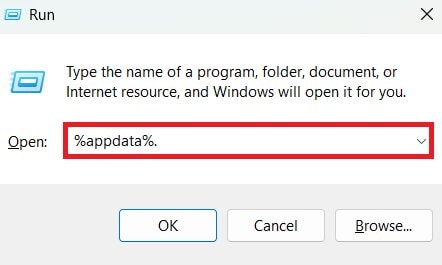
Step 2: In the folder that opens, go to AppData and Roaming or Local.
Step 3: Find the Helldivers 2 folder.
Step 4: Open it and locate the config or settings files.
Step 5: Delete the config files (or the entire folder if needed). Restart Steam and launch the game again.
Part 4. Repair Corrupted Gameplay Clips After Launch Crashes
Sometimes, when Helldivers 2 crashes during gameplay, your recorded videos get damaged. This can happen with:
- Clips recorded in the game itself
- OBS recordings
- NVIDIA ShadowPlay videos
If your gameplay videos won't open or seem broken after a crash, you can use Repairit Video Repair to fix them. It repairs damaged MP4 or MOV files, fixes corrupted headers, and restores playback even if the recording was interrupted. This is an easy way to recover lost gameplay without losing hours of footage.
It can assist with:
- damaged MP4 or MOV recordings
- broken video headers
- interrupted gameplay captures
- playback errors in locally saved clips
It cannot fix:
- Helldivers 2 not launching
- Steam startup issues
- GameGuard conflicts
- GPU driver or Windows compatibility problems
Step-by-Step Guide:
Step 1: Press the Add video and start repairing, or the Add button to input your corrupted gameplay clips after launch crashes.

Step 2: Hit Repair to start fixing the corrupted gameplay clips after launch crashes.

Step 3: If the preview is great, hit Save and pick a new location path on your Windows.

Part 5. How to Prevent Helldivers 2 Launch Issues
Stopping launch problems before they happen is much easier than fixing them later. Here are some simple tips to launch Helldivers 2 smoothly:
- Keep GPU drivers updated. Updated graphics drivers help the game run without crashes or errors.
- Always close Steam properly. Force-closing can cause corrupted files or failed updates.
- Don't interrupt updates. Let the game and Steam finish updating fully. Stopping updates can break files and prevent launch.
- Regularly verify game files. Checking game files ensures nothing is missing or damaged, avoiding startup issues.
- Keep Windows updated. The latest Windows updates fix bugs and improve compatibility with new games.
- Avoid unstable overclocking. Overclocking your CPU or GPU too aggressively can make the game crash. Keep settings stable.
Conclusion
If Helldivers 2 won't launch on Steam, don't worry. This can be fixed. Start by verifying game files, repairing Easy Anti-Cheat, updating drivers, clearing cache, or reinstalling the game. For bigger issues, try updating Windows, installing Visual C++ Redistributables, disabling full-screen optimization, or deleting corrupted config files. If your gameplay clips get damaged after crashes, Repairit Video Repair can restore them.
FAQs
-
Can a VPN cause Helldivers 2 to not launch?
Yes. Some VPNs can block the game's connection or trigger anti-cheat, preventing it from starting. -
How do I reset Helldivers 2 settings?
Delete the game's config files in the AppData. The game will create new default settings when it launches. -
Does disabling full-screen optimization help?
Yes. Turning it off can fix crashes or launch issues caused by Windows full-screen features. -
Why does Helldivers 2 crash on startup after an update?
Updates can sometimes corrupt files, conflict with drivers, or cause anti-cheat errors. Verifying game files and updating drivers usually helps. -
Is Easy Anti-Cheat causing launch failure?
It can be. If Easy Anti-Cheat is damaged or blocked, the game may not start. Repairing or reinstalling it often fixes the issue.




