
You are not alone. Since Resident Evil Requiem hit PC, a growing number of players have reported frustrating launch failures, random crashes to desktop (CTD), startup crashes, and full system freezes. Like most newly released AAA titles, Resident Evil Requiem arrives with a fair share of technical hiccups — conflicts with drivers, corrupted files, and incompatible settings — that can prevent the game from running at all.
The good news? Most of these issues are entirely fixable. This guide walks you through every known cause and every proven solution, organized into clear steps so you can get back to surviving the nightmare as fast as possible. Whether you're facing Resident Evil Requiem not launching, crash on startup, crash to desktop, or a freezing PC, one of the 18 fixes below should solve it.
Table of Contents
-
- Fix 1. Restart Your Computer
- Fix 2. Verify the Integrity of Game Files on Steam
- Fix 3. Disable the Integrated Graphics Card (Dual-GPU Systems)
- Fix 4. Clear Steam Download Cache and Disable Shader Pre-Caching
- Fix 5. Turn Off Ray Tracing, Frame Generation, and DLSS via Config File
- Fix 6. Rename or Delete the Config File
- Fix 7. Set DLSS Ray Reconstruction to "Recommended" in Nvidia App
- Fix 8. Perform a Clean Installation of Your Graphics Driver
- Fix 9. Clear Nvidia Shader Cache
- Fix 10. Run the Game on Your Dedicated GPU via Windows Graphics Settings
- Fix 11. Try DX11 or DX12 in Steam Launch Options
- Fix 12. Install or Repair Visual C++ Redistributables
- Fix 13. Add the Game to Windows Firewall and Antivirus Exclusions
Part 1. Common Triggers That Cause Resident Evil Requiem to Crash or Not Launch
Before diving into fixes, it helps to understand why Resident Evil Requiem keeps crashing in the first place. Identifying the root cause can save you significant troubleshooting time. Here are the most common culprits behind Resident Evil Requiem not launching or crashing on PC:
- Outdated or Incompatible Graphics Drivers: Resident Evil Requiem is a graphically demanding title built with ray tracing and DLSS technology. If your NVIDIA or AMD GPU driver is out of date — or paradoxically, too new and buggy — the game may refuse to launch or crash during loading. A clean driver installation is often the single most effective fix.
- Corrupted or Incomplete Game Files: Interrupted downloads, antivirus interference, or a sudden power cut during installation can leave your game files incomplete or corrupted. Even a single missing
.dllor configuration file can cause Resident Evil Requiem to crash on startup before the main menu ever appears. - Conflicting Graphics Settings (Ray Tracing, Frame Generation, DLSS): Resident Evil Requiem's advanced visual features are powerful but temperamental. Enabling them on hardware that doesn't fully support them, or setting texture quality too high, is a leading cause of Resident Evil Requiem freezing PC or crashing to desktop.
- Steam Overlay, Discord Overlay, or Other Conflicting Applications: In-game overlays inject code into the game process. This injection can conflict with Resident Evil Requiem's rendering pipeline, causing it to crash to desktop without warning.
- Integrated GPU Conflict on Dual-GPU Systems: If your PC has both an integrated GPU (Intel or AMD iGPU) and a discrete graphics card, Windows may incorrectly route the game to the weaker integrated card. This mismatch leads to immediate crashes or black screens at launch.
- System Does Not Meet Minimum Requirements: Running Resident Evil Requiem below its minimum hardware specifications — insufficient VRAM, older CPU, or too little RAM — will result in the game refusing to load or stuttering into a freeze.
Part 2. 13 Proven Fixes for Resident Evil Requiem Not Launching / Crashing / Freezing
Work through the following solutions in order. Each fix addresses a specific cause listed in Part 1. Most players find their solution within the first several steps when Resident Evil Requiem keeps crashing or won't start.
Fix 1. Restart Your Computer
It sounds simple, but a fresh system restart clears temporary memory conflicts, background processes, and GPU state that can silently block Resident Evil Requiem from launching. Many players report this alone resolved the issue after Windows updates or driver installs.
Instructions: Fully restart your computer (do not just sleep or wake it). Once the system has completely restarted, launch Resident Evil Requiem directly from Steam and check whether the problem is resolved.
Fix 2. Verify the Integrity of Game Files on Steam
Corrupted or missing game files are one of the top reasons for Resident Evil Requiem startup crashes. Steam's built-in file verification tool can detect and automatically re-download any damaged files without requiring a full reinstall.
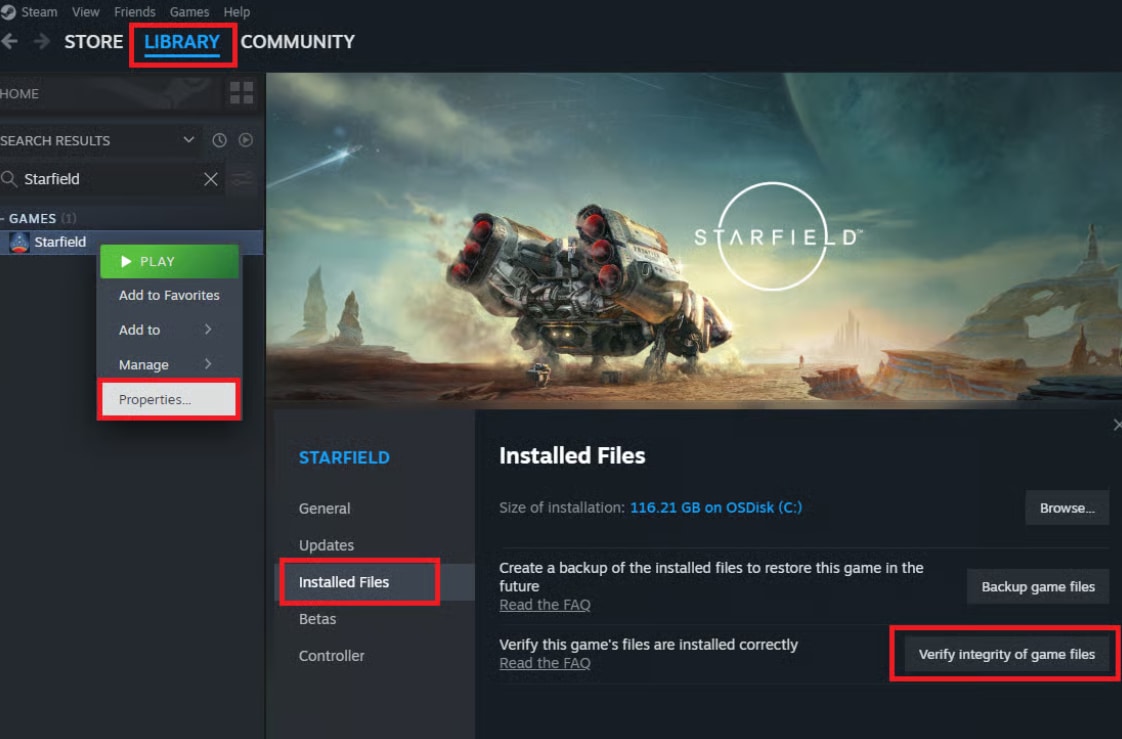
Step 1. Open Steam and navigate to your Library. Right-click on Resident Evil Requiem and select "Properties" from the context menu.
Step 2. Click the "Installed Files" tab in the Properties window, then click "Verify Integrity of Game Files." Wait for the process to complete — it may take several minutes.
Step 3. Once verification reaches 100%, close the Properties window and relaunch the game.
Fix 3. Disable the Integrated Graphics Card (Dual-GPU Systems)
If your system has both an Intel/AMD integrated GPU and a discrete NVIDIA/AMD graphics card, the iGPU can interfere with the game. Temporarily disabling it forces Windows to use only your dedicated card, which is required to run Resident Evil Requiem properly.
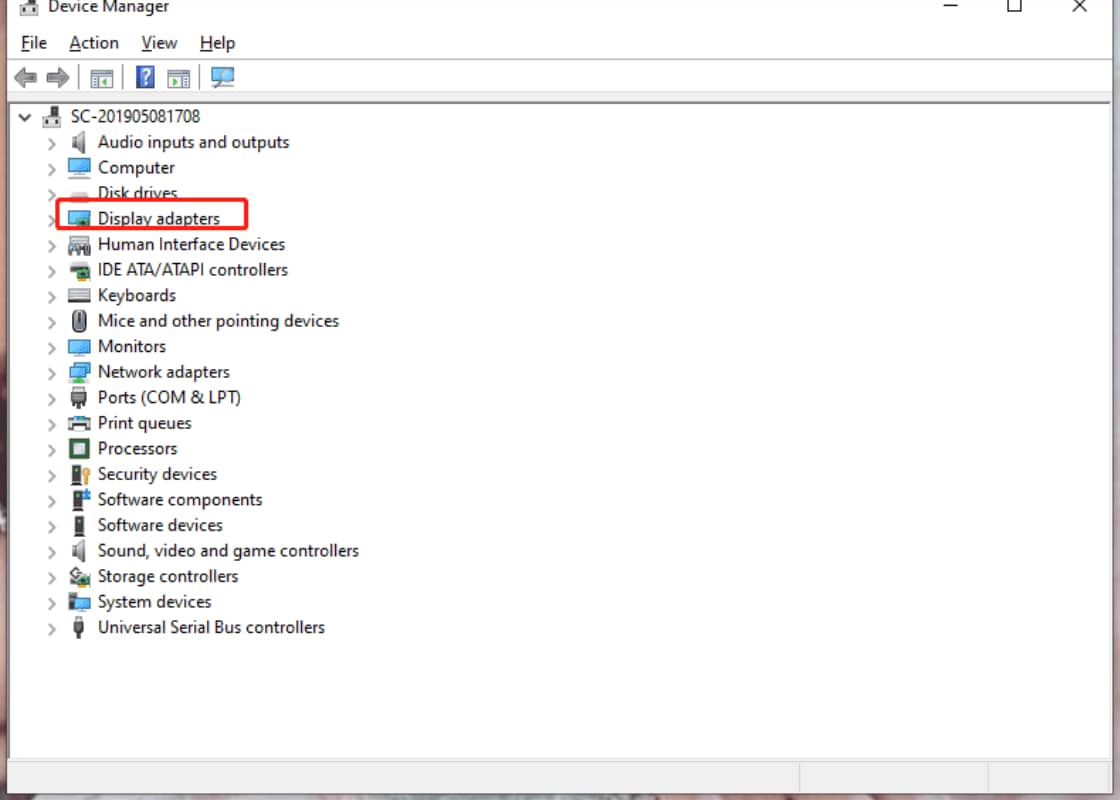
Step 1. Right-click the Start Menu and open "Device Manager." Expand the "Display Adapters" section to see all graphics devices.
Step 2. Right-click your Intel (or AMD integrated) GPU and select "Disable device." Then launch Resident Evil Requiem and check if the crash is resolved. Re-enable the integrated GPU when you are finished playing.
Note for Desktop Users: Also ensure your monitor cable (HDMI/DisplayPort) is connected to the dedicated GPU slot, not the motherboard I/O panel.
Fix 4. Clear Steam Download Cache and Disable Shader Pre-Caching
A bloated or corrupted Steam shader cache can cause Resident Evil Requiem to freeze or crash to desktop. Clearing it gives the game a completely clean slate for shader compilation.
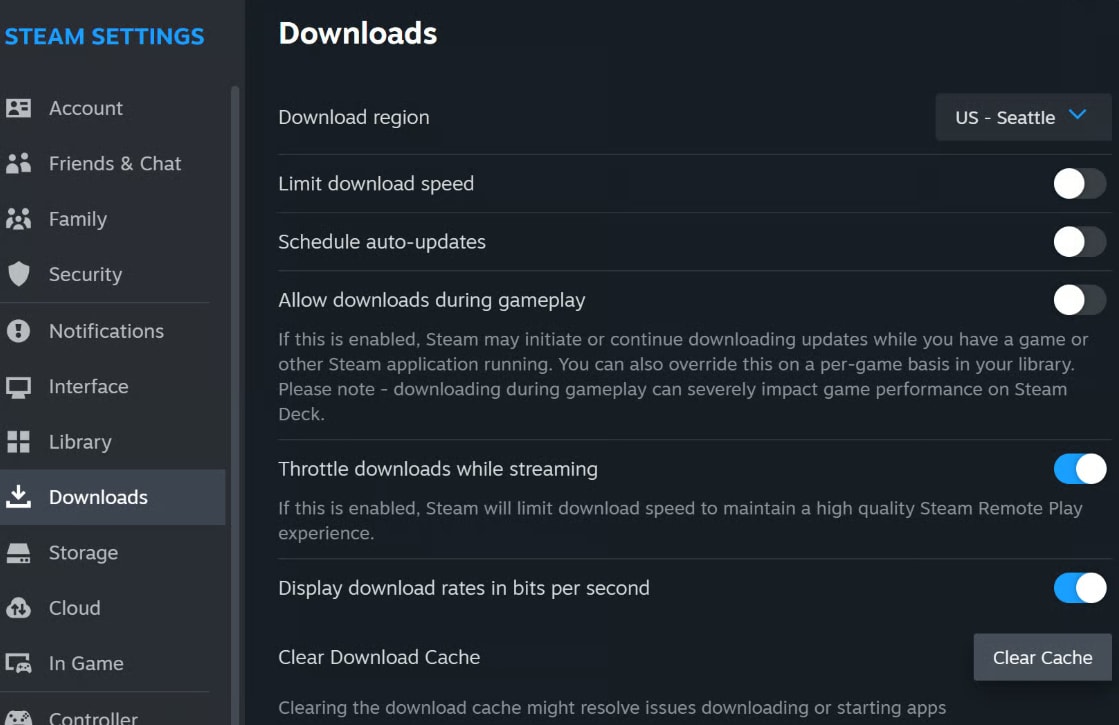
Step 1. Open Steam → Settings → Downloads. Scroll down and locate the "Shader Pre-Caching" section. If "Enable Shader Pre-Caching" is ON, toggle it OFF.
Step 2. Click "Clear Download Cache" and confirm by clicking "Confirm." Steam will restart automatically. Relaunch the game and test. You may re-enable shader pre-caching after testing.
Fix 5. Turn Off Ray Tracing, Frame Generation, and DLSS via Config File
Resident Evil Requiem's graphically intensive features — ray tracing, frame generation, and DLSS reflex low latency — can overwhelm even capable GPUs and cause crashes. You can disable them directly via the config file even if the game won't launch at all.
Step 1. In Steam, right-click Resident Evil Requiem → Manage → "Browse Local Files." This will open the game's installation folder.
Step 2. Locate the config file in the folder and open it with Notepad. Use Ctrl+F to search for each of the following settings and set them to off:
frame generation→ set to offray tracing→ set to offDLSS reflex low latency→ set to offtexture quality→ set to low or lowest
Step 3. Go to File → "Save," then relaunch the game.
If you can launch the game, additionally go to Options → Graphics and:
- Switch to Windowed Mode
- Turn off Ray Tracing, HDR, and DLSS/Upscaling
- Set FPS lock to 60 (not Variable)
- Click "Auto Configure Graphics Settings" to let the game self-calibrate
- Lower Screen Resolution (e.g., from 4K to 1920×1080)
Fix 6. Rename or Delete the Config File
If adjusting the config file doesn't help, renaming or deleting it entirely forces Resident Evil Requiem to regenerate it with fresh default settings — often clearing whatever corrupt entry was causing the crash.
Instructions: Navigate to the game installation folder via Steam → Manage → Browse Local Files. Locate the config file, right-click it and choose "Rename" — add .bak to the end of the filename (e.g., config.ini.bak). Relaunch Resident Evil Requiem. The game will automatically create a new default configuration file.
Fix 7. Set DLSS Ray Reconstruction to "Recommended" in Nvidia App
For NVIDIA GPU users, an incorrect DLSS preset can cause Resident Evil Requiem to crash on startup. Correcting this setting in the Nvidia App can resolve the issue without changing in-game settings.
Step 1. Open the Nvidia App on your PC. Navigate to Graphics settings and find Resident Evil Requiem in the game list.
Step 2. If a DLSS option is visible, click it → select "Custom" → set "Ray Reconstruction" to "Recommended." Click "Apply" and relaunch the game.
Step 3. If not visible under Program Settings, apply the same change under "Global Settings" and test again.
Fix 8. Perform a Clean Installation of Your Graphics Driver
An outdated, corrupted, or incompatible GPU driver is one of the most common causes of Resident Evil Requiem not launching. A clean install wipes all old driver data and starts completely fresh — this is different from a standard update.
For NVIDIA Users:
Step 1. Visit NVIDIA's official driver download page. Select your GPU model and operating system, then click "Find" and download the latest GeForce Game Ready Driver.
Step 2. Run the installer → click "Agree and Continue" → choose "Custom Installation." Check the box that says "Perform a Clean Installation," then click "Next." Allow the system to restart, then test the game.
For AMD Users:
Instructions: Visit AMD's driver support page. Select your graphics card and OS, download the latest driver, run the installer, and choose the "Factory Reset" or clean installation option. Restart and test.

Pro Tip: If the latest driver causes issues, try rolling back to the previous version. On the NVIDIA page, click "View More Versions" to access older drivers. Always use the Clean Installation option when installing.
Fix 9. Clear Nvidia Shader Cache
A corrupted Nvidia shader cache can trigger Resident Evil Requiem freezing or crashing during startup. Clearing it forces the GPU to rebuild clean shader data on next launch.
Step 1. Close all Nvidia applications (Nvidia App, Nvidia Control Panel, etc.).
Step 2. Open File Explorer and navigate to C:\Users\[YourUsername]\AppData\Local\NVIDIA. If AppData is hidden, click View → Show → enable "Hidden Items."
Step 3. Delete the DXCache and GLCache folders inside the NVIDIA folder. Restart your computer, then launch the game.
Fix 10. Run the Game on Your Dedicated GPU via Windows Graphics Settings
Ensure Windows correctly assigns the dedicated GPU — not the integrated one — to Resident Evil Requiem. This is especially important for laptops and systems with hybrid graphics.
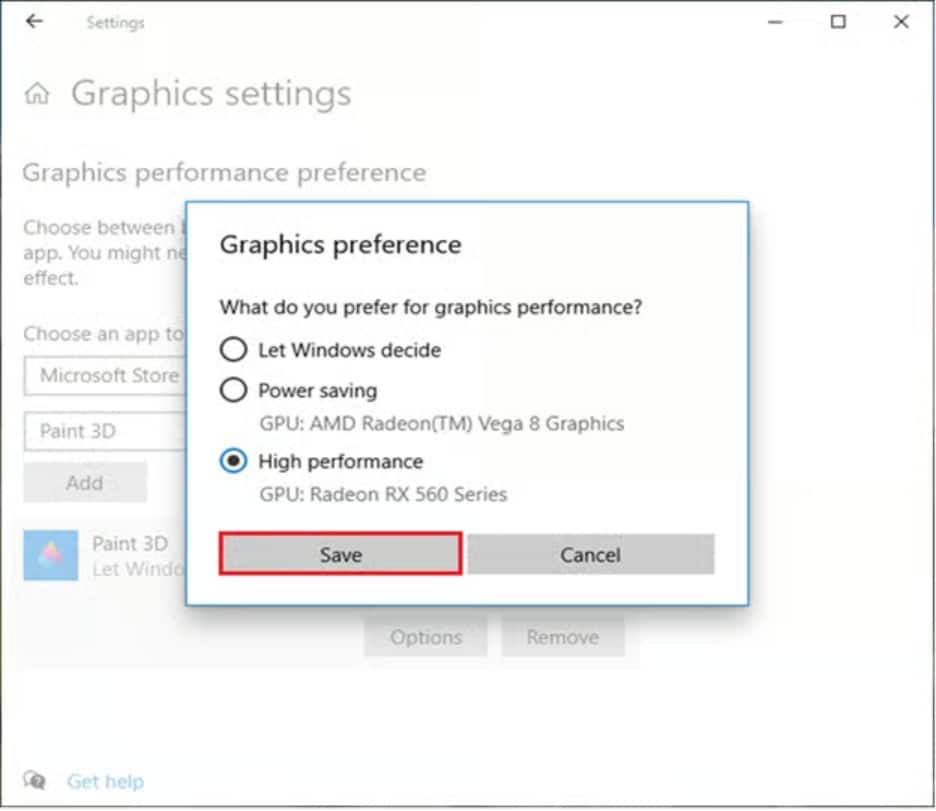
Step 1. Type "Graphics Settings" in the Windows search bar and open it. Click "Add a desktop app" and browse to the Resident Evil Requiem installation folder.
Step 2. Select the game's .exe file and click "Add." Find the game in the list that appears, click on it, and set "GPU Preference" to "High Performance" (your dedicated GPU). Launch the game.
Fix 11. Try DX11 or DX12 in Steam Launch Options
Forcing a specific DirectX version can resolve compatibility issues that cause Resident Evil Requiem to crash on startup. Some systems perform better with DX11, while others prefer DX12.
Step 1. In Steam, right-click Resident Evil Requiem → "Properties." In the "Launch Options" input box, type -dx11 and press Enter.
Step 2. Launch the game and check. If it still crashes, return to Launch Options, replace -dx11 with -dx12, and test again.
Step 3. If neither option helps, clear the Launch Options field entirely and proceed to the next fix.
Fix 12. Install or Repair Visual C++ Redistributables
Missing Visual C++ runtime files are a silent but very common cause of Resident Evil Requiem not launching — the game simply closes with no error message. This fix is essential and often overlooked.
Step 1. Visit Microsoft's Visual C++ Redistributable download page. Download both the x86 and x64 versions of the latest redistributable package.
Step 2. Run each installer. If you see a "Repair" button, click Repair. If you see an "Install" button, click Install. Make sure both x86 and x64 packages are successfully installed.
Step 3. Restart your computer after both installations are complete, then launch Resident Evil Requiem and check.
Fix 13. Add the Game to Windows Firewall and Antivirus Exclusions
Overzealous security software can silently block Resident Evil Requiem from accessing necessary files or network resources, causing it to crash without any error message.
For Windows Defender Firewall:
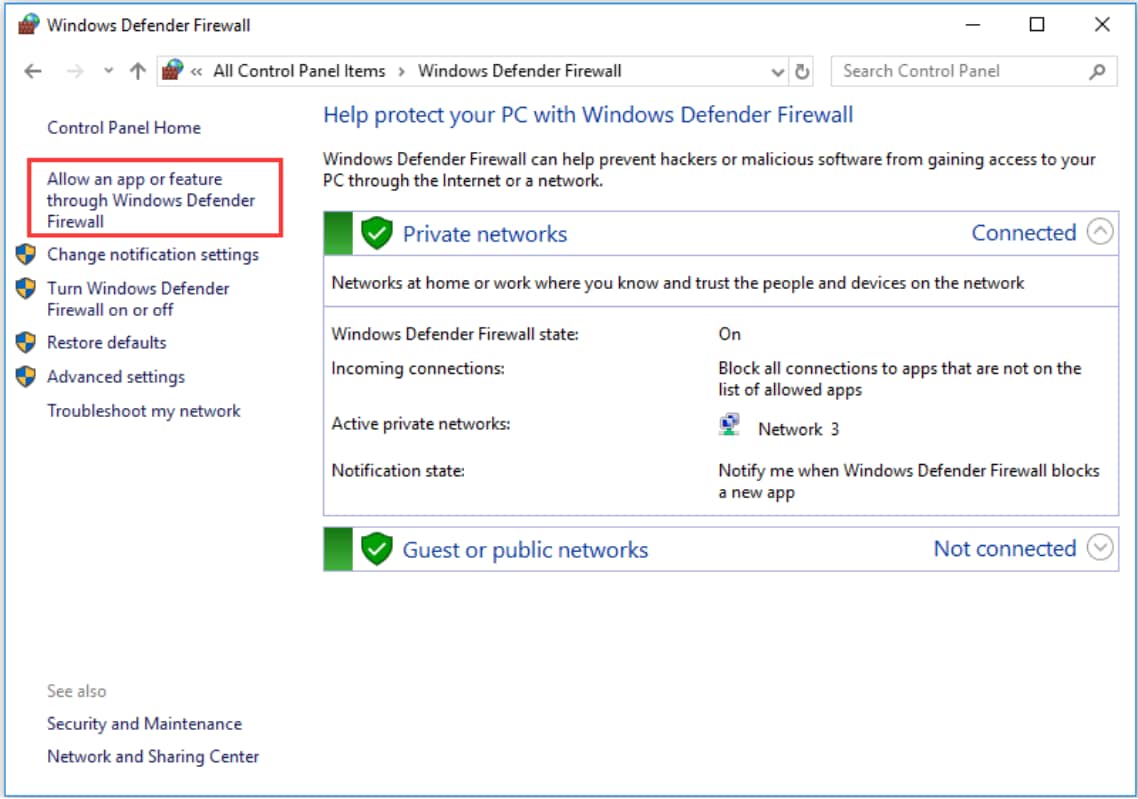
Instructions: Open Control Panel → System and Security → Windows Defender Firewall. Click "Allow an app or feature through Windows Defender Firewall" → "Change Settings" → "Allow Another App." Browse to the Resident Evil Requiem installation folder, select the .exe file, and click Add.
For Windows Security Ransomware Protection:
Instructions: Open Windows Security → Virus & Threat Protection → "Manage Ransomware Protection." Click "Allow an app through Controlled Folder Access" → Add → select the game .exe.
For Third-Party Antivirus (Avast, Norton, Bitdefender, McAfee, etc.): Add the entire Resident Evil Requiem installation folder to your antivirus program's exclusion or whitelist settings.
Part 3. Bonus: Recover and Enhance Your Resident Evil Requiem Gameplay Recordings
Many players recording their Resident Evil Requiem gameplay for YouTube, Twitch, or social media find their footage ends up blurry, corrupted, or cut short — especially when the game crashed mid-recording. When Resident Evil Requiem freezes or crashes, any active recording can be cut short and the resulting video file may become unplayable or corrupt.
Additionally, because the game consumes most of your GPU's resources, recording software often has to drop quality to keep up — resulting in pixelated, low-resolution footage. In such cases, you can use Repairit to repair corrupted recordings and AI-enhance their quality for sharing.

Wondershare Repairit - Video Repair & AI Video Enhancer
7,302,189 people have downloaded it.
-
Repair Corrupted Recordings: Automatically detects and repairs video files damaged by crashes, sudden power cuts, or incomplete saves from gameplay sessions.
-
AI Video Enhancement up to 4K: Upscales low-resolution gameplay footage and removes blur caused by heavy GPU load during recording, making videos sharper and share-ready.
-
Batch Processing: Process multiple gameplay recordings at once, saving time for content creators who record long sessions or multiple clips.
-
Wide Format Support: Works with MP4, MOV, MKV, AVI, and more — covering all major recording formats used by OBS, GeForce Experience, AMD ReLive, and Xbox Game Bar.
How to Enhance Your Resident Evil Requiem Gameplay Recordings via Repairit
Now that you know how to fix Resident Evil Requiem crashing and the quality-enhancing features of Repairit, here are the steps to improve your gameplay recordings:
Step 1. Add Your Gameplay Recordings
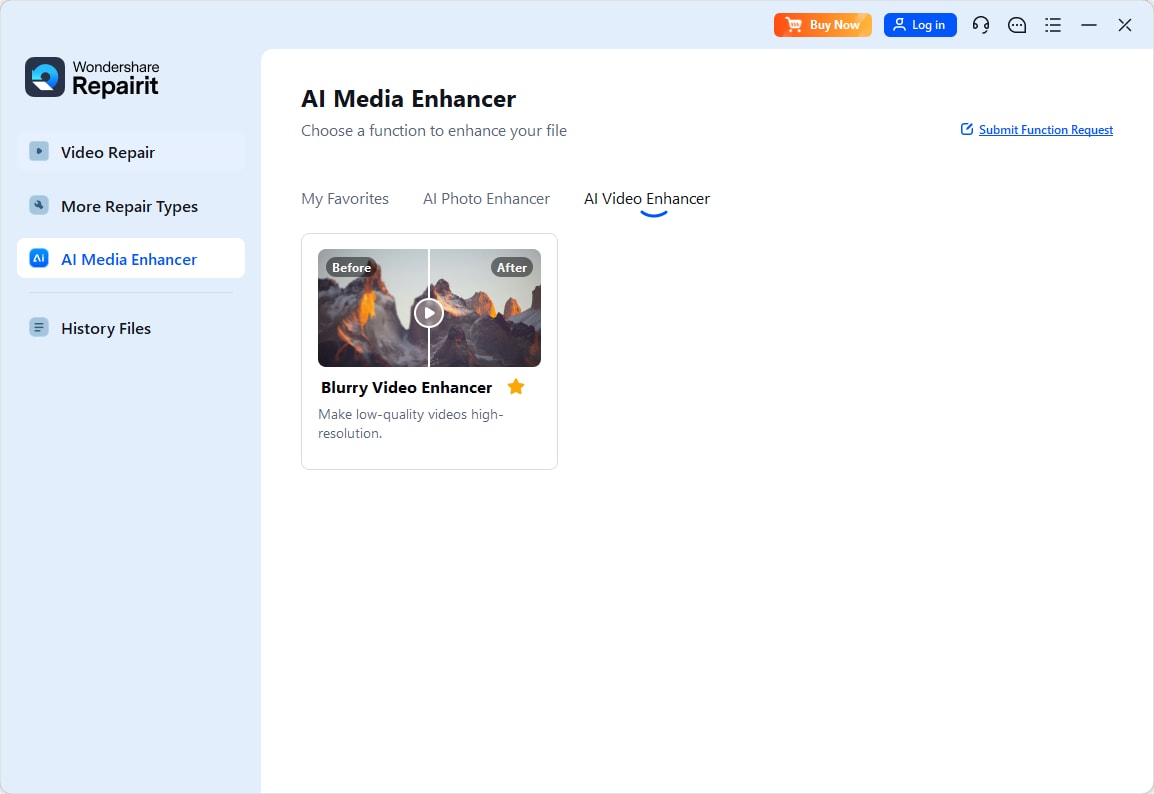
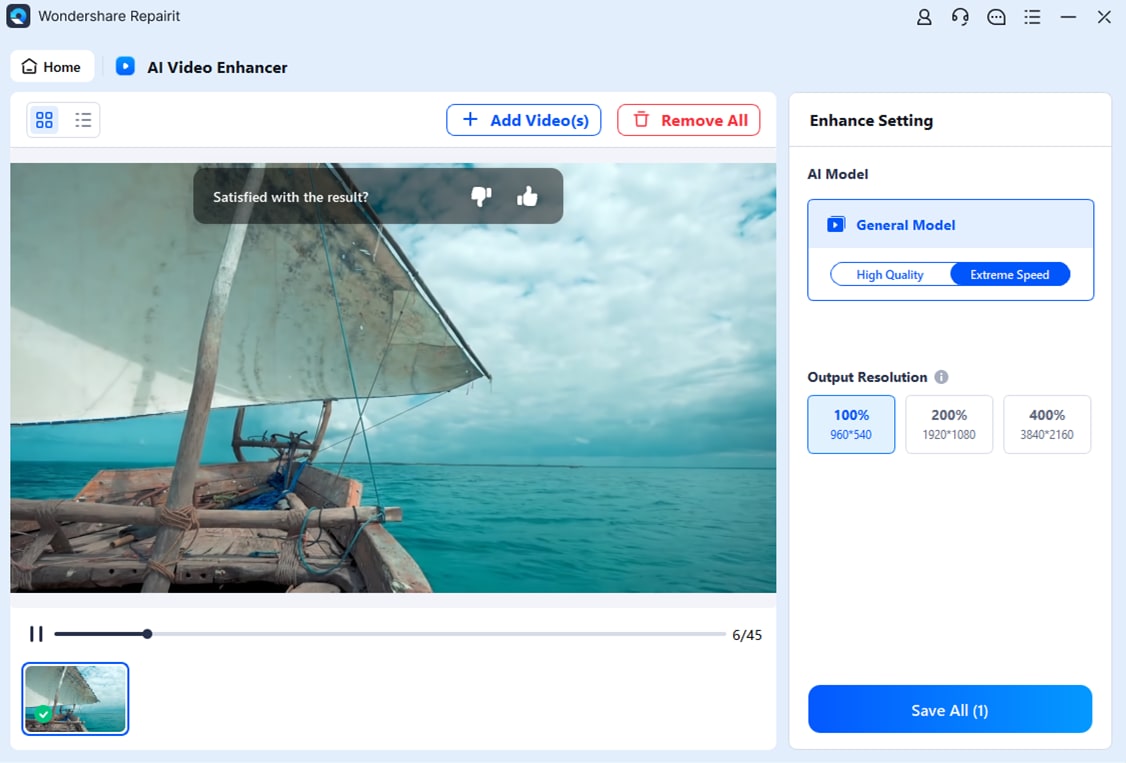
Go to the "More Types Repair" tab and use the "AI Video Enhancer" feature. Click the "+ Add" button and import your Resident Evil Requiem gameplay recordings whose quality needs improvement.
Step 2. Choose Enhancement Settings and Start
Once the gaming videos load, select the "General Model" and your desired "Output Resolution" (up to 4K) according to your needs. Press "Start Enhancing" to begin the AI upscaling and clarity improvement process.
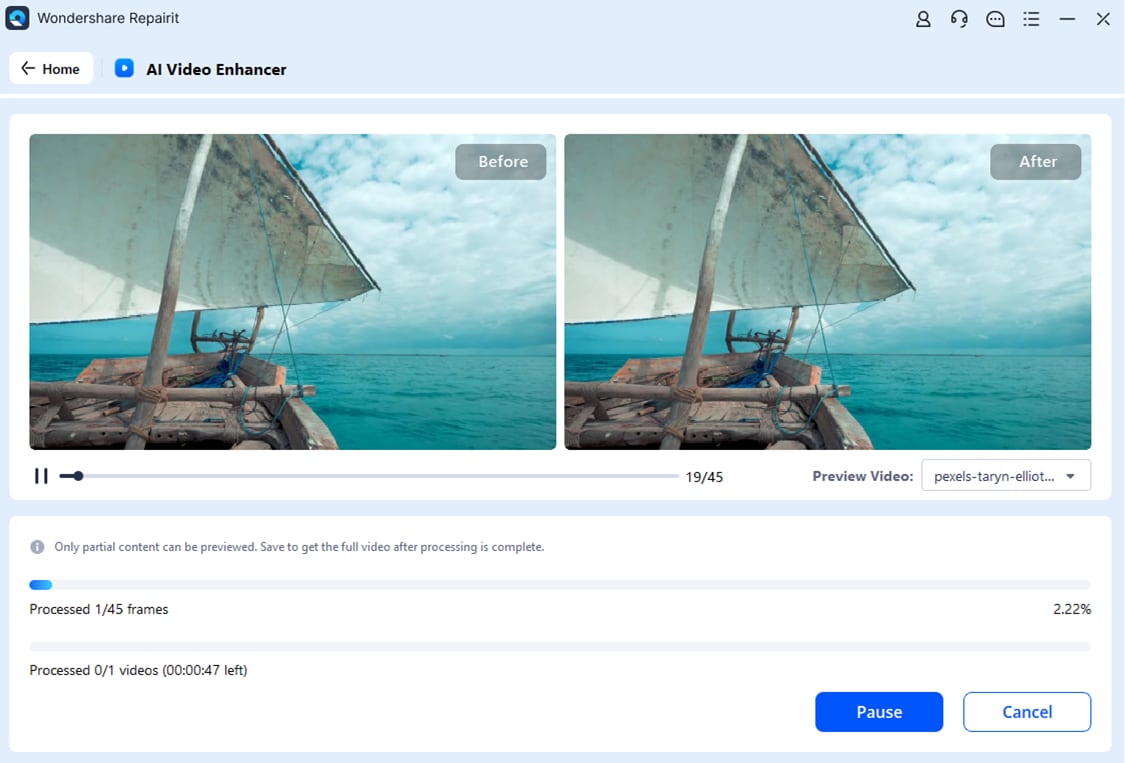
Step 3. Preview and Export Your Enhanced Videos
Once the Resident Evil Requiem recordings are enhanced, preview the results in the built-in viewer. If everything looks good, hit the "Save All" button to export the polished footage — ready for upload to YouTube, Twitch, or social media.
Enhance Your Resident Evil Requiem Game Recordings Now
 Security Verified. Over 7,302,189 people have downloaded it.
Conclusion
To conclude, Resident Evil Requiem crashing, not launching, or freezing on PC is a frustrating but almost always fixable problem. Start with the quick wins: restart your PC, verify game files, and clear your Steam cache. Then work through the graphics-related fixes like disabling ray tracing in the config file, performing a clean GPU driver install, and assigning the game to your dedicated GPU. If those don't resolve it, address system-level issues: install Visual C++ redistributables, update Windows, and add the game to your firewall and antivirus exceptions. As a last resort, reinstall the game to your C: SSD.
One of the 13 solutions in this guide should have your copy of Resident Evil Requiem running smoothly. And if you are dealing with damaged gameplay recordings from crashes, Repairit can recover and enhance your footage in just a few clicks.
Frequently Asked Questions
-
1. Why does Resident Evil Requiem crash immediately when I try to launch it?
The most common causes of an immediate launch crash are corrupted game files, missing Visual C++ redistributables, or a conflicting GPU driver. Start by verifying game files on Steam and installing the latest Visual C++ packages from Microsoft, then clean-install your GPU driver using the steps in Fix 8 above. -
2. Resident Evil Requiem worked before but now crashes — what changed?
A recent Windows update, GPU driver update, or Steam update may have introduced a conflict. Try rolling back your graphics driver to the previous version, or check Steam for any available game patches. Disabling overlays (Steam, Discord, Nvidia) is also worth trying immediately. -
3. How do I fix Resident Evil Requiem freezing my entire PC?
Full system freezes are usually caused by GPU overload from ray tracing or frame generation. Disable ray tracing, frame generation, and DLSS via the game's config file (even if the game won't launch, as explained in Fix 5). Also clear the Nvidia shader cache and ensure your GPU drivers are clean-installed.




