 TL;DR:
Recover files corrupted during the saving process by utilizing native software repair options or version history, and deploy dedicated recovery tools for severe internal structural damage.
● Restore an uncorrupted iteration via Windows Properties or macOS Time Machine, or execute the sfc /scannow command to resolve underlying operating system faults blocking file access.
● Utilize Repairit File Repair on Windows Vista/7/8/10/11 or macOS X 10.12 or later to reconstruct severely broken Word, Excel, PDF, and PowerPoint files that basic system tools cannot open.
● Prevent future save-interruption damage by editing files on local drives rather than directly on USB or SD cards, as Auto-Save cannot protect against hardware disconnects or system power loss.
Ask AI for a summary
 ChatGPT
 Perplexity
 Gemini
 Claude
 Grok
Grok
Experiencing file corruption after editing and saving can be troublesome, especially when an important document or project suddenly won’t open properly. This usually happens when something interrupts the saving process, such as a software crash, power issue, storage problem, or sync error. Understanding why saved files get corrupted can help you avoid data loss and keep your files safe every time you save your work.
In this article
Why Files Get Corrupted After Saving
Saving a file involves multiple system processes. If something interrupts this process, it can result in file corruption after editing and saving, making the file unreadable or incomplete.
Common Causes of File Corruption
- Software crashes or freezes while the file is saving
- Storage issues such as damaged hard drives, SSDs, or USBs
- Low system resources like insufficient memory or high CPU usage
- Incorrect or unsupported file formats
Other Risk Factors
- Connection loss when saving to cloud storage or external drives
- Transfer errors during file movement or syncing
Signs Your File May Be Corrupted
A corrupted file usually shows warning signs before you realize there is a serious issue. Identifying these symptoms early can help you confirm whether the problem is file damage or just a temporary software error.
Common Signs of File Corruption
- Error messages like invalid format, file not supported, or file cannot be opened
- Broken or missing content such as scrambled text, missing images, or incomplete data
- Access issues that prevent you from opening, editing, or deleting the file
- Blank or unusual file content filled with random symbols or empty spaces
System Behaviors to Watch For
- App crashes when opening a specific file
- Missing file details like modified date or file information
- Endless loading or freezing when trying to access the file
Basic Ways To Recover a Corrupted Files
If your file becomes damaged after saving, there are a few built-in methods that may help recover it or restore an earlier version.
Fix 1. Use Built-In Repair Tools
Many programs like document or editing software have repair options that can open and fix minor file issues.
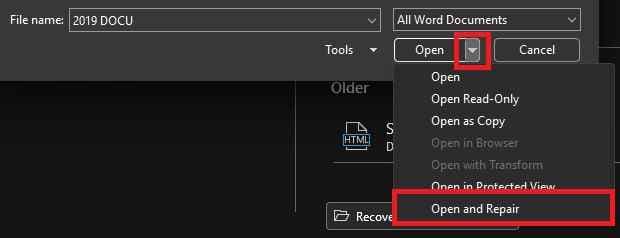
Step 1. Access the application's Open menu rather than double-clicking the file icon.
Step 2. Select the damaged file, click the dropdown arrow next to the Open button, and choose the Open and Repair.
Fix 2. Restore a Previous Version
Windows and macOS may save older file versions through backup or version history features.
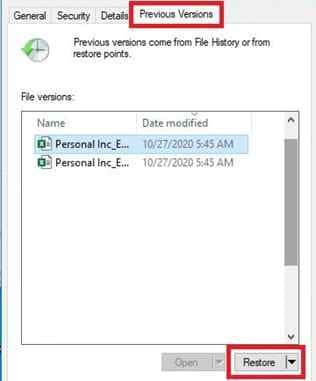
Step 1. Right-click the corrupted file and select Properties (Windows) or Get Info (macOS).
Step 2. Navigate to the Previous Versions or Time Machine tab and select a timestamp that predates the error to restore a clean copy.
Fix 3. Run a System Scan
A system file check can detect and repair operating system issues that may affect file saving or opening.
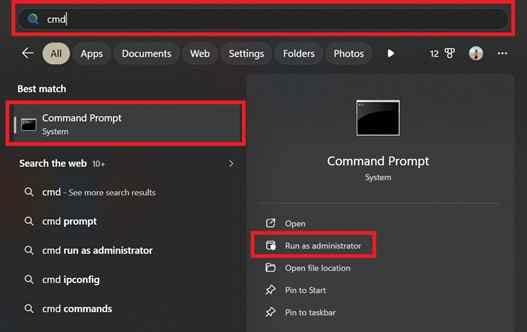
Step 1. Launch the Command Prompt (Admin).
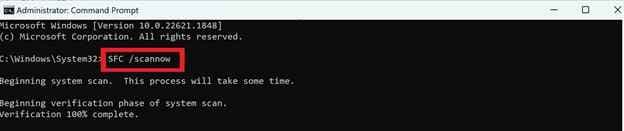
Step 2. Input the command sfc /scannow and allow it to verify and repair the file system.
Fix 4. Try Another File Format
Opening or converting the file using a different format or software may help recover accessible content.
Step 1. Try opening the corrupted file using a different program or file viewer that supports the same file format.
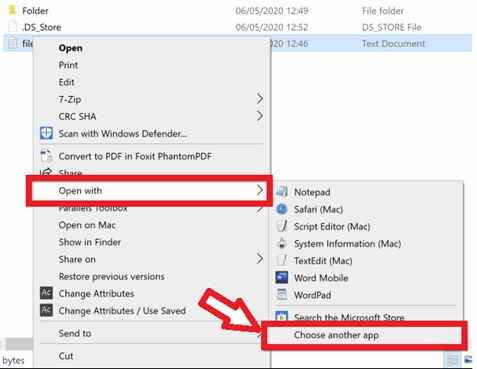
Step 2. If the content appears, immediately use the Save As function to export the data.
Fix 5. Scan Your Storage Drive
Checking your hard drive, SSD, or USB for errors can help fix storage issues linked to file corruption.
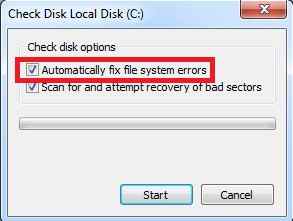
Step 1. Open your drive properties and locate the Tools section to find the Error Checking utility.
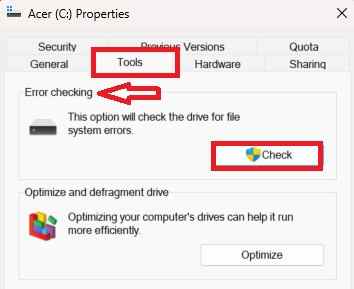
Step 2. Run the scan and select the option to Automatically fix file system errors to stabilize the storage environment for future saves.
Advanced Repair Solution for Severely Corrupted Files
If basic fixes don’t work, the file may have deeper damage in its internal structure. In this case, advanced repair tools can help by scanning the file, detecting broken data, and rebuilding it so it becomes usable again.
It CAN:
- Fix damaged file structure so the file can open properly again
- Recover readable data from files that won’t open normally
- Repair multiple files at once for faster recovery
- Preview recovered content before saving changes
Tools like Repairit File Repair can handle common files such as Word documents, Excel sheets, PDFs, and PowerPoint files. These tools analyze corrupted data and reconstruct missing or broken parts caused by failed saves or storage errors. By scanning the damaged file deeply, they often recover data that basic system tools cannot fix.
Step-by-Step (Optional)
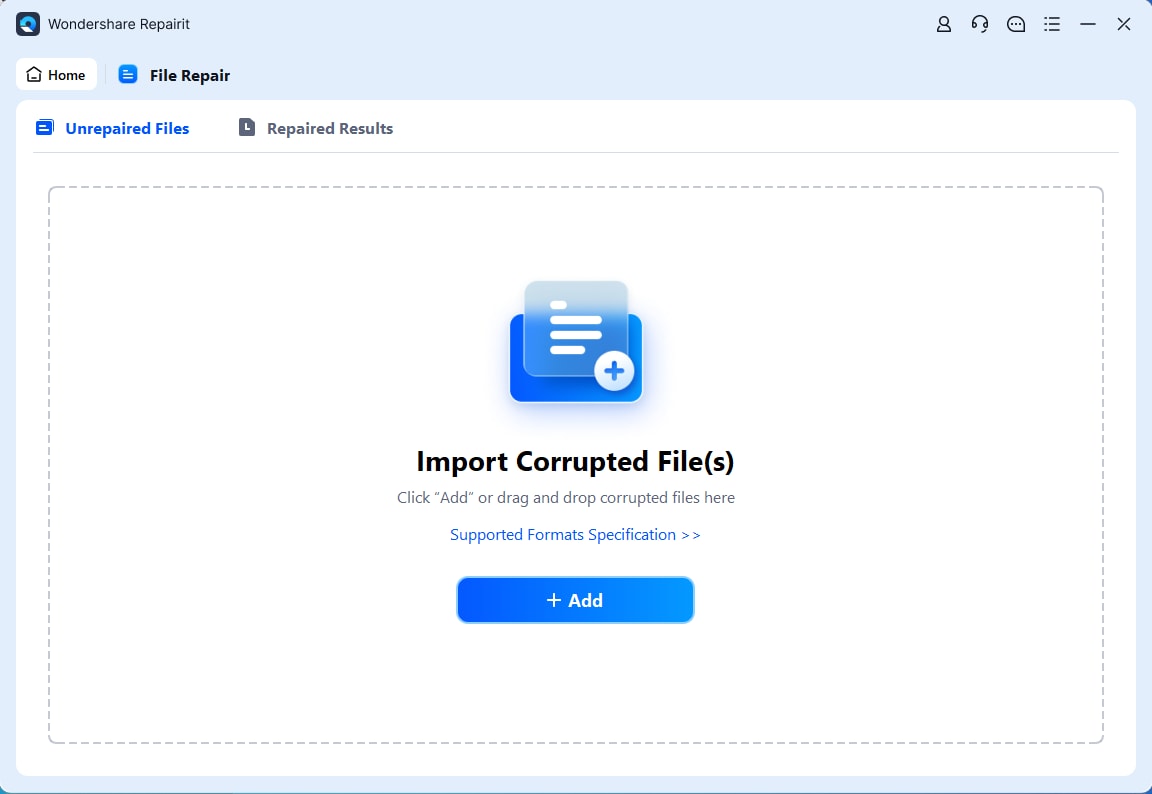
Step 1. Upload the corrupted file.
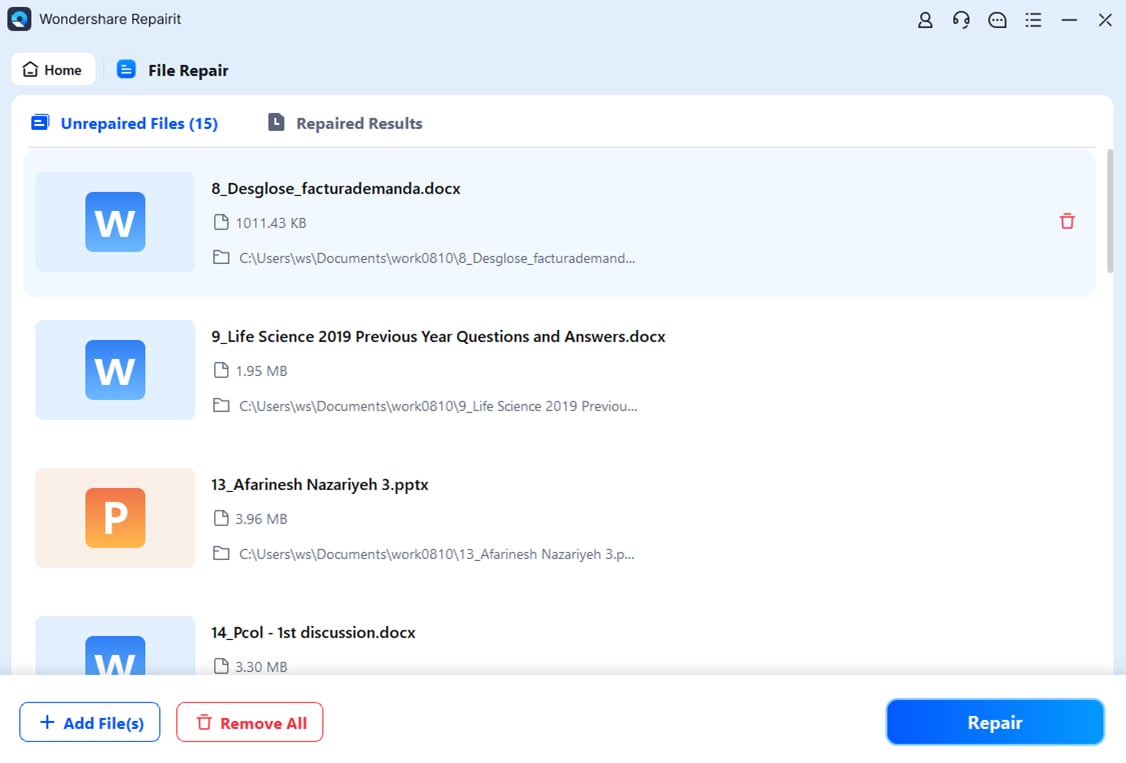
Step 2. Start the Repair process.
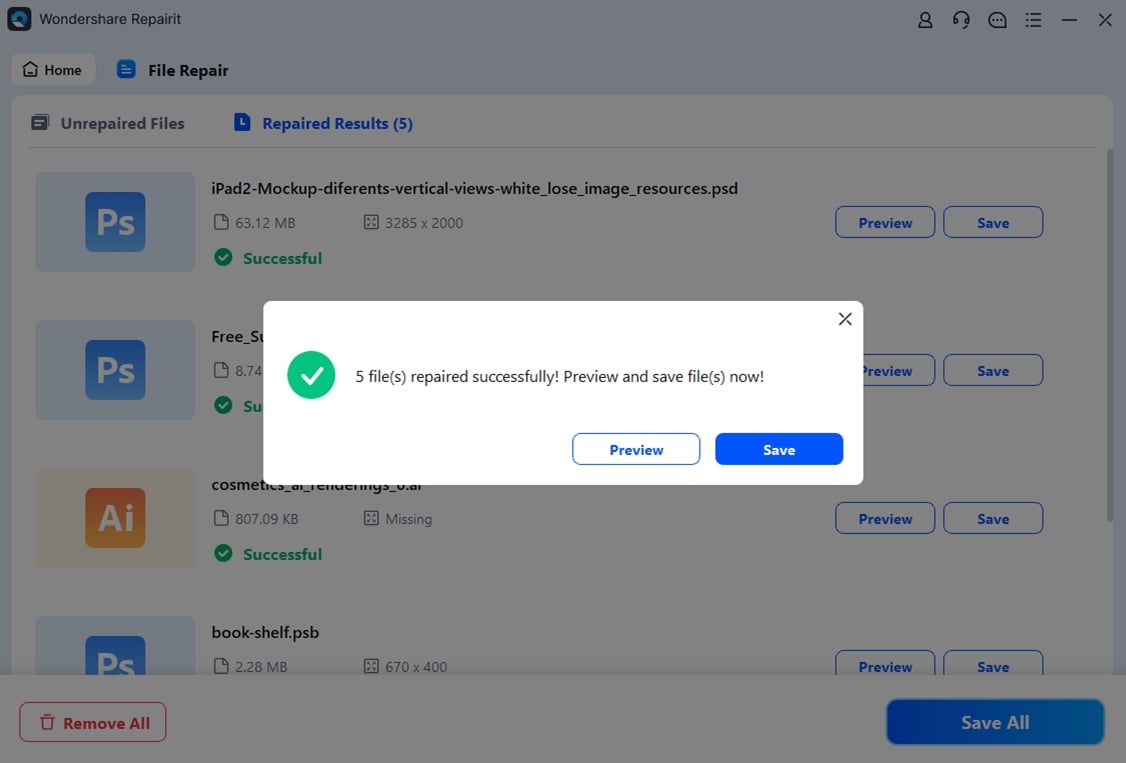
Step 3. Preview and save the restored file to a new location.
How to Prevent File Corruption
To avoid file corruption after editing and saving, it’s important to follow safe saving habits and keep backups of your work.
Key Tips
- Use the 3-2-1 backup rule to keep multiple copies of your files.
- Don’t edit files directly from USB or SD cards, copy them first to your device.
- Eject storage safely before unplugging external drives.
- Check your drive health regularly and replace damaged storage.
- Enable auto-save and version history to recover recent changes easily.
Conclusion
Dealing with file corruption after editing and saving can be frustrating, but understanding its causes, like software errors, storage issues, or unstable systems, helps you manage and prevent it better. Knowing why saved files get corrupted also makes it easier to choose the right recovery steps. With proper backups and stable saving habits, you can greatly reduce the risk of losing important data.
FAQs
-
Why does a file break right after saving with no error?
This can happen when the save process finishes incorrectly and the data is not fully written to the drive, leaving a damaged file. -
Can low battery or power loss cause file corruption?
Yes. If power cuts off while saving, the file may only be partially written and become unreadable. -
Can a corrupted file still be recovered?
Often yes. Tools like Open and Repair or recovery software can rebuild parts of the file even if it’s damaged. -
Why is local storage safer than USB or SD cards?
External drives can disconnect during saving, which may interrupt the process and cause corruption. -
Does Auto-Save fully prevent file corruption?
No. Auto-Save helps reduce data loss, but it cannot stop corruption caused by hardware or system failures.