 TL;DR:
⚡ Quick Fix: Repair Corrupted Videos Without a Sample
● Check If Media Data Still Exists: If the corrupted video has file size and contains valid audio or video data, it may be repairable even when it has no thumbnail, black screen, wrong duration, or playback error.
● Use Sample-Free Smart Repair: When no matching reference video is available, Repairit V6.8 analyzes the damaged file itself and infers missing codec, track, timing, index, and playback structure.
● Keep the Original File Untouched: Avoid converting, compressing, trimming, renaming, or overwriting the corrupted video before repair so the tool can analyze the most complete remaining data.
● Preview Before Saving: After repair, check whether the image, audio, duration, sync, and key content are restored, then save the repaired video separately from the original damaged file.
Ask AI for a summary
 ChatGPT
 Perplexity
 Gemini
 Claude
 Grok
Grok
When an important video will not open, your first question is usually simple: can you still get it back? The file may show a corrupted message, display no thumbnail, play with a black screen, or open with audio but no picture. It may have come from a camera, phone, drone, SD card, USB drive, old hard drive, cloud download, or messaging app.
The harder question is what kind of damage happened inside the video. Some files only need a basic repair. Others have lost key structure, such as indexes, track information, codec parameters, or timing data. When that happens, the repair process may need more than a quick fix.
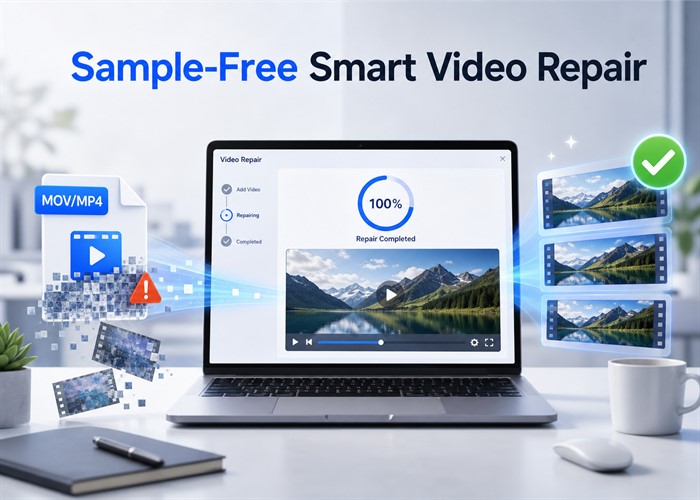
Repairit V6.8 introduces Sample-Free Smart Video Repair for situations where your video is severely damaged and you cannot provide a matching sample or reference file. Instead of asking you to find a healthy video with similar recording settings, Repairit analyzes the damaged file itself and tries to infer the missing structure needed for playback.
In this article
Part 1: Why Your Corrupted Video May Need More Than Basic Repair
Common Video Corruption Problems You May See
You usually start with a visible problem, not a technical diagnosis. Your video may fail in one of several common ways:
- The video cannot be opened in your media player.
- The file has no thumbnail or preview image.
- You see a corrupted file or unsupported format message.
- The video opens but shows only a black screen.
- You can hear audio, but there is no visible picture.
- The video freezes, stutters, or stops after a few seconds.
- The duration looks wrong or the progress bar does not move normally.
- The file was recovered from storage, but still cannot play.
These problems are common after sudden power loss, recording interruption, system crash, unsafe ejection of a storage device, interrupted download, incomplete file transfer, or recovery from a damaged drive. If the file still contains valid audio or video data, repair may be possible. But if the structure that tells a player how to read that data is damaged, a basic repair may not be enough.
Why Your Video Still Has Data but Will Not Play
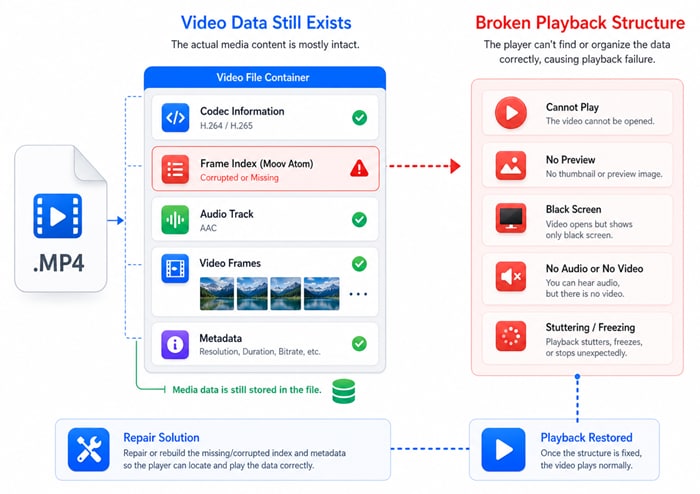
A video can fail even when the file still contains real media data. The usual problem is that the player has lost the instructions it needs to read that data.
File size alone does not prove a video is playable. The content may still be there, but the structure around it may be broken.
This often happens after a camera shuts down during recording, a storage device fails, or a recovered file is incomplete. In these cases, changing the file extension or trying another player usually will not solve the problem. The file needs structural repair.
Repairit V6.8 is designed mainly for cases where the video directory or index is missing, but the core audio and video data still exists. It can work with missing moov or index information, remaining mdat media data, damaged headers, scattered audio segments, and files that are cut off at the end. The current deep validation focuses on H.264 and related validated encoding types. Broader codec coverage should be confirmed against the final product support list.
Part 2: Why a Repair Tool May Ask for a Healthy Sample Video
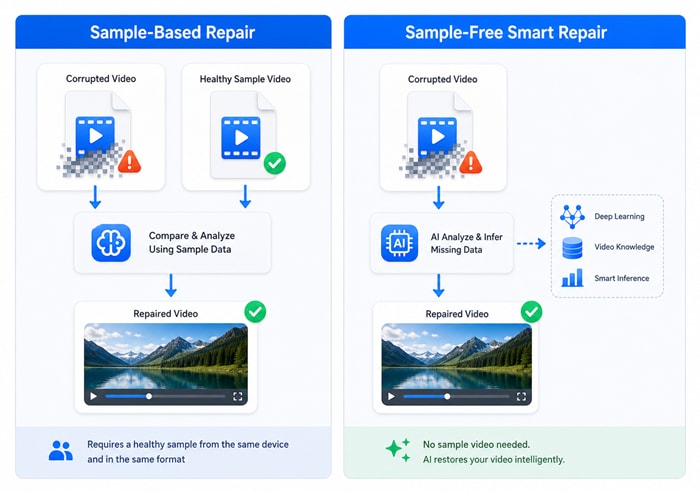
For severe corruption, some advanced repair methods use a healthy reference video, often called a sample video. This is not because the damaged video itself is unimportant. It is because the sample can provide clues about how the original video was recorded.
A good sample video is usually recorded by the same device with the same or very similar settings. It can help a repair tool understand the format, encoding, resolution, frame rate, bitrate, device information, and other recording parameters that may be missing from the corrupted file.
In earlier Repairit workflows, Advanced Repair could ask you to add a sample video when the damaged video was heavily corrupted or when the initial repair result did not meet your expectations. Repairit would then check whether the corrupted video and the sample video were suitable for advanced repair by comparing parameters such as format, encoding, device, bitrate, FPS, and resolution.
If you are working with professional footage, you can also read Repairit's related guide on Professional Video Repair.
What If You Do Not Have the Original Device or Matching Video?
When your video is already damaged, finding a matching sample video can be harder than it sounds. You may not know what counts as a proper reference file. You may not have access to the original device. You may have other videos, but they may not match the damaged file closely enough.
This is common when the video is valuable, comes from an older source, or cannot be recreated: a wedding clip, interview, trip, meeting, class, livestream, client shoot, security event, recovered SD card, cloud backup, or chat app download.
Even videos from the same device may not always work as a reference. A phone or camera can use different resolution, frame rate, HDR, codec, bitrate, or recording mode settings. If those details do not match, the reference may not help.
Part 3: Repairit's Sample-Free Smart Video Repair: Repair Without a Reference File
Wondershare Repairit - Video Repair
Over 7,302,189 people have downloaded it.
-
No matching sample required. Repairit analyzes the damaged file itself when a reference video is unavailable.
-
Smart structure rebuilding. It infers missing playback parameters from remaining valid media data.
-
Preview and save separately. Check the repaired video before saving the recovered output.
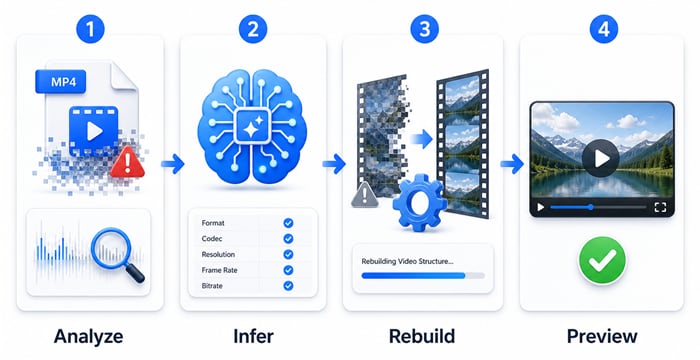
Repairit's sample-free smart repair algorithm can help you repair corrupted videos even you cannot provide a matching reference video. Instead of relying only on an external sample, it analyzes the damaged file itself, extracts clues from the remaining media data, and attempts to infer the missing structure needed for playback.
Even when the video structure is broken, the file may still contain useful clues. Repairit uses those clues to understand how the video was likely recorded and rebuild a playable structure when enough data remains.
This gives you a new repair path when the process would otherwise stop at the sample video requirement.

How Sample-Free Smart Video Repair Helps Recover Damaged Videos
Sample-Free Smart Video Repair focuses on what can be learned from the damaged file itself.
- It infers missing video parameters from the damaged file itself. Repairit scans the file for clues about codec behavior, track structure, timing, and other playback details that may be missing from the metadata.
- It identifies valid frame boundaries through decoding checks. Repairit checks whether inferred frame boundaries can be decoded, so the rebuilt structure is based on usable data rather than a blind template.
- It rebuilds missing or damaged playback structure. When enough reliable clues are found, Repairit rebuilds the structure that helps players recognize the file, locate frames, read tracks, and play the video more normally.
- It attempts to reconnect separated audio and video data. When audio and video data still exist but no longer align correctly, Repairit can try to reorganize the media information for more coherent playback.
Choose the Right Repair Option for Your Damaged Video
If your video is damaged, the best next step depends on what you have available and how serious the damage appears to be. Use the table below to match your situation with the right repair path.
| Your Situation | Recommended Repair Path |
| You have a lightly damaged video that still opens or partially plays. | Start with quick video repair or online video repair. |
| The video is severely corrupted and you do not have a matching reference file. | Use Sample-Free Smart Video Repair. |
| You have a healthy video from the same device with matching settings. | Try sample-based Advanced Repair as an additional option. |
| The file is 0 bytes, encrypted, overwritten, or missing real media data. | Repair is unlikely because there may be no usable audio/video stream to rebuild. |
If you have a highly matching sample video, sample-based advanced repair may still be useful. If not, Sample-Free Smart Video Repair gives you a practical next step.
In the current repair logic, Sample-Free Smart Video Repair and basic repair share a simple entry: you add the damaged video and let Repairit analyze it. If the file directory cannot be found, Repairit can switch to the sample-free path. If the first repair paths cannot provide enough evidence and you have a truly matching sample, sample-based Advanced Repair can still be used as a further option.
Part 4: How to Repair a Corrupted Video Without a Sample in 3 Steps
Repairit V6.8 is designed to make the process easier when you do not have a sample video. The exact interface may vary by product build, but the workflow can be explained in three simple steps.
Step 1. Add your corrupted video. Open Repairit and import the damaged video file. Use the original corrupted file if possible, and avoid repeatedly converting or re-saving it before repair.

Step 2. Start Sample-Free Smart Video Repair. Run the repair process and choose the sample-free repair path when no matching reference video is available. Repairit will analyze the damaged file itself and attempt to infer the missing playback structure.

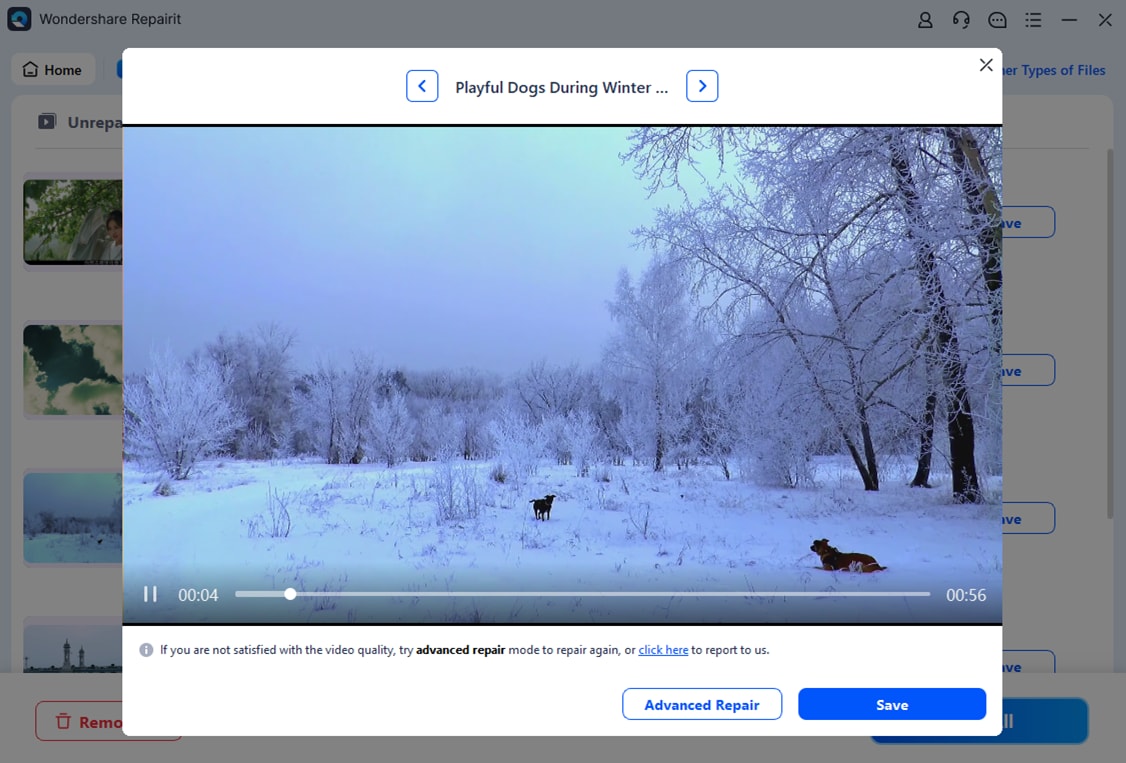
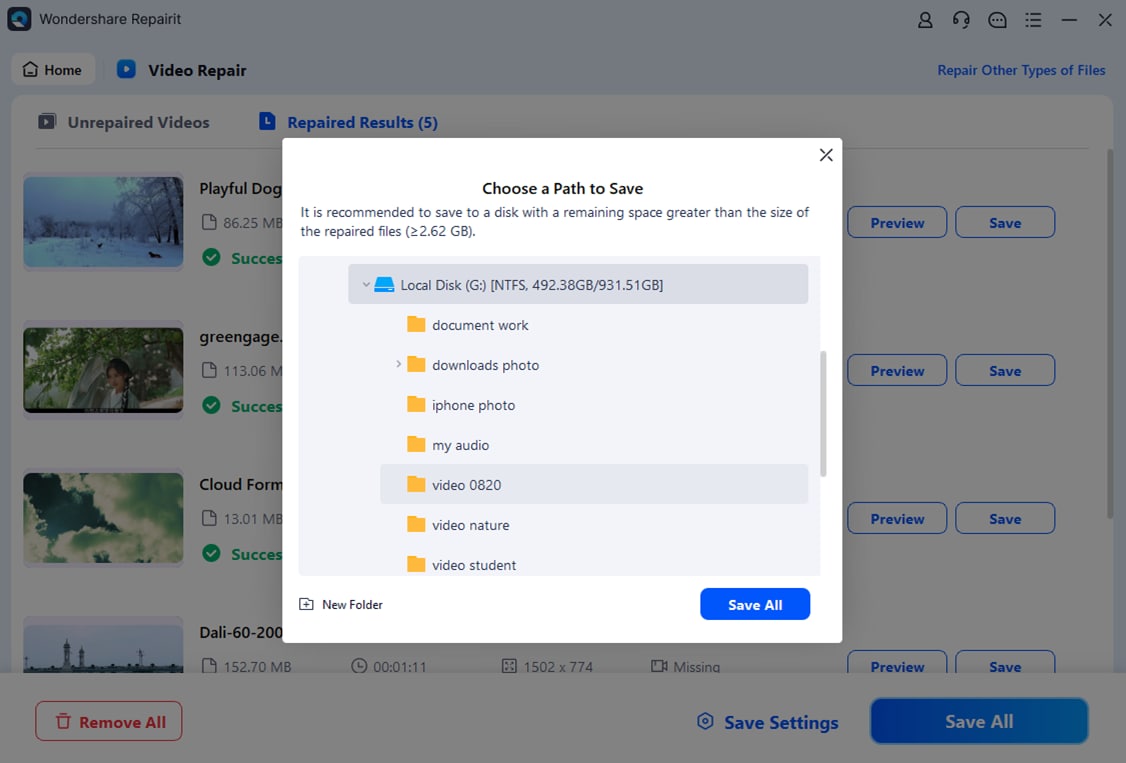
Step 3. Preview and save the repaired video. Preview the repaired result to check whether the image, sound, duration, and important content are restored. Then save the repaired output to a separate location so the original damaged file remains unchanged.
Check this video guide:
Part 5: Before You Try to Repair a Video Without a Sample
Sample-free repair can improve your chances when you do not have a reference file, but the result still depends on the damaged video. No repair tool can recreate media data that was overwritten, erased, or never saved.
Before you start, keep these points in mind:
- Keep the original damaged file unchanged.
- Do not repeatedly convert, compress, or edit the corrupted video before repair.
- Better results depend on how much valid audio and video data remains in the file.
- If a matching reference video is available, sample-based repair may still be useful for certain cases.
- Preview the repaired file carefully before saving or using it.
Videos are unlikely to be repairable if the file is 0 bytes, the original media data has been overwritten, the content is encrypted, or severe physical data loss has removed the actual audio/video stream. In these cases, a repair tool may not have enough real data to rebuild from.
Final Thoughts
When a video is severely corrupted, the problem is often deeper than a normal playback error. The file may still contain valuable audio and visual data, but the structure needed to read that data may be damaged or missing.
Some advanced repair methods use a sample video to rebuild that structure, but you may not have the right reference file, especially for recovered files, old devices, cloud downloads, or one-time recordings.
Repairit's Sample-Free Smart Video Repair gives you another way forward by analyzing the damaged file itself and rebuilding playback structure when enough valid data remains.
It does not guarantee that every corrupted video can be fully restored. But if your repair journey used to stop because you had no matching sample file, Repairit gives your video more possibility to become playable again.
FAQ
-
My video has a normal file size. Why will it not open?
A normal file size only means data exists in the file. It does not guarantee that the player can read it. If the index, frame table, codec parameters, or container metadata is missing, the video may still fail to open even though the media data remains. -
Can Repairit fix a video when the moov atom or index is missing?
Yes. Missing moov or index information is one of the core scenarios for Sample-Free Smart Video Repair. Repairit can rebuild key playback structure when the media data is still present and the file provides enough evidence for validation. -
Can it repair a video that was cut off during recording or transfer?
It can repair the available part of a truncated video when valid media data remains. The missing ending cannot be recreated, so the repaired file may be shorter than the original recording. -
What video codecs work best with Sample-Free Smart Video Repair?
The current validation focuses on H.264 and related supported encoding types such as H.265, MJPEG, ProRes, and AV1. -
Can it recover audio if the repaired video has no sound?
It may recover audio when audio fragments can be identified from the remaining file data. Repairit uses conservative checks for scattered audio, so if the evidence is not reliable enough, it may avoid adding incorrect audio. -
Should I still use sample-based Advanced Repair if I have a matching video?
Yes, it can still be useful. If you have a healthy video from the same device with matching format, resolution, codec, and frame rate, sample-based Advanced Repair may provide additional reference information for difficult files. -
What files are unlikely to be repaired?
Files are unlikely to be repaired if they are 0 bytes, encrypted, overwritten, or missing the actual audio/video stream. Sample-Free Smart Video Repair can rebuild structure from remaining data, but it cannot recreate media data that no longer exists.