

 TL;DR:
To resolve Windows 11 update failures for KB5089549 and KB5087051 that result in endless loading, rollbacks, or specific error codes (0x800f081f, 0x800f0922, 0x80070306), you must clear corrupted system caches, execute command-line repairs, or address system drive storage limits.
● KB5089549 frequently stalls between 35–38% installation progress or triggers error code 0x800f0922 if your system's EFI partition currently has less than 10MB of available free space.
● Reset corrupted update components to bypass persistent rollback loops by using Command Prompt to stop the wuauserv, bits, and cryptsvc services, deleting the %windir%\SoftwareDistribution directory, and then restarting those services.
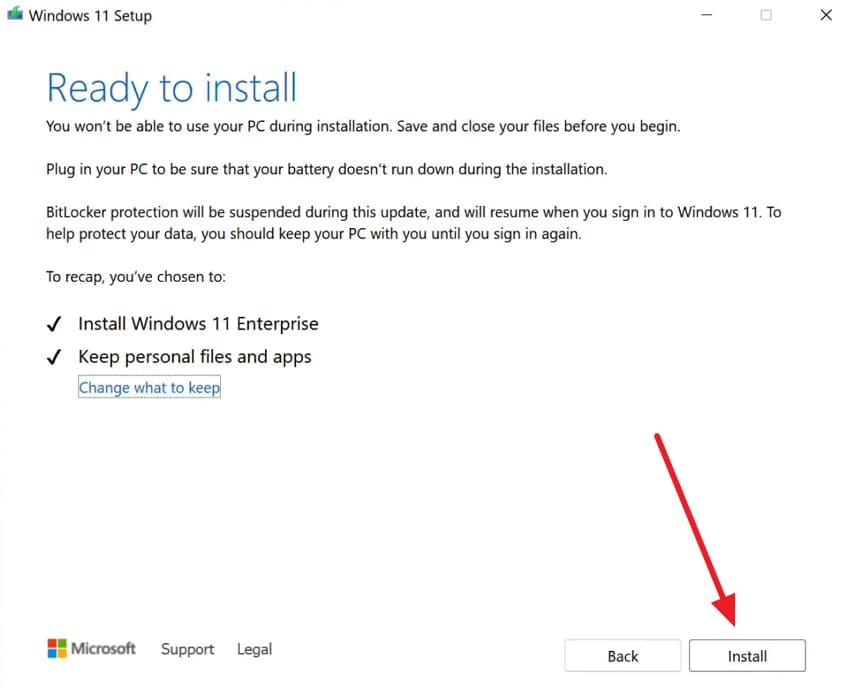
● If standard sfc /scannow and DISM commands fail to resolve error 0x80070306, you must perform an in-place repair upgrade by mounting the official Windows 11 ISO and selecting "Keeps Personal Files and Apps" to overwrite deep system corruption without data loss.
Ask AI for a summary
 ChatGPT
 Perplexity
 Gemini
 Claude
 Grok
Grok
Windows updates usually improve performance and overall system stability. However, installation issues can interrupt important fixes and create frustration. Many users report update failures, endless loading screens, or rollback messages. Windows 11 faced over 20 update failures during 2025–2026, according to CtrlAltNod. These problems often appear during recent cumulative update installations.
You can fix KB5089549 not installing on Windows 11 using proven methods. Similar issues can also affect the KB5087051 update installation process. Hence, this guide delivers reliable troubleshooting steps to resolve these specific update errors. You will also learn a practical method to repair your damaged or corrupted files.
In this article
Part 1. Why KB5089549/KB5087051 Updates Fail to Install?
Multiple system issues can silently block these critical updates from installing. To fix KB5087051 not installing on Windows 11, check common causes before fixes:
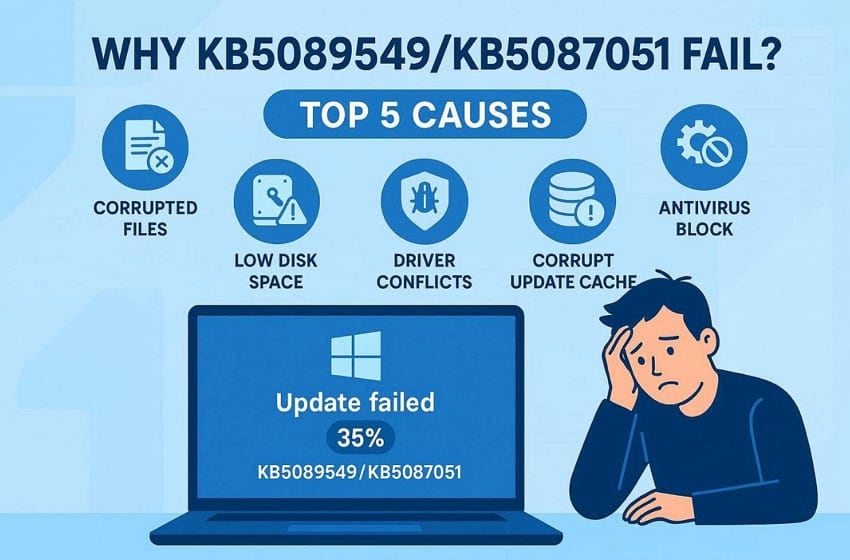
- Corrupted Files: System files may be damaged from interrupted installs or disk errors. Corruption prevents update verification and causes installers to abort.
- Insufficient Space: Low disk space on the system drive blocks downloads and extraction steps. Microsoft reports that KB5089549 fails at 35–36% when the EFI partition has under 10MB.
- Driver Conflicts: Outdated drivers can clash with new update components during installation. Incompatible drivers cause setup to halt or roll back to the previous state.
- Antivirus Interference: Real-time protection may block update files or installation services. Security software can falsely flag installers and interrupt the update process.
- Corrupt Cache: Damaged Windows Update cache files also stop proper update processing. Such a cache failure leads to repeated download or installation errors.
Part 2. Step-by-Step Fix for KB5089549 & KB5087051 Installation Problems
When you know the cause, you can use the effortless and more targeted fix. Explore these structured methods to fix the KB5089549 error 0x800f081f Windows 11:
Way 1. Run Windows Update Troubleshooter
Your system has a native tool that detects and resolves update-related errors. This troubleshooter scans your system and corrects misconfigurations that block update installations. Moreover, running this utility first saves time before attempting more complex solutions. It can fix the KB5087051 error 0x80070306 Windows 11 without requiring technical expertise. Hence, follow these straightforward instructions to initiate the system scan on your device:
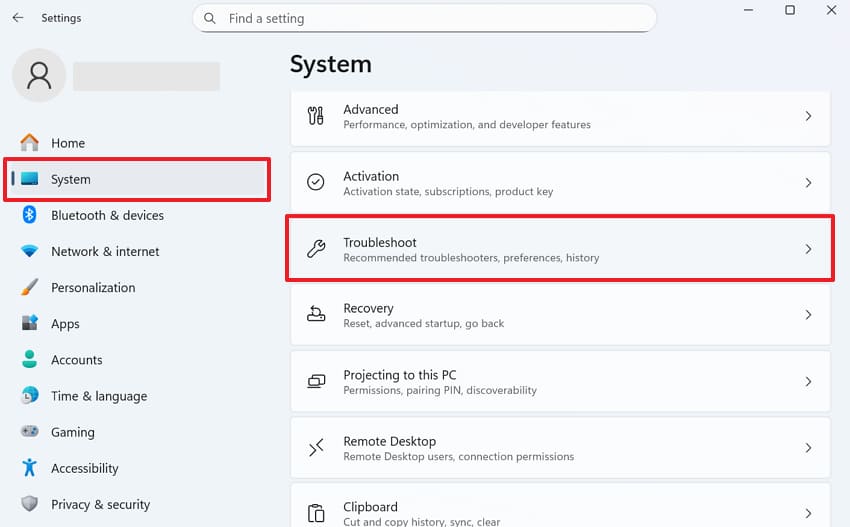
Step 1. Go to the "System" category upon pressing the "Windows + I" keys together. After that, scroll down to the options and select "Troubleshoot" to access tools.
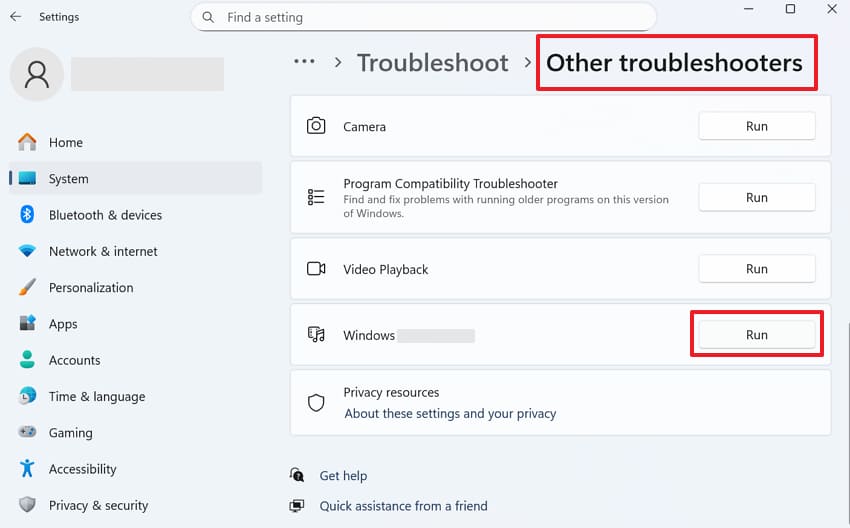
Step 2. You need to select and go to the "Other Troubleshooters" option. Find "Windows Update" in the list and click the "Run" button beside it to detect and fix issues.
Way 2. Free Up Disk Space (Especially System Drive)
Any updates require adequate free space on your system drive to install. If the available space is insufficient, update displays unwanted installation failure errors. Microsoft stated that failure to install KB5089549 produces the error code 0x800f0922, according to Bleeping Computer. That's the place you need to clear space so your system can download update files. So, adhere to these steps to fix KB5089549 not installing via this method:
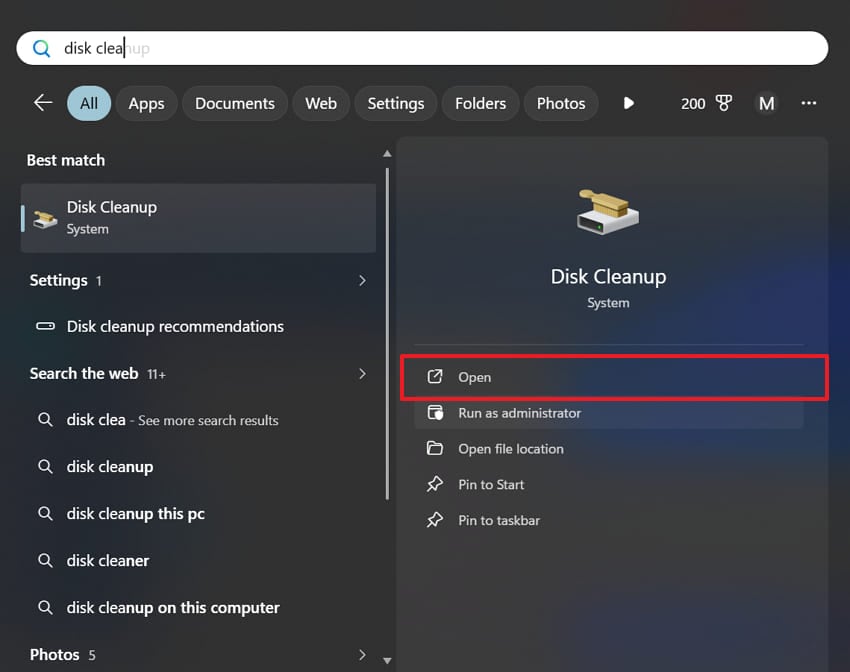
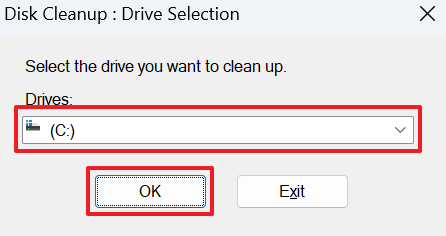
Step 1. Select "Open" after typing "Disk Cleanup" into the search bar to start the tool.
Step 2. Respond to the popup and select the "C:" drive from the list of drives and press "OK." It enables the system to figure out how much removable data there is.
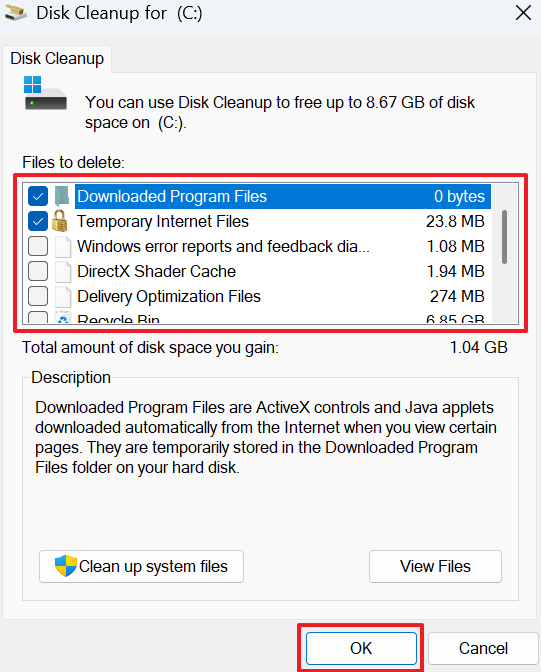
Step 3. Select the checkboxes for the temporary files or other files that you no longer need and click "OK."
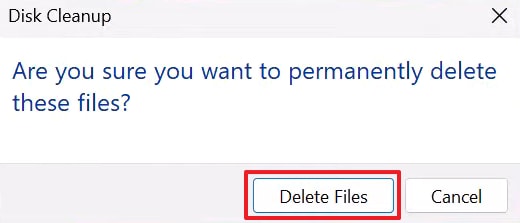
Step 4. You will then need to click "Delete Files" as a confirmation dialog appears.
Way 3. Temporarily Disable Antivirus
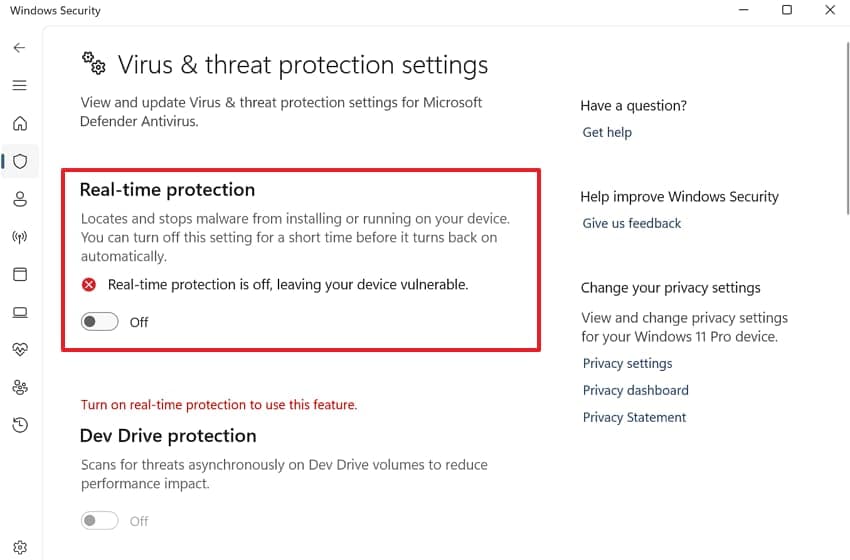
Some antivirus programs may also block the update files during installation. These security tools treat legitimate update components as potential threats to your system. This interference causes update failures and unexpected rollbacks on Windows 11. Upon disabling them temporarily, you allow the update to install without interruptions. Go through the given guide to fix KB5087051 not installing on Windows 11 upon disabling antivirus:
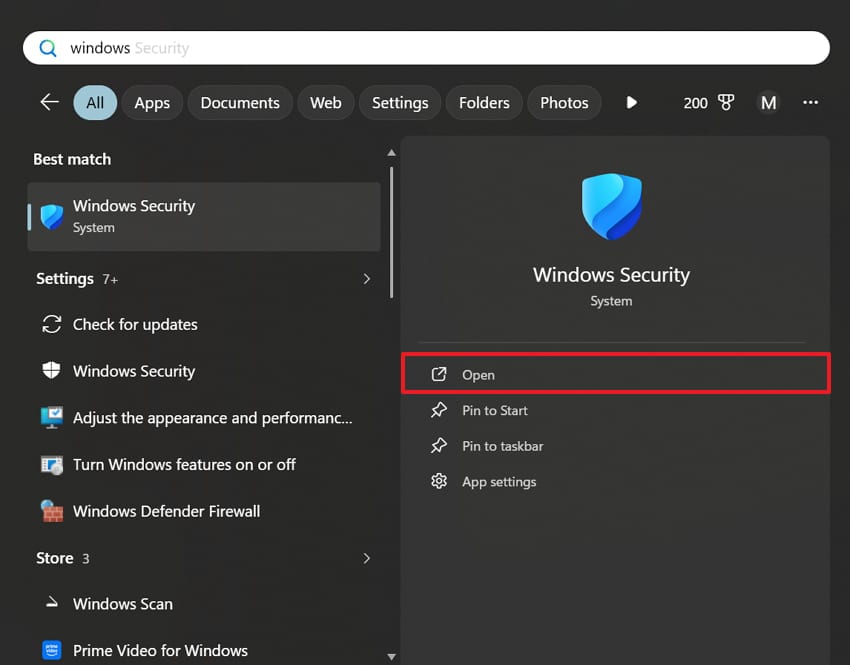
Step 1. Type "Windows Security" into the search bar and select "Open" from the search results.
Step 2. As the application opens, navigate to the "Virus & Threat Protection" settings.
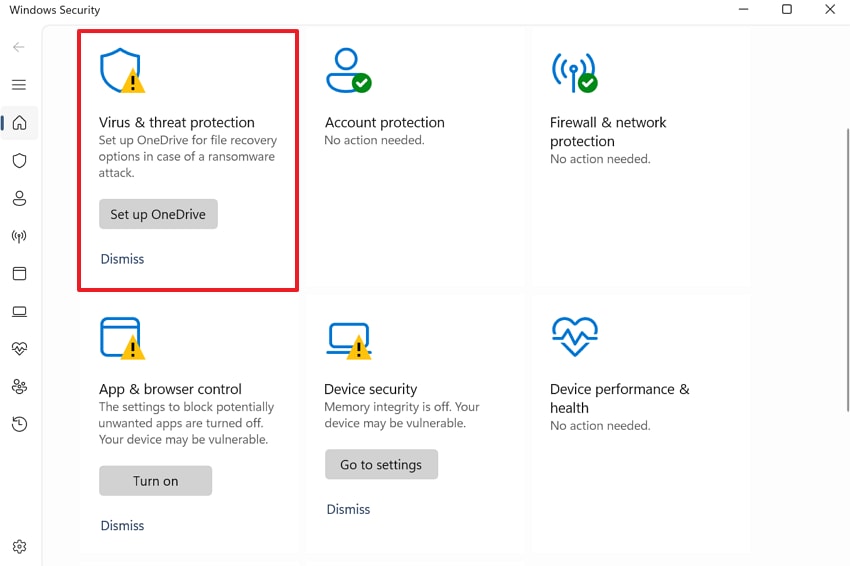
Step 3. Scroll down to the next screen and click "Manage Settings" to view security options.
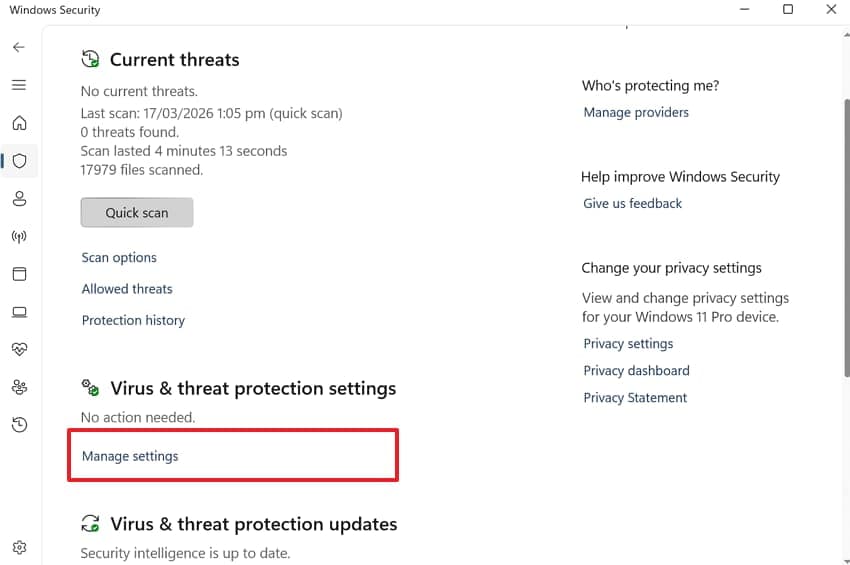
Step 4. Later on, locate the "Real-time Protection" option and switch its toggle off.
Way 4. Run SFC and DISM Repair
Corrupted system files are also another common reason updates fail. For that, Windows includes repair tools that scan and restore damaged system files. SFC checks protected files and replaces incorrect versions automatically afterward. The other command can repair the system image for the process of installing updates. These tools often fix the KB5089549 error 0x800f081f Windows 11. Hence, review the steps below to run these repair commands on your device:
Step 1. To initiate, opt for "Run as Administrator" after searching for "Command Prompt."
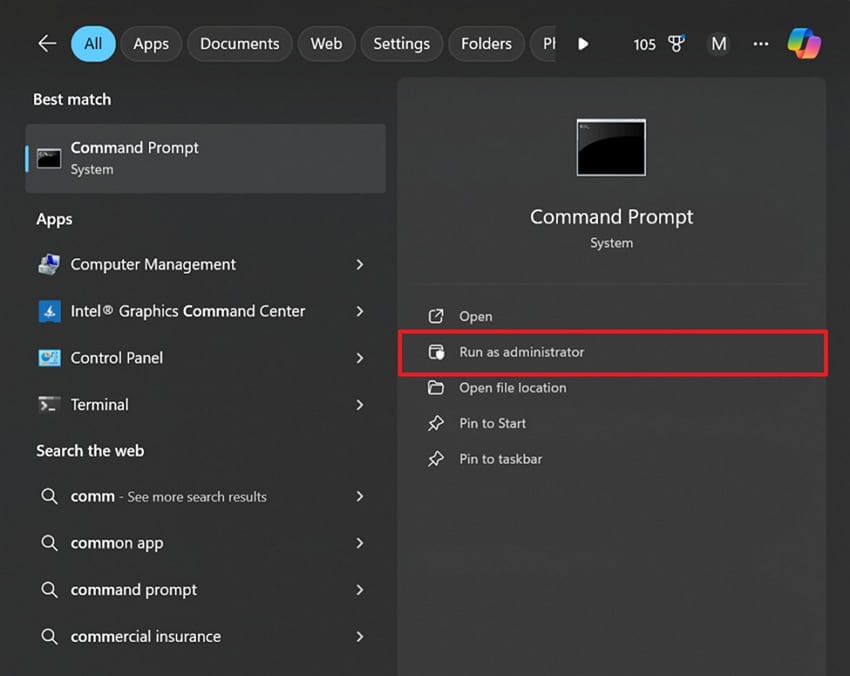
Step 2. In the screen, execute the command "sfc /scannow" to repair corrupted system files.
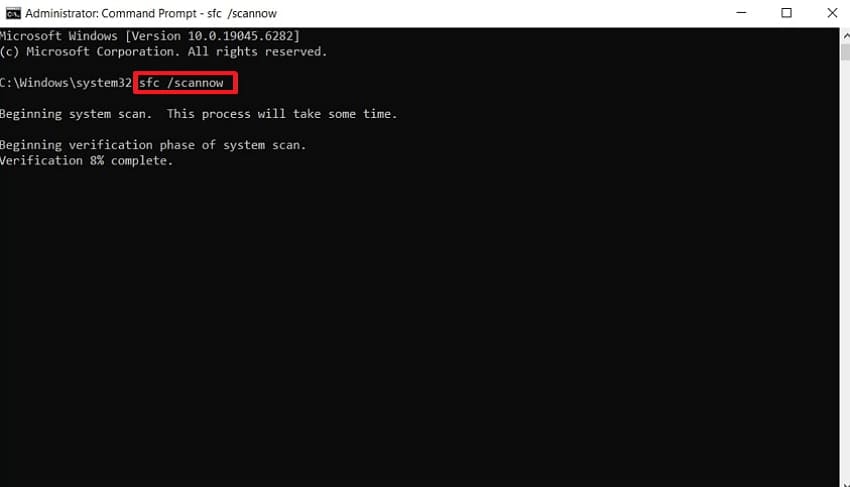
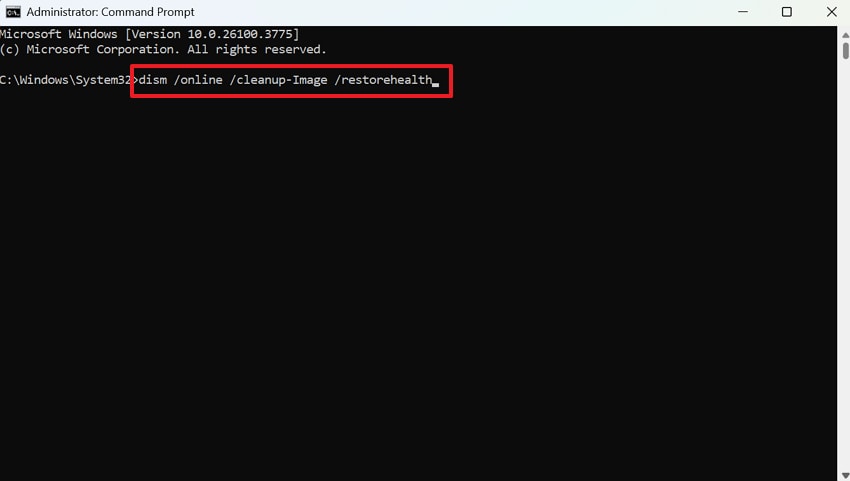
Step 3. Subsequently, enter the command "dism /online /cleanup-image /restorehealth" and let it complete. Once both processes are finished, restart your system to apply the fixes and resolve system errors.
Way 5. Reset Windows Update Components
Faulty update components can also cause repeated installation failures on your system. Users’ report on Learn Microsoft says KB5089549 is failing at 38% across multiple consecutive monthly updates. Yet, a reset clears corrupted data and restores all update components to their default state. This method can fix Windows 11 KB5089549 stuck at 35% rolling back changes. Thus, check the precise manual configuration instructions below to reset your components:
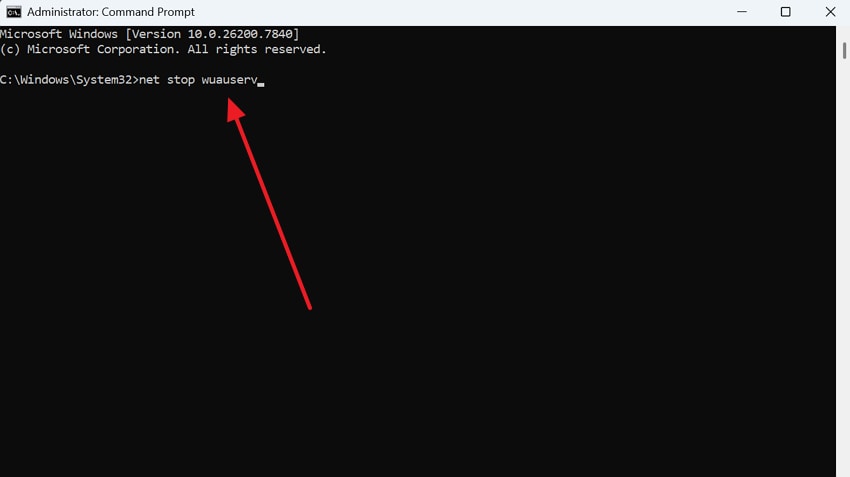
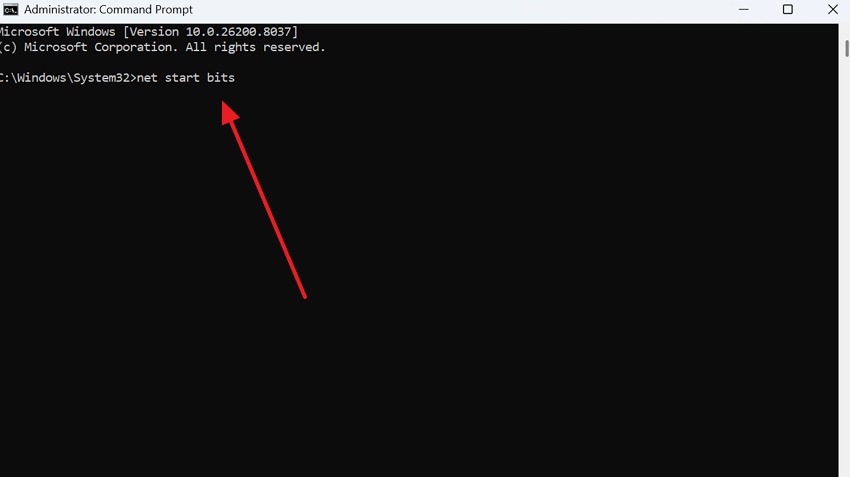
Step 1. Upon accessing the "CMD" screen, run the "net stop wuauserv" command. Later on, execute "net stop bits" and "net stop cryptsvc" commands one by one to stop services.
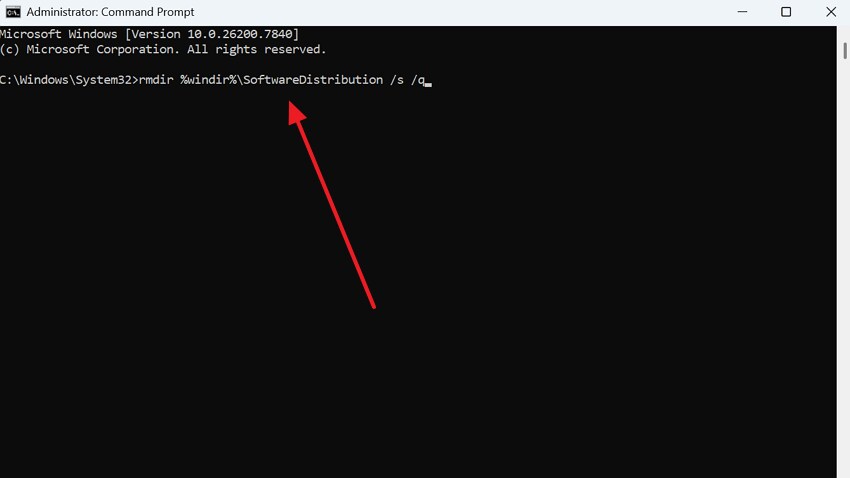
Step 2. After stopping the services, run the "rmdir %windir%\SoftwareDistribution /s /q" command. This will delete the corrupted update cache files stored in the system.
Step 3. Following that, restart the previously stopped services by running "net start wuauserv," "net start bits," and "net start cryptsvc." When completed, restart your system to apply the changes and fix the error code.
Way 6. Perform In-Place Repair Upgrade
Such an upgrade reinstalls Windows while keeping your files and settings intact. This method replaces damaged system components that simpler methods cannot address. It repairs deep corruption issues without requiring a complete system reinstallation. This approach can also fix the KB5087051 error 0x80070306 Windows 11 when other methods fail. Anyhow, let’s explore these steps below to perform an in-place repair upgrade on your device:
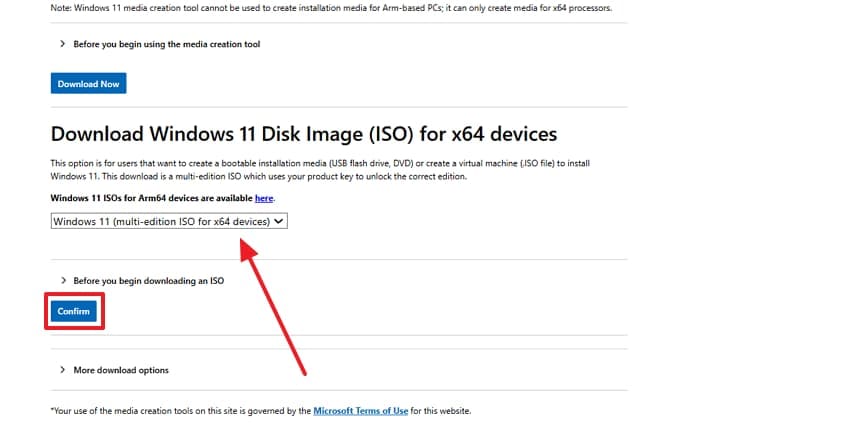
Step 1. As you search for "Download Windows 11," open the official "Microsoft" website. Scroll to the "ISO" section to select "Windows 11" and click "Confirm."
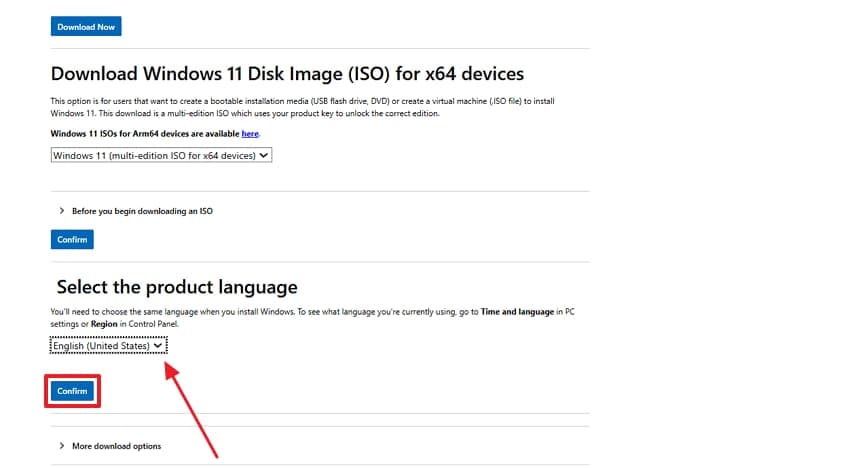
Step 2. Choose your preferred language from the available options and press "Confirm" again.
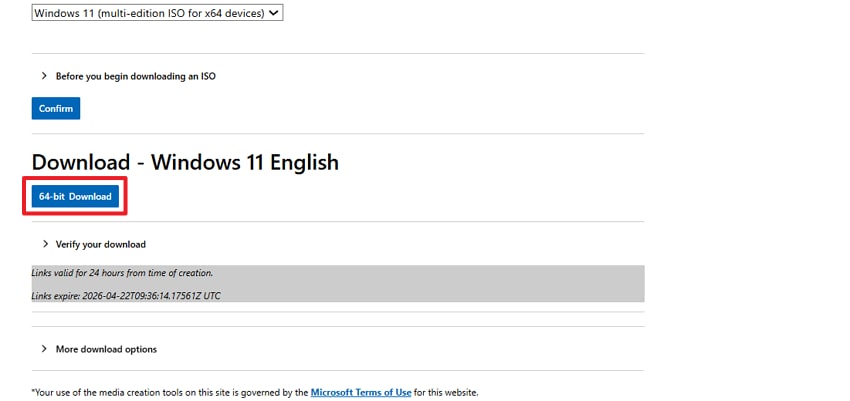
Step 3. Later on, click the "64-bit Download" button to initiate downloading the ISO file.
Step 4. Moving forward, you will then need to right-click the "ISO" file and select "Mount." As prompted by "User Account Control," it’s important to hit "Yes."
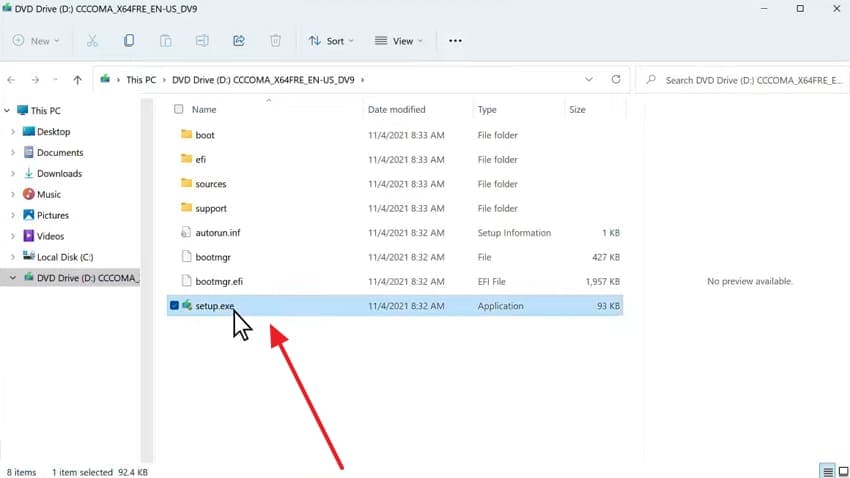
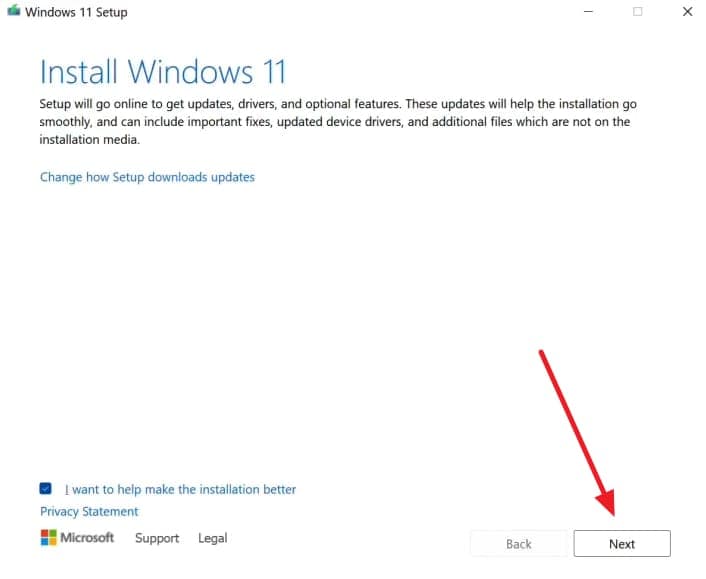
Step 5. Subsequently, open the mounted drive and click "Next" for the Windows installation setup.
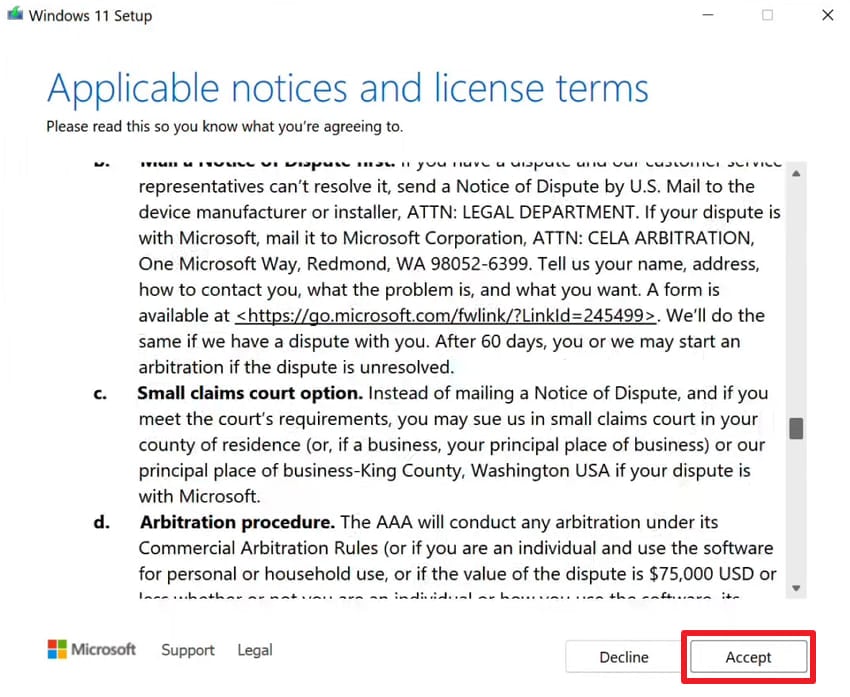
Step 6. Upon seeing the "Applicable Notices and License Terms" prompt, press "Accept" to continue.
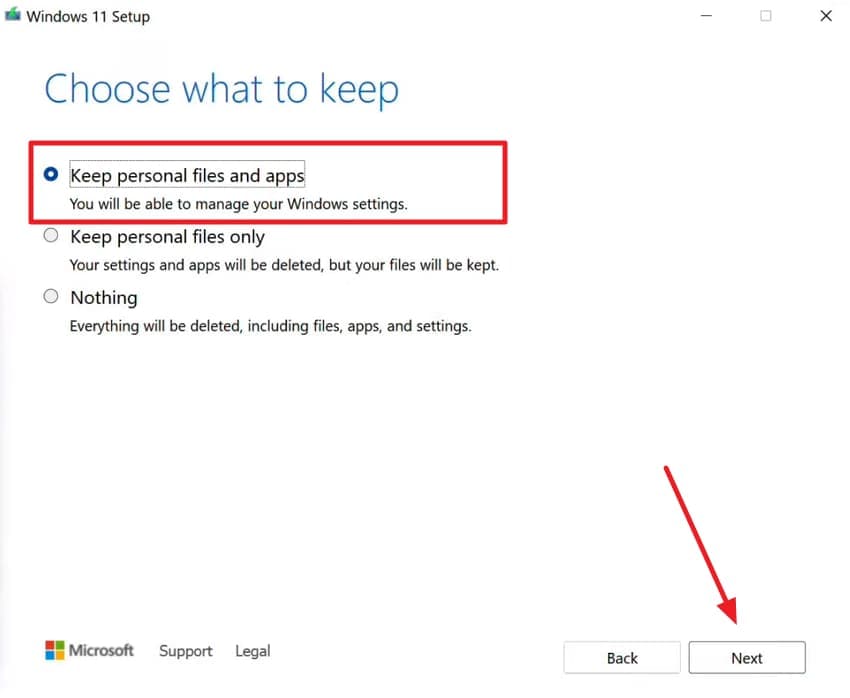
Step 7. Select "Keeps Personal Files and Apps" to preserve your existing data, then click "Next."
Step 8. Go ahead and press "Install" to start the upgrade and complete the installation.
Way 7. Use Known Issue Rollback (KIR Fix If Available)
Microsoft releases Known Issue Rollback fixes when updates cause widespread problems. These fixes reverse problematic changes that a faulty update introduced to your system. KIR solutions are delivered through Group Policy and require no manual file installation. This method is also useful when no other approach resolves your update problem. If available, Microsoft automatically applies the KIR fix through your Windows Update settings.
Advanced Tip. Repair Corrupted Documents or Files with Repairit
Windows update failures like KB5089549 and KB5087051 can also corrupt your important files. Corrupted documents may become unreadable or may refuse to open afterward. These file-level damages require a repair tool beyond standard troubleshooting methods. To cater to these needs, programs like Repairit may restore files without modifying original content.
While repairing, this AI-powered tool restores unreadable files that compatible apps can no longer parse. Garbled files with distorted or mixed content can also be repaired accurately by Repairit. Moreover, the software fixes files that refuse to open due to logical errors or corruption. Repairit even offers a batch repair feature, letting you fix multiple corrupted files together.
Key Features

-
File Formats Recovery: Repairit detects and recovers corrupted files of 30+ formats damaged during failed Windows update installations.
-
Layout Change Fix: Restores distorted document layouts and formatting that changed unexpectedly during Windows update installation failures.
-
Missing Header Correction: The AI engine automatically fixes broken file headers caused by abrupt software blockages during file installation or transfer.
Comprehensive Guide to Repair Corrupted Documents or Files with Repairit
This tool provides a straightforward three-step process to repair any level of file corruption. Thus, you need to go through these simple steps below to restore your corrupted files:
Step 1. Import Damaged or Corrupted Documents
From the tool’s "More Types Repair" tab, click "Start" on the "Document Repair" feature. Next, use the "+Add" button to import the files that became corrupted.

Step 2. Choose Repair to Fix Corrupted Files
Click "Repair" after the files are loaded to initiate the recovery procedure. Its AI algorithms will scan each file to detect issues and restore damaged content where possible.

Step 3. Export Documents After Previewing
Check the recovered documents with the "Preview" option as the tool ends repairing. If the repair passes, click "Save" and choose a location to store the repaired files.


Conclusion
In conclusion, update failures can disrupt your system security and productivity. Yet, you have now discovered 7 methods to fix KB5089549 not installing on Windows 11. Each solution targets a specific root cause to deliver the most effective resolution possible. However, update failures can also leave your important documents corrupted and inaccessible. For that reason, tools like Repairit may be a viable solution to restore those corrupted files.
FAQ
-
How long does KB5089549 typically take to install on Windows 11?
This particular update might take between 15 and 45 minutes, depending on your system speed. Older hardware or slower internet connections may extend the installation time. In case it exceeds one hour, your update process may have encountered an error. -
Will resetting Windows Update components delete my personal files or data?
Resetting such components only clears the update cache and resets related service settings. Your personal files and system settings remain untouched throughout the process. Thus, this method is safe and does not affect your stored documents or data. -
Is it safe to skip KB5089549 or KB5087051 updates temporarily?
They may be declined, but this will leave your system open to security threats. These "cumulative updates" include important patches against attacks that are known to exist. That’s why it is recommended to install them as soon as the error is resolved. -
Can corrupted Office documents be recovered after a failed Windows update?
Failed Windows updates rarely corrupt Office files directly, though crashes or interrupted writes can damage open documents. Programs such as Repairit may restore corrupted Office files, including Word and Excel. This tool keeps the original formatting and lets you preview it before export.




