 TL;DR:
To fix files corrupted by interrupted or conflicting system updates, run Windows command-line utilities to repair OS dependencies, revert system changes via System Restore, or use dedicated file repair software to rebuild heavily damaged data headers.
● Execute DISM /Online /Cleanup-Image /RestoreHealth in an Administrator Command Prompt to restore damaged images via Windows Update, followed by sfc /scannow to repair local file dependencies.
● Utilizing System Restore safely reverts the operating system to a pre-update timestamp without deleting personal documents, but it will remove any applications or system settings configured after the restore point was created.
● For files displaying unreadable content or a 0 KB size, native tools cannot rebuild internal structures, requiring third-party utilities like Repairit File Repair (compatible with Windows Vista/7/8/10/11 and macOS X 10.12 or later) to reconstruct broken file headers.
Ask AI for a summary
 ChatGPT
 Perplexity
 Gemini
 Claude
 Grok
Grok
A system update is designed to improve your device, but in some cases, it can lead to file corruption after system update. This may happen if the update is interrupted, software becomes incompatible, or system changes affect existing files. If your documents no longer open or media files become damaged, learning how to repair files after system update can help restore your important data. This guide explains the common causes of update-related file corruption and the most effective ways to recover affected files.
In this article
Why System Updates Can Damage Files
System updates improve security and performance, but they also make major system changes that can sometimes cause file corruption after system update. Knowing the common causes can help you recover files more effectively.
Common Causes of File Corruption
- Sudden shutdowns, power loss, or forced restarts during updates can leave files incomplete or unreadable.
- Major updates may alter how files are stored, which can sometimes damage or block access to existing data.
- Antivirus tools, outdated drivers, or third-party apps may interfere with updates and cause file errors.
Other Possible Triggers
- Sync conflicts during updates can result in incomplete or corrupted files.
- Temporary file backups or transfers during updates may fail, causing files to go missing or become damaged.
Common Signs of File Corruption
Before you repair files after system update, it is important to identify whether your files are corrupted.
Common Signs of File Corruption
- File Errors - Messages like “Invalid File Format” or “Cannot Open File.”
- Unreadable Content - Documents show missing text, random symbols, or scrambled data.
- Damaged Media Files - Photos, videos, or audio appear distorted, pixelated, or won’t play properly.
- Missing or Empty Files - Show 0 KB size, or folders appear empty despite using storage space.
- System Freezing - Your device may freeze or stop responding when opening affected files.
- Broken File Links - Saved file paths may no longer work after the update due to system changes.
Basic Fixes to Restore File Integrity
Before using advanced recovery methods, you can often fix file corruption after system update using built-in Windows tools. These help repair system errors and restore access to damaged files.
Fix 1. System File Checker (SFC)
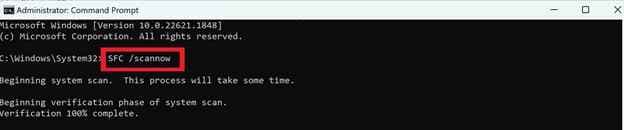
SFC scans and repairs corrupted system files using healthy backup copies stored in Windows.
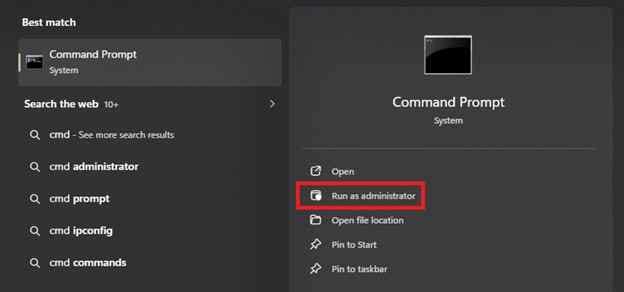
Step 1. Open the Command Prompt as an Administrator by typing cmd in the search bar.
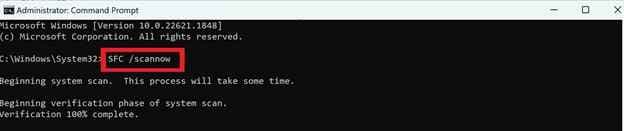
Step 2. Input the command sfc /scannow and press Enter; wait for the verification and restart your device.
Fix 2. DISM Tool
DISM repairs deeper system issues by restoring missing or damaged system image files through Windows Update.
Step 1. In Command Prompt, type DISM /Online /Cleanup-Image /RestoreHealth and hit Enter.
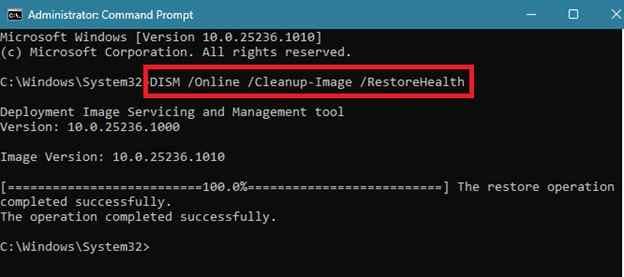
Step 2. Once the operation completes successfully, run the sfc / scannow scan again to ensure all local dependencies are fully repaired.
Fix 3. CHKDSK
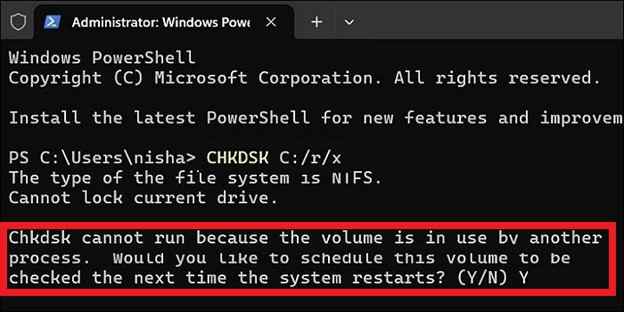
CHKDSK checks your drive for file system errors and fixes issues like bad sectors or broken file links.
Step 1. Type chkdsk C: /f /r into the Command Prompt (replace "C" with your specific drive letter).

Step 2. If prompted to schedule the volume check for the next restart, type Y and reboot your computer to allow the deep scan to proceed.
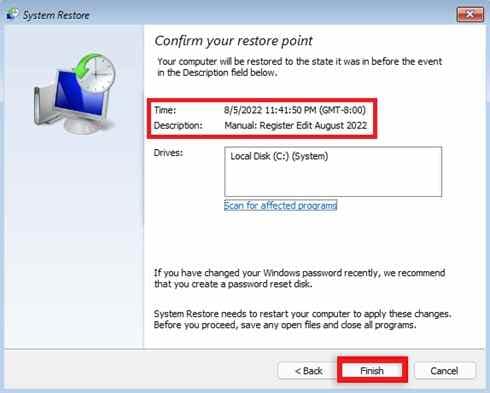
Fix 4. System Restore
System Restore rolls your system back to a previous working state before the update that caused the issue.
Step 1. Search Create a restore point in Windows, then look for System Protection and choose System Restore.
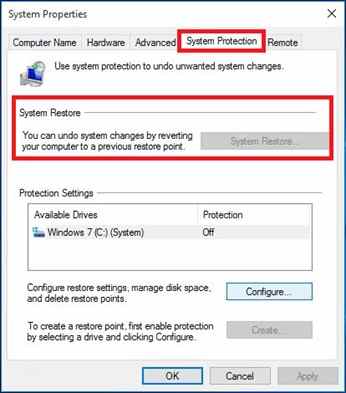
Step 2. Select a timestamp created just before the system update and follow the prompts to revert the OS environment.
Fix 5. File History / Backups
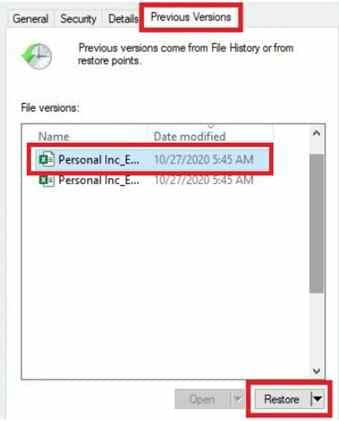
File History lets you recover earlier versions of files from backups if the current ones are damaged or unreadable.
Step 1. Right-click the corrupted file, select Properties, and navigate to the Previous Versions tab.
Step 2. Select a version that predates the update, and click Restore to overwrite the damaged file.
Advanced Fix to Restore Severely Corrupted Files
If built-in Windows tools cannot fix the issue, the problem may be deeper and involve the file’s internal structure. In this case, you may need advanced tools to repair files after system update and restore damaged data.
It CAN:
- Repair damaged headers so files can be opened again.
- Restore files that were cut off or partially saved.
- Eliminate glitches that cause distorted images, audio, or video.
- Process large batches of corrupted files efficiently.
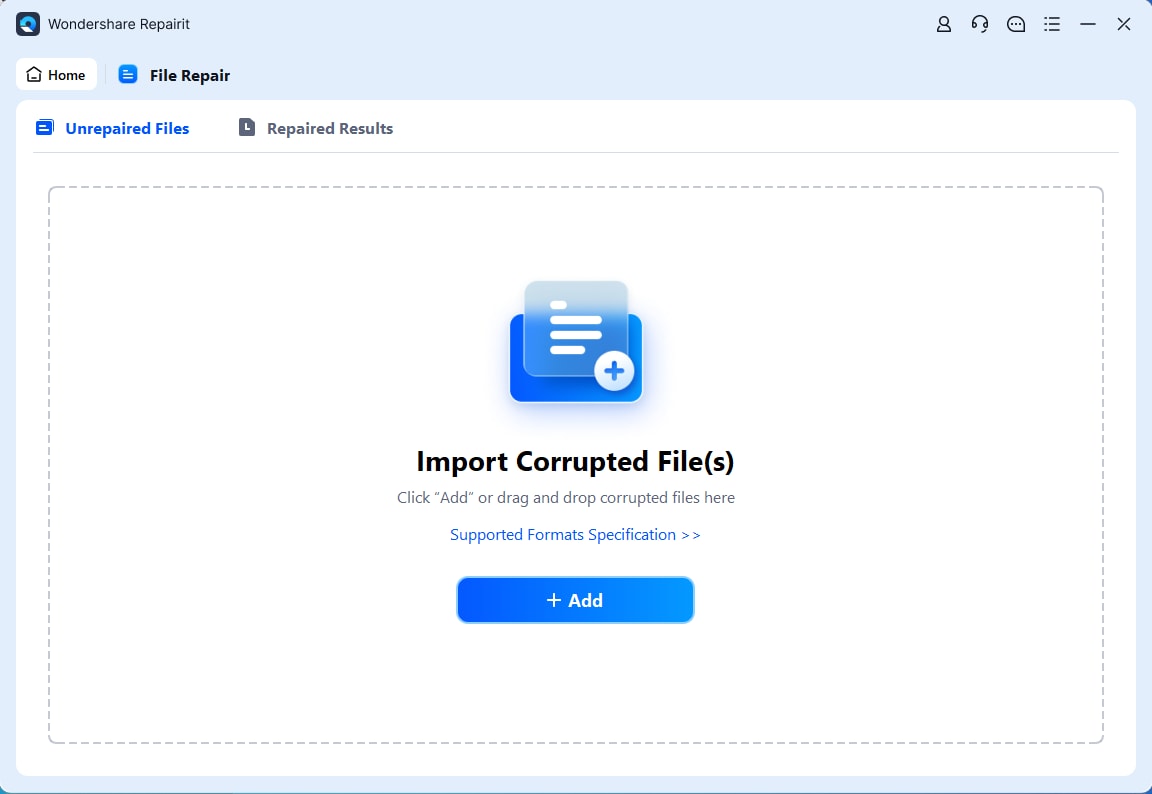
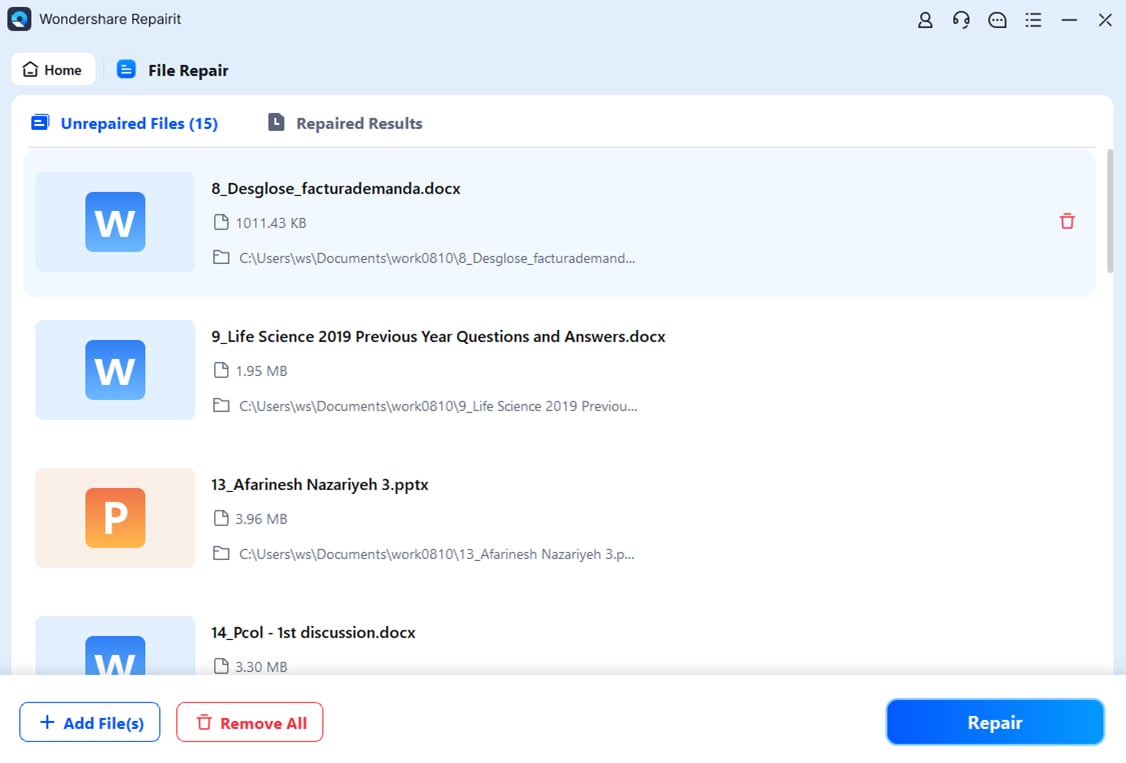
One example is Repairit File Repair, which supports common document formats like DOCX, PDF, XLSX, and PPTX, as well as media files such as MP4, JPG, and PNG. It uses an advanced repair mode that can analyze file structure and rebuild heavily damaged files, even when the system can no longer
Step-by-Step (Optional)
Step 1. Upload the corrupted file.
Step 2. Start the Repair process.
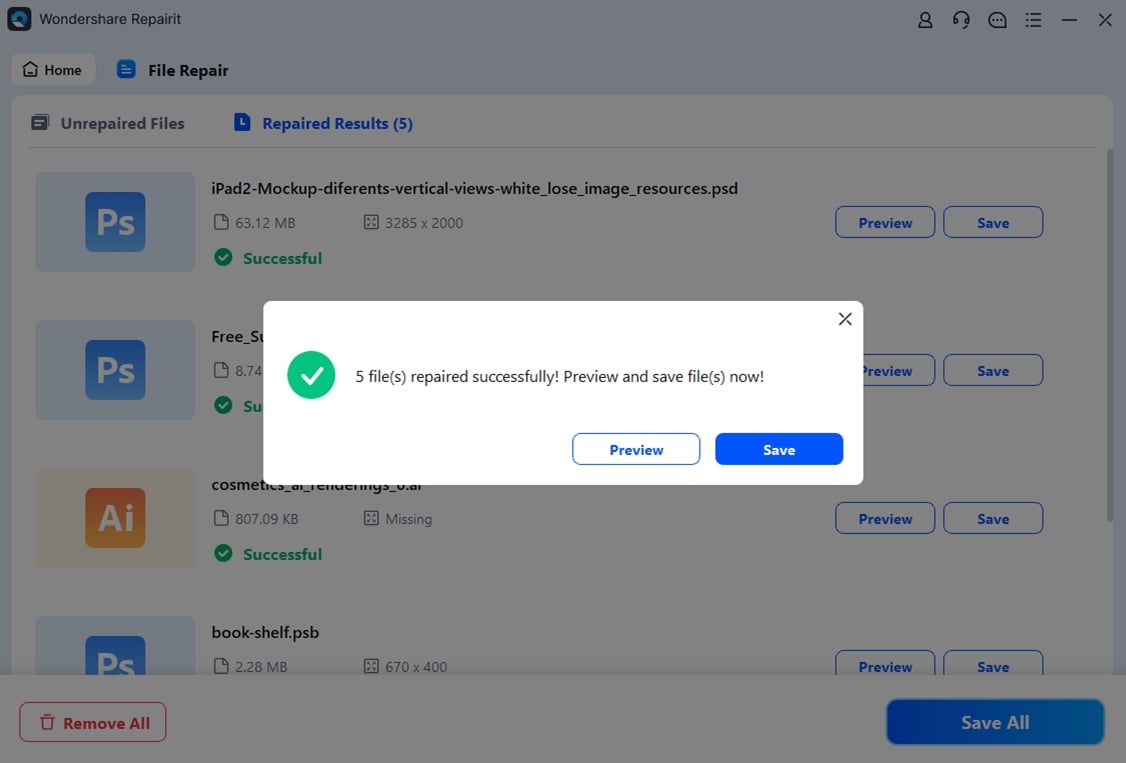
Step 3. Preview and save the restored file to a new location.
How To Prevent Future File Issues
Preventing file corruption after system update is easier than fixing it afterward. By preparing your system properly, you can reduce the risk of data loss during updates.
Simple Prevention Tips
- Keep your device plugged in during updates to avoid interruptions that can damage files.
- Regularly check your disk using tools like CHKDSK to fix small errors before they become bigger problems.
- Temporarily disable antivirus during updates if needed.
- Follow the 3-2-1 backup rule to protect important files (3 copies of files, 2 different storage, 1 copy in cloud).
- Clean temporary files before major updates to reduce errors.
Conclusion
File corruption after system update can be frustrating, but it is usually fixable. Using built-in tools like SFC and CHKDSK or advanced repair methods can help you repair files after system update and recover important data. To avoid future issues, always keep backups and ensure your device stays powered during updates.
FAQs
-
Why do files become corrupted after a Windows update?
This usually happens due to interrupted updates or conflicts between the update and existing software, which can make some files unreadable. -
Can files with 0 KB size be recovered?
Sometimes yes. A 0 KB file often means missing data, but you may recover it using file recovery tools or previous file versions. -
Is SFC safe to use?
Yes. SFC is a built-in Windows tool that safely repairs system files without affecting your personal documents. -
Will System Restore delete my files?
No, it keeps personal files, but it may remove apps or settings added after the restore point. -
How can I tell if it’s a hard drive issue or just the update?
If only recent issues appear after the update, it’s likely software-related. Widespread file failures may indicate a hardware problem.