
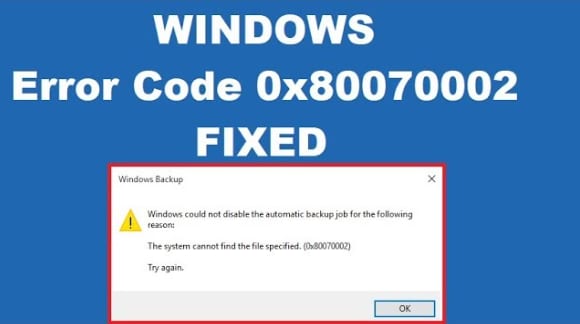
The error 0x80070002, "the system cannot find the file specified," represents more than a routine system notification. It's a clear indication that an important file or component required for an operation is missing or inaccessible. Whether you’re working on Windows 10 or 11, this uncertain disturbance ultimately raises concerns about system stability. Addressing this error is therefore essential, as prolonged neglect can lead to repeated failures or data inconsistencies.
With a clear understanding, you can identify all possible causes and apply effective fixes to resolve them. For optimal Windows performance, simply go through the guide and try the suggested fixes for your version.
Table of Contents
-
- Fix 1. Correct Date and Time Settings
- Fix 2. Verify the File Path and Target Location
- Fix 3. Run a Full Malware Scan
- Fix 4: Delete or Reset the SoftwareDistribution Folder
- Fix 5. Run Windows Update Troubleshooter
- Fix 6. Run CHKDSK and SFC Scans
- Fix 7. Reinstall the Affected Driver or Software
- Fix 8. Check Windows Registry Entries (Advanced)
- Fix 9. Reset Windows Update Components via Command Prompt
- Fix 10. Perform a System Restore
Part 1. Understanding 0x80070002: The System Cannot Find the File Specified
Error 0x80070002 is a Windows error code that means "The system cannot find the file specified." Take it as Windows started a task, but one or more required files are missing or unreachable at the expected path. This might occur when updating or backing up component download files, but some files may be damaged or deleted.
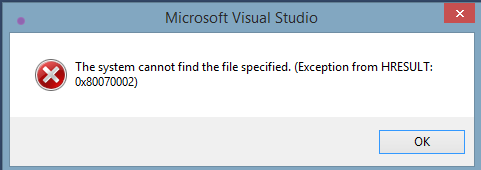
In fact, Windows is saying, "I am ready to work," but the piece I need isn’t where it was told to be. As a result, whether it's Windows 10 or 11, the operation stops and shows an error instead of completing the task.
Common Scenarios Where 0x80070002 Appears
Before fixes, identifying the context where this 0x80070002 Windows error appears ensures a more accurate solution:
- During Windows backup or system restore, and the backup includes folders/files that have been moved or deleted.
- If the install or uninstall software command points to the wrong file path or executable.
- When accessing drives or external devices (USB drives, external HDDs) that are disconnected or have disk errors.
- It occurs when system files used by Windows Update or backup tools are corrupted due to a power loss.
- The error occurs when update files are missing or corrupted during Windows Update, causing the action to fail.
Part 2. 0x80070002 in Windows 11: Causes and How It Differs from Windows 10
Precisely, error 0x80070002 Windows 11 occurs when running Windows Updates or installing a feature upgrade. This happens because temporary update files in the "SoftwareDistribution" folder are corrupted or incomplete.
Other possibilities include services like Windows Update or BIOS failing, or basic settings such as date and time being incorrect. In most cases, the error appears as "Install error - 0x80070002" in Windows Update, and the user is returned without progress.
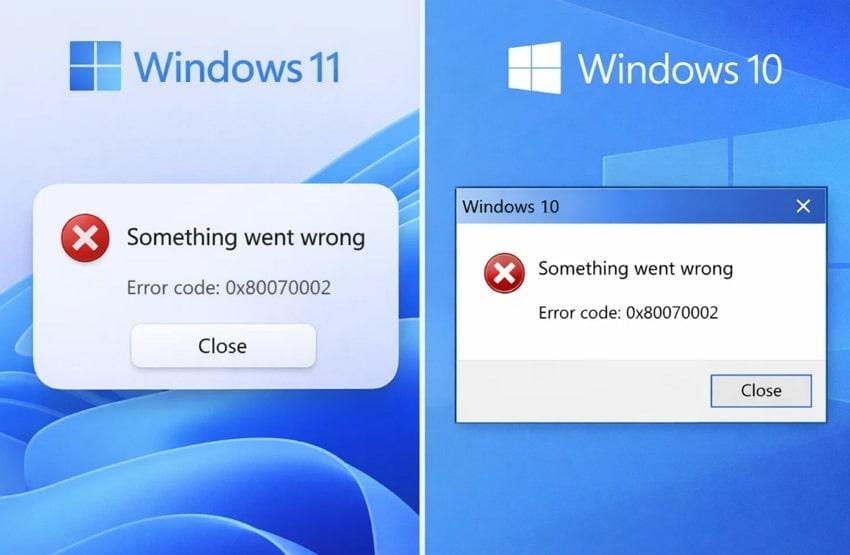
Error Difference in Windows 10 vs. Windows 11
While the error appears in both Windows 10 and 11, explore the provided distinctions to apply a suitable solution for your version:
| Key Considerations | Windows 10 | Windows 11 |
| Most Common Trigger | Fails mainly on regular updates and backups | Seen more often on feature upgrades and cumulative updates |
| Cause Pattern | Missing/corrupted update files or misconfigured update folders | Exact causes plus stricter checks for components, drivers, and security requirements |
| Hardware/Security Checks | Fewer mandatory checks (no TPM 2.0 requirement, looser CPU list) | Update may fail with 0x80070002 if unsupported CPU/TPM/Secure Boot |
| Frequency on Older Hardware | Common but usually flexible without hardware changes | Can persist if the device barely meets or fails the Windows 11 hardware baseline |
| Built-in Repair Behavior | Standard Windows Update troubleshooter and manual reset options | Similar tools, but the Update troubleshooter more often proposes automated repairs |
Part 3. How to Fix 0x80070002 on Windows 10 & 11 (Step-by-Step)
To deal with the 0x80070002 Windows 10 or 11 error, a structured approach guarantees that both surface-level and underlying system conflicts are resolved. Considering this, each solution below is precisely explained with stepwise guidelines to address every cause for this error:
Fix 1. Correct Date and Time Settings
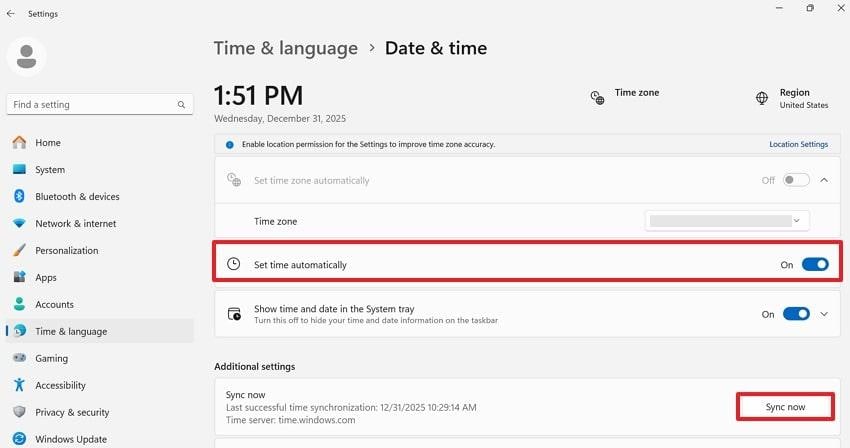
Your system’s date and time are important because Windows relies on proper time synchronization to communicate with Microsoft servers. If they’re incorrect, correct them in the settings first to improve overall system reliability and stability. Follow the manual to overcome the "0x80070002 Windows" error to complete the remaining task:
Step 1. Enter your Windows "Settings," access the "Time & Language" section, and press the "Date & Time" option.
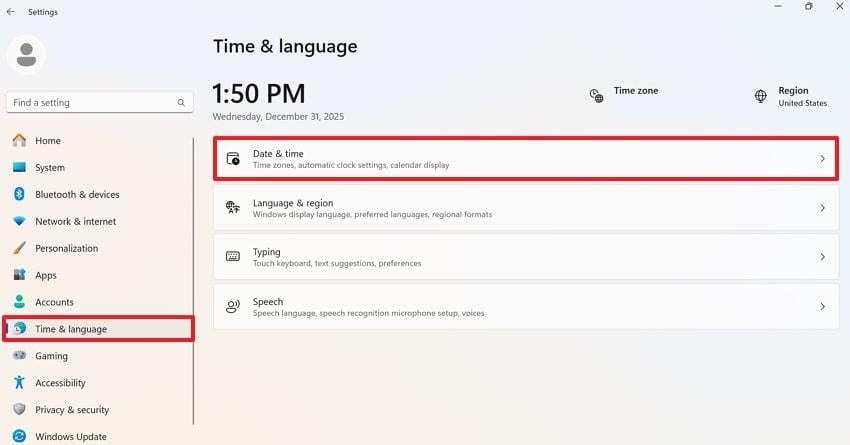
Step 2. Enable the "Set Time Automatically" option or manually set the correct time zone. After this, click the "Sync Now" button under "Additional Settings" to synchronize your system clock. Restart your system and retry the operations to check if the error persists.
Fix 2. Verify the File Path and Target Location
Many instances of the 0x80070002 Windows 11/10 error are due to missing, moved, or incorrect reference files. Once you verify the file and ensure that the target location is correct, you prevent failed operations caused by mislocated files. For this, identify the file/folder mentioned in the error message and locate its saved location in File Explorer.
Fix 3. Run a Full Malware Scan
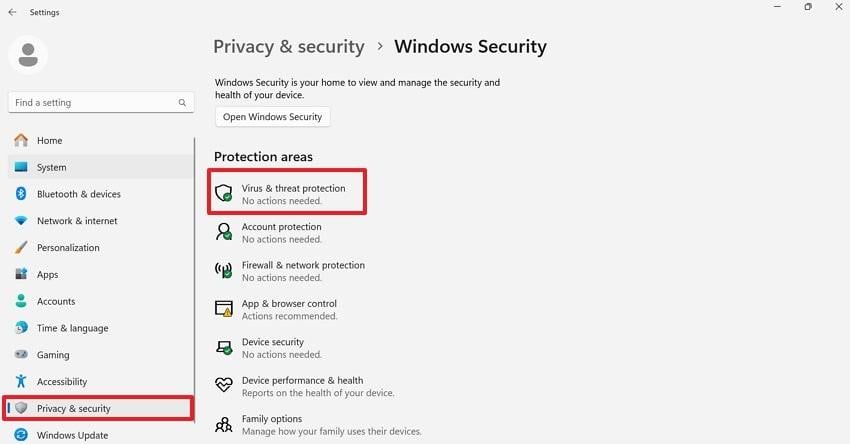
Malware or malicious scripts can delete, block, and even alter essential system files, often causing the 0x80070002 error. A comprehensive malware scan helps detect and remove these threats, protecting your files and restoring system components. Adhere to the tutorial and resolve the current error, while strengthening the system security of your Windows:
Step 1. Opt for the "Privacy & Security" section and click the "Virus & Threat Protection" option.
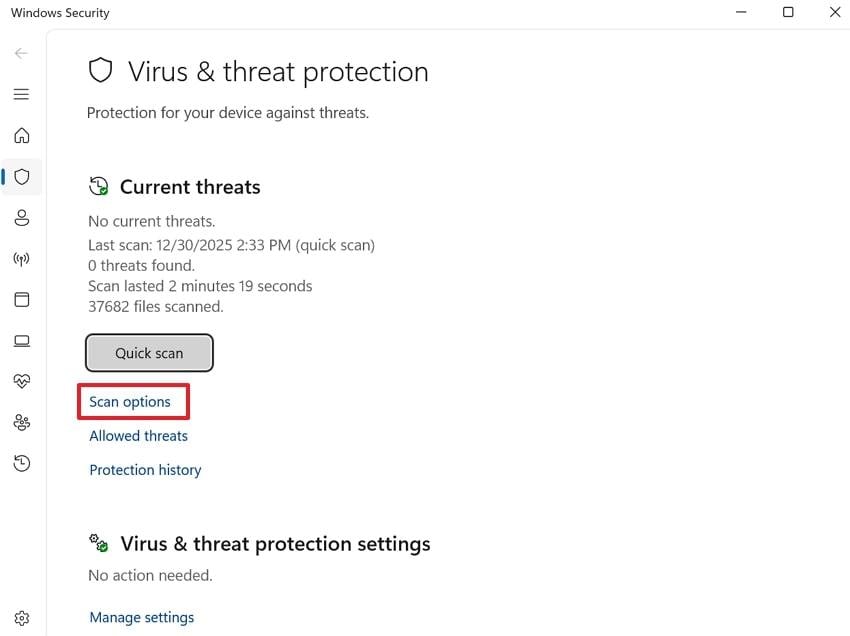
Step 2. As you proceed further, press "Scan Options" to go for a full malware scan.
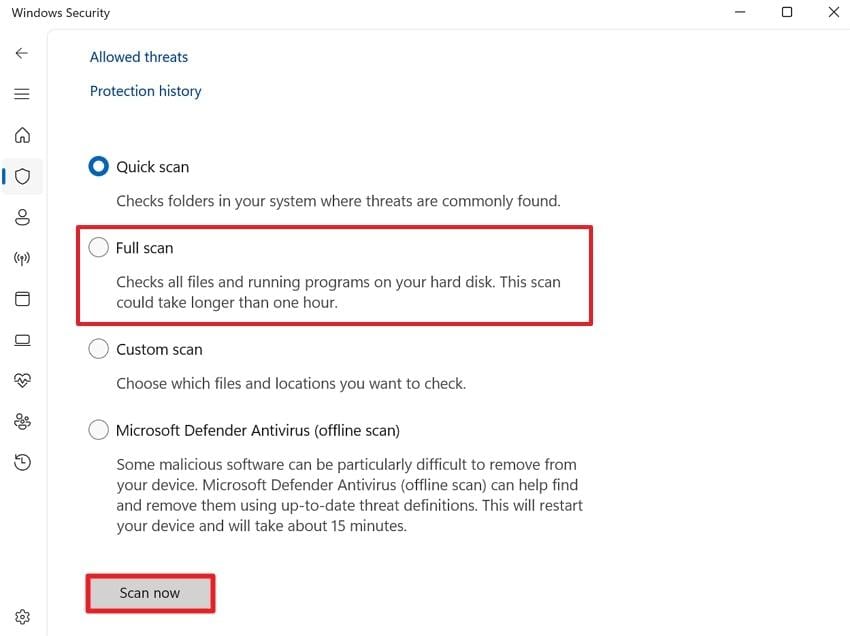
Step 3. From the "Scan Options," choose the "Full Scan" radio button and press the "Scan Now" to run a deep scan.
Fix 4: Delete or Reset the SoftwareDistribution Folder
The SoftwareDistributor folder stores temporary files for Windows Update, and corruption in this folder causes a 0x80070002 Windows 11 error. Therefore, delete or reset this folder to force Windows to recreate a fresh update cache and eliminate corrupted files. To proceed, simply follow the guidelines as directed and delete the SoftwareDistribution folder:
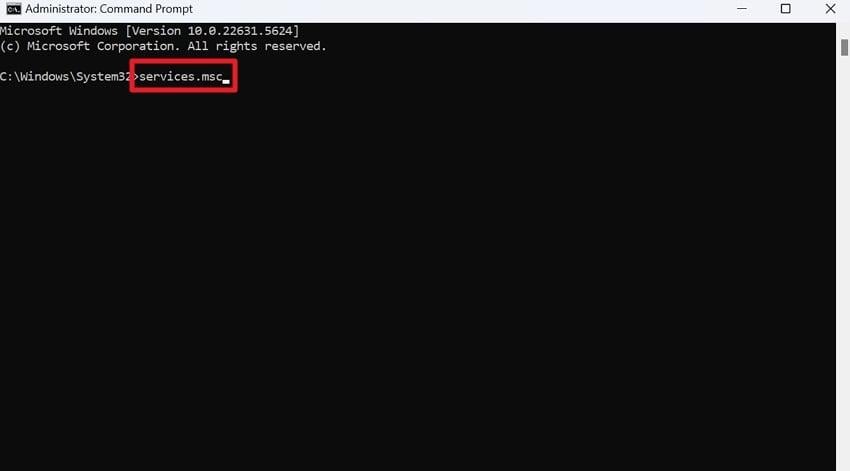
Step 1. Initially, run Command Prompt as an administrator, then type "services.msc" and press "Enter."
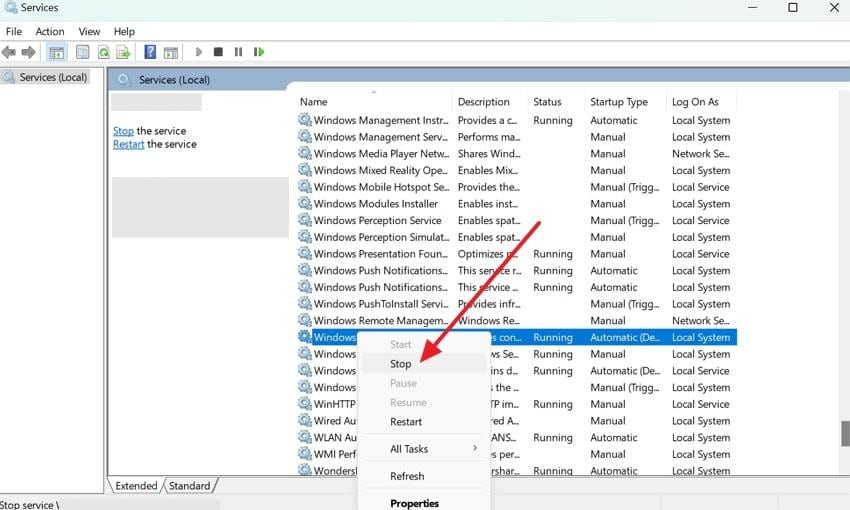
Step 2. Now, locate the "Windows Update" option, right-click it, and choose the "Stop" option.
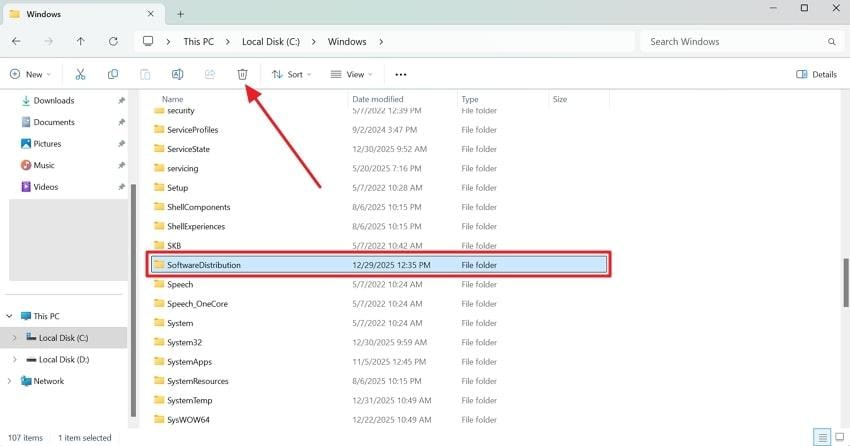
Step 3. After this, access the File Explorer and follow this path: "This PC" > "Local Disk C:/" > "Windows" > " SoftwareDistribution." Once done, select the folder and press the "Delete" icon to remove it permanently. Now, go back to "Services," right-click on "Windows Update," and choose "Restart."
Fix 5. Run Windows Update Troubleshooter
Windows Update Troubleshooter is a pre-installed tool that automatically scans for common update-related issues. While running, it helps detect and fix problems without manual intervention, saving time and reducing the recurrence of 0x80070002. For better understanding, follow the tutorial and learn how to run Windows Update Troubleshooter:
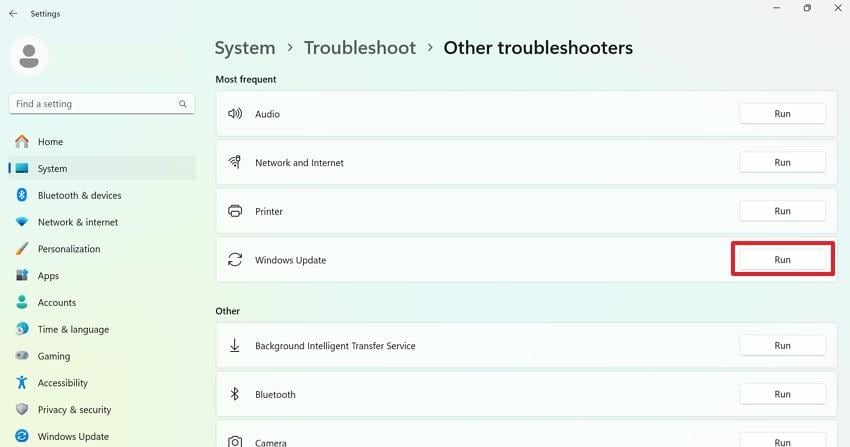
Step 1. On your Windows "Settings," access the tab for "System" and choose the "Troubleshoot" option. Later, select the "Other troubleshooters" on Windows 11 and "Additional troubleshooters" on Windows 10.
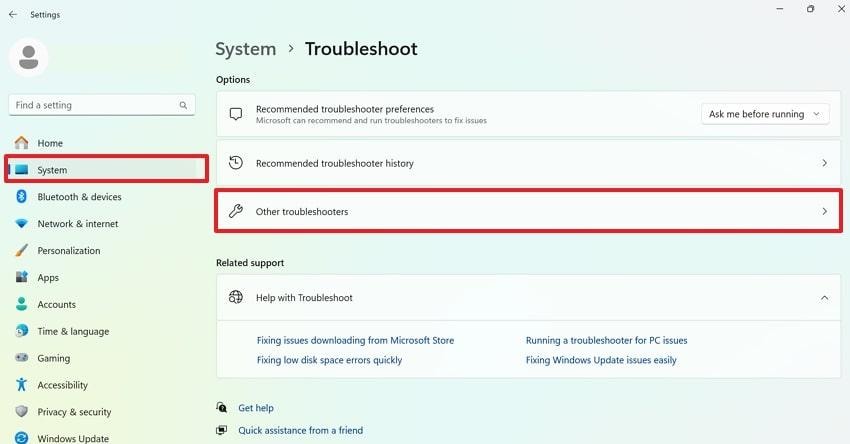
Step 2. Press the "Run" button beside the "Windows Update" option and follow the on-screen instructions.
Fix 6. Run CHKDSK and SFC Scans
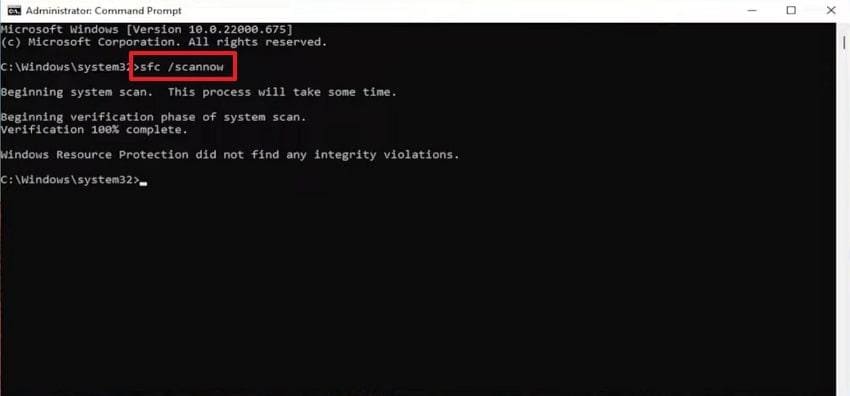
Notably, disk errors or corrupted system files can prevent Windows from accessing required files, resulting in 0x80070002 Win 10 errors. Here, running CHKDSK identifies and repairs physical disk errors, whereas SFC scans and restores corrupted system files. Together, these tools help maintain system integrity, improve stability, and prevent future errors related to damaged files. In this context, explore the given manual and run both CHKDSK and SFC scans:
- First, run CMD as an administrator, then type "sfc/scannow" and Enter.
- After this, wait for the scan to finish and repair the system files.
- Open Command Prompt again, write "chkdskC: /f /r", then type "Y" and restart so CHKDSK runs before Windows loads.
Fix 7. Reinstall the Affected Driver or Software
Errors like 0x80070002 often occur when drivers or applications are outdated or incompatible with your Windows version. A complete reinstall ensures that all required files are installed correctly and are compatible, resolving missing-file issues. To do so, explore the tutorial below and reinstall the affected driver on your Windows:
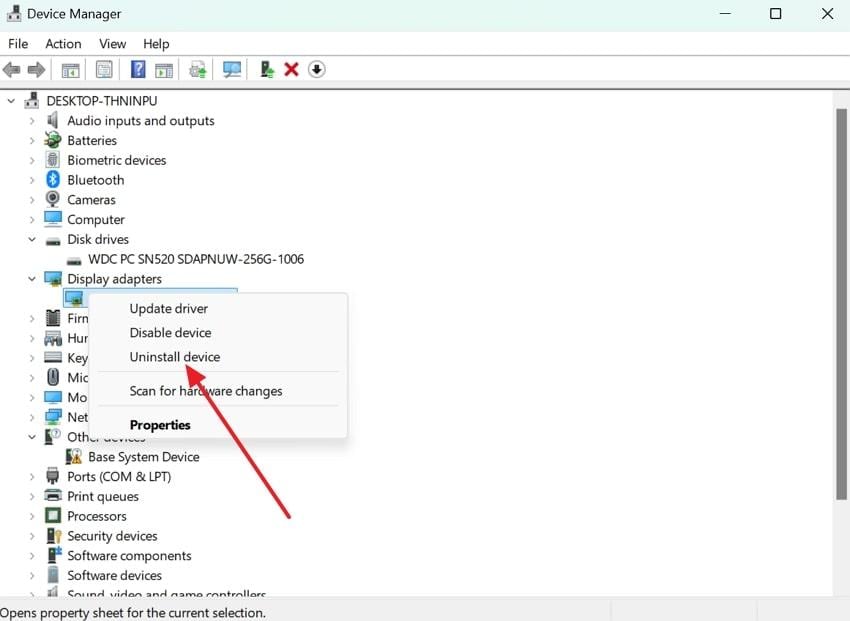
- Access the "Device Manager," expand the menu for "Display Adapters," then right-click on the problematic driver.
- Next, choose the "Uninstall Device" option to remove the affected driver from the system.
- Following this, reinstall the latest driver from the manufacturer's official site or Microsoft's website.
Fix 8. Check Windows Registry Entries (Advanced)
The Windows Registry stores paths and configuration settings used by system processes. Invalid or corrupted registry entries can prevent Windows from locating required files, leading to a 0x80070002 Windows error. However, it is recommended to always back up the registry before modifying it, in case of error. Follow the guidelines and look for entries to restore proper file paths and system references:
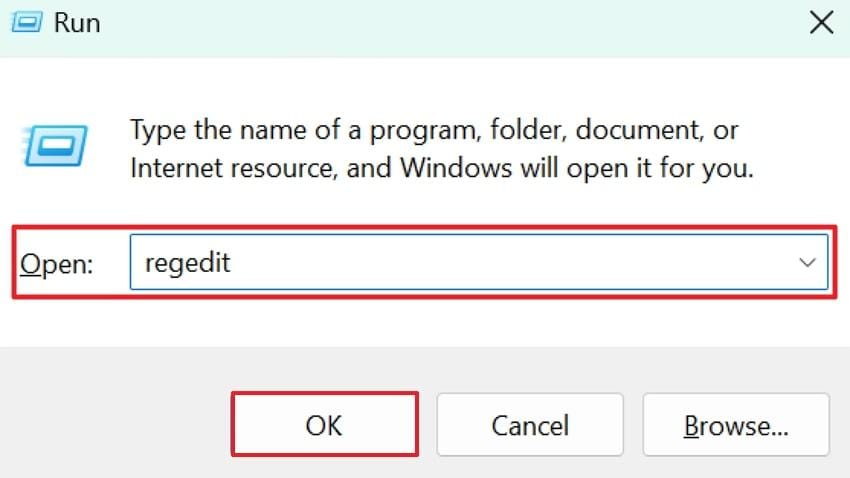
Step 1. To begin, press the "Windows + R" keys together, then type "regedit" and press "OK."
Step 2. Now, back up the registry by accessing the "File" option and choosing the "Export" option. Next, navigate to the following path: "HKEY_LOCAL_MACHINE > SOFTWARE > Microsoft > Windows > CurrentVersion > WindowsUpdate > Orchestrator > OSUpgrade."
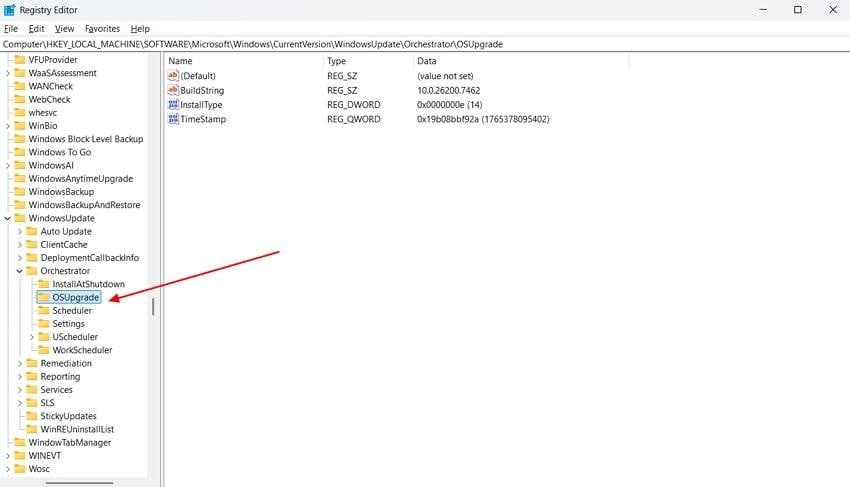
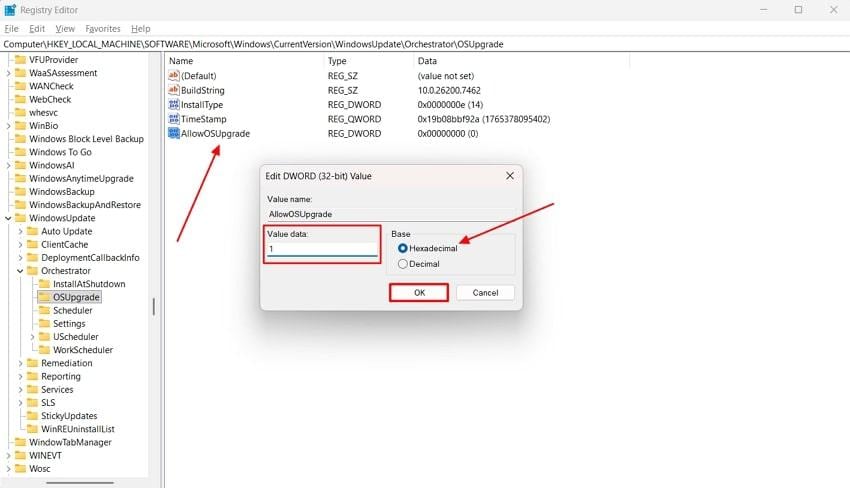
Step 3. Right-click on the empty space and select "New > DWORD (32-bit) Value." After naming the new value as "AllowOSUpgrade," right-click on it to choose the "Modify" option again. Double-click on the value under "Value Data" and set it to "1." Choose "Hexadecimal" and click "OK" to restart your computer.
Fix 9. Reset Windows Update Components via Command Prompt
Sometimes, Windows Update services and folders can become misconfigured, preventing updates and activating error "0x80070002 Win 10". Once you reset these components, it restores all update-related services to their default state, ensuring updates can be installed correctly. For this, explore the instructions as guided and reset Windows Update components via Command Prompt:
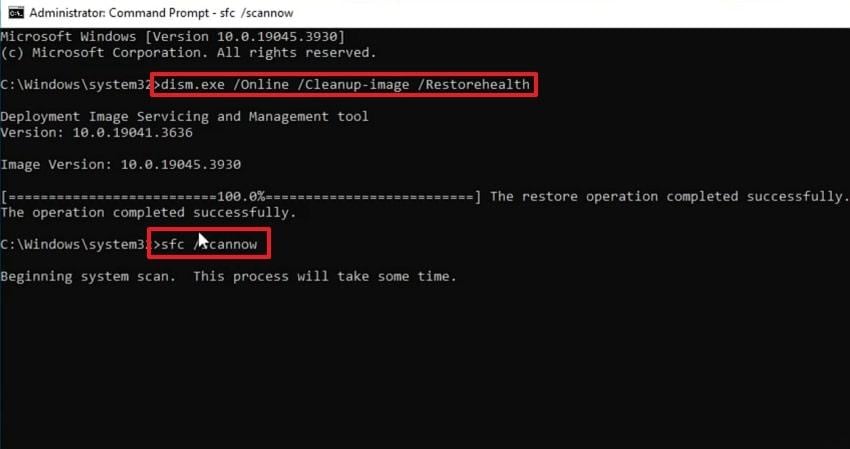
Step 1. Begin by running Command Prompt as an Administrator and typing "dism.exe /Online /Cleanup-image /Restorehealth" first. Let the command complete, then write "sfc/scannow" in the given space and "Enter."
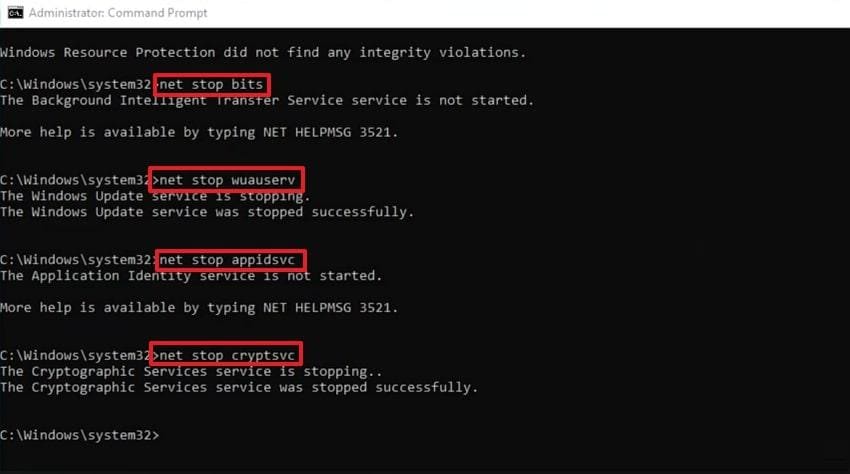
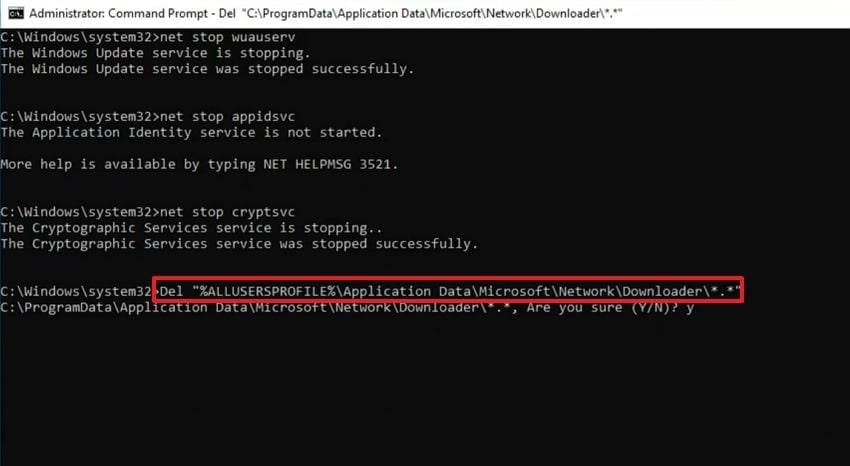
Step 2. Once done, copy-paste a few other commands, including: "net stop bits," "net stop wuauserv," "net stop appidsvc," and "net stop cryptsvc."
Step 3. After restarting the services, run "Del "%ALLUSERSPROFILE%\Application Data\Microsoft\Network\Downloader\*.*" Later, press the "Y" keys for the confirmation, and similarly enter other commands for resetting Windows Update components. Finally, reboot your PC and check for the update again.
Fix 10. Perform a System Restore
Even if this dreaded error persists, performing a System Restore lets you revert your system to a previous state. Without affecting your personal files, it effectively undergoes changes that might have caused the Windows 11 0x80070002 error. For guidance, simply dive into the stepwise tutorial and perform a complete System Restore:
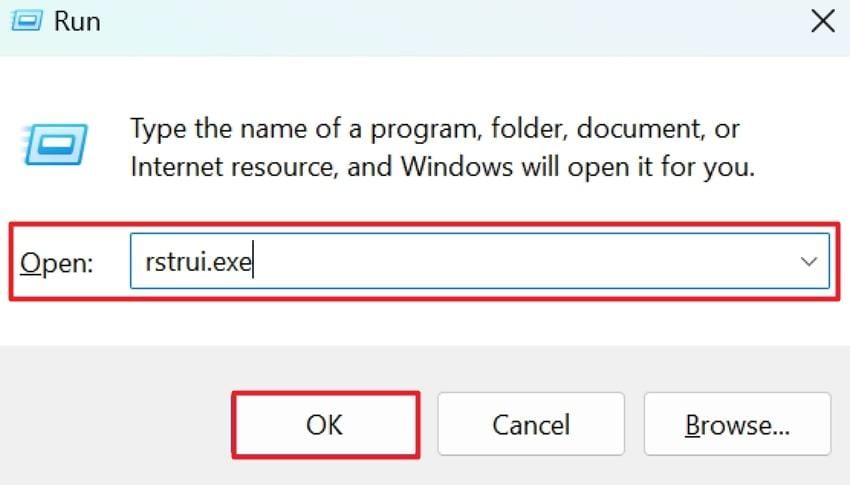
Step 1. Access a dialogue box by pressing the "Windows + R" keys together, then typing "rstrui.exe" and "OK."
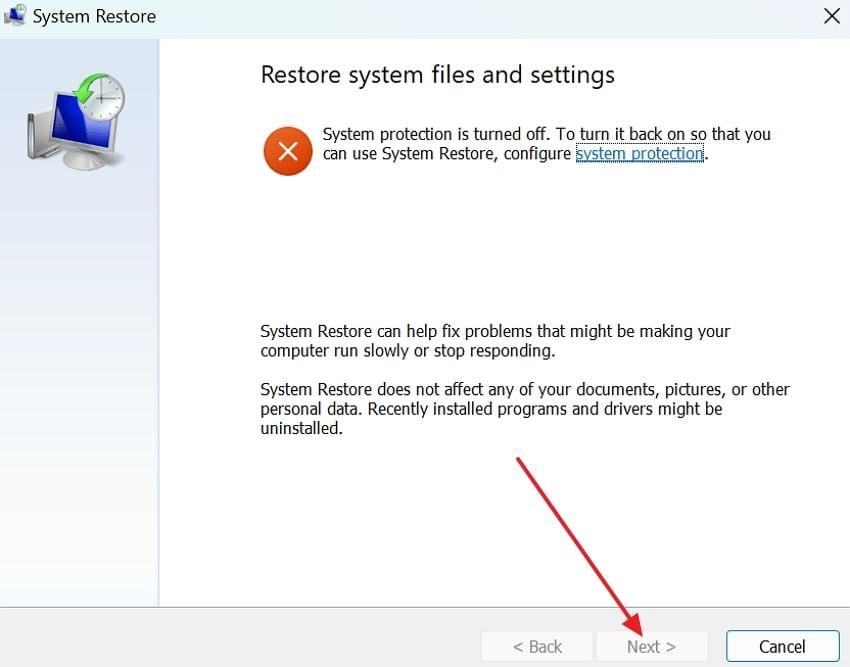
Step 2. Press the "Next" button and select a restore point dated before the error started. Click "Next" again and confirm. The PC will restart and restore system files and settings accurately.
Part 4. Error 0x80070002 Keeps Coming Back? System Files May Be Corrupted
Instead of assuming the issue is fully resolved, it’s important to consider what it means when the error recurs. The 0x80070002 Windows error reoccurs due to the following reasons that go beyond basic configuration or update glitches:
- When Windows system files or update components are deeply corrupted, broken files remain in use even after a reset.
- Incomplete or failed Windows updates leave broken file references that repeatedly trigger the error.
- Disk errors or bad sectors interfere with file storage and retrieval, causing essential files to go missing.
- Residual malware or previous system damage may continue to alter or block essential system files.
- Also, interrupted upgrades can cause conflicts between legacy and new system components.
If the error is caused by file corruption rather than system misconfiguration, repairing the affected files can prevent repeated failures. Repairit File Repair is designed to fix corrupted, unreadable, or inaccessible user files, helping eliminate broken file references that trigger the error. Repairit can repair files damaged by:
- System crashes or unexpected shutdowns
- Disk read/write errors
- Interrupted downloads or file transfers
- Software crashes during saving or editing
By restoring file integrity, Repairit ensures Windows and applications can properly access required files again.
With the reappearing 0x80070002 Windows 11/10 error, following the tutorial and repairing important files becomes essential for normal functionality:
Step 1. At first, access the "More Types Repair" section and press the "Start" button from "Document Repair." Next, click the "+Add" button and import damaged files for a complete repair.

Step 2. Once done, click the "Repair" button to start a comprehensive repair of the added files. After this, preview the files and press the "Save" button to secure them after repair.

Conclusion
"0x80070002, the system cannot find the file specified" error is a clear warning that system files or update components are missing. If left unresolved, this issue can lead to repeated failures, unstable system performance, and data inconsistencies. While built-in troubleshooting methods can address common causes, corrupted system files can only be repaired through Repairit.
Frequently Asked Questions
-
Q1. What does 0x80070002 mean in Windows?
Error 0x80070002 indicates that Windows cannot locate a required file or component needed to complete a task. In fact, this error is commonly seen during Windows updates, system backups, or software installations. -
Q2. Why does Windows Update keep failing with 0x80070002?
Windows Update may repeatedly fail with 0x80070002 due to corrupted update cache files or interrupted updates. In most cases, malware infections or registry misconfigurations can prevent Windows from accessing the required update components. -
Q3. Is 0x80070002 a Windows 11-only error?
No, not at all. It can occur on multiple Windows versions, including Windows 10, 8.1, and earlier releases. However, the causes and solutions might vary slightly depending on the Windows version and system configuration. -
Q4. Can corrupted files cause error 0x80070002?
Indeed, corrupted or missing system files are one of the most common causes of 0x80070002. When Windows cannot access or verify essential files, it fails to complete the operation and displays this error. For this, the only workable solution is to repair those files with a professional program like Repairit.




