
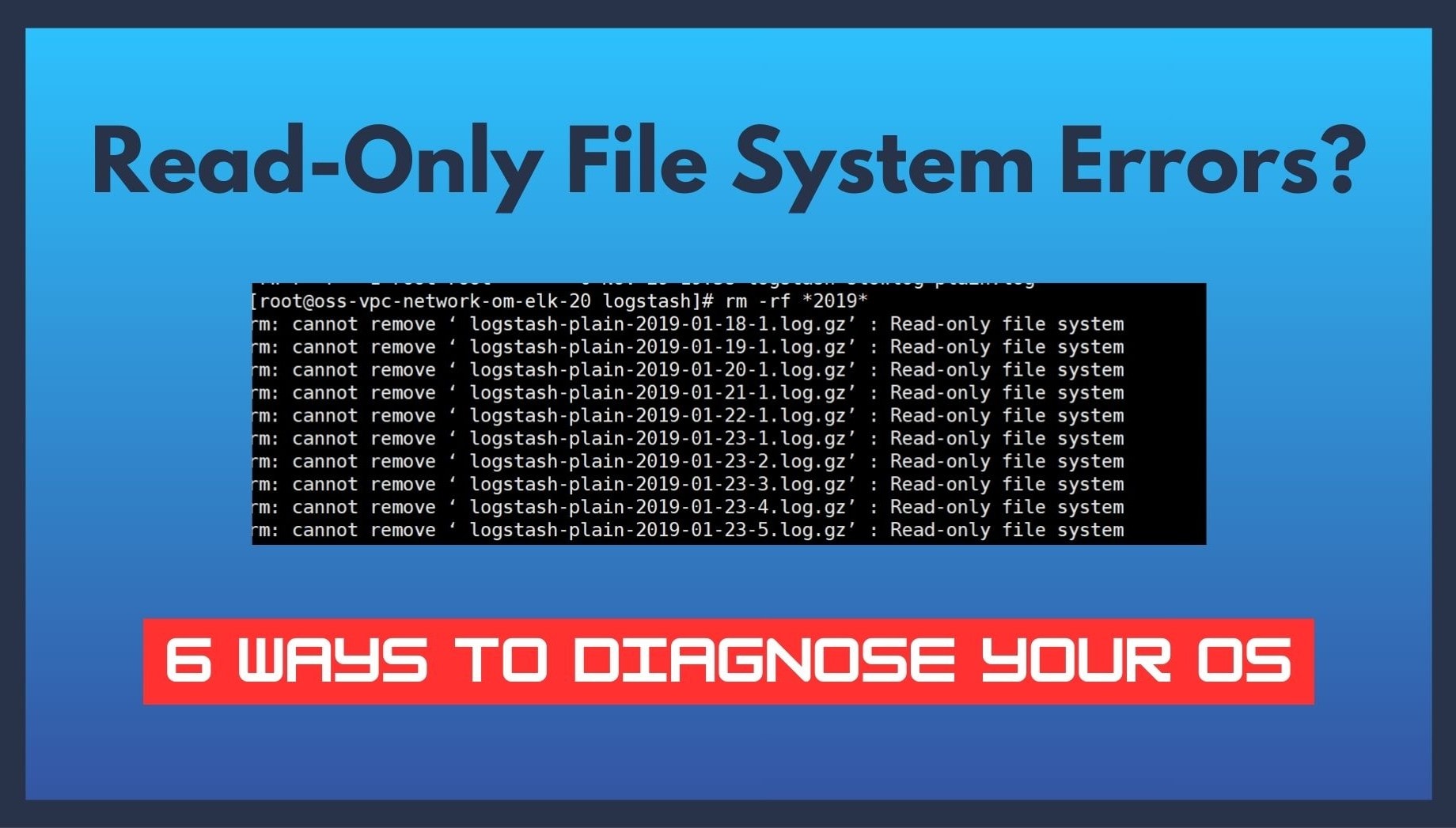
Read-only file system errors can feel confusing, especially when you are new. One drive works, but the other refuses to change. This article explains why your OS turns a drive into read-only mode. You will learn 6 ways to fix it safely.
Table of Contents
-
- Why the Linux Read-Only File System Error Happens
- Ubuntu Read-Only File System: Update Failures and Disk Protection Modes
- Raspberry Pi Read-Only File System Caused by SD Card Failure
- Docker Read-Only File System and Container Permission Issues
- chmod Read-Only File System — Why Permissions Can’t Be Changed
-
- Fix 1: Check Disk Health Using fsck and SMART Tools
- Fix 2: Verify Storage Device Lifespan (HDD, SSD, SD Card)
- Fix 3: Identify Permission Misconfigurations Causing Read-Only Behavior
- Fix 4: Check Mount Options and Remount the File System
- Fix 5: Fix Docker Read-Only File System Errors
- Fix 6: Kernel Logs and dmesg Analysis for Root-Level Failures
Part 1: Common Causes of Read-Only File System Errors
Have you ever tried saving a file or installing an update, only to see an error saying the system is read-only? It can be frustrating. But actually, this message is your operating system trying to protect your data. The system doesn’t want you to make changes that could worsen a problem. Understanding why this happens is the first step to solving it.
Why the Linux Read-Only File System Error Happens
In Linux, a read-only file system usually means the kernel detected a serious issue. The system prefers safety over convenience. You can still read files, but writing or changing them is blocked.
- File system corruption caused by sudden power loss or forced shutdowns: If your machine loses power while writing data, files or system structures can become damaged. Linux detects this and switches to read-only mode to prevent further corruption. Additionally, this often affects system logs and configuration files first. Once corruption is detected, Linux avoids writing new data on top of unstable structures.
- Disk input/output errors that signal failing hardware: Bad sectors on HDDs or failing SSD cells can trigger read-only mode. The system interprets repeated errors as a sign that writing is unsafe. Over time, these errors may appear more frequently. This is a common early warning sign that the storage device is reaching the end of its usable life.
- Unsafe mount states after a system crash: When the system crashes, certain partitions may not unmount cleanly. Linux often mounts them as read-only during the next boot to avoid overwriting unstable data. This helps preserve file integrity until the system can verify that the file system is consistent again.
- Hardware timeouts where the system stops trusting the storage device: If the OS can’t communicate with a drive reliably, it may assume the drive is failing and prevent writes. This is especially common on external drives or older hardware. Loose connections or aging controllers can also cause these delays, which increases the risk of data loss.
- Manual mount rules that force read-only access for safety: Sometimes administrators intentionally mount partitions as read-only. This is done to protect critical files or prevent accidental changes in multi-user systems. Such setups are common on recovery systems, servers, or environments where stability is more important than flexibility.
Ubuntu Read-Only File System: Update Failures and Disk Protection Modes
Ubuntu handles read-only errors in a similar way, but with some specific behaviors:
- Update failures. During software updates, if a package fails to install correctly, Ubuntu may remount the file system as read-only. This prevents broken updates from damaging the system further.
- Disk protection modes. Ubuntu can detect repeated write failures or unstable storage. It may enable protective modes automatically, stopping even basic tasks like editing configuration files.
Raspberry Pi Read-Only File System Caused by SD Card Failure
Raspberry Pi devices rely on SD cards for storage. Unlike HDDs or SSDs, SD cards wear out faster, which often leads to read-only errors:
- Frequent power cuts - Unexpected shutdowns can corrupt files or partitions on the SD card.
- Low-quality SD cards - Cheap or counterfeit cards often fail quickly under normal use.
- Long-term continuous writes, such as logging - Writing logs or databases continuously can wear out an SD card faster than expected.
Docker Read-Only File System and Container Permission Issues
In Docker, read-only errors often come from configuration rather than hardware:
- Containers started with read-only root settings - Some containers are intentionally set to prevent writes to improve security.
- Volume mounts that restrict write access - If you mount a host folder in read-only mode, the container cannot modify its contents.
- Host file system errors passed into containers - Problems on the host can propagate into containers, triggering read-only behavior inside.
- Security policies that block writes inside containers - Docker’s security options may limit writes to protect the system.
chmod Read-Only File System — Why Permissions Can’t Be Changed
Sometimes, you might try to use chmod to change permissions and get a read-only error. This doesn’t mean your command is wrong. It means the file system itself is preventing changes:
- Ownership changes will fail - Even the root user cannot change file ownership while the file system is read-only.
- Permission updates will be ignored - Commands like chmod or chown won’t take effect.
- Signals a deeper problem - This indicates that the system has locked writes to protect data. At this point, fixing permissions alone won’t help.
Part 2: 6 Safe Ways to Diagnose and Fix Read-Only File System Issue
At this point, the goal is not speed, but safety. A rushed fix can make file damage worse. Therefore, each fix below builds on the previous one and helps you find the real problem.
⚠️ Important: Always backup important files before running any of these commands. Avoid writing to the affected file system until diagnosis is complete.
Fix 1: Check Disk Health Using fsck and SMART Tools
Disk errors are one of the most common triggers for read-only behavior. File system checks help identify structural problems, while SMART data reveals early signs of hardware failure. Together, they show whether the system still trusts the disk. If errors keep returning, the issue may not be temporary. In many cases, repeated warnings suggest the disk is struggling under normal use. This makes early detection important before write access is permanently restricted.
Step 1. Open Terminal on your desktop.
Step 2. Connect via SSH from another computer.
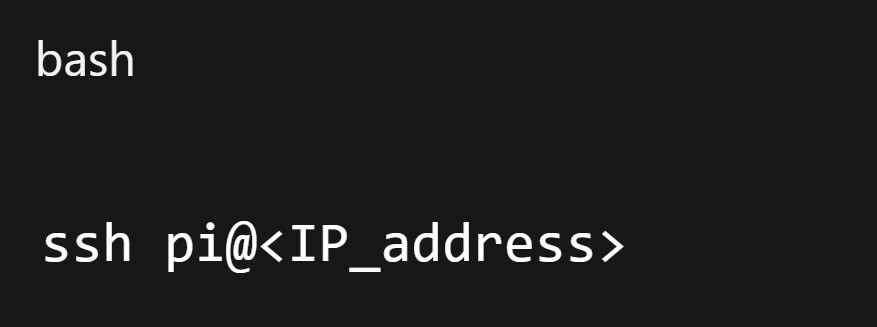
Step 3. Identify the partition.
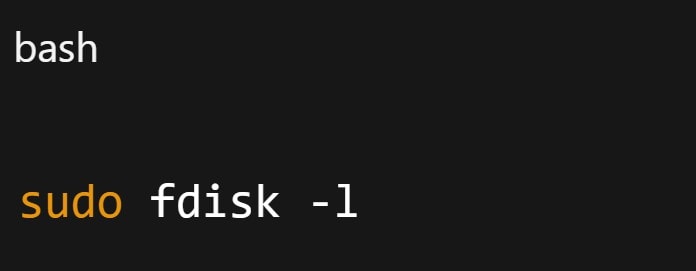
Note the affected partition, e.g., /dev/sda1 or /dev/mmcblk0p1.
Step 4. Unmount the partition. Root partitions need a live USB or recovery mode.
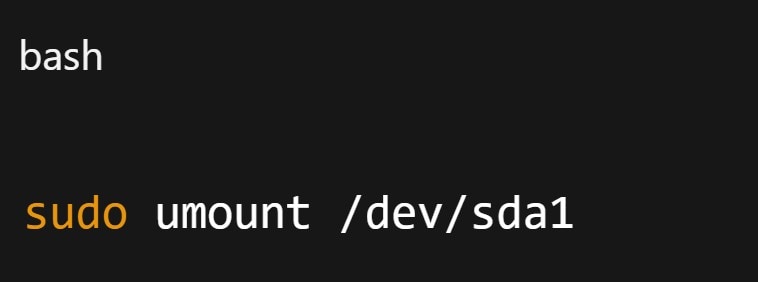
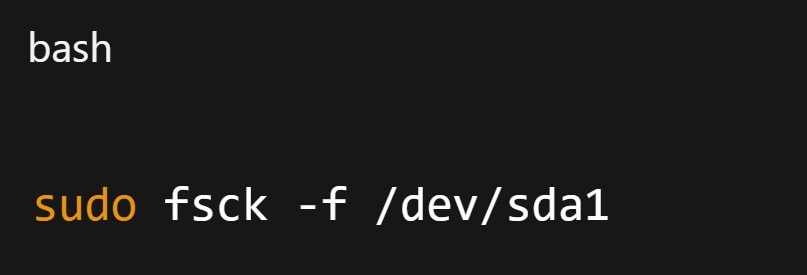
Step 5. Run fsck to check and fix file system errors.
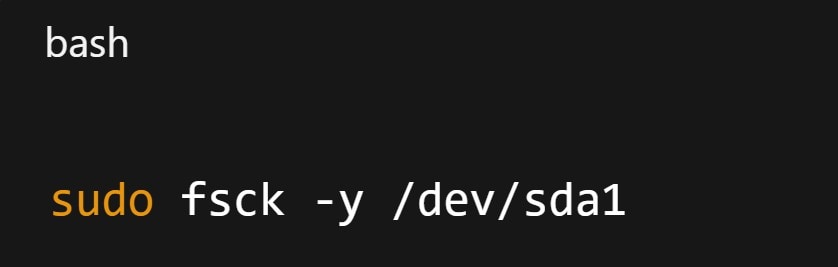
To auto-fix all prompts:
Step 6. Check SMART data for hardware issues.
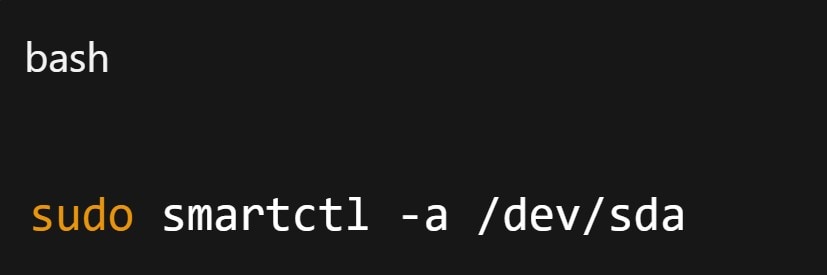
Look for Reallocated_Sector_Ct, Current_Pending_Sector, or Wear_Leveling_Count.
For Raspberry Pi SD cards, use gnome-disks or SD card manufacturer tools.
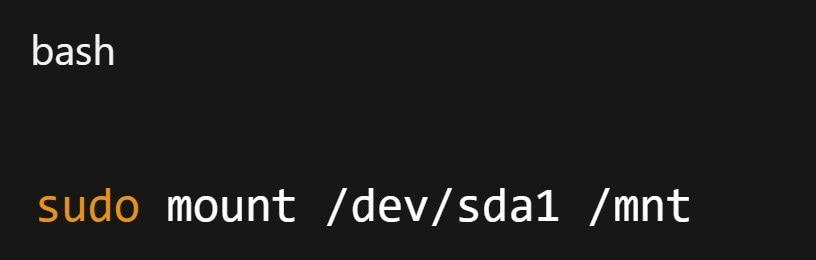
Step 7. Remount the partition after checks.
Fix 2: Verify Storage Device Lifespan (HDD, SSD, SD Card)
Even healthy-looking disks wear out. SSDs have write limits, and SD cards degrade faster than many users expect. When storage reaches its lifespan, the system may lock it into read-only mode. This is especially relevant for Raspberry Pi setups and older laptops. Over time, slow performance or random freezes may appear first. These subtle signs often come before full write protection is triggered.
Step 1. Identify the type of storage in use. Check wear indicators for SSDs or SD cards.
Step 2. Review error counts and remaining lifespan data if available. Type sudo smartctl -A /dev/sda. Review Percentage Used, Media Wearout Indicator, or Power-On Hours.
Step 3. Check SD card health on Raspberry Pi. Type sudo dmesg | grep mmc. Look for read/write errors, I/O timeouts, or card removal warnings.
Step 4. Decide if storage replacement is needed. High error counts or wear indicate the device may fail soon.
Fix 3: Identify Permission Misconfigurations Causing Read-Only Behavior
Although permissions do not cause true read-only states, misconfigured access rules can look similar. Some directories may appear locked while others remain writable. At this point, it becomes important to confirm whether the issue affects the entire file system or only specific paths. This distinction helps narrow the scope of the problem. Otherwise, time may be wasted on fixes that do not address the real cause.
Step 1. Check whether all directories are affected or only specific paths.
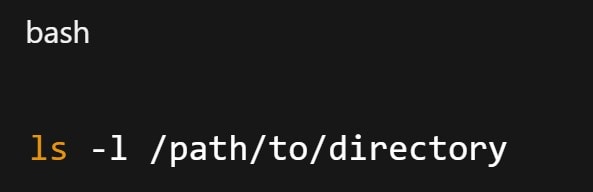
Step 2. Verify directory ownership and permission settings.
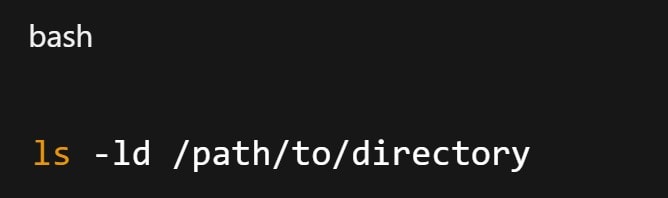
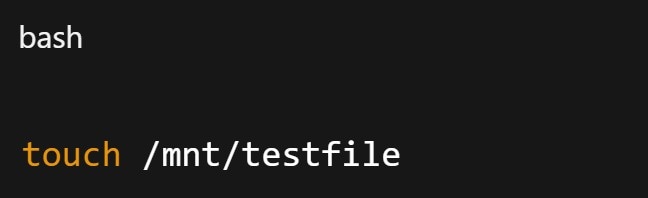
Step 3. Confirm whether the file system itself allows writing.
Step 4. Compare behavior between system files and user files.
Fix 4: Check Mount Options and Remount the File System
Mount rules control how the operating system treats storage. If a partition is mounted as read-only due to a previous error, it will stay that way until reviewed. This step connects naturally with earlier checks because mount changes often depend on disk health results. In many cases, mount behavior reflects earlier protection decisions made by the system. Understanding those decisions helps prevent repeat lockups.
Step 1. Review current mount settings for the affected partition. Use code mount | grep /dev/sda1. Confirm whether it is mounted as read-only (ro).
Step 2. Remount with write permissions if disk is healthy: sudomount -oremount,rw /dev/sda1.
Step 3. Monitor the system after remounting for recurring errors.
Fix 5: Fix Docker Read-Only File System Errors
Docker issues should be reviewed separately. Container-level read-only errors often come from volume mappings or security settings rather than disk damage. Here, the focus shifts from hardware to environment design. Because containers share the host’s resources, small configuration choices can have wide effects. A single restrictive setting can limit write access across multiple services.
Step 1. Check if the container root is read-only: docker inspect <container_name> | grep ReadonlyRootfs.
Step 2. Restart container with proper permissions: docker run -v /host/path:/container/path:rw <image_name>.
Step 3. Check host disk health. Ensure the host partition is writable with touch or mount checks.
Fix 6: Kernel Logs and dmesg Analysis for Root-Level Failures
When all else fails, kernel logs reveal the truth. Messages in dmesg often explain why the system changed modes. These logs usually confirm whether the issue is recoverable or a sign of deeper failure. They also help identify patterns, such as repeated errors over time. This context makes it easier to decide whether repair or replacement is the safer option.
Step 1. Open kernel logs using dmesg or system log files.
Step 2. Look for I/O errors, mount failures, or timeout messages: dmesg | grep- i'error\|fail\|I/O'. Note repeated patterns or timestamps linked to failures. Use these messages to confirm whether the issue is software- or hardware-based.
Part 3: Recovering Files Damaged by Read-Only File System Errors
When a system switches to read-only mode, file corruption may already have occurred. This often happens during active writes, such as saving documents, exporting images, or compiling projects. Incomplete writes can result in broken documents, unopenable images, corrupted archives, or damaged project files. At this stage, normal file access tools may not work.
Using Repairit File Repair for Corrupted Files
Repairit File Repair is designed to restore files damaged by file system errors, including those caused by sudden read-only switches. This tool focuses on rebuilding file structure without altering original content. It supports documents, images, and creative project files that become unreadable after system-level failures.
Here are Repairit’s key features:
📄Repairs corrupted documents, images, and design files.
🧬Preserves original file quality and structure.
🧰Supports batch repair for multiple damaged files.
📂Works even when files fail to open or show errors.
💽Suitable for corruption caused by disk errors or forced shutdowns.
Step 1. Install and launch Repairit, then choose the file type you want to repair, such as documents or images.

Step 2. +Add your corrupted files to the repair list.

Step 3. Start the repair process and allow the tool to scan file structure.

Step 4. Preview repaired files to confirm recovery quality. Save them to a safe location on a healthy drive.

Recovering Files Damaged by Read-Only File System Errors
 Security Verified. Over 7,302,189 people have downloaded it.
Part 4: How to Prevent Read-Only File System Problems in Linux, Ubuntu, Docker, and Raspberry Pi
After diagnosis and repair, it is important to reduce the chance of seeing these read-only file system errors again. Here are the key prevention practices you should do:
✅Use stable power sources, especially for Raspberry Pi systems
Sudden power loss is one of the fastest ways to corrupt a file system. Using a reliable power supply reduces incomplete writes and unexpected shutdowns. For small devices like Raspberry Pi, even minor voltage drops can cause long-term damage.
✅Monitor disk health regularly before errors escalate
Storage devices often show warning signs long before failure. Paying attention to health indicators helps you spot issues early. This reduces the chance of the system switching to read-only mode as a last resort.
✅Avoid forced shutdowns whenever possible
Holding down the power button or unplugging a system interrupts active write operations. Over time, these interruptions weaken file system structures. Clean shutdowns allow the system to close files safely and keep mounts stable.
✅Choose high-quality storage, particularly for SD cards
Not all storage devices are built for constant writing. Cheap SD cards wear out quickly and fail without warning. Higher-quality storage lasts longer and handles repeated writes more reliably, especially in embedded systems.
✅Review Docker configurations to avoid unintentional read-only mounts
Some Docker setups restrict writes for security or isolation. While useful, these settings can cause confusion if applied unintentionally. Clear volume rules help containers behave as expected without triggering write errors.
✅Keep systems updated, but ensure updates complete properly
Updates improve stability and fix known file system issues. However, interrupted updates can do more harm than good. Allowing updates to finish fully helps prevent partial changes that push the system into a protective state.
Conclusion
A read-only file system error is not just a small warning. It is the system telling you something went wrong and data is at risk. Whether it appears on Linux, Ubuntu, Docker, or Raspberry Pi, the message follows the same logic: protect first, repair second.
By understanding the causes, diagnosing carefully, recovering damaged files, and applying smart prevention habits, you can turn a frustrating error into a manageable situation.
FAQs
-
1. Can a read-only file system fix itself after a reboot?
Sometimes, yes. However, if the root cause is disk damage or corruption, the error often returns. A reboot may clear temporary mount states caused by a crash. It does not repair damaged file structures. If the system switches back to read-only again, deeper checks are still needed. -
2. Does a read-only file system always mean hardware failure?
Not always. It can also be triggered by unsafe shutdowns, mount rules, or container settings. Software-related causes are common on healthy disks. This is why checking logs and mount options matters before replacing hardware. -
3. Is it safe to keep using a system in read-only mode?
You can read files safely, but continued use without diagnosis may risk further data loss. Some background services may still try to write data and fail silently. Over time, this can hide new problems until recovery becomes harder.




