 TL;DR:
You can recover files damaged during an interrupted save by retrieving system temporary files, restoring a previous version, or using native repair features before resorting to specialized rebuilding tools.
● Search for .tmp or .autosave files in your system's temporary folders (%AppData% or %Temp% on Windows, ~/Library/Caches on Mac) and change their extensions to the original format to restore unsaved progress.
● Use Repairit File Repair on Windows Vista/7/8/10/11 or macOS X 10.12 or later to rebuild corrupted file headers if the document displays an unrecognized format error or shows a 0 KB size.
● Always copy corrupted files from a USB drive to your computer's local storage before attempting any repairs to prevent further damage caused by unstable external connections.
Ask AI for a summary
 ChatGPT
 Perplexity
 Gemini
 Claude
 Grok
Grok
Losing hours of work because of a sudden system failure can be annoying. When a file is damaged after an app crash during save, it may seem like your data is gone for good. Fortunately, you can still repair a file after an app crash using specialized tools that fix corrupted file structures and restore damaged data. This guide will show practical ways to recover your file and continue your work quickly.
In this article
Why Files Get Corrupted During an App Crash
When an app suddenly closes while saving, the file may not finish writing properly to your device. This leaves the file incomplete or damaged, which is why the software can no longer open or read it correctly.
Common Causes
- Interrupted Save - The app closes before saving is finished.
- Header Damage - Important file information becomes corrupted.
- System Overload - High CPU or RAM usage causes the app to crash.
- Storage Errors - Drive issues or bad sectors interrupt the save process.
Transfer-Related Causes
- Cloud Sync Issues - Crashes during cloud saves can create incomplete files.
- Export Interruptions - Large file transfers may stop midway and cause corruption.
Signs That a File Is Corrupted
After a crash during saving, a file may still appear in your folder, but it may not open or work properly. These are common signs that the file is damaged.
Common Signs
- Format Error - The app says the file type is not supported or invalid.
- Unreadable Content - The file opens with broken text, symbols, or distorted visuals.
- 0 KB File - The file exists but shows no actual data inside.
- App Freezing - The program crashes or hangs when trying to open the file.
- Missing Content - Only part of the file loads, while the rest is gone.
Quick Fixes to Recover a Corrupted File
Before using advanced recovery tools, try these simple methods first. They may help restore a working version of your file using built-in backups or repair features.
Fix 1. Check Auto-Recover or Temporary Files
Many apps save temporary or auto-recovery versions of your work in the background. These hidden copies may contain your most recent progress.
Step 1. Open the app and find the Auto-Save location.

Step 2. Go to that folder in your file explorer, look for files with .tmp or .autosave, then rename them to the original file format.
Fix 2. Restore from File History or Backup
If backup features are enabled, your system may have saved an earlier version of the file before the crash.
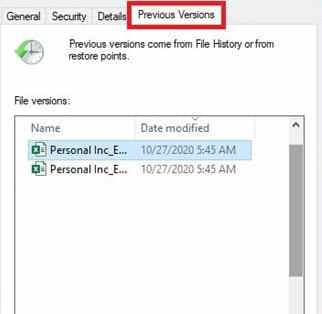
Step 1. Right-click the corrupted file and select Properties, then navigate to the Previous Versions tab.
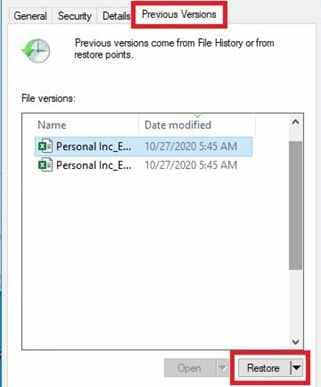
Step 2. Choose the most recent version timestamped before the app failure and select Restore to revert the file to a functional state.
Fix 3. Try Renaming the File Extension
Sometimes only the file label is damaged. Changing the extension may help the system recognize it again.
Step 1. Enable File name extensions in your folder view settings and right-click the damaged file to select Rename.
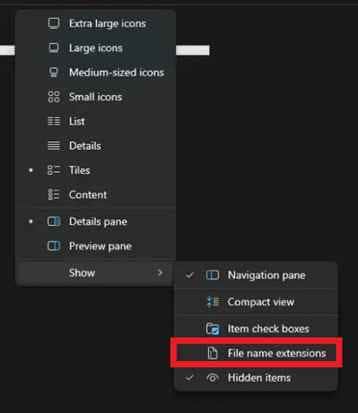
Step 2. Change the current extension to a compatible generic format (e.g., changing .docx to .rtf or .xlsx to .csv) and attempt to import it into a different program.
Fix 4. Use Open and Repair
Some programs like Microsoft Office or Adobe apps have a built-in repair option that can fix minor file errors and recover data.
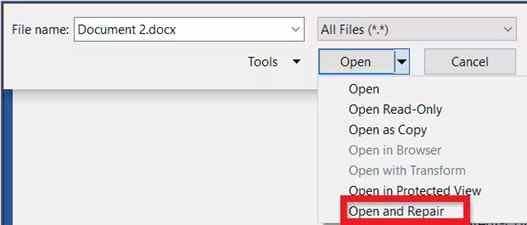
Step 1. Open the application first, go to the File menu, and select Open instead of double-clicking the file icon.

Step 2. Locate the damaged file, click the dropdown arrow next to the Open button, and select the Open and Repair command.
Advanced Fix to Restore Severely Corrupted Files
If basic fixes don’t work, the file damage is likely more serious and needs specialized recovery tools. These tools scan the corrupted file, rebuild its structure, and restore missing data so it can open again properly.
It CAN:
- Fix File Structure - Rebuild damaged file headers so the file can be read again.
- Repair Multiple Files - Recover several corrupted files at once.
- Recover File Details - Restore formatting, timestamps, and other data.
- Handle Severe Damage - Fix files that show as 0 KB or unrecognized format.
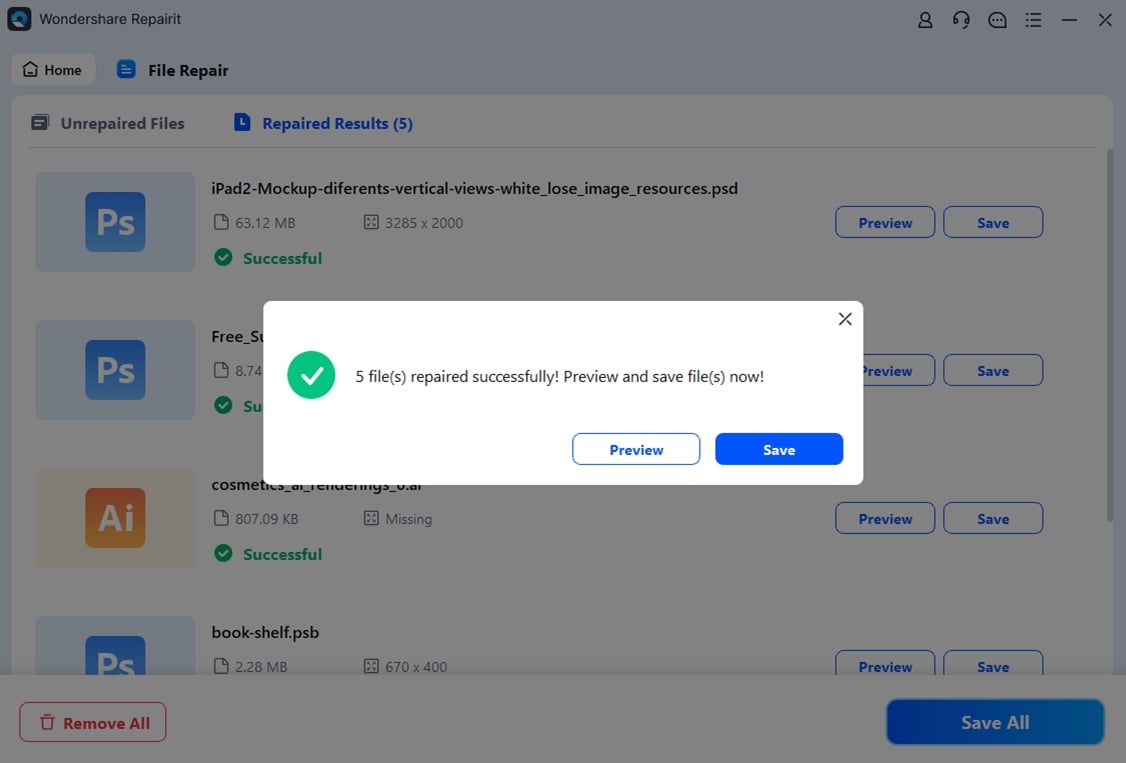
If you confirm the file is corrupted, a repair tool can safely restore its functionality. One example is Repairit File Repair, which works with common file types like PDF, Word, and Excel.
Step-by-Step (Optional)
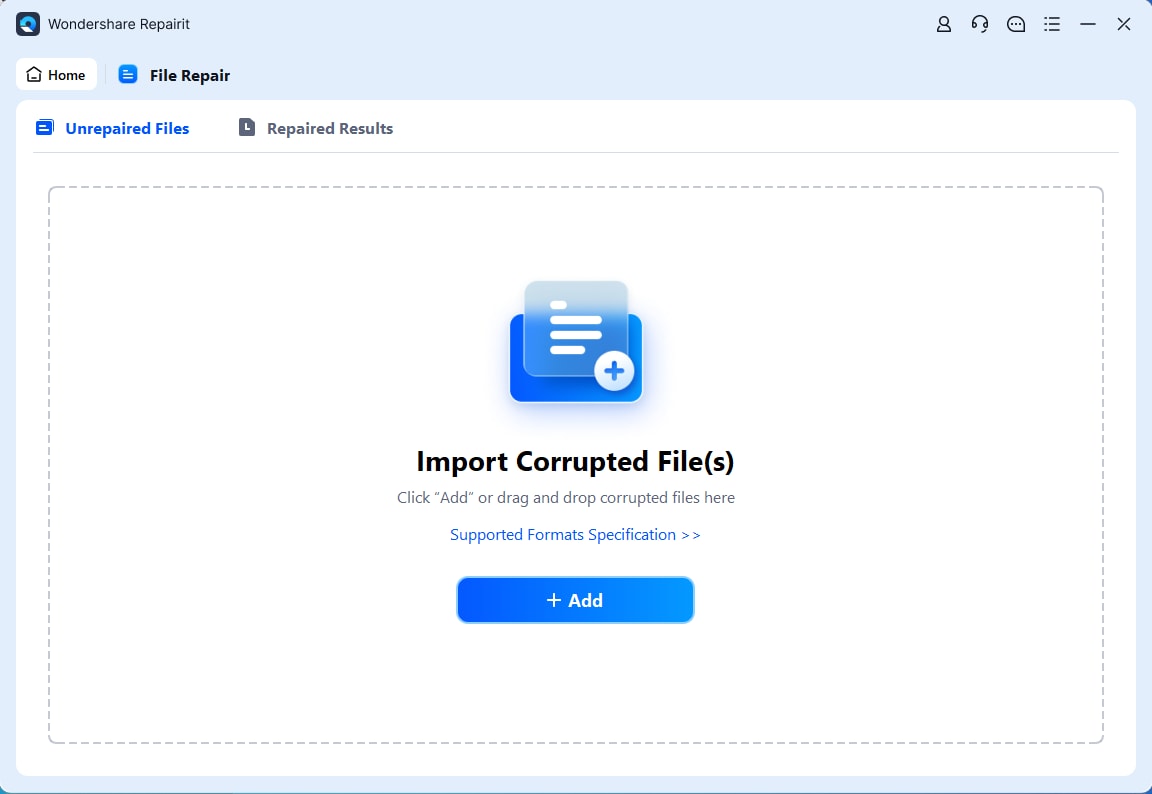
Step 1. Upload the corrupted file.
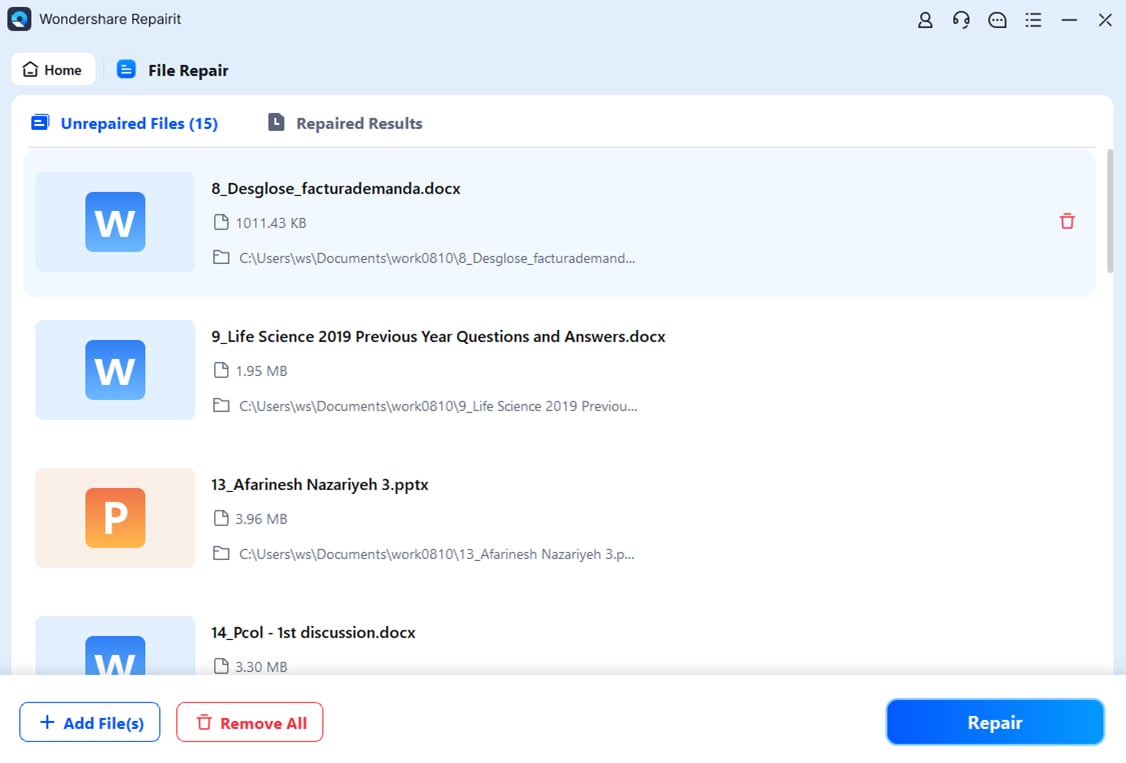
Step 2. Start the Repair process.
Step 3. Preview and save the restored file to a new location.
How to Prevent File Corruption
While recovery tools can help, it’s better to prevent file damage in the first place. Simple habits can protect your work even if an app crashes.
Best Practices for Data Safety
- Save Versions - Use Save As to create multiple file versions (v1, v2, etc.) so you always have a backup.
- Close Unused Apps - Reduce background programs when working on heavy tasks to avoid system overload.
- Check Cloud Sync - Make sure files in cloud storage finish syncing before shutting down your device.
- Enable Auto-Backup - Set frequent automatic backups and store them on a separate drive if possible.
- Maintain Your Device - Check your storage health regularly and use a backup power source to prevent sudden shutdowns.
Conclusion
A file damaged after app crash during save can interrupt your work, but it doesn’t always mean the file is lost forever. You can often repair a file after an app crash using built-in recovery tools or professional software to restore your important data. To avoid future issues, make regular backups, save versions of your work, and keep your system stable and updated.
FAQs
-
Can a 0 KB file be recovered after a crash?
It is usually very difficult because 0 KB means no data was saved. However, you can still check temporary folders or use advanced recovery tools like Repairit to look for cached versions. -
Why does my app crash every time I save?
This may be caused by low memory, not enough storage space, or issues with cloud syncing that interfere with the saving process. -
Does renaming a file extension fix corruption?
No, it doesn’t repair the file. However, it may help the system recognize the file so you can access or extract some data. -
Is it safe to repair a file on a USB drive?
It’s safer to copy the file to your computer first. Repairing directly from a USB drive can be slower and risk further damage if the connection is unstable. -
How do I find the temporary folder for my app?
On Windows, run %AppData% or %Temp%. On Mac, check ~/Library/Caches or the app’s settings for file location details.