 TL;DR:
To restore a file that will not open after a crash, manually recover temporary application backups or utilize previous system versions before applying specialized software to rebuild heavily damaged file structures.
● Browse your application's Local Cache or AutoRecover directory for files with .tmp or .asd extensions and rename them to their original format, or utilize the native Open and Repair command from the application's file menu.
● Use Repairit File Repair on Windows Vista/7/8/10/11 or macOS X 10.12 or later to extract readable data and rebuild broken headers for severely corrupted Word, Excel, PDF, and PowerPoint documents.
● Uncheck the Read-only property in file settings to rule out false permission locks, and be aware that cloud syncing does not inherently prevent corruption since damaged versions can still be saved if a crash occurs during the sync process.
Ask AI for a summary
 ChatGPT
 Perplexity
 Gemini
 Claude
 Grok
Grok
It can be frustrating when a saved file won't open after a crash, especially if you need it right away. This often happens when a program suddenly closes while saving your file, which can cause file crash corruption causes such as missing data, damaged file structure, or incomplete saving. Understanding what interrupted the saving process can help you figure out the problem and find the right way to recover your file.
In this article
Why Files Get Corrupted After a Crash
File corruption happens when a file is not fully saved or becomes damaged during a system or app failure. If your saved file won't open after a crash, the program likely stopped while saving, leaving the file incomplete or broken.
Common file crash corruption causes include
- Interrupted saving - A crash, freeze, or power loss during saving can damage the file structure.
- Unsaved data loss - Some systems temporarily store changes before saving them to disk, which can be lost after a crash.
- Program crashes - An app that suddenly closes while editing or saving may leave the file unusable.
- File transfer interruption - A crash during file transfer can stop the process midway, resulting in an incomplete file.
- Transfer or sync issues - Crashes during file transfers or cloud syncing can create incomplete or damaged files.
Signs Your File May Be Corrupted
When a saved file won't open after a crash, you may notice warning signs that the file was damaged during saving or transfer. Recognizing these issues can help you understand possible file crash corruption causes and choose the right recovery method.
Common signs include
- File format errors - The program says the file type is unsupported, invalid, or cannot be recognized.
- App freezing - The software stops responding when you try to open the file.
- File lock errors - Your system says the file is already open or in use, even when it is not.
- Unreadable content - The file opens, but shows random symbols, missing text, or broken content.
- Data errors - You see system messages saying the file is damaged or cannot be read properly.
Basic File Recovery Methods
Before trying advanced repair methods, you can first use built-in tools to fix a saved file won't open after a crash issue. These steps may help recover files affected by common file crash corruption causes like incomplete saves or temporary file errors.
Fix 1. Restore via Auto-Recovery Folders
Many apps automatically save backup versions of your work. These backup files can still be available even if the main file becomes corrupted.
Step 1. Go to the application’s Options or Preferences menu and locate the specific file path for AutoRecover or Local Cache.
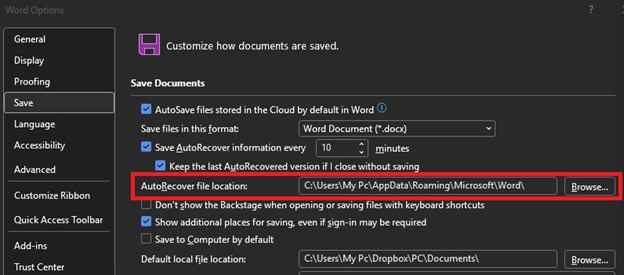
Step 2. Manually browse to that folder in your file explorer, look for files with .tmp or .asd extensions, and try to rename them back to the original format.
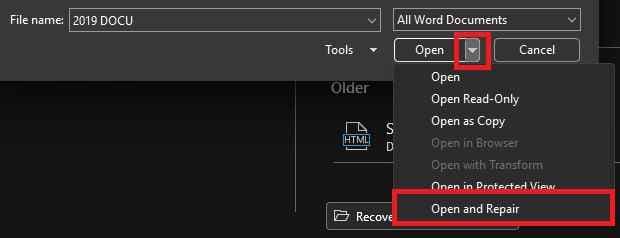
Fix 2. Use the Open and Repair Feature
Some programs have built-in repair tools that can fix damaged files during opening.
Step 1. Open the program first, then go to the file open menu and select the damaged file.
Step 2. Click the arrow beside the Open button and choose Open and Repair if available.
Fix 3. Restore Previous Versions (Windows)
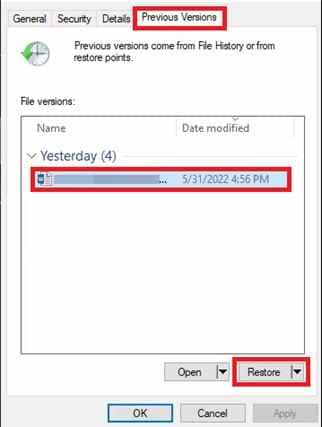
Windows may have an older version of your file saved before the crash happened.
Step 1. Right-click the damaged file or its folder, then click Properties.
Step 2. Open the Previous Versions tab, choose an earlier version, and restore it.
Fix 4. Check File Permissions and Lock Issues
Sometimes the file is not corrupted but becomes inaccessible after a crash due to permission or lock problems.
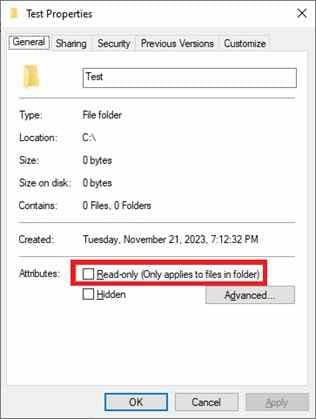
Step 1. Right-click the file, open Properties, and make sure Read-only is unchecked.
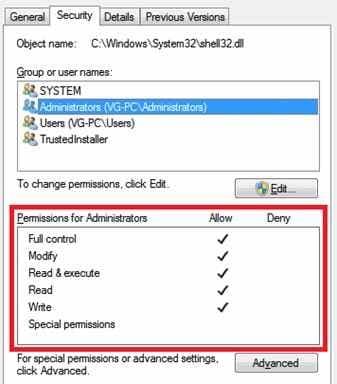
Step 2. Check the Security settings to confirm you have permission to access the file.
Advanced Fix to Restore Severely Corrupted Files
If basic fixes don’t work, the file damage is likely deeper and affects its internal structure. At this point, you may need specialized repair tools that can rebuild a saved file that won't open after a crash issue caused by serious file crash corruption.
It CAN
- Repair broken headers so the system can recognize and open the file again.
- Extract readable data even if parts of the file are damaged or missing.
- Fix several corrupted files affected by the same crash or system failure.
- Let you see what can be restored before saving the repaired file.
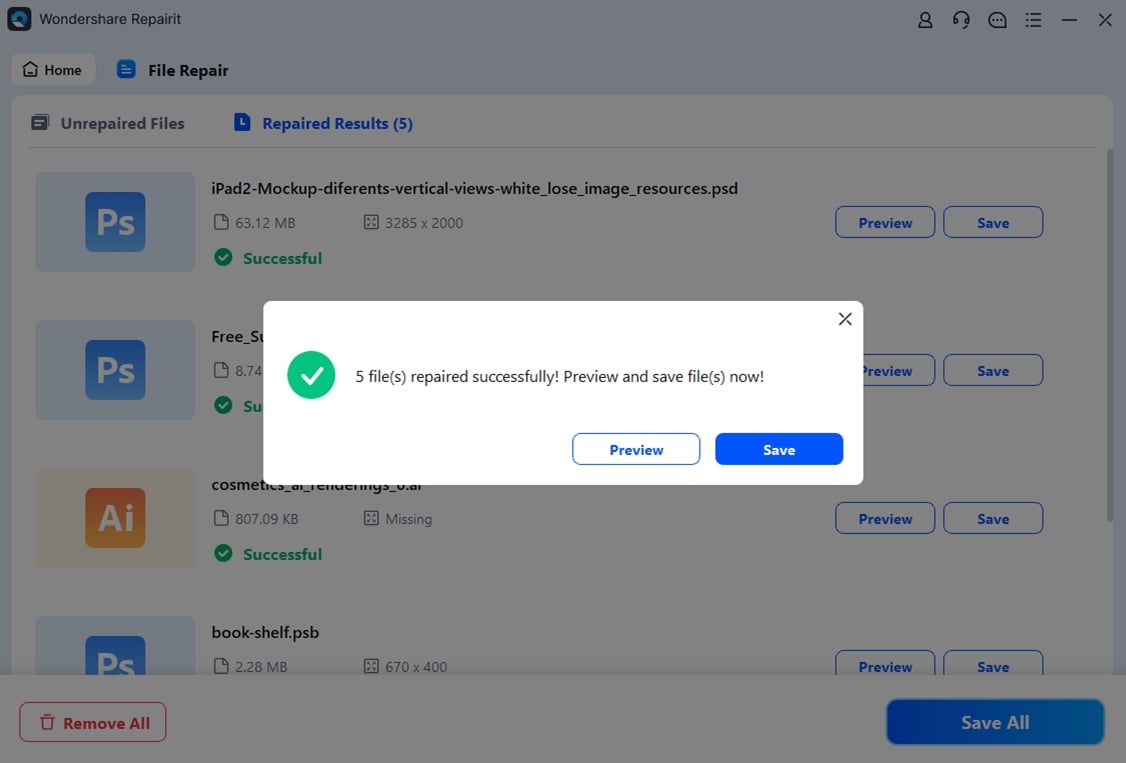
If the file is severely corrupted, using a dedicated repair tool such as Repairit File Repair can help restore common file types like Word, Excel, PDF, and PowerPoint by rebuilding a working copy of the original file.
Step-by-Step (Optional)
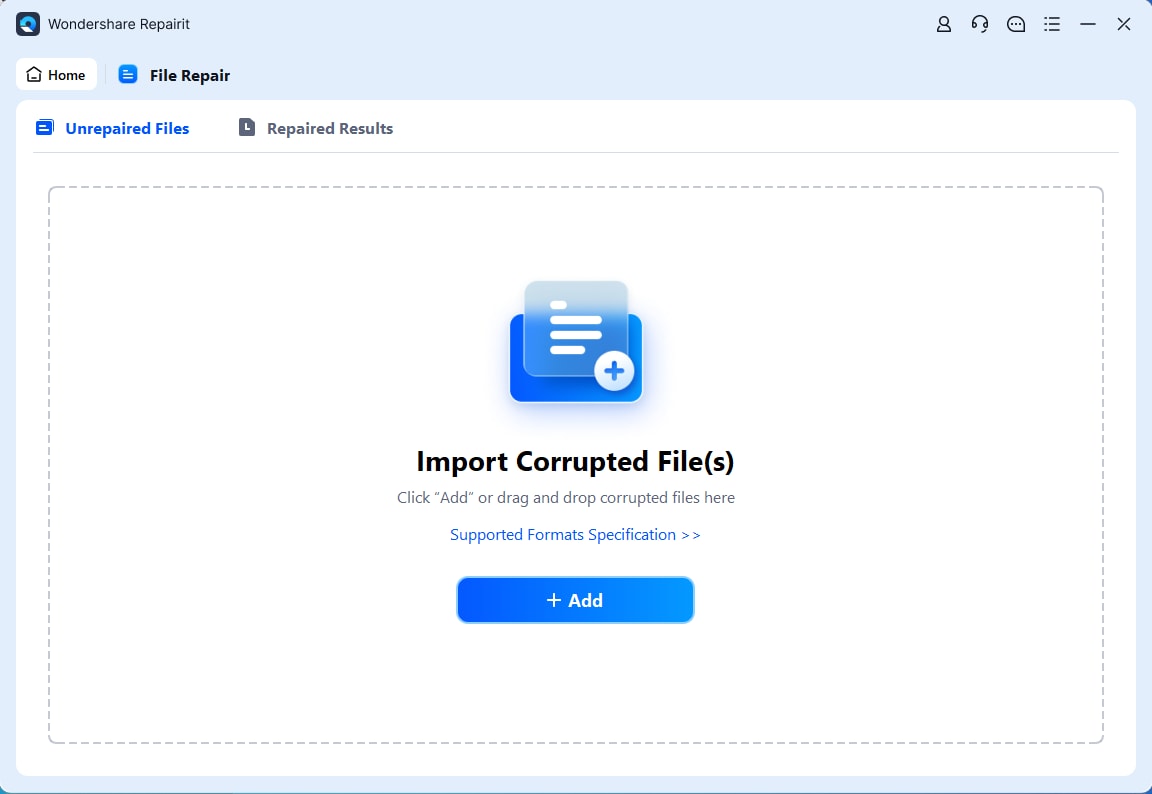
Step 1. Upload the corrupted file.
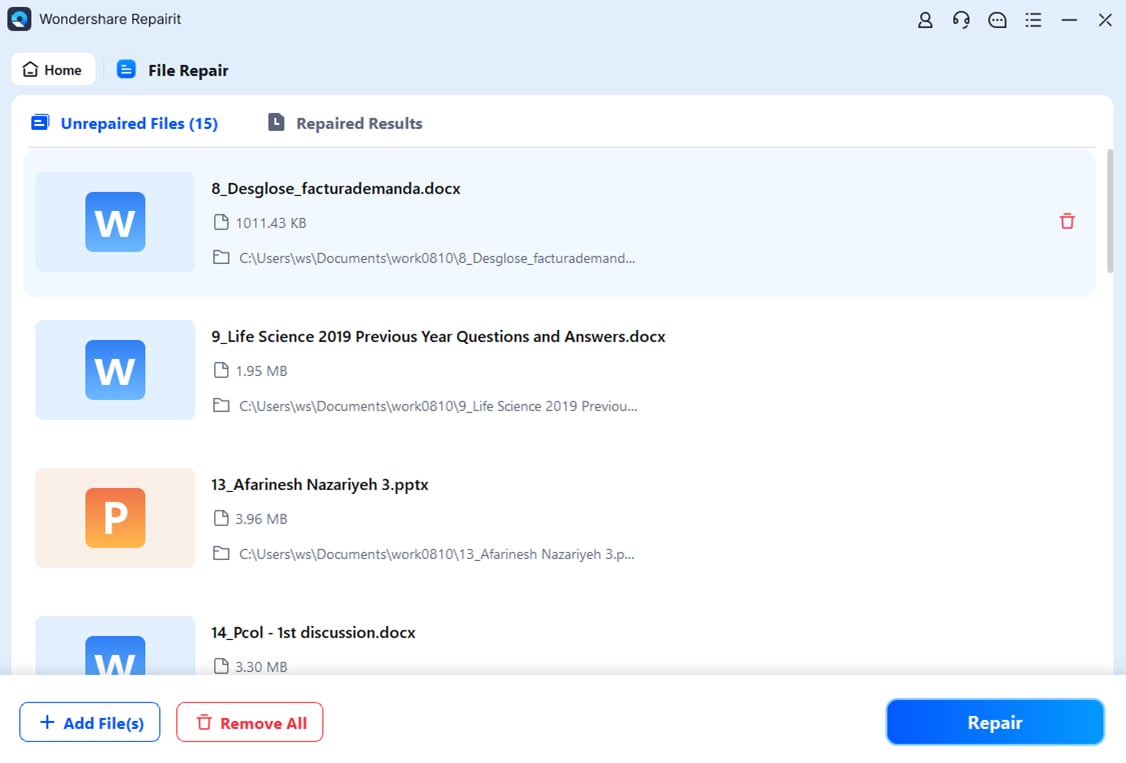
Step 2. Start the Repair process.
Step 3. Preview and save the restored file to a new location.
How to Prevent File Loss After a Crash
The best way to deal with file crash corruption causes is to prevent them before they happen. If a system fails unexpectedly, these habits can help reduce the chances of a saved file won't open after a crash issue.
Here are simple ways to protect your files:
- Use the 3-2-1 backup rule - Keep 3 copies of your file, one on your device, one on an external drive, and one in cloud storage.
- Turn on auto-save - Set your apps to save every few minutes so less work is lost during a crash.
- Save versions of your file - Instead of overwriting the same file, save new versions (like v1, v2) to keep backups.
- Check your storage health - Regularly scan your drive for errors or damaged sectors that can cause file corruption.
- Use backup power - A UPS or battery backup helps prevent sudden shutdowns during saving, which often leads to file damage.
Conclusion
A saved file won’t open after a crash can be stressful, but it doesn’t always mean the file is gone for good. In most cases, it happens due to file crash corruption causes like interrupted saving, system errors, or software crashes. By using recovery tools, built-in repair options, or backup versions, you can often restore your file. Keeping regular backups and maintaining your system also helps prevent similar issues in the future.
FAQs
-
Why won’t my saved file open after a crash even if I saved it?
Even if you saved it, a crash during the saving process can leave the file incomplete or damaged, making it unreadable. -
Can a power outage cause file corruption?
Yes. A sudden power loss can interrupt saving and result in incomplete or damaged files. -
Can I recover a file that shows an unrecognized format?
Often yes. This usually means the file structure is damaged, and it may be fixed using repair tools or recovery features. -
Does cloud syncing prevent file corruption?
Not always. If a crash happens during syncing, a damaged version may still be saved. Check version history for backups. -
How can I tell if the file is corrupted or the app is the problem?
Try opening other files in the same app. If they work, the issue is likely with that specific file.