
![How to Fix Windrose Fatal Error UE-R5 Crash on PC [Complete Guide]](https://images.wondershare.com/repairit/article-trans-image/4661/fix-windrose-fatal-error-ue-r5-crash-1.jpg)
A Windrose crash can stop the game before players reach a stable session. The UE-R5 fatal error may appear during launch, loading, or early gameplay. Moreover, it often closes the game without a clear warning, making the issue harder to trace. For many PC users, the crash turns a normal gaming session into a repeated trial-and-error process.
To fix the Windrose Fatal Error UE-R5 Crash, the problem needs a calm and organized approach. The error usually points to a break between the game, Windows, and Unreal Engine. Thus, this guide explains the issue in simple terms and prepares players for safe troubleshooting.
Table of Contents
Part 1. What is the UE-R5 Fatal Error in Windrose?
The UE-R5 fatal error in Windrose means the game’s Unreal Engine process has failed before it can run stably. It may appear during launch, loading, or gameplay, then suddenly close the session. The message usually points toward a conflict between game files, Windows resources, graphics handling, or engine runtime support.
How Unreal Engine Errors Affect Windrose
Unreal Engine controls visuals, loading, memory use, and rendering in Windrose. The following issues explain why engine failure can interrupt the game on Windows:
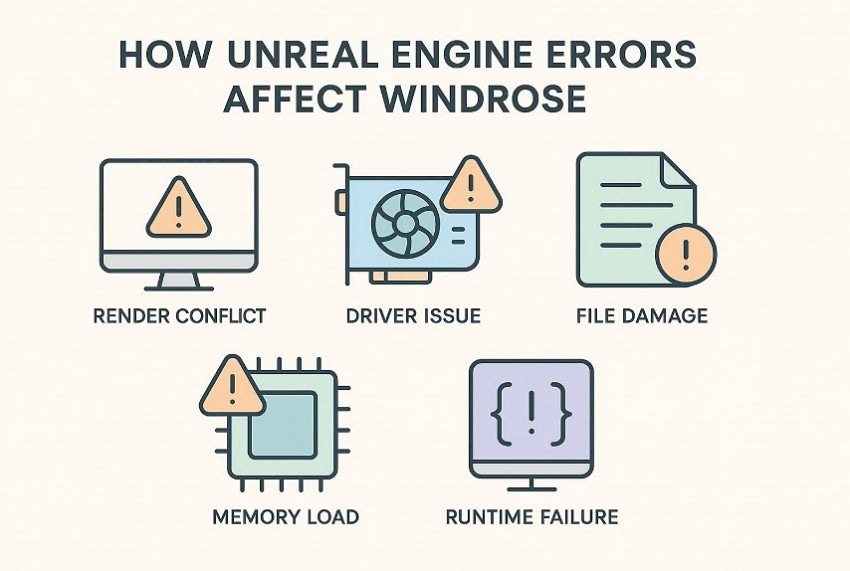
- Rendering Conflict: High graphics settings can overload stable hardware limits during rendering. As a result, Windrose may close before scenes, textures, or effects load properly.
- Driver Issue: Outdated display drivers may fail to process Unreal Engine commands correctly. This can trigger crashes when the game needs updated graphics support.
- File Damage: Missing or corrupted game files can break Unreal Engine startup checks. Windrose may stop when required assets fail to load on Windows.
- Memory Load: Unreal Engine needs enough free memory for loading, rendering, and scene changes. Low available memory can cause sudden, fatal crashes during gameplay.
- Runtime Failure: Windows runtime packages help Unreal Engine components start correctly. Damaged or missing packages can prevent Windrose from launching on PC.
Common Signs of Game Failure
Before players try to fix the Windrose Fatal Error UE-R5 Crash, these warning signs can reveal where the game starts failing. The points below show common crash patterns seen during launch, loading, and gameplay:
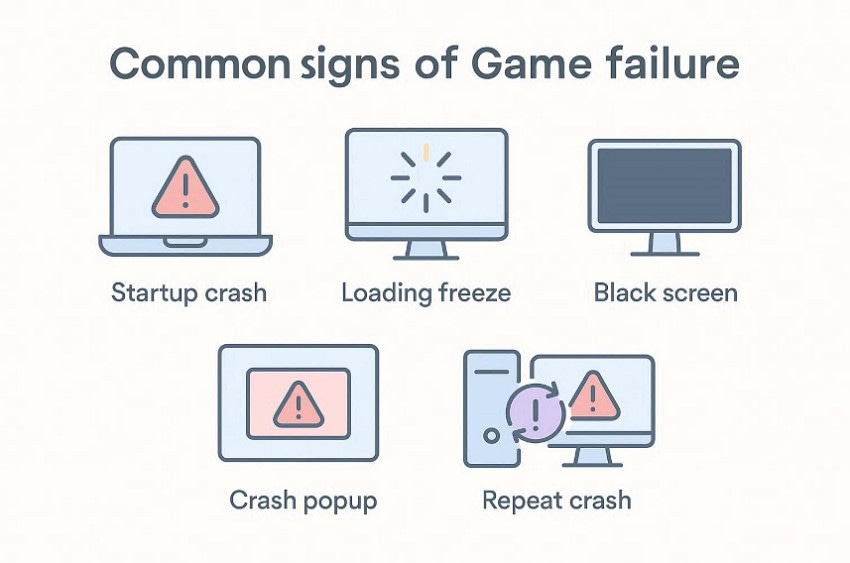
- Startup Crash: Windrose opens for a few seconds, then shuts down before menus appear. Players usually return to the desktop without reaching any playable screen.
- Loading Freeze: The loading screen stays stuck while the progress no longer moves. After waiting, players may need to close Windrose from Task Manager.
- Black Screen: The display turns black after launch while the game window remains open. Some players may still hear the menu sound or background audio.
- Crash Popup: A small Unreal Engine error report appears after Windrose closes. The message may include UE-R5, fatal error, or crash report details.
- Repeat Crash: The same failure returns each time players launch Windrose again. Restarting the PC may not change the repeated crash behavior.
Part 2. Windrose Keeps Crashing with UE-R5 Error? Here’s the Fix
After the warning signs are clear, the next step is safe troubleshooting. The methods below help players fix Windrose Fatal Error UE-R5 Crash without making risky Windows changes:
Fix 1. Run Game as Administrator
Administrator access matters when Windrose cannot open needed folders during startup. At the launch level, a restricted account can let the launcher appear, yet stop engine tasks before menus load. For testing, this setting does not edit game files; it only changes the launch permission. Once that is clear, walk through the steps below to apply this fix:
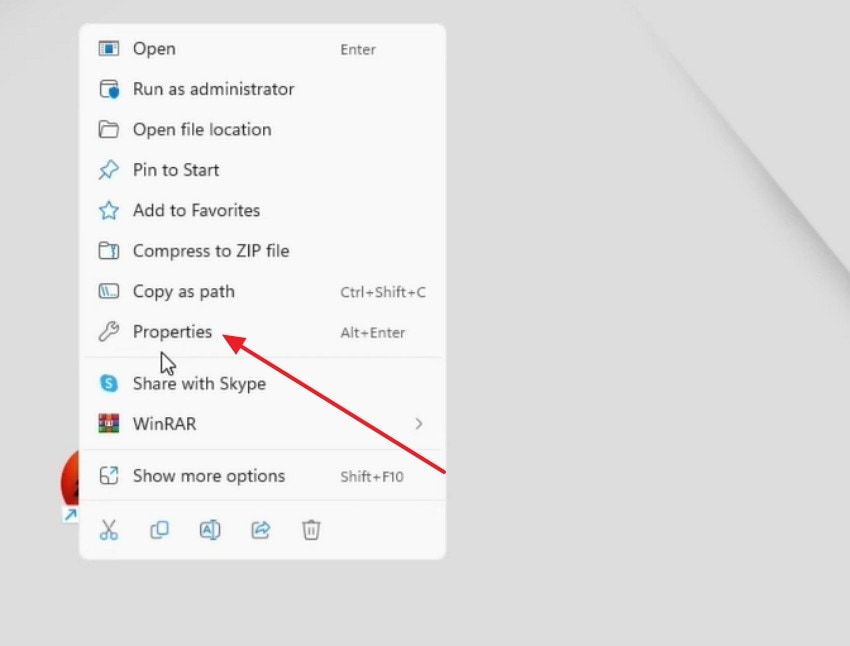
Step 1. Locate the game shortcut or main executable file, then open its right-click menu. From there, select “Properties” to access launch settings.
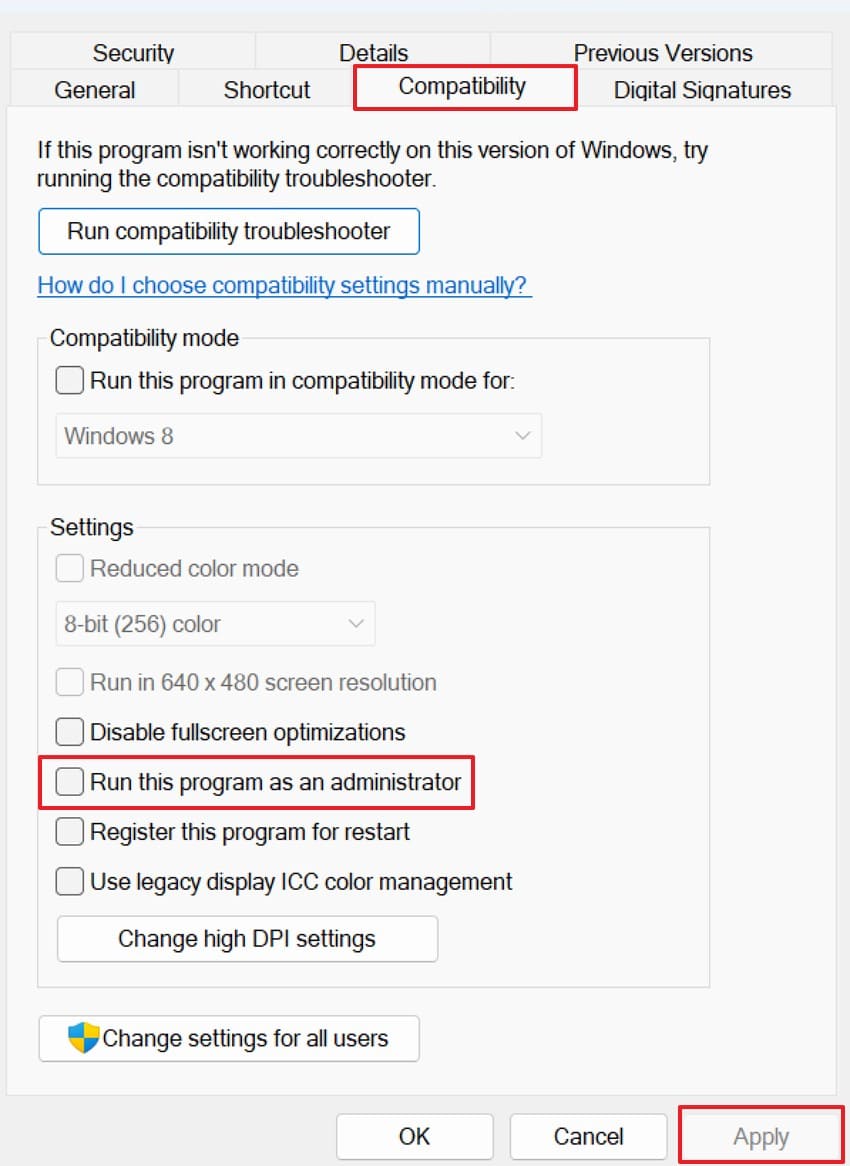
Step 2. Now, move to the “Compatibility” tab and enable “Run this program as an administrator.” Then press the “Apply” and “OK” buttons to save the setting.
Fix 2. Verify Game File Integrity
File integrity checks compare Windrose installation data with the store’s clean version. When players need to fix Windrose Fatal Error UE-R5 Crash, Steam compares local Windrose files with official game files and replaces missing or damaged data. In addition, the scan can detect missing maps, textures, or engine assets that may cause startup failure. Use the steps ahead to refresh the damaged game installation with care:
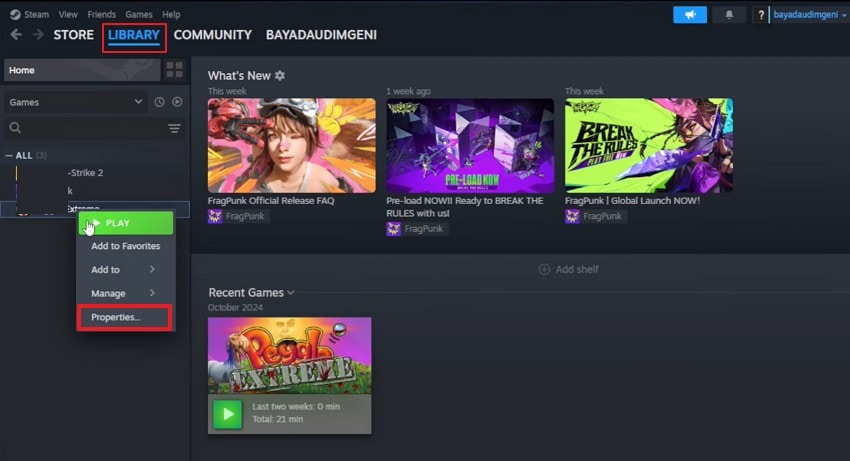
Step 1. First, open Steam and enter the “Library” section. Then right-click the affected game and select “Properties” from the menu.
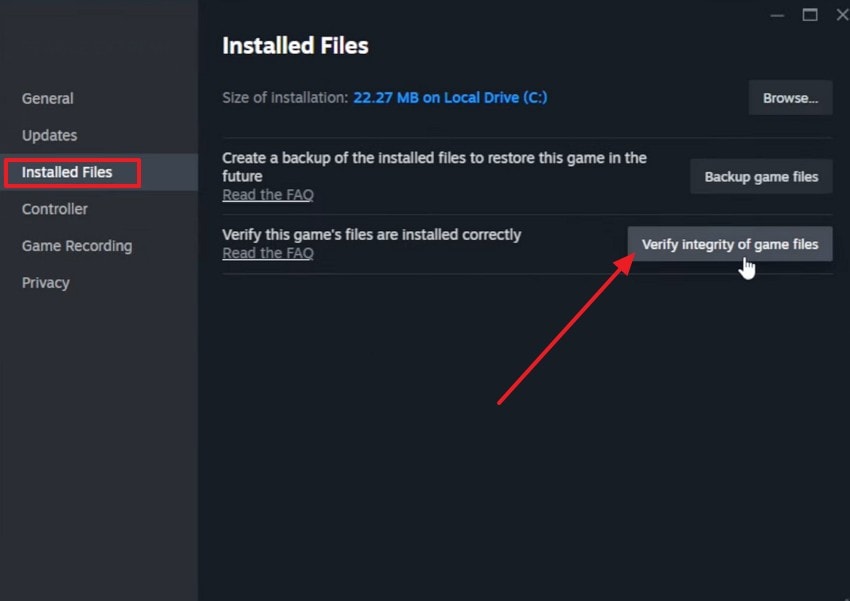
Step 2. From the properties window, choose “Installed Files” on the left side. Next, press “Verify Integrity of Game Files” and wait until Steam completes the scan.
Fix 3. Lower In-Game Graphics Settings
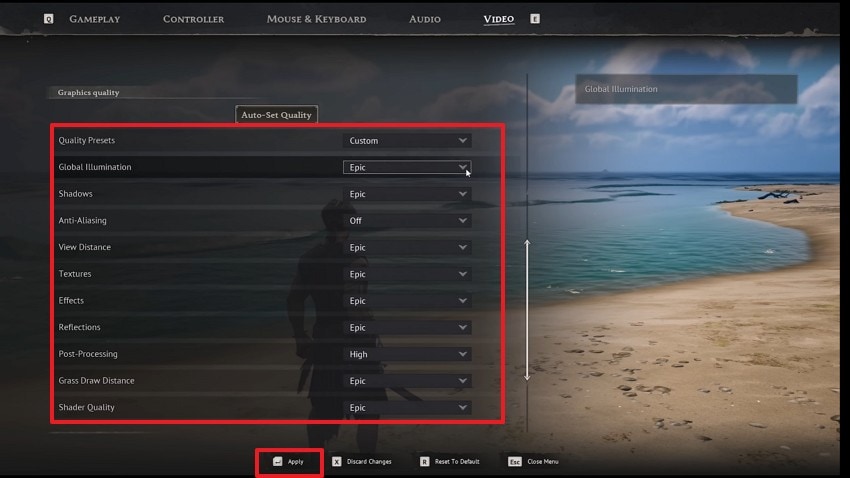
High graphics settings can push Windrose beyond stable rendering on some PCs. Reducing textures, shadows, effects, and resolution reduces GPU load during heavy scenes. The setting change helps when crashes appear after loading visuals or entering detailed areas. Follow the instructions below to make conservative changes first before testing another game session:
Instructions. Launch Windrose and enter the “Video” settings tab. Then lower demanding options such as “Quality Presets,” “Global Illumination,” “Shadows, Textures,” “Effects,” “Reflections,” “Post-Processing,” and “Shader Quality.” After that, press “Apply,” restart the game, and test Windrose again.
Fix 4. Disable Overlays (Discord, Steam, Etc.)
Overlays from Steam, Discord, recorders, and GPU apps can affect the game window. During Unreal Engine sessions, additional overlay layers may cause stuttering, focus loss, or crash prompts. Thus, turning them off gives Windrose a cleaner launch environment. Use the steps below to disable common overlays one at a time before relaunching the game:
For Discord
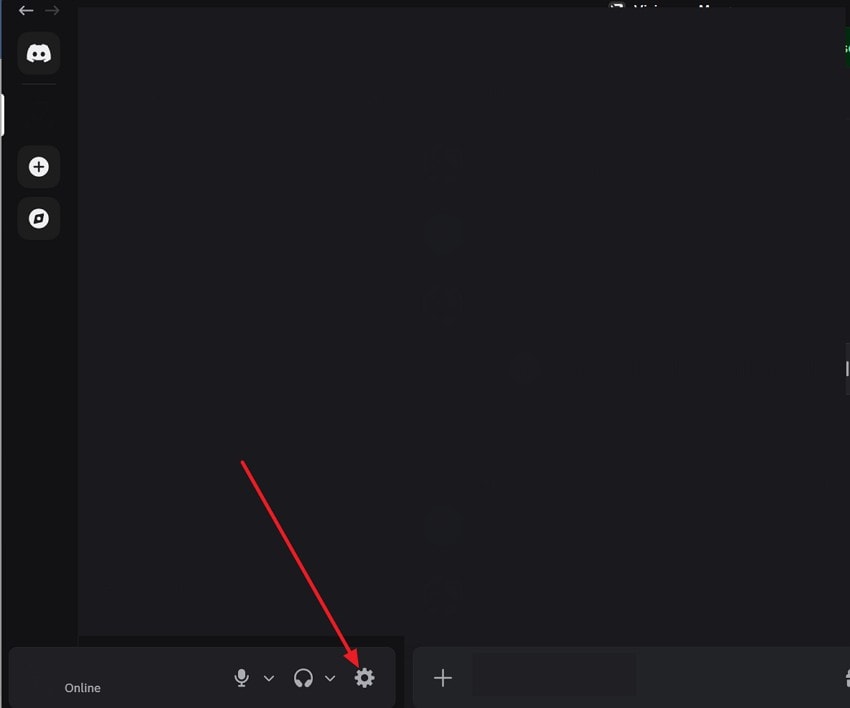
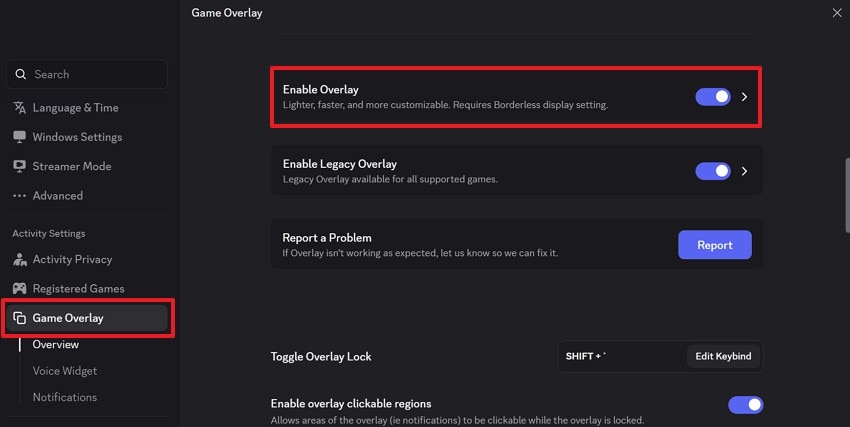
Step 1. Open Discord and click the “Gear” icon near the bottom-left corner. This opens the “User Settings” panel for account and app controls.
Step 2. Next, scroll through the left menu and access “Game Overlay.” Then switch off “Enable Overlay” to disable Discord’s in-game overlay.
For Steam
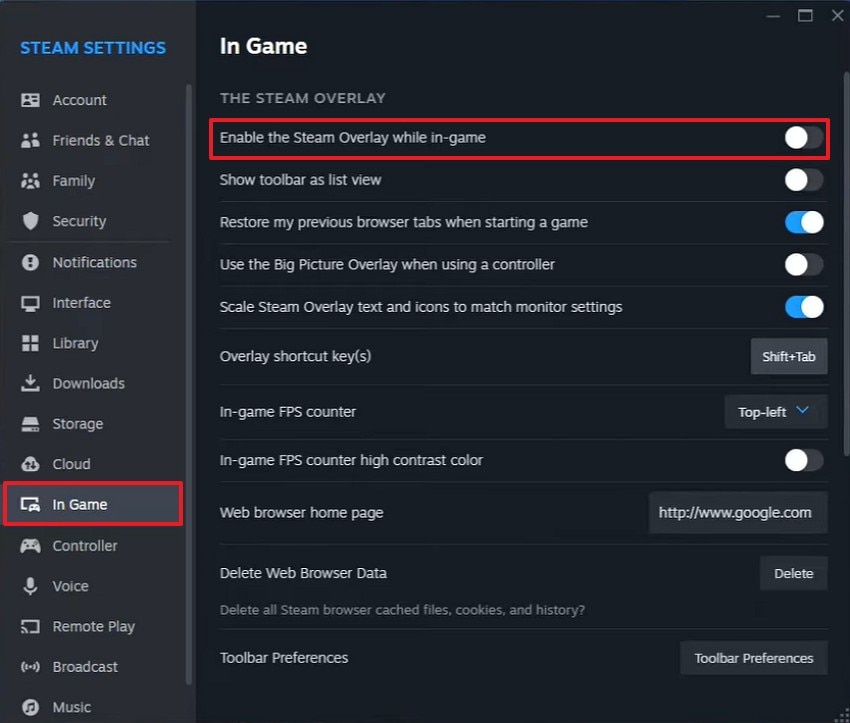
Step 1. In Steam, choose the “Steam” option from the top-left menu. From the drop-down options, choose “Settings” to open Steam preferences.

Step 2. Now, in the settings window, select “In Game” from the left menu. Afterward, turn off the Steam overlay option before restarting the game.
Fix 5. Reinstall DirectX and Visual C++ Packages
DirectX and Visual C++ support many Windows games during launch and gameplay. To fix the Windrose Fatal Error UE-R5 Crash, these packages should remain complete and stable. When these packages break, Windrose may fail before the session becomes stable. This repair brings essential Windows gaming parts back into working shape with the steps below:
For DirectX
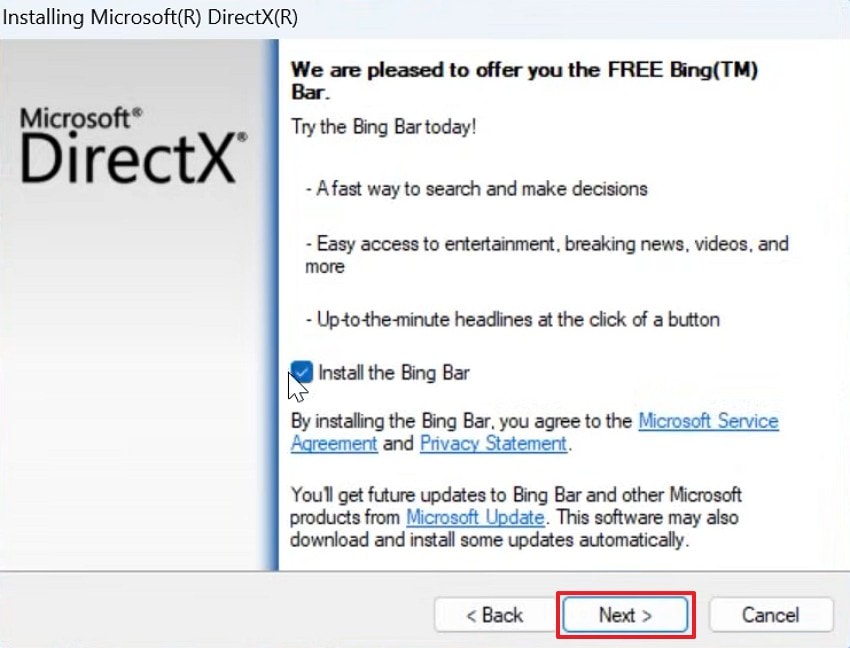
Step 1. Access the DirectX End-User Runtime Web Installer page from Microsoft. Next, select the required language, then click “Download” to get the installer.

Step 2. On the Installing Microsoft(R) DirectX(R) screen, review the optional Bing Bar offer. Uncheck “Install the Bing Bar,” click “Next,” and finish the DirectX setup.
For Visual C++ Packages
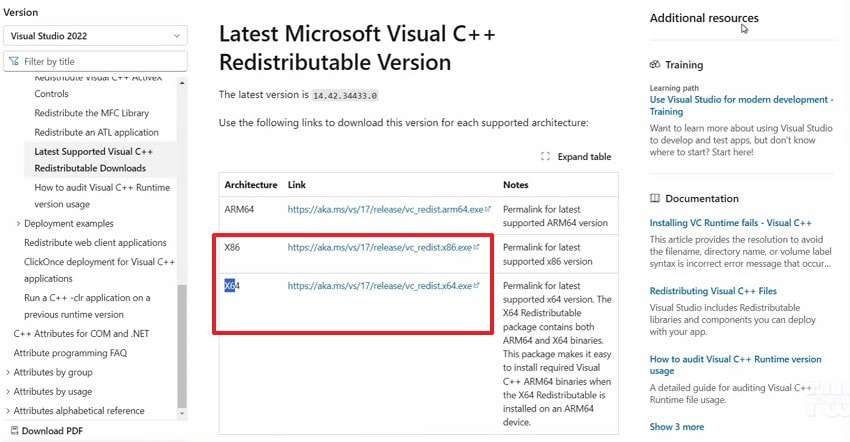
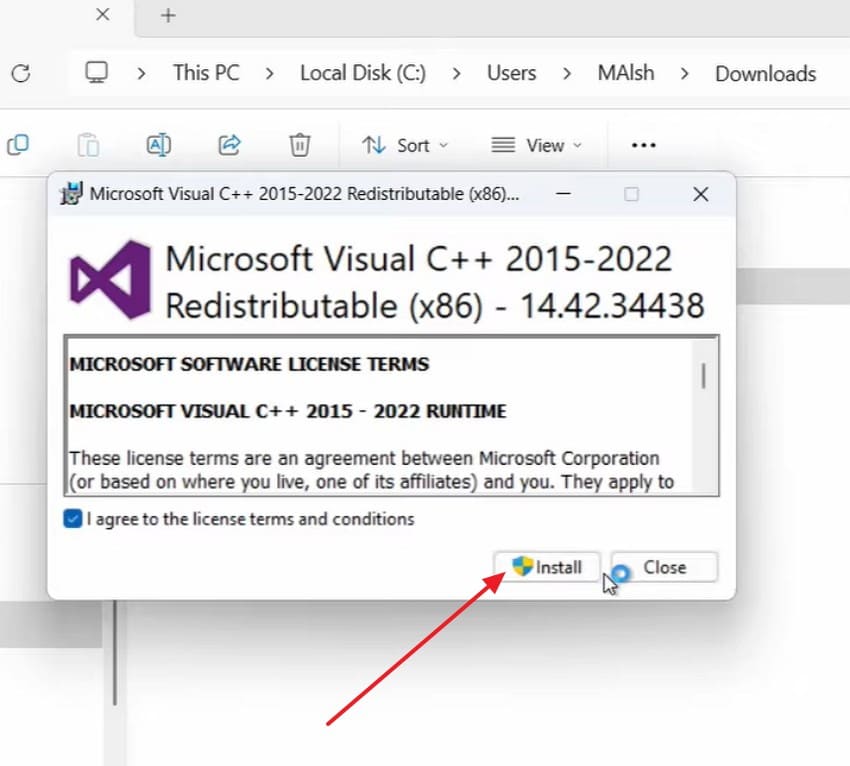
Step 1. To start, open Microsoft’s official Visual C++ Redistributable download page. Then download the “x86” or “x64” installer that matches the Windows system.
Step 2. Once the installer finishes downloading, open the setup file. Accept the license terms, then choose “Install” to start the installation.
Part 3. 3 System & Compatibility Fixes for Windrose UE-R5 Fatal Error
If Windrose still crashes after basic repairs, system compatibility needs closer attention. These fixes address Windows settings that can affect Unreal Engine stability:
Fix 1. Check Disk Health and Free Storage Space
Storage problems often show up during loading, saving, or shader building. At this stage, free space should not be ignored when players need to fix the Windrose Fatal Error UE-R5 Crash. Behind the scenes, a crowded or weak drive can slow file access during Unreal Engine tasks. From there, the following guides show how to check disk health and free storage space:
For Check Disk Health
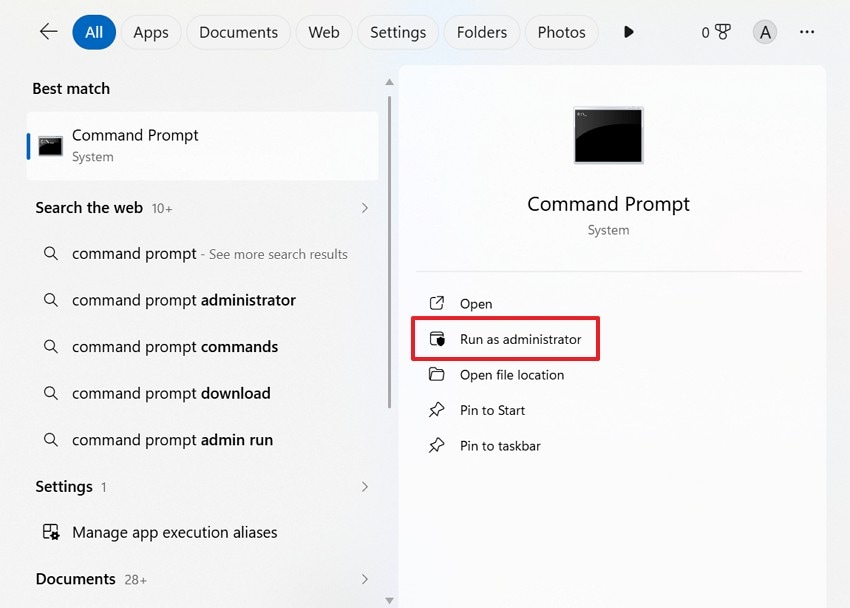
Step 1. To begin, search for “Command Prompt”, right-click it, and choose “Run as administrator” to continue.
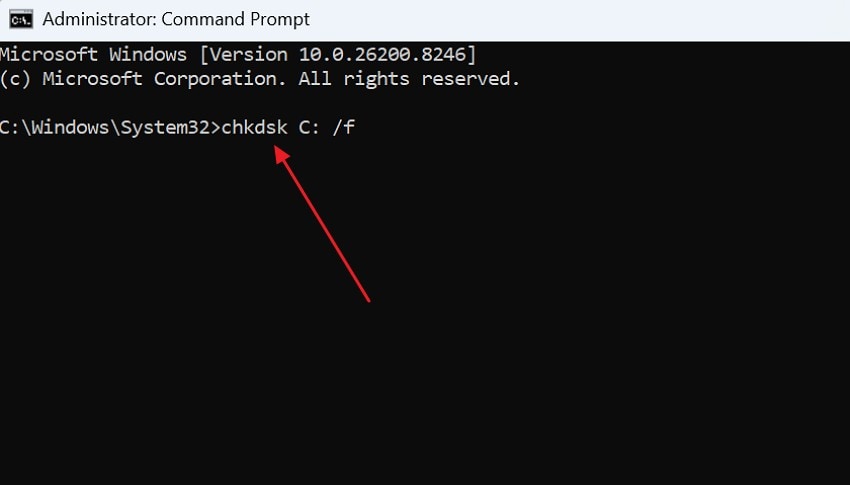
Step 2. After that, type “chkdsk C: /f” and press “Enter” to check disk errors.
For Free Storage Space
Instructions. To start, navigate to “File Explorer” and select “This PC” from the left panel. Then check the game drive and confirm enough free storage is available. If not, then delete some unwanted data to make some free storage.
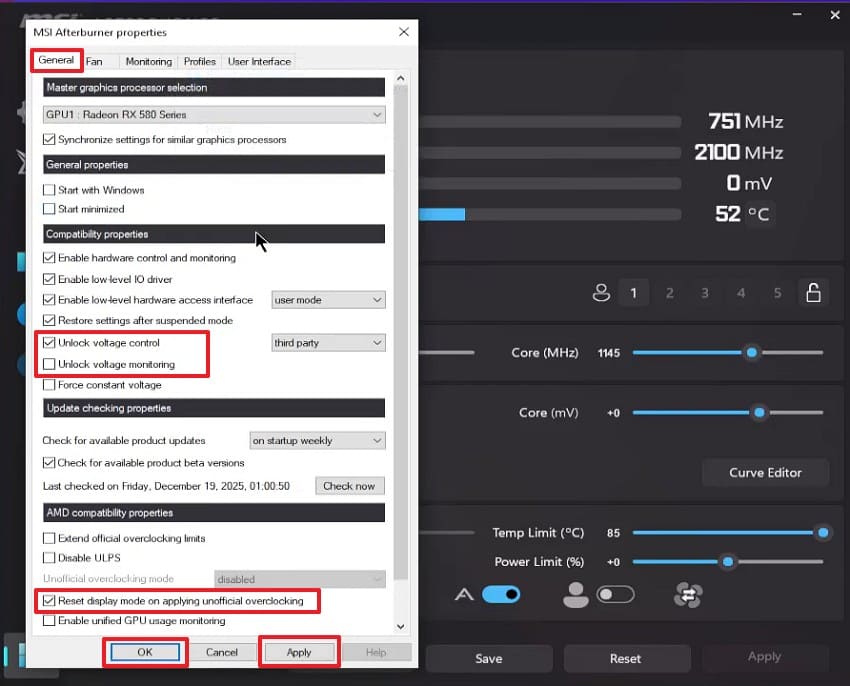
Fix 2. Disable Overclocking If Enabled
Extra clock speed can help performance, but stability matters more during crashes. Windrose may become sensitive when CPU, GPU, or RAM timings run too high. Default hardware settings can reduce heat, voltage pressure, and sudden engine shutdowns. Thus, try the stepwise guide below to test Windrose without overclocked settings:
Step 1. First, access MSI Afterburner or an app related to your system and check the “Core,” “Memory,” and “Power Limit” sliders. Following this, press “Reset” to return GPU settings to their default values.
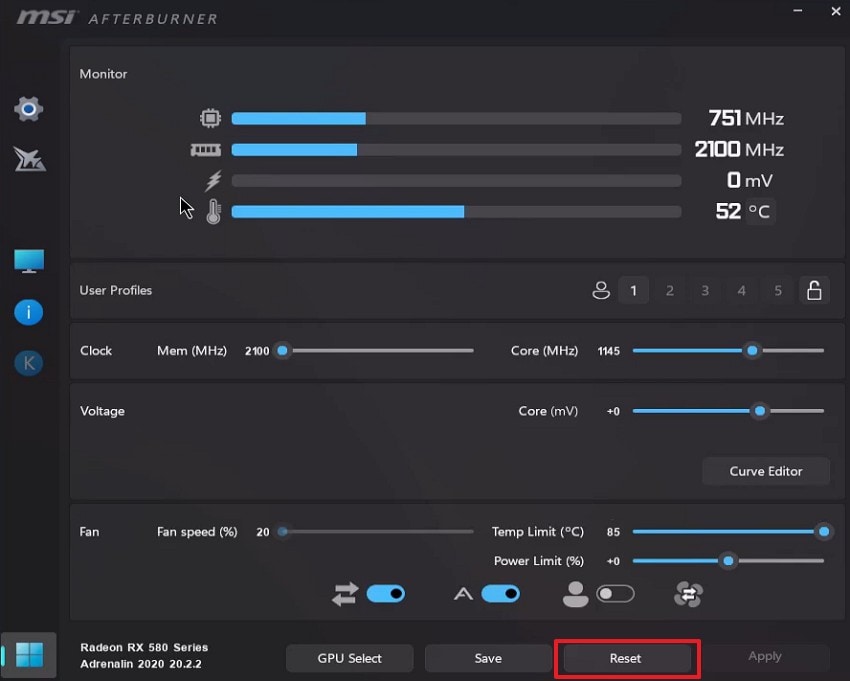
Step 2. Afterward, navigate to the “Settings” icon and keep unofficial overclocking or voltage controls disabled. Finally, click “Apply > OK” and restart Windows to test Windrose again.
Fix 3. Enable Compatibility Mode for Game Executable
Compatibility mode helps older or sensitive executables work with the current Windows behavior. In some cases, Unreal Engine titles respond better when Windows uses adjusted launch handling. Therefore, this setting can reduce access conflicts when users try to fix the Windrose Fatal Error UE-R5 Crash. After that, follow the steps below to apply compatibility mode safely:
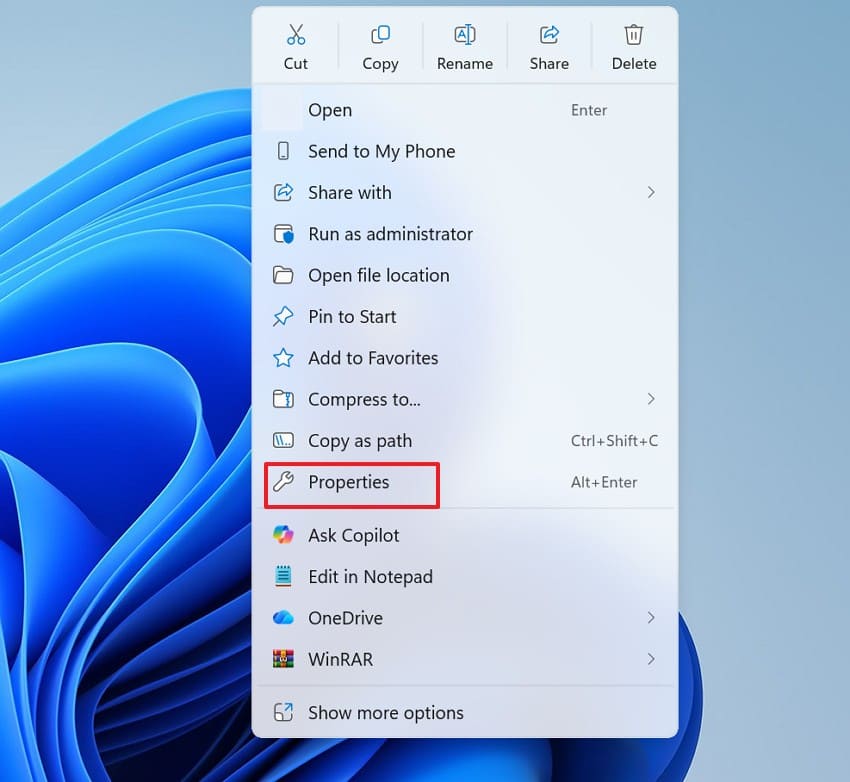
Step 1. Upon accessing the Windrose installation folder, locate the main game executable file. Then right-click the file and choose “Properties” from the menu.
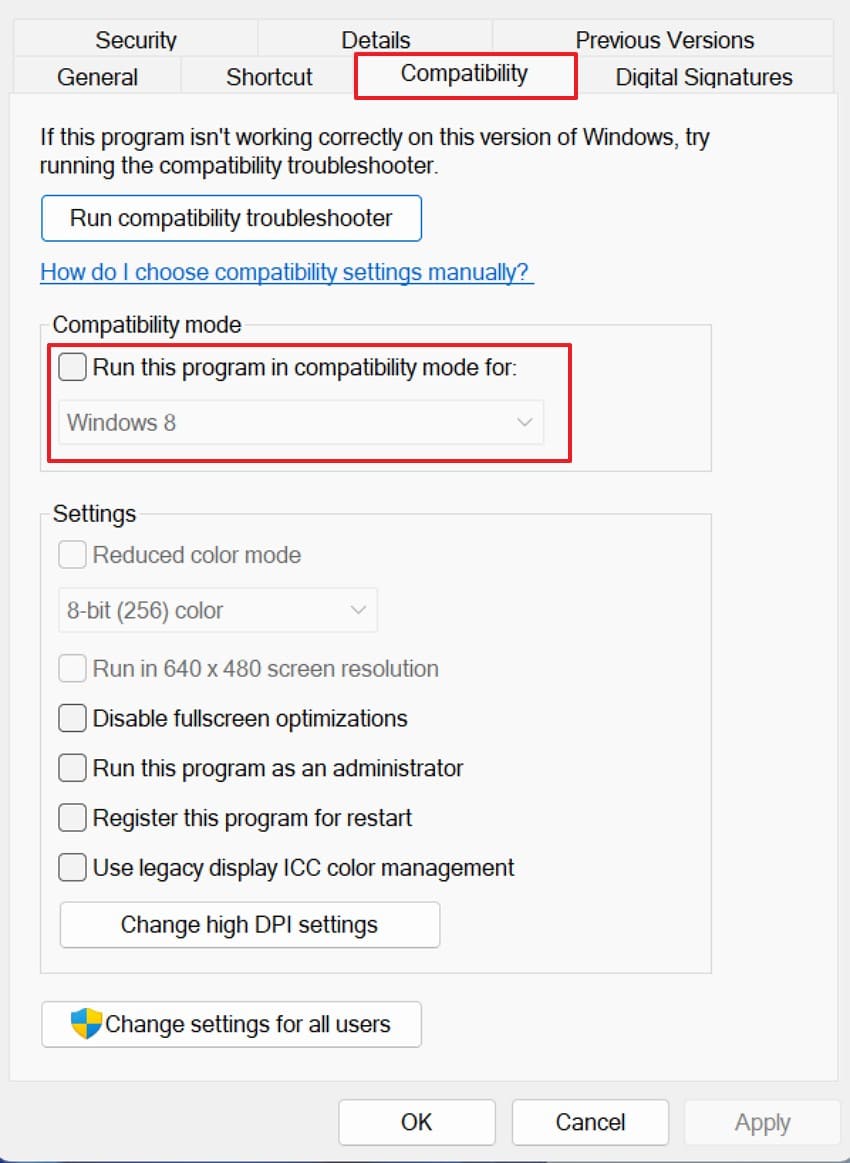
Step 2. Now navigate to the “Compatibility” tab and enable “Run this program in compatibility mode.” After that, choose a Windows version, press “Apply,” and relaunch Windrose.
Pro Tip. Solve UE-R5 Crashes by Fixing Corrupted Files with Repairit
A Windrose UE-R5 crash can often link back to corrupted or damaged files that fail during loading, saving, or rendering. When key game-related files, recordings, or supporting assets become unstable, Unreal Engine may crash while trying to process them. In such cases, identifying and repairing these problematic files becomes an important step in resolving the crash.
Repairit helps by fixing corrupted media and support files that may interfere with normal game operations. It does not modify Unreal Engine files or the Windrose installation directly. Instead, it restores damaged files created or used during gameplay, reducing the chances of repeated crashes caused by unreadable or broken data while players continue with core troubleshooting steps.
Key Features

-
Corrupted File Repair: Repairs damaged game-related videos, screenshots, and support files that may trigger UE-R5 crashes during loading or processing.
-
Unreadable Media Fix: Restores files that fail to open or cause errors, helping prevent crashes linked to broken or unsupported data.
-
Crash-Related Data Recovery: Fixes corrupted recordings and files created during crashes, reducing instability caused by faulty assets.
Step-by-Step Guide to Fix Corrupted Files with Repairit
For players still working to fix Windrose Fatal Error UE-R5 Crash, corrupted recordings or support files should not be ignored. Repairit can help clean up those damaged files through the simple guide below:
Step 1. Access the Repair Workspace to Continue
Move to the “File Repair” workspace for fixing files behind this Windrose error. Next, use the “+Add” button to add damaged files.

Step 2. Start Fixing Your Game Files
Once selected files appear in the repair queue, review each filename, size, and path. Then, remove the wrong item if needed, then press “Repair.”
Step 3. Confirm and Export Repaired Files
Navigate to “Repaired Results” to inspect the restored files. Afterward, choose the “Preview” option to check, or “Save” and “Save All” to export.

Repair Corrupted Files
 Security Verified. Over 7,302,189 people have downloaded it.
Conclusion
To conclude, Windrose crashes rarely point to one simple cause during repeated PC sessions. Instead, UE-R5 errors can involve engine load, missing assets, runtime gaps, overlays, or Windows compatibility. For this reason, a careful repair path keeps changes safe and avoids random system edits. Afterward, users can fix Windrose Fatal Error UE-R5 Crash with cleaner records, while Repairit helps restore damaged recordings and game files after repeated crash sessions.
Frequently Asked Questions
-
Can lowering graphics settings help Windrose UE-R5 crashes?Lower settings can reduce pressure on the graphics card during heavier scene loads. Heavy scenes often demand more system power, so lighter visuals can help Windrose.Should overlays stay enabled while troubleshooting Windrose crashes?No, overlays can interfere with focus, capture tools, and engine windows during play. Turning them off creates a cleaner test environment for repeated UE-R5 crash checks.Why does Windrose show UE-R5 fatal error during launch?Windrose may show UE-R5 when Unreal Engine fails during the early startup check. The crash often appears before menus, loading screens, or full gameplay becomes stable.Can Repairit help after repeated Windrose UE-R5 crash sessions?Repairit can restore corrupted recordings, screenshots, and documents created during crash testing. It helps players keep cleaner support files while troubleshooting Windrose on PC.




