 TL;DR:
⚡ Quick Fix: Repair a Stopped QuickTime Recording
● Check If the File Is Repairable: If the interrupted MOV or MP4 file has file size and still contains media data, it may be repairable; if it is 0 bytes or never saved, repair is unlikely.
● Avoid Editing the Damaged File: Do not rename, convert, trim, overwrite, or re-save the corrupted QuickTime recording before repair, and keep a duplicate copy in another folder.
● Repair the Recording Structure: Use video repair software to rebuild missing duration, track structure, frame index, timing data, and container metadata so the file can open and play again.
● Preview and Save Separately: Check the repaired file for visible video, normal audio, correct duration, audio-video sync, and playable key segments before saving it as a new file.
Ask AI for a summary
 ChatGPT
 Perplexity
 Gemini
 Claude
 Grok
Grok
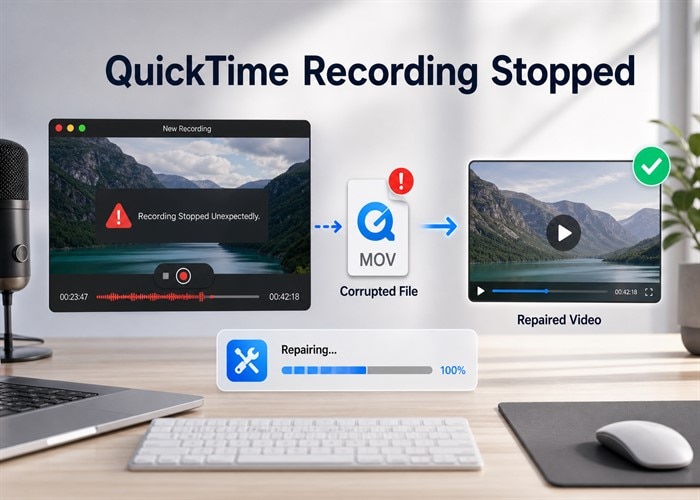
You may be recording a meeting, class, livestream, interview, VHS capture, gameplay session, or camera feed when QuickTime recording stopped suddenly. The file may still appear on your Mac, iPhone, or iPad, but it will not open, keeps loading, has no thumbnail, shows a black screen, or displays a corrupted file warning.
If the interrupted recording still has file size and contains usable media data, it may be repairable. If the file is 0 bytes, was never saved, or has been overwritten, repair is much less likely. Some users describe similar interrupted capture cases in the r/MacOS community.
This guide focuses on one specific situation: a QuickTime or Apple recording stopped unexpectedly, and the MOV or MP4 file that was created is now corrupted. If your QuickTime screen recording was not saved correctly but a damaged file still exists, Repairit can help repair supported corrupted video files without overwriting the original.
In this article

Part 1: Why QuickTime Recordings Become Corrupted After Stopping
A recording file can be damaged even if it looks like it saved. When QuickTime, iPhone, or iPad stops unexpectedly, the video data and the playback structure may not be written at the same time or completed in the right order.
Common Signs of an Interrupted Recording File
You may notice one or more of these problems after the recording stops:
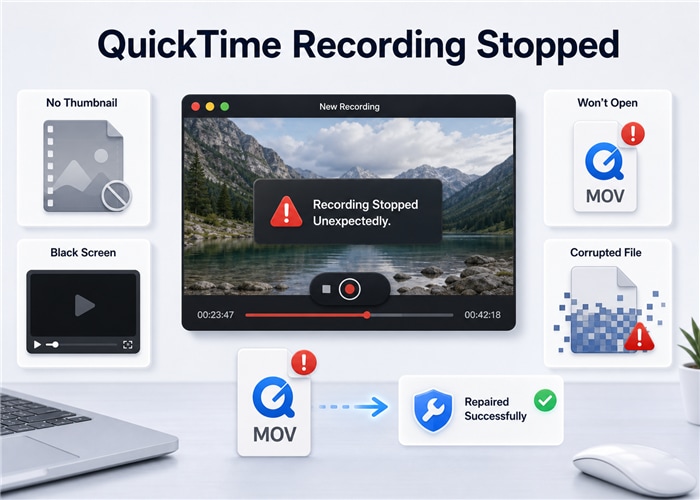
- The QuickTime recording file exists but will not open.
- The MOV or MP4 file has no thumbnail.
- QuickTime keeps loading the video but never plays it.
- The video opens with a black screen.
- The recording has audio but no picture.
- The file shows a corrupted, damaged, or unsupported warning.
- The duration is missing, wrong, or much shorter than expected.
What Happens When a Recording Does Not Finish Saving
When a recording finishes normally, the system writes information that helps a player understand the file: duration, audio and video tracks, frame indexes, timing data, and container metadata. If the recording is interrupted before this information is completed, the media data may still exist, but the player may not know how to read it.
| Missing or Damaged Information | Why It Matters | Common Symptom |
| Duration information | Tells the player how long the recording should play | Duration is missing, wrong, or shortened |
| Track structure | Separates video and audio streams | Audio-only playback or missing sound |
| Frame index | Helps the player locate each frame | Black screen, frozen video, or failed playback |
| Container metadata | Helps MOV/MP4 files open normally | No thumbnail or corrupted file warning |
Common Reasons QuickTime or Apple Recordings Stop Unexpectedly
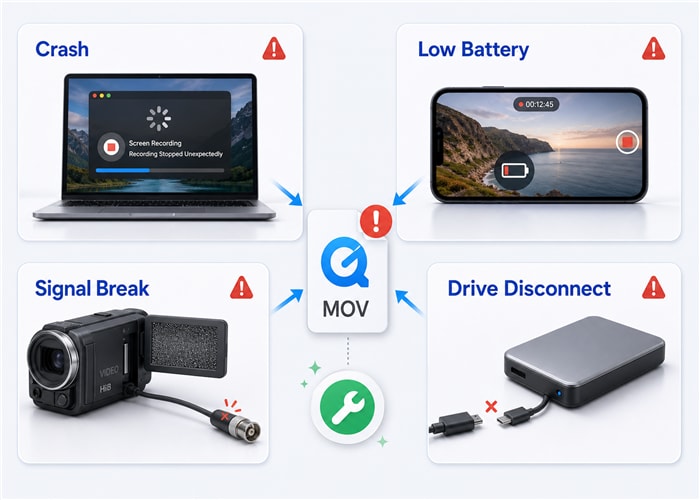
- QuickTime Player crashed or was force quit on Mac.
- Mac shut down, restarted, or went to sleep during recording.
- iPhone or iPad battery died during screen recording.
- An iOS or iPadOS app froze during recording.
- Storage space ran out before the recording could finish saving.
- An external drive disconnected while QuickTime was writing the file.
- A capture source lost signal, such as VHS or camera input during digitization.
Part 2: How Repairit Helps Repair Interrupted Apple Recordings
-
Repairs supported interrupted recordings. Helps rebuild damaged playback structures in MOV and MP4 files created by QuickTime, iPhone, and iPad recording workflows.
-
Preview before saving. Check the repaired result before exporting a new playable version.
-
Keeps the original file unchanged. Save repaired output separately without overwriting the damaged recording.
Repairit can help repair supported abnormal video files from Apple devices and QuickTime recording workflows. When a QuickTime recording is corrupted after an unexpected stop, Repairit analyzes the remaining audio/video data and attempts to rebuild the playback information needed to make the MOV or MP4 file readable, previewable, and playable again.
Real QuickTime Recording Interruption Scenarios
The same damage pattern can happen in several recording workflows:
| User Scenario | What Went Wrong | What Repairit Focuses On |
| VHS or camera capture in QuickTime | The capture signal breaks and QuickTime stops recording | Repairing the readable video structure from the data already written |
| Mac screen recording for a meeting or class | QuickTime crashes, freezes, or is force quit | Rebuilding duration, tracks, and frame index information |
| iPhone or iPad screen recording | Battery, storage, or app failure interrupts saving | Repairing damaged MOV/MP4 playback structure |
| Long livestream or gameplay recording | The recording stops before the session is complete | Restoring playable output from the portion that still contains usable media data |
| Recording saved to an external drive | Drive disconnects or becomes unstable | Repairing incomplete container metadata and media indexes |
What Repairit Rebuilds in a Corrupted Recording
Repairit helps rebuild the playback information a media player needs, including duration, tracks, frame indexes, timing data, and container metadata. Results depend on the file condition, format support, damage severity, and how much media data was saved before the interruption.
| Damaged Recording Data | Why It Matters | Repair Focus |
| Duration information | Shows how long the recording should play | Attempts to rebuild readable timing information |
| Track structure | Helps separate video and audio streams | Attempts to restore playable audio/video tracks |
| Frame index | Tells the player where frames are located | Attempts to reconstruct frame reading structure |
| Playback metadata | Helps MOV/MP4 files open correctly | Repairs damaged container structure when enough data remains |
Supported Recording Sources and File Types
Common Apple recordings may use MOV or MP4 containers with codecs such as H.264, HEVC, and AAC. Always keep the original damaged file and confirm final compatibility inside Repairit before saving the repaired output.
| Recording Source | Common File Type | Typical Damage Scenario |
| Mac QuickTime screen recording | MOV | QuickTime crashed, force quit, or Mac shut down |
| QuickTime camera recording | MOV | Recording stopped before the file was finalized |
| iPhone screen recording | MOV/MP4 | Battery died, app crashed, or saving was interrupted |
| iPad screen recording | MOV/MP4 | Recording stopped unexpectedly or file cannot open |
Part 3: How to Repair a Corrupted QuickTime Recording
Before repair, do not rename, convert, trim, re-save, or overwrite the corrupted recording. Work from the original damaged file whenever possible, and save a duplicate copy in another folder before trying any repair or conversion step.
Step 1. Add the corrupted recording file. Open Repairit and add the MOV or MP4 file that was created after QuickTime, iPhone, or iPad recording stopped unexpectedly.

Step 2. Start video repair. Repairit analyzes the damaged file and attempts to repair missing or broken playback structure when enough media data remains.

Step 3. Preview the repaired recording. Check whether the video opens, the screen content is visible, audio plays normally, and the duration looks reasonable.
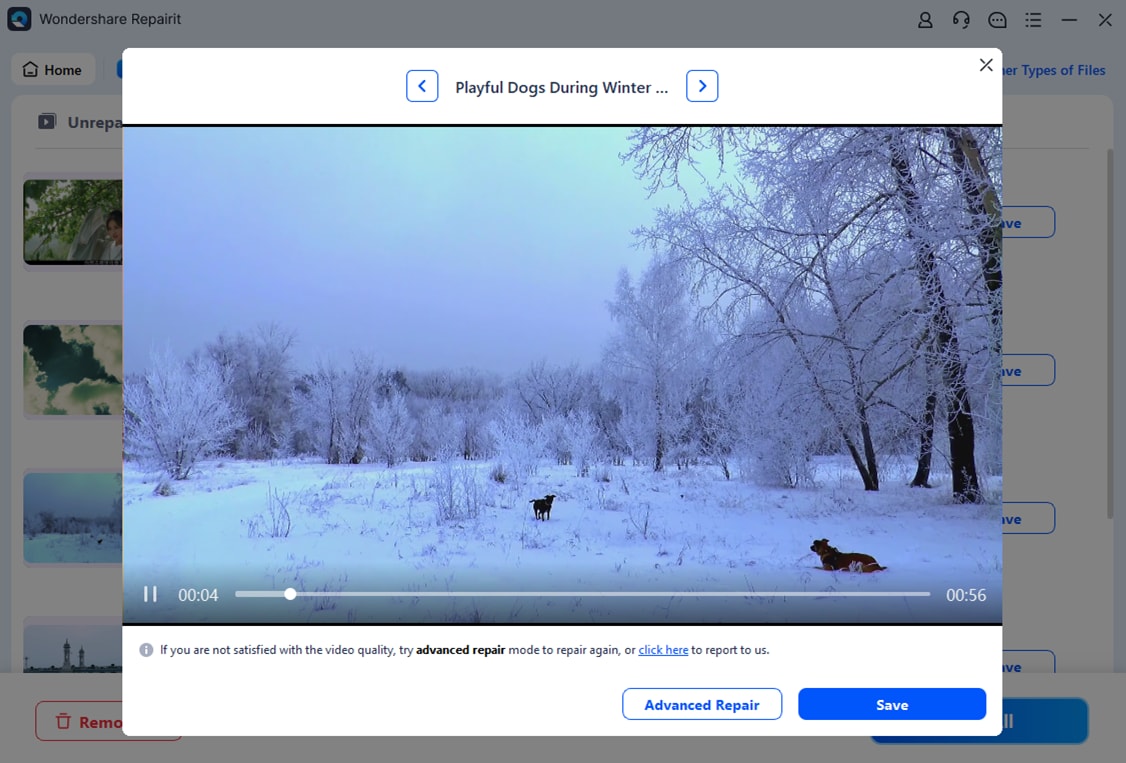
Step 4. Save the repaired file separately. Save the repaired output to a new location. Keep the original corrupted file unchanged in case you need another repair attempt.
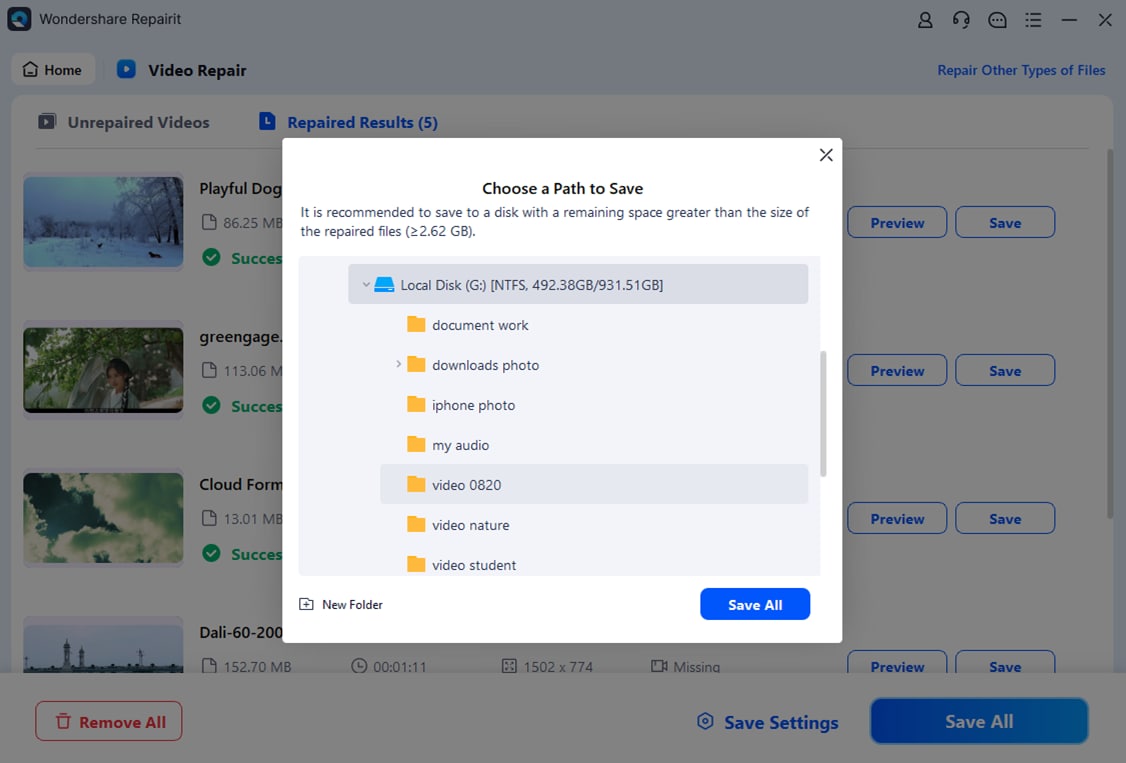
Part 4: How to Check If the Repaired Recording Is Usable
After repair, do not judge the result only by whether the file opens. Check the parts of the recording that matter most to you, especially if you need to use it as meeting evidence, class material, interview footage, or an editing source.
| What to Check | What It Tells You |
| File opens normally | The MOV/MP4 structure is readable again |
| Thumbnail appears | The system can recognize video content |
| Duration looks reasonable | Timing information has been rebuilt |
| Screen content is visible | Video frames can be decoded |
| Audio and video stay in sync | The recording is usable for meetings, interviews, and classes |
| Important segments are playable | The repaired content is practically useful |
| File saves and reopens | The repaired output is stable enough to keep |
- Play the repaired file from beginning to end.
- Confirm the video image is visible instead of a black screen.
- Check whether audio plays normally and stays in sync.
- Confirm the duration and progress bar look reasonable.
- Open the file in the player or editor you need to use next.
Part 5: When a Stopped QuickTime Recording May Not Be Repairable
Repair software can only work with data that still exists in the damaged file. If you are trying to recover an unsaved QuickTime recording, first check whether macOS, iOS, or iPadOS created an actual video file. If there is no file, or the file contains no media data, a video repair tool may not have enough information to rebuild playback.
| Case | Repair Outlook | What to Do |
| The file is 0 bytes | Usually not repairable | Check temporary folders, backups, or the original recording location |
| The file was overwritten | Repair may not restore the original content | Stop saving new files to the same location and check backups |
| The storage device is failing | Repairit does not fix hardware problems | Copy the file to a stable drive before attempting repair |
| The recording has size but no duration | May be repairable | Try repairing the original MOV or MP4 file without converting it first |
| The file opens with black screen or audio only | May be repairable | Repair the file and preview the result before saving |
Part 6: How to Prevent QuickTime Recordings From Being Corrupted Again
You cannot prevent every crash or signal break, but you can reduce the chance of losing an important recording.
- Check battery before long iPhone or iPad recordings.
- Keep enough free storage before recording.
- Choose a stable local save location before starting a long QuickTime recording.
- Do not force quit QuickTime while it is saving.
- Avoid recording directly to unstable external drives.
- Split long meetings, lectures, livestreams, or gameplay sessions into shorter recordings.
- Wait for the file to finish saving before renaming, moving, trimming, or converting it.
- Use a backup recording for important calls, interviews, classes, or live events.
A QuickTime recording stopped error is frustrating because the file may look like it exists, but the recording is not actually playable. In many cases, the problem is not the video content itself but the missing structure that should have been written when the recording finished.
Repairit V6.8 can help with this situation by analyzing supported interrupted Apple and QuickTime recordings and attempting to rebuild the playback information needed to open, preview, and play the damaged MOV or MP4 file. Start with the original damaged file, repair it, preview the result, and save the repaired version separately.
FAQ
-
Can I fix a QuickTime recording that stopped unexpectedly?
Yes, you can try if the recording file exists and still contains valid audio/video data. If the file is 0 bytes or no media data was written before the interruption, repair is unlikely. -
Why did my QuickTime recording stop and become corrupted?
QuickTime may stop because of a crash, force quit, system shutdown, storage shortage, external drive issue, or capture signal break. If the recording cannot finish saving its duration, tracks, indexes, or metadata, the created file may become unplayable. -
Why does my QuickTime recording have file size but no duration?
The media data may have been written, but the timing and index information may be missing or incomplete. Repairit can try to rebuild the playback structure when enough recorded data remains. -
Can Repairit repair an iPhone screen recording that stopped unexpectedly?
Repairit can try to repair corrupted iPhone or iPad screen recording files when the MOV/MP4 file exists and contains usable media data. Results depend on how much data was saved before the interruption. -
Should I convert the corrupted QuickTime MOV to MP4 before repair?
No. Avoid converting, trimming, or re-saving the damaged MOV before repair. Work from the original corrupted file so the repair process has the most complete data to analyze. -
Can I recover an unsaved QuickTime recording with Repairit?
Repairit is designed to repair supported damaged video files, not recover deleted or never-created files. If an unsaved QuickTime recording left behind a damaged MOV or MP4 file, you can try repairing that file. If no file exists, check backups or temporary save locations first.