
 TL;DR:
⚡ Quick Fix: Fix and Recover 0 Byte Files
Identify the Cause: Check whether the 0-byte file came from an interrupted download, failed transfer, hidden file setting, malware attack, ZIP extraction error, or damaged storage connection.
Try Built-In Recovery: Restore a previous version, run CHKDSK on the affected drive, and turn on Hidden Items in File Explorer to check whether the real data is still accessible.
Fix File or Archive Issues: Use a different ZIP extractor, correct the file extension, or repair corrupted documents, PDFs, ZIP files, and Office files when the file structure is damaged.
Recover Mobile Data: If 0-byte files appear on Android, use a data recovery tool to scan the phone storage or backup and recover lost media, documents, or messages.
Ask AI for a summary
 ChatGPT
 Perplexity
 Gemini
 Claude
 Grok
Grok
Many times, files on your phone or computer may suddenly appear empty and stop working as expected. These files still show their names and icons but do not open or contain any information. In addition, you may even notice your device showing errors related to storage or missing data. Many users think these files with 0 bytes size are lost or broken forever, which is not always true.
Instead, your storage file becomes unreadable when it faces errors during the transfer or downloading process, including many other reasons. This guide will explain the top reasons that cause your files to behave this way and the solutions that resolve this problem. Furthermore, we will share an advanced solution that allows you to repair and recover your damaged files.
In this article
Part 1. What Are 0 Byte Files?
A 0-byte file in your system shows no data when you look inside it, even though it has a name and format. These files take up zero space on the drive, which means they carry no actual information. Furthermore, they may appear while using email or downloading something from an online source. Similarly, while the file format appears correct, the content is either lost or never saved.
That's one reason these empty files may look normal but are not usable or readable by any program. While such files don't harm your system, they can cause confusion or lead to lost work. Additionally, programs may crash when trying to open them or show error messages. Therefore, one must find the reasons behind the creation of these files and the solutions to fix them.
Part 2. Primary Causes for Hard Drive Showing 0 Bytes
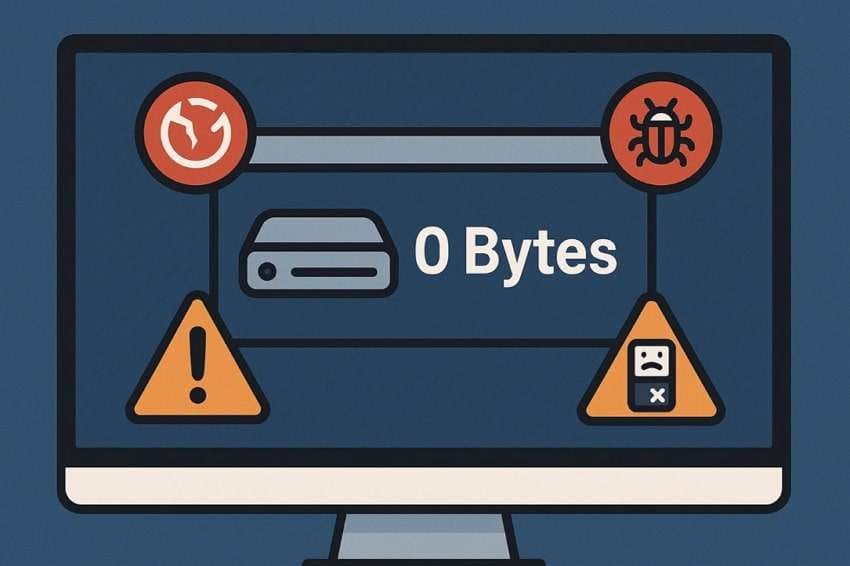
As said above, downloading errors and file transfer issues can cause the creation of 0-byte files. Since many other causes contribute to the creation of these empty files, we have listed them below:
| Causes | Description |
|---|---|
| File Corruption | A broken file system can confuse the computer and make all data look unavailable. You may face this error after your system shuts down suddenly, which damages the files but keeps the drive working. |
| Damaged Connections | Weak cables or loose ports can cause errors and even result in the loss of data when connecting storage drives. As a result of this, your system may not read the device correctly and show it as empty. |
| Hidden Files | Many times, users themselves or the operating system hide files that are needed for safety or privacy concerns. In most cases, the folder containing these files shows a 0-byte size to the viewers. |
| Malware Attacks | Some viruses delete or block file content and leave only the file name visible to the users. Similarly, these malware attacks usually create such files without any warning during or after infecting the system. |
| Incomplete File Transfers | While transferring your files, sudden pauses or cut-offs can create damaged copies. Although these files may look normal, they usually contain no data once you open them. |
Part 3. 7 Comprehensive Methods to Fix 0-Byte Files
Now that you know the reasons for showing the 0-byte size of your files, let's go through the solutions that resolve the issue. The following section has the best solutions, including built-in methods and an advanced tool, to resolve the issue:
Solution 1. Using Professional Data Repair Software: Repairit
When corruption is the reason, you are more likely to see the 0-byte files in your storage drives. Here, the ideal solution is to use a third-party repair tool, like Repairit, to fix the seemingly empty file. Repairit is a complete file repair solution that resolves not only empty file issues but also corruption problems with your office documents, PDFs, zip archives, and other work files.
It is powered by the latest AI technology that finds structural problems with files in over 100 formats and ensures an exceptionally high success rate. These AI algorithms work alongside the massive file template library of the tool to reconstruct lost file headers and restore the structural data comprehensively, turning empty-looking files back into functional documents.
Key Features
- Multi-Format File Repair: This dedicated feature fixes severely corrupted office documents, including Word (.docx), Excel (.xlsx), PowerPoint (.pptx), and PDFs.
- Zip File Extraction Fix: Safely repairs damaged ZIP or RAR archives that extract as empty or 0-byte directories.
- Advanced Repair Mode: Utilizes sample files to analyze and rebuild complex or severely damaged file parameters with high accuracy.
-
Multi-Format File Repair: Effortlessly fixes corrupted PDF, Word, Excel, PowerPoint, and Zip files showing zero bytes.
-
Advanced Directory Restructuring: Rebuilds damaged file headers to restore content tables, charts, and text formatting.
-
Batch Processing: Allows you to upload and repair multiple corrupted files simultaneously without file size limitations.
Guide to Use This Professional Data Repair Software to Fix 0 Byte Files
Step 1. Select File Repair and Add Corrupted Files
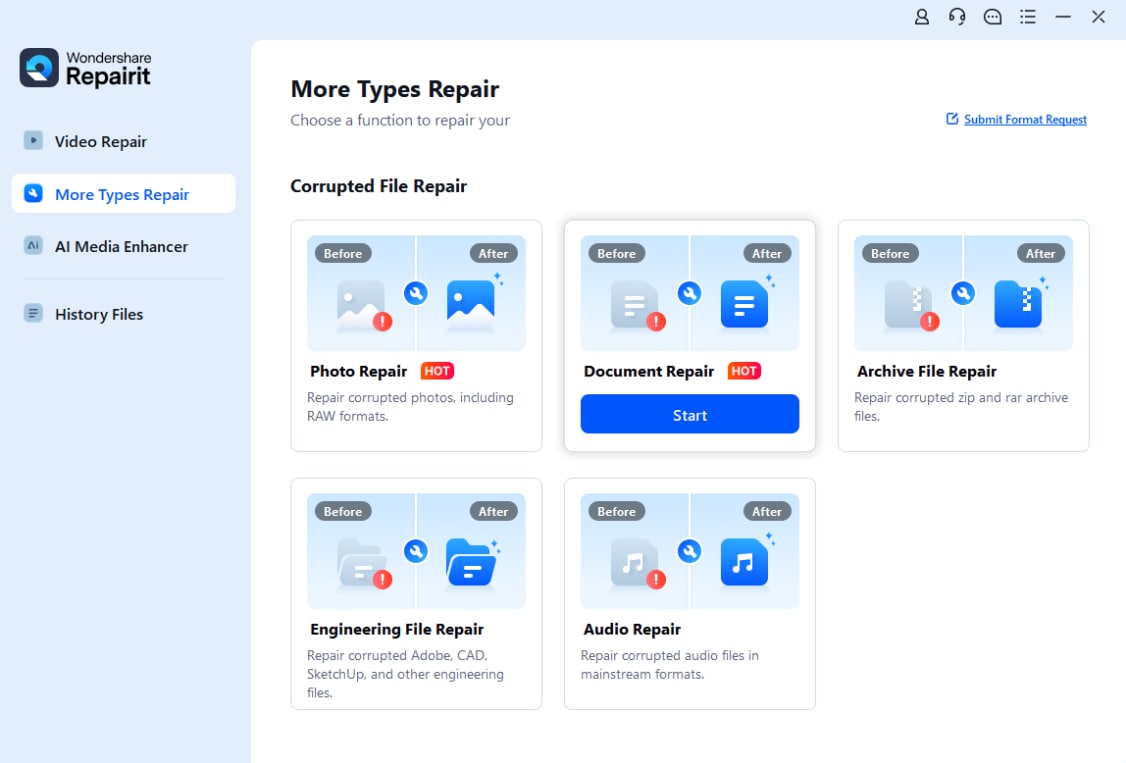
Launch Wondershare Repairit on your computer. Go to the "More Types Repair" tab from the left sidebar and click on "File Repair". Next, click the "Add" button to import your 0-byte or corrupted documents.
Step 2. Start the File Repair Process
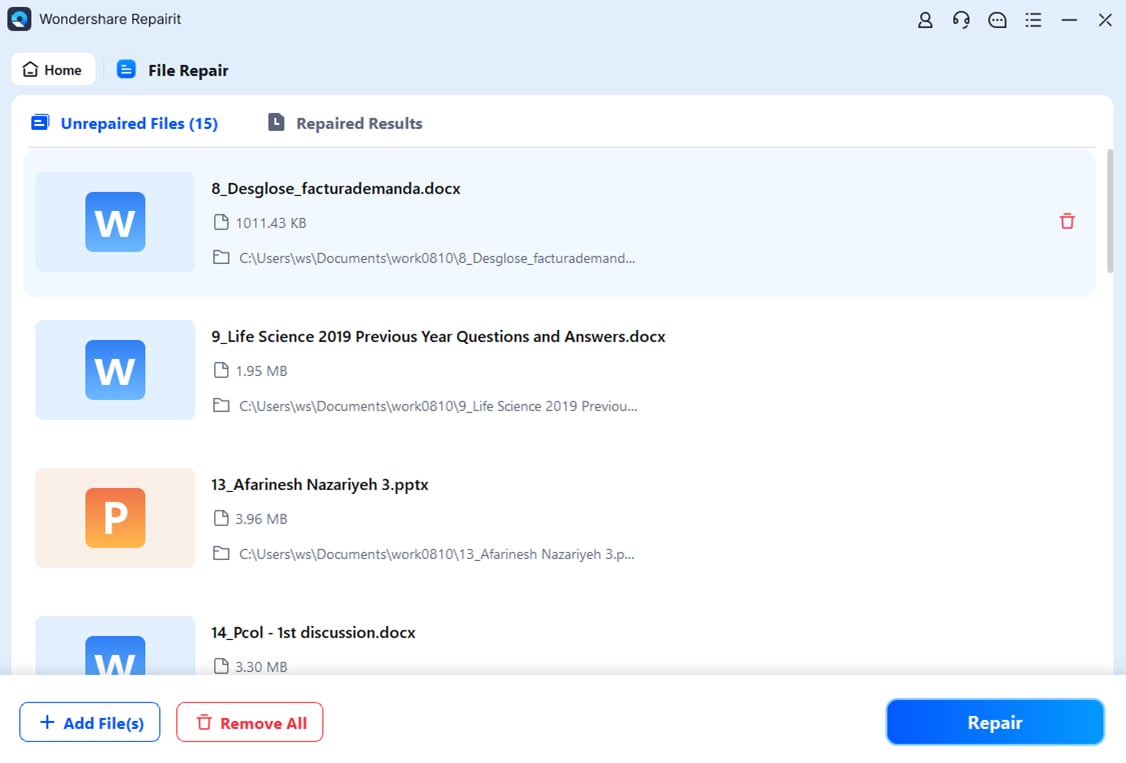
Once all the target files are loaded into the dashboard with their formats and sizes displayed, click the blue "Repair" button to initiate the scanning and reconstruction process.
Step 3. Preview and Export Repaired Files
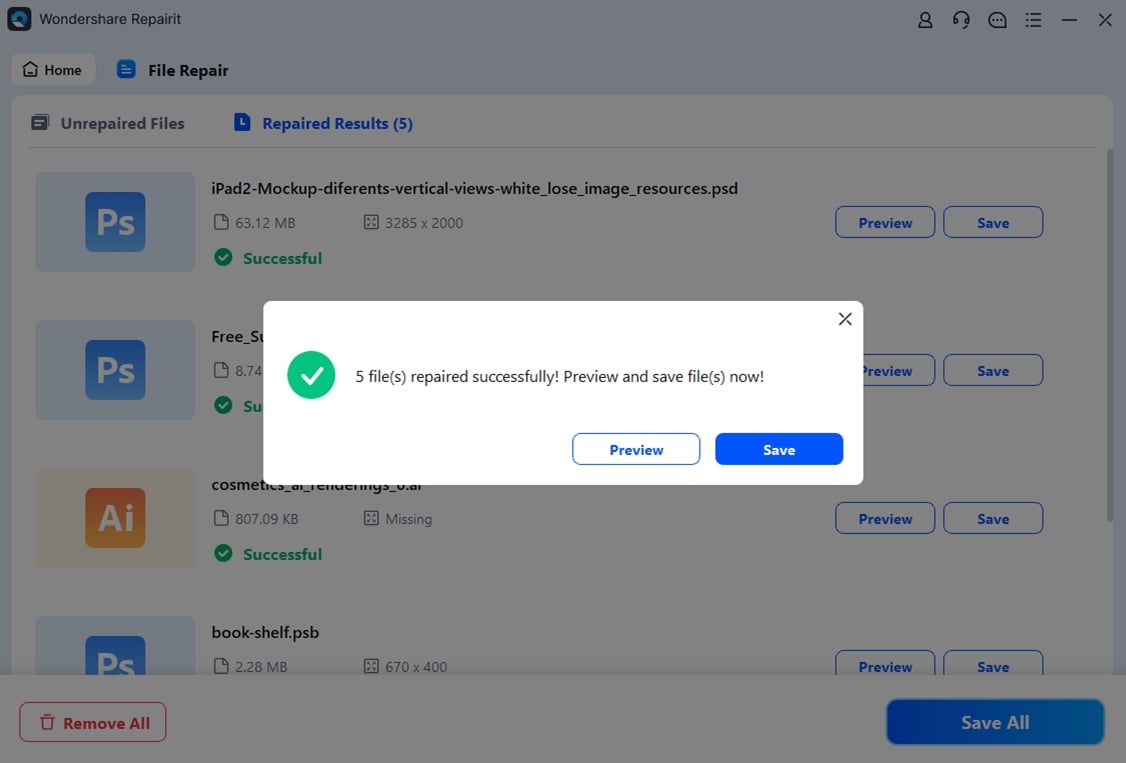
After the repair is completed, click the "Preview" button to verify the restored content of your documents. If everything looks good, click "Save" to export the fixed files back to a secure drive.
Repair 0 Byte Files with Repairit
 Security Verified. Over 7,302,189 people have downloaded it.
Solution 2. Restoring the Previous Version
Your system might have saved an earlier version that still has the data if a file recently turned empty. These older versions are created by Windows during major file changes, but they only work if you have created restore points. Similarly, restoring a file from the older version may bring it back without any changes you made recently. These steps will help restore a 0-byte file to an old version:
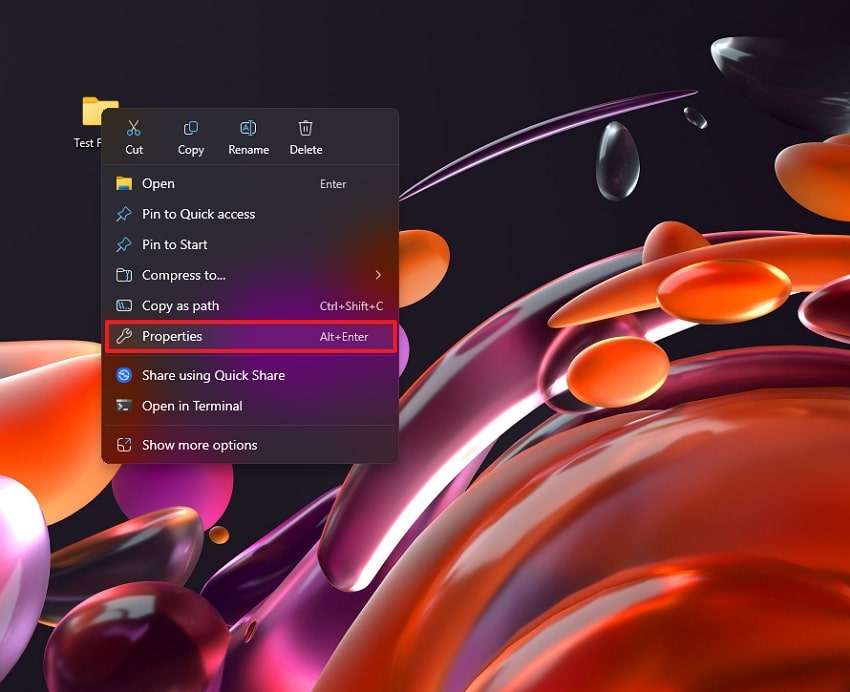
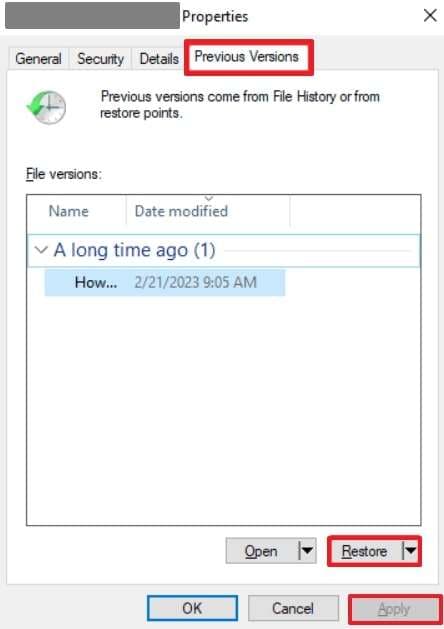
Step 1. Locate the empty folder on your device and access the "Properties" option by right-clicking on it.
Step 2. On the new screen, reach the "Previous Versions" tab and select any older variant if available. In the end, use the "Restore" button and complete the procedure by pressing the "Apply" button.
Solution 3. Run the CHKDSK Scan to Fix System Errors
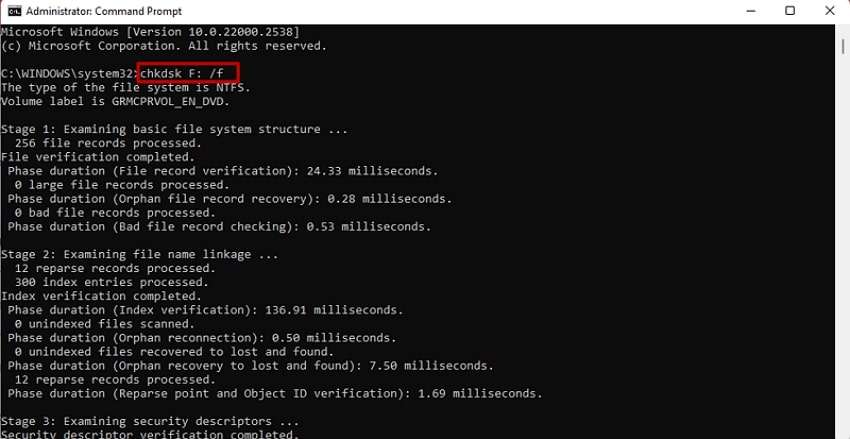
This built-in command helps fix most system errors, including those that confuse your computer to show empty files. The command line checks storage problems and corrects bad sectors on your drive without much manual effort. Another benefit is that using this command can also reveal lost content or reconnect missing files. These steps will explain how using this method solves the 0 bytes problem:
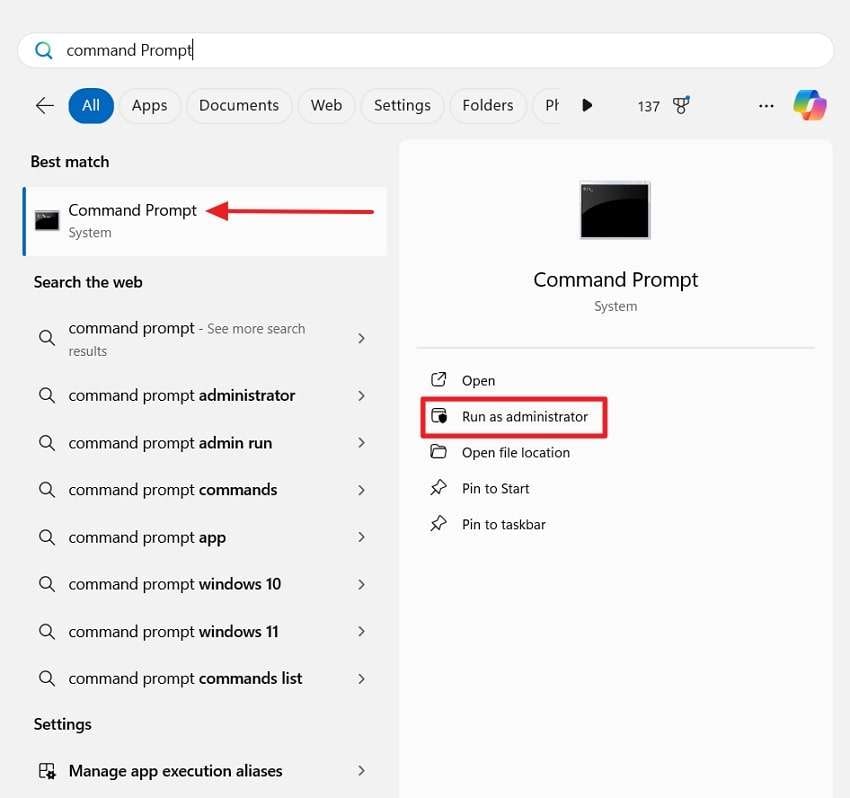
Step 1. You need to access the "Command Prompt" by using the "Search" widget in the taskbar. Afterward, open it by pressing the "Run as Administrator" button and selecting the "Yes" option from the pop-up.
Step 2. Here, type "chkdsk (Your Drive)" and enter the drive address that holds the targeted empty file. Hitting the "Enter" key will command the tool to run the scanning procedure.
Solution 4. Turn On Show Hidden Files
Since the system can hide your files for security and privacy reasons, you can make them visible to see if the 0-byte error is there. In addition to system files, you can use this method to reveal the data that you have hidden from yourself. You can try this method since it works without any additional resources and solves the 0 byte files error with these detailed steps highlighted below:
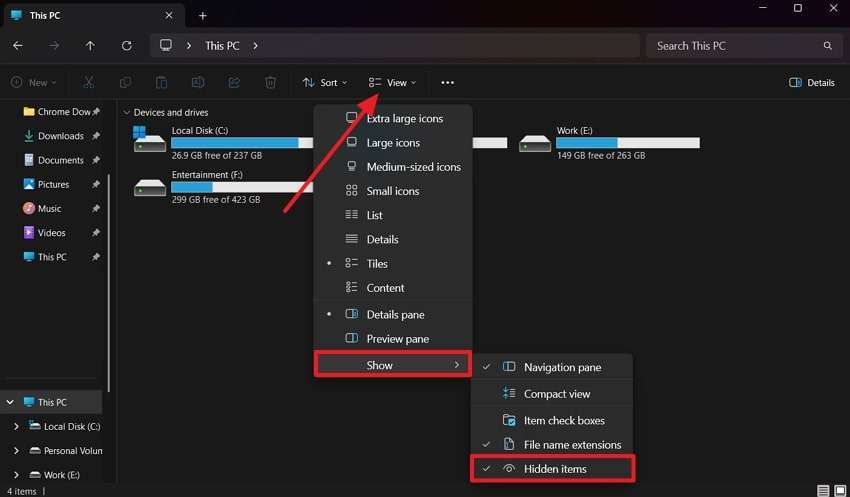
Instructions. Navigate to the "File Explorer" and access the "View" tab from the top menu bar. Later, reveal further options by pressing the "Show" button and enabling the "Hidden Items" option.
Solution 5. Delete SysWin Files
SysWin is a common virus that targets millions of Windows users globally, and it often leaves files in your system corrupted. The virus mostly attacks the program files with the EXE extension and reduces their size to 0 bytes. Since no details are available about its developers or the proper procedure to remove it, the ideal way is to simply go for a clean new Windows install.
Before opting for a fresh installation, make sure to back up most of your data, except for the affected files. Similarly, only install Windows from its official site and get a paid license to activate it. Once the installation is done, install a dependable antivirus program to ensure no such malware enters your system again.
Solution 6. Use a Different ZIP Extractor
You can switch the file extraction tool if the issue of 0 bytes is occurring with ZIP files. This situation can happen if the tool is outdated or doesn't support the file format that you are trying to extract. Going for a different tool can bypass minor corruption and restore the data in the files.
You can go for options like WinRAR or 7-Zip, as they support most file types for extraction. In addition to support for various complex formats, these options are optimized in a way that allows for the management of bigger files. Similarly, these tools can even bypass minor corruption and restore hidden data. Hence, these tools can handle your files better and ensure the data within them is also properly extracted.
Solution 7. Change the File Extension
As a final solution, try to change the extension of the problematic 0 byte files to see if that makes a difference. That's because renaming errors and system issues can usually change the extension of the file. Ultimately, the data within the file is lost, and the folder appears empty until you change its extension. With the steps given below, it will become easier to change the file extension:
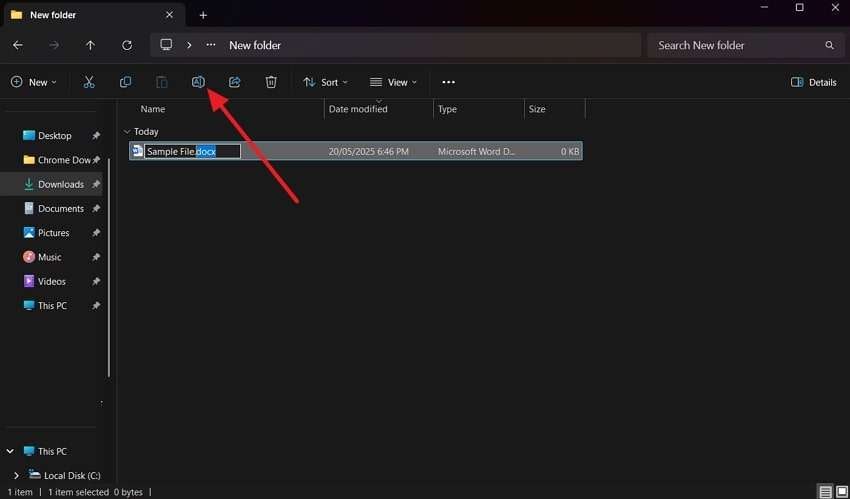
Instructions. Reach the folder or the file that is showing 0 bytes size and select it. Afterward, hit the "Rename" button that appears in the menu ribbon at the top. Then, change the extension of the file to a suitable one and hit the "Enter" key to finalize it.
Pro Tip. How to Perform 0 Byte File Recovery on an Android Phone
In addition to computer systems, many users face the problem of empty files on their mobile phones. This common issue usually signifies data corruption rather than permanent loss. Since there is no permanent loss, you can use Dr.Fone - Data Recovery (Android) to recover your data from the files. This tool can recover your lost files, including media and messages, without rooting your device.
Moreover, the tool is compatible with more than 6000 Android phones and tablets and ensures the quick recovery of your files. Besides offline files, you can use the tool to retrieve your data from Google Drive backups. Similarly, the following steps explain how you can perform 0-byte file recovery on an Android phone using Dr.Fone:
Step 1. Reach the tool's desktop client and access the "Data Recovery" feature in the "Toolbox" tab. Following that, you need to choose "Android" from the two options on the next screen.
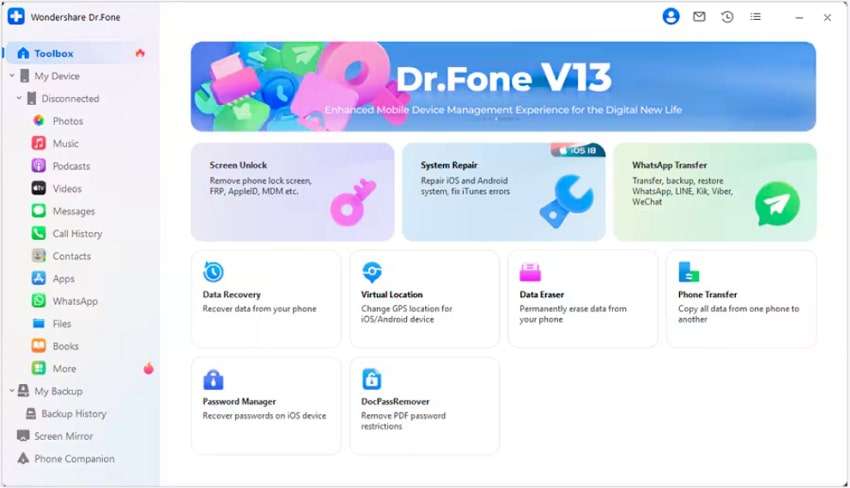
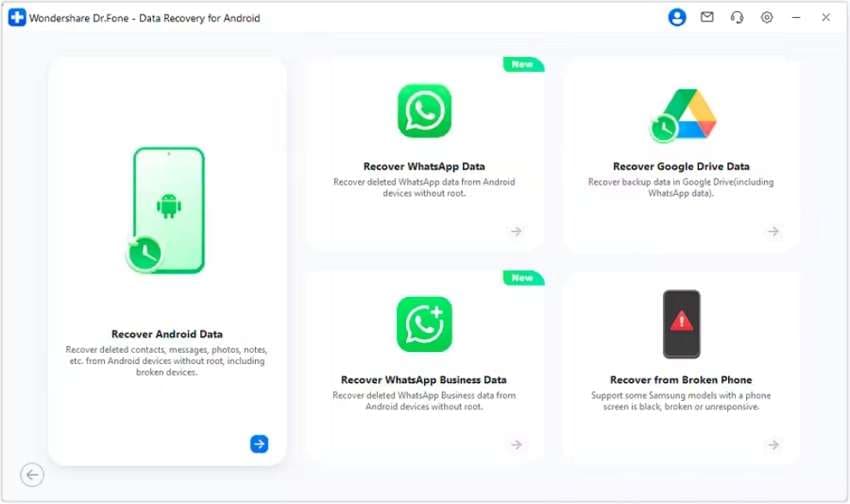
Step 2. The following screen will come with various options from which you need to choose the "Recover Android Data" option.
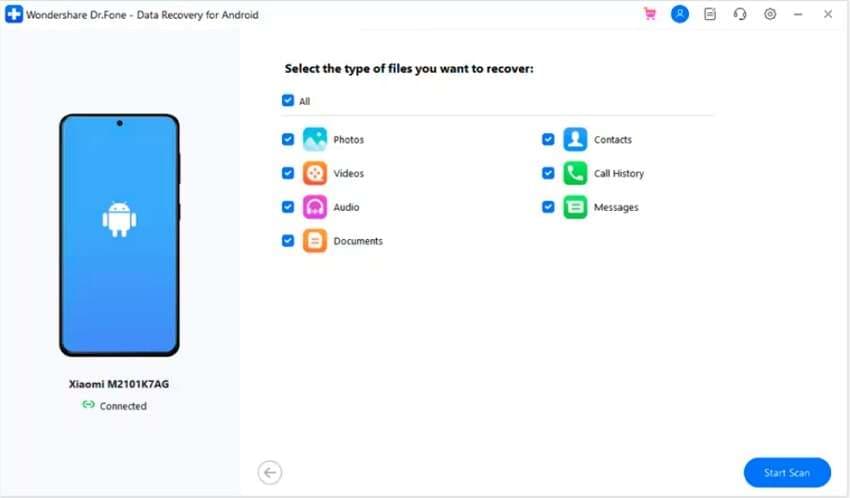
Step 3. Now, hit the "Start Scan" button after choosing all the file types that you want to recover. Once the scan completes, choose the files that you want to save and hit the "Recover" button.
Conclusion
To conclude, 0-byte files appear when your system cannot complete the saving or transferring process properly. Although these files look normal, they have no actual data, which makes them unusable. Here, methods like restoring their old version or using recovery tools can help recover the data from them. Additionally, Repairit and Dr.Fone – Data Recovery can help recover data from these files if corruption is the reason for the problem.
FAQ
-
Can Android phones also create 0 byte files?
All devices, including Android phones, can have such files when downloads fail or storage is full. In addition to download failures, your phone can have these files during app crashes or media errors. Similarly, just like on Windows, you can recover them using file recovery apps or by accessing phone storage on a PC. -
Is it safe to delete 0 byte files?
Most files with no size are harmless and safe to delete, especially if they appear during system operations. Yet, one must check the source before deleting it to avoid removing system-related files or personal folders with hidden data in them. -
What tools can open a 0 byte file?
Unless they have some hidden information, no special tools can open files with zero bytes because they hold no content. However, you can use repair tools like Repairit, as they can help restore the version that has some data.




