
An issue like Crimson Desert not launching/crashing/crash on startup/black screen can completely disturb your game plan. Instead of immersing yourself in the game, you’re left handling unexpected errors, frozen screens, and sudden crashes, making the experience unreliable. Without proper guidance, it's natural to feel overwhelmed and unsure where to start.
In this context, we will discuss clear, actionable solutions in the guide, so you can move past technical hurdles and enjoy the game with ease. Besides this, you'll be guided on how to resolve this issue with advanced fixes if simple solutions don’t work.
Table of Contents
Part 1. Why Crimson Desert Won’t Launch or Keeps Crashing - 5 Reasons
To overcome the issue, you should understand what’s actually causing the problem behind the scenes. For Crimson Desert not launching/crashing/crash on startup/black screen, the following causes will help you pinpoint what’s going wrong:
- PC Doesn’t Meet Game Requirements: The game Crimson Desert is very hardware-intensive and requires a powerful PC to run properly. If your GPU, RAM, or storage is below the minimum requirements, the game may not launch or crash at startup.
- Obsolete or Broken Graphics Drivers: Many players report crashes and black screens that were resolved by updating Nvidia or AMD drivers to the latest game-ready version. Old or corrupted drivers can’t handle Crimson Desert’s new graphics features, causing the game to freeze or reboot your PC.
- Corrupted Game or System Files: If even one big game file in the 130–150 GB install is corrupted, Crimson Desert can get stuck on “running”. Plus, missing Windows components like the Media Features Pack or corrupted DirectX/Visual C++ files can also prevent the game from launching.
- Interruptions with Overlays and Background Apps: Overlays from Discord, GeForce Experience, Steam, or other tools can clash with the game’s rendering and cause instant crashes. Heavy background apps can also drain RAM and GPU power, causing the game to stutter and then close with an error.
- Due to Overheat and Unstable Settings: Mid-game crashes and random freezes are often caused by your own GPU or CPU running too hot. Features like aggressive DLSS presets, frame generation, or manual clocking can push the hardware too far, so the driver crashes the game.
Part 2. Fix Crimson Desert Crash on Startup/Black Screen
Instead of diving into advanced methods right away, it's best to start with simple fixes that address most startup issues. Thus, the Crimson Desert not launching/crashing/crash on startup/black screen issue is addressed in this section with simple workarounds:
Fix 1: Update Graphics Drivers and Windows
Modern games are frequently optimized for the latest driver versions and system updates. Once your driver or Windows version is outdated, your system may struggle to properly communicate with the game engine. For this, try to keep everything updated, to fix minor faults, unlock performance improvements, and ensure better stability. Follow the guidelines provided below to deal with the Crimson Desert not launching issue, if it is due to outdated components:
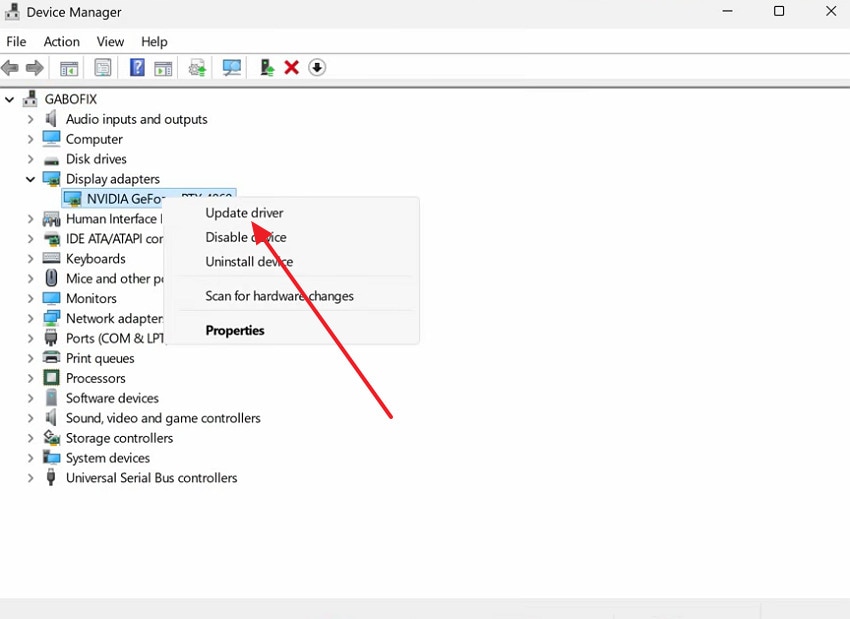
Step 1. Enter Device Manager on your Windows, expand Display Adapters, and right-click your graphics driver. After this, press the “Update Driver” and allow Windows to install the latest version.
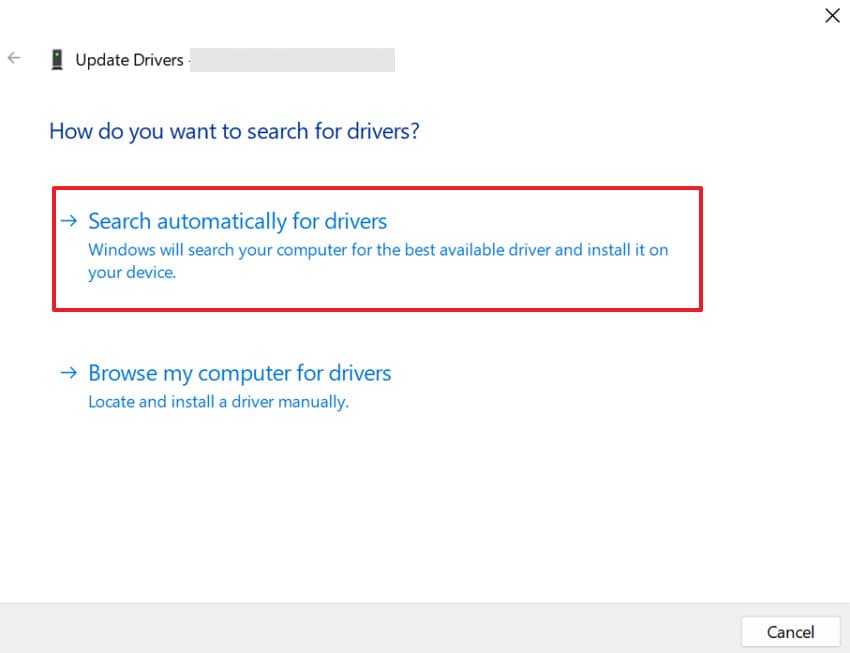
Step 2. Next, click the “Search Automatically for Drivers” option to let Windows search and install the updated version. Alternatively, install the latest driver from the official NVIDIA website, then proceed with the download.
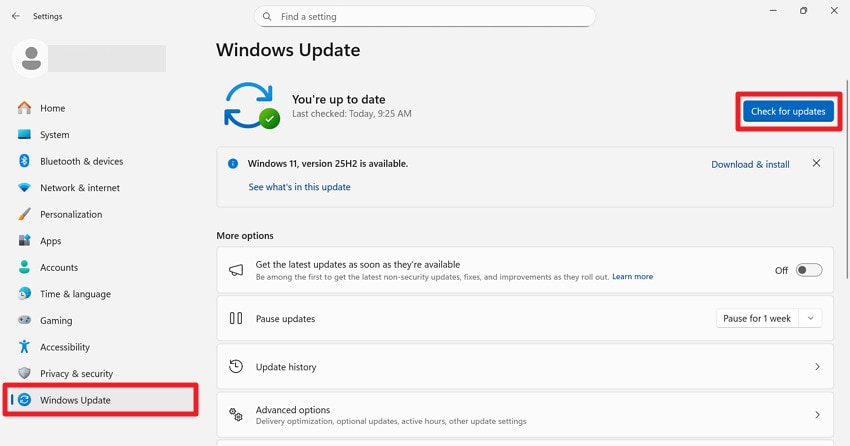
Step 3. For Windows updates, go to Windows Settings, access the “Windows Update" section, and press the "Check for Updates” button.
Fix 2: Verify/Repair Crimson Desert Game Files in the Launcher
This process scans for missing or corrupted files, then automatically fixes them, ensuring the game runs as intended. Plus, verification or repair of the files guarantees that every required file is intact and correctly installed. This further eliminates hidden issues without needing a complete reinstall, while improving the game's reliability. For a better understanding, follow the tutorial and solve Crimson Desert not launching/crashing/crash on startup/black screen:
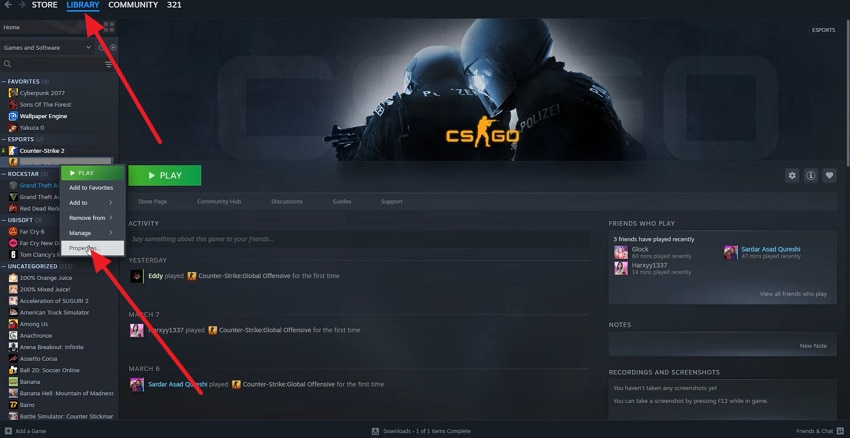
Step 1. In Steam, open the “Library” section, then locate the game Crimson Desert from the list and right-click it. From the drop-down menu, press the “Properties” option to reveal the game properties.
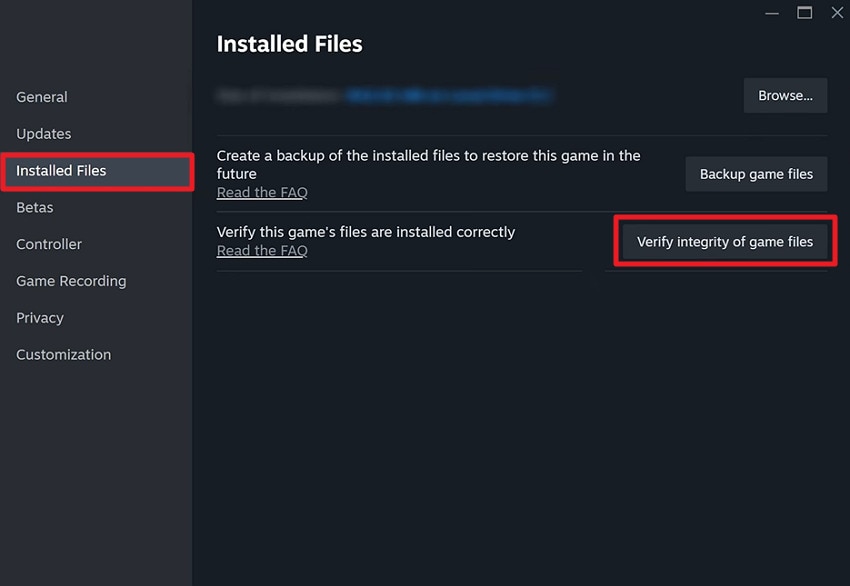
Step 2. Move forward, access the “Installed Files” tab, and click the “Verify Integrity of Game Files” option. Afterward, let the verification complete, close Steam completely, and reopen it as administrator to launch the game again.
Fix 3: Switch to Windowed or Borderless Mode
Fullscreen mode can sometimes cause compatibility or display issues, so switching to it is suggested to prevent black screens. Windowed or Borderless mode reduces dependencies like GPU scaling or resolution by letting Windows manage the display output more smoothly. It even leads to quicker launches, fewer crashes, and easier multitasking, bypassing many hidden display-related conflicts. Adhere to the instructions and learn how to switch to Windowed mode for the Crimson Desert black screen:
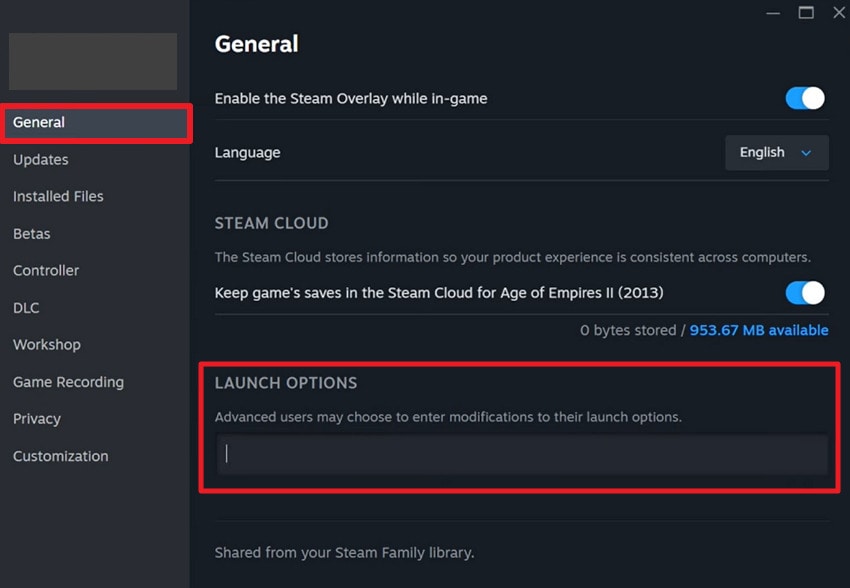
Instructions: Access the properties for Crimson Desert, press the “General” tab, and type “-windowed” under Launch Options. Similarly, for Borderless Mode, write “-noborder” and close the window to relaunch the game.
Fix 4: Lower In-Game Graphics Settings and Resolution
Games like Crimson Desert can push your CPU, GPU, and RAM to their limits, especially on higher settings. In this case, reducing graphics settings lowers the strain on your hardware, stabilizes performance, and ensures better resource usage. This fix helps your system handle the game more smoothly without overloading important PC components. Review these instructions to lower in-game graphics and resolution settings for Crimson Desert not launching/crashing/crash on startup/black screen:
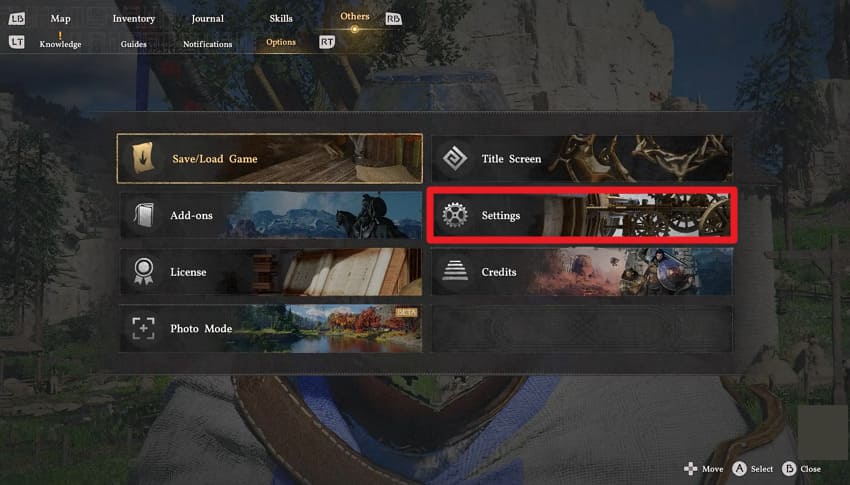
Step 1. At first, launch Crimson Desert on your PC and press the “Settings” option from the main menu.
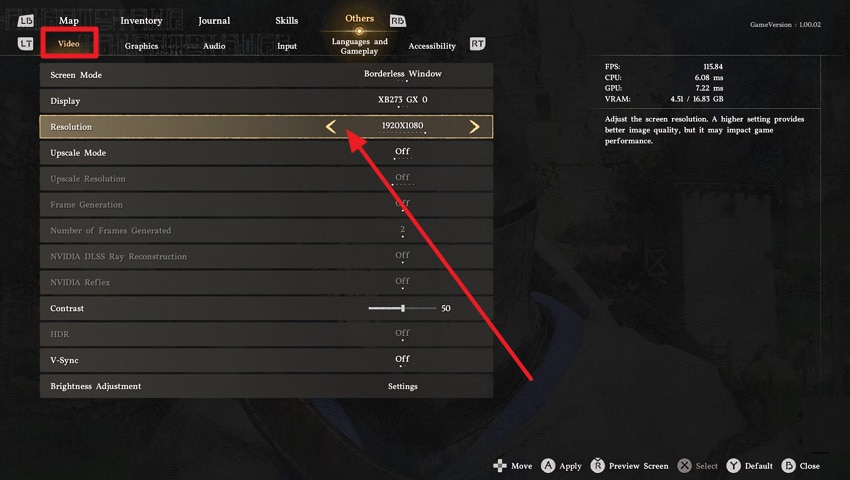
Step 2. Next, open the “Video” section and locate the “Resolution” option to lower its value through the arrows.
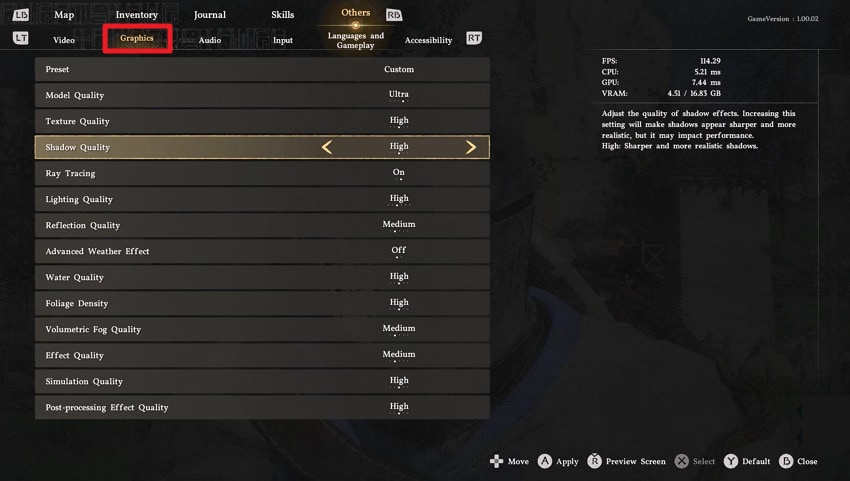
Step 3. Once done, access the “Graphics” section and lower the provided settings for Model, Texture, and Shadow Quality, respectively.
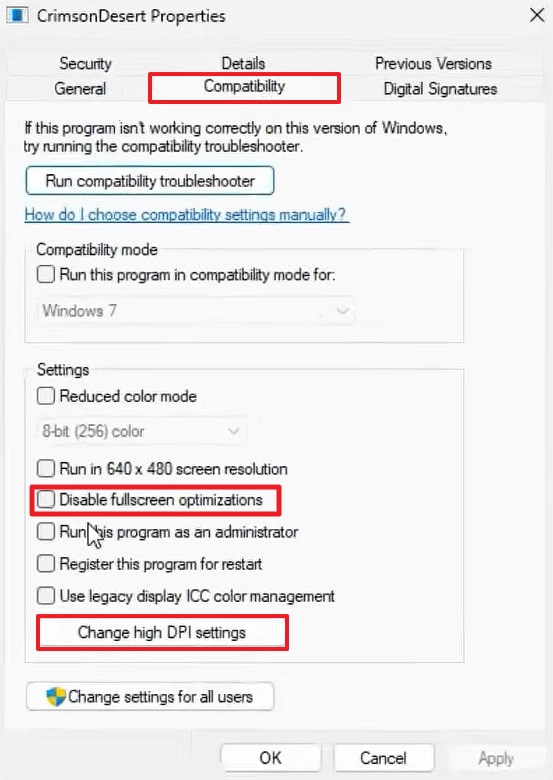
Fix 5: Disable Full-Screen Optimizations and High-DPI Scaling
The Windows optimization feature can often conflict with games, causing crashes or a black screen while playing. Windows Full-Screen Optimizations and High-DPI scaling features can interfere with how the game renders frames, handles resolution scaling, and switches display modes. Once you disable them, you allow the game to take control of its rendering process without Windows overriding display behavior in the background. Follow the given tutorial to disable Full-Screen Optimizations and High-DPI Scaling:
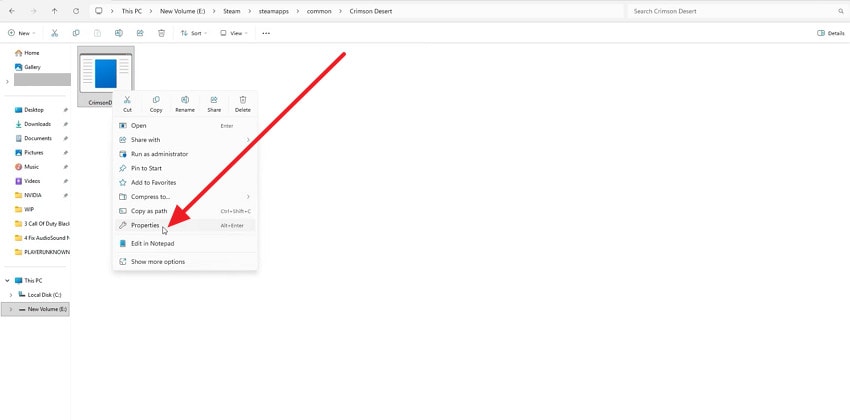
Step 1. To open your game’s install folder, follow this path: This PC > New Volume (E) > Steam > Steamapps > Common > Crimson Desert. After this, right-click the file and choose the “Properties” option from the menu.
Step 2. In the Properties window, open the “Compatibility” tab and tick the “Disable Fullscreen Optimization” option. Now, press the “Change High DPI Settings” button and enable the “Override High DPI Scaling Behavior (Application)” option.
Part 3. Advanced Fixes When Crimson Desert Still Won’t Launch
These advanced methods target hidden issues that can silently block the game from launching or running properly. If you haven’t overcome the Crimson Desert not launching/crashing/crash on startup/black screen issue, review the given solutions:
Fix 1: Check Antivirus/Firewall Exclusions for Crimson Desert
Antivirus or firewall programs can mistakenly block game files, preventing the game from launching or causing crashes. Security software is designed to protect your system, but it can occasionally flag legitimate game files as suspicious, especially newly installed ones. Once you add Crimson Desert to the execution list, you ensure that all of its files are trusted and allowed to run. For a how-to guide, follow the tutorial and check antivirus/firewall exclusions:
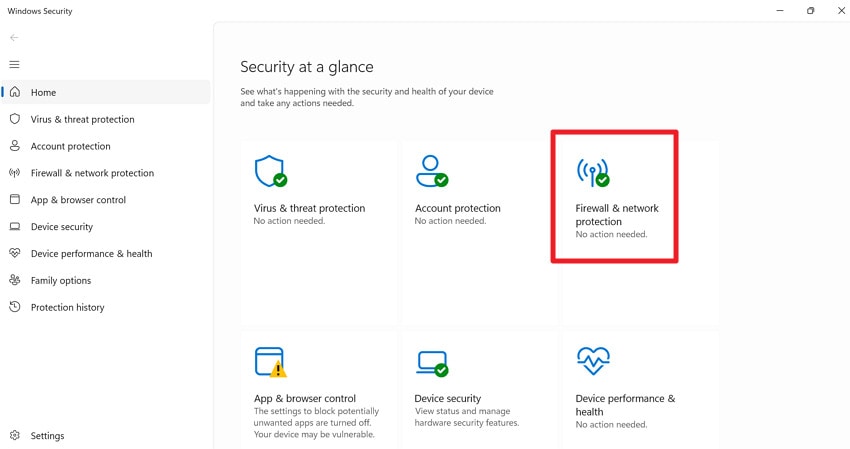
Step 1. Initially, add the game folder to your antivirus “exception” or “allow list,” then access the Windows Security. Now, press the “Firewall & Network Protection” option to check exclusions for Crimson Desert.
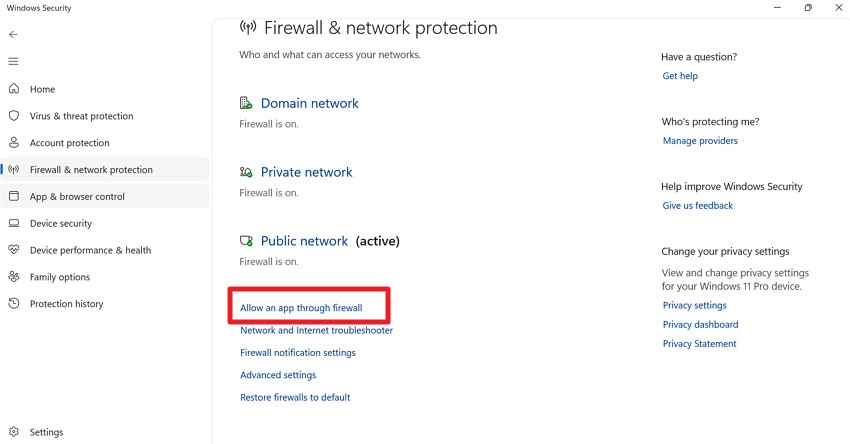
Step 2. After this, click the “Allow an App Through Firewall” to browse Crimson Desert files in the allowed apps.
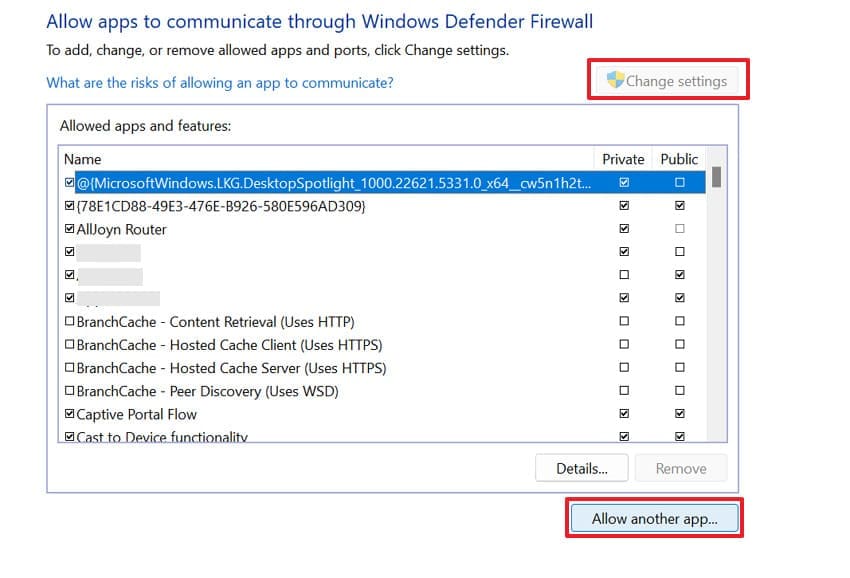
Step 3. Proceed, and press the “Change Settings” button, then click the “Allow Another App” button to locate the game files. Next, browse to “CrimsonDesert.exe” and allow it for both Private and Public networks.
Fix 2: Update DirectX, Visual C++ Redistributable, and .NET
Remember, Crimson Desert depends on system libraries such as DirectX for graphics rendering and Visual C++ Redistributable for executing game code. Whereas .NET is used for supporting various background processes, so missing out on any of them can cause failure in launch. An update guarantees that your system has a correct and complete set of runtime dependencies required by the game. To solve the Crimson Desert crashing problem, update system libraries through the guidelines:
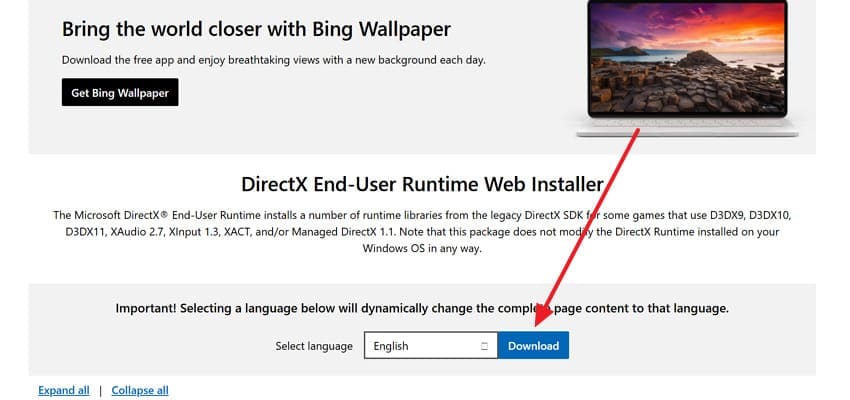
Step 1. Open your browser, search for Microsoft DirectX, and press the “Download” button to start the installation.
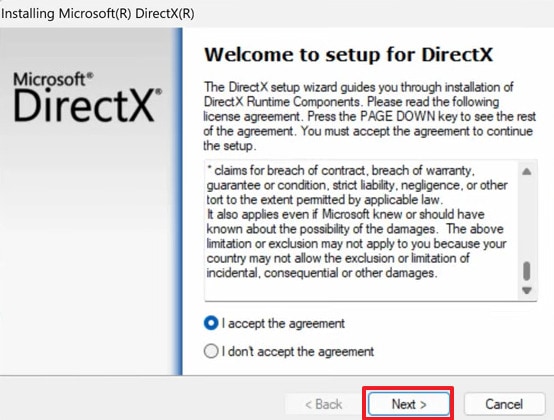
Step 2. After this, accept the installation agreements and press the “Next” button to get the updated DirectX version.
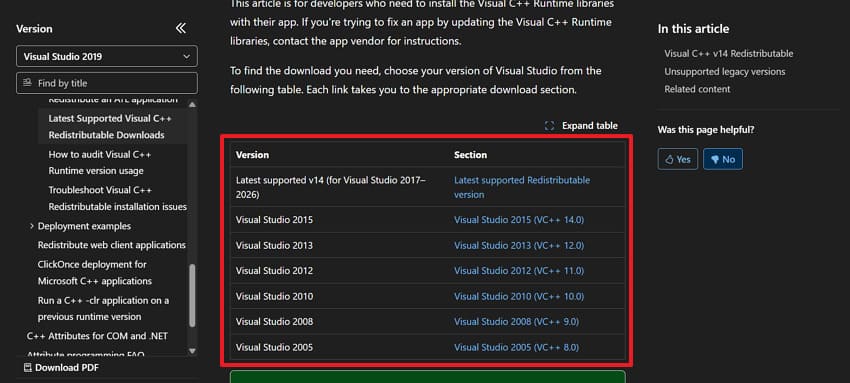
Step 3. To download the Visual C++ Redistributable, visit the official website and install all the latest versions from there.
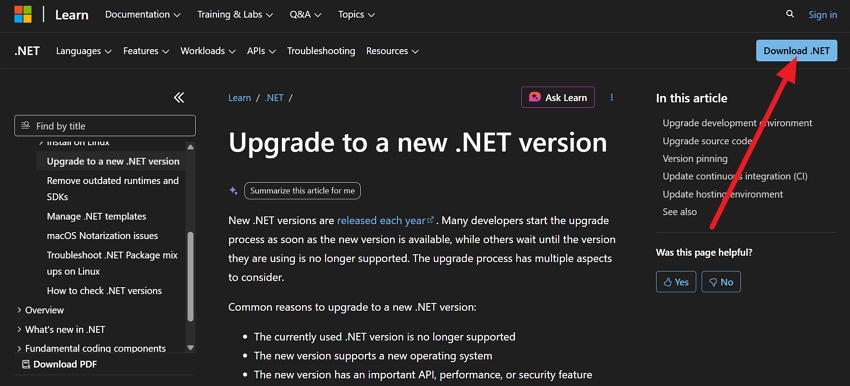
Step 4. Visit the official Microsoft website and look for “.NET Framework Runtime” to proceed. Now, press the “Download .NET” at the top right to start the installation process.
Fix 3: Move the Game to an SSD or a Different Drive
Traditional Hard Disk Drives (HDDs) can have slower read/write speeds than Solid-State Drives (SSDs), leading to longer loading times. Under such conditions, it's better to move Crimson Desert to an SSD and significantly improve data transfer speeds and minimize lag. It's helpful for users experiencing Crimson Desert not launching/crashing/crash on startup/black screen, as it addresses issues with unreliable data retrieval.
Fix 4. Create a New Windows User Profile and Test
It's evident that Windows user profiles store various system and application settings, preferences, and configurations. If a user profile becomes corrupted or contains misconfigured settings, it can cause conflicts with games and other applications. So, a new profile provides a clean slate from potential conflicts, background processes, and custom configurations that can interrupt the game. Dive into the tutorial and create a new Windows user profile for the Crimson Desert launch issue:
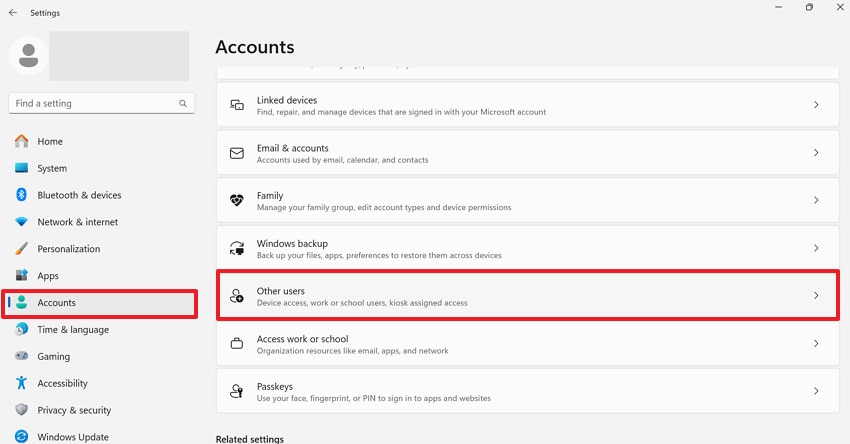
Step 1. Go to Windows Settings, access the “Accounts” section, and press the “Other Users” option.
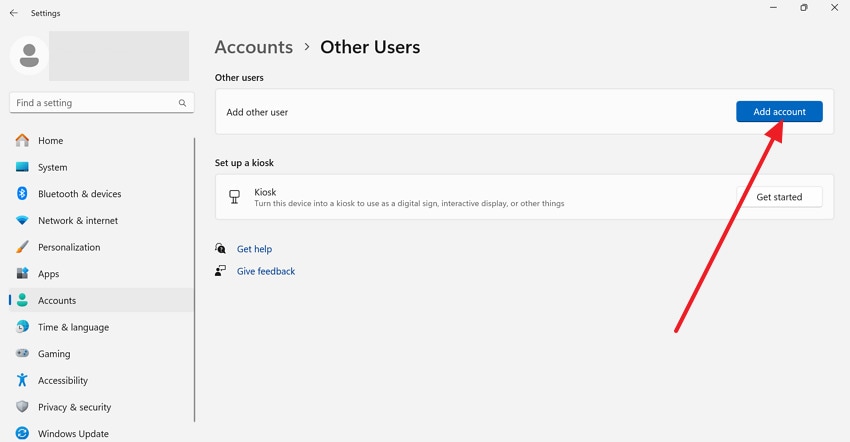
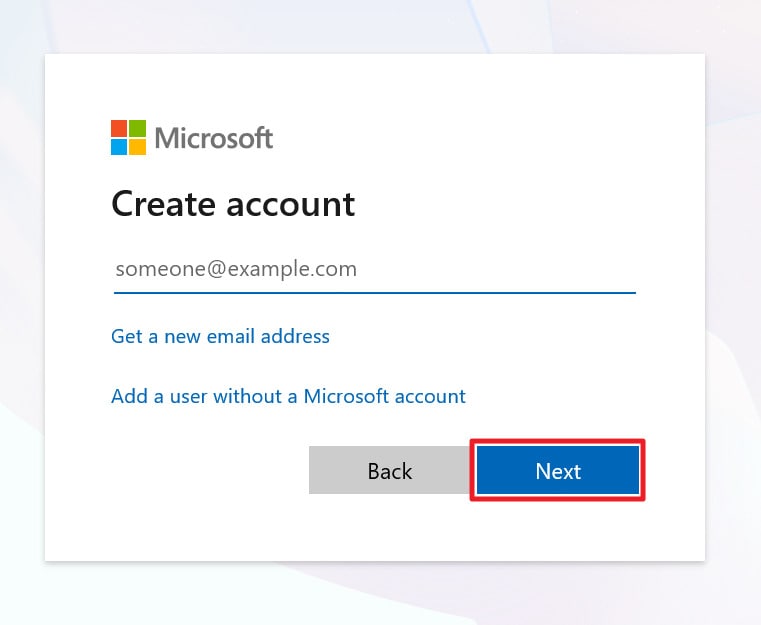
Step 2. After this, click the “Add Account” button to create a new account on Windows. Next, press the “I Don’t Have This Person’s Sign In Information” to enter new credentials later.
Step 3. Now, set a name and a password to log in to the new account. Move forward, install your launcher, and check if the game works fine on the new profile.
Pro Tip. Repair Corrupted Crimson Desert Files with Repairit
Crimson Desert is a huge game that streams tons of assets every second, so even a few damaged files can break it. Therefore, the section below will help you understand why corrupt files cause problems and how a devoted program can overcome them:
- If your download was interrupted, some files may be partially written, causing random errors.
- Broken save data or configuration files can stop Crimson Desert from loading at all.
- Broken metadata or headers can make the entire file unreadable to the game engine.
- Some corrupted files play with sound but with no image, or video lags far behind the audio.
- When you record gameplay, those clips end up being corrupted for no reason.
If you suspect any of these corruption reasons, refer to Repairit to help you repair corrupted Crimson-related files. In this way, you don’t lose your game data while you update Windows and DirectX system libraries. Plus, it lets gamers keep their match highlights and clips even if a crash occurs mid-recording. The software further handles broken files by sudden system restarts, GPU driver crashes, or DirectX runtime faults.
Key Features

-
Repairs Unreadable or Unrecognizable Content: The program facilitates repairing game files that are entirely corrupted and become unreadable or unrecognizable at all.
-
Fixes Compressed Files by Crashes: Broken system components can cause apps to crash while saving files, but Repairit fixes these formats, restoring their structure.
-
Repairs Corrupted Game Media Files: Itcan also restore damaged gameplay recordings, cutscenes, or related media files, ensuring they play smoothly without glitches or missing visuals.
Comprehensive Guidelines to Repair Corrupted Crimson Files
Follow the guidelines provided below to address the Crimson Desert not launching/crashing/crash on startup/black screen issue:
Step 1. Commence the Program for Document Repair Task
At first, enter the “More Types Repair” section when the program launches, select the “Document Repair” option.

Step 2. Insert All the Broken Crimson Desert Files
Next, press the “+Add” button to incorporate corrupt Crimson Desert files for repair.

Step 3. Start Fixing Your Crimson Desert Files
Next, press the “Repair” button to examine and fix corrupted Crimson Desert files for stable gameplay. Once the action is completed, perform an analysis of the final versions and save them.

Repair Corrupted Files
 Security Verified. Over 7,302,189 people have downloaded it.
Conclusion
In conclusion, an issue like Crimson Desert not launching/crashing/crash on startup/black screen is usually tied to fixable system or software conflicts. It could be due to any of the reasons discussed, including outdated drivers, incorrect settings, or corrupted files, restricting the game access. Therefore, if basic solutions don’t resolve the problem, consider using Repairit to address deeper file corruption in Crimson Desert.
Frequently Asked Questions
-
1. Does my PC need high specs to run Crimson Desert smoothly?
Indeed, since it's a graphics-intensive game, having a system that meets at least the recommended requirements is important to avoid crashes. Plus, a game running on higher settings requires a powerful GPU, sufficient RAM, and a capable CPU to handle demanding visuals. -
2. Will reinstalling the game fix launch or crash issues?
The reinstallation can only help if the installation is corrupted, but it's usually better to verify or repair files first to save time. Precisely, reinstallation gives you a fresh set of files that can address deeper issues such as missing data, broken configurations, or installation errors. -
3. How do I know if my graphics drivers are causing the issue?
If your game crashes immediately on launch or shows a black screen, outdated or incompatible drivers could be the cause. So, updating them is one of the first fixes you should try for Crimson Desert not launching/crashing/crash on startup/black screen.




