
 TL;DR:
To fix Tom Clancy's Ghost Recon Wildlands not launching on PC, sequentially verify game files, run Steam and Ubisoft Connect as administrator, disable background overlays, update graphics drivers, and repair Easy Anti-Cheat before attempting a full game reinstallation.
● Steam players must ensure the Ubisoft Connect launcher is running and logged into the correctly linked Ubisoft account, as the game strictly requires this client to activate and launch.
● Avoid using third-party DLL fixers or anti-cheat bypasses; instead, repair the Easy Anti-Cheat service by running its setup file as administrator directly from the installation folder.
● Wondershare Repairit cannot fix game launch errors or client connections, but it is strictly used to repair local MP4, MOV, MKV, or AVI gameplay recordings that become corrupted and unplayable due to a game crash.
Ask AI for a summary
 ChatGPT
 Perplexity
 Gemini
 Claude
 Grok
Grok
If Tom Clancy's Ghost Recon Wildlands is not launching on PC, start with Steam, Ubisoft Connect, file verification, permissions, drivers, overlays, and Easy Anti-Cheat before reinstalling the whole game. Repairit does not fix the launch error itself, but it can help repair corrupted gameplay recordings after a crash.
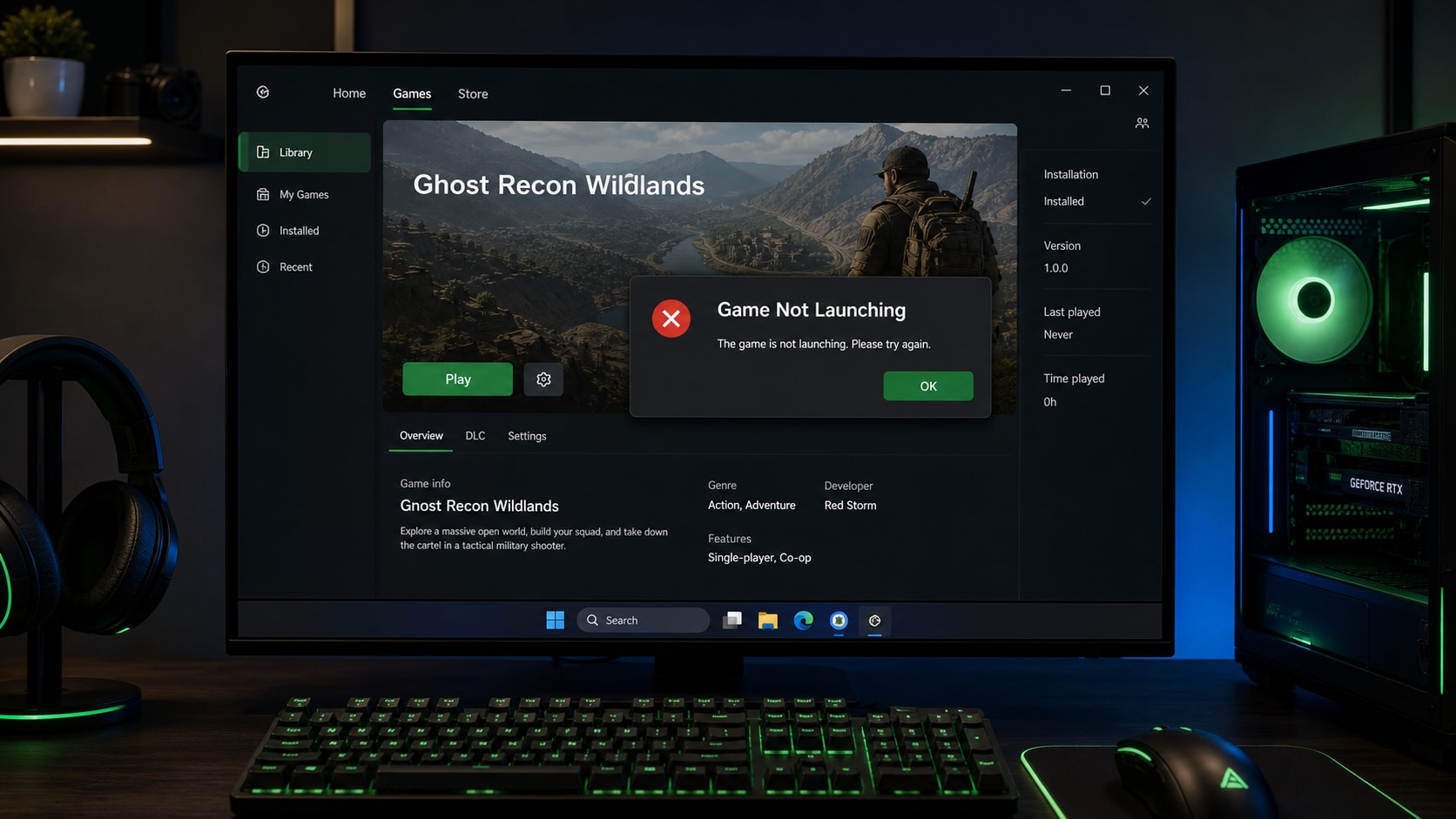
Tom Clancy's Ghost Recon Wildlands Not Launching can look like nothing happening after clicking Play, the game opening and closing immediately, a black screen, a stuck Ubisoft Connect sync window, or an Easy Anti-Cheat message. For Steam players, the game also depends on Ubisoft Connect and a Ubisoft account, so the problem is not always the game executable alone.
This guide walks through practical PC fixes in a safe order. It starts with launcher restarts and file verification, then moves to administrator permissions, drivers, overlays, runtime components, Easy Anti-Cheat, and reinstall options. At the end, it explains where Wondershare Repairit fits when a failed launch or crash damages local gameplay videos.
Important: Repairit is a file and media repair product. It cannot fix Steam, Ubisoft Connect, Easy Anti-Cheat, Windows drivers, account linking, missing game files, or the Ghost Recon Wildlands launch problem. Use Repairit only for corrupted game recordings or damaged local media files that still exist but will not play or open correctly.
In this article
-
- Fix 1. Restart Steam, Ubisoft Connect, and the PC
- Fix 2. Verify Game Files on Steam
- Fix 3. Verify Files and Account Link in Ubisoft Connect
- Fix 4. Run the Launcher as Administrator
- Fix 5. Update Graphics Drivers and Windows
- Fix 6. Disable Overlays and Background Apps
- Fix 7. Repair Easy Anti-Cheat and Runtime Components
- Fix 8. Reinstall Ubisoft Connect or the Game
Part 1. Why Is Ghost Recon Wildlands Not Launching?
Ghost Recon Wildlands depends on several PC components at launch: the storefront launcher, Ubisoft Connect, the Ubisoft account session, local game files, Easy Anti-Cheat, graphics drivers, runtime libraries, and background software. A break in any part of that chain can stop the game before the main menu appears.
| Symptom | Possible Cause | Best First Fix |
|---|---|---|
| Nothing happens after clicking Play | Steam, Ubisoft Connect, stuck process, or permission issue. | Restart launchers and run the launcher as administrator. |
| Game opens then closes immediately | Damaged game files, missing runtime, driver problem, or blocked service. | Verify files, update drivers, and repair runtime components. |
| Stuck on launcher, cloud sync, or activation | Ubisoft Connect account, network, or launcher issue. | Sign in again, check account linking, and verify through Ubisoft Connect. |
| Easy Anti-Cheat error appears | EAC service is missing, corrupted, blocked, or not installed correctly. | Verify files and repair Easy Anti-Cheat from the game folder if available. |
| Black screen on startup | Graphics driver, display mode, overlay, recording app, or GPU tool conflict. | Update graphics driver and disable overlays temporarily. |
| Game crashes while recording | The launch issue is separate, but the local video file may become corrupted. | Fix the launch problem first, then repair the damaged media file if needed. |
Do not reinstall the full game first unless simpler fixes fail. Steam and Ubisoft Connect can verify files, restore missing components, and repair many installation problems without a full redownload.
Part 2. Before You Reinstall the Whole Game
Ghost Recon Wildlands is a large installation, so a full reinstall can waste time if the real cause is a launcher, account, driver, or overlay issue. Before removing the game, check these basics:
- Confirm the PC meets the game's current PC requirements listed by Ubisoft.
- Make sure Ubisoft Connect is installed and updated.
- Use the Ubisoft account linked to the Steam purchase or game license.
- Restart the PC after Windows, driver, launcher, or runtime updates.
- Check whether Steam says the game is already running even though no window is visible.
- Temporarily disable overlays and screen recorders before testing.
- Avoid third-party DLL fixer, cracked launcher, anti-cheat bypass, or registry cleaner tools.
If the game launched before and only recently stopped opening, think about what changed: graphics driver update, Windows update, antivirus change, new overlay, mod installation, recording software, or Ubisoft Connect login issue.
Part 3. Fix Tom Clancy's Ghost Recon Wildlands Not Launching on PC
Follow the fixes in order. They begin with low-risk launcher checks and move toward deeper repair or reinstall steps.
Fix 1. Restart Steam, Ubisoft Connect, and the PC
A stuck launcher or background process can make Steam show the game as running even though Ghost Recon Wildlands never opens.
- Close Tom Clancy's Ghost Recon Wildlands if any window is open.
- Exit Steam completely.
- Exit Ubisoft Connect from the system tray.
- Open Task Manager.
- End stuck Ghost Recon, Ubisoft Connect, Ubisoft Game Launcher, or Steam processes.
- Restart the PC.
- Open Steam or Ubisoft Connect again and launch the game.
This is especially useful when the Play button changes briefly but the game window never appears.
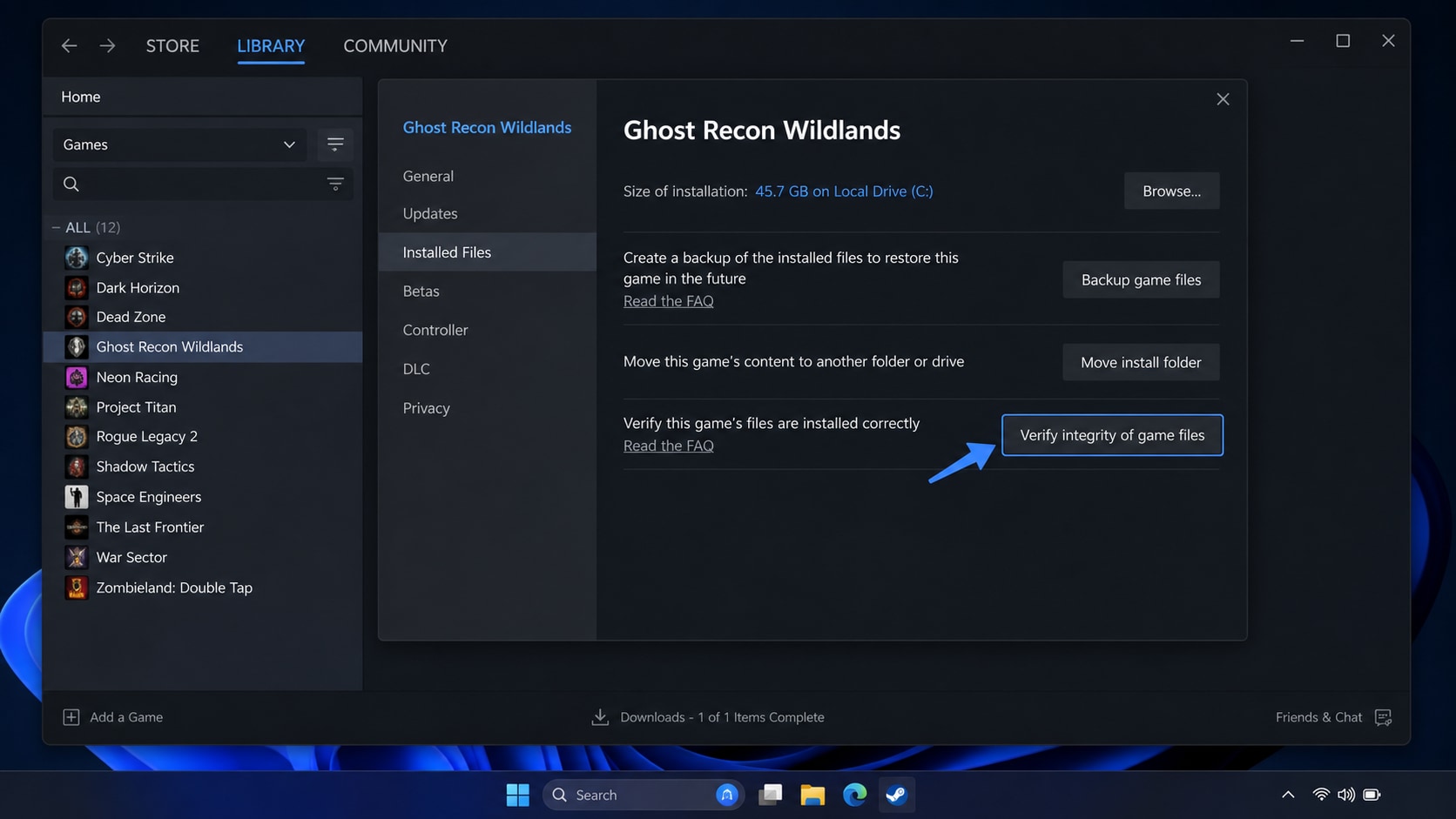
Fix 2. Verify Game Files on Steam
Steam recommends verifying game files when a game does not run, crashes, or has missing content. This checks the installed files and redownloads missing or damaged parts.
- Open Steam.
- Go to Library.
- Right-click Tom Clancy's Ghost Recon Wildlands.
- Select Properties.
- Open Installed Files.
- Click Verify integrity of game files.
- Wait for Steam to finish checking.
- Restart the PC and launch the game again.
If one or more local configuration files fail to verify, Steam notes that this can be normal for many games. Focus on whether Steam repairs or redownloads actual game files.
Fix 3. Verify Files and Account Link in Ubisoft Connect
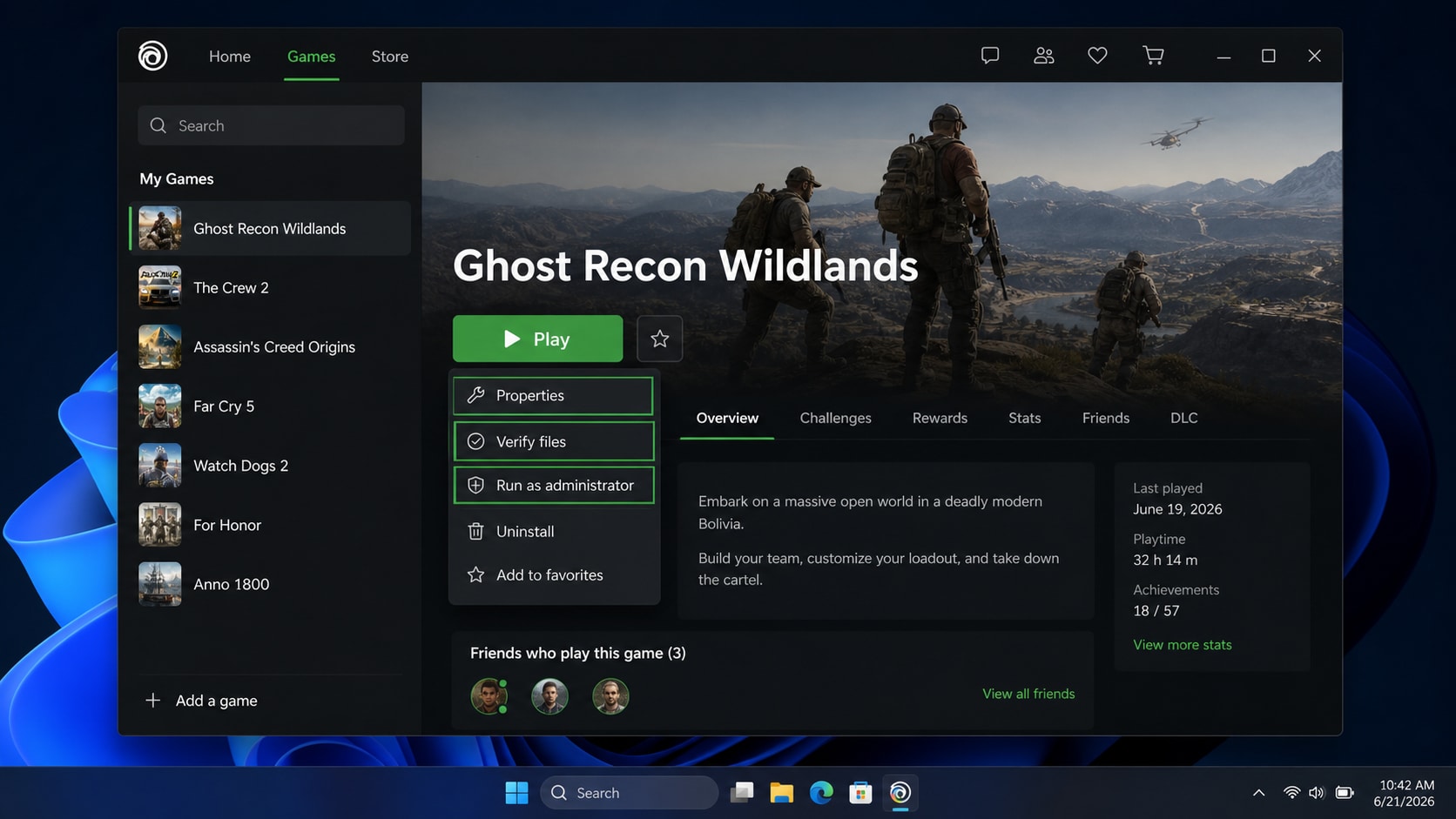
Because Ghost Recon Wildlands requires Ubisoft Connect on PC, Steam verification may not be enough in every case. Ubisoft Connect may still need to validate the game, restore missing files, or confirm the correct account link.
- Open Ubisoft Connect.
- Sign in with the Ubisoft account linked to the game.
- Go to Games.
- Select Ghost Recon Wildlands.
- Open the game settings, properties, or local files area.
- Choose Verify files if the option is available.
- Allow Ubisoft Connect to repair missing or corrupted files.
- Start the game again.
If the game was bought on Steam but does not appear correctly in Ubisoft Connect, launch from Steam once while signed in to the correct Ubisoft account. If the link still fails, reinstalling Ubisoft Connect may be safer than reinstalling the whole game.
Fix 4. Run the Launcher as Administrator
Permission issues can stop older PC games or launchers from creating files, starting services, or writing settings.
- Close Steam and Ubisoft Connect.
- Right-click the Steam shortcut or Ubisoft Connect shortcut.
- Choose Run as administrator.
- Launch Ghost Recon Wildlands again.
- If it works, set the launcher shortcut to run as administrator only after confirming the behavior.
Avoid changing ownership or permissions on random Windows, Program Files, or game folders. Running the launcher as administrator is enough for a permission test.
Fix 5. Update Graphics Drivers and Windows
Ghost Recon Wildlands may show a black screen, crash at startup, or close after launch if graphics drivers, Windows components, or DirectX-related files are outdated or unstable.
- Update the NVIDIA, AMD, or Intel graphics driver from the official driver app or vendor website.
- Install pending Windows Update items.
- Restart the PC.
- Launch the game again.
- If the issue started after a driver update, consider using the graphics vendor's clean installation option or rolling back through Device Manager.
Do not download driver packs from unofficial sites. Use Windows Update, NVIDIA, AMD, Intel, or the PC manufacturer's support page.
Fix 6. Disable Overlays and Background Apps
Overlays, recording tools, GPU monitors, and antivirus game protection can conflict with older games or anti-cheat services. Disable them temporarily for a clean test.
- Steam Overlay.
- Ubisoft Connect Overlay.
- Discord Overlay.
- Xbox Game Bar recording overlay.
- NVIDIA, AMD, or Intel performance overlays.
- MSI Afterburner, RivaTuner, FPS counters, or reshade tools.
- Third-party screen recorders and streaming tools.
- Aggressive antivirus or firewall game protection.
After disabling overlays, restart Steam and Ubisoft Connect before testing the game. If Ghost Recon Wildlands launches, re-enable tools one by one to find the conflict.
Fix 7. Repair Easy Anti-Cheat and Runtime Components
Ubisoft lists Easy Anti-Cheat as required for Ghost Recon Wildlands on PC. If Easy Anti-Cheat is missing, corrupted, or blocked, the game may fail before the main menu.
- Open the Ghost Recon Wildlands installation folder.
- Look for an EasyAntiCheat or anti-cheat setup folder.
- Run the Easy Anti-Cheat setup file as administrator if it is available.
- Choose Repair Service or reinstall the service if the setup tool offers that option.
- Install or repair Microsoft Visual C++ Redistributables only from Microsoft if prompted.
- Restart the PC.
- Launch the game again.
Do not remove Easy Anti-Cheat or use bypass tools. The game may refuse to launch if anti-cheat is uninstalled or blocked.
Fix 8. Reinstall Ubisoft Connect or the Game
Use reinstalling as a later fix. Start with Ubisoft Connect because launcher corruption is easier to repair than a full game installation.
Reinstall Ubisoft Connect first if:
- Ubisoft Connect does not open.
- Login fails repeatedly.
- The game is stuck on syncing or activation.
- Ubisoft Connect cannot detect installed games.
- Steam opens, but Ubisoft Connect never completes the handoff.
If the issue continues after launcher reinstall, uninstall and reinstall Ghost Recon Wildlands. Make sure the Steam library or Ubisoft Connect installation drive has enough free space before downloading again.
Part 4. Repair Corrupted Ghost Recon Wildlands Recordings with Repairit
A Ghost Recon Wildlands launch error should be fixed through Steam, Ubisoft Connect, Easy Anti-Cheat, driver, runtime, and overlay troubleshooting. However, if the game crashes while recording gameplay, saving highlights, editing clips, or transferring media files, the local recording may become corrupted.
When Repairit Fits This Case
Use Wondershare Repairit when the media file still exists but is damaged, unreadable, distorted, or unplayable.
- A gameplay recording cannot open after a crash.
- A Ghost Recon Wildlands clip has audio but no video.
- A video shows black screen, frozen frame, stutter, or playback error.
- A recording stopped suddenly and the MP4, MOV, MKV, or AVI file became unreadable.
- A video file was damaged during transfer, editing, upload, or export.
For damaged screenshots or images, use the relevant photo repair module instead of Video Repair. If the clip or screenshot is deleted or missing, Repairit is not the right tool; check backups, cloud folders, game capture folders, or data recovery options instead.
How to Repair a Corrupted Gameplay Video
Step 1. Import Damaged Ghost Recon Wildlands Video Recordings
Head over to the "Video Repair" tab within the tool and press the "Start" button. A new screen will appear where you can import the corrupted Ghost Recon Wildlands recordings.

Step 2. Repair Your Added Ghost Recon Wildlands Clips
Next, click the "Repair" button once all the damaged video files are imported. The software will then scan and resolve all detected issues within your recordings.

Step 3. Check the Ghost Recon Wildlands Recordings
After a few moments, press the "Preview" button to review the quality of each restored game clip. When everything looks good, select "Save All" to export the repaired clips to your device.


Keep the original corrupted file until the repaired copy has been checked. For important clips, save the repaired video to another drive or cloud folder.
What Repairit Cannot Do
| Repairit Can Help With | Repairit Cannot Do |
|---|---|
| Repair corrupted local gameplay recordings that still exist. | Fix Ghost Recon Wildlands not launching. |
| Repair damaged MP4, MOV, MKV, AVI, and other supported video files. | Repair Steam, Ubisoft Connect, Easy Anti-Cheat, or Windows drivers. |
| Help with black-screen video, frozen frame, missing audio, or playback errors in media files. | Restore deleted clips, recover missing files, or bypass account access. |
| Repair media files damaged by interrupted recording, transfer, or export. | Replace official launcher, game file verification, or anti-cheat troubleshooting. |
Part 5. What to Avoid When the Game Will Not Launch
Some shortcuts can make launch problems worse or create security risks. Avoid these while troubleshooting:
- Do not download random DLL files from third-party websites.
- Do not use anti-cheat bypass tools or modified launchers.
- Do not delete Easy Anti-Cheat unless official reinstall instructions require it.
- Do not disable antivirus permanently; use temporary testing and restore protection afterward.
- Do not uninstall the full game before trying file verification and launcher repair.
- Do not delete save folders or config folders unless they are backed up.
- Do not overwrite corrupted recordings before attempting media repair.
If none of the fixes work, collect Windows version, GPU model, driver version, launcher logs, DxDiag information, and screenshots of the exact error before contacting Ubisoft Support.
Conclusion
If Tom Clancy's Ghost Recon Wildlands Not Launching on PC, start with a clean restart of Steam, Ubisoft Connect, and Windows. Then verify game files in Steam and Ubisoft Connect, check account linking, test administrator permissions, update drivers and Windows, disable overlays, repair Easy Anti-Cheat and runtime components, and reinstall Ubisoft Connect or the game only after simpler fixes fail.
If a crash damages a gameplay recording or local media file, Wondershare Repairit can help repair corrupted videos that still exist and will not play correctly. Keep the boundary clear: Repairit repairs damaged media files, not the game launcher, account connection, anti-cheat service, or launch error itself.
FAQ
-
Why is Tom Clancy's Ghost Recon Wildlands not launching on PC?
Common causes include stuck Steam or Ubisoft Connect processes, corrupted game files, account linking problems, missing runtime components, Easy Anti-Cheat issues, outdated graphics drivers, overlays, antivirus blocking, or insufficient system compatibility. -
How do I fix Ghost Recon Wildlands not opening on Steam?
Restart Steam and Ubisoft Connect, end stuck processes in Task Manager, verify integrity of game files in Steam, sign in to the correct Ubisoft account, run the launcher as administrator, update drivers, and disable overlays before reinstalling. -
Does Ghost Recon Wildlands need Ubisoft Connect on PC?
Yes. Ubisoft lists Ubisoft Connect and a Ubisoft account as required for the PC version. Steam players still need the Ubisoft launcher connection for activation and launch. -
Can Repairit fix Ghost Recon Wildlands not launching?
No. Repairit does not fix Steam, Ubisoft Connect, Easy Anti-Cheat, Windows drivers, account linking, or game launch errors. It is only relevant when a crash leaves local gameplay recordings or media files corrupted and unplayable. -
Should I reinstall Ghost Recon Wildlands first?
No, not as the first step. Verify game files, repair the launcher, update drivers, disable overlays, and repair Easy Anti-Cheat first. Reinstalling is better saved for cases where simpler fixes do not work. -
Can Repairit repair corrupted Ghost Recon Wildlands clips?
Repairit can help repair corrupted local gameplay videos such as damaged MP4, MOV, MKV, or AVI files when the recording still exists. It cannot recover deleted clips or fix the game crash that damaged the file.




