
Steam is a popular gaming platform used by millions of people worldwide. It lets players easily download, update, and enjoy their favorite games. Yet sometimes, the app refuses to start on Windows computers. However, many users search for Steam not opening Windows 11 solutions online. This issue can prevent you from playing games or downloading. In this guide, we will explain the simple reasons and easy fixes for the issue.
Table of Contents
Part 1. 5 Top Reasons Steam Fails to Launch on Windows PCs
Users often feel confused and stuck when Steam won't open on Windows 11. Below are the most common reasons that stop Steam from launching properly:
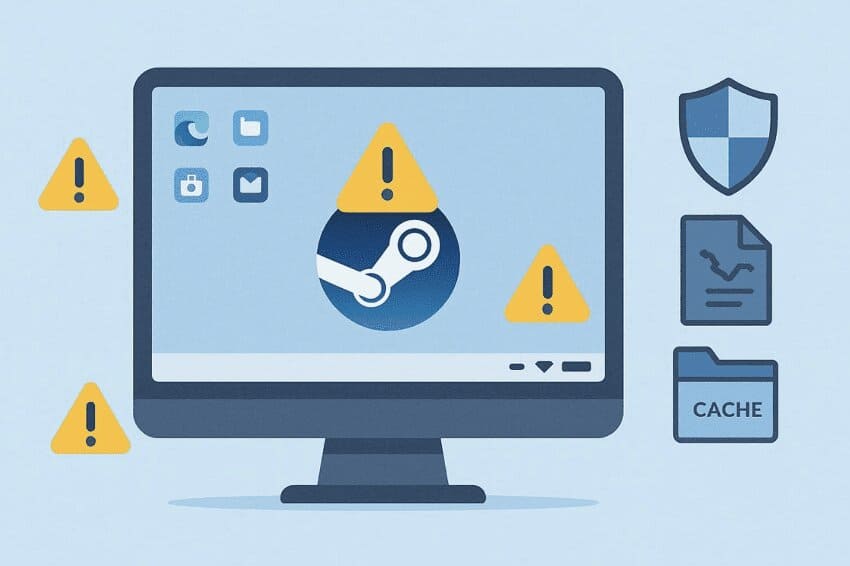
- Stuck Processes: Old Steam tasks may still run quietly in the background. They block new launch attempts and stop the window from appearing.
- Broken Files: Damaged Steam files can stop the app from starting. Moreover, power loss during updates may even cause these file problems.
- Security Blocks: Antivirus or firewall programs may block Steam without warning. This stops Steam from connecting and opening properly on Windows.
- Startup Conflicts: Some background apps can interfere with Steam during system startup. Screen overlays or system tools may quietly stop Steam from launching.
- Cache Errors: Damaged cache files can slow or block the Steam startup process. Clearing the cache helps Steam rebuild fresh and healthy data.
Part 2. 6 Working Fixes for Steam Not Responding on Windows 11
When Steam does not open on Windows 11, it can ruin your gaming session completely. This section explains 6 effective fixes to get Steam running smoothly again:
Fix 1: Run Steam as Administrator
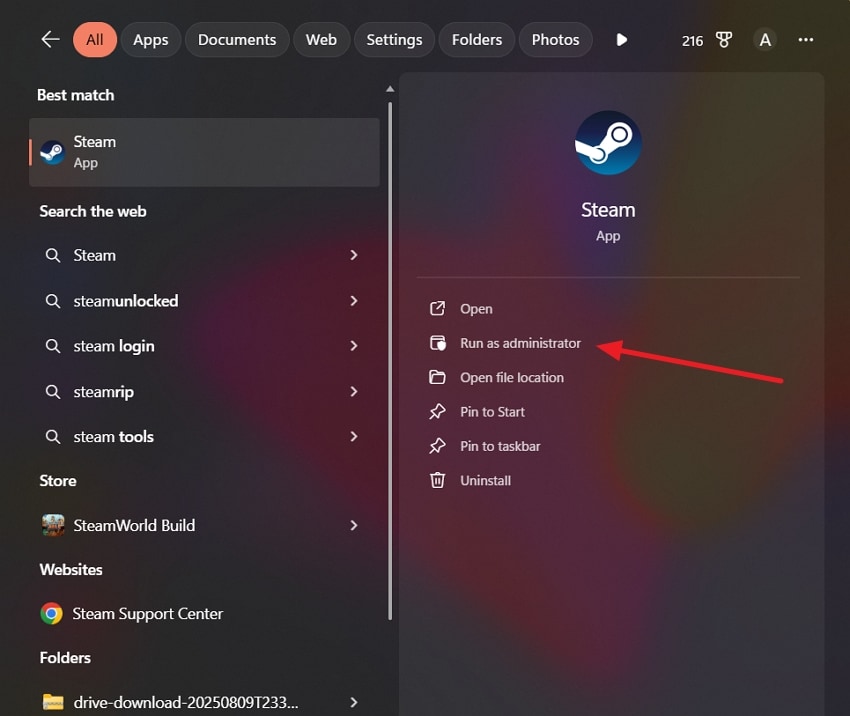
When Steam won't open on Windows 11, missing permissions often block it. Running Steam as an administrator gives it high rights to access protected files. This allows Steam to read and write system folders, apply updates, and modify essential service entries. It can finish pending updates, rebuild the cache, and bypass security restrictions temporarily. Thus, go through the given guide below to run Steam as an administrator:
Instructions. Right-click the “Steam” icon or search for it using the "Search” feature and click “Run as Administrator” from the menu.
Fix 2: Disable Conflicting Software
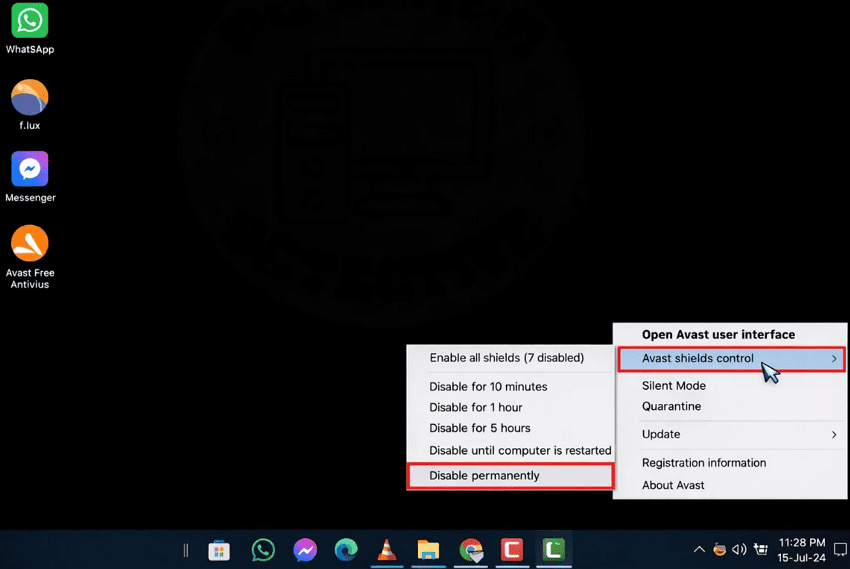
Another way to fix Steam issues is by disabling software that conflicts with it. When Steam won't open on Windows 11, antivirus, firewall, or overlays often block files. Background tools like recorders or optimizers can also overload CPU, GPU, or network resources. Security programs can prevent Steam from connecting to servers or updating properly. So, follow the instructions below to disable conflicting or third-party antivirus software:
Instruction: Right-click the third-party apps like “Avast” from the taskbar and select “Avast Shield Control.” Here, click the “Disable Permanently” option to turn it off.
Fix 3: Clear Steam Cache / App Data
Clearing the Steam cache and app data resolves many startup issues. When Steam won't open on Windows 11, corrupted cache or configuration files can block the client from launching. Damaged web cache data may also cause black screens, blank windows, or freezing at startup. Removing these temporary files forces Steam to rebuild fresh configuration data and restore normal behavior. Therefore, follow the guide below to clear the Steam cache properly:
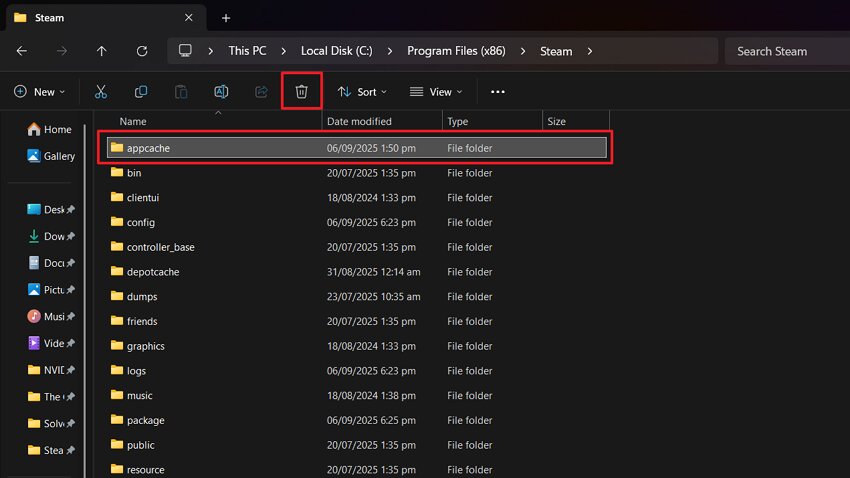
Step 1. Open File Explorer on your computer and access this “C:\Program Files (x86)\Steam” location. Afterward, select the “appcache” folder and press the “Delete” icon or key from the keyboard.
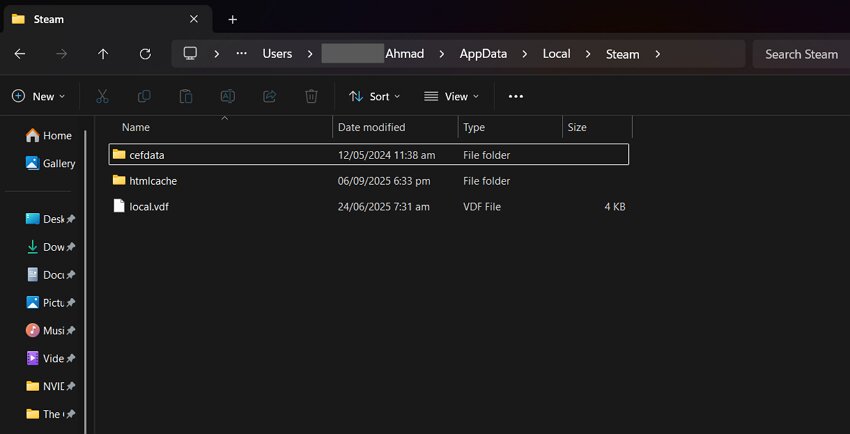
Step 2. Now, add this “%USERPROFILE%\AppData\Local\Steam” location on File Explorer and delete all the folders and content of Steam.
Fix 4: Repair Steam Installation
Steam files or services become corrupted and prevent proper launching. When Steam does not open on Windows 11, broken executables or DLLs can cause freezes. Repairing the installation restores missing or damaged core Steam client files. It rebuilds the Steam Service needed for updates, installs, and permission handling. Configuration files are rewritten to the default, fixing issues from failed updates or Windows changes. Review the steps below to repair the Steam installation:
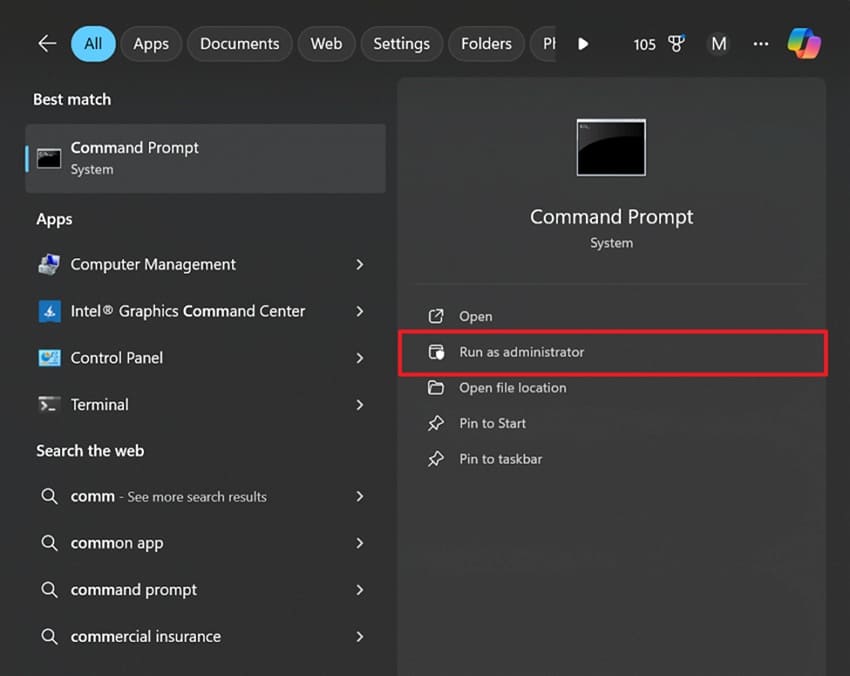
Step 1. Exit Steam or end all Steam processes, then search “Command Prompt” from the “Start” menu and choose “Run as Administrator.”
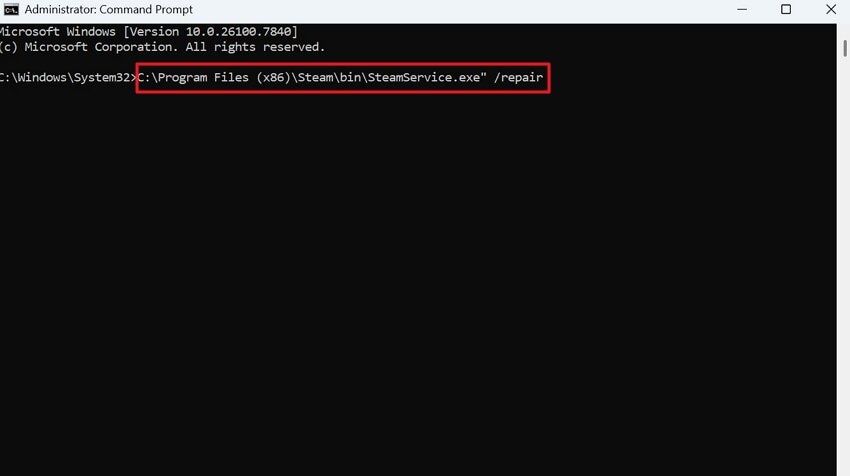
Step 2. In the “Command Prompt,” type “C "C:\Program Files (x86)\Steam\bin\SteamService.exe" /repair” and press “Enter.”
Fix 5: Check System File Integrity
Checking system file integrity helps Windows components run correctly so Steam can launch properly. When Steam won't open on Windows 11, corrupted system DLLs or runtime files often cause freezes or silent startup failures. The SFC tool scans protected files and replaces missing or damaged versions automatically. DISM repairs the Windows image supporting restoration. Damaged graphics or .NET components may block the Steam window. Therefore, follow the guide below to repair system files:
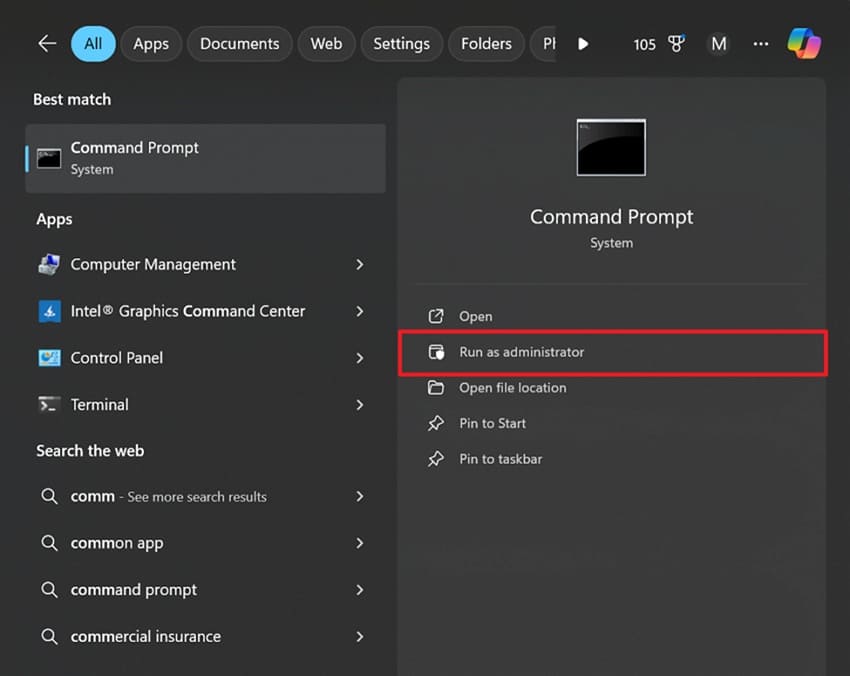
Step 1. From the “Start” menu, search for “Command Prompt” and opt for “Run as Administrator.”
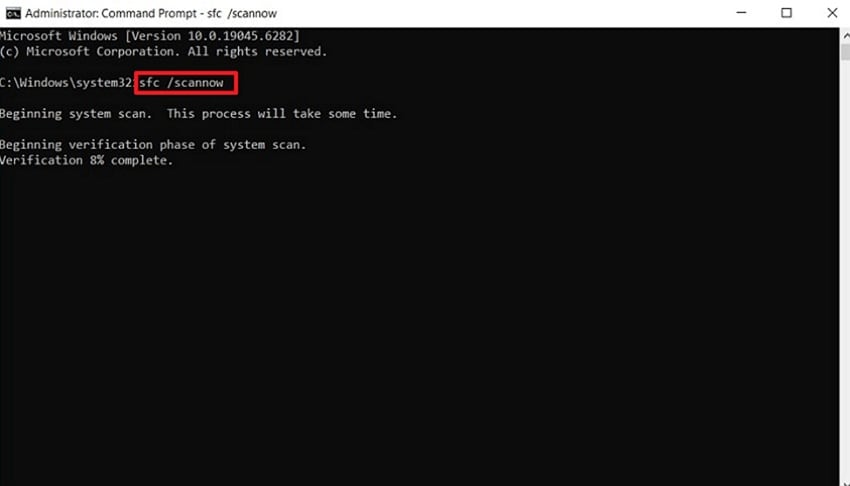
Step 2. Upon running the CMD, type “sfc /scannow” and press the “Enter” key. When the system scans and repairs damaged files, proceed to the next step.
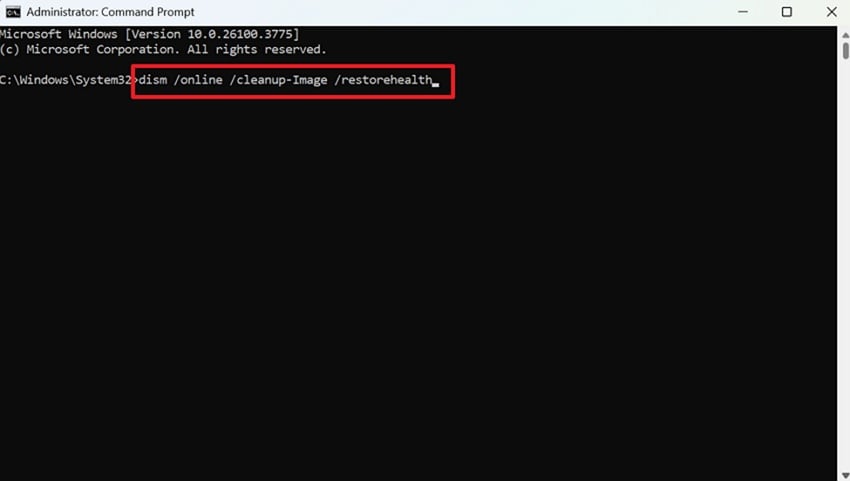
Step 3. You also need to type the “DISM /Online /Cleanup-Image /RestoreHealth” command and press “Enter.”
Fix 6: Try Compatibility Mode (Optional)
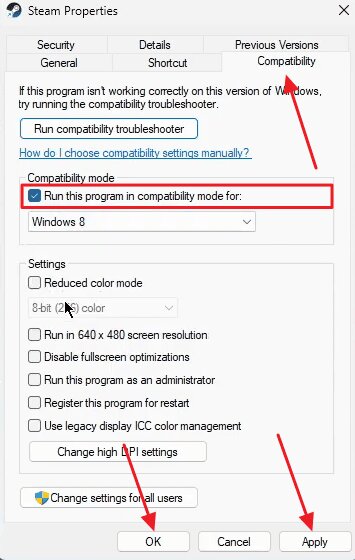
When the above fixes do not resolve launch issues, compatibility mode may also help. If Steam is not opening on Windows 11, running it on an older Windows version can stabilize it. This mode adjusts compatibility layers and system behaviors that can help older applications run more smoothly. It can prevent UI freezes, black screens, or unresponsive SteamWebHelper processes. So, take guidance from the steps to try compatibility mode to fix it:
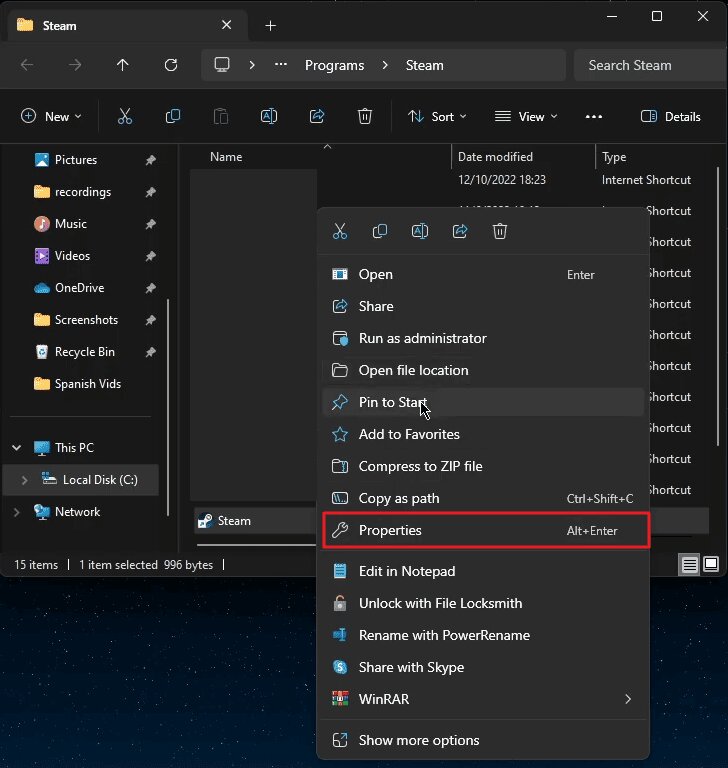
Step 1. To initiate, right-click the “Steam” and opt for the “Properties” option.
Step 2. In the Properties window, click the “Compatibility” tab and check “Run This Program in Compatibility Mode for.” Finally, click the “Apply” button and later press the “OK” button.
Pro Tip. Fix Steam Not Opening by Repairing Corrupted Files with Repairit
When Steam won't open on Windows 11, it might also be possible that the Steam files are damaged, preventing proper launch. Many users want a reliable file repairing tool to fix these errors without losing data. For this need, Repairit is an ideal solution to repair corrupted files associated with Steam. This advanced tool supports more than 30 file types, such as Steam files and archives.
Additionally, it repairs files larger than 1GB without crashing or slowing down software. It preserves all metadata of the file, such as tables and charts, in corrupted files during repair. Repairit is fully compatible with all Windows versions, including Windows 11. You can preview the repaired files before saving to confirm successful restoration.
Key Features

-
Safe Recovery: Automatically repairs corrupted files without affecting other system files.
-
Automatic Fix: Detect and repair file errors automatically with minimal user intervention.
-
Error Prevention: Prevents repeated file corruption or failure during future software use.
Guide to Repair Corrupted or Damaged Files Using Repairit
Let's explore the steps to start the process of repairing damaged Steam-related files with the help of Repairit:
Step 1. Import Your Corrupted Steam Files
Open the tool and head to the “More Types Repair” tab. Afterward, select the "Document Repair" option, then click the "Start” button.

Step 2. Start Repairing Your Steam Files
Once you have added the damaged Steam files, opt for the “Repair” button to start the repair process.

Step 3. Preview or Download Repaired Steam Files
Once your Steam files get repaired, click the “Preview” button to watch the repaired files. Press the “Save All” button to save the repaired files to your computer.

Repair Corrupted or Damaged Files
 Security Verified. Over 7,302,189 people have downloaded it.
Part 3. Try 5 Best Practices to Keep Steam Running Smoothly
Sometimes Steam freezes or crashes during launch or gameplay, which frustrates users. Below are some practices to keep Steam running that improve stability and performance:
- Clear Cache: Regularly clear Steam's download cache to prevent slow updates or failures. This helps rebuild client files and avoids freezes caused by corrupted temporary data.
- Free Storage: Maintain at least 10–15% free space on Steam's installation and library drives. Storing frequently played games on SSDs improves load times and in-game streaming performance.
- Regular Updates: Maintaining the Steam client and Windows is also a solution to avoid errors or conflicts. This prevents the crashes of the outdated parts and ensures consistent client functionality.
- Manage Background: Close browsers and other heavy apps before starting Steam or games. This ensures CPU and RAM are dedicated to Steam, avoiding freezes or stalls.
- Optimize Settings: Set to low performance and disable heavy community content to save power. Disabling in-game overlays also reduces RAM usage, allowing games to run at a more seamless performance.
Conclusion
To conclude, Steam not opening on Windows 11 can stop you from playing games. Problems often occur due to corrupted files, system errors, or background conflicts. Maintaining cache, system integrity, and settings is essential for smooth performance. Sometimes, damaged files prevent Steam from launching even after applying all fixes. However, users need a reliable tool to repair corrupted Steam files. Therefore, Repairit fixes damaged files and restores Steam to full functionality.
Frequently Asked Questions
-
1. Can corrupted Steam files prevent multiplayer games from launching?
Yes, damaged client files often block networking features required for online multiplayer games. Steam may fail to load libraries or connect to game servers if files get broken. Using a reliable tool like Repairit can restore files and fix launch issues. -
2. How can I repair multiple corrupted Steam files?
Tools like Repairit allow batch repair for multiple Steam files together without losing metadata. It preserves original content, such as tables, charts, and game configuration, during repair. Using Repairit speeds up restoration while preventing repeated launch failures or file corruption. -
3. Is there a way to fix Steam without reinstalling it completely?
Yes, repairing the Steam installation fixes broken client files without removing installed games. You can rebuild the Steam Service and reset configuration files for proper launching.




