
What if you open your PC, excited to play Minecraft Bedrock Edition, but nothing happens when you click launch? The game either won't start or crashes immediately, leaving you frustrated. This problem can happen for many reasons, such as outdated Windows files, missing updates, or corrupted game data.
However, this Minecraft not launching issue has simple solutions that do not need complicated tools. So, in this guide, you will find easy steps to fix Minecraft Bedrock Edition on your PC, while understanding why it happens in the first place.
Table of Contents
Part 1. Understanding Why Minecraft is Not Launching on Your PC - 5 Reasons
Minecraft is not launching means you try to open the game, but it never starts or closes quickly. Sometimes the launcher opens briefly and then disappears, or nothing happens when you press Play. In some cases, a Minecraft process appears in Task Manager, but no game window shows, so the game seems stuck in the background.
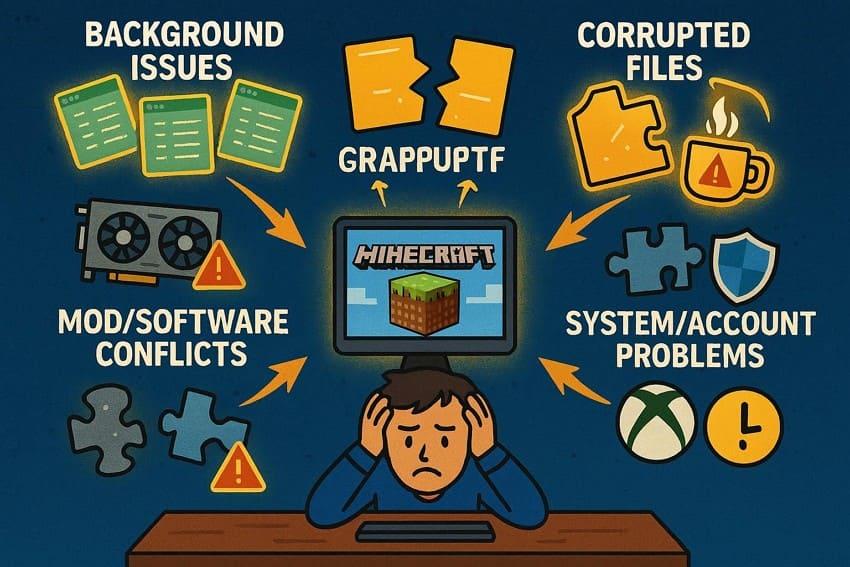
So, before you know how to fix the Minecraft Bedrock Edition error failed to start game on PC error, let’s see why it happens:
- Minecraft Stuck in Background: The game may run in the background in Windows, so it may seem like nothing happens. As mentioned, the Task Manager can also show "Minecraft" or "Java" processes using memory even without a window.
- Corrupted or Missing Game Files: Some files may become damaged or deleted during updates, power outages, or antivirus scans. As a result, broken or missing files can make the launcher close or crash when you try to start it.
- Graphics Driver or System Issues: Outdated, broken, or incompatible graphics drivers can prevent the game from opening. Whereas for Java Edition, missing or wrong Java files can stop the game window from appearing.
- Conflicts with Mods or Software: Mods that do not match the game version can block Minecraft from launching. Other software, like overlays, antivirus, or parental controls, can interfere with the game’s processes.
- Account or System Compatibility Problems: Sometimes, a mismatch between Microsoft/Xbox accounts may prevent the launcher from running correctly. In addition, older Windows versions, incorrect region/time settings, or missing gaming services can also prevent Minecraft from starting.
Part 2. Fix Minecraft Not Launching on Windows PC – Bedrock Edition Error Guide
Having the reasons cleared, here are 6 effective and practical solutions you can consider to resolve the Minecraft not launching issue:
Fix 1: Check Microsoft Store Account
This basic check is important because Minecraft uses it to verify your purchase and licenses. So, if the Store, Xbox app, and Launcher have different accounts, the game may refuse to start. This is why the correct account proves ownership of Minecraft and lets the launcher verify the license. In addition, using the same account across Store, Xbox, and Launcher avoids sign-in errors and login loops.
Fix 2: Disable Conflicting Apps
To fix the Minecraft Bedrock Edition error that failed to start the game on PC, this is another solution. This is important because other software can block or break Minecraft before it opens. Thus, a clean boot with minimal apps shows whether Minecraft fails due to Windows or third-party software. Identifying conflicts this way via the mentioned guide avoids random reinstall and helps the game run normally:
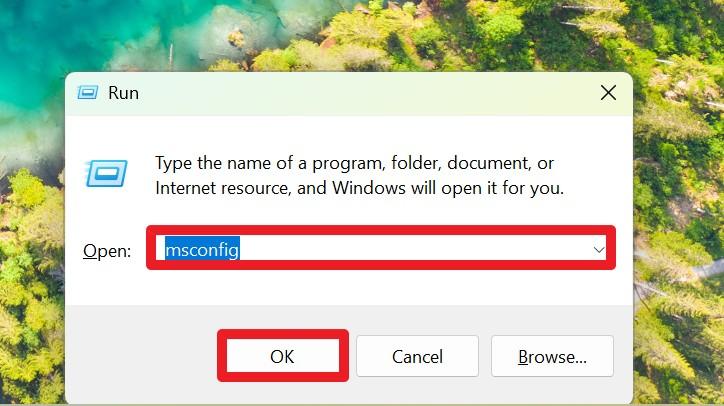
Step 1. Upon pressing "Win + R," type "msconfig" in the textbox and press the "Ok" button.
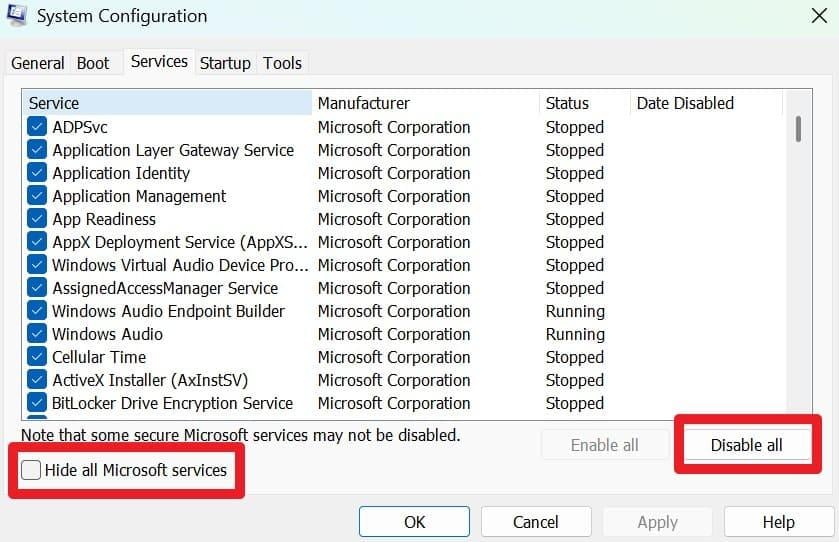
Step 2. Head to the "Service" tab in "System Configuration" and tick the "Hide all Microsoft services" and "Disable All" option.
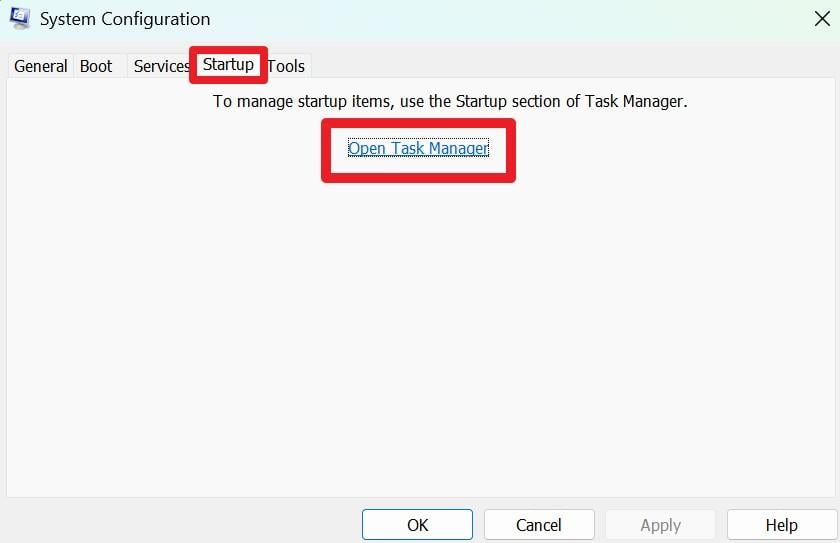
Step 3. Then, go to the "Startup" tab and pick the "Open Task Manager" button.
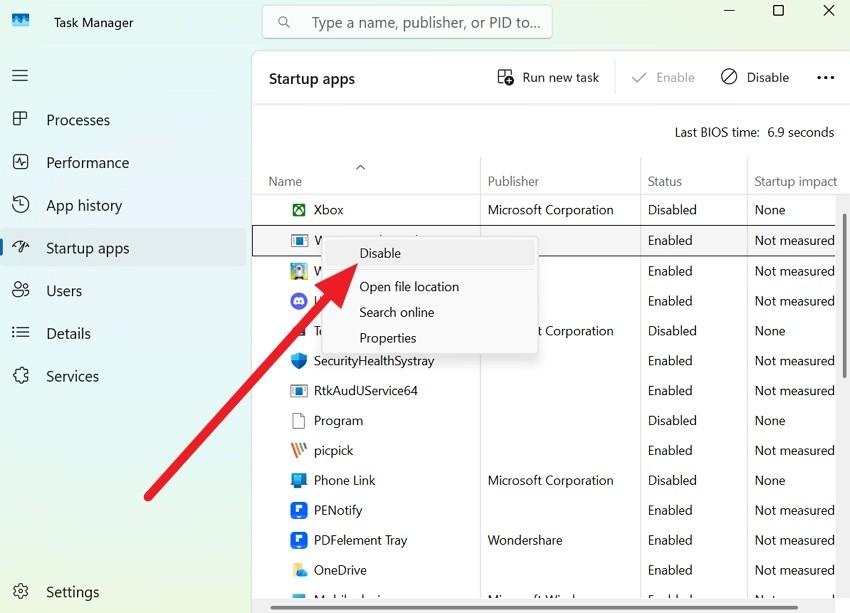
Step 4. There, right-click on the startup apps and select the "Disable" option. After that, press "OK," restart the PC, and run the Minecraft Launcher by pressing the "Play" button.
Fix 3: Clear Minecraft Cache and Temporary Files
If you still face the Minecraft not launching issue, clear the Minecraft cache and temporary files. There is a chance that corrupted settings or profile files may prevent updates or prevent the game from opening. So, as you remove the cache files, Minecraft can recreate fresh data without deleting saved worlds, as long as the saves folder remains untouched. Since this step is low risk and often effective, here is how you can do it:
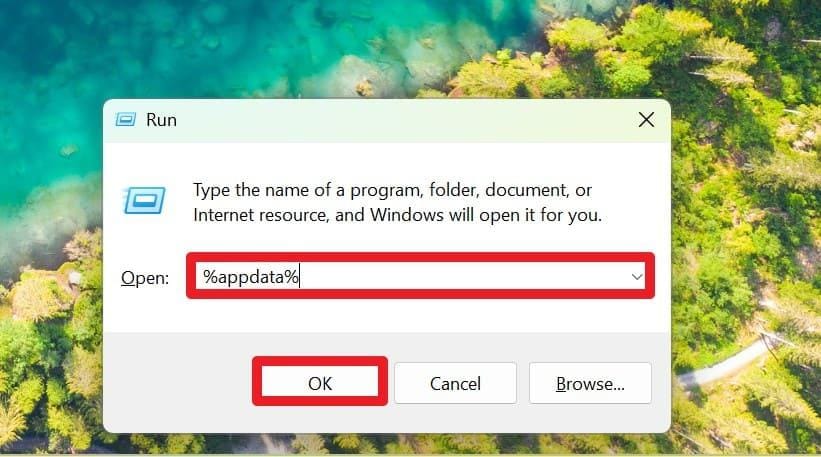
Step 1. Type "%appdata%" and press the "Enter" key as you press the "Win+R" buttons.
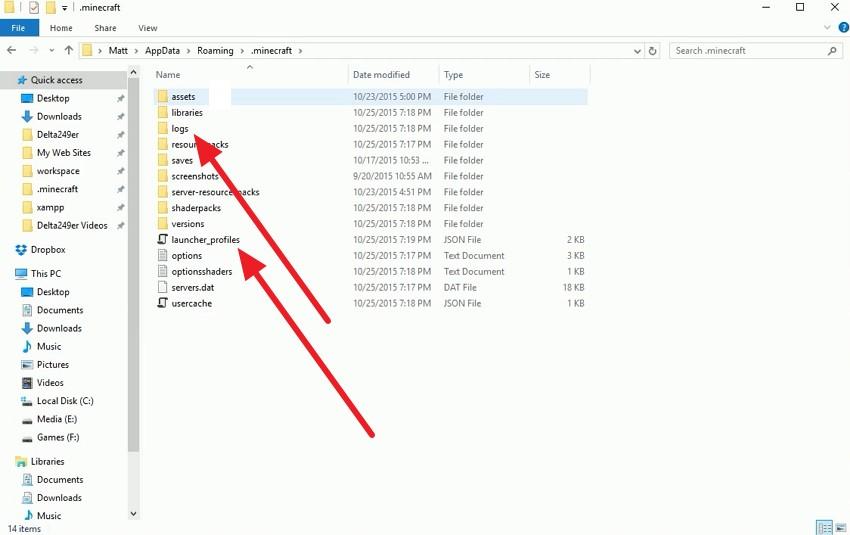
Step 2. In ".minecraft.", delete the folder named "launcher_profiles.json" and "launcher_log.txt". Also, remove the "logs" folder having "webcache" or "webcache2" folder (if present).
Fix 4: Update Minecraft Not Launching to the Latest Bedrock Version
Update to the latest Minecraft: Bedrock Edition to fix the Minecraft Bedrock Edition error that failed to start the game on PC. A new update installs a fresh set of verified files from Microsoft, which can stop startup crashes or loading screen freezes.
Additionally, it ensures the game matches current Gaming Services and Xbox components, since mismatched versions may prevent launch. So, as updates include bug fixes for known crashes and memory issues, here is how you can do that:
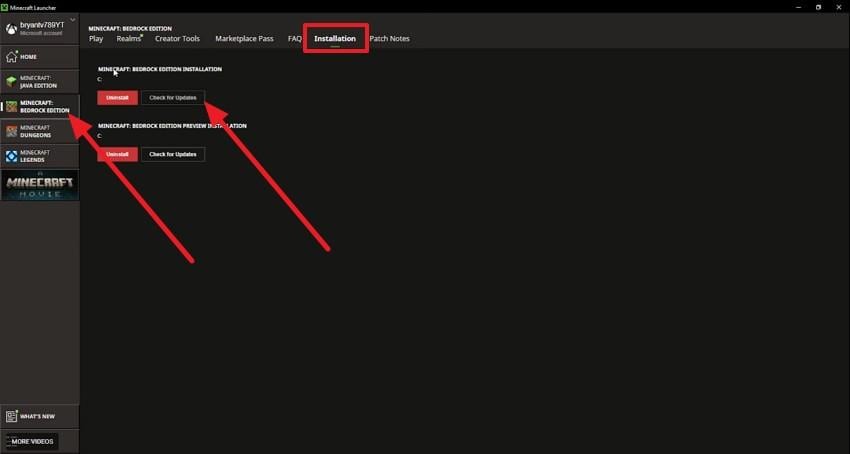
Option 1: In the "Minecraft: Bedrock Edition" section, head to the "Installation" tab and pick the "Check for Updates" button. If the update is there, it will be automatically updated.
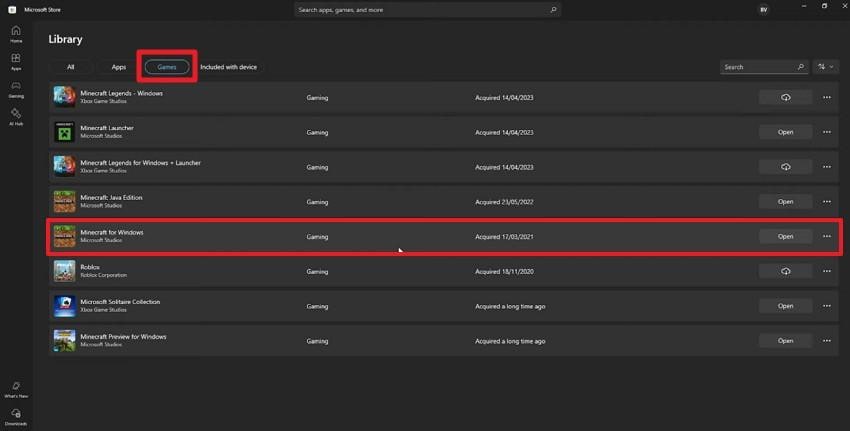
Option 2: Even after the update, if you still encounter the same issue, go to the Microsoft Store Library. There, choose the "Games" section and locate the "Minecraft for Windows" option.
Fix 5: Repair or Reset Minecraft Not Launching via App Settings
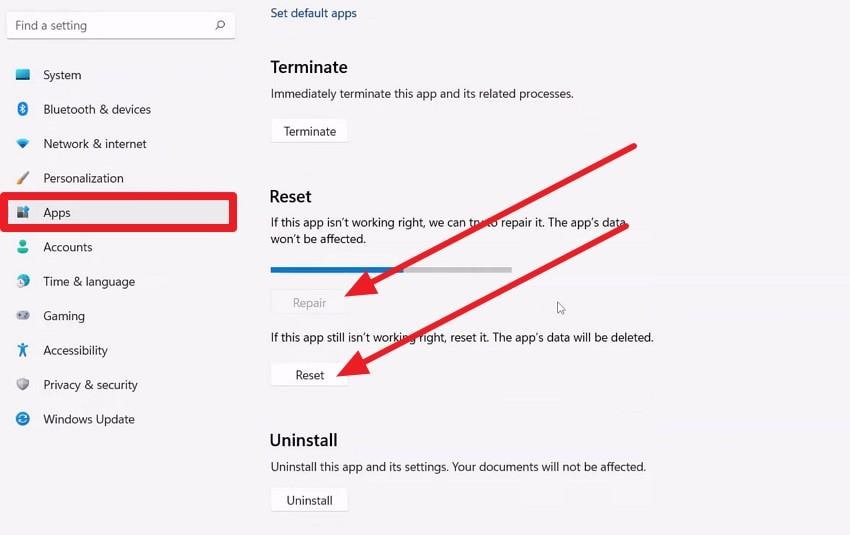
To fix the Minecraft not launching issue, Repair or Reset in Windows App settings is a built-in way to fix Minecraft launch problems. The Repair option fixes damaged app files while keeping your data, which can stop crashes or cases where the launcher does not open. On the contrary, the Reset option clears local settings, cache, and sign-in data, which removes corrupted configuration that blocks startup, as illustrated:
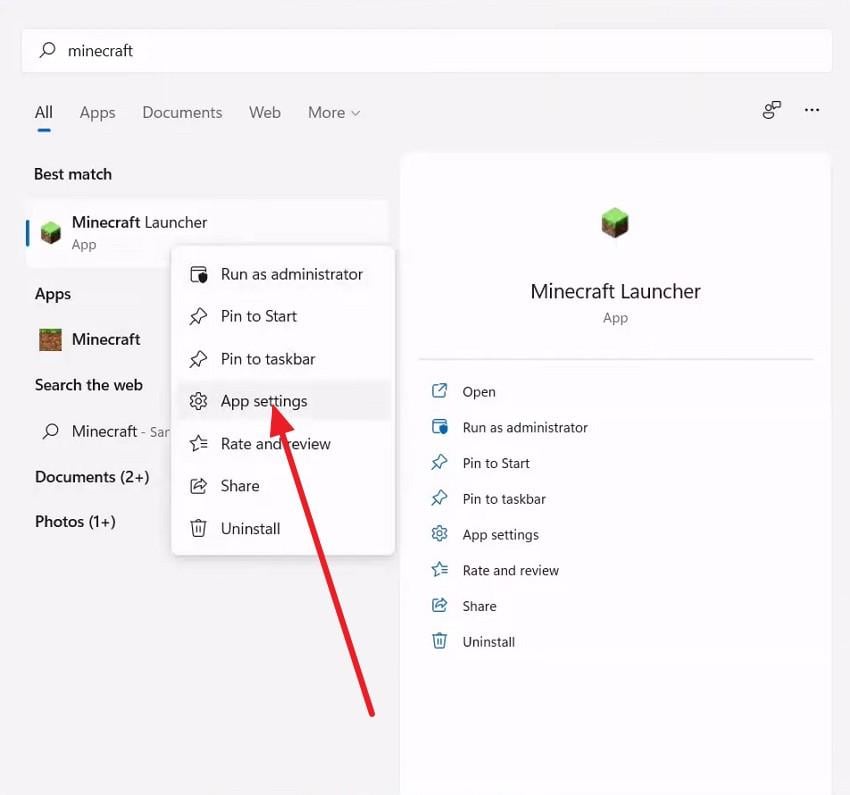
Step 1. Search for the "Minecraft Launcher" on PC and pick the "App Settings" option by right-clicking.
Step 2. In the "Apps" section, pick the "Reset" and "Repair" button in the "Reset" section.
Fix 6: Update Graphics Drivers
To fix the Minecraft Bedrock Edition error that failed to start the game on PC, you can also try to update the graphics driver. Old or corrupted drivers can cause errors like "incompatible video card driver" and prevent the game from starting. Thus, new drivers resolve these compatibility issues and enable proper DirectX support. They also reduce startup crashes, black screens, and sudden closures, once updated via the mentioned steps:
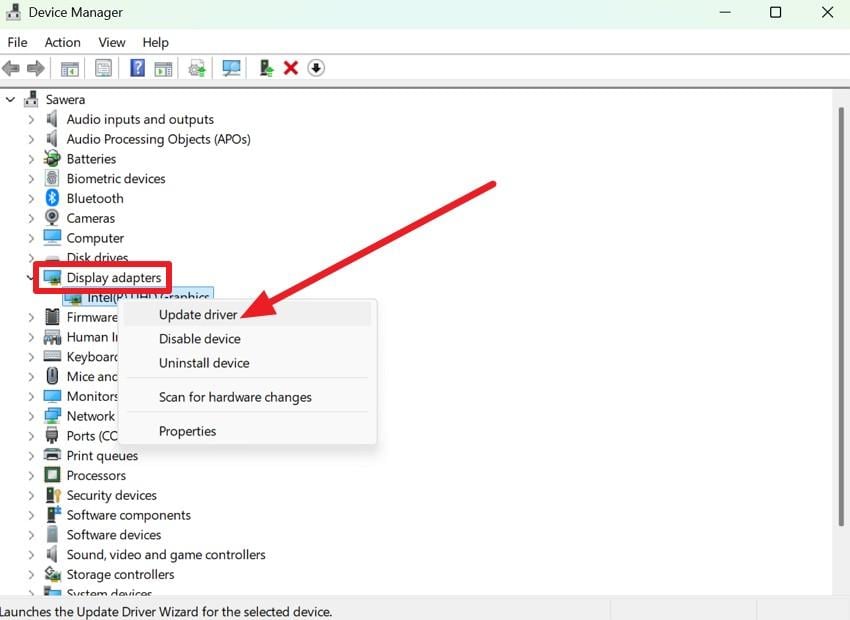
Step 1. On the Device Manager, expand the "Display Adapters" menu and right-click on drivers to choose the "Update Driver" option.
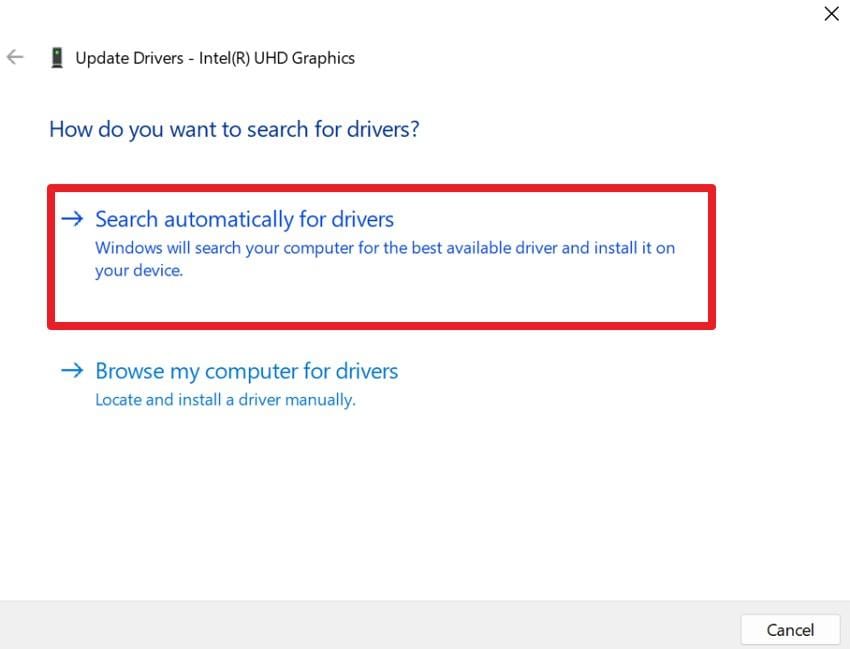
Step 2. As the popup appears, press the "Search Automatically for Drivers" option to continue updating.
Pro Tip. Use Repairit to Repair Corrupted Minecraft Game Videos
If recorded Minecraft gameplay videos become corrupted, Repairit can repair damaged MP4 or MOV gameplay recordings. So, while resolving the Minecraft not launching issue, this tool allows you to fix MP4, MOV, 3GP, MTS, AVI, M2TS, MKV, FLV, MXF, and M4V video formats, without any limit. Whether the files get damaged because of editing software crashes or transfer interruptions, this repair tool handles all types of corruption scenarios.
In addition, users can repair video files in batches using the Filter tab to view repaired and unrepaired videos. Since the separate tabs and seamless interface make corrupted video repair effortless, it is ideal for beginners and professionals. Furthermore, users can pick the destination path so that the video repair tool automatically saves the fixed files.
Key Features

-
Standard & Advanced Repair Modes: Offers quick repair for minor damage and Advanced Repair using a sample file to fix severely corrupted videos or documents.
-
Cross‑Platform & Broad File‑type Support: Works on Windows and supports common recording formats, making it easy to fit into a typical Minecraft setup.
-
Multi‑format File Repair: Repairs ZIP, Office, PDF, and other files, useful for fixing corrupted Minecraft backups, configs, or mod packs.
Simple Guide to Fix Corrupted Minecraft Game Videos with Repairit
While trying to fix the Minecraft Bedrock Edition error that failed to start the game on PC, learn how this tool fixes corrupted videos:
Step 1. Access the Video Repair Tool to Fix Minecraft Videos
Press the "Start" button in the "Video Repair" section, then import the corrupted Minecraft videos into the tool.

Step 2. Import More Videos and Initiate the Repair
There, click the "+Add Video(s)" button to import more Minecraft files, then select the "Repair" button to start the process.

Step 3. Preview and Save the Repaired Minecraft Videos
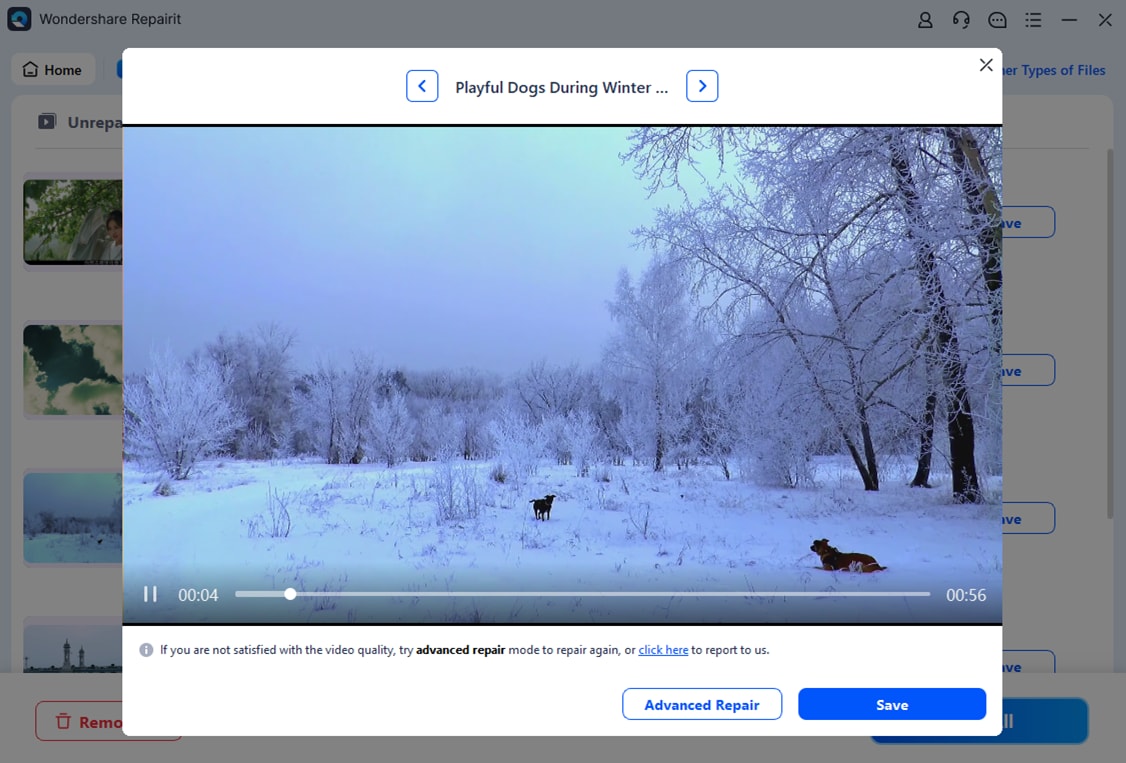
When it ends, choose the "Preview" or "Save" options and preview the files in detail. Once done, tap the "Save" button and transfer it to the device.
Fix Corrupted Minecraft Game Videos with Repairit
 Security Verified. Over 7,302,189 people have downloaded it.
Conclusion
Overall, this guide has explained what the Minecraft not launching issue is and why it occurs. After one understands the issue, 6 easy solutions are given in detail to address this error. However, if the Minecraft video becomes corrupted, Repairit is recommended to fix video files of any format, with no limit. It also helps recover important recorded gameplay clips for future viewing or sharing.
Frequently Asked Questions
-
1. Is this issue common on Bedrock or Java Edition?
Yes, both Bedrock and Java Edition sometimes fail to start on many different PC setups. Therefore, players of any edition may face launch problems even with correct installation and settings. -
2. Does internet connection affect Minecraft startup?
Single-player mode may run offline, but account verification requires a stable internet connection. Thus, a lack of internet can block login or access to the marketplace and online features. -
3. Can Windows updates affect Minecraft launch?
Major Windows updates sometimes change system files that Minecraft relies on to open correctly. Consequently, mismatched versions may prevent launch until the game or components are updated for compatibility.




