
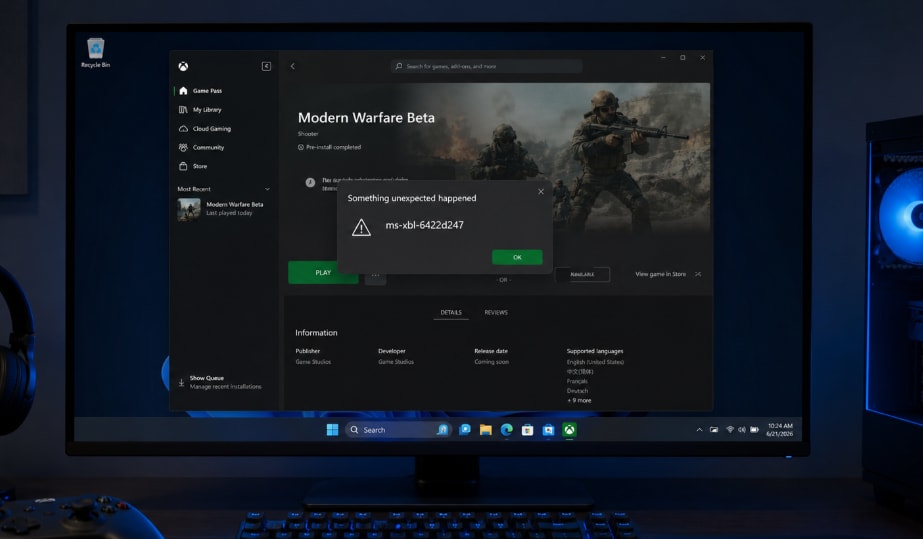
If Modern Warfare 4 Beta Error Code ms-xbl-6422d247 appears on PC, the problem is usually tied to Xbox app link handling, Microsoft Store, Gaming Services, account entitlement, the separate Beta package, or PC security requirements. Repairit does not fix the launch error itself, but it can help repair corrupted local gameplay recordings after a crash.
Fix Modern Warfare 4 Beta Error Code ms-xbl-6422d247 On PC by starting with the Xbox app and Beta installation path, not a full Windows reinstall. The ms-xbl prefix often points to a Windows/Xbox protocol link that should be handled by the Xbox app, Microsoft Store, and Gaming Services.
When those components are missing, outdated, signed in to the wrong account, or pointed at the wrong package, Windows may ask for an app to open an ms-xbl link or the Beta may loop instead of launching. Work through the fixes below in order, then use Wondershare Repairit only if the crash leaves a local MP4, MOV, MKV, AVI, or screen recording damaged and unplayable.
Important: Repairit is a file and video repair product. It cannot repair Xbox app services, Microsoft Store, Gaming Services, Activision account access, Beta entitlements, TPM 2.0, Secure Boot, Windows, anti-cheat checks, or the Modern Warfare 4 Beta installation. Use it for corrupted game recordings and local media files that still exist.
In this article
-
- Fix 1. Install the Separate Modern Warfare 4 Beta Package
- Fix 2. Check Beta Access Window and Account
- Fix 3. Update Xbox App, Microsoft Store, and Gaming Services
- Fix 4. Repair or Reset Xbox App and Gaming Services
- Fix 5. Run the Gaming Services Repair Tool
- Fix 6. Clear Microsoft Store Cache
- Fix 7. Check TPM 2.0 and Secure Boot
- Fix 8. Verify or Reinstall Only the Beta
Part 1. What Does Error Code ms-xbl-6422d247 Mean?
Error code ms-xbl-6422d247 usually suggests that Windows is trying to open or validate an Xbox-related launch request. On Xbox on PC, the Xbox app, Microsoft Store, Gaming Services, Microsoft account session, and game entitlement all need to line up before the Beta can launch.
This is different from a normal graphics driver crash or a broken video file. If the error appears before the game opens, focus on Xbox app, Store, Gaming Services, Beta access, and system security requirements first. If the Beta crashes while recording and the clip becomes unplayable afterward, that damaged media file is a separate Repairit use case.
Part 2. Quick Causes of Modern Warfare 4 Beta ms-xbl-6422d247
| Possible Cause | What It Looks Like | Best First Move |
|---|---|---|
| Separate Beta package is missing | The main Call of Duty hub opens, but the Modern Warfare 4 Beta does not launch. | Install the Beta package directly from the Xbox app. |
| Xbox app protocol handler is broken | Windows asks for an app to open an ms-xbl link. | Update, repair, or reset Xbox app and Gaming Services. |
| Wrong Microsoft account or missing entitlement | The Beta does not recognize Early Access or preorder access. | Sign in to Xbox app and Microsoft Store with the same account. |
| Microsoft Store cache issue | Store opens the wrong page or cannot find the correct package. | Run wsreset.exe and reopen the Xbox app. |
| Gaming Services is damaged | Xbox app cannot install, update, or launch PC games properly. | Use the Gaming Services Repair Tool or app repair options. |
| TPM 2.0 or Secure Boot is disabled | The Beta may block online access or fail launch verification. | Check Activision security requirements before changing BIOS settings. |
| Incomplete Beta files | The Beta starts, crashes, loops back, or fails after an update. | Verify, repair, or reinstall only the Beta package. |
Part 3. Fix Modern Warfare 4 Beta Error Code ms-xbl-6422d247 On PC
Use these fixes in order. They start with the least disruptive Xbox and Store checks, then move toward repair, security, and reinstall steps.
Fix 1. Install the Separate Modern Warfare 4 Beta Package
Activision's Beta instructions describe the Beta as a platform storefront download. On Xbox on PC, that means the Beta package may need to be installed separately instead of launching through an old shortcut or only opening the main Call of Duty page.
- Open the Xbox app on the PC.
- Go to Store or My Library.
- Search for Call of Duty: Modern Warfare 4 Beta.
- Select the Beta version, not only the main Call of Duty hub.
- Click Install.
- Launch the Beta directly from the Xbox app after installation finishes.
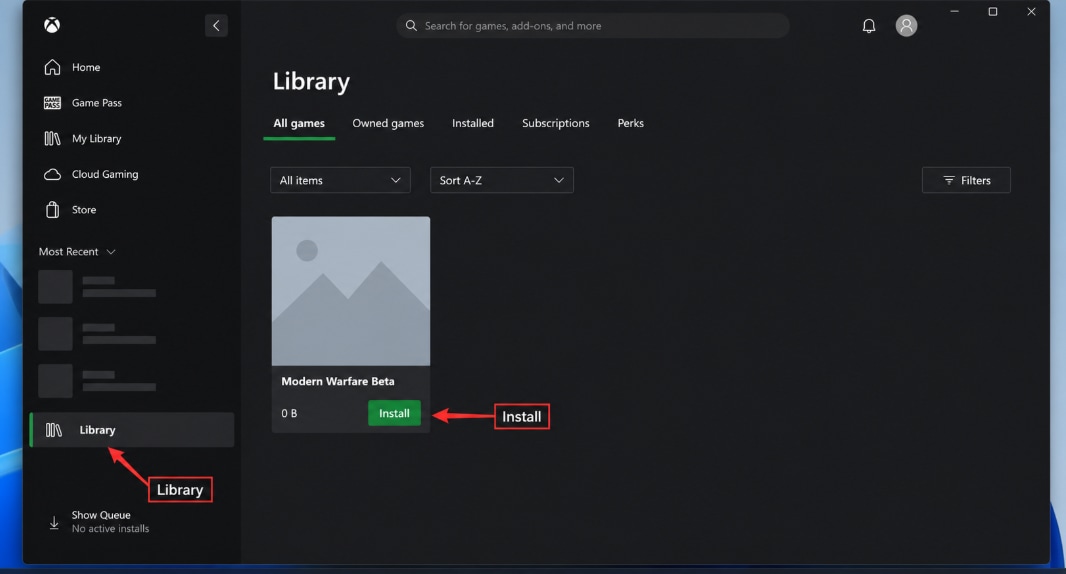
If Windows was trying to open a Beta-specific Xbox link without the Beta package installed, this step may clear the ms-xbl-6422d247 error immediately.
Fix 2. Check Beta Access Window and Account
Activision lists the Modern Warfare 4 Early Access Beta from August 21 to August 25, 2026, and the Open Beta from August 28 to September 1, 2026. Access can vary by platform, region, preorder status, and account eligibility.
- Confirm that the Beta is live for the current date, platform, and region.
- Open the Xbox app and sign in with the Microsoft account that has Beta access.
- Open Microsoft Store and sign in with the same Microsoft account.
- If a Beta code was used, confirm it was redeemed for the correct platform and region.
- If the Beta was obtained through a digital preorder, confirm that the purchase appears on the account.
- Restart Xbox app and launch the Beta again.
If the Beta access window is closed or the account does not have entitlement, local app repair steps will not make the Beta launch.
Fix 3. Update Xbox App, Microsoft Store, and Gaming Services
Outdated Xbox app or Store components can break Xbox protocol links and game installation checks.
- Open Microsoft Store.
- Go to Library.
- Click Get updates.
- Update Xbox, Microsoft Store, Gaming Services, Xbox Game Bar, and related gaming components if they appear.
- Restart the PC.
- Launch Modern Warfare 4 Beta from the Xbox app again.
Also install available Windows updates if the Xbox app or Store continues to behave unpredictably.
Fix 4. Repair or Reset Xbox App and Gaming Services
Microsoft supports repairing or resetting some Windows apps from Settings. Try Repair before Reset, because Reset can remove local app preferences or sign-in data.
- Press Win + I to open Settings.
- Go to Apps > Installed apps.
- Search for Xbox.
- Click the three-dot menu and choose Advanced options.
- Click Repair.
- If the error continues, return to the same page and click Reset.
- Repeat the same process for Microsoft Store and Gaming Services if those options appear.
- Restart the PC and launch the Beta again.
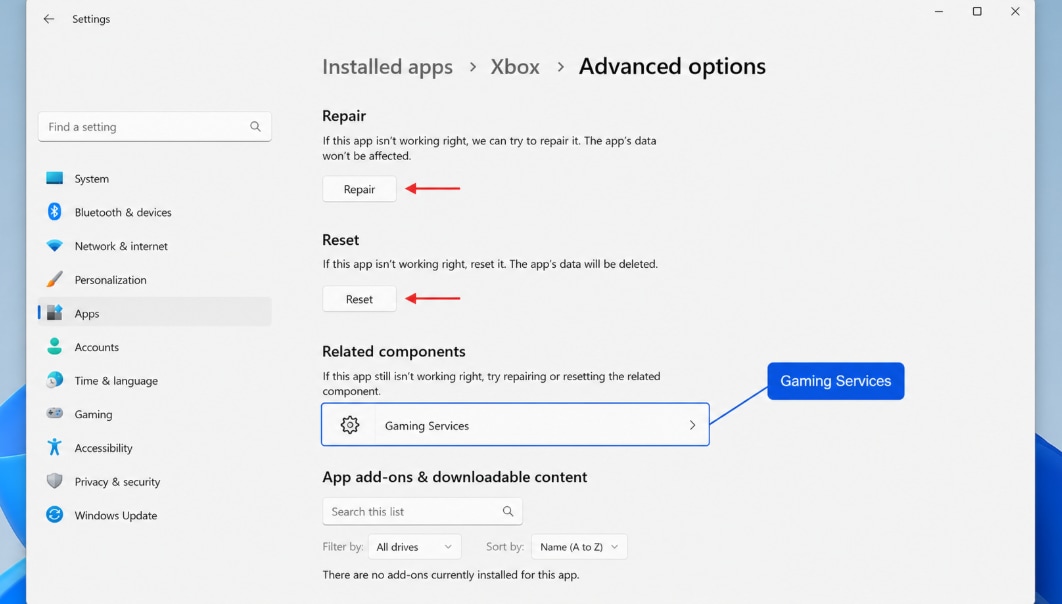
If Repair and Reset are unavailable for a component, skip that component and continue with the next official troubleshooting step.
Fix 5. Run the Gaming Services Repair Tool
If Xbox app links still fail, Gaming Services may be damaged. Use Microsoft's or Xbox's official repair route instead of random third-party repair tools.
- Open the Xbox app.
- Go to the profile, support, or troubleshooting area if available.
- Find and run the Gaming Services Repair Tool.
- Allow the tool to finish.
- Restart the PC.
- Open the Xbox app and launch Modern Warfare 4 Beta again.
If the in-app route is unavailable, use the official Xbox Support Gaming Services Repair Tool page.
Fix 6. Clear Microsoft Store Cache
A corrupted Store cache can make Xbox app links open the wrong page or fail to detect that the Beta is installed.
- Press Win + R.
- Type wsreset.exe.
- Press Enter.
- Wait for the blank Command Prompt window to close and Microsoft Store to reopen.
- Restart the Xbox app.
- Launch the Beta again.
This is a low-risk fix and should be tried before reinstalling large game files.
Fix 7. Check TPM 2.0 and Secure Boot
Activision states that TPM 2.0 and Secure Boot are required to play the Modern Warfare 4 Beta online on PC. If either feature is disabled, the Beta may block online access or fail security verification.
| Setting | How to Check in Windows | Caution |
|---|---|---|
| TPM 2.0 | Press Win + R, type tpm.msc, and check whether TPM is ready for use. | If TPM is disabled, use the PC or motherboard manufacturer's instructions before changing BIOS or UEFI settings. |
| Secure Boot | Press Win + R, type msinfo32, and check Secure Boot State. | Changing boot mode or Secure Boot incorrectly can cause boot issues. Do not change BIOS settings randomly. |
Activision also provides a Call of Duty Secure Attestation Wizard to verify whether the PC meets the required security settings. Use official Activision and hardware manufacturer guidance before making UEFI or BIOS changes.
Fix 8. Verify or Reinstall Only the Beta
If Xbox services work but the Beta still crashes or loops, the Beta installation may be incomplete.
- Open the Xbox app.
- Go to the Modern Warfare 4 Beta page.
- Look for Manage, Repair, or Verify options if available.
- If no repair option appears, uninstall only the Beta package.
- Restart the PC.
- Reinstall the Beta from the Xbox app.
Avoid uninstalling the full Call of Duty launcher unless necessary. The separate Beta package is usually the part that needs attention for this launch path.
Part 4. Repair Corrupted Modern Warfare 4 Beta Recordings with Repairit
The ms-xbl-6422d247 error itself should be fixed through Xbox app, Microsoft Store, Gaming Services, account, access-window, and security-setting troubleshooting. However, if the Beta crashes while recording gameplay, streaming, transferring clips, or saving highlights, the local video file may become corrupted or unplayable.
When Repairit Fits This Error Scenario
Use Wondershare Repairit when the file still exists but the recording is damaged, broken, or cannot play correctly.
- Modern Warfare 4 Beta crashed while recording a match.
- A gameplay clip opens with black screen, no sound, video stutter, or playback error.
- A video file was damaged during transfer, editing, upload, or export.
- A recording stopped suddenly and the MP4, MOV, MKV, or AVI file cannot be opened.
- A highlight clip is needed for content creation, sharing, or bug reporting.
Repairit does not recover deleted clips. If the recording is missing, check backups, cloud sync folders, Xbox captures, recording software folders, or data recovery options instead.
How to Repair a Corrupted Game Recording
Step 1. Import Damaged Modern Warfare 4 Video Recordings
Head over to the "Video Repair" tab within the tool and press the "Start" button. A new screen will appear where you can import the corrupted Modern Warfare 4 recordings.

Step 2. Repair Your Added Modern Warfare 4 Clips
Next, click the "Repair" button once all the damaged video files are imported. The software will then scan and resolve all detected issues within your recordings.

Step 3. Check the Modern Warfare 4 Recordings
After a few moments, press the "Preview" button to review the quality of each restored game clip. When everything looks good, select "Save All" to export the repaired clips to your device.


Keep the original corrupted file until the repaired copy has been checked. For important recordings, store the repaired video on a separate drive or cloud backup.
Part 5. Conclusion
To fix Modern Warfare 4 Beta Error Code ms-xbl-6422d247 On PC, start with the separate Beta package in the Xbox app. Then check the Beta access window and account, update Xbox app and Microsoft Store components, repair or reset Xbox app and Gaming Services, run the Gaming Services Repair Tool, clear the Store cache, and confirm TPM 2.0 and Secure Boot.
If a crash damages gameplay recordings, Wondershare Repairit can help repair corrupted local video files so clips, highlights, and bug-report footage may still be usable. Keep the boundary clear: Repairit repairs damaged media files; it does not fix the Xbox app, Microsoft account access, Beta entitlement, PC security settings, or the game launch error itself.
FAQ
-
What is Modern Warfare 4 Beta Error Code ms-xbl-6422d247 on PC?
It is usually an Xbox app or Windows protocol launch problem. The Beta may fail because the separate package is missing, Xbox app or Gaming Services is broken, the account lacks access, Microsoft Store cache is wrong, or PC security requirements are not met. -
How do I fix ms-xbl-6422d247 in Modern Warfare 4 Beta?
Install the separate Beta package from the Xbox app, sign in to Xbox app and Microsoft Store with the same account, update Xbox and Gaming Services, repair or reset the apps, clear Store cache with wsreset.exe, then check TPM 2.0 and Secure Boot if the error continues. -
Does Repairit fix Modern Warfare 4 Beta Error Code ms-xbl-6422d247?
No. Repairit does not fix Xbox app links, Gaming Services, Microsoft Store, account entitlement, TPM 2.0, Secure Boot, or the Beta launch error. It is only relevant if a crash corrupts local gameplay recordings or video files. -
Why does Windows ask for an app to open an ms-xbl link?
Windows may not have a working Xbox app or Gaming Services handler for the Xbox protocol link. Updating, repairing, resetting, or reinstalling official Xbox components can restore the launch path. -
Do TPM 2.0 and Secure Boot matter for the Modern Warfare 4 Beta?
Yes. Activision states that TPM 2.0 and Secure Boot are required to play the Modern Warfare 4 Beta online on PC. Check with tpm.msc and msinfo32, and follow official PC or motherboard guidance before changing BIOS settings. -
Should I reinstall Windows to fix ms-xbl-6422d247?
No, not as an early fix. Start with Xbox app, Microsoft Store, Gaming Services, account, Store cache, Beta package, and security requirement checks. Reinstalling Windows is excessive for most ms-xbl launch-link issues. -
Can Repairit repair a corrupted Modern Warfare 4 Beta clip?
Repairit can help repair corrupted local video files such as damaged MP4, MOV, MKV, or AVI gameplay recordings when the file still exists. It cannot recover deleted clips or fix the game that caused the crash.




