
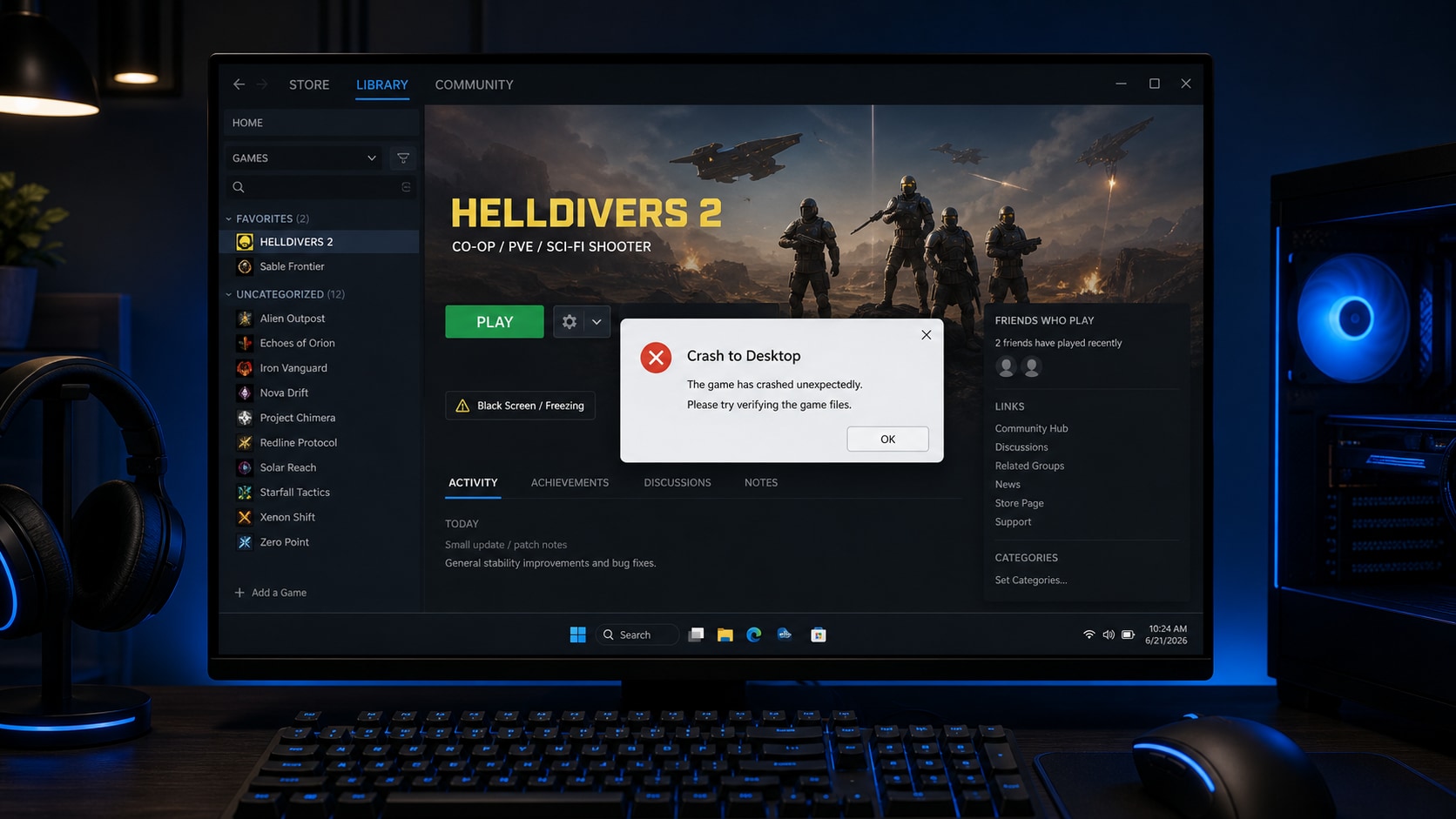
 TL;DR:
Resolve HELLDIVERS 2 PC crashes, black screens, and launch failures by prioritizing Steam file verification, Arrowhead AppData resets, and nProtect GameGuard repairs before attempting a full reinstallation.
● Bypass the black screen issue where audio continues playing by navigating to the %appdata%\Arrowhead\Helldivers2 directory and switching the adapter_index value between 1 and 0 inside the user_settings.config file.
● Clear nProtect GameGuard Error 114 by configuring helldivers2.exe to run as an administrator and manually reinstalling the anti-cheat service using the gguninst and GGSetup executables found in the local game folders.
● Wondershare Repairit cannot fix HELLDIVERS 2 performance or launcher problems; its sole function in this scenario is to repair local gameplay recordings like MP4 or MKV files that became corrupted due to an interrupted game session.
Ask AI for a summary
 ChatGPT
 Perplexity
 Gemini
 Claude
 Grok
Grok
If HELLDIVERS 2 is crashing, not launching, crashing to desktop, showing a black screen, lagging, or freezing on PC, start with Steam file checks, driver updates, AppData settings, GameGuard, overlays, and performance settings before reinstalling. Repairit does not fix the game, but it can help repair corrupted gameplay videos after a crash.
Fix HELLDIVERS 2 Crashing, Not Launching, Crash to Desktop, Black Screen, Lagging & Freezing on PC by following a safe troubleshooting order. HELLDIVERS 2 can fail because of corrupted Steam files, outdated GPU drivers, nProtect GameGuard conflicts, damaged Arrowhead AppData settings, overlay interference, or hardware running close to the minimum requirements.
This guide covers the common PC symptoms: nothing happens after clicking Play, the game crashes to desktop, the screen goes black while audio continues, missions lag or freeze, Error 114 appears, or recorded gameplay becomes unplayable after a crash.
Important: Wondershare Repairit is a file and video repair product. It cannot fix HELLDIVERS 2, Steam, GameGuard, Windows drivers, black screen settings, lag, freezing, or launch errors. Use Repairit only when a gameplay recording or local media file still exists but is corrupted, unreadable, or unplayable.
In this article
-
- Fix 1. Restart Steam and Close Stuck Game Processes
- Fix 2. Verify HELLDIVERS 2 Game Files on Steam
- Fix 3. Update Windows and Graphics Drivers
- Fix 4. Fix HELLDIVERS 2 Black Screen with Audio
- Fix 5. Delete HELLDIVERS 2 AppData Settings
- Fix 6. Repair GameGuard Error 114
- Fix 7. Disable Overlays and Background Apps
- Fix 8. Reduce Lagging and Freezing
- Fix 9. Reinstall HELLDIVERS 2
Part 1. Why HELLDIVERS 2 Crashes or Will Not Launch on PC
HELLDIVERS 2 is a demanding online co-op shooter, so launch and performance issues can come from local PC files, anti-cheat services, display settings, drivers, overlays, or system load. Use the symptom table to find the most likely starting point.
| Symptom | Possible Cause | Best First Fix |
|---|---|---|
| Nothing happens after clicking Play | Steam process stuck, missing files, GameGuard service issue, or background conflict. | Restart Steam, end stuck processes, then verify files. |
| Crash to desktop on startup | Corrupted game files, outdated drivers, GameGuard conflict, or damaged AppData settings. | Verify files, update drivers, and reset local settings. |
| Black screen with audio | Display adapter index or local display configuration issue. | Edit the Arrowhead user_settings.config adapter_index value. |
| Error 114 appears | nProtect GameGuard launch conflict, utility conflict, firewall, antivirus, or permission issue. | Run as administrator, reinstall GameGuard, and add security exceptions. |
| Lagging and freezing in missions | GPU load, CPU load, drivers, overlays, Async Compute setting, or PC near minimum specs. | Lower settings, cap FPS, update drivers, and disable overlays. |
| Recorded gameplay becomes unplayable | Interrupted recording or corrupted video file after a crash. | Fix the game issue first, then repair the damaged local video file. |
Start with low-risk fixes before reinstalling. Steam can verify files without removing the entire game, and Arrowhead provides specific workarounds for black screen and GameGuard Error 114 cases.
Part 2. Fix HELLDIVERS 2 Crashing, Not Launching, Crash to Desktop, Black Screen, Lagging & Freezing on PC
Follow these fixes in order. They move from quick launcher checks to Steam repair, official config changes, anti-cheat repair, performance tuning, and reinstall only when needed.
Fix 1. Restart Steam and Close Stuck Game Processes
If HELLDIVERS 2 closed silently, Steam may still think the game is running. Restart the launch chain before changing files.
- Close HELLDIVERS 2 if any window is open.
- Exit Steam completely.
- Press Ctrl + Shift + Esc to open Task Manager.
- End remaining HELLDIVERS 2, Steam, or GameGuard processes.
- Restart the PC.
- Open Steam and launch the game again.
This quick step helps with not launching, crash to desktop, and "app already running" style behavior.
Fix 2. Verify HELLDIVERS 2 Game Files on Steam
Corrupted or missing files are one of the most common causes of HELLDIVERS 2 crashing, freezing, or failing to start. Steam's official file verification checks the installed files and redownloads missing or damaged files.
- Open Steam.
- Go to Library.
- Right-click HELLDIVERS 2.
- Select Properties.
- Open Installed Files.
- Click Verify integrity of game files.
- Wait for Steam to finish.
- Restart the PC and launch the game again.
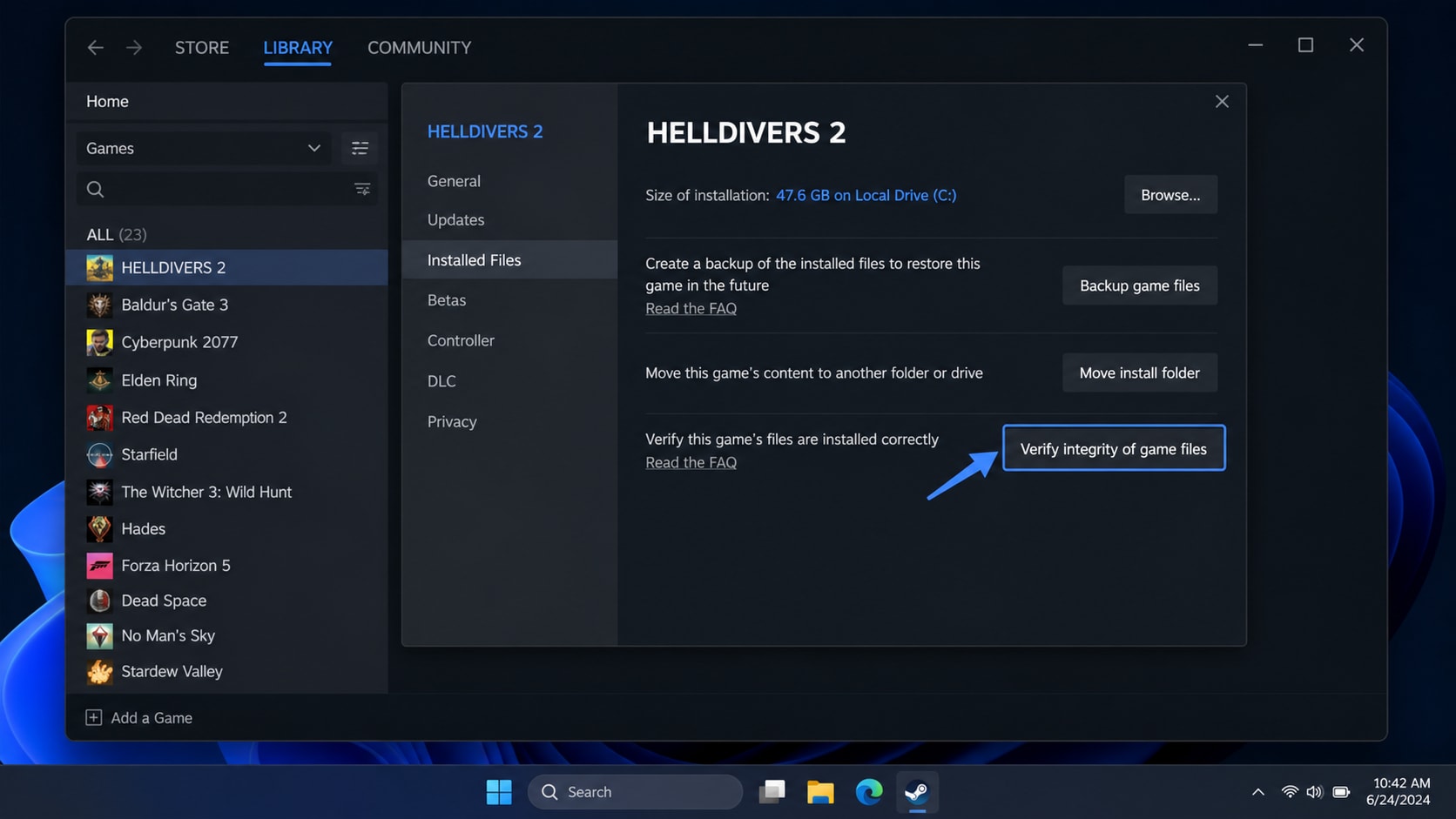
If Steam says some local files failed to validate, that can be normal for local configuration files. Test the game after verification completes.
Fix 3. Update Windows and Graphics Drivers
HELLDIVERS 2 depends heavily on GPU stability. Outdated or unstable drivers can cause black screen, startup crashes, stutter, freezing, and crash-to-desktop behavior.
- Install pending Windows Update items.
- Update NVIDIA, AMD, or Intel graphics drivers from the official driver app or vendor website.
- Update motherboard chipset and network drivers if the problem began after a system change.
- Restart the PC.
- Launch HELLDIVERS 2 again.
If crashes began immediately after a new GPU driver, test the previous stable driver through the official vendor tool or Windows Device Manager.
Fix 4. Fix HELLDIVERS 2 Black Screen with Audio
Arrowhead provides a specific workaround for the black screen issue where the opening audio still plays. The fix changes the display adapter index in the user settings config.
- Press Win + R.
- Type %appdata% and press Enter.
- Open Arrowhead > Helldivers2.
- Open user_settings.config with Notepad.
- Press Ctrl + F and search for adapter_index.
- If it is adapter_index = 1, change it to 0.
- If it is already 0, change it to 1.
- Save the file and launch the game again.
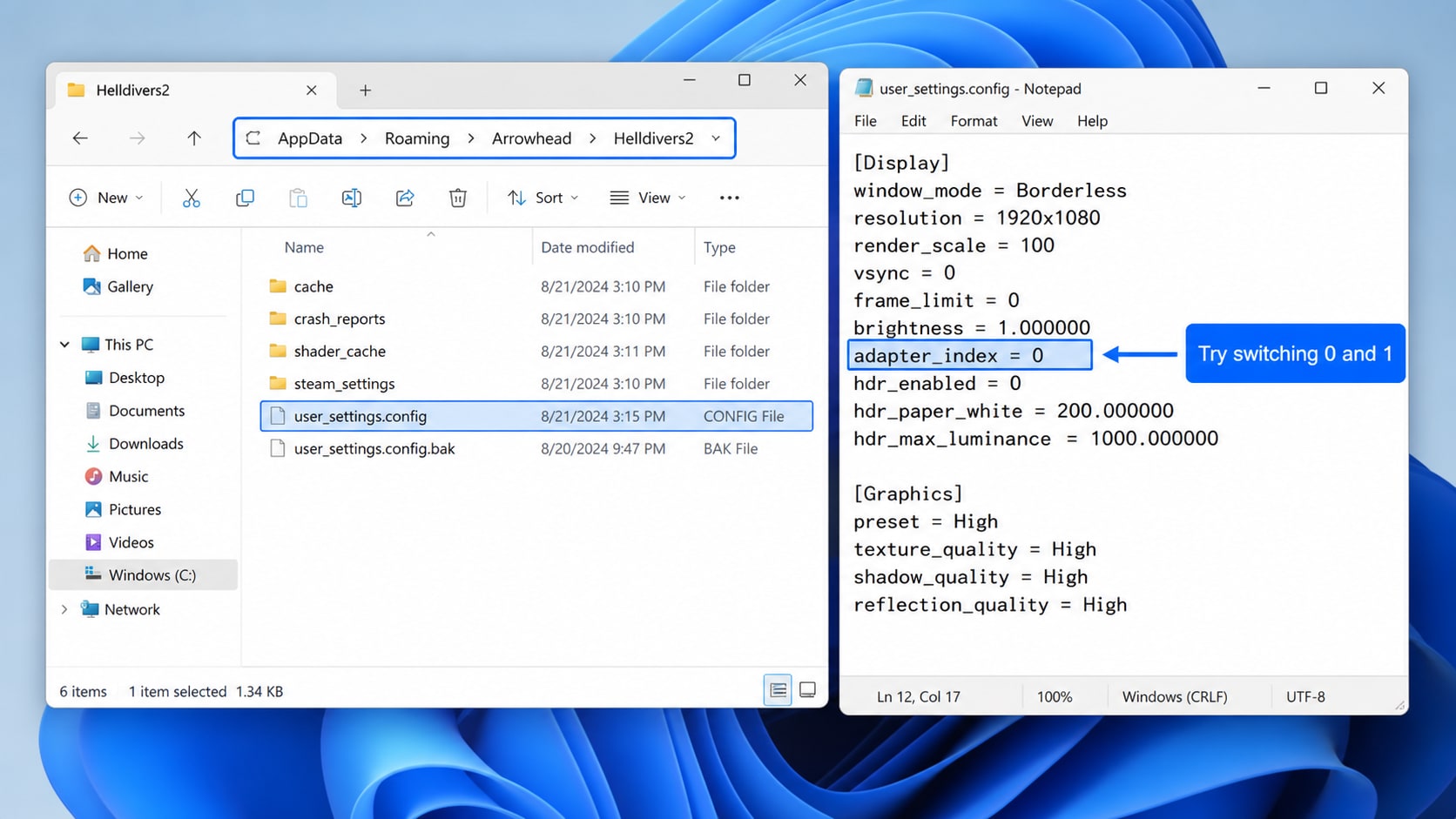
This is especially useful on PCs with multiple GPUs, virtual display adapters, changed monitors, or altered display outputs.
Fix 5. Delete HELLDIVERS 2 AppData Settings
Damaged local settings can cause startup crashes, freezing, or black screen behavior. Reset the local Arrowhead settings after file verification and driver updates.
- Press Win + R.
- Type %appdata% and press Enter.
- Open the Arrowhead folder.
- Back up the Helldivers2 folder if custom settings matter.
- Delete the contents inside the folder.
- Restart the PC.
- Launch the game again.
This may reset local graphics, input, and display settings, so use it after simpler checks.
Fix 6. Repair GameGuard Error 114
Arrowhead's support article for HELLDIVERS 2 Error 114 lists several confirmed workarounds around administrator mode, compatibility mode, GameGuard reinstall, utilities, firewall, antivirus, and older hard drives.
- Open Steam Library.
- Right-click HELLDIVERS 2.
- Choose Manage > Browse local files.
- Open the bin folder.
- Right-click helldivers2.exe.
- Open Properties > Compatibility.
- Enable Run this program as administrator.
- On Windows 11, test Windows 8 compatibility mode if needed.
- If Error 114 continues, open the tools folder, run gguninst as administrator, then reinstall GameGuard with GGSetup as administrator.
- Add security exceptions for nProtect GameGuard and HELLDIVERS 2 instead of disabling antivirus permanently.
Also close utility programs that hook into games, overlays, or hardware monitoring. If the game launches after a utility is closed, keep that tool disabled while playing and report the conflict if needed.
Fix 7. Disable Overlays and Background Apps
Overlays and utility tools can interfere with startup, GameGuard, fullscreen rendering, or recording.
- Steam Overlay.
- Discord Overlay.
- Xbox Game Bar.
- NVIDIA, AMD, or Intel recording overlay.
- MSI Afterburner or RivaTuner.
- Third-party FPS counters.
- Screen recorders and streaming tools.
- VPN, packet filter, or network inspection tools.
After disabling these tools, restart Steam and launch HELLDIVERS 2 again. If the game works, re-enable one tool at a time to find the conflict.
Fix 8. Reduce Lagging and Freezing
If HELLDIVERS 2 launches but lags, freezes, stutters, or crashes during missions, focus on system load and graphics settings.
- Lower texture quality, shadows, volumetric fog, reflection quality, and render scale.
- Cap FPS to a stable number instead of leaving it unlimited.
- Turn off unnecessary background recording and instant replay features.
- Move the game to an SSD if it is installed on a slow drive.
- Test whether Async Compute improves or worsens performance on the current GPU.
- Close browsers, launchers, updaters, and recording tools before playing.
- Confirm that the PC meets at least the minimum Steam requirements.
PCs near the minimum requirements may still see unstable FPS in intense missions, especially with background recording or high graphics settings enabled.
Fix 9. Reinstall HELLDIVERS 2
Reinstalling should be the last step because the game is large and most launch issues can be handled earlier.
Use reinstalling if:
- Steam verification does not fix repeated crashes.
- GameGuard repair does not work.
- AppData reset does not help.
- The game crashes after every update.
- Steam cannot repair missing or corrupted files.
- Uninstall HELLDIVERS 2 from Steam.
- Restart the PC.
- Reinstall HELLDIVERS 2.
- Launch once before enabling overlays, mods, recording tools, or custom settings.
Part 3. Repair Corrupted HELLDIVERS 2 Game Videos with Repairit
Wondershare Repairit does not fix HELLDIVERS 2 crashing, GameGuard errors, black screen, lagging, freezing, drivers, or Steam problems. Those issues should be handled through Steam, Arrowhead settings, GameGuard, Windows, and graphics troubleshooting. However, if HELLDIVERS 2 crashes while recording, exporting, transferring, or editing gameplay, the local media file may become corrupted.
When Repairit Fits This Case
Use Repairit when the gameplay video still exists but is damaged, unreadable, or unplayable.
- A HELLDIVERS 2 recording cannot open after a crash.
- A gameplay clip has audio but no video.
- A video freezes on one frame or shows black screen.
- A recording stopped suddenly and became unreadable.
- A content clip was damaged during transfer, editing, upload, or export.
- An MP4, MOV, MKV, or AVI recording shows a playback error.
If the clip was deleted or is missing, Repairit is not the correct tool. Check Steam, Windows capture folders, recording software folders, cloud sync, backups, or data recovery options instead.
How to Repair a Corrupted HELLDIVERS 2 Recording
Step 1. Import Damaged HELLDIVERS 2 Video Recordings
Head over to the "Video Repair" tab within the tool and press the "Start" button. A new screen will appear where you can import the corrupted HELLDIVERS 2 recordings.

Step 2. Repair Your Added HELLDIVERS 2 Clips
Next, click the "Repair" button once all the damaged video files are imported. The software will then scan and resolve all detected issues within your recordings.

Step 3. Check the HELLDIVERS 2 Recordings
After a few moments, press the "Preview" button to review the quality of each restored game clip. When everything looks good, select "Save All" to export the repaired clips to your device.


What Repairit Cannot Do
| Repairit Can Help With | Repairit Cannot Do |
|---|---|
| Repair corrupted gameplay recordings that still exist. | Fix HELLDIVERS 2 crashing, not launching, lagging, or freezing. |
| Repair damaged MP4, MOV, MKV, AVI, and other supported video files. | Repair Steam, GameGuard, graphics drivers, Windows, or PC hardware. |
| Help with black-screen video, frozen frame, missing audio, and playback errors in media files. | Recover deleted clips, restore missing files, or bypass anti-cheat/security checks. |
| Repair media files damaged by interrupted recording, transfer, or export. | Replace Steam file verification, Arrowhead config fixes, or GameGuard troubleshooting. |
Part 4. What to Avoid While Troubleshooting
Some shortcuts can cause more problems than they solve. Avoid these while fixing HELLDIVERS 2 PC crashes and launch issues:
- Do not download random DLL files from third-party websites.
- Do not use GameGuard bypass tools, modified launchers, or cheat utilities.
- Do not disable antivirus permanently; add exceptions only when needed and restore protection afterward.
- Do not edit config files without backing them up if custom settings matter.
- Do not reinstall the full game before trying Steam verification and AppData reset.
- Do not keep recording long sessions while the game is unstable.
- Do not overwrite corrupted gameplay videos before attempting media repair.
If the problem continues, collect the exact error message, Windows version, GPU model, driver version, Steam verification results, and Arrowhead support details before opening a support ticket.
Conclusion
To Fix HELLDIVERS 2 Crashing, Not Launching, Crash to Desktop, Black Screen, Lagging & Freezing on PC, start with Steam restart, process cleanup, file verification, Windows and GPU driver updates, black screen config changes, AppData reset, GameGuard Error 114 repair, overlay checks, performance settings, and reinstall only when simpler fixes fail.
If a crash damages local gameplay videos, Wondershare Repairit can help repair corrupted recordings that still exist but will not play correctly. Keep the product boundary clear: Repairit repairs damaged media files, not Steam, GameGuard, HELLDIVERS 2, Windows drivers, or performance problems.
FAQ
-
Why is HELLDIVERS 2 crashing or not launching on PC?
Common causes include corrupted Steam files, outdated graphics drivers, GameGuard conflicts, damaged AppData settings, overlays, antivirus blocking, unstable display configuration, or hardware running close to minimum requirements. -
How do I fix HELLDIVERS 2 black screen with audio?
Open %appdata%, go to Arrowhead > Helldivers2, open user_settings.config, search for adapter_index, change 1 to 0 or 0 to 1, save the file, and launch the game again. This workaround comes from Arrowhead support. -
How do I fix HELLDIVERS 2 Error 114?
Run helldivers2.exe as administrator, test Windows 8 compatibility mode on Windows 11, reinstall GameGuard with gguninst and GGSetup from the game tools folder, close utility programs, and add exceptions for GameGuard and HELLDIVERS 2. -
Can Repairit fix HELLDIVERS 2 crashing or freezing?
No. Repairit does not fix HELLDIVERS 2, Steam, GameGuard, drivers, black screen settings, lagging, or freezing. It is only relevant when a crash corrupts local gameplay recordings or media files. -
Should I reinstall HELLDIVERS 2 first?
No. Reinstalling is best saved for later. Try restarting Steam, verifying game files, updating drivers, changing the black screen config, resetting AppData, repairing GameGuard, and disabling overlays first. -
Can Repairit repair corrupted HELLDIVERS 2 gameplay videos?
Repairit can help repair corrupted local gameplay recordings such as damaged MP4, MOV, MKV, or AVI files when the file still exists. It cannot recover deleted clips or fix the game crash that damaged the recording.




