
H.265, also known as HEVC (High Efficiency Video Coding), is a modern video compression standard that stores high quality video in much smaller file sizes than older formats like H.264. It matters because it makes 4K and higher resolution streaming, editing, and playback practical on today’s networks and devices, reducing bandwidth and storage needs while still delivering crisp, detailed images.
Repair Corrupted Files To Save Your Data
 Security Verified. Over 7,302,189 people have downloaded it.
In this article
How H.265/HEVC Works
The H.265 codec works by analyzing each video frame, predicting what should appear next, and then storing only the changes instead of saving every pixel repeatedly. It divides frames into flexible blocks, removes visual details that the human eye barely notices, and uses advanced math to pack the remaining data more tightly. This process significantly reduces file size while keeping visible H.265 quality high, which means smoother streaming and less storage usage for the same video resolution.
Compared with older standards, the HEVC codec can deliver similar image quality at about half the bitrate. For viewers, this translates into faster playback with fewer buffering interruptions, even on slower internet connections. For creators and archivists, it enables more hours of footage on the same drive, especially for 4K and HDR workflows.
Key Features, Pros, and Cons
Main features of H.265/HEVC
- Highly efficient compression for HD, 4K, 8K, and HDR content.
- Flexible block structure that adapts better to complex scenes than H.264.
- Support for high bit depth and wide color gamuts for modern displays.
- Improved motion prediction, reducing visible artifacts in fast-moving scenes.
- Designed for network streaming, broadcasting, and professional production.
Pros, cons, and real-world performance
Pros
Delivers comparable or better image quality at about half the bitrate of H.264, cutting bandwidth and storage costs.
Ideal for 4K streaming services, UHD Blu-ray, security systems, drones, and mobile video capture.
Better performance on detailed and high-motion footage, such as sports or action scenes.
Cons
More complex encoding and decoding, which demands stronger CPU or GPU power.
Licensing and patent issues have slowed down universal support across devices and platforms.
Real-world performance
In everyday use, H.265/HEVC shines when you stream 4K movies, share mobile clips, or archive long recordings. You can usually cut file sizes noticeably compared with H.264 while maintaining sharpness, but you may encounter occasional playback problems on legacy hardware or low-powered devices that struggle to decode the stream smoothly.
H.265/HEVC vs Other Codecs
When comparing H.265 vs H.264, the biggest difference is efficiency. H.265 typically achieves similar quality at roughly half the bitrate, meaning smaller files and lighter network loads. However, H.264 still wins on compatibility: it is widely supported by older smartphones, browsers, and media players, and it is faster to encode on modest hardware.
Against newer formats like AV1 and VP9, the picture is more mixed. AV1 can sometimes be even more efficient than H.265 codec at very low bitrates and is royalty-free, but hardware acceleration is not yet universal, and encoding can be slow. VP9 is well integrated into web platforms such as YouTube and many browsers, often used for HD and 4K streaming. HEVC codec remains a strong choice for professional production, broadcast, and many consumer devices, especially TVs and cameras, but you should always balance quality, file size, compatibility, and encoding speed for your specific workflow.
| Codec | Main strengths |
|---|---|
| H.264/AVC | Excellent compatibility, fast encoding, suitable for HD and general web use. |
| H.265/HEVC | Higher efficiency, better for 4K/8K and HDR with smaller file sizes. |
| VP9 / AV1 | Web-focused, royalty-free, good efficiency, especially on supported browsers and platforms. |
Compatibility and Practical Use
H.265 compatibility has improved significantly, but it is still not as universal as H.264. Most modern 4K smart TVs, streaming boxes, new-generation game consoles, and recent smartphones and tablets decode HEVC in hardware. Popular editing programs and players, such as VLC, DaVinci Resolve, Adobe Premiere Pro, and many NLEs, can open HEVC video once the necessary codecs or system components are installed.
In terms of containers, H.265/HEVC is commonly stored in MP4 (.mp4), MKV (.mkv), MOV (.mov), and sometimes TS or M2TS for broadcast or disc-like workflows. For smooth practical use, ensure your operating system, GPU drivers, and playback software are up to date, and consider transcoding to H.264 or another format if you must deliver content to older or resource-limited devices.
How to Use Repairit to Fix a Corrupted H.265/HEVC File
Why choose Repairit for H.265/HEVC repair
When a HEVC video stops playing, stutters, shows artifacts, or refuses to open at all, a specialized repair tool is far more reliable than trial-and-error fixes. Wondershare Repairit is designed to restore damaged H.265/HEVC clips from cameras, phones, and downloads with a guided, beginner-friendly process. You can explore the full capabilities and download options directly from the Repairit official website.
Key features of Repairit
- Repairs corrupted or unplayable H.265/HEVC videos from cameras, smartphones, drones, and other devices.
- Supports batch processing so you can repair multiple damaged files in one run.
- Lets you preview repaired clips before export, helping you verify video and audio quality.
Step-by-step: repair a corrupted H.265/HEVC file
- Add corrupted video
Open Wondershare Repairit and switch to the Video Repair section. Click the add button and browse to your damaged H.265/HEVC files, whether they are stored on your computer, SD card, or an external drive. Once added, the clips will appear in a list, showing basic details like file name, size, and path so you can confirm you selected the right videos.

- Repair video codecs
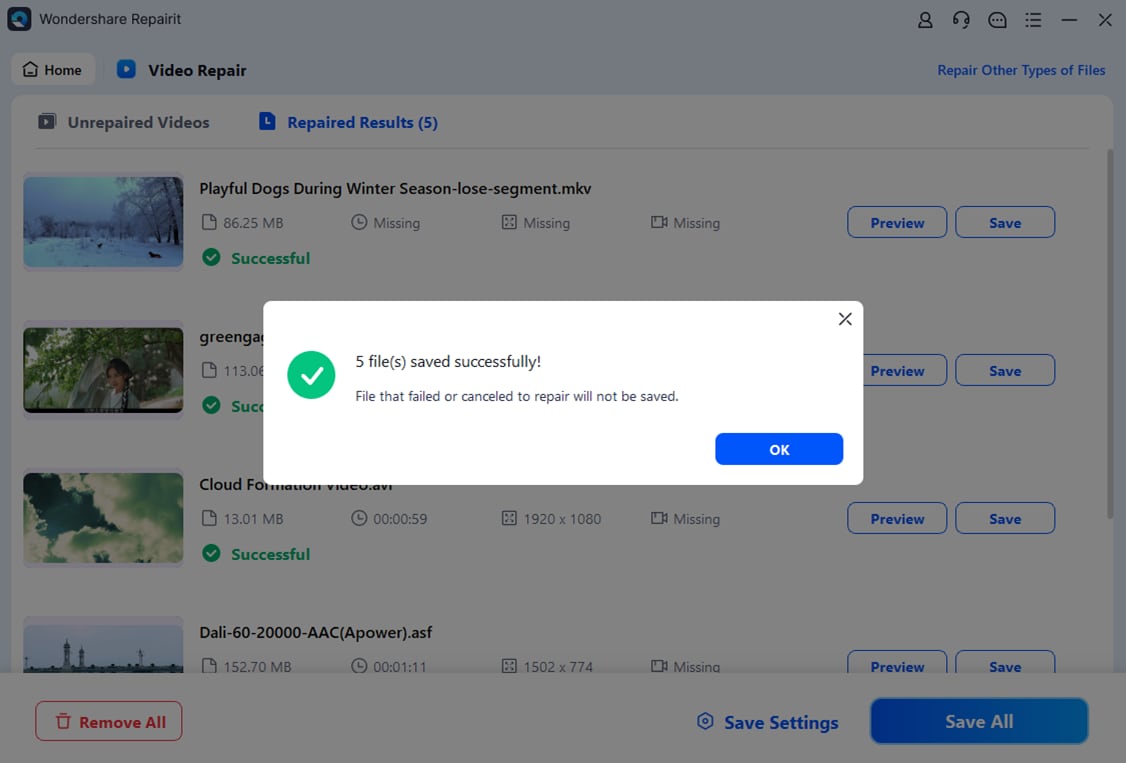
After your clips are loaded, select the ones you want to fix and start the repair. Repairit scans the internal structure of each HEVC video, analyzes headers, frames, and audio tracks, and then reconstructs damaged or missing segments. When the process finishes, you can preview the repaired output directly inside Repairit to confirm that playback is smooth, the timeline is complete, and the sound and picture stay in sync.

- Save the repaired videos
If the preview looks correct, choose a safe destination folder that is different from the original file location and export the repaired clips. Repairit will save new, playable HEVC codec files without altering your source videos. You can then open them in your usual media player or video editor, share them online, or archive them with much lower risk of playback errors.
Conclusion
H.265/HEVC offers a powerful balance of high image quality and reduced file size, making it a leading choice for 4K streaming, mobile recording, and long-term video storage. By understanding how the H.265 codec compresses data and how it compares to H.264, AV1, and VP9, you can choose the right format for each project and device.
Because any digital file can be damaged by interruptions, bad storage media, or software errors, it is wise to have a dependable repair option ready. If your H.265 or HEVC video becomes corrupted, Wondershare Repairit can help you recover footage quickly so you can focus on creating and sharing content instead of dealing with technical setbacks.
Next: What is H.266/Vvc Codec?
FAQ
-
1. What is H.265/HEVC used for?
H.265/HEVC is used to compress and deliver video with high visual quality at relatively low bitrates. It is widely adopted for 4K and higher resolution streaming, UHD Blu-ray, smart TVs, security cameras, drones, action cameras, and many modern smartphones that need to store long recordings without huge file sizes. -
2. Is H.265 better than H.264?
In terms of compression efficiency, H.265 vs H.264 usually means about half the bitrate for similar quality, so HEVC is technically better. However, H.264 still offers broader compatibility, especially on older hardware and web browsers. For maximum reach, you may still rely on H.264, while for efficient archiving and 4K distribution, H.265 is often the stronger option. -
3. Why will my H.265/HEVC video not play?
If a HEVC video will not play, the most common causes are missing codec support in your media player, outdated firmware or drivers, hardware that cannot decode HEVC smoothly, or actual file corruption. Try a modern player such as VLC, update your system, or use Wondershare Repairit to repair the file if it appears damaged. -
4. Can I convert H.265/HEVC to another format?
Yes. You can convert H.265/HEVC to H.264, VP9, or other formats with video converters or editing software. Conversion improves compatibility on older devices but may increase file size and can slightly reduce quality, depending on your settings and the target codec. -
5. How do I prevent H.265/HEVC files from getting corrupted?
To protect HEVC codec recordings, avoid powering off devices or removing storage during recording, use high-quality SD cards and drives, safely eject removable media, and back up important footage often. If a problem occurs, run a repair with Wondershare Repairit before overwriting or reusing the affected storage.




