
H.266/VVC (Versatile Video Coding) is a next-generation video codec created to deliver the same or better visual quality at much smaller file sizes than earlier standards. It matters because modern 4K and 8K streaming, cloud storage, and mobile viewing all demand efficient compressed video format options that save bandwidth without making video look worse. You will typically encounter H.266 in high-resolution streaming, professional editing workflows, and advanced playback devices that focus on Ultra HD content.
Repair Corrupted Files To Save Your Data
 Security Verified. Over 7,302,189 people have downloaded it.
In this article
How H.266/VVC Works
Core compression principles
The VVC codec uses advanced math to find and remove visual data that the viewer does not really notice. It divides each frame into many small blocks, predicts how these blocks move between frames, and then stores only the differences instead of every pixel. It also applies smart filtering and transforms so that repetitive patterns can be represented with fewer bits. The result is a compact H.266/VVC stream that still looks clean and detailed.
Impact on size, quality, and efficiency
In practice, H.266 VVC can keep similar or better image quality than H.265/HEVC at about half the bitrate. That means significantly smaller file size for the same 4K or 8K clip, or noticeably better quality at the same size. For streaming, this translates to smoother playback on slower connections and reduced data costs. The trade-off is that encoding and decoding are computationally intensive, so older hardware and software may struggle to keep up.
Key Features, Pros, and Cons
Main features of H.266/VVC
- Designed for resolutions from SD up to 8K and beyond, including HDR and wide color gamut.
- Highly flexible block partitioning to adapt compression to simple or complex scenes.
- Improved motion prediction for fast action and camera movements.
- Tools optimized for both traditional broadcasting and modern internet streaming.
- Support for efficient ultra HD compression to reduce bandwidth and storage needs.
Pros and cons in real-world use
Pros
Much better compression efficiency than older standards like H.264/AVC and even H.265/HEVC.
Great for 4K video, 8K video, VR, and large libraries where storage costs matter.
Improves streaming stability on limited networks by lowering required bitrate.
Future-oriented design that can scale with higher resolutions and new devices.
Cons
Encoding is more complex and can be slower, especially on consumer hardware.
Playback support is still limited compared to mainstream formats like H.264.
Typical performance in everyday workflows
For content creators, switching to VVC codec often means longer export times but dramatically smaller deliverable files. Broadcasters and platforms can stream ultra HD content to more users without overloading their networks. For everyday viewers, the main benefit is smoother streaming and sharper images, provided their device can decode the stream correctly.
H.266/VVC vs Other Codecs
| Codec | Main differences vs H.266/VVC |
|---|---|
| H.264/AVC | Much broader compatibility and fast decoding, but needs far higher bitrates to reach the same quality as H.266, especially for 4K and higher. |
| H.265/HEVC | More efficient than H.264, yet H.266/VVC usually delivers similar visual quality at roughly half the bitrate, with higher encoding complexity. |
| AV1 | Royalty-free and increasingly popular in browsers; offers strong compression but VVC can still outperform it in some ultra HD scenarios, although AV1 currently has wider ecosystem support. |
| VP9 | Well-supported on the web and in many TVs, but less efficient than both AV1 and VVC for high-resolution content. |
Compared with these codecs, H.266/VVC focuses on maximum efficiency for ultra high definition. It usually wins on file size at a given quality level, but currently lags behind H.264, VP9, and AV1 in out-of-the-box compatibility and decoding speed on older devices.
Compatibility and Practical Use
Because it is a newer next generation codec, H.266/VVC support is still growing. Some professional encoders, research tools, and cutting-edge chipsets already support it, while mainstream consumer devices are only starting to adopt it. You are more likely to encounter VVC in controlled workflows such as studio mastering, OTT platforms experimenting with lower bandwidth, or archives that want high-density storage.
Common containers for H.266/VVC include MP4, MKV, and TS, similar to other modern codecs. Playback may require updated media players such as specialized desktop software, experimental builds of open-source players, or hardware devices explicitly listing VVC support. When compatibility is an issue, content distributors often provide a fallback stream in H.264 or H.265 alongside VVC.
How to Use Repairit to Fix a Corrupted H.266/VVC File
What is Repairit?
When a H.266/VVC video becomes unplayable due to transfer errors, interrupted recording, or storage faults, a specialized video repair tool is far more reliable than manual tricks. Wondershare Repairit is designed to fix corrupted VVC file issues along with many other formats, restoring videos that will not open, freeze, or lose audio. You can learn more on the Repairit official website and download the desktop app for your system.
Key features of Repairit
- Repairs multiple corrupted ultra HD clips, including modern formats like H.266/VVC, in a single batch.
- Handles common issues such as header damage, missing video or audio streams, and playback errors across popular containers.
- Lets you preview the repaired result before saving so you can confirm that your repair H.266 video attempt succeeded.
Step-by-step: Repair H.266/VVC files
- Add corrupted video
Install and open Wondershare Repairit on your computer, then go to the Video Repair module. Click the Add button and browse to the location of your damaged H.266/VVC clips. Select one or multiple files that show errors during streaming, editing, or playback, and load them into the repair list.

- Repair video codecs
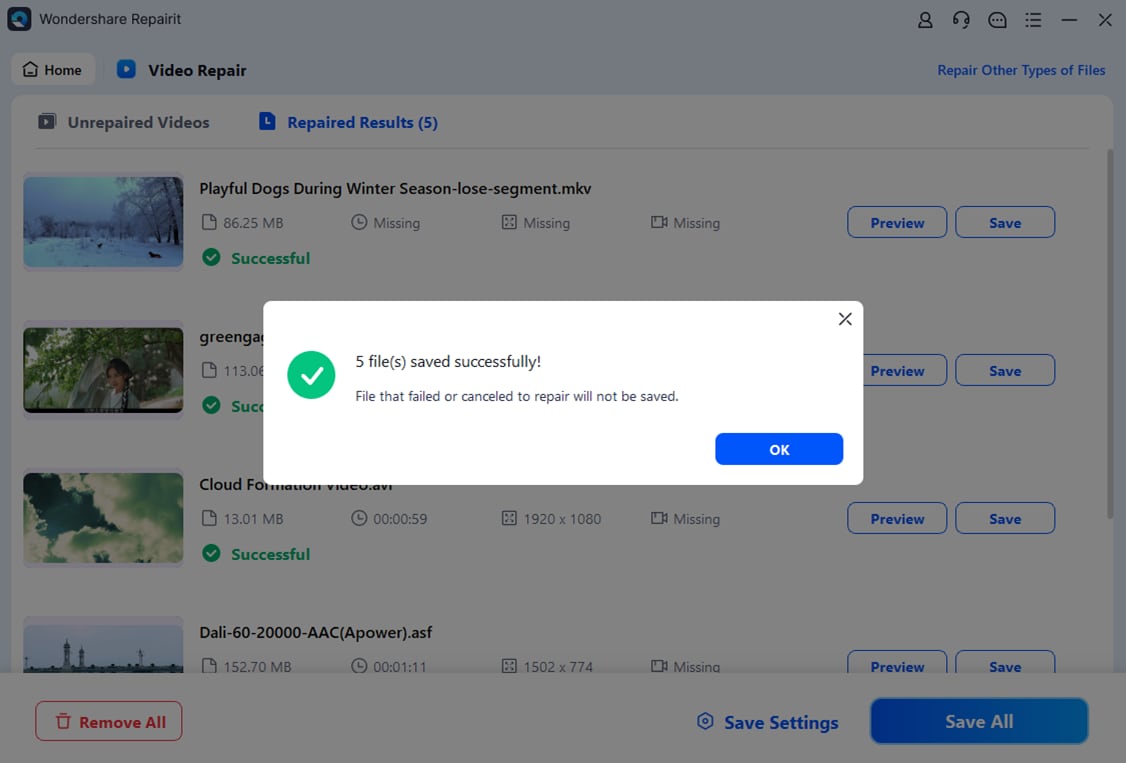
After the problematic videos are listed, start the repair process with one click. Repairit will analyze the structure of each H.266 file, including container information and codec data, then attempt to rebuild playable video and audio streams. When the repair finishes, use the built-in player to preview the fixed versions and check image quality, sound, and timeline navigation.

- Save the repaired videos
If the preview looks correct, choose a secure destination folder that is different from the original file location. Click Save to export the repaired H.266 VVC clips. Keep backup copies of these recovered videos for safe archiving, future edits, or redistribution across your preferred streaming and playback platforms.
Conclusion
H.266/VVC delivers state-of-the-art ultra HD compression, enabling sharp 4k video and 8k video with far lower bitrates than previous generations. It is especially valuable for streaming platforms, broadcasters, and professionals who need to control bandwidth and storage without sacrificing visual fidelity.
Because advanced codecs and large files are still vulnerable to damage, having a dependable way to fix corrupted VVC file issues is essential. Wondershare Repairit offers a straightforward workflow to diagnose and repair broken compressed video format footage, helping you keep valuable recordings viewable, editable, and ready to share.
Next: What is Av1 Codec?
FAQ
-
1. What is H.266/VVC mainly used for?
H.266/VVC is mainly used to compress and deliver high-quality video at low bitrates for 4k video, 8k video, HDR content, streaming services, broadcasting, and any situation where bandwidth or storage is limited.
-
2. Is H.266/VVC better than H.265/HEVC?
Yes in terms of compression efficiency. H.266 is designed to provide roughly the same or better visual quality as H.265/HEVC at about half the bitrate, although it typically needs more processing power and up-to-date hardware or software for smooth playback.
-
3. Why will my H.266/VVC file not play on some devices?
Many players, TVs, and mobile devices do not yet include decoders for the VVC codec. If the device or app does not explicitly support H.266/VVC, the file may fail to open or only play audio. In such cases, you need a compatible player, a codec update, or a transcoded copy in a more common format.
-
4. What can cause a H.266/VVC video to become corrupted?
Typical causes include sudden power loss while recording, interrupted downloads or transfers, bad sectors on memory cards or drives, file system errors, or crashes of the software writing the video. Any of these can break the structure of the compressed video format so that normal players cannot decode it.
-
5. How do I repair a corrupted H.266/VVC video file?
Use a dedicated video repair tool such as Wondershare Repairit. Add the damaged clip, let the program analyze and rebuild the H.266 VVC streams, preview the repaired result, and then save the fixed file to a safe location. This is often far more effective than trying to re-download or rename the file.




