
“An error occurred while processing your request. Reference #XXXX” usually appears when a website or web app cannot complete a request sent by your browser or device. Instead of showing a full technical error, the system displays a reference number that administrators can use to locate the problem in server logs.
In many cases, the issue is temporary and related to browser cache, expired sessions, VPN usage, or network restrictions. In other situations, it may come from the server itself or from a damaged file being uploaded.
This guide helps you identify which type of problem you’re dealing with, then walks you through the most effective fixes—from quick browser checks to advanced file-repair options for upload-related errors.
In this article
Part 1. What Does “An Error Occurred While Processing Your Request. Reference #XXXX” Mean?
This message means the website received your request but could not complete it successfully. Instead of revealing technical details, the system generates a reference number so the site’s administrators can trace the failure in backend logs.
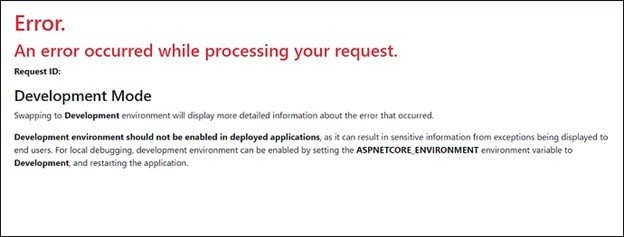
The reference number itself does not explain the problem to the user. It is mainly an internal tracking ID used by the technical team.
These reference-style errors are commonly generated by:
- Web application frameworks (ASP.NET or similar platforms)
- Content Delivery Networks (CDNs)
- Security firewalls protecting the website
- Custom backend applications
This is different from a standard HTTP status code such as 404 or 500. Those are standardized web errors, while a “processing request” reference error is usually created by the application or infrastructure handling the request.
Part 2. Why This Error Happens (Common Causes)
This error can come from either the user side or the website side. The most common causes are listed below.
Some of these problems can be fixed locally. Others must be fixed by the website’s technical team.
| Cause | What Happens | Who It Affects |
| Corrupted browser cache | The browser sends outdated or invalid data | End users |
| Expired session/token | The site no longer accepts the login session | Logged-in users |
| Firewall or CDN block | The request is blocked because the IP or request looks suspicious | VPN/proxy users |
| Server overload | High traffic causes timeouts or failed responses | All users |
| Corrupted uploaded file | The platform cannot process the file properly | Uploaders |
| Encoding/format errors | The backend cannot decode the uploaded media | Video/image uploads |
Part 3. Quick Diagnosis: Find the Right Fix Faster
Before trying all the fixes, use this quick guide to identify the most likely cause.
| Situation | Likely Cause | Try This First |
| The error appears in one browser only | Cache, cookie, or extension issue | Clear cache or use Incognito mode |
| The error appears across multiple browsers on the same device | Session, VPN, or local network issue | Log out, disable VPN, restart browser |
| The error appears on multiple devices and networks | Server-side issue | Check service status or contact support |
| The error appears only after signing in | Expired session or invalid token | Log out and sign in again |
| The error appears only during file upload | File validation, encoding, or corruption issue | Check format and review Part 5 |
This quick diagnosis helps you avoid unnecessary troubleshooting and choose the right fix sooner.
Part 4. 7 Solutions to Fix the Error (Step-by-Step)
Below are practical troubleshooting methods ordered from the simplest solutions to the more advanced technical fixes.
Fix 1: Refresh the Page or Restart the Browser
Refreshing the page forces the browser to send a new request to the server. This may resolve temporary issues caused by session timeouts or incomplete page loading.
Step 1. Press F5 or click the Refresh button in your browser to reload the page.
Step 2. If the error remains, close the browser completely, reopen it, and visit the website again.
Fix 2: Clear Browser Cache and Cookies
The browser cache stores temporary website data to improve loading speed. However, corrupted or outdated cache files may cause servers to reject requests.
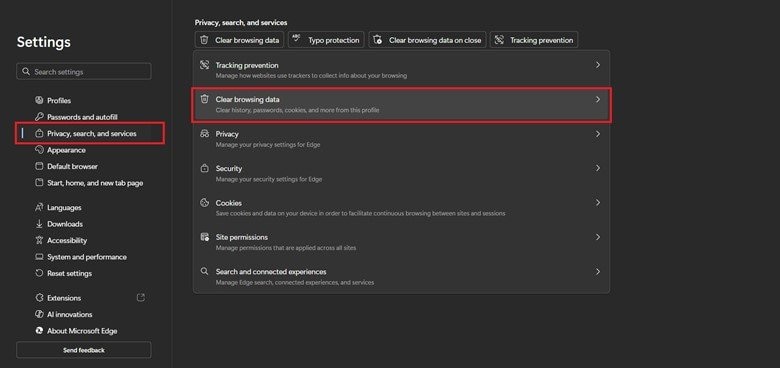
Step 1. Open your browser settings and go to Privacy or Security, then select Clear browsing data.
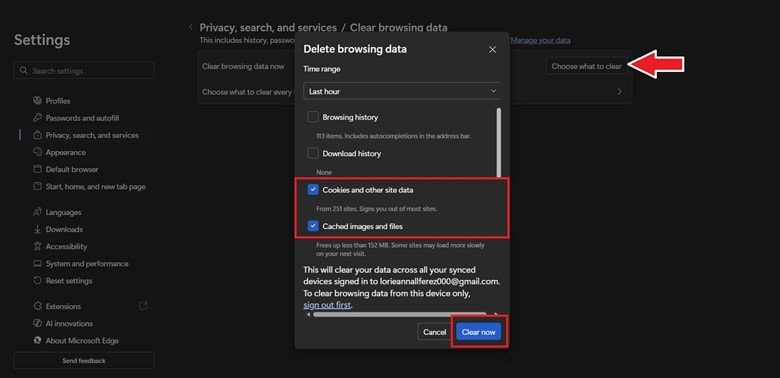
Step 2. Choose Cookies and Cached Images/Files, clear the data, and restart the browser before accessing the site again.
Note: Clearing cookies may sign you out of websites.
Fix 3: Disable VPN or Proxy
Many websites use security systems that monitor incoming traffic. If you are using a VPN or proxy, the server may block the request because the IP address appears suspicious or inconsistent.
Step 1. Turn off your VPN or proxy connection in your device or browser settings.
Step 2. Refresh the page and try accessing the website again using your normal internet connection.
Fix 4: Try a Different Browser or Device
Sometimes the error occurs due to browser-specific issues such as extensions, corrupted cookies, or compatibility problems. Using a different browser can help isolate whether the issue is local to your system.
Step 1. Open the website using another browser such as Chrome, Edge, or Firefox.
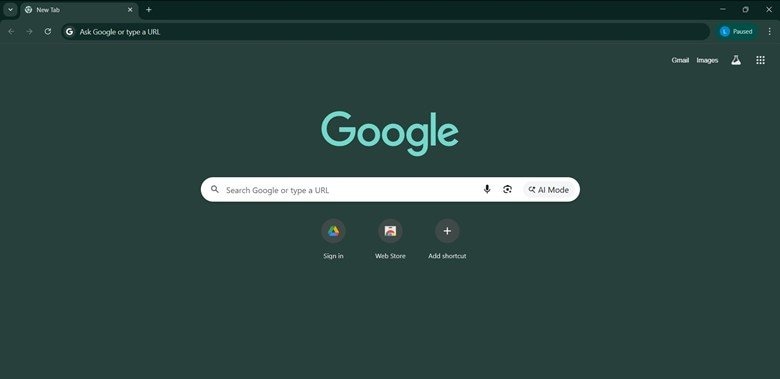
Step 2. If the problem persists, try accessing the page on another device, such as a phone or tablet.
Fix 5: Check Website Server Status
If the website server is experiencing downtime or technical problems, many users may encounter the same error at the same time. In this case, the issue is outside your control.
Step 1. Visit a monitoring site like DownDetector and search for the affected website.
Step 2. If outages are reported, wait until the service is restored and try accessing the site again later.
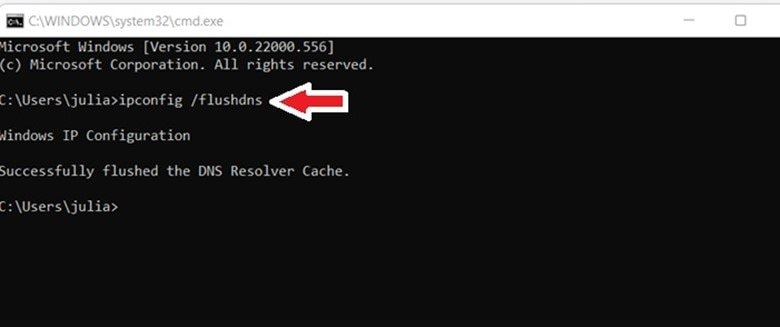
Fix 6: Flush DNS Cache (Advanced User Fix)
DNS cache stores previously resolved website addresses on your device. If these records become outdated or corrupted, your system may attempt to connect to an incorrect server.
Step 1. Open Command Prompt (Windows) or Terminal (Mac).
Step 2. Run the appropriate command (ipconfig /flushdns) to flush the DNS cache, then restart your browser.
Fix 7: Contact Website Support With the Reference Number
If none of the previous fixes work, the problem may require assistance from the website’s technical team.
Provide the following information when contacting support:
- The full error message
- The reference number displayed
- The page where the issue occurred
- The time the error appeared
- Your browser and device type
Administrators can use the reference number to locate the exact error entry in server logs.
Part 5. If the Error Happens During File Upload
Sometimes the error occurs during video uploads or media processing. In these situations, the issue may not be related to the platform itself but to the structure of the uploaded file.
Why File Corruption Triggers Processing Errors
Media files contain complex internal structures. When these structures become damaged, servers cannot process the file properly.
Common technical causes include:
- Incomplete recordings that miss essential data blocks
- Interrupted file transfers that create truncated files
- Unsupported or incorrectly encoded codecs
- Broken metadata headers are preventing file indexing
- Damaged container formats such as MP4 or MOV
When these problems occur, the platform fails validation checks and rejects the file.
Why Repairing the Video Resolves the Error
Repairing the file restores the internal structure required for proper processing. Typical repair actions include:
- Rebuilding the video container structure
- Repairing corrupted file headers
- Restoring synchronization between audio and video streams
- Reconstructing missing metadata information
- Improving compatibility with backend processing systems
How to Repair Before Uploading
One reliable way to repair corrupted files is by using Repairit Video Repair. The software is designed to detect structural damage in media files and rebuild missing or broken data segments. It supports various formats and offers both quick repair and advanced repair modes depending on the severity of the damage.
It may help with:
- broken headers
- damaged MP4/MOV structure
- missing metadata
- corrupted A/V sync
It does not fix:
- browser cache issues
- expired login sessions
- VPN/IP blocks
- server downtime
Step 1. Add the damaged video file.

Step 2. Start the repair process to fix structural errors.

Step 3. Preview the repaired file and save it to a new location.

Part 6. If the Error Is Server-Side (What You Can’t Fix)
In some cases, the error originates entirely from the server. Examples include:
- Backend application bugs
- Misconfigured load balancers
- CDN rule misfires, blocking requests
- Database outages or crashes
When these issues occur, users cannot fix the problem themselves. The website’s technical team must update configuration settings or repair backend services.
Part 7. Prevent This Error in the Future
Although some processing errors are inevitable, you can significantly lower the chances of running into them by following a few practical habits. Think of these as small adjustments that help keep your browser and server communication smooth and reliable.
Recommended precautions you may take:
- Use a stable internet connection - Avoid uploading files when your connection is weak or fluctuating, as interruptions often cause incomplete transfers.
- Stick to supported formats and codecs - Always check that your media files are in formats officially supported by the platform. Unsupported codecs can trigger unexpected errors.
- Log out properly from secure portals - Closing the browser without logging out may leave sessions hanging, which can cause issues the next time you sign in.
- Disable aggressive browser extensions - Some extensions interfere with file uploads or page scripts. If you notice recurring errors, try disabling them temporarily.
- Keep your browser updated - Running the latest version ensures compatibility with modern web standards and reduces the risk of conflicts.
These practices help maintain stable communication between your browser and the server.
Conclusion
“An error occurred while processing your request. Reference #XXXX” usually means a website or backend service could not complete your request successfully. In many cases, the issue is temporary and caused by browser cache, expired sessions, VPN restrictions, or local browser conflicts.
If the error happens during normal browsing, start with browser-side fixes such as refreshing the page, clearing cache, logging out, or switching browsers. If it appears across multiple devices and networks, it is more likely server-side. If it happens only during video upload, file corruption or media validation may be the real cause.
The most effective approach is to first identify where the error happens, then apply the fix that matches that specific scenario.
FAQs
-
What does the reference number mean in this error?
The reference number is an internal tracking ID used by the website’s administrators to find the exact issue in server logs. -
Why does this error appear when uploading a video?
This usually happens when the platform cannot process the uploaded file because of corruption, unsupported encoding, or validation failure. -
Can a corrupted file trigger this error?
Yes. If the file structure is damaged, the server may fail to validate or process it correctly. -
How do I fix processing errors on streaming platforms?
Start by refreshing the page, clearing cache, disabling VPN connections, and retrying the upload. If the issue only affects one file, check whether the file is damaged. -
Is this the same as a 500 Internal Server Error?
No. It may be related to server issues, but this message is usually a custom application or infrastructure error that includes an internal reference number for support teams.




