
Cropping video in DaVinci Resolve helps remove black bars, fix poor framing, and adjust aspect ratios for different platforms. Whether you're editing YouTube content, social media clips, or mobile footage, cropping improves composition and keeps the focus on your subject.
Keep in mind, cropping only changes framing—it permanently removes parts of the image. This guide walks you through simple, step-by-step methods to crop safely while maintaining video quality.
Key Takeaways
- Cropping removes unwanted edges and improves framing, but permanently removes image areas.
- The Inspector Crop controls are the safest and most beginner-friendly method.
- Transform and timeline tools allow advanced or multi-clip cropping adjustments.
Table of Contents
Quick Decision Guide: What Are You Trying to Crop?
Before cropping, it’s important to identify what issue you’re trying to fix. This helps you choose the safest method and avoid unnecessary quality loss.
- Black Bars or Empty Edges: Use Inspector Crop or Zoom adjustments to remove unwanted space without affecting the subject.
- Off-Center Subject: Reframe using Inspector Position or Transform overlay to keep the subject centered while cropping.
- Multiple Clips or Timeline-Wide Adjustments: Consider timeline-level cropping or Adjustment Layers to apply consistent changes across clips.
Knowing your goal first ensures you pick the right method for clean, professional results.
Part 1: Understanding Cropping vs Scaling in DaVinci Resolve
Before cropping, it’s important to understand how Crop, Zoom, and Scale differ:
Crop: Removes edges of your video, permanently cutting away parts of the frame. Use it to eliminate black bars, unwanted objects, or distracting areas.
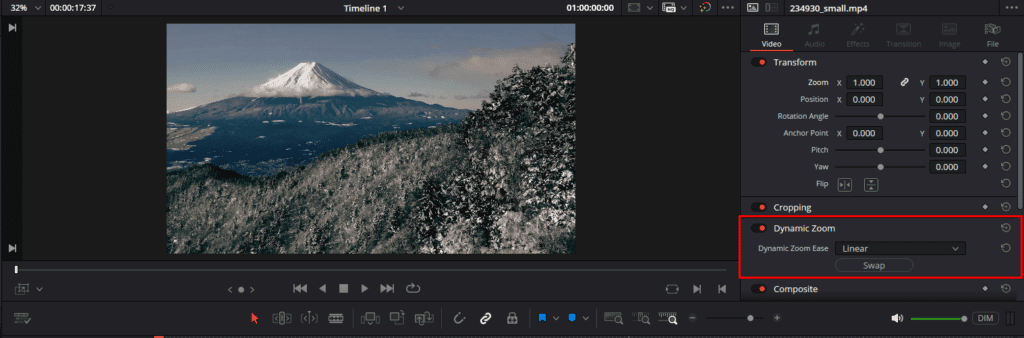
Zoom: Enlarges the image to fill the frame without removing pixels. Excessive zoom can soften the image and reduce effective resolution.
Scale: Resizes the entire clip, which may stretch or shrink content depending on aspect ratio settings.
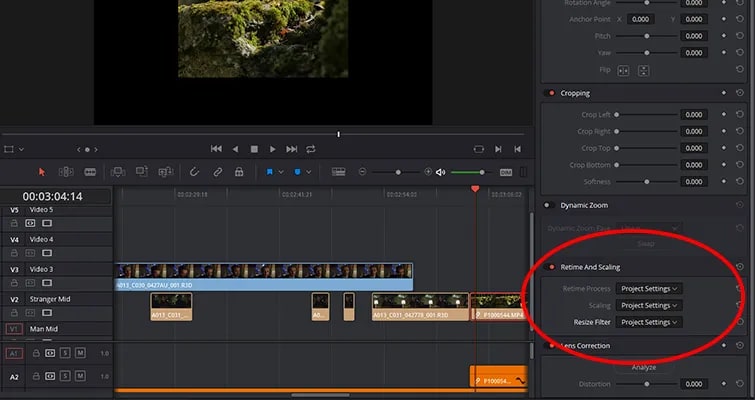
Resolution Example: If you crop 4K footage (3840×2160) down to fit a 1080p timeline (1920×1080), you can often crop significantly without losing visible quality. However, cropping 1080p footage inside a 1080p timeline reduces usable resolution immediately.
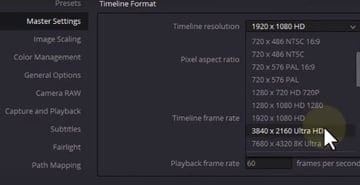
Aspect Ratio Warning: Cropping changes framing, but scaling improperly can distort proportions. Always maintain uniform scaling (avoid stretching only width or height).
Pixel Explanation: When you crop, you permanently remove pixels. When you zoom, you enlarge the remaining pixels. Enlarging fewer pixels is what causes softness.
Key point: Cropping permanently removes image data. Over-cropping or combining heavy zoom with crop can noticeably degrade quality, so always crop carefully and preview the result before exporting.
Part 2: Cropping a Clip Using the Inspector (Safest Method)
The Inspector is the safest and easiest way to crop clips in DaVinci Resolve. It lets you remove unwanted edges precisely while keeping your subject centered.
Step 1: Select the Clip on the Timeline
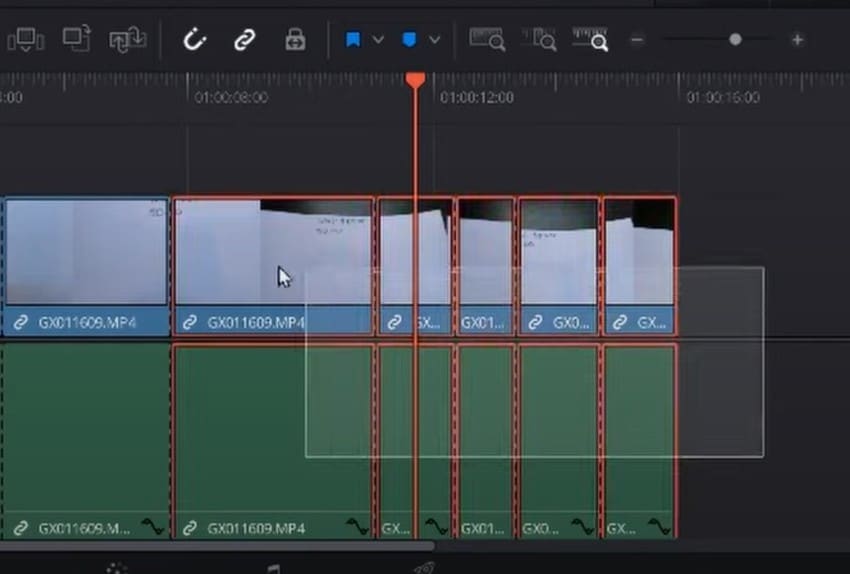
Click the clip you want to crop so it’s highlighted.
Step 2: Open the Inspector Panel
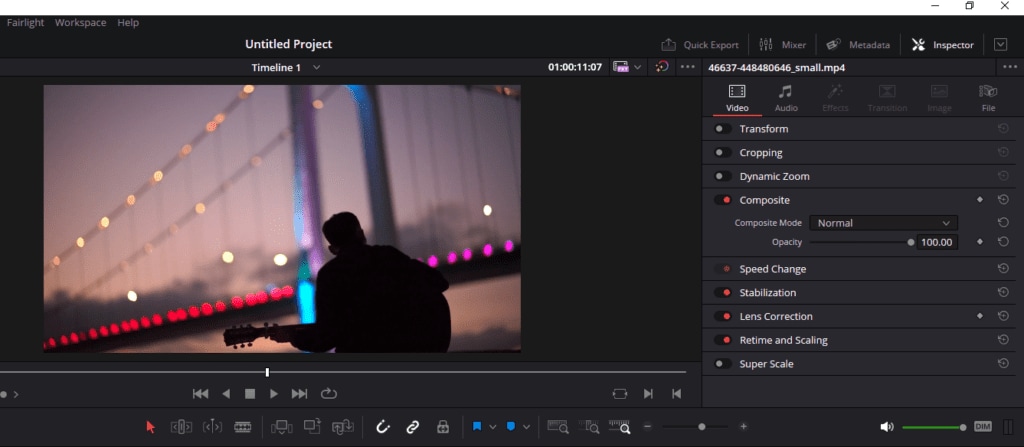
In the top-right corner of the Edit page, click Inspector to reveal clip controls.
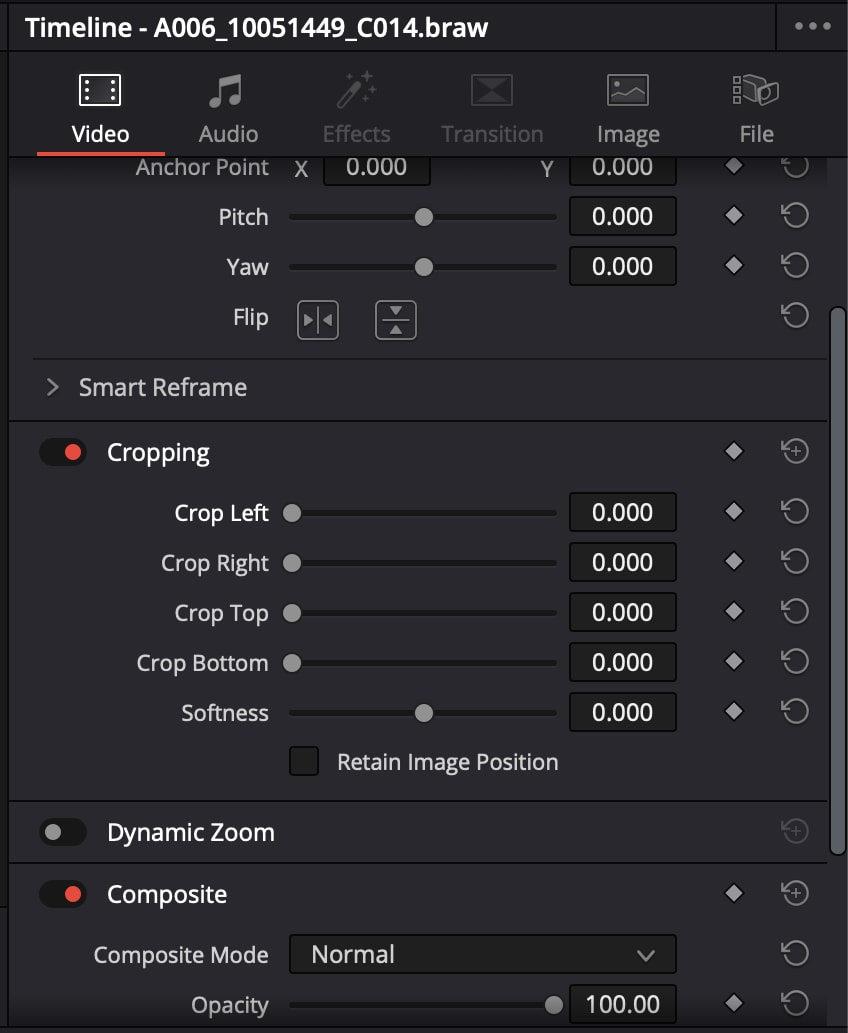
Step 3: Adjust Crop Left, Right, Top, Bottom
Use the crop sliders under the Video → Crop section to remove unwanted edges. Make small adjustments while watching the viewer to avoid cutting important content.
Step 4: Use Zoom and Position to Reframe Content
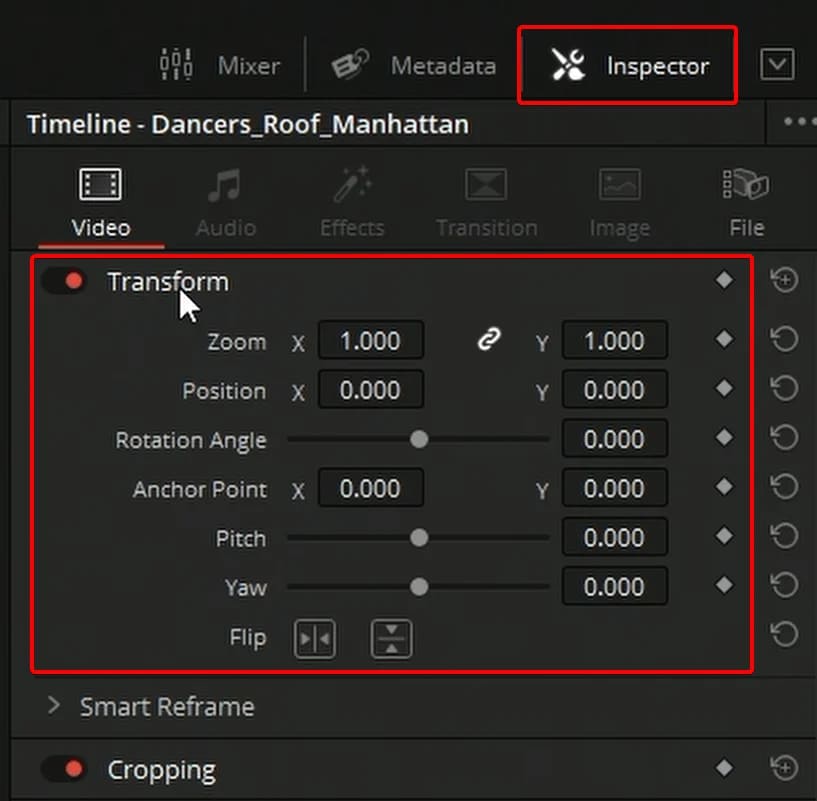
After cropping, fine-tune Zoom and Position X/Y in the Inspector to keep your subject centered and composition balanced.
Tips for Keeping the Subject Centered:
- Adjust in small increments to avoid over-cropping.
- Keep the subject near the center of the frame after each adjustment.
- Preview the clip in full-screen mode to confirm balanced framing.
Part 3: Manual Cropping with Transform Controls
For more precise or dynamic cropping, you can use Transform controls to adjust clips directly in the viewer. This method is especially useful when you want visual control or need to animate crops over time.
Step 1: Select Clip → Open Transform Controls
Click your clip in the timeline, then enable Transform from the toolbar above the viewer.
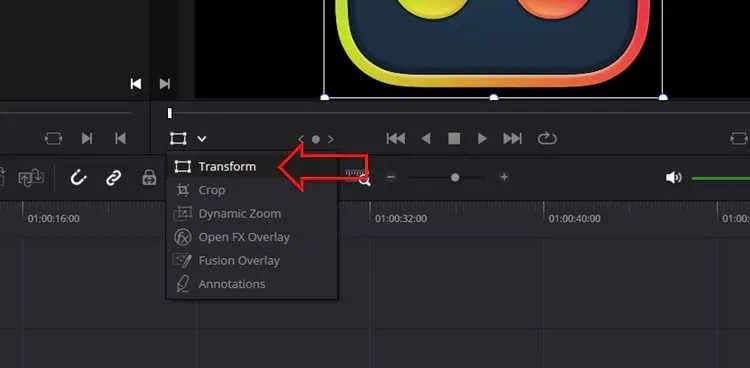
Step 2: Use On-Screen Handles to Crop ManuallyDrag the edges or corners of the clip in the viewer to remove unwanted areas. This lets you visually crop without relying on numeric sliders.
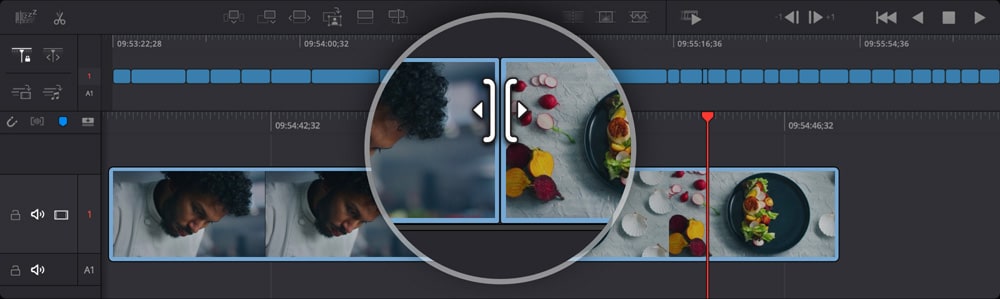
Step 3: Adjust Position and Scaling to Maintain CompositionAfter cropping, use Position X/Y and Zoom to keep your subject centered and maintain balance in the frame.
Step 4: Keyframing for Dynamic Crops Across a ClipFor moving subjects or changing composition, add keyframes on crop, position, or zoom to animate your adjustments throughout the clip.
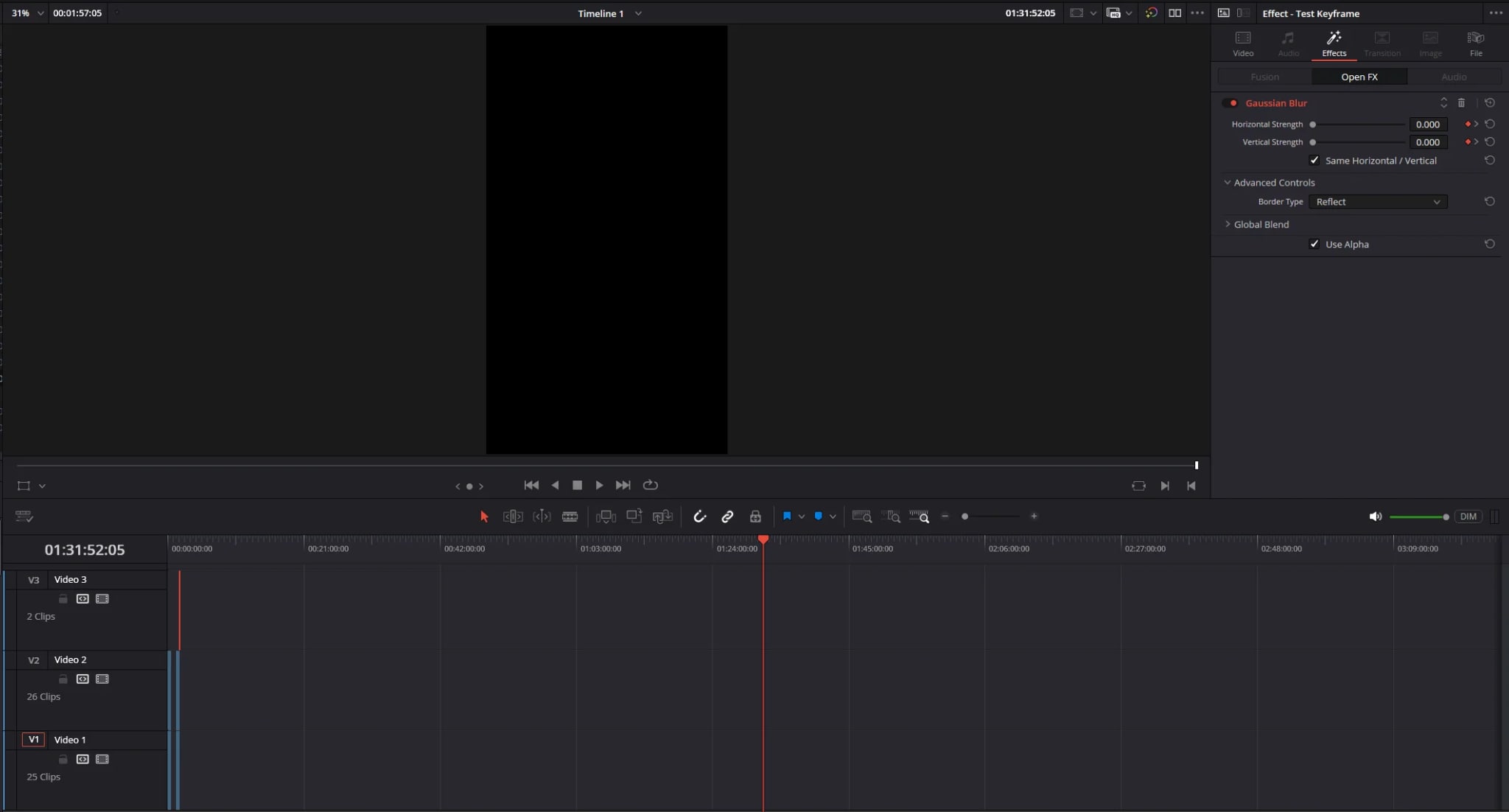
Pros vs Inspector Cropping:
- Pros: Full visual control, supports dynamic changes, can animate crops.
- Cons: Less precise than numeric values, small adjustments may require careful fine-tuning.
⚠️ Risk: Improper scaling or over-cropping can distort or blur your subject. Always preview at full resolution before exporting.
Part 4: Timeline-Based Cropping for Multiple Clips
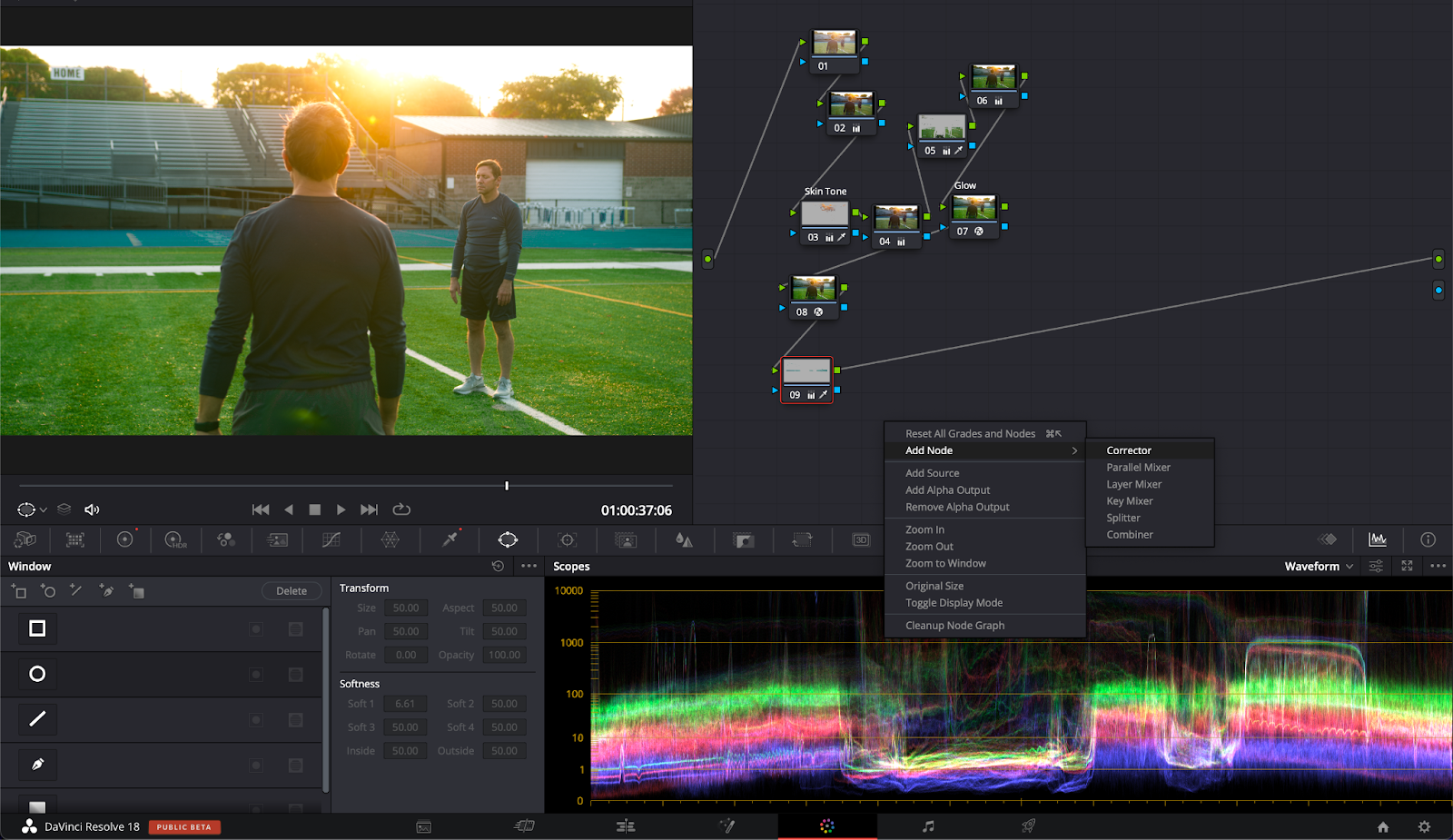
When you need consistent cropping across several clips, timeline-level cropping saves time and ensures uniform framing. This method is useful for multi-clip projects, social media edits, or when applying stylistic adjustments.
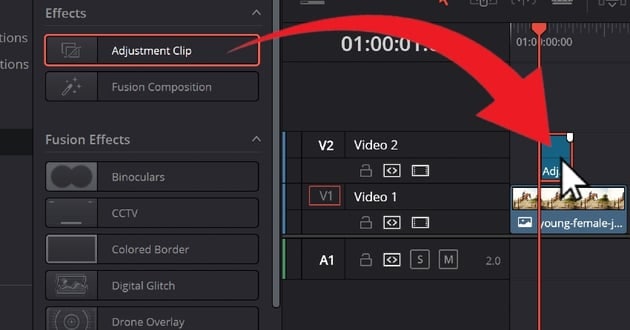
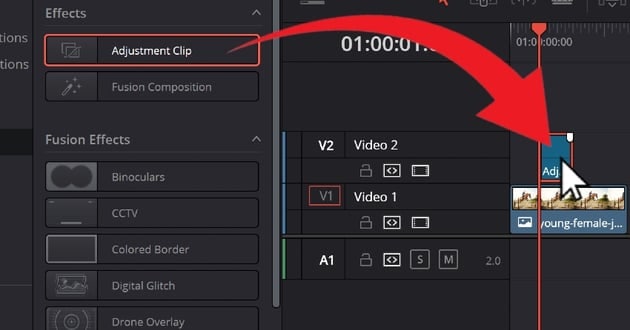
- Cropping Entire Tracks: You can apply crop effects directly to a video track using Adjustment Clips. Place an Adjustment Clip over the timeline, then crop it in the Inspector. Every clip underneath will inherit the same crop settings.
- Using Adjustment Layers: Adjustment Layers allow you to make changes to multiple clips without modifying each one individually. This is ideal for batch cropping, color correction, or adding effects.
- How to Add Adjustment Clip: Effects Library → Effects → Adjustment Clip → Drag above your clips.
- Track Priority Note: Effects applied on higher tracks override lower tracks. Always place adjustment clips on the topmost layer.
- Performance Tip: Stacking multiple adjustment clips can slow playback. Consider rendering optimized media for smoother editing.
When Timeline-Level Cropping Makes Sense
- Multiple clips require the same framing
- Creating social media-friendly formats (e.g., 1:1 or 9:16)
- Consistent stylistic cropping across sequences
⚠️ Risk: Timeline-level cropping affects all clips under the Adjustment Clip or track. Check each clip to ensure no important content is cut off.
Part 5: Cropping Vertical or Social Media Videos
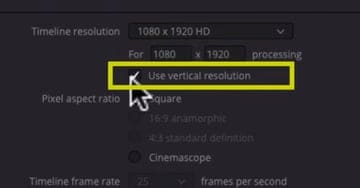
Social media often requires vertical (9:16) or square (1:1) formats, which means reframing standard 16:9 clips. Cropping correctly ensures your subject stays visible and your video looks professional.
- Reframing 16:9 Clips: Use the Inspector Crop or Transform controls to adjust the clip to the desired aspect ratio. Combine with Position to center the subject and remove empty edges.
- Maintaining Subject Visibility: Always check that the main subject remains within the visible area. Minor adjustments with Position or Zoom can keep focus on important content.
- Avoiding Loss of Key Content: Avoid aggressive cropping that cuts out faces, text, or key actions. Preview the video on the intended platform’s aspect ratio to confirm everything fits correctly.
- Changing Timeline Resolution: Go to File → Project Settings → Timeline Resolution to set custom dimensions like 1080×1920 for vertical video.
- Safe Zone Advice: Keep important elements away from extreme top and bottom edges to avoid being covered by platform UI elements (captions, buttons).
- Mobile-First Framing: When converting horizontal footage to vertical, prioritize faces and action — not background space.
- Preview Strategy: Use a vertical timeline instead of cropping inside a horizontal one for more accurate previews.
Part 6: Common Cropping Mistakes That Reduce Quality
Cropping improves framing, but small mistakes can quickly reduce clarity or create new problems. Avoid these common issues to maintain professional results.
- Cropping Too Much and Losing Quality: Excessive cropping removes large portions of the frame, forcing you to zoom in to fill space. This reduces effective resolution and can make the image look soft or pixelated. Always crop conservatively and preview at full screen.
- Relying on Zoom Instead of Proper Framing: Zoom enlarges the image but doesn’t truly fix composition. Overusing Zoom to “fake” cropping can distort framing and lower sharpness. Use Crop controls first, then fine-tune with Position.
- Ignoring Timeline Resolution: If your timeline resolution doesn’t match your intended output, cropping may look inconsistent. Always confirm timeline settings before making major adjustments.
- Cropping After Export: Fixing framing after exporting leads to extra compression and quality loss. Complete all cropping inside DaVinci Resolve before rendering your final video.
- Compression Stacking: Exporting, then cropping, then exporting again causes double compression, reducing clarity further.
- Resolution Mismatch: Exporting 1080p from a 720p timeline won’t improve quality — it only enlarges pixels.
- Color Grading Order: Crop before heavy color grading when possible to ensure grading decisions match final framing.
- Scope Check: After cropping, recheck scopes to confirm exposure and balance remain consistent.
Part 7: Optional Step – Enhancing Cropped Video Quality
Cropping itself does not require enhancement. However, if heavy cropping or zooming has reduced sharpness, you may consider improving clarity before final export. This step is optional and only useful when visible softness or resolution loss becomes noticeable.
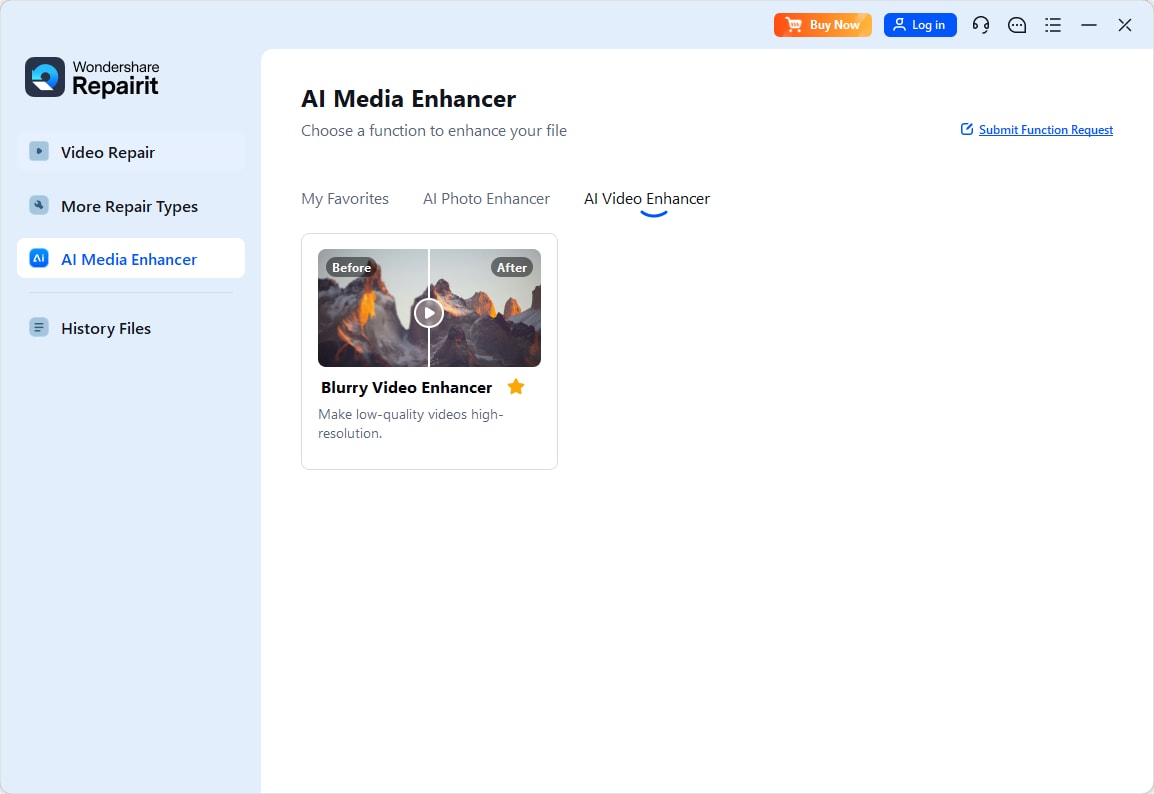
One option is Repairit Video Enhancer, which is designed to improve perceived sharpness, brightness, and overall clarity in lower-quality footage. It does not restore removed image areas, but it can help refine detail after aggressive cropping.
Step 1 Upload Your Cropped Video: Export your cropped clip from DaVinci Resolve, then import it into Repairit.
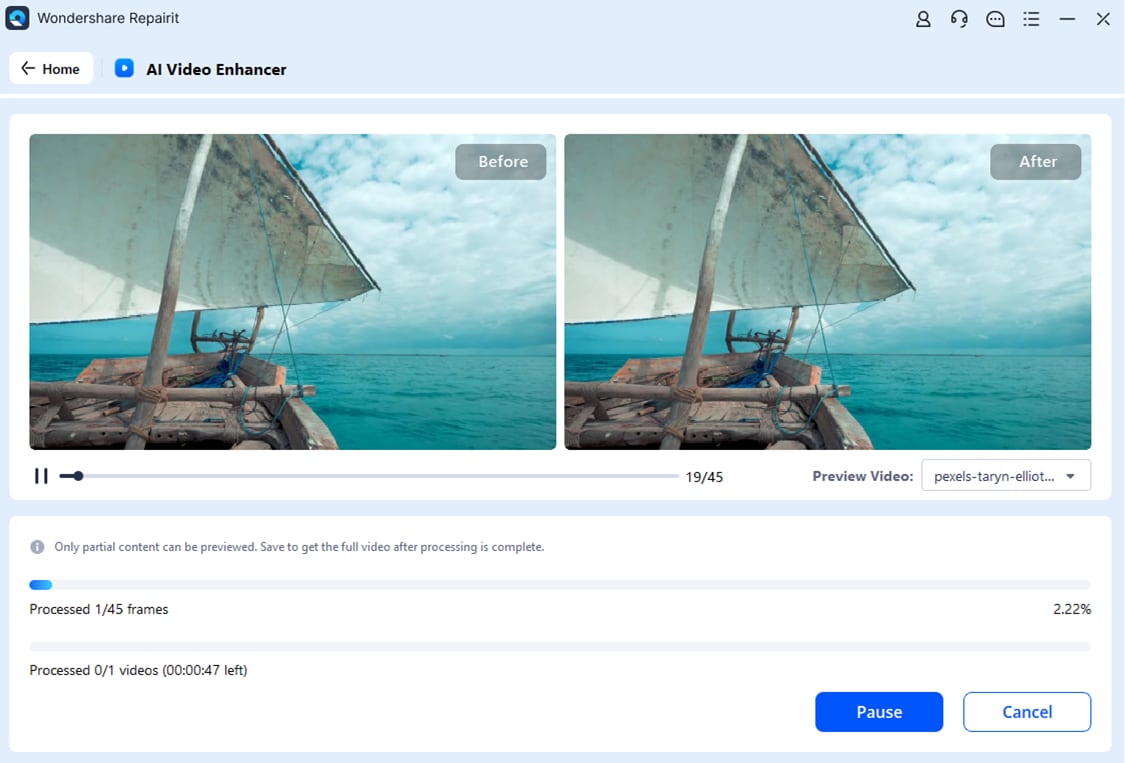
Step 2 Apply Enhancement: Choose the appropriate enhancement level based on your footage quality. Allow the software to process the video.
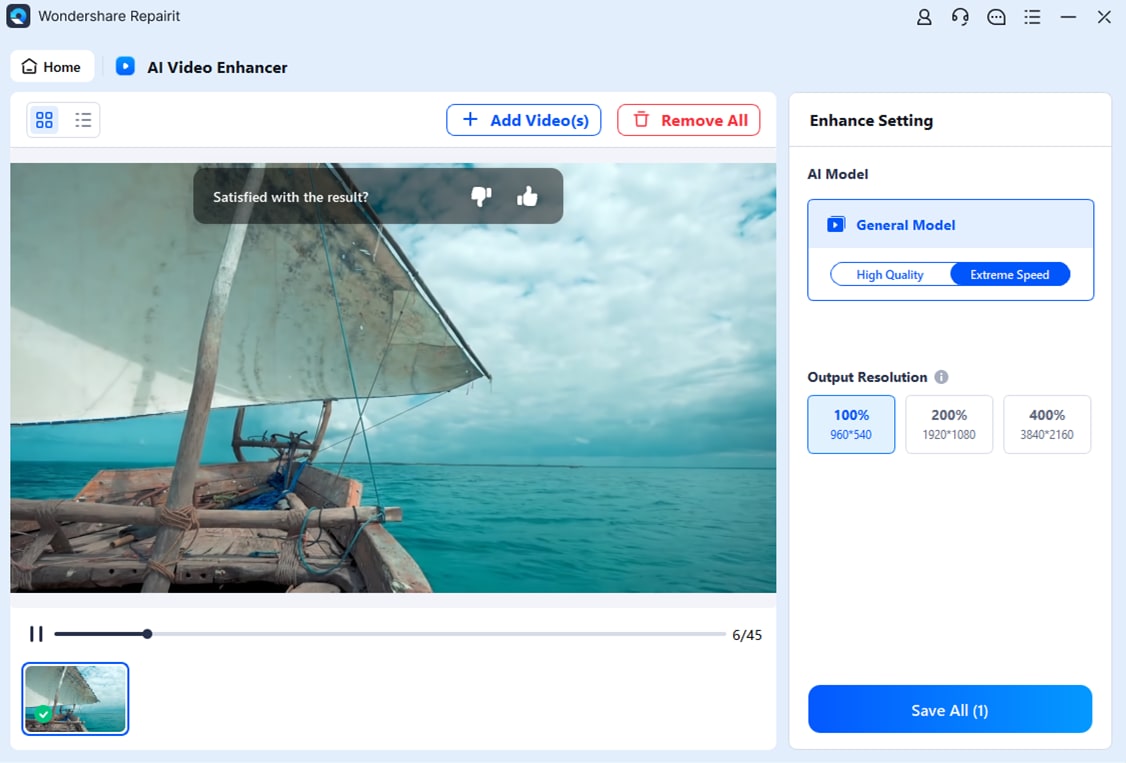
Step 3 Export the Enhanced File: Export the improved version at the highest available resolution, then re-import it into DaVinci Resolve for final review and delivery.
When Enhancement Helps Most
- Old archived footage
- Low-light recordings
- Heavy digital zoom clips
- Screen recordings cropped tightly
AI Upscaling ContextAI enhancement tools analyze existing pixels to improve clarity perception — but they cannot recreate truly missing detail.
Best Workflow TipEnhance before final color grading to avoid reprocessing the file again.
Part 8: Test and Export Your Cropped Video
Before exporting, always review your cropped video carefully to ensure framing and quality remain intact. Small mistakes are easier to fix now than after rendering.
Preview on Timeline and Full-Screen Playback
Play the clip directly in the timeline to check for:
- Cut-off faces or text
- Unbalanced framing
- Softness caused by heavy cropping or zoom
Then switch to full-screen playback to evaluate clarity and composition at actual viewing size. This helps you catch edge issues that may not be obvious in the preview window.
Export Settings for Final Resolution
When exporting, match your render resolution to your timeline settings to avoid unnecessary rescaling.
- YouTube: MP4 (H.264 or H.265), 1920x1080 or 4K
- Social Media (Vertical): 1080x1920
- Square (1:1): 1080x1080
- Cinematic Projects: Match your custom timeline resolution
Bitrate Recommendations
- 1080p YouTube: 16–20 Mbps
- 4K YouTube: 35–45 Mbps
- Social vertical: 8–12 Mbps minimum
Deliver Page WorkflowGo to Deliver → Custom Export → Set format → Add to Render Queue → Start Render.
Quality Setting TipChoose “Best” quality instead of “Restrict to” unless targeting a strict file size.
Data Levels ReminderConfirm Data Levels (Video vs Full) to prevent washed-out exports.
Conclusion
Cropping in DaVinci Resolve is straightforward when you follow the right order: identify the clip, choose the appropriate method, crop carefully, adjust position or zoom to maintain balance, optionally enhance if needed, and export with matching resolution settings.
Always test your results in full-screen playback before rendering to ensure nothing important was cut off and quality remains intact. Most importantly, keep backups of your original files so you can make adjustments later without permanent quality loss.
FAQs
-
Q1: Will cropping in DaVinci Resolve reduce video quality?
Cropping removes part of the frame. If you don’t zoom in, quality stays the same. However, heavy cropping followed by scaling can reduce sharpness because you’re enlarging fewer pixels. -
Q2: Can I crop a clip without affecting other clips on the timeline?
Yes. Cropping in the Inspector only affects the selected clip. Timeline-level or adjustment layer cropping affects multiple clips. -
Q3: How do I maintain the subject’s position after cropping?
After cropping, use Position or Transform controls to re-center your subject and maintain balanced framing. -
Q4: Can I reverse a crop if I make a mistake?
Yes. Reset the Crop values in the Inspector or use Undo (Ctrl/Cmd + Z) to restore the original framing. -
Q5: Is it necessary to use a video enhancer after cropping?
No. Enhancement tools are optional and only helpful if noticeable quality loss occurs after heavy cropping or scaling.




