
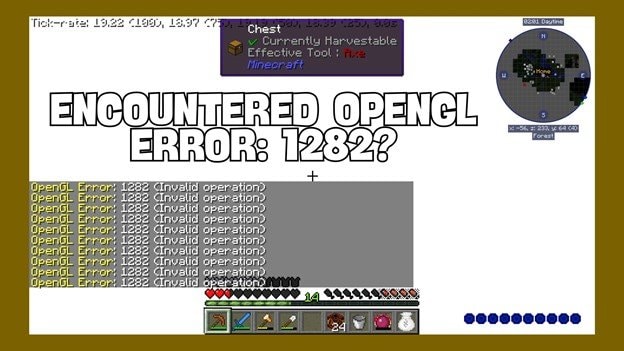
The OpenGL error 1282 in Minecraft is a rendering failure signal that indicates something in the game's graphics pipeline is breaking down. Unlike simple bugs, this error reflects a mismatch between Minecraft's rendering instructions and what your system's GPU can actually process.
Many users encounter this error after installing mods, enabling shaders, updating drivers, or changing graphics settings. While the game may still run, the experience often becomes unstable, with visual glitches, flickering textures, or repeated console errors.
This guide takes a more technical and diagnostic approach, helping you understand not just how to fix the issue, but why it happens in the first place, so you can prevent it from coming back.
In this article
Part 1. What OpenGL Error 1282 Really Means
OpenGL error 1282 corresponds to "GL_INVALID_OPERATION", which means that Minecraft attempted to execute a rendering command that is invalid in the current graphics state.
Instead of thinking of it as a "bug," it is more accurate to treat it as a warning that the rendering pipeline is out of sync.
In practical terms, this happens when:
- A shader requests a feature your GPU does not support
- A mod sends incomplete or incorrect rendering instructions
- The driver fails to interpret a command correctly
- The rendering sequence is executed in the wrong order
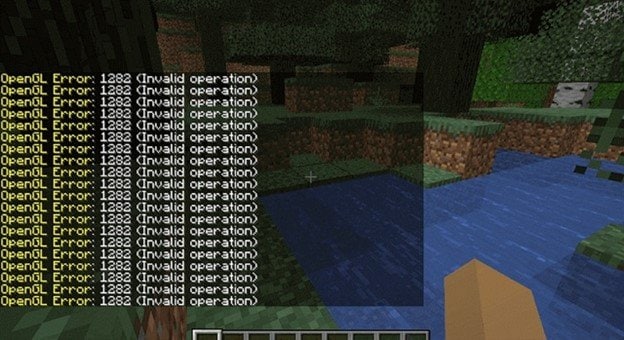
Because Minecraft uses OpenGL extensively for rendering blocks, lighting, and effects, even a small inconsistency can trigger this error repeatedly.
Part 2. The Core Problem: Rendering Pipeline Mismatch
OpenGL 1282 is caused by a pipeline mismatch, where different components of the system are not aligned. Think of the rendering pipeline as a chain: Minecraft → Mods/Shaders → OpenGL → GPU Driver → Graphics Card. If any part of this chain becomes incompatible, the entire rendering process can fail.
Where mismatches typically occur:
- Game vs Mods: Mods built for older versions may send outdated instructions
- Shaders vs GPU: High-end shaders may exceed hardware capabilities
- Driver vs OpenGL: Outdated drivers may not support newer rendering calls
- System vs Resources: Insufficient memory interrupts rendering operations
This is why simply "restarting the game" sometimes works; it temporarily resets the pipeline.
Part 3. Most Common Triggers
Instead of generic causes, here are the actual scenarios where users encounter this error:
- After installing a Shader Pack - Shaders significantly alter rendering behavior. If your GPU cannot support advanced lighting or shadow calculations, invalid operations occur.
- After Adding Mods - Mods that modify rendering (OptiFine, Forge add-ons, etc.) may conflict with each other or with the base game.
- After updating GPU Drivers - New drivers sometimes introduce compatibility changes that older game builds or mods, cannot handle properly.
- While Recording or Using Overlays - Screen recorders, overlays, and performance tools may interfere with rendering calls.
- During Heavy Gameplay - Large worlds, high render distances, or resource packs can overload the GPU, causing commands to fail mid-process.
Part 4. Quick Stabilization Fixes (First Response)
When Minecraft throws rendering errors, the fastest way to regain stability is to apply quick, low‑impact fixes. These first‑response steps are designed to reset the environment and clear conflicts before moving on to deeper troubleshooting.
Fix 1. Restart the Rendering Environment
Restarting resets the entire graphics pipeline and clears temporary rendering conflicts.
Step 1. Close Minecraft completely and click Restart on your computer.
Step 2. Launch Minecraft again and load your world.
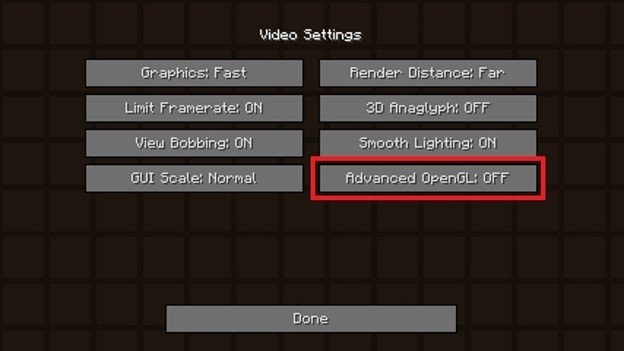
Fix 2. Disable OpenGL Error Logging
This reduces console spam but does not solve the root issue.
Step 1. Open Minecraft and go to Options, then click Video Settings.
Step 2. Set Advanced OpenGL to OFF.
Fix 3. Update or Reinstall Graphics Drivers
Drivers must correctly interpret OpenGL commands for rendering to work.
Step 1. Open your GPU control panel and click Check for Updates.
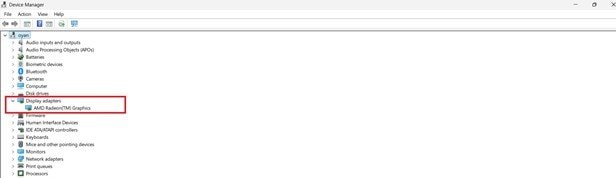
Step 2. Install the latest driver or reinstall it, then restart your system.
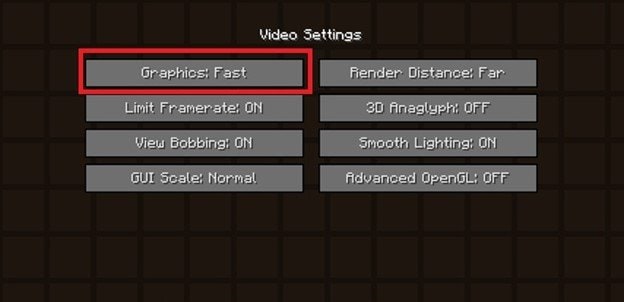
Fix 4. Reset Graphics Settings
Overly aggressive settings can break rendering stability.
Step 1. Go to Options and click Video Settings.
Step 2. Set graphics to Default or Fast, then relaunch the game.
Fix 5. Remove Problematic Mods
Mods are the #1 cause of OpenGL 1282 errors.
Step 1. Open your mods folder and click Delete on recently added mods.
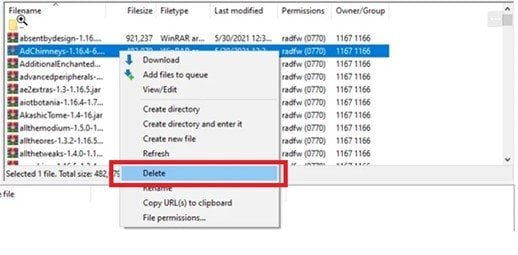
Step 2. Relaunch Minecraft and test stability.
Fix 6. Disable Shaders Completely
Shaders push the rendering pipeline beyond standard limits.
Step 1. Open Video Settings and click Shaders.
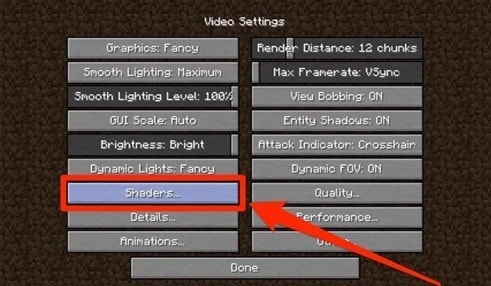
Step 2. Select OFF and restart Minecraft.
Fix 7. Rebuild Minecraft Environment
Corrupted configurations can break rendering behavior.
Step 1. Delete the Minecraft configuration folder and click Save after resetting settings.
Step 2. Launch Minecraft to regenerate clean files.
Fix 8. Increase System Resources
Rendering requires stable memory allocation.
Step 1. Open Minecraft Launcher and click Installations, then Edit.
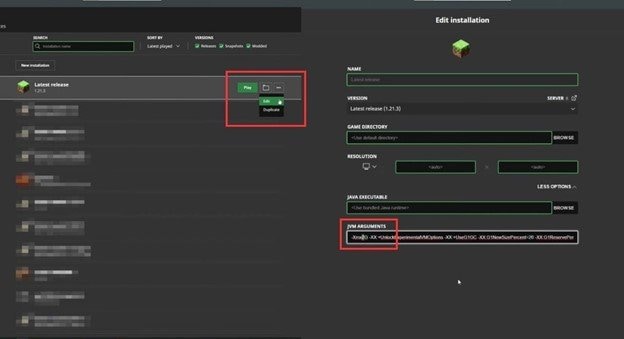
Step 2. Increase RAM allocation and save changes.
Part 5. When Media or Visual Files Are Corrupted [Rare Scenario]
Although OpenGL error 1282 is primarily a rendering issue, there are cases where corrupted visual or recorded content contributes to the problem. This is especially noticeable when:
- Errors appear during replay mods or recorded gameplay
- Video playback inside mods fails
- Exported or imported visual assets do not render correctly
In these situations, the issue is not the GPU itself but damaged video or media data that cannot be properly processed. Repairit Video Repair can help rebuild corrupted video structures and restore proper playback. Specifically, it can:

-
Repair damaged videos with all levels of corruption, such as video not playing, video no sound, out-of-sync video or audio, playback errors, header corruption, flickering video, missing video codec, etc.
-
Repair full HD, 4K, and 8K videos and support 20+ popular formats, including MOV, MP4, M2TS, MDT, RSV, WMV, MPEG, DAT, etc.
-
Repair damaged or corrupted videos caused by video compression, system crash, video format change, etc.
-
Repair critically damaged or corrupted RAW/Log/HDR videos from professional cameras such as Blackmagic Design, RED Digital, and ARRI, etc.
-
Repairit has a quick and advanced scanning mode. You can use either depending on the level of corruption the video file has undergone.
-
No limit to the number and size of the repairable videos.
-
Repaired videos are more compatible with professional editing software such as DaVinci, Composer, Final Cut Pro, and Premiere Pro.
-
Support Windows 11/10/8/7/Vista, Windows Server 2003/2008/2012/2016/2019/2022, and macOS 10.12~macOS 15.
- Repair corrupted video files used in recordings or mods
- Restore damaged metadata and playback structure
- Fix black screen, freezing, or playback errors
- Rebuild video containers for proper decoding
Note: Use this only if the issue involves recorded or external video files, not core Minecraft rendering.
Part 6. Preventing OpenGL Error 1282 in the Long Run
Preventing this error is about keeping your rendering pipeline consistent and stable.
- Keep mods and shaders version-compatible - Always verify that the mods and shader packs you install are designed for the same game version. Mixing outdated or mismatched files often leads to rendering glitches or OpenGL errors.
- Avoid stacking multiple heavy shader packs - Shader packs can be resource-intensive. Running several at once may overwhelm your GPU, causing instability. Stick to one optimized pack at a time for smoother performance.
- Update GPU drivers carefully (avoid unstable beta versions) - Driver updates can improve stability, but beta or experimental versions may introduce new bugs. Use stable releases from your GPU manufacturer and avoid unnecessary tinkering unless you're troubleshooting a specific issue.
- Monitor system performance during gameplay - Keep an eye on GPU usage, memory allocation, and temperature. Sudden spikes or throttling can signal that your system is struggling, which often manifests as rendering errors.
- Avoid unnecessary overlays or background GPU tools - Extra overlays (FPS counters, recording software, or GPU monitoring tools) can interfere with rendering. Disable anything non-essential to reduce conflicts.
The key idea is simple: Consistency between game, mods, drivers, and hardware prevents rendering conflicts.
Conclusion
OpenGL error 1282 is a warning that your rendering pipeline has fallen out of alignment. The root cause may lie in mods, shaders, drivers, or even hardware limitations, but the path to resolution is straightforward: restore compatibility and consistency across your setup.
By taking a systematic approach, verifying mod and shader versions, updating drivers responsibly, and monitoring system performance, you can not only fix the immediate error but also prevent it from resurfacing. The goal is to create a stable environment where every component works together seamlessly.
When you understand the underlying issues and apply targeted fixes, Minecraft transforms back into the smooth, immersive experience it's meant to be. In the end, consistency is the safeguard against rendering conflicts, allowing you to spend less time troubleshooting and more time building, exploring, and enjoying the game.
FAQs
-
What does OpenGL error 1282 mean in Minecraft?
It means an invalid rendering operation occurred in the graphics pipeline. This usually happens due to driver issues, mods, or shader conflicts. -
Is OpenGL 1282 caused by mods?
Yes, mods are one of the most common causes. Incompatible or outdated mods can send invalid rendering instructions. -
Can shaders trigger this error?
Yes, shaders often push GPU limits and may cause rendering conflicts. Disabling them usually resolves the issue. -
Will updating drivers fix OpenGL 1282?
In many cases, yes, because drivers handle OpenGL commands. Keeping them updated ensures compatibility with the game. -
Can corrupted files cause this error?
Rarely, but corrupted visual or recorded files may contribute. Repairing those files can help in specific scenarios.




