
When trying to access Minecraft, most users encounter Minecraft getsockopt issues. Instead of smoothly loading into the game, the connection hangs for a few seconds before failing. This error normally happens when they connect with friends who are using the same connection.
This is especially confusing because nothing obvious appears on the player's PC. To address this issue, this article covers efficient fixes to help you get back into the Minecraft worlds as many as possible. You will also be introduced to advanced repair software to fix the corrupt files.
Table of Contents
Part 1. What is the Minecraft Getsockopt Error?
Minecraft getsockopt is a network-related error that appears when the game fails to establish a connection to the LAN. In most cases, this specific error is caused by blocked traffic, incorrect routing, or timeouts. Furthermore, it refers to issues related to firewalls or antivirus tools blocking Java.
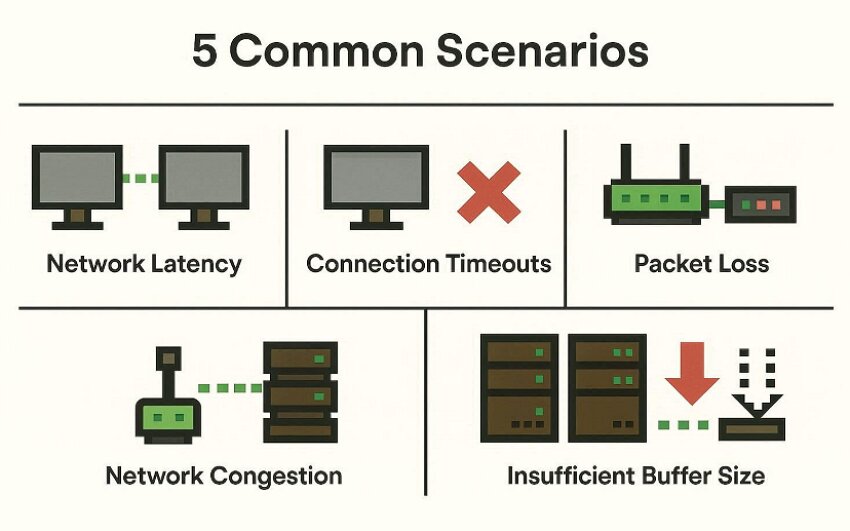
4 Common Scenarios Where Getsockopt Appears
Before you dive into the technical fixes, let's first examine the most common situations when the Minecraft getsockopt error appears:
Scenario 1. When Users Join a Public Server
Users try to connect to a large public or hosted server and see errors like "Failed to connect to the server." This error often occurs when the main server is down, and your ISP is experiencing routing issues.
Scenario 2. When Someone Connect with a Friend's Hosted Word
You enter your friend's external IP and port, but your games start hanging and show the getsockopt timeout. In this case, a misconfigured port or incorrect ISP restrictions are commonly the cause of this error.
Scenario 3. While Joining a LAN Network at Home
While accessing the game, you encounter a "connection timed out" error, even though your device is connected to the LAN. It normally shows issues like Windows Firewall blocking Java or your device not being on the same Wi-Fi.
Scenario 4. When Switching Networks or Using VPNs
When playing games, you turned on your VPN, and it suddenly started showing a Minecraft getsockopt error. In this case, VPN routing issues or DNS issues often cause the connection to break and trigger the error.
Scenario 5. During Heavy Network Congestion or Slow Internet
When many devices share your Wi-Fi, Minecraft may show a Getsockopt timeout. Congestion increases latency and packet loss, and routers may struggle with buffer limits, causing unstable server communication and failed connections.
What Causes Minecraft Getsockopt Errors
Understanding the root cause of the error makes it much easier to choose the right fix for the Minecraft getsockopt error:
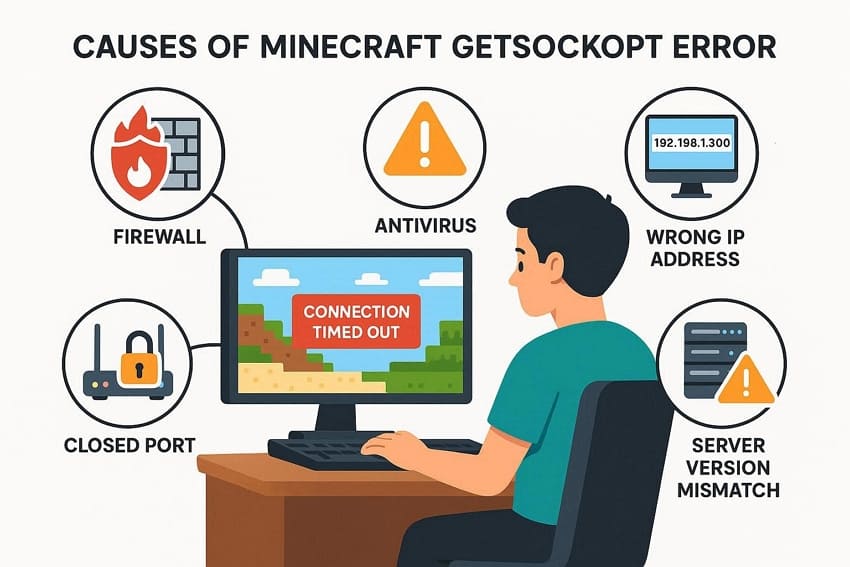
- Firewall Blocking: Firewall rules can silently block incoming or outgoing traffic for the Java or Minecraft launcher. This will stop the connection before reaching the server.
- Security Software Interference: Some antivirus or security software may mistakenly flag Minecraft's connections as suspicious. When this happens, packets get delayed and lead to a getsockopt timeout.
- Incorrect IP Address: When users enter the wrong IP address, you can't reach the correct server endpoint. The game keeps trying until the connection attempt expires and shows the error.
- Missing or Misconfigured Port: If players are connecting to games with the home-hosted server to send traffic on the Minecraft port e. If these rules are missing or wrong, external players will always hit a timeout.
- Mismatched Version or Configuration: Incorrect server properties or a conflict with other ports can break connectivity. The server may show running, but the client will continuously face timeout issues.
Part 2. Minecraft Getsockopt Error: Step‑by‑Step Solutions for PC Players
Now that you are aware of the root cause of this Minecraft getsockopt error, let's move on to its efficient fixes:
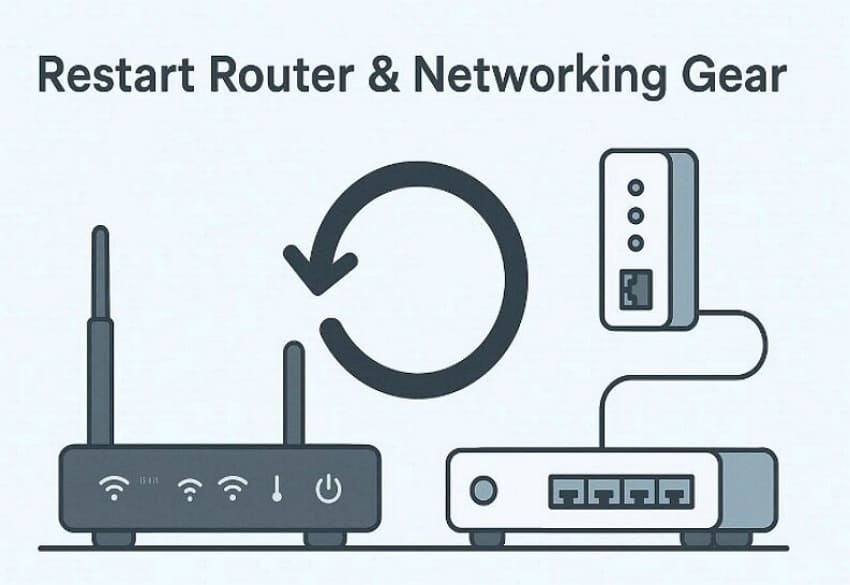
Fix 1: Restart Router & Networking Gear
To fix the getsockopt error, initiate by restarting your router and networking gear. You simply turn off your PC, then unplug the router for 2-5 minutes to fully discharge and reset it. It will resolve all temporary glitches that are causing Minecraft to hang. After 5 mins, restart the modem, router, and then turn on your PC, and most likely your game will start working.
Fix 2: Allow Minecraft & Java Through Firewall
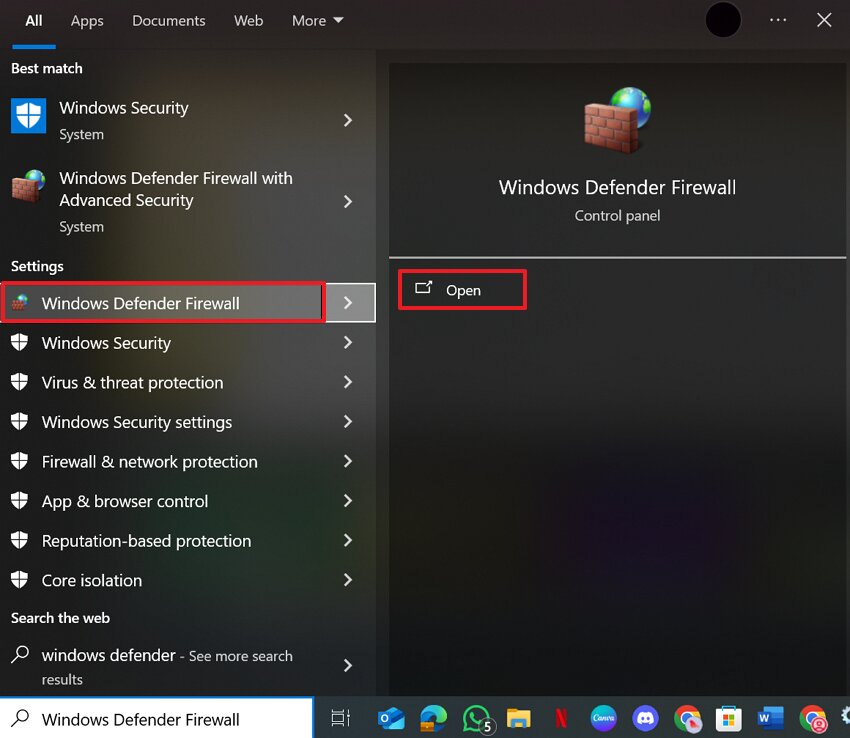
Sometimes, Windows Defender blocks your game and shows a Minecraft getsockopt error. Users can resolve this error by using the built-in Windows Defender interface. This method will create a clear, permanent exception for the actual Java/Minecraft executables. Moreover, it will keep the firewall on while still allowing Minecraft multiplayer to work normally. To know how it is done, let's dive into its detailed guide:
Step 1. Initiate by opening the Windows search bar and searching for the "Windows Defender" option. Then select the "Open" option to open its interface.
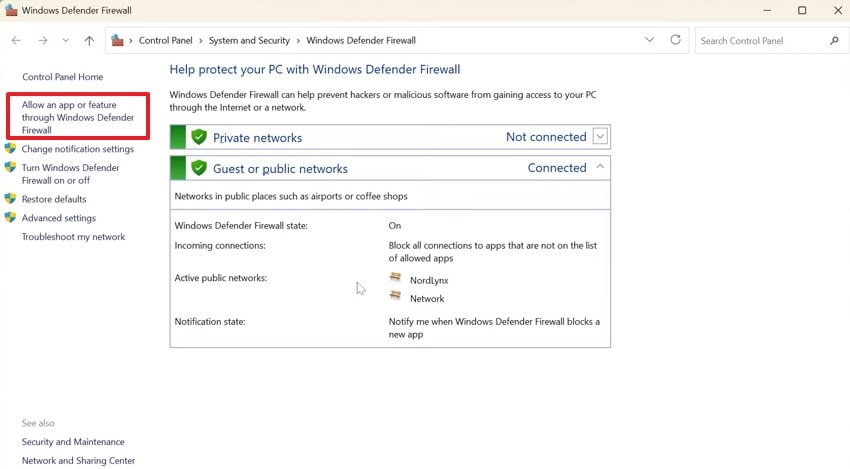
Step 2. Consequently, click on the "Allow an App Through Windows Defender Firewall" option.
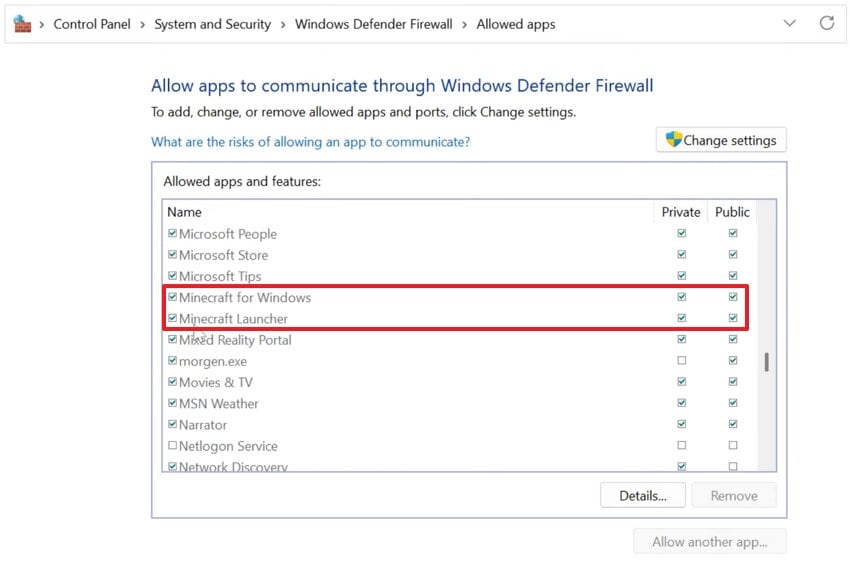
Step 2. Here, make sure that both "Minecraft for Windows" and "Minecraft Launcher" options are enabled.
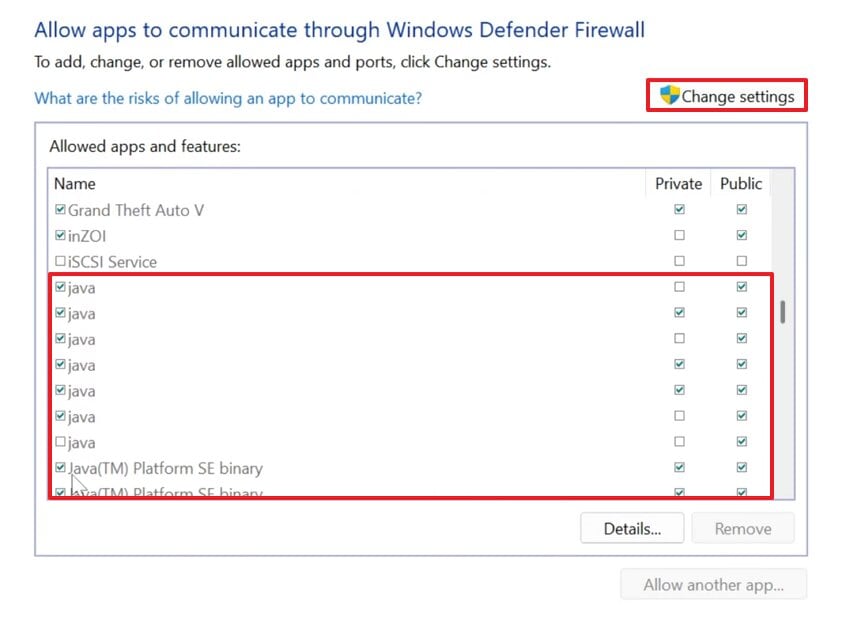
Step 3. Following this, scroll down to find the Java options available in the tab. Then click the "Change Settings" button and tick all the "Java" options here to apply the changes.
Fix 3: Change DNS to Public DNS (Google, Cloudflare)
To fix the Minecraft getsockopt error, try changing the DNS to Public DNS within the settings app. The user simply inserts the desired protocol in the DNS server option. It often fixes issues, helping Minecraft connect to servers more consistently. Moreover, the public DNS system is optimized for speed and global routing to slightly improve the overall responsiveness. Now, have a look at the following guides to try this fix:
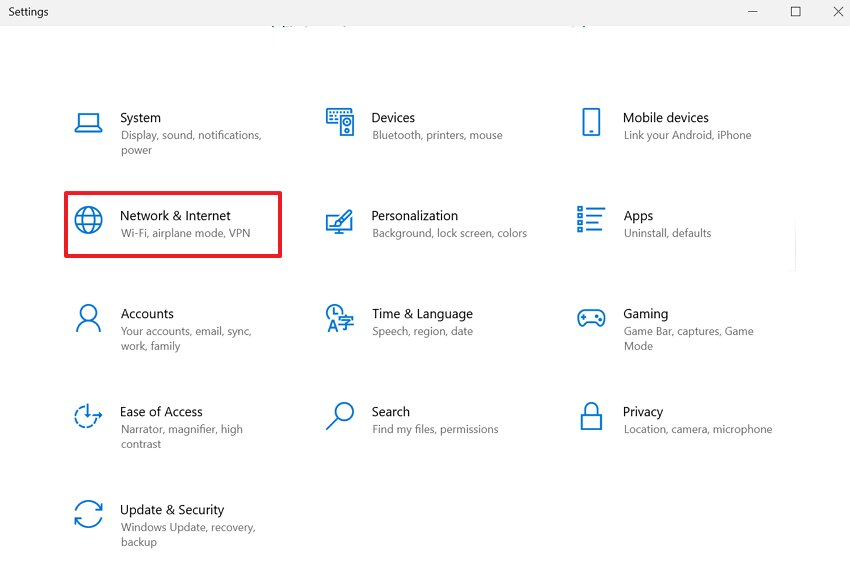
Step 1. As you open the "Settings" interface, choose the "Network & Internet" feature from the main page.
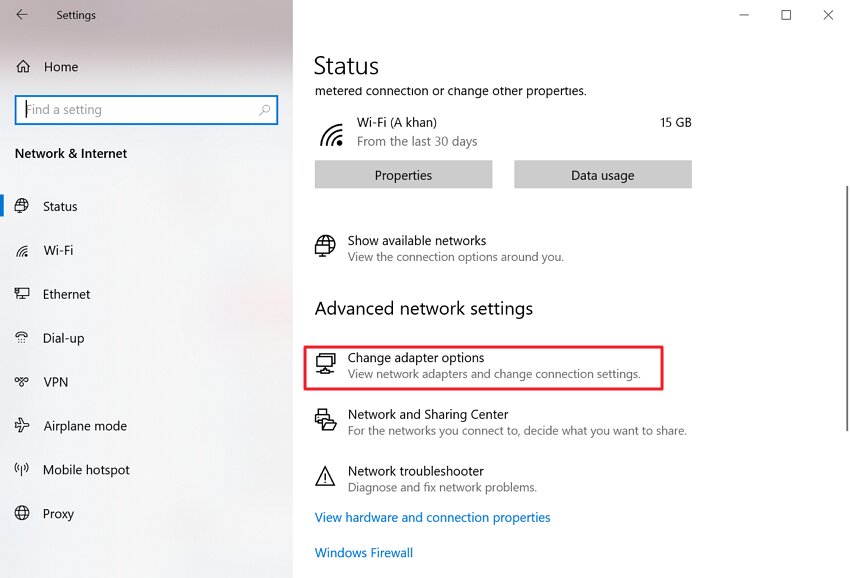
Step 2. Now, click on the "Change Adapter Options" option to jump into the next interface.
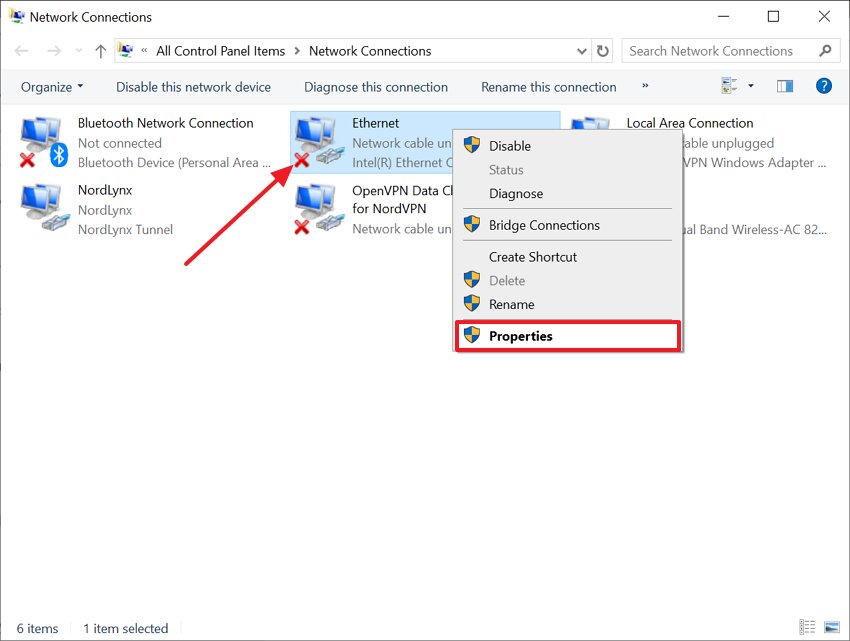
Step 3. Following this, right-click on the "Ethernet" option and select the "Properties" option in the pop-up.
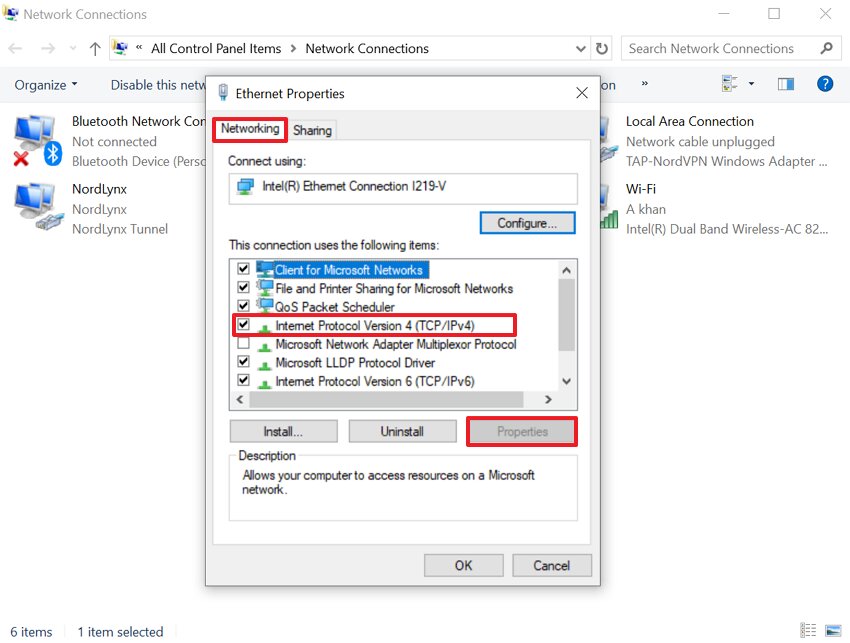
Step 4. Following this, choose the "Networking" tab, enable the "Internet Protocol Version" option, and hit the "Properties" option.
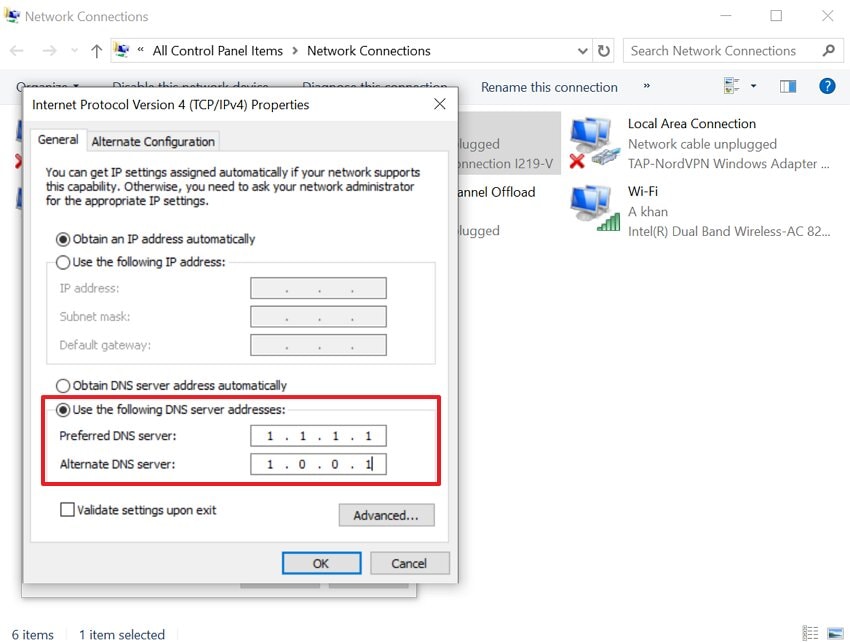
Step 5. Here, enable the "Use the Following DNS Server Address" and then enter the "8.8.8.8/8.8.4.4" address in it to convert to the "Google" server.
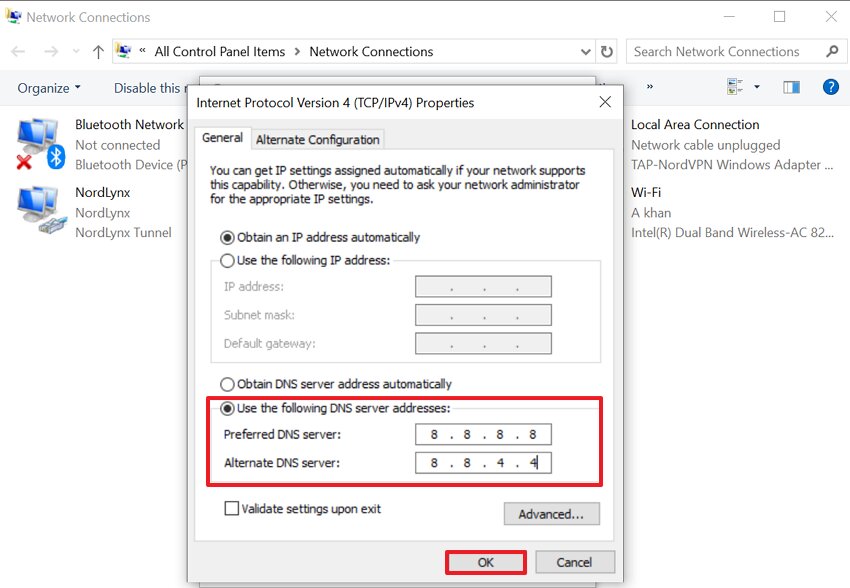
Step 6. Now, if you want to convert the server to Cloudflare, then add the "1.1.1.1/1.0.0.1" to the preferred DNS server and choose the "OK" button.
Fix 4: Flush DNS & Reset Network Stack
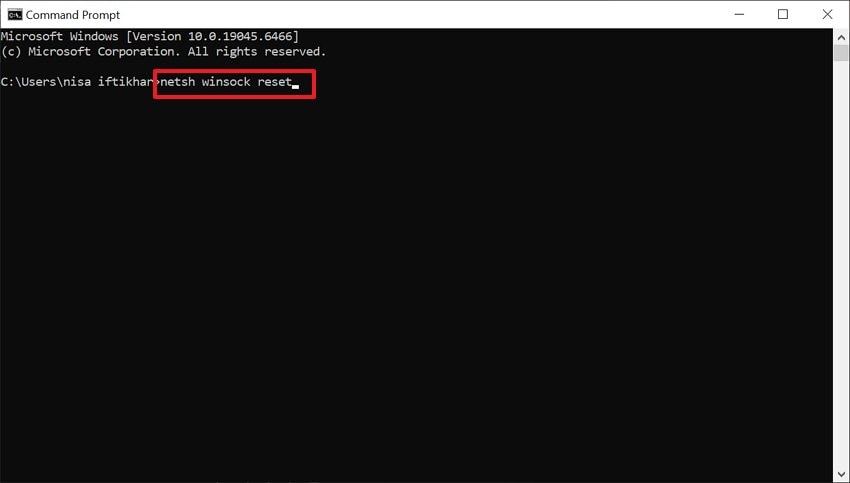
This method will clear your cache and remove outdated or corrupted address entries that are stopping your PC. It resets the Winsock and TCP/IP stack to refresh the low-level networking components that Windows requires. Moreover, it forces Windows to request fresh DNS and IP information, which can resolve weird connection problems. Now that you are well aware of this method, go through the following detailed guide:
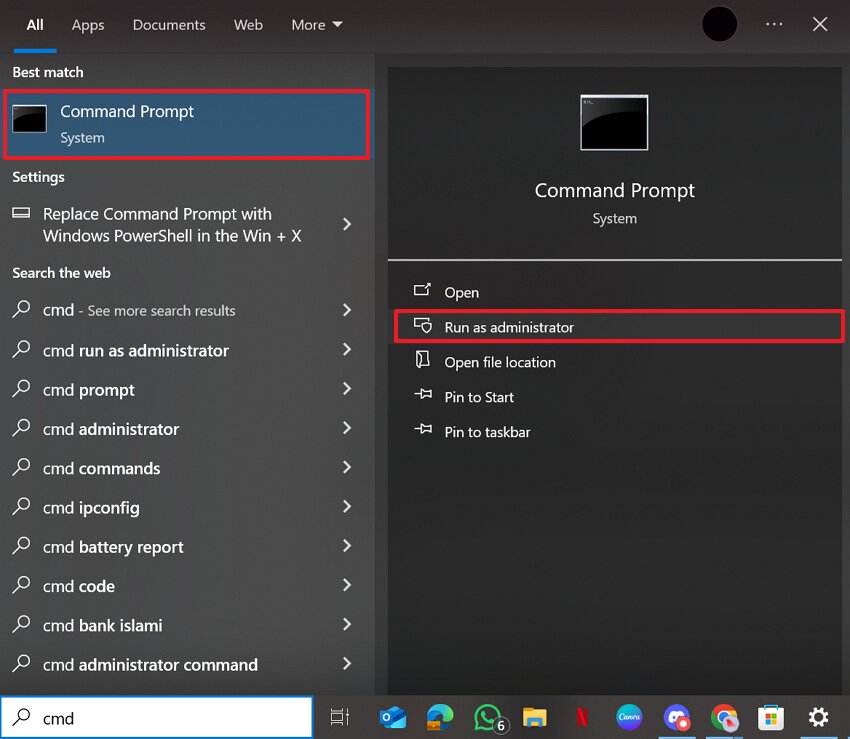
Step 1. Initiate by searching for "cmd" in the Windows search bar and selecting the "Run as Administrator" option.
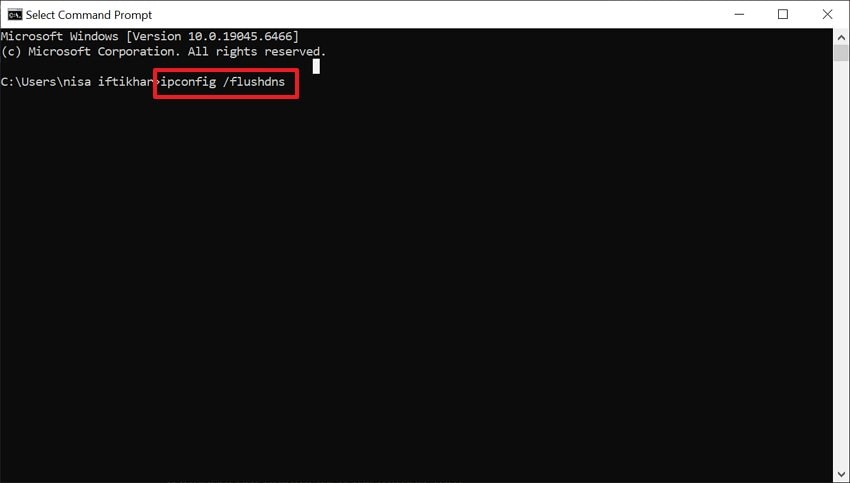
Step 2. Upon entering the tool, enter the "ipconfig /flushdns" command and hit the "Enter" button. After some time, it will show you a message saying "DNS resolver cache was successfully flushed."
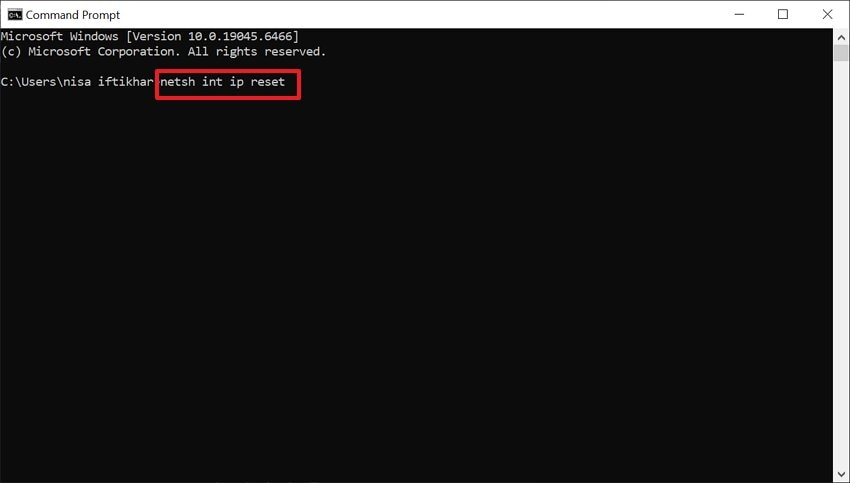
Step 3. After flushing the DNS, enter the command "netsh int ip reset" and hit the "Enter" button.
Step 4. Now again enter another command "netsh winsock reset" and press the "Enter" button to reset the system. After completing the procedure, restart your PC so the changes can be applied.
Fix 5: Disable IPv6 or Force IPv4 in Minecraft
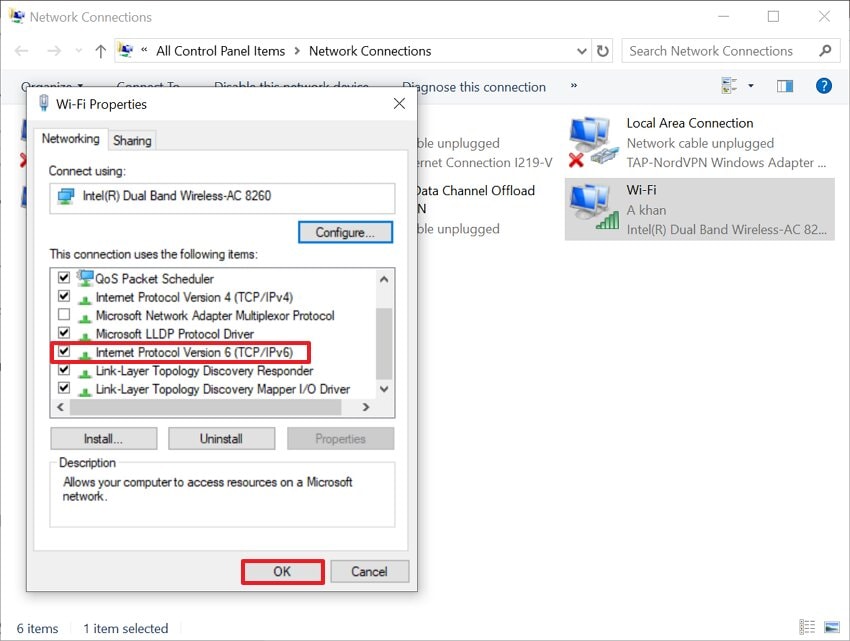
Sometimes, Minecraft connection problems are linked to IP version conflicts. If your system prefers IPv6 while the server supports IPv4, the connection may fail and trigger timeouts. Disabling IPv6 or forcing IPv4 can improve routing stability. This adjustment helps your computer communicate with Minecraft servers more reliably and reduces repeated getsockopt errors. Now, adhere to the steps below to try this fix:
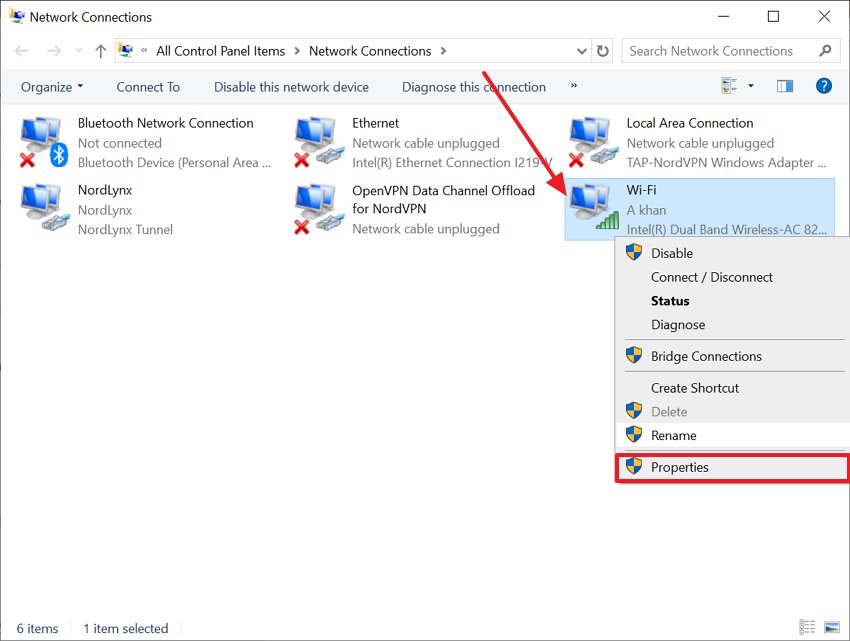
Step 1. To start, open the "Network & Internet Connection" interface in Settings. Afterwards, choose the "Change Adapter Settings," right-click the active connection, and choose "Properties."
Step 2. Here, uncheck the "Internet Protocol Version 6 (TCP/IPv6)" and select the "OK" button.
Step 4. Lastly, restart your computer to apply the updated network settings. After that, launch Minecraft and reconnect to verify connection stability.
Pro Tip: Recover Corrupted Minecraft Game Video Files Causing Getsockopt via Repairit
Minecraft Getsockopt errors usually come from firewalls, ports, DNS, or routing issues. Still, sudden crashes can also corrupt recorded gameplay videos and make them unplayable. That is where Repairit Video Repair helps when a game video clip will not open. It fixes black screens, frozen frames, stuttering playback, and missing audio problems.
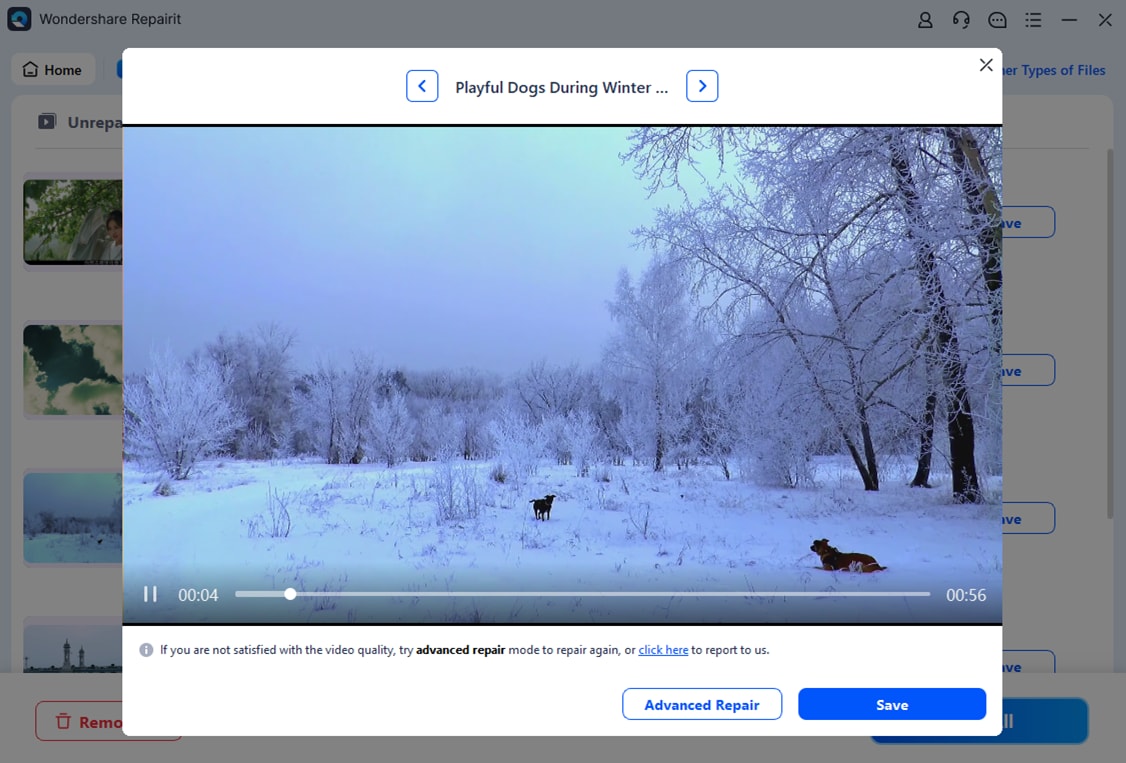
Moreover, Repairit repairs your corrupted Minecraft recordings without changing saved worlds or progress. Plus, users can preview the repaired video first, then save a clean copy. So, use it after network fixes, especially if your capture stopped during errors.
Key Features

-
Format and Codec Coverage: Supports mainstream and pro-grade formats, including MP4, MOV, MKV, and MXF.
-
Corruption Scenario Support: Handles recording interruptions, power failures, transfer issues, editing crashes, and encoding failures.
-
Professional Mode: Repairs RAW, HDR/LOG, advanced codecs, and 4K+ footage while keeping editor compatibility.
Guide to Recover Corrupted Minecraft Game Video Files via Repairit
Adhere to the steps below to repair corrupted Minecraft game video files with Repairit:
Step 1. Access Video Repair and Start Repairing
Upon launching Repairit and select "Video Repair" from the left menu. Then, review the format and device support notes, and click the "Start" button.

Step 2. Add Corrupted Videos to Run Repair
After adding the corrupted video files, confirm each file appears under "Unrepaired Videos." Enable "Advanced Repair Mode" only when standard repair cannot restore playback and press "Repair."

Step 3. Preview and Save the Repaired Videos
After completion, preview the repaired videos and if satisfied, click the "Save" button to export it.
Recover Corrupted Minecraft Game Video Files via Repairit
 Security Verified. Over 7,302,189 people have downloaded it.
Part 3. Advanced Networking & JVM Settings (Optional Fixes)
If basic fixes didn't work, try the following advanced networking and JVM adjustments:
Fix 1. Remove Problematic JVM Flags
Conflicting or aggressive JVM arguments added after installing mods can trigger the Minecraft getsockopt connection error. Certain garbage collection or optimization flags may conflict with Forge, Fabric, or specific Java versions. Reverting to default launcher arguments often restore stable network communication and prevent unexpected time out or socket-related crashes. Follow the steps below to try this fix with ease:
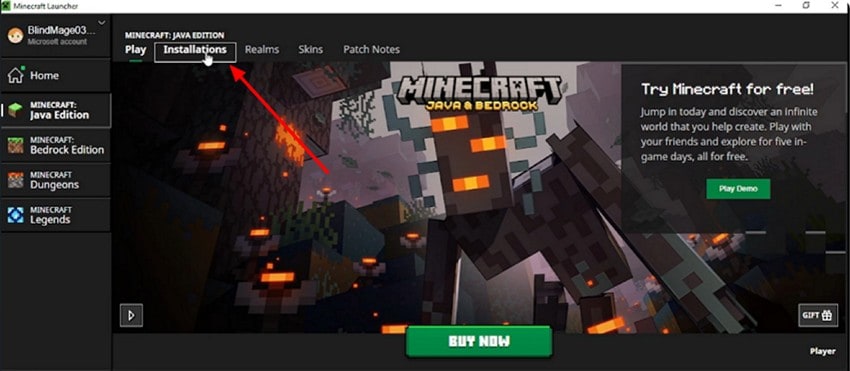
Step 1. First, open the "Minecraft Launcher" app and select the "Installation" profile to continue.
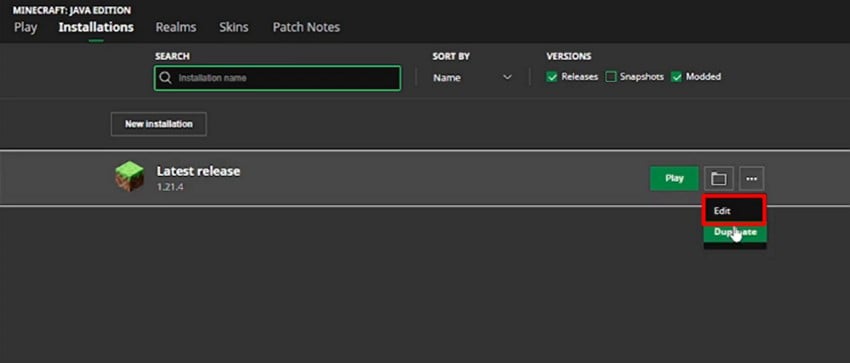
Step 2. After that, click on the "Three Dots" and choose the "Duplicate" option in the pop-up.
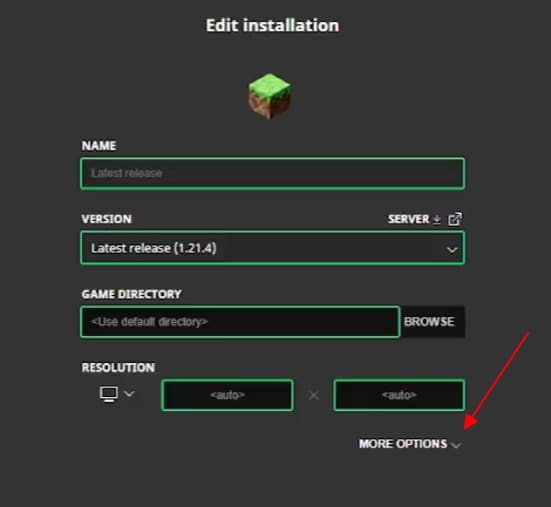
Step 3. Now, click on the "More Options" option from the following interface.
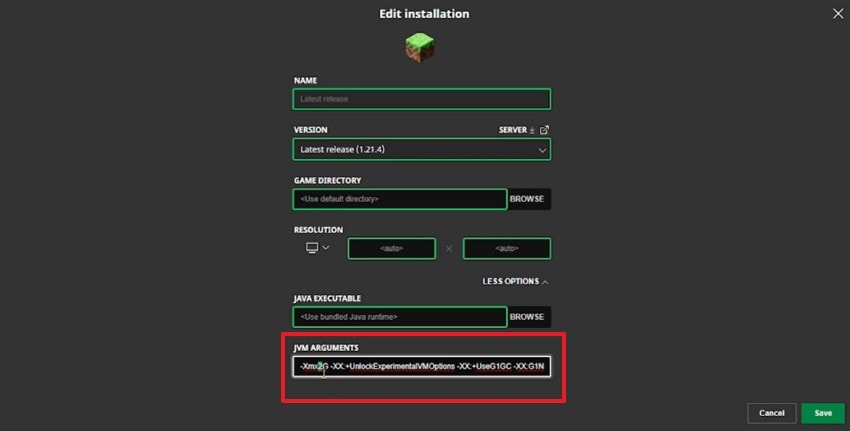
Step 4. Here, change the prompt in the "JVM Arguments" except for the default memory part at the beginning and hit the "Save" button.
Fix 2. Port Forwarding & Router NAT
Improper router NAT settings or closed ports can block inbound connections and cause the Minecraft Getsockopt timeout error. When hosting or joining private servers, your router must allow traffic through port 25565. Correctly configuring port forwarding ensures external connections reach your device without firewall or ISP interference blocking gameplay. Stick to the following steps to try this advanced fix:
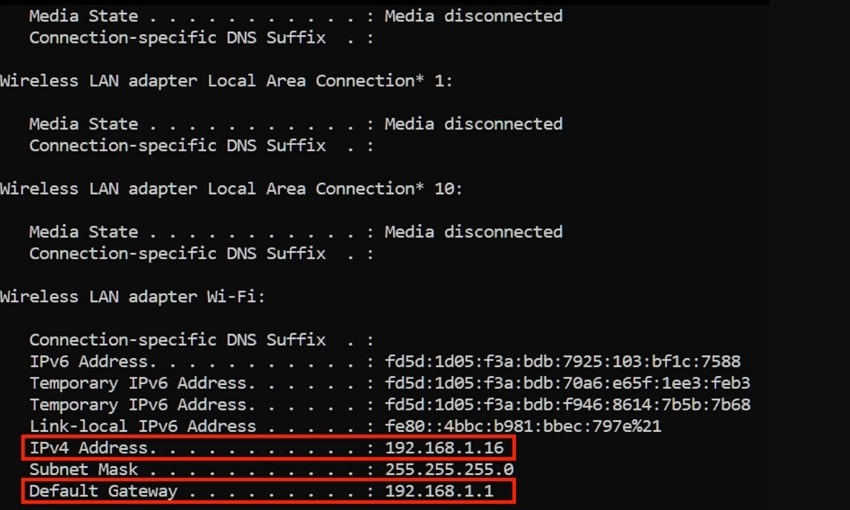
Step 1. To start, open the command prompt as administrator and type the command "ipconfig" and press Enter. After this note your "Default Gateway" and "IPv4 address" as these connect you to your router's config page.
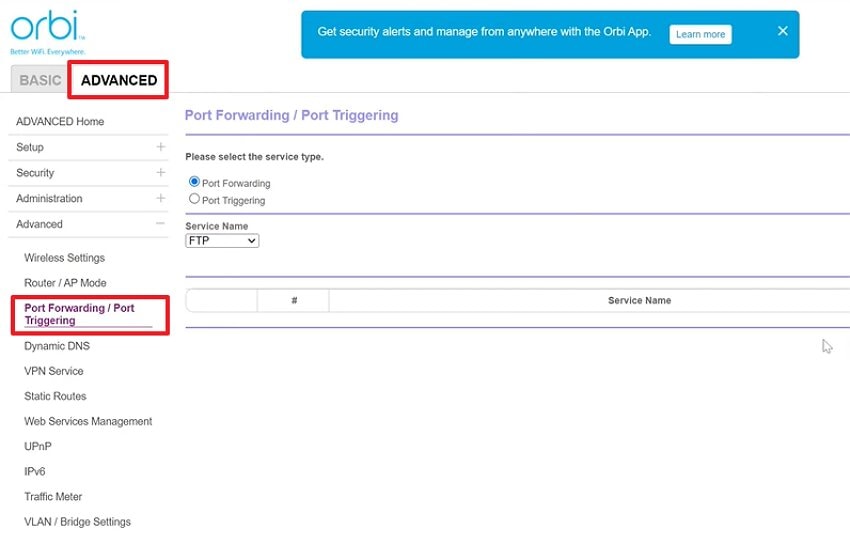
Step 2. Now, open a web browser and type your "Default Gateway" into the address bar. Log in to your router dashboard using your administrator username and password. For instance, if you are using an Orbi router, click the "ADVANCED" tab at the top. Then, select "Port Forwarding/Port Triggering" from the left-side menu options. Ensure that Port Forwarding is selected instead of Port Triggering before proceeding.
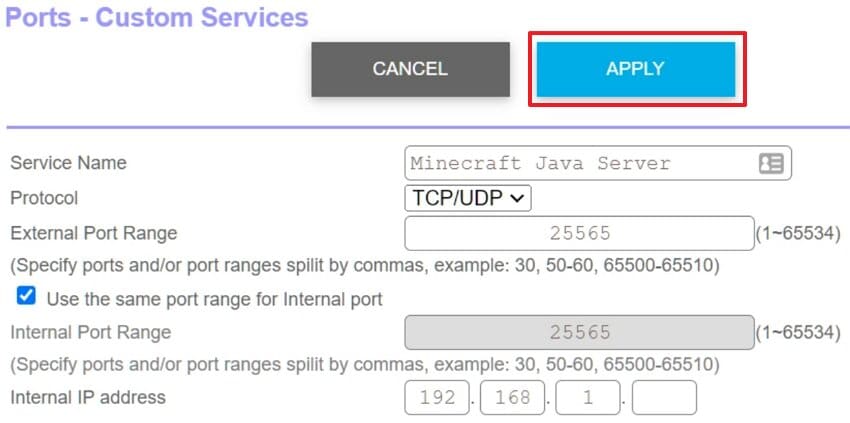
Step 3. Finally, upon entering the Port Custom Services, enter "Minecraft Java Server" as the Service Name. Select "TCP/UDP" from the "Protocol" dropdown menu and enter 25565 in both the "External" and "Internal Port Range" fields. Afterwards, type your computer's Internal IP address and hit "Apply."
Conclusion
To conclude, Minecraft errors can feel frustrating, especially during multiplayer sessions. Most network fixes solve routing, firewall, or DNS issues quickly. However, system corruption can trigger broader launch failures. If you also experience Minecraft getsockopt errors, damaged files may be present. In such cases, Repairit can safely repair corrupted system and game files.
Frequently Asked Questions
-
1. What causes the Minecraft getsockopt connection timed out error?
This error occurs when Minecraft cannot reach the target server. Firewall blocks, DNS conflicts, or routing problems commonly trigger it. -
2. How can I fix Minecraft's getsockopt connection issues quickly?
Restart your router and carefully check firewall permission settings. Then update the DNS configuration and reset the network stack properly. -
3. Can antivirus software cause Minecraft connection timeout problems?
Yes, antivirus programs sometimes block Java network communication traffic. Adding Minecraft as an exception usually restores stable connectivity.




