
Choosing between Repairit Video Enhancer vs Shotcut largely depends on whether you want fast, AI-guided quality upgrades or detailed manual control inside a free editor. Repairit focuses on AI-powered enhancement and resolution upscaling, while Shotcut provides traditional editing tools with basic filters for sharpening, color adjustment, and light denoising. This comparison looks at output quality, workflow, and suitability for different users so you can decide which approach matches your projects and experience level.
Enhance Video Quality with Repairit Video Enhancer
 Security Verified. Over 7,302,189 people have downloaded it.
In this article
- Repairit Video Enhancer vs Shotcut: Quick Verdict
- Repairit Video Enhancer vs Shotcut: Key Differences
- Repairit Video Enhancer vs Shotcut: Comparison Table
- What Repairit Video Enhancer and Shotcut Are Best For
- Repairit Video Enhancer vs Shotcut: Technology and Enhancement Approach
- Repairit Video Enhancer vs Shotcut: Output Quality and Real-World Results
- Repairit Video Enhancer vs Shotcut: Workflow and Ease of Use
- Repairit Video Enhancer vs Shotcut: Pricing and Trial Options
- Who Should Choose Repairit Video Enhancer
- Who Should Choose Shotcut
- Pros and Cons of Repairit Video Enhancer and Shotcut
- How to Enhance Videos After Choosing the Right Tool
Repairit Video Enhancer vs Shotcut: Quick Verdict
At a high level, Repairit Video Enhancer is better suited to people who want AI to handle upscaling, denoising, and sharpening with minimal tweaking, while Shotcut is more appropriate for those comfortable working in a traditional editor with manual filters. If your main priority is improving video clarity in as few steps as possible, Repairit is usually a stronger choice. If you need timeline editing and free tools more than automated enhancement, Shotcut can be enough.
Shotcut is an open-source video editor with basic enhancement options built in. Compared with a dedicated enhancer like Repairit Video Enhancer, it trades AI automation and streamlined quality boosts for flexibility, manual control, and zero licensing cost.
Repairit Video Enhancer vs Shotcut: Key Differences
The key distinctions between Repairit Video Enhancer vs Shotcut revolve around automation, learning curve, and role in your workflow:
- Best for: Repairit targets users who want AI-driven tools to quickly enhance low-quality or old footage. Shotcut is better for people who want free enhancement tools inside a full editor.
- Ease of use: Repairit uses a guided flow with presets and AI models for non-experts, whereas Shotcut has a more technical interface that assumes some familiarity with filters and editing concepts.
- Output quality: Repairit focuses on upscaling, sharpening, and reducing noise or blur for noticeable clarity gains in many everyday clips. Shotcut can improve quality too, but results depend more on how you tune its filters.
- Workflow: Repairit centers on importing, choosing an AI mode, previewing, and exporting. Shotcut expects you to work inside a timeline, adding filters and adjusting parameters manually.
- Scope: Repairit is a focused enhancer, not a full editor. Shotcut is a broader editing solution with cuts, transitions, and tracks, alongside basic quality tools.
Repairit Video Enhancer vs Shotcut: Comparison Table
| Dimension | Repairit Video Enhancer | Shotcut |
|---|---|---|
| Best for | Users who want AI-driven tools to quickly enhance low-quality or old footage with minimal manual tweaking. | Users looking for free enhancement tools inside an open-source video editor. |
| Ease of use | Guided enhancement flow with presets and AI models designed for non-experts. | Basic, somewhat technical interface that may require time to learn filters and settings. |
| Output quality focus | Upscaling, sharpening, and denoising for visibly cleaner, clearer results in most everyday clips. | Manual sharpening, color, and noise filters; quality depends more on user skill and experimentation. |
| Typical workflow | Import footage, choose enhancement model, preview, and export in a few guided steps. | Import video, apply filters, adjust parameters, and export using editor-style controls and timelines. |
| Core strengths | AI enhancement, resolution upscaling, noise and blur reduction with minimal setup. | Free, supports multiple formats, customizable basic filters within an open-source editor. |
| Main limitations | Paid tool focused on enhancement rather than deep multi-track editing or complex effects. | Basic interface and limited advanced enhancement features compared with specialized AI tools. |
What Repairit Video Enhancer and Shotcut Are Best For
Both tools can help you enhance video quality, but they excel in different scenarios.
Repairit Video Enhancer is best for:
- Clips where you want AI to upscale video resolution and clean up noise without manual tuning.
- Users who mainly care about visual improvement rather than editing on a timeline.
- People who want a predictable, guided path to better clarity for social media, presentations, or personal archives.
Shotcut is best for:
- Users needing a free editor that combines basic enhancement with trimming, transitions, and multi-track editing.
- Those comfortable with adjusting sharpening, color, and noise filters by hand to get the look they want.
- Projects where you want fine-grained control more than AI automation, and you are willing to spend time experimenting.
Repairit Video Enhancer vs Shotcut: Technology and Enhancement Approach
The two tools rely on different underlying approaches to improve video clarity and perceived detail.
Repairit Video Enhancer emphasizes AI-based models that analyze frames to upscale resolution, reduce noise, and enhance edges. Its goal is to deliver better-looking footage with fewer settings to manage. Advanced tasks like denoising or deblurring are often handled through presets, so you choose a mode instead of tweaking many sliders.
Shotcut follows a more traditional, filter-based path. You manually apply sharpening, color correction, brightness or contrast, and basic denoise filters. Power users can stack multiple filters for stronger effects, but outcomes vary more with experience. Shotcut does not position itself primarily as an AI video enhancer; it is first a general-purpose editor with enhancement tools built in.
In summary, the technology in Repairit aims to reduce trial and error by handling detail enhancement automatically, while Shotcut gives you the building blocks and expects you to decide how aggressively to sharpen, smooth, or adjust color.
Repairit Video Enhancer vs Shotcut: Output Quality and Real-World Results
When you look at real-world results, the contrast between AI video enhancement and manual filters becomes clearer.
- Resolution upscaling: Repairit focuses heavily on upscaling low-resolution clips, using AI to infer extra detail and make soft footage appear crisper. Shotcut can scale footage but relies on standard resizing and sharpening, which may not add the same perceived detail.
- Noise and blur reduction: Repairit typically combines noise reduction and clarity enhancement, which can make grainy or slightly blurry footage cleaner without much setup. In Shotcut, you use separate filters and tune intensity, which works but may require multiple test exports to avoid over-smoothing or haloing.
- Motion clarity: For older or low-bitrate footage, AI enhancement in Repairit can help stabilize edges and textures frame to frame, which may make motion look smoother and less noisy. Shotcut can improve motion indirectly through denoise and blur tools, but it is more dependent on how you configure filters.
- Consistency: Repairit aims for consistent quality gains across many clips with similar presets. Shotcut offers flexibility, but consistency from clip to clip depends on your workflow and whether you reuse filter presets or recreate settings manually.
For users who do not want to spend time experimenting, Repairit tends to deliver more reliable quality improvements out of the box. For those comfortable fine-tuning, Shotcut can still produce good-looking results, especially when combined with color correction and careful sharpening.
Repairit Video Enhancer vs Shotcut: Workflow and Ease of Use
Workflow has a big impact on how often you will actually enhance videos, especially if you work with many short clips.
Repairit Video Enhancer workflow and ease of use:
- Emphasizes a guided flow: add video, choose an enhancement or upscaling mode, preview, and export.
- Reduces the number of technical decisions, which helps non-editors get acceptable results quickly.
- Supports typical formats so you avoid extra conversion steps in most everyday scenarios.
Shotcut workflow and ease of use:
- Follows the structure of a standard editor: import video, place it on the timeline, then apply filters.
- Each filter (sharpen, denoise, color, etc.) has parameters you adjust manually.
- There is more to learn, from basic interface navigation to understanding how filters stack and interact.
If you mostly care about quickly improving visual quality, Repairit will likely feel more straightforward. If you are already comfortable in timeline-based editors, Shotcut may integrate more naturally into your existing habits.
Repairit Video Enhancer vs Shotcut: Pricing and Trial Options
Budget often shapes whether users lean toward an AI enhancer or a free editor.
- Shotcut pricing: Shotcut is free and open-source. There are no license fees, which is appealing if you need basic enhancement tools and editing capabilities without additional cost.
- Repairit Video Enhancer pricing: Repairit is commercial software. It typically offers a trial or limited free usage so you can test how well it upscales video resolution or reduces noise before committing to a license.
Many users weigh Shotcut s zero cost and manual control against Repairit s paid but more automated AI results. If budget is tight and you have time to learn filters, Shotcut is attractive. If you value speed, convenience, and AI guidance for quality, paying for Repairit can be worthwhile.
Who Should Choose Repairit Video Enhancer
Repairit is designed for people who need targeted quality improvement more than complex editing. It suits you if:
- You work with low-quality or old footage and want AI-driven upscaling and denoising to make it clearer and sharper.
- You prefer a simple, guided workflow instead of manually tuning multiple filters and parameters.
- You plan to enhance video quality first and then edit in another tool if needed.
- You care more about consistent clarity and noise reduction than about deep timeline editing features.
In these cases, the focused enhancement approach in Repairit Video Enhancer can be more efficient than relying solely on a general-purpose editor.
Who Should Choose Shotcut
Shotcut is a reasonable choice if you want a no-cost editor with built-in enhancement filters. It is a good fit when:
- You are specifically looking for free enhancement tools within an open-source editor.
- You need to combine basic quality tweaks with timeline editing, cuts, audio adjustments, and transitions.
- You are technically inclined and do not mind adjusting filters manually for each clip.
- You want a lightweight way to apply simple sharpening and color tweaks to multiple videos without paying for dedicated AI enhancement.
Shotcut may not match AI-based tools in automation, but for users who prioritize flexibility and budget, it can still deliver acceptable quality improvements.
Pros and Cons of Repairit Video Enhancer and Shotcut
Repairit Video Enhancer Pros and Cons
Shotcut Pros and Cons
How to Enhance Videos After Choosing the Right Tool
Once you have compared Repairit Video Enhancer vs Shotcut and decided which direction makes sense for you, the next step is actually enhancing your footage. If you lean toward an AI-guided approach instead of manual filter tuning, using Repairit Video Enhancer can provide a practical way to clean up and upscale everyday clips before or alongside editing in other software.
Key Features
Core capabilities that matter for real-world enhancement include:
- AI-powered enhancement modes for upscaling video resolution and improving overall clarity.
- Noise and blur reduction to make soft or grainy footage more watchable and clean.
- A simple preview and export process that lets non-professional users judge before and after results quickly.
Step-by-step guide
Below is a straightforward desktop workflow for improving clips with Repairit Video Enhancer.
Step 1. Choose an AI enhancement model based on your video quality needs, such as upscaling, denoising, or overall clarity improvement.
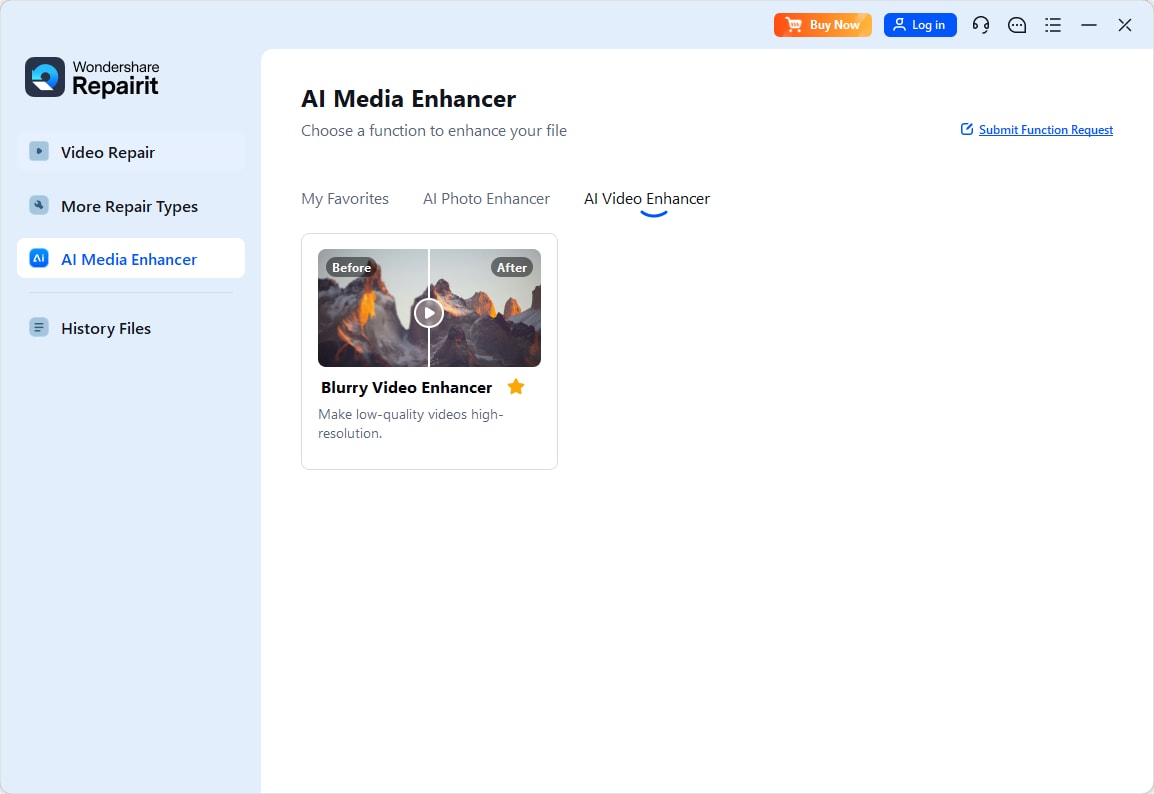
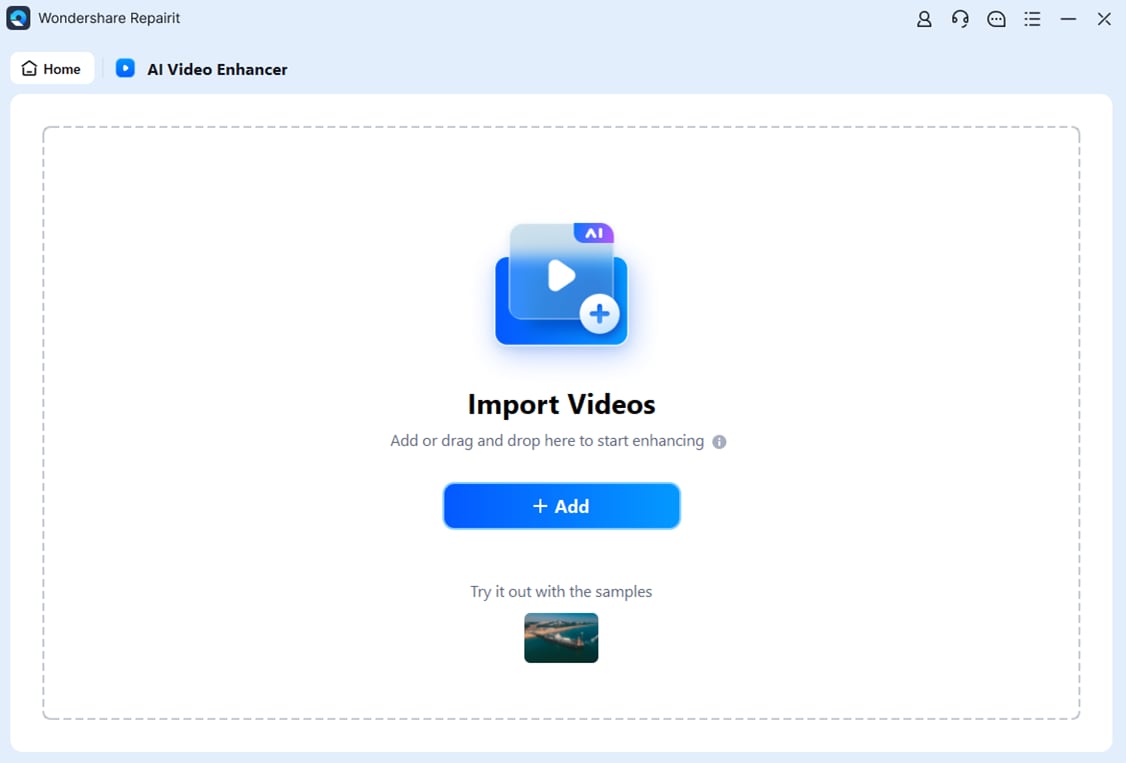
Step 2. Import your video into Repairit Video Enhancer to begin the enhancement process.
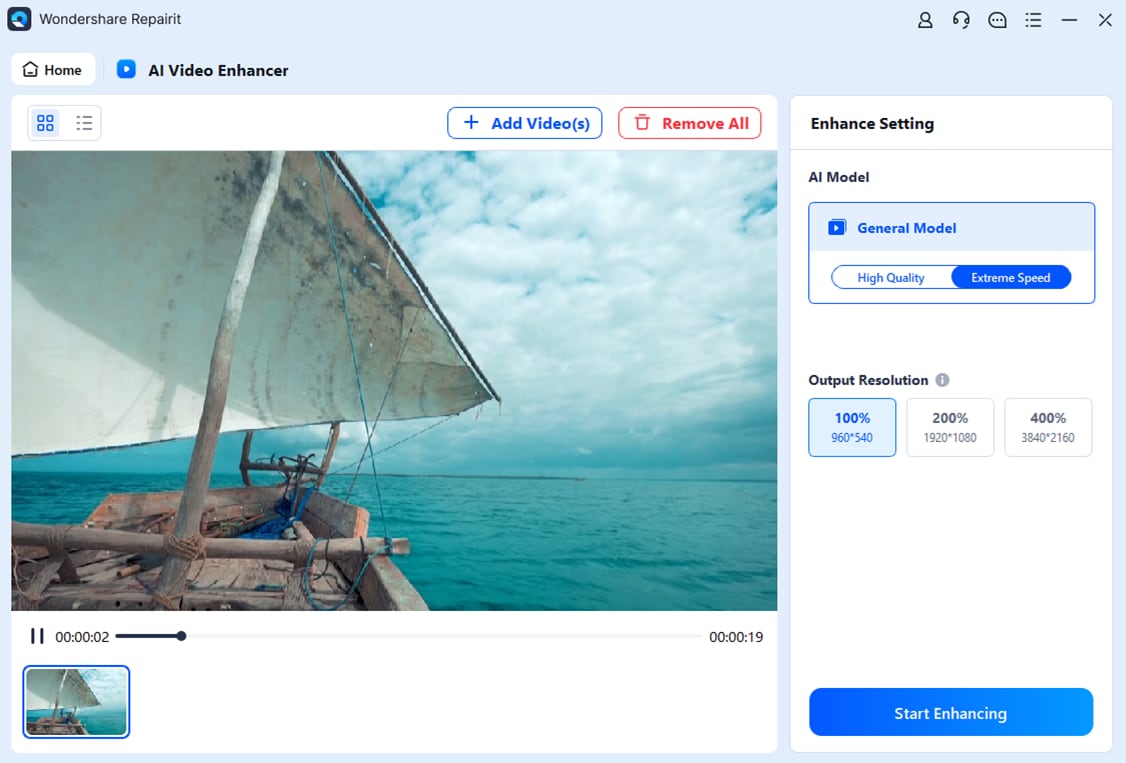
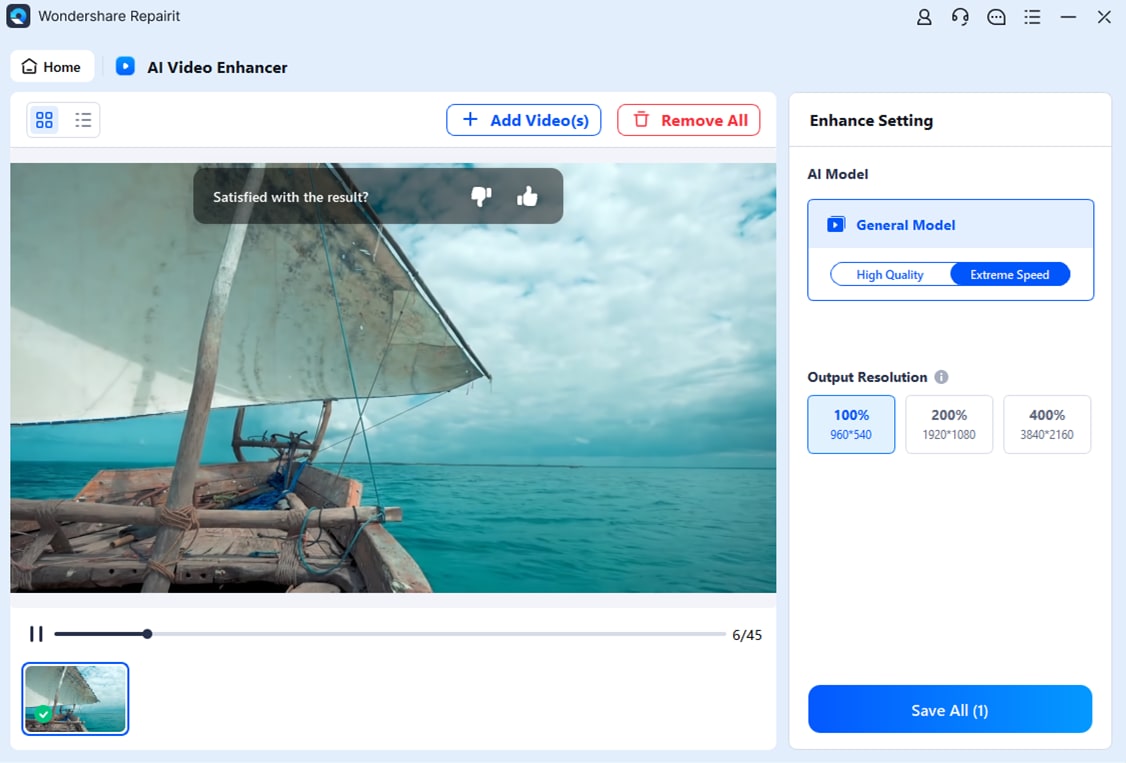
Step 3. Start enhancing and let the AI improve sharpness, reduce blur, and enhance the overall video quality.
Step 4. Preview the enhanced result and save the improved video to your device.
Final Verdict
When you compare Repairit Video Enhancer vs Shotcut, the choice comes down to whether you prioritize AI automation or free, manual control inside a full editor.
Repairit Video Enhancer focuses on AI-driven upscaling, noise reduction, and sharpening. It tends to deliver more consistent clarity improvements in everyday clips with fewer decisions from the user. This makes it better suited for people who want to enhance video quality quickly rather than learn detailed filter workflows.
Shotcut, by contrast, is a free, open-source editor with basic enhancement filters. It can still improve soft or slightly noisy footage, especially in the hands of users who are comfortable experimenting with sharpening, denoise, and color tools. If you need full editing capabilities and want to stay within a zero-cost ecosystem, Shotcut is a reasonable option.
In practice, many users may benefit from combining approaches: using Repairit to upscale and clean up difficult clips, then editing them on a timeline in Shotcut or other editors. Depending on your budget, time, and tolerance for technical tuning, you can choose the tool or combination that fits your workflow best.
Next: Repairit Video Enhancer vs Lightworks
FAQ
-
1. Is Repairit Video Enhancer better than Shotcut for low-quality videos?
For many low-quality clips, Repairit Video Enhancer can be a stronger choice because it focuses on AI upscaling, denoising, and sharpening with minimal setup. Shotcut can also improve low-quality videos, but it relies on manual filters and more experimentation to reach similar results. -
2. Can Shotcut match the output quality of AI video enhancers like Repairit?
Shotcut can achieve decent improvements by combining sharpening, color adjustment, and noise filters, especially in the hands of experienced users. However, matching AI-enhanced output may require more time, testing, and comfort with filter settings than using a dedicated AI tool. -
3. Which is easier for beginners, Repairit Video Enhancer or Shotcut?
Repairit Video Enhancer is typically easier for beginners because it provides a guided workflow with AI presets aimed at common issues. Shotcut uses a more traditional editor interface, which can feel technical if you are new to video editing and enhancement. -
4. Should I use Shotcut or Repairit Video Enhancer if I also need editing tools?
If you need timeline editing, cuts, transitions, and multiple tracks in the same application, Shotcut is more suitable because it is a full editor. If your main goal is to enhance video quality and you are comfortable editing elsewhere, Repairit Video Enhancer is often more efficient for upscaling and cleaning footage. -
5. Can I combine Repairit Video Enhancer with Shotcut in one workflow?
Yes. A common approach is to enhance and upscale your footage first with Repairit Video Enhancer, then import the improved clips into Shotcut for trimming, adding titles, and further creative editing. This way, you get both AI-assisted quality gains and flexible, free editing tools.




