
Both Repairit Video Enhancer and Lightworks can improve how your videos look, but they aim at different problems and skill levels. Repairit Video Enhancer focuses on AI-driven quality improvement for everyday clips, while Lightworks is a professional non-linear editor with some enhancement capabilities. This comparison looks at video clarity, motion, noise reduction, workflow, and cost so you can decide whether a dedicated AI enhancer or a full editing suite better matches your projects.
In most cases, users deciding between these tools are weighing two questions: how much they need automated AI upscaling and denoising, and how much they need full editing features like timelines, transitions, and advanced grading. Understanding where each tool is stronger will help you pick a setup that fits the way you actually work with video.
Enhance Video Quality with Repairit Video Enhancer
 Security Verified. Over 7,302,189 people have downloaded it.
In this article
- Repairit Video Enhancer vs Lightworks: Quick Verdict
- Repairit Video Enhancer vs Lightworks: Key Differences
- Repairit Video Enhancer vs Lightworks: Comparison Table
- What Repairit Video Enhancer and Lightworks Are Best For
- Repairit Video Enhancer vs Lightworks: Technology and Enhancement Approach
- Repairit Video Enhancer vs Lightworks: Output Quality and Real-World Results
- Repairit Video Enhancer vs Lightworks: Workflow and Ease of Use
- Repairit Video Enhancer vs Lightworks: Pricing and Trial Options
- Who Should Choose Repairit Video Enhancer
- Who Should Choose Lightworks
- Pros and Cons of Repairit Video Enhancer and Lightworks
- How to Enhance Videos After Choosing the Right Tool
Repairit Video Enhancer vs Lightworks: Quick Verdict
If your primary goal is to enhance video quality on low-resolution, noisy, or soft clips with minimal manual work, Repairit Video Enhancer is usually the more focused option. It uses AI models to upscale video resolution, reduce noise and blur, and sharpen soft footage in a guided workflow.
If you need a full editing environment where enhancement is only part of a larger project with cuts, transitions, and multiple tracks, Lightworks can be more appropriate. Its manual color tools and effects can improve perceived quality, but you will spend more time adjusting settings and navigating a professional timeline.
In everyday scenarios, many creators use Repairit Video Enhancer for quick, AI-driven improvement and then turn to an editor such as Lightworks when they need advanced post-production control.
Repairit Video Enhancer vs Lightworks: Key Differences
The key difference between Repairit Video Enhancer and Lightworks is focus. Repairit is built specifically for AI video enhancement, while Lightworks is a full non-linear editor with general-purpose tools that can also improve image quality.
- Best for: Repairit is aimed at non-technical users who want fast, automated enhancement. Lightworks targets editors who need timelines, effects, and detailed control.
- Enhancement style: Repairit relies on AI models for upscaling, denoising, deblurring, and sharpening. Lightworks leans on manual adjustments like color correction, contrast, and filters.
- Workflow: Repairit follows an import, choose AI mode, preview, export flow. Lightworks uses a traditional timeline-based editing workflow with more steps.
- Learning curve: Repairit is generally easier to learn. Lightworks can feel complex if you only want to enhance a single clip.
- Project scope: Repairit is best for individual clips or small batches. Lightworks is better for multi-track projects, trailers, and longer edits where enhancement is just one stage.
Repairit Video Enhancer vs Lightworks: Comparison Table
| Dimension | Repairit Video Enhancer | Lightworks |
|---|---|---|
| Best for | Non-technical users who want to quickly enhance low-quality or old videos with AI. | Users needing free or low-cost editing with basic enhancement inside a full NLE. |
| Ease of use | Guided, task-focused interface with minimal settings. | Steeper learning curve due to professional editing workflow and tools. |
| Output quality focus | AI models focused on upscaling, denoising, and sharpening typical consumer footage. | Good quality from manual color and effects, but less specialized for automated enhancement. |
| Workflow | Import, pick AI mode, preview enhancement, export. | Import video, adjust effects and color, preview, export within a full editing timeline. |
| Main strengths | AI quality improvement, simple workflow, fast results for single clips. | Powerful editing tools, cross-platform support, flexible for full post-production. |
| Main weaknesses | Less suited for complex multi-layer editing projects. | Learning curve and limited automated enhancement compared to AI tools. |
What Repairit Video Enhancer and Lightworks Are Best For
Both tools can improve visual quality, but they serve different types of projects.
Repairit Video Enhancer is best for:
- Upscaling low-resolution mobile or screen recordings for clearer playback on larger screens.
- Reducing noise and blur in old family footage, casual clips, or social content.
- Sharpening soft videos where you want quick, AI-driven improvement without learning complex editing software.
- Users who primarily care about video enhancement rather than full narrative editing.
Lightworks is best for:
- Editing full-length videos, trailers, and multi-camera timelines where enhancement is one step in a larger workflow.
- Creators who want manual control over color, contrast, and effects for a stylized look.
- Users comfortable with professional editing tools, keyboard shortcuts, and multi-track timelines.
- Cross-platform teams who value running the same NLE on different desktop systems.
Repairit Video Enhancer vs Lightworks: Technology and Enhancement Approach
Repairit Video Enhancer centers on AI models that analyze each frame to reduce noise and blur, enhance detail, and upscale video resolution. The focus is on common everyday footage: mobile videos, screen recordings, and older clips that look soft or grainy. Users typically select an AI mode, and the tool handles much of the technical decision-making.
Lightworks, by contrast, relies more on traditional editing technology. Its enhancement comes from manual color correction, exposure adjustments, and effects that influence sharpness and contrast. You can keyframe these parameters over time for precise control, which is powerful but requires you to understand how each adjustment impacts the final look.
In summary, Repairit Video Enhancer emphasizes automation and AI-driven clarity, while Lightworks emphasizes manual, timeline-based control. This difference matters if you prefer quick, model-based improvement versus spending more time dialing in detailed settings.
Repairit Video Enhancer vs Lightworks: Output Quality and Real-World Results
When you compare real-world results, think about the type of footage you have and how much time you want to spend:
- Low-resolution and noisy clips: For typical low-res or noisy sources, Repairit Video Enhancer can often deliver clearer, more detailed results with less effort, because it is trained specifically on denoising, sharpening, and upscaling.
- Soft or slightly blurred footage: Repairits AI-powered sharpening aims to improve edges and texture while keeping a natural look. In many cases, this can be more efficient than manually balancing sharpening, noise reduction, and contrast in Lightworks.
- Well-shot but flat footage: If your footage is already high resolution but looks flat or washed out, the manual color grading tools in Lightworks can give you creative control over tone and style that goes beyond basic enhancement.
- Motion clarity: Repairit includes motion and frame optimization designed to make motion appear smoother in jittery or lower-frame-rate clips, while Lightworks leaves most motion improvement to stabilization and manual choices in the timeline.
Neither tool will fix every issue in every video, but for everyday quality improvement and video clarity on problematic clips, Repairit Video Enhancer is generally the more specialized option. Lightworks is more suited when the footage is already usable and you want to refine its look within a broader edit.
Repairit Video Enhancer vs Lightworks: Workflow and Ease of Use
Repairit Video Enhancer is designed for a short, direct workflow:
- Import a clip from your computer.
- Choose an AI enhancement mode (for example, upscaling, denoising, or sharpening).
- Preview the before-and-after to judge clarity and motion.
- Export in your desired format and resolution.
This approach minimizes timelines, tracks, and complex settings, which helps beginners focus on visual results rather than editing concepts.
Lightworks follows the typical non-linear editing process:
- Import media into a project bin.
- Place clips on a timeline and perform cuts, trims, and transitions.
- Apply color correction, filters, and sharpening effects, often with keyframes.
- Preview on the timeline and export the edited sequence.
This gives editors deep control but adds steps if you only want to improve video clarity for a single clip. For users unfamiliar with NLEs, the interface and concepts can feel overwhelming compared to the guided flow in Repairit Video Enhancer.
Repairit Video Enhancer vs Lightworks: Pricing and Trial Options
Pricing is another factor that depends on what you need most: enhancement or editing.
Repairit Video Enhancer is typically offered as a consumer-friendly product with trial options or limited free use, so you can test how well it upscales low-resolution video and reduces noise before paying. It is generally positioned for users who primarily want quality improvement rather than a full editing package.
Lightworks provides a free tier with feature and export limitations, plus paid plans that unlock more advanced editing and output options. For users who need a complete editor with timelines, transitions, and effects, Lightworks can be cost-effective because you get much more than just enhancement tools.
In practice:
- If your main goal is to enhance video quality for everyday clips, investing in a dedicated AI enhancer like Repairit can offer better value.
- If you also need to cut, mix, and finish more complex projects, Lightworks paid plans may make more sense, possibly alongside an AI enhancer when you want faster, automated improvement.
Who Should Choose Repairit Video Enhancer
Choose Repairit Video Enhancer if you recognize yourself in any of these situations:
- You have low-resolution or noisy footage and want AI to handle most of the enhancement work without digging into color curves.
- You are enhancing old family videos, screen recordings, or mobile clips and prefer a simple, guided interface.
- You create content for social platforms and need quick upscaling and sharpening before posting.
- You are a beginner or occasional video user who finds full NLEs too complex for simple quality improvement tasks.
In these cases, focusing on a streamlined AI enhancer often saves time and reduces the learning curve compared with setting up a full editing project in Lightworks.
Who Should Choose Lightworks
Lightworks may be a better fit when your work looks more like full post-production than simple enhancement.
- You need a free or low-cost professional editor with timelines, transitions, titles, and audio tools.
- You are comfortable working on multi-track timelines and want to adjust color, contrast, and sharpening manually.
- You produce longer-form content, trailers, or multi-camera edits where enhancement is only one step in the process.
- You want a cross-platform NLE so you can work in a similar environment across different desktop operating systems.
In these scenarios, Lightworks can be enough for basic video noise reduction and sharpening through its effects, especially when your footage is already reasonably clean and properly exposed.
Pros and Cons of Repairit Video Enhancer and Lightworks
Repairit Video Enhancer Pros and Cons
Lightworks Pros and Cons
How to Enhance Videos After Choosing the Right Tool
After comparing Repairit Video Enhancer and Lightworks, the next step is actually improving your footage. Even if you plan to finish your project in an editor, it often makes sense to start by cleaning up and enhancing video quality on your clips so they look better everywhere else in your workflow.
For many users, a practical approach is to run problematic footage through an AI enhancer first, then move into a full NLE if needed. Below is how that process looks when you choose Repairit Video Enhancer as your quality-focused companion tool.
Key Features
Key capabilities of Repairit Video Enhancer include:
- AI upscaling to improve resolution and clarity on low-quality videos.
- Noise and blur reduction to enhance detail while aiming to keep the image natural.
- A guided workflow with previews so you can compare before and after results before exporting.
- Motion and frame optimization intended to make jittery or low-frame-rate clips look smoother.
Step-by-step guide
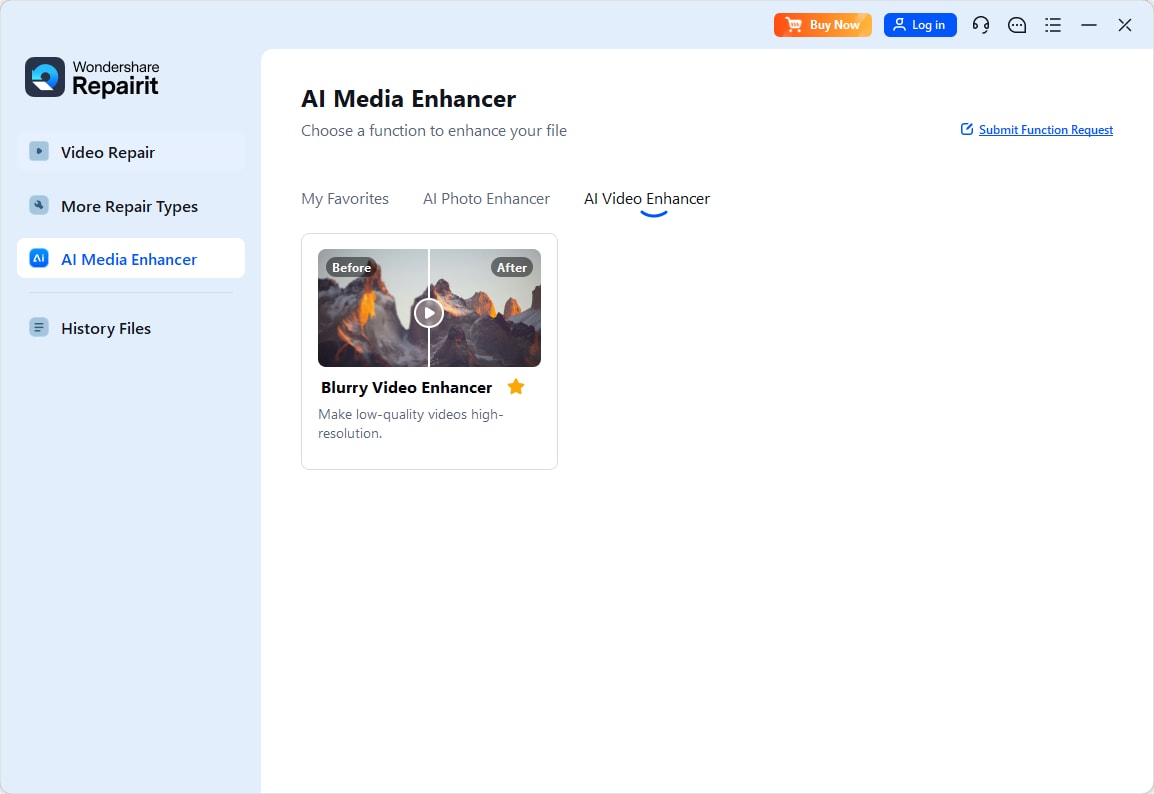
Step 1. Choose an AI enhancement model based on your video quality needs, such as upscaling, denoising, or overall clarity improvement.
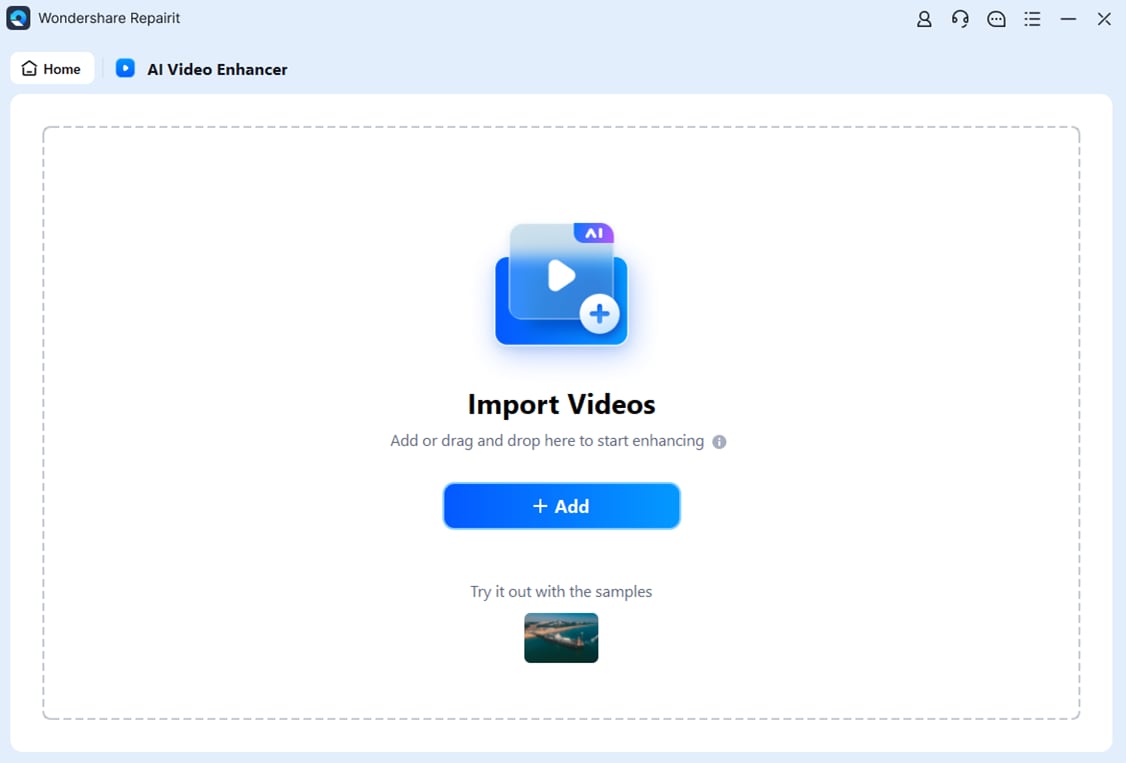
Step 2. Import your video into Repairit Video Enhancer to begin the enhancement process.
Step 3. Start enhancing and let the AI improve sharpness, reduce blur, and enhance the overall video quality.

Step 4. Preview the enhanced result and save the improved video to your device.

Final Verdict
Choosing between Repairit Video Enhancer and Lightworks comes down to whether you are focused on automated quality improvement or comprehensive editing.
If your priority is to improve video clarity, reduce noise, and upscale low-resolution video with as little manual tweaking as possible, Repairit is usually the more direct and efficient choice. Its AI models are tuned for common consumer footage, and the workflow is streamlined enough for beginners.
If you are building full projects with multiple clips, audio, titles, and transitions, Lightworks may be enough for your enhancement needs through its color and effects tools, especially when combined with careful grading. In those cases, you can still benefit from using an AI enhancer on particularly problematic clips before bringing them into your Lightworks timeline.
For many creators, the most practical setup is not choosing one or the other, but combining them: use Repairit Video Enhancer to clean and sharpen footage, then move into Lightworks or another NLE for editing and finishing.
Next: Repairit Video Enhancer vs Avidemux
FAQ
-
1. Is Repairit Video Enhancer better than Lightworks for improving low-quality videos?
For most low-quality or old clips, Repairit Video Enhancer is often more effective because its AI is trained specifically on denoising, sharpening, and upscaling. Lightworks can improve image quality through manual color and effects, but it is less focused on automated enhancement for problematic footage. -
2. Can Lightworks match the upscaling quality of Repairit Video Enhancer?
Lightworks can scale footage and apply sharpening, yet it does not center on AI-based upscaling in the same way. When your main goal is to upscale and clarify low-resolution clips with minimal tuning, Repairit Video Enhancer is generally the stronger choice. -
3. Which is easier for beginners, Repairit Video Enhancer or Lightworks?
Repairit Video Enhancer is usually easier for beginners because it avoids timelines and advanced editing concepts. You import a clip, choose an AI mode, preview the result, and export, whereas Lightworks requires learning a professional editing interface before you can enhance and export.




