
Choosing between Repairit Video Enhancer vs iMovie usually comes down to what your footage actually needs. If your clips are low-resolution, noisy, or a bit blurry, an AI-focused tool like Repairit Video Enhancer can be more effective for improving clarity and detail. If your videos already look decent and you mainly want to trim, add music, and apply simple filters on a Mac, iMovie may be enough. This comparison focuses on video quality, upscaling, noise reduction, and ease of use so you can decide which approach fits your projects.
The goal is not to crown a universal winner, but to help you see when an AI video enhancer makes a visible difference and when a free built-in editor like iMovie is a practical choice.
Enhance Video Quality with Repairit Video Enhancer
 Security Verified. Over 7,302,189 people have downloaded it.
In this article
- Repairit Video Enhancer vs iMovie: Quick Verdict
- Repairit Video Enhancer vs iMovie: Key Differences
- Repairit Video Enhancer vs iMovie: Comparison Table
- What Repairit Video Enhancer and iMovie Are Best For
- Repairit Video Enhancer vs iMovie: Technology and Enhancement Approach
- Repairit Video Enhancer vs iMovie: Output Quality and Real-World Results
- Repairit Video Enhancer vs iMovie: Workflow and Ease of Use
- Repairit Video Enhancer vs iMovie: Pricing and Trial Options
- Who Should Choose Repairit Video Enhancer
- Who Should Choose iMovie
- Pros and Cons of Repairit Video Enhancer and iMovie
- How to Enhance Videos After Choosing the Right Tool
Repairit Video Enhancer vs iMovie: Quick Verdict
In everyday use, the key split between Repairit Video Enhancer vs iMovie is this:
- Repairit Video Enhancer is a stronger choice when your footage is the problem: low resolution, visible noise, soft details, or old clips you want to upscale and clean up with AI.
- iMovie is better suited when your videos already look reasonable and you mainly need a free Mac editor for trimming, transitions, and basic visual tweaks.
For users focused primarily on visual quality improvement, AI video enhancer tools like Repairit usually deliver more noticeable gains than the simple sliders in iMovie. For casual home projects where convenience and cost matter more than pixel-level enhancement, iMovie can be entirely sufficient.
Repairit Video Enhancer vs iMovie: Key Differences
Understanding the main differences helps you decide which tool matches your workflow and expectations for quality.
- Purpose: Repairit Video Enhancer is built around AI models for upscaling, denoising, and sharpening. iMovie is a general Mac video editor with basic enhancement controls.
- Enhancement depth: Repairit focuses on improving resolution, reducing noise, and making soft footage clearer. iMovie offers exposure, color, and simple filter adjustments that work best on already decent footage.
- Editing tools: iMovie includes timeline editing, transitions, titles, and audio controls. Repairit keeps editing light and concentrates on visual quality improvement.
- Platform and cost: iMovie is free for most Mac users and tightly integrated with macOS. Repairit Video Enhancer is paid, with trial options, and is aimed at users who routinely need to enhance video quality.
- Learning curve: Both tools are beginner-friendly, but in different ways. Repairit relies on presets and AI modes, while iMovie uses a familiar timeline and manual sliders.
Repairit Video Enhancer vs iMovie: Comparison Table
| Dimension | Repairit Video Enhancer |
|---|---|
| Best for | Improving low-quality or soft footage with AI-driven enhancement and upscaling |
| Best for (iMovie) | Casual Mac users doing basic edits and light visual adjustments |
| Ease of use | Guided AI presets with simple controls focused on enhancement |
| Ease of use (iMovie) | Very easy, familiar Mac-style timeline and sliders |
| Output quality | Stronger gains for noisy, blurry, or low-resolution clips |
| Output quality (iMovie) | Acceptable quality boosts for already decent footage |
| Workflow | Import, choose AI enhancement mode, preview, export |
| Workflow (iMovie) | Import video, adjust brightness and color, apply filters, export |
| Strengths | AI upscaling, noise reduction, sharper details, motion improvement |
| Strengths (iMovie) | Free on Mac, quick adjustments, simple editing and basic filters |
| Weaknesses | More focused on enhancement than full editing; paid product |
| Weaknesses (iMovie) | Limited enhancement controls and fewer advanced quality tools |
What Repairit Video Enhancer and iMovie Are Best For
At a high level, both tools can improve the look of your footage, but they are aimed at different scenarios.
iMovie is an entry-level Mac video editor with basic enhancement tools. It is ideal when you want to:
- Cut and arrange clips into a simple story.
- Add basic transitions, titles, and music.
- Make light visual tweaks with brightness, contrast, and color sliders.
- Apply a few filters to give your clip a consistent style.
Repairit Video Enhancer focuses on AI-powered video enhancement. It is better aligned with projects where:
- The source footage is low resolution or heavily compressed.
- There is visible noise, grain, or softness you want to reduce.
- You need to upscale video resolution for larger screens or platforms.
- You care more about clarity, sharpness, and motion smoothness than editing complexity.
In practice, many users may combine both: enhance footage with Repairit first, then bring the improved video into iMovie for basic editing.
Repairit Video Enhancer vs iMovie: Technology and Enhancement Approach
The two tools take noticeably different approaches to enhancing video quality.
Repairit Video Enhancer centers on AI models designed specifically for visual improvement. According to the provided details:
- It uses AI to upscale video resolution, aiming to recover more detail from low-quality files.
- It applies denoising and deblurring models to reduce grain and sharpen soft edges.
- It can help smooth motion in low-quality or old footage for more natural playback.
This AI-driven approach is particularly relevant if you are dealing with older clips, smartphone recordings in poor lighting, or heavily compressed online videos.
iMovie, by contrast, relies on more traditional editing-based tools:
- Basic brightness, contrast, and color correction sliders.
- Simple filters and looks that adjust tones and saturation.
- Limited enhancement options compared with dedicated AI enhancers.
These controls can tidy up footage that already looks fairly good, but they are not designed to match specialized AI models for tasks like aggressive upscaling or deep noise reduction.
In summary, when comparing Repairit Video Enhancer vs iMovie from a technology perspective, Repairit leans on AI to change the underlying quality of the image, while iMovie offers manual tweaks layered on top of the existing resolution and detail.
Repairit Video Enhancer vs iMovie: Output Quality and Real-World Results
Real-world results depend heavily on your source footage. However, the tools are generally suited to different levels of quality problems.
With Repairit Video Enhancer:
- Noisy, grainy clips can often look cleaner after AI denoising, especially when shot in low light.
- Soft or slightly blurry footage may appear sharper and more defined, particularly around edges and textures.
- Upscaling can make low-resolution videos look more acceptable on larger screens by reconstructing details where possible.
- Motion in old or compressed clips can appear smoother and less jittery when appropriate models are used.
With iMovie:
- Adjusting exposure and color can improve the perceived quality of well-exposed, reasonably sharp footage.
- Filters can help unify the look of a project, even if they do not significantly increase detail.
- For seriously noisy, soft, or low-resolution clips, improvements tend to be modest because the underlying detail is not being rebuilt.
For many users, this means:
- If you have older home videos, screen recordings, or compressed clips you want to clean up, Repairit Video Enhancer often provides more noticeable gains.
- If your footage is already HD and fairly clean, and you just want it to look a bit more polished alongside some simple edits, iMovie may be sufficient.
Repairit Video Enhancer vs iMovie: Workflow and Ease of Use
Both tools aim to stay approachable for non-professionals, but the workflows feel different.
iMovie workflow typically looks like this:
- Import your video into a project timeline on Mac.
- Cut and arrange clips, add music, and insert transitions.
- Adjust brightness, contrast, and color balance with simple sliders.
- Apply filters or overlays for a stylistic look.
- Export in a suitable format for sharing or social media.
This is comfortable for most Mac users, especially if they have used other Apple apps.
Repairit Video Enhancer workflow focuses on enhancement instead of editing:
- Import a clip from your computer or external storage.
- Choose an AI enhancement mode or preset, such as upscaling, noise reduction, or sharpening.
- Preview the before-and-after result and adjust intensity if needed.
- Export the improved video for further editing or direct sharing.
In terms of ease of use:
- Beginners who think in timelines and edits may find iMovie more intuitive.
- Beginners who mainly want better quality may prefer Repairits guided AI presets, since they do not need to understand detailed color grading or sharpening parameters.
Repairit Video Enhancer vs iMovie: Pricing and Trial Options
Cost is an important factor for many users comparing Repairit Video Enhancer vs iMovie.
iMovie:
- Free on most modern Macs, often preinstalled or available at no extra charge.
- Attractive for casual users who do not want to pay for additional software.
Repairit Video Enhancer:
- Paid software focused on AI-based video enhancement.
- Typically offers trial or limited-use options so you can test AI upscaling and denoising before committing.
- Makes more sense if you frequently work with low-quality or archive footage where improved clarity matters.
If your needs are occasional and light, iMovie may be all you require. If you regularly handle difficult footage and want consistent quality gains, budgeting for an AI enhancer like Repairit can be justified.
Who Should Choose Repairit Video Enhancer
Based on the scenarios described, Repairit Video Enhancer tends to suit users who value quality improvement over editing features. It can be a better fit if you:
- Want to upscale low-resolution videos for larger screens without them looking excessively soft.
- Often deal with noisy, grainy, or soft footage from phones, webcams, or old cameras.
- Are improving old home videos or archive content for clearer, more watchable results.
- Prefer guided AI presets instead of making many manual adjustments in a traditional editor.
In these situations, an AI enhancer generally delivers more visible value than a free editor, especially when noise reduction and sharpening are priorities.
Who Should Choose iMovie
iMovie remains a sensible and cost-effective choice for many Mac users. It is likely enough for you if you:
- Mostly cut, trim, and arrange clips into simple projects such as vlogs, school assignments, or family videos.
- Want a free, built-in editor that works smoothly on macOS without extra setup.
- Are comfortable with quick brightness, color, and filter changes and do not need deep enhancement controls.
- Prioritize an easy timeline editing experience over AI-based upscaling or advanced denoising.
For many casual creators, iMovie offers a good balance between simplicity and functionality, especially when the footage is already reasonably clean.
Pros and Cons of Repairit Video Enhancer and iMovie
Repairit Video Enhancer Pros and Cons
iMovie Pros and Cons
How to Enhance Videos After Choosing the Right Tool
Once you have compared Repairit Video Enhancer vs iMovie and chosen the tool that fits your needs, the next step is actually enhancing your videos. Many users find it practical to use an AI enhancer first to clean up their footage, then send the improved clips into a basic editor when they need titles or transitions.
If you decide that AI-driven enhancement is important, Repairit Video Enhancer offers a guided workflow that keeps technical complexity low while still improving clarity, resolution, and noise levels.
Key Features
Core capabilities include:
- AI upscaling to boost resolution from low-quality sources so videos look more comfortable on bigger screens.
- Noise and blur reduction that can improve clarity in challenging footage from phones or older cameras.
- Simple presets for enhancing old, dark, or soft videos with minimal manual adjustment.
Step-by-step guide
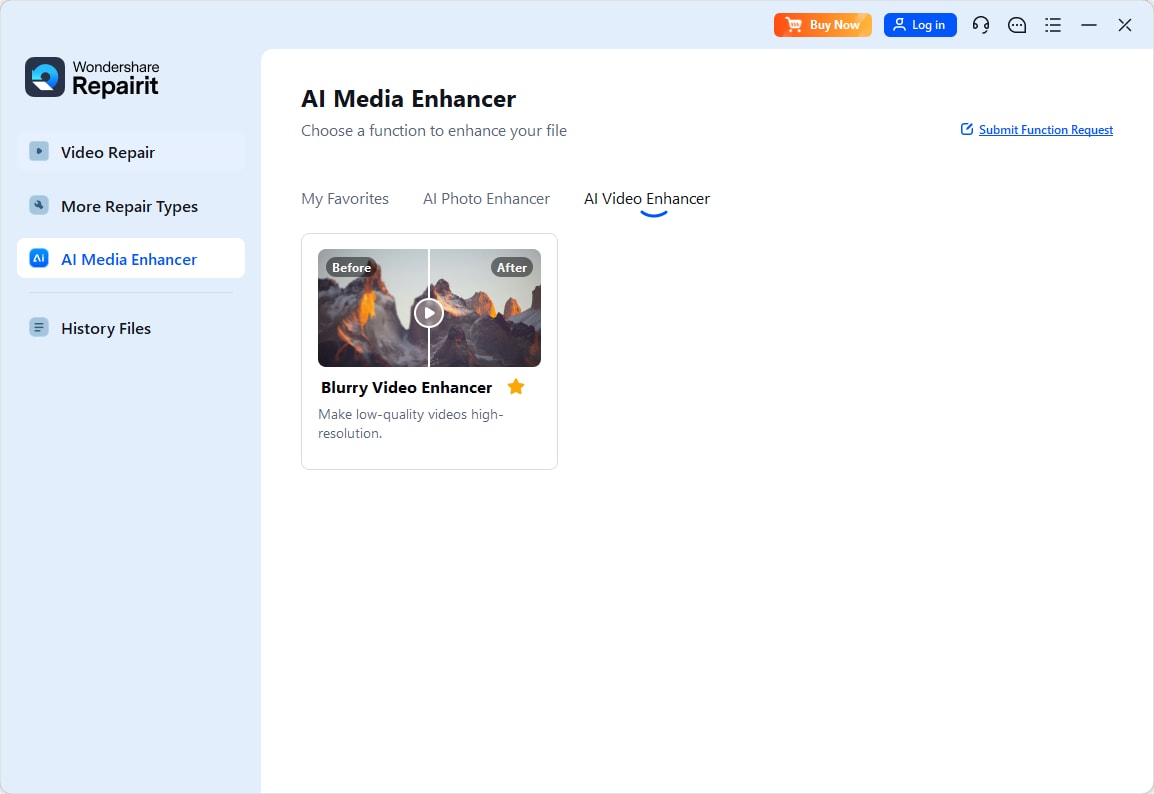
Step 1. Choose an AI enhancement model based on your video quality needs, such as upscaling, denoising, or overall clarity improvement.
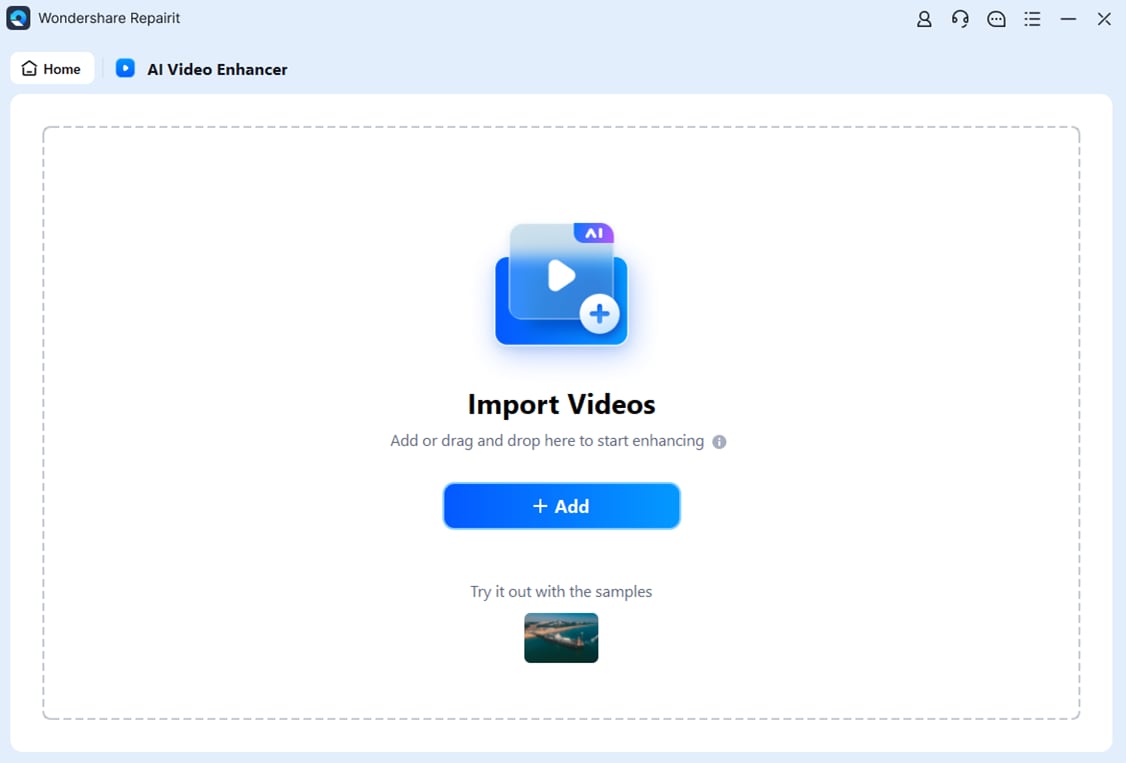
Step 2. Import your video into Repairit Video Enhancer to begin the enhancement process.
Step 3. Start enhancing and let the AI improve sharpness, reduce blur, and enhance the overall video quality.

Step 4. Preview the enhanced result and save the improved video to your device.

Final Verdict
Comparing Repairit Video Enhancer vs iMovie is less about which is better overall and more about which matches your priorities.
- If your main challenge is video quality low resolution, noise, blur, or soft details Repairit Video Enhancer is generally the more capable option. Its AI models are designed to upscale, denoise, and sharpen footage with minimal manual work.
- If you mainly need a simple, free Mac editor to cut clips, add music, and apply light adjustments, iMovie is still a reasonable and convenient choice.
A practical workflow for many users is to enhance difficult footage in Repairit first, then edit the cleaned-up clips in iMovie or another editor. This way, you benefit from AI enhancement without giving up an easy timeline-based editing environment.
Overall, choose Repairit Video Enhancer when quality improvement is your priority and you are comfortable paying for specialized AI tools. Choose iMovie when you want straightforward, free editing on macOS and your footage already looks decent.
Next: Repairit Video Enhancer vs Topaz Video Ai
FAQ
-
1. Is Repairit Video Enhancer better than iMovie for improving low-quality videos?
In most cases, yes. Repairit Video Enhancer is focused on AI upscaling, denoising, and sharpening, while iMovie mainly offers basic brightness, color, and filter adjustments that are less effective on heavily compressed or very soft footage. -
2. Can iMovie reduce noise and grain as effectively as Repairit Video Enhancer?
iMovie can slightly improve the look of grainy footage with exposure and color tweaks, but it does not match the dedicated denoising capabilities of an AI-focused enhancer like Repairit, especially when noise is strong or appears across the entire frame. -
3. Which is easier for beginners, Repairit Video Enhancer or iMovie?
For editing tasks such as cutting and adding music, iMovie is very beginner-friendly. For pure enhancement, Repairit Video Enhancer offers guided AI presets that can be simpler than learning detailed color and sharpening controls in a traditional editor.




