
Choosing between Repairit Video Enhancer vs Adobe Premiere Pro comes down to whether you want fast, AI-guided quality upgrades or deep manual control in a full editor. Repairit Video Enhancer focuses on AI models that enhance video quality, upscale video resolution, and reduce noise and blur with minimal setup. Adobe Premiere Pro offers professional color grading tools, timeline editing, and detailed adjustments for users who are comfortable tuning every parameter. This comparison looks at video quality, workflow, and ideal use cases so you can decide if a dedicated AI enhancer or a full editing suite better fits your next project.
Enhance Video Quality with Repairit Video Enhancer
 Security Verified. Over 7,302,189 people have downloaded it.
In this article
- Repairit Video Enhancer vs Adobe Premiere Pro: Quick Verdict
- Repairit Video Enhancer vs Adobe Premiere Pro: Key Differences
- Repairit Video Enhancer vs Adobe Premiere Pro: Comparison Table
- What Repairit Video Enhancer and Adobe Premiere Pro Are Best For
- Repairit Video Enhancer vs Adobe Premiere Pro: Technology and Enhancement Approach
- Repairit Video Enhancer vs Adobe Premiere Pro: Output Quality and Real-World Results
- Repairit Video Enhancer vs Adobe Premiere Pro: Workflow and Ease of Use
- Repairit Video Enhancer vs Adobe Premiere Pro: Pricing and Trial Options
- Who Should Choose Repairit Video Enhancer
- Who Should Choose Adobe Premiere Pro
- Pros and Cons of Repairit Video Enhancer and Adobe Premiere Pro
- How to Enhance Videos After Choosing the Right Tool
Repairit Video Enhancer vs Adobe Premiere Pro: Quick Verdict
In most everyday enhancement scenarios, Repairit Video Enhancer is a stronger choice for users who want to quickly improve clarity, reduce noise, and upscale low-resolution videos without learning a complex editor. It uses AI models to handle detail enhancement, denoising, and sharpening with minimal manual work.
Adobe Premiere Pro may be the better fit if you already work in professional post-production, need tight control over color and texture, and prefer to handle video enhancement alongside cutting, effects, and audio in the same timeline. It can deliver excellent quality but usually requires more time and experience.
For users focused mainly on visual improvement rather than full editing, a dedicated AI enhancer like Repairit tends to be faster and easier. For editors building complete videos, Premiere Pro can be enough, especially when combined with a consistent grading workflow.
Repairit Video Enhancer vs Adobe Premiere Pro: Key Differences
The core difference between Repairit Video Enhancer vs Adobe Premiere Pro is specialization. Repairit is built almost entirely around AI video upscaling, noise reduction, and sharpening soft footage, while Premiere Pro is a full editing suite that includes enhancement tools as part of a much broader feature set.
In Repairit, you typically choose an AI model, preview, and export. The software handles most decisions about how to improve details in low-quality videos and smooth motion in difficult clips. This is appealing when you want consistent upgrades without tweaking layers of settings.
In Premiere Pro, you work with color correction controls, sharpening effects, and basic noise reduction within a full editing interface. This allows precise fine-tuning of contrast, tone, and texture but often takes longer and assumes familiarity with scopes, keyframes, and effect stacks.
Therefore, your decision usually depends on whether you want a streamlined quality-boost step or deep manual control inside a full production workflow.
Repairit Video Enhancer vs Adobe Premiere Pro: Comparison Table
| Dimension | Repairit Video Enhancer | Adobe Premiere Pro |
|---|---|---|
| Best for | Everyday users and creators who want quick AI-driven enhancement and upscaling for low-quality or old videos. | Professionals needing precise control over video quality inside a full editing suite. |
| Ease of use | Simple, guided workflow with minimal manual tweaking. | Steep learning curve; many manual controls to master. |
| Output quality | Strong AI upscaling, denoising, and sharpening with minimal setup for typical footage. | Excellent results when color grading, sharpness, and noise are manually tuned by an experienced editor. |
| Workflow | Import, pick AI model, preview, then export enhanced video in a few clicks. | Import video, apply color correction, adjust sharpness/noise, preview, then export within a complex editing timeline. |
| Strengths | Fast AI enhancement, no need to edit timelines, focused on quality improvement tasks. | Advanced color grading, strong manual control, industry-standard workflows for full productions. |
| Weaknesses | Less suitable as a full editor; fewer deep manual grading tools. | Time-consuming manual adjustments; heavy for users who only need quick enhancement. |
What Repairit Video Enhancer and Adobe Premiere Pro Are Best For
Repairit Video Enhancer is best for users who mainly want to enhance video quality before sharing or doing light edits elsewhere. It is well suited to:
- Improving everyday phone clips that look soft or noisy.
- Upgrading old or compressed videos where details are hard to see.
- Running quick AI-driven denoising and deblurring without learning advanced grading skills.
Adobe Premiere Pro is best for users who need full control over editing and enhancement in one place, such as:
- Professional or semi-professional editors building complete timelines with multiple tracks.
- Creators who rely on advanced color grading, masks, and layered effects.
- Teams who require integration with other Adobe apps as part of a larger workflow.
In practice, some workflows combine both: using a dedicated AI enhancer to clean up footage first and then finishing editing and color work in Premiere Pro.
Repairit Video Enhancer vs Adobe Premiere Pro: Technology and Enhancement Approach
Repairit Video Enhancer emphasizes AI-powered upscaling and smart processing. You choose an enhancement mode, and the underlying models analyze frames to increase apparent detail, reduce noise, and make motion look smoother when possible. This is particularly useful for low-resolution, grainy, or slightly blurry clips where traditional filters may struggle to recover clarity.
According to the core feature set, Repairit focuses on:
- AI-driven upscaling to improve resolution and detail in low-quality videos.
- Automatic denoising and deblurring for dark, grainy, or soft scenes.
- One-click enhancement modes that minimize manual configuration.
Adobe Premiere Pro, by contrast, relies more on manual tools and effects for video enhancement. Its technology is built around a full NLE (non-linear editor) with color correction, sharpness controls, basic noise reduction, and adjustment layers. Users combine these tools to refine:
- Exposure, contrast, and color balance using grading panels.
- Sharpness and grain levels with dedicated effects.
- Local adjustments with masks and layered corrections.
The key difference is automation versus manual control: Repairit uses AI models to make many decisions for you, whereas Premiere Pro expects the editor to choose how far to push sharpening, denoising, and other enhancements.
Repairit Video Enhancer vs Adobe Premiere Pro: Output Quality and Real-World Results
For typical social clips, vlogs, and older home videos, Repairit Video Enhancer can noticeably improve video clarity in a few clicks. Its AI models are designed to:
- Increase perceived detail when you upscale video resolution from lower resolutions.
- Reduce visible compression noise and grain in low-light or heavily compressed footage.
- Sharpen soft footage while trying to avoid overly harsh edges.
Quality results will still depend on the source material: heavily damaged or extremely low-resolution clips are harder to improve, but in many everyday cases AI enhancement provides cleaner, more watchable output without manual tweaking.
Adobe Premiere Pro can achieve similarly strong, and sometimes more tailored, results for users who are comfortable grading footage. Skilled editors can:
- Balance contrast and color to improve perceived sharpness.
- Apply sharpening and noise reduction in specific areas using masks.
- Control how much grain is removed to avoid plastic-looking faces.
However, these results usually require more time, iteration, and experience. For users who do not want to spend long sessions tweaking sliders and scopes, a guided AI approach like Repairit often feels more efficient for pure enhancement tasks.
Repairit Video Enhancer vs Adobe Premiere Pro: Workflow and Ease of Use
The workflow and ease of use are where these tools differ the most.
Repairit Video Enhancer follows a short, guided path:
- Import your video from your computer.
- Pick an AI enhancement model based on your goal (clarity, noise reduction, upscaling).
- Preview a segment to judge motion, detail, and artifacts.
- Export the enhanced clip when satisfied.
There is no timeline editing, no multi-track complexity, and fewer settings to manage. This makes it approachable for beginners or anyone who only needs to improve video quality before sharing.
Adobe Premiere Pro uses a traditional editing workflow:
- Import clips into a project and place them on a timeline.
- Apply color correction effects and sharpening or noise reduction filters.
- Preview enhancements in context with other clips, transitions, and audio.
- Export using preset or custom render settings.
This approach offers extensive control but comes with a steeper learning curve. Users focused solely on enhancement may find the extra steps unnecessary, while editors managing full productions may appreciate having everything in one place.
Repairit Video Enhancer vs Adobe Premiere Pro: Pricing and Trial Options
Repairit Video Enhancer is typically offered as a focused enhancement tool, with plans centered on AI-powered video quality improvement rather than full editing capabilities. This can make sense if you only need to clean up and upscale footage instead of subscribing to a complete creative suite.
Adobe Premiere Pro is usually available through a subscription model aimed at creatives and production teams. Its cost reflects the full set of editing features, integrations, and regular updates, which may be more than some users need if they are only interested in reducing noise and blur or sharpening footage.
Both tools often provide trial options. It is wise to:
- Test how each one handles your own low-quality or noisy clips.
- Compare processing speed and system performance on your hardware.
- Check how comfortable you feel with each workflow before committing.
Who Should Choose Repairit Video Enhancer
You are more likely to benefit from Repairit Video Enhancer if your priority is fast, accessible quality improvement over deep editing. It is especially suitable for:
- Users who want to quickly enhance low-quality videos without learning complex editing software.
- Creators looking to upscale resolution and improve clarity on older or compressed footage.
- People who prefer AI-guided presets over spending time on manual color and detail adjustments.
- Anyone needing a dedicated enhancement step before editing in other tools or sharing directly.
In these situations, using a dedicated AI enhancer can save significant time and reduce the trial-and-error you might experience in a traditional editor.
Who Should Choose Adobe Premiere Pro
Adobe Premiere Pro may be the better choice if you need a full-featured editor where enhancement is just one part of your workflow. It tends to suit:
- Professional editors who need precise manual control over color, sharpness, and noise.
- Teams working on full productions where editing, effects, and enhancement happen in one timeline.
- Users comfortable with a steep learning curve in exchange for advanced color grading capabilities.
- Creators who regularly follow industry-standard workflows and need tight integration with other Adobe apps.
If you already edit extensively in Premiere Pro, you may find its built-in tools sufficient for many enhancement tasks, especially when you develop reusable presets and grading templates.
Pros and Cons of Repairit Video Enhancer and Adobe Premiere Pro
Repairit Video Enhancer Pros and Cons
Adobe Premiere Pro Pros and Cons
How to Enhance Videos After Choosing the Right Tool
After comparing Repairit Video Enhancer vs Adobe Premiere Pro, the next step is to actually upgrade your footage. No matter which tool you favor for long-term editing, many users find it helpful to run a dedicated enhancement pass first, especially for low-quality or older clips. A guided AI option like Repairit can slot into this workflow as a focused stage for improving sharpness, reducing noise, and upscaling video resolution before or alongside editing.
Key Features
For users concentrating on enhancement rather than full editing, Repairit focuses on a handful of targeted capabilities:
- AI-powered upscaling to improve resolution and detail in low-quality clips.
- Automatic denoising and deblurring to enhance clarity in dark or grainy scenes.
- One-click enhancement modes that simplify quality improvement for non-experts.
Under the hood, this approach aligns with its broader feature design:
- Straightforward upscaling and noise reduction without requiring timeline editing.
- AI models that improve details in low-quality videos and help smooth motion in challenging footage.
- Preview options so you can check how much sharpening and denoising you prefer before exporting.
Step-by-step guide
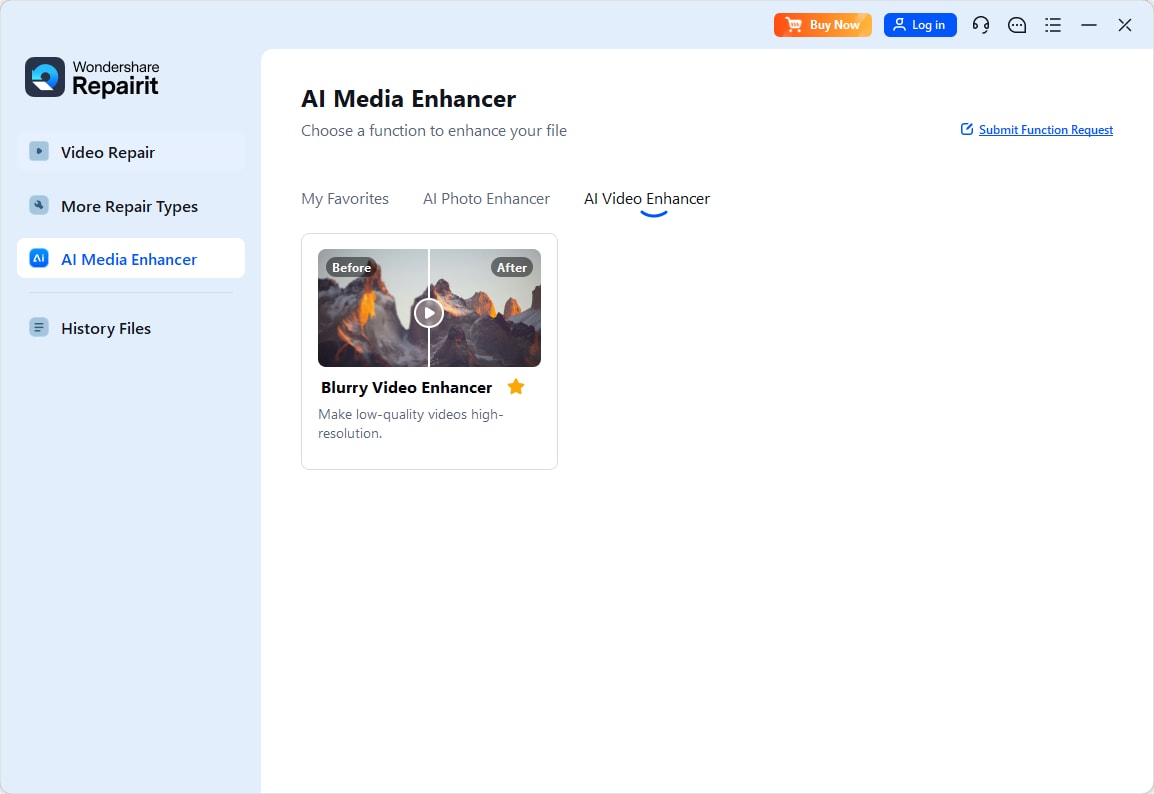
Step 1. Choose an AI enhancement model based on your video quality needs, such as upscaling, denoising, or overall clarity improvement.
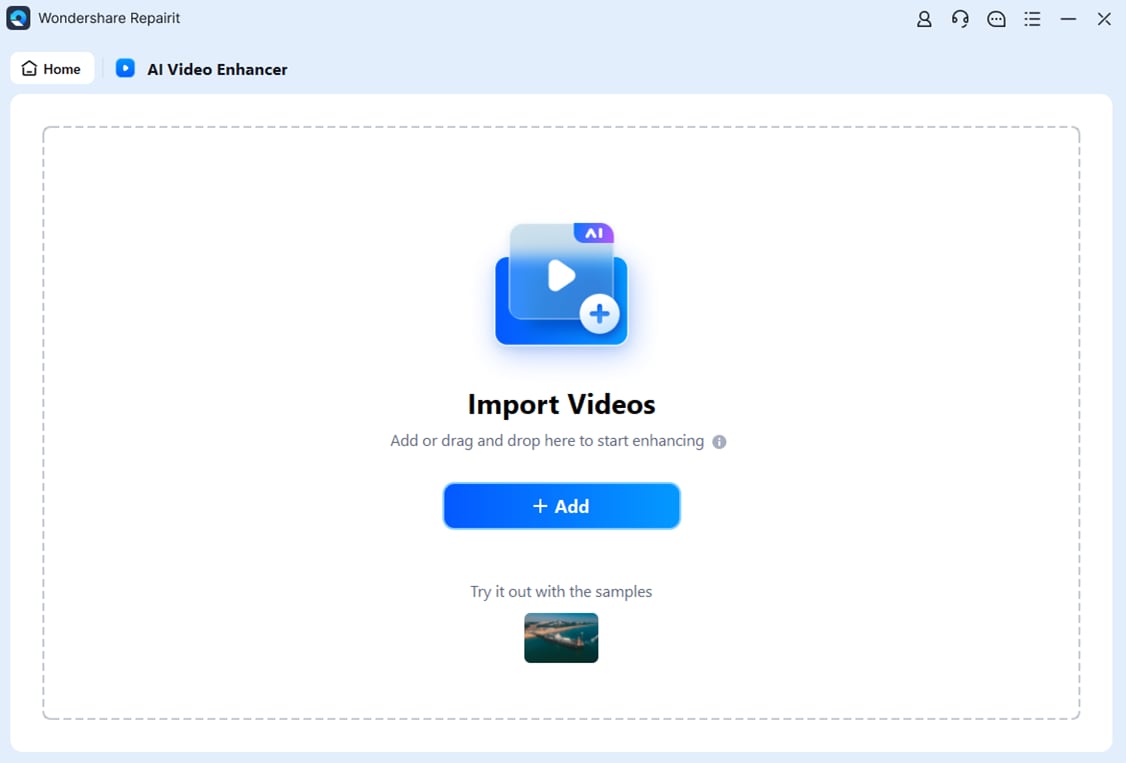
Step 2. Import your video into Repairit Video Enhancer to begin the enhancement process.
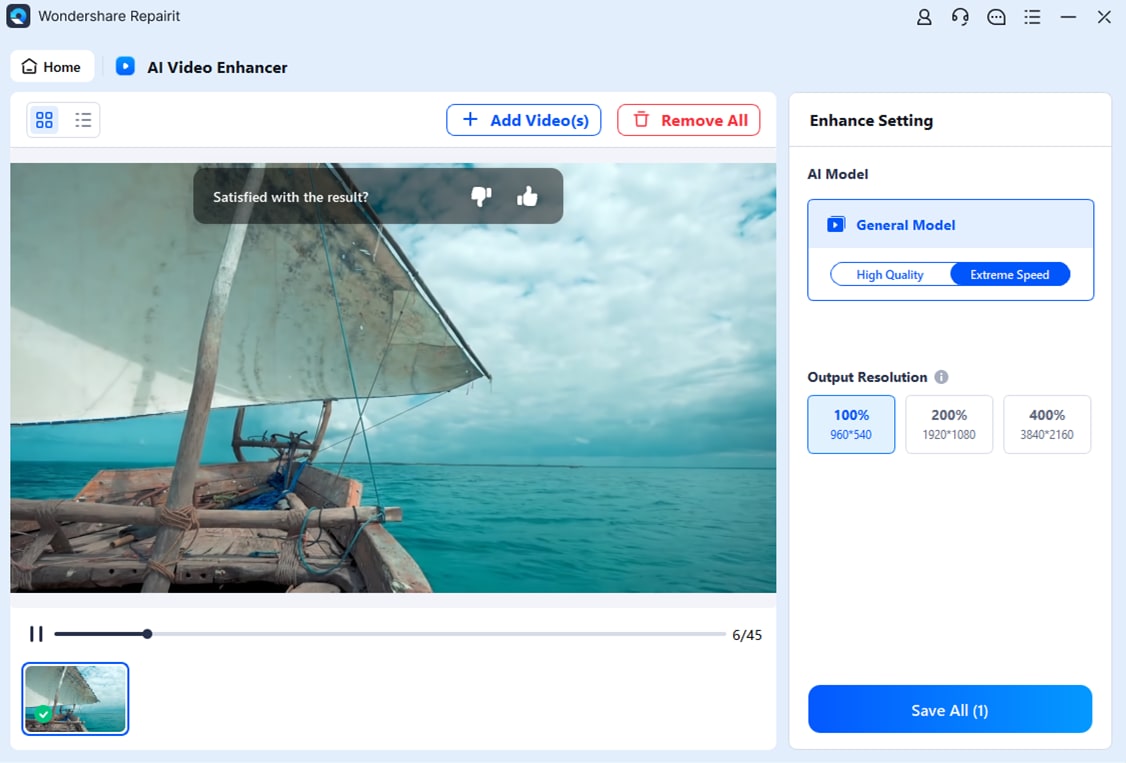
Step 3. Start enhancing and let the AI improve sharpness, reduce blur, and enhance the overall video quality.

Step 4. Preview the enhanced result and save the improved video to your device.
Final Verdict
Viewed purely as video enhancement tools, Repairit Video Enhancer and Adobe Premiere Pro serve different needs. Repairit prioritizes AI automation to quickly improve details in low-quality videos, remove noise, and sharpen soft footage with a short learning curve. It is well suited for users who frequently handle old, compressed, or everyday clips and want reliable upgrades in a few steps.
Adobe Premiere Pro remains a strong option if you are already editing full projects and want enhancement to live alongside cutting, transitions, and effects. Its manual controls can achieve excellent results in the hands of an experienced editor, especially when you need fine-grained control over color and texture.
For many people, the most efficient approach is to let a dedicated AI enhancer handle heavy lifting on resolution, noise, and clarity, then bring the improved clips into a full editor when deeper storytelling or finishing work is required. Which mix you choose depends on how much time you want to spend on manual grading versus guided AI enhancement.
Next: Repairit Video Enhancer vs Davinci Resolve
FAQ
-
1. Is Repairit Video Enhancer better than Adobe Premiere Pro for improving low-quality videos?
For most non-professional users, Repairit Video Enhancer is easier and faster for boosting resolution, clarity, and noise levels, while Adobe Premiere Pro can match or exceed results if you have the skills and time for manual grading and fine-tuning. -
2. Which is easier for video enhancement, Repairit Video Enhancer or Adobe Premiere Pro?
Repairit Video Enhancer is generally easier because it relies on AI presets and a simple workflow, whereas Adobe Premiere Pro requires navigating a full editing interface and understanding multiple manual adjustment tools. -
3. Can Adobe Premiere Pro match AI upscaling from Repairit Video Enhancer?
Adobe Premiere Pro offers strong control over color, sharpness, and noise, but dedicated AI upscaling in Repairit Video Enhancer is usually more straightforward for quickly improving soft or low-resolution footage without custom setups.




