
Choosing between Repairit Video Enhancer and Final Cut Pro depends on whether you mainly want to enhance video quality with guided AI tools or build full edits on a Mac. Repairit Video Enhancer focuses on AI-driven upgrades such as upscaling, denoising, and sharpening, while Final Cut Pro is a professional macOS editor with powerful, mostly manual enhancement controls. This comparison looks at output quality, motion clarity, ease of use, and pricing so you can decide if you need a dedicated enhancer, a full editor, or a mix of both.
Enhance Video Quality with Repairit Video Enhancer
 Security Verified. Over 7,302,189 people have downloaded it.
In this article
- Repairit Video Enhancer vs Final Cut Pro: Quick Verdict
- Repairit Video Enhancer vs Final Cut Pro: Key Differences
- Repairit Video Enhancer vs Final Cut Pro: Comparison Table
- What Repairit Video Enhancer and Final Cut Pro Are Best For
- Repairit Video Enhancer vs Final Cut Pro: Technology and Enhancement Approach
- Repairit Video Enhancer vs Final Cut Pro: Output Quality and Real-World Results
- Repairit Video Enhancer vs Final Cut Pro: Workflow and Ease of Use
- Repairit Video Enhancer vs Final Cut Pro: Pricing and Trial Options
- Who Should Choose Repairit Video Enhancer
- Who Should Choose Final Cut Pro
- Pros and Cons of Repairit Video Enhancer and Final Cut Pro
- How to Enhance Videos After Choosing the Right Tool
Repairit Video Enhancer vs Final Cut Pro: Quick Verdict
In everyday use, Repairit Video Enhancer is usually the more focused option for users who mainly want to improve video clarity, reduce noise, and upscale resolution without learning a full editor. Final Cut Pro is better suited to Mac creators who want to integrate enhancement into a larger editing workflow with timelines, transitions, and audio.
Many users can benefit from using both together: enhance low-quality or old clips with AI in Repairit first, then fine-tune color and pacing inside the Final Cut Pro timeline.
Repairit Video Enhancer vs Final Cut Pro: Key Differences
The key difference is the balance between AI automation and manual control. Repairit Video Enhancer centers on AI models that automatically improve sharpness, reduce blur and noise, and upscale soft footage. Final Cut Pro offers detailed color grading, exposure control, and filters but expects you to make more manual decisions.
Another practical difference is platform and scope. Repairit is aimed at users on common desktops who need a dedicated enhancement step, while Final Cut Pro is a Mac-only professional editor designed for complete projects with complex timelines.
Repairit Video Enhancer vs Final Cut Pro: Comparison Table
| Dimension | Repairit Video Enhancer | Final Cut Pro |
|---|---|---|
| Best for | Users who mainly need to enhance video quality, upscale resolution, and clean up low-quality footage with guided AI tools. | Mac users needing optimized editing and enhancement inside a full professional timeline-based editor. |
| Ease of use | Simplified interface with enhancement presets and fewer technical settings to manage. | More complex, with a professional editing layout that takes time to learn. |
| Output quality | Strong for AI upscaling, noise reduction, and sharpening soft or old footage. | High-quality results when you manually tune color, exposure, and filters on Mac hardware. |
| Workflow | Import, choose AI enhancement, preview, then export enhanced clips. | Import video, adjust color/exposure, apply filters, preview, then export as part of a full edit. |
| Strengths | Focused AI enhancement, simple controls, suitable as a pre- or post-process for any editor. | Fast performance on Mac, strong color tools, and an optimized professional editing workflow. |
| Weaknesses | Not a full editor and depends on available AI models and system resources. | Mac-only, paid software, and more than many users need if they only want quality enhancement. |
What Repairit Video Enhancer and Final Cut Pro Are Best For
Repairit Video Enhancer is best for users who regularly deal with low-resolution clips from phones, webcams, or older cameras and need to:
- Upscale video resolution so older or smaller clips look better on modern screens.
- Improve video clarity by reducing noise, blur, and compression artifacts.
- Run a quick, guided enhancement pass before or after editing in any NLE, including Final Cut Pro.
Final Cut Pro is best for Mac-based editors who want to:
- Work with multi-track timelines, transitions, and audio tools in one place.
- Use advanced color grading, masking, and manual exposure control for precise visuals.
- Integrate enhancement naturally into a complete editing and delivery workflow.
In practice, many workflows look like this: enhance rough or noisy footage with Repairit first, then assemble and refine the story in Final Cut Pro.
Repairit Video Enhancer vs Final Cut Pro: Technology and Enhancement Approach
The two tools approach video enhancement differently.
Repairit Video Enhancer leans on AI models designed specifically for quality improvement. According to the product description:
- It uses AI-driven upscaling to increase resolution on low-quality or small videos.
- It offers noise reduction and sharpening to improve details in low-quality videos.
- It adds AI-based deblurring and artifact reduction to improve video clarity and reduce compression issues.
- It can apply motion and frame enhancement to help smooth motion in low-quality or old footage.
Final Cut Pro takes a more traditional, editor-centric route:
- Integrated color and exposure adjustments let you fine-tune brightness, contrast, and white balance.
- Built-in filters and effects help clean up and stylize footage when configured carefully.
- Advanced color grading, masking, and selective adjustments allow precise enhancement on specific regions of a frame.
In most cases, Repairits AI-driven approach is faster for non-experts who want an automatic boost, while Final Cut Pros tools favor users who are comfortable dialing in settings manually.
Repairit Video Enhancer vs Final Cut Pro: Output Quality and Real-World Results
For real-world projects, quality depends on both the source footage and how much time you invest in tuning.
With Repairit Video Enhancer:
- AI upscaling can make small or soft clips look cleaner on larger displays, especially social clips and screen recordings.
- Noise reduction and deblurring help sharpen soft footage and reduce grain in low-light or webcam videos.
- Artifact reduction can lessen blockiness from heavy compression, which is common in older or repeatedly exported files.
- Motion models aim to smooth motion in low-quality or old footage, which matters for sports, vlogs, and handheld shots.
With Final Cut Pro:
- Output can look excellent when you spend time with color wheels, curves, and exposure tools.
- Sharpening and noise reduction filters give you control but may require testing different settings to avoid halos or plastic-looking textures.
- Its tight integration with macOS hardware can help with playback and export speed, especially on newer Macs.
For users who mainly want to lift low-quality footage with minimal trial and error, Repairits AI models can be a stronger choice. For those who want stylistic control and already edit on a Mac, Final Cut Pros manual tools may be sufficient.
Repairit Video Enhancer vs Final Cut Pro: Workflow and Ease of Use
The tools differ significantly in how you work with them day to day.
Repairit Video Enhancer is built around a straightforward sequence:
- Import your clip.
- Select one or more AI enhancement options such as upscaling, denoising, or sharpening.
- Preview the before-and-after result.
- Export the enhanced video for editing or sharing.
This makes it approachable for beginners, social media managers, and anyone who does not want to learn a timeline interface just to clean up footage.
Final Cut Pro has a more complex, editor-style workflow:
- Import media into an event and add it to a project timeline.
- Apply color and exposure corrections, filters, and transitions.
- Work with multiple tracks, audio mixing, and effects.
- Export as part of a full edit.
This environment rewards users who are comfortable with professional editing concepts. If your main goal is quality enhancement rather than editing, the additional complexity may feel unnecessary; if you cut full videos regularly on a Mac, the integrated workflow is a major advantage.
Repairit Video Enhancer vs Final Cut Pro: Pricing and Trial Options
Pricing is another area where the tools serve different needs.
Repairit Video Enhancer typically offers flexible licensing options that can make sense if you only need enhancement from time to time or if you want to scale up to regular use. Many users can try the software with limited trials or feature restrictions before committing.
Final Cut Pro is paid Mac software, commonly offered as a one-time purchase or similar model. Apple often provides a trial period so you can test performance, interface, and export options on your hardware.
For users who primarily want a dedicated enhancer, Repairits more focused pricing can be attractive. If you are investing in a long-term, professional editing suite and are fully on macOS, Final Cut Pros license may be worth it as your main editor.
Who Should Choose Repairit Video Enhancer
Repairit Video Enhancer is likely a better fit if you recognize yourself in these scenarios:
- You need to enhance low-quality videos from phones, webcams, or old devices with minimal setup.
- You plan to upscale video resolution before editing in another program so your timeline starts with higher-quality footage.
- You prefer AI-guided tools to reduce noise and sharpen soft footage instead of deep color grading work.
- You want a focused enhancement step you can run before or after editing in Final Cut Pro or other editors.
In these cases, Repairit helps you solve the quality problem first, then lets you move into whichever editor you prefer for trimming and storytelling.
Who Should Choose Final Cut Pro
Final Cut Pro may be enough for your needs if you are already committed to the Apple ecosystem and want enhancement inside a full editor. It particularly suits:
- Mac users who want a professional editing suite with strong color and enhancement tools in one timeline.
- Editors working with multi-track timelines who need fast performance and optimized workflow on macOS.
- Creators who prefer manual control over color, exposure, and filters rather than primarily AI-driven enhancement.
- Teams or freelancers already using other Apple tools and wanting tight Mac-only integration.
If your footage is generally well shot and only needs moderate cleanup, Final Cut Pros built-in tools may cover your enhancement requirements without additional software.
Pros and Cons of Repairit Video Enhancer and Final Cut Pro
Repairit Video Enhancer Pros and Cons
Final Cut Pro Pros and Cons
How to Enhance Videos After Choosing the Right Tool
After comparing Repairit Video Enhancer vs Final Cut Pro, the next step is to actually enhance your footage. Even if Final Cut Pro remains your main editor, using a dedicated AI enhancer beforehand can give you cleaner, sharper clips to work with. For many users, starting with a guided option like Repairit is an efficient way to boost quality before they make deeper editing decisions.
Key Features
- AI models to upscale resolution and improve details in low-quality videos.
- Noise reduction and deblurring tools to enhance clarity and reduce artifacts.
- Simple workflow for importing, previewing, and exporting enhanced clips.
- Motion and frame enhancement options that help smooth motion in low-quality or old footage.
Step-by-step guide
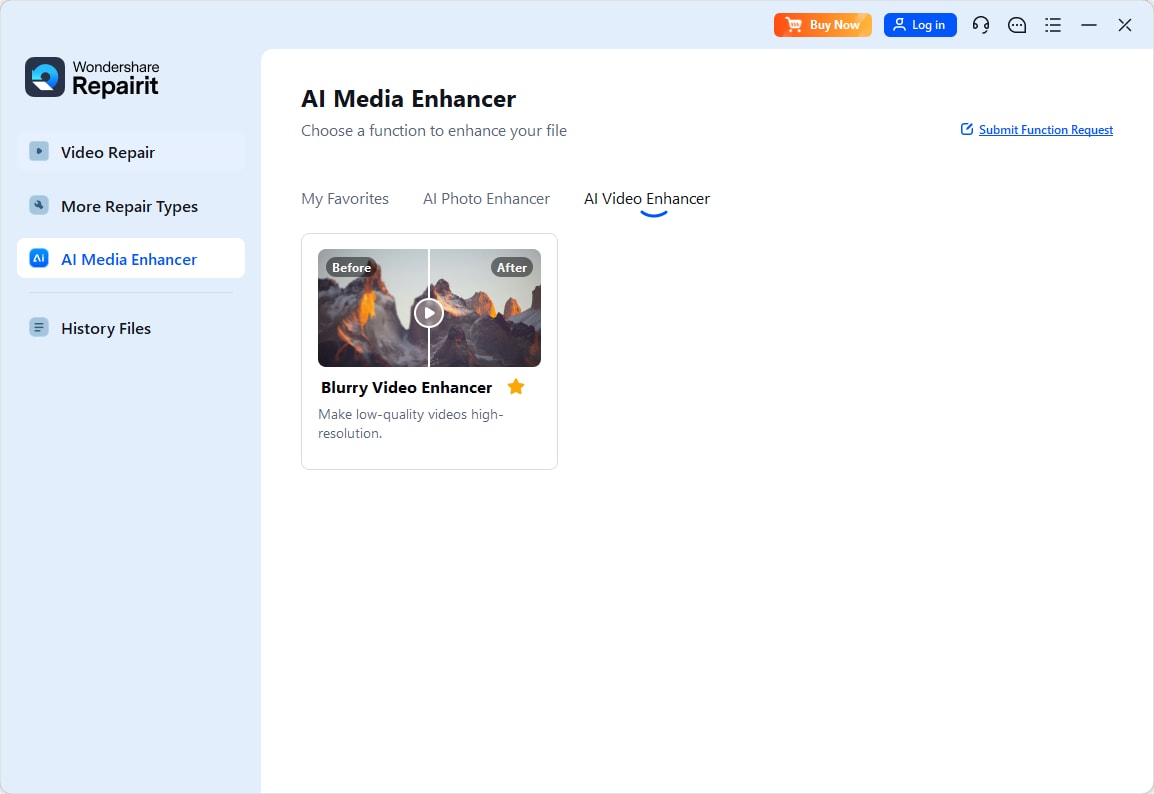
Step 1. Choose an AI enhancement model based on your video quality needs, such as upscaling, denoising, or overall clarity improvement.
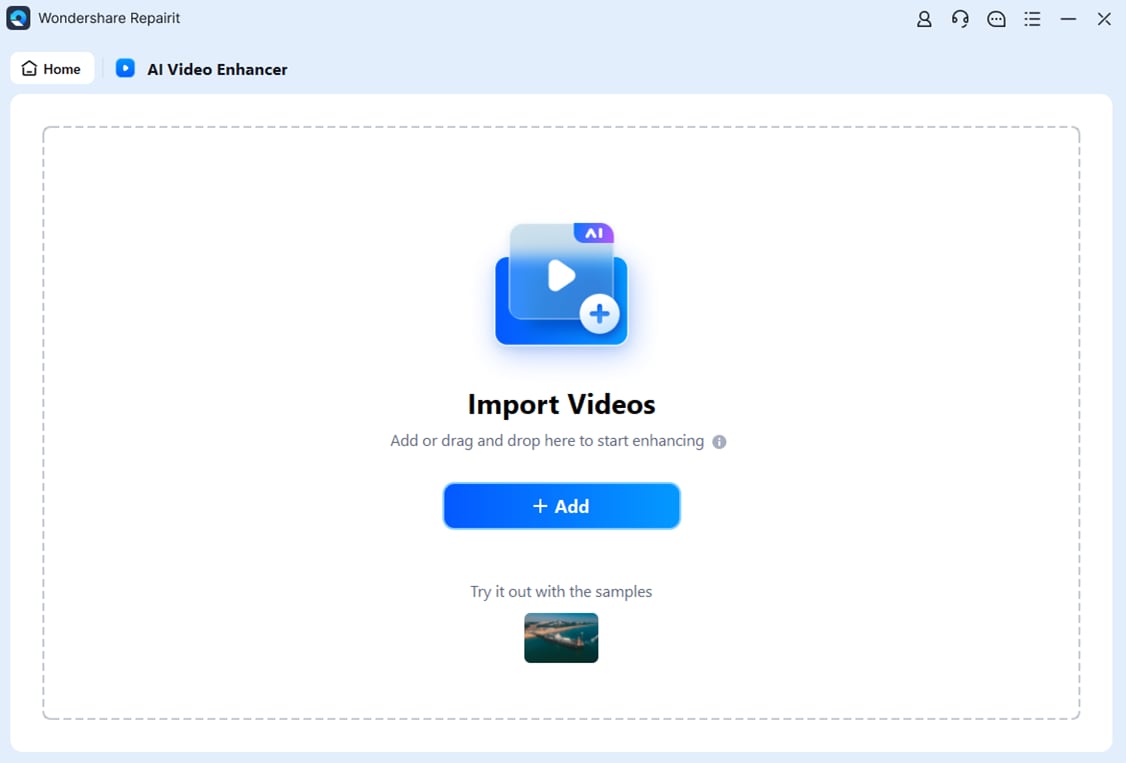
Step 2. Import your video into Repairit Video Enhancer to begin the enhancement process.
Step 3. Start enhancing and let the AI improve sharpness, reduce blur, and enhance the overall video quality.

Step 4. Preview the enhanced result and save the improved video to your device.

Final Verdict
Both Repairit Video Enhancer and Final Cut Pro can significantly improve how your videos look, but they do so from different angles. Repairit focuses on AI-powered quality improvements such as upscaling, denoising, and deblurring, with a guided workflow that is easier to learn than a full editor. This makes it well suited for users who mostly care about boosting clarity and resolution.
Final Cut Pro, by contrast, is a Mac-based professional editor with strong enhancement tools built in. It shines when quality tweaks are just one part of a broader project involving timelines, transitions, and audio. For many creators, a hybrid approach is practical: use Repairit to clean up challenging or low-quality footage, then rely on Final Cut Pro to shape the final story and polish the look.
Next: Repairit Video Enhancer vs Vegas Pro
FAQ
-
1. Is Repairit Video Enhancer better than Final Cut Pro for improving low-quality videos?
For pure enhancement tasks like upscaling, denoising, and sharpening, Repairit Video Enhancer is usually simpler and more focused. Final Cut Pro can also improve low-quality clips, but it is most effective when enhancement is just one step within a larger Mac-based editing workflow. -
2. Can I use Repairit Video Enhancer with Final Cut Pro in the same project?
Yes. Many users first enhance clips in Repairit to improve clarity, reduce noise, and boost resolution, then import those improved files into Final Cut Pro for timeline editing, color grading, and final delivery. This combination often balances ease of use with professional control. -
3. Which is easier for beginners, Repairit Video Enhancer or Final Cut Pro?
Repairit Video Enhancer is generally easier for beginners because it centers on a few clear AI enhancement tasks with guided options. Final Cut Pro offers far more editing power but has a steeper learning curve due to its timeline, effects, and advanced color tools.




