
Camera footage usually breaks after transfer when part of the file's structure is lost or corrupted during copying. Even if the file appears complete, missing metadata or video data can make it unplayable.
This is especially common with footage from DSLRs, mirrorless cameras, action cams, and drones, where files are larger and more complex. If your camera footage broke after transfer, there's a high chance it can still be repaired.
In this article
Why Camera Footage Breaks After Transfer
Camera footage isn't just a simple file; it's a carefully structured package of different data streams. Each video contains:
- Video stream carrying high‑bitrate visual data
- Audio stream with synchronized sound
- Metadata such as timestamps, resolution, and encoding details
For the footage to remain intact, all of these elements must be copied perfectly during transfer. Even a small interruption can disrupt the structure, leaving the file incomplete or unreadable. What looks like a normal file on the surface may actually be missing critical components that make playback possible.
Common Causes of Breakage:
- Interrupted file transfer that leaves the video incomplete
- Removing the SD card or storage device too early
- Faulty card readers, cables, or unstable USB ports
- File system errors on the destination device
- Large files are failing to copy fully due to slow or unstable connections
Camera‑Specific Vulnerabilities:
- Split recording files (common in DSLRs and professional cameras) that may not merge correctly
- Missing headers, such as the moov atom in MOV/MP4 formats, which are essential for playback
- High‑bitrate footage is more prone to corruption because of the sheer amount of data involved
In short, camera files are fragile during transfer because they rely on a precise structure. Any disruption, whether technical or user‑related, can cause the footage to break, leaving you with a file that looks complete but won't play.
Signs Your Camera Footage Is Broken
These symptoms are clear indicators that the file structure has been damaged and playback is no longer reliable:
- Video won't open at all: The file may appear in your folder, but refuses to launch in any player.
- Black screen during playback: Instead of showing visuals, the video displays only a blank screen while audio may or may not play.
- Footage freezes midway: Playback starts normally but then stalls, leaving you stuck on a single frame with no way to continue.
- Audio missing or out of sync: Sound may drop out completely or fail to match the video, breaking the viewing experience.
- Editing software fails to import the file: Professional tools often reject corrupted footage, showing error messages or refusing to load the timeline.
These signs confirm that the footage isn't just suffering from minor glitches; it's structurally broken. Knowing them helps you decide whether to attempt repair, re‑transfer the file, or rely on backups before the damage spreads to more recordings.
How to Confirm if the File is Corrupted?
To be sure, you need to check whether the problem persists across different environments. These steps help confirm whether the file is truly corrupted at a structural level:
- File fails in multiple media players: If the video won't play in VLC, QuickTime, or other reliable players, the issue is deeper than software.
- Editing software cannot read it: Professional tools like Premiere Pro or DaVinci Resolve often reject corrupted files outright, showing error messages or refusing to import.
- File size looks incorrect or inconsistent: A corrupted file may appear unusually small or disproportionately large compared to the expected size of similar footage.
- Same issue persists after copying again: Re‑transferring the file doesn't fix the problem, which suggests the corruption is embedded in the file itself rather than caused by a bad transfer.
If these symptoms occur together, it's a strong sign that the footage has structural corruption, meaning parts of the data are missing, unreadable, or improperly organized. At this point, recovery tools or backups may be the only way to restore usable content.
Basic Fixes to Try First
Before moving on to advanced recovery methods, it's worth trying a few simple fixes that often resolve broken footage quickly:
Fix 1: Try Opening the File with Another Program
If the transfer was incomplete, copying the file again can restore the missing data.
Step 1. Insert the original SD card or source device into your computer.
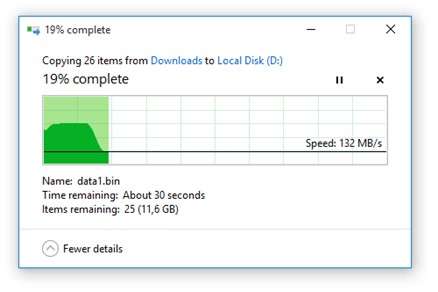
Step 2. Copy the footage again and wait until the transfer fully completes.
Fix 2: Use VLC to Repair Playback
Some media players can rebuild damaged file structures during playback.
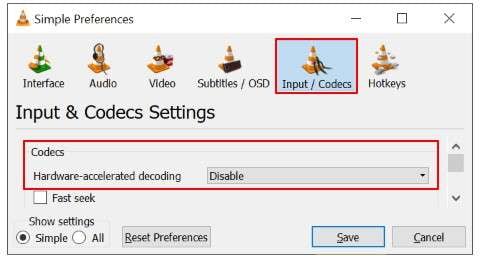
Step 1. Open VLC and enable "Always fix" under Input/Codecs settings.
Step 2. Open the broken footage file in VLC.
Fix 3: Copy Footage to Local Storage
Working directly from external devices can cause playback issues.
Step 1. Copy the footage from the external device to your computer.
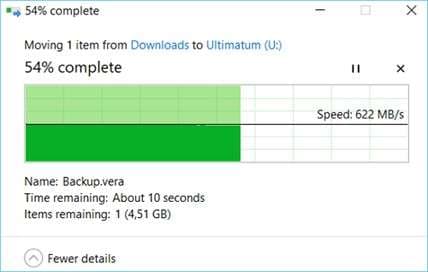
Step 2. Open the file from your internal storage.
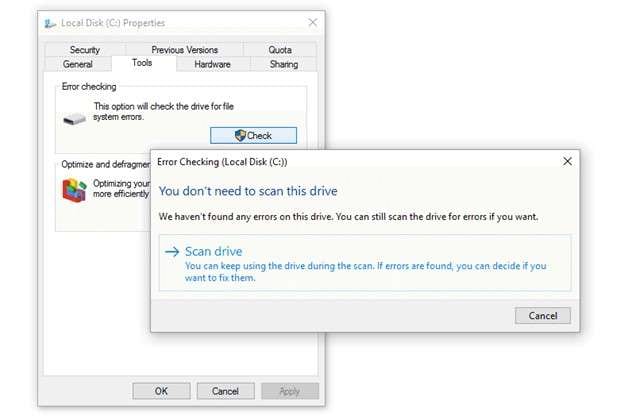
Fix 4: Check the Storage Device for Errors
Drive issues can affect how footage is read and opened.
Step 1. Connect the storage device to your computer.
Step 2. Run an error‑check scan from the drive properties.
Fix 5: Try Another Media Player or Editor
Different software may handle corrupted footage differently.
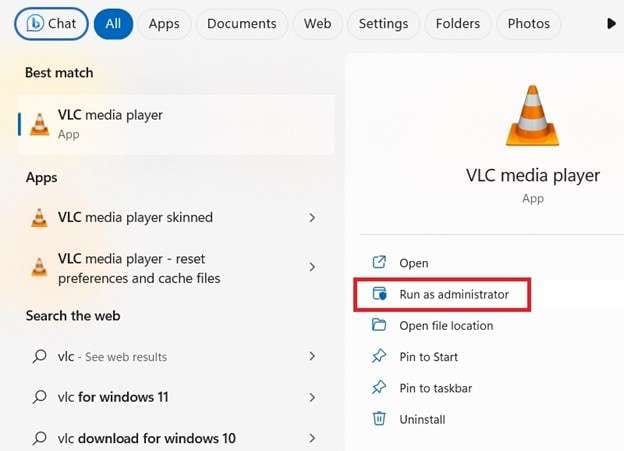
Step 1. Open the file in another media player or editing software.
Step 2. Check if the footage loads or partially plays.
Repair Broken Camera Footage using Repairit Video Repair
If the footage still won't play or import after basic fixes, it likely has deeper structural damage that requires specialized repair software. Tools like Repairit Video Repair are designed specifically for this purpose and can rebuild the internal structure of corrupted files.
How to Confirm It's Needed:
- Footage fails on all players and editors
- File cannot be imported into editing software
- Playback issues remain consistent across devices
What Repair Can Do:
- Rebuild missing metadata and headers
- Restore playback functionality
- Fix freezing, black screens, and audio issues
Step-by-step (Optional)
Step 1. Add the corrupted camera footage.

Step 2. Start Repair process.

Step 3. Preview then save the fixed file.

How to Prevent Camera Footage Corruption
Camera files are highly sensitive during transfer, and even small mistakes can leave them unusable. By following safe handling practices, you can greatly reduce the risk of corruption and protect your recordings:
- Always complete transfers fully -- Wait until the progress bar or notification confirms success before opening or moving files, ensuring the entire structure is copied.
- Safely eject SD cards and drives -- Use your device's "Eject" or "Safely Remove" option so all data is finalized before unplugging.
- Use reliable card readers and cables -- Faulty or low‑quality hardware can cause unstable connections, leading to incomplete or corrupted transfers.
- Avoid interrupting transfers -- Closing applications, shutting down the system, or removing devices mid‑process can instantly break the file.
- Keep backup copies before editing -- Storing duplicates on external drives or cloud storage ensures you have a fallback if corruption occurs during editing.
Conclusion
When camera footage fails after transfer, the problem usually stems from incomplete copying or damage to the file's structure during the process.
Begin with simple solutions such as re‑transferring the footage and checking your storage device for errors. If those steps don't resolve the issue, specialized repair methods can often rebuild the file and restore your footage to a usable state.
FAQs
-
Can broken camera footage be repaired?
Yes, especially if the corruption happened during transfer and the file structure can be rebuilt. -
Why does camera footage break after transfer?
It usually breaks because the transfer was incomplete or the file's structure was damaged. -
Is high‑resolution footage more at risk?
Yes, larger high‑resolution files are more vulnerable to interruptions and corruption. -
Should I re‑transfer the file first?
Yes, re‑transferring is often the simplest and most effective first step. -
Can editing software fix corrupted footage?
Sometimes, as certain programs can bypass minor corruption or rebuild missing elements during import.




