

You pick up your iPhone and try to unlock it with Face ID, but a message appears: "A Problem was Detected with the TrueDepth Camera." Your phone does not scan your face, and Face ID stops working. You feel confused and worried because you rely on it every day.
We’ve all faced this situation at some point, and this error can block Face ID, Animoji, and front camera features. However, the good news is that you can fix this issue with simple checks. This guide explains clear steps to quickly solve the TrueDepth Camera problem.
Table of Contents
-
- Fix 1. Test the Front Camera and Face ID Setup
- Fix 2. Clean the Front Camera Area and Remove Obstructions
- Fix 3. Restart Your iPhone
- Fix 4. Turn on Airplane Mode, then Reset Face ID
- Fix 5. Update iOS to the Latest Version
- Fix 6. Reset All Settings (Without Erasing Data)
- Fix 7. Contact Apple Support or an Authorized Service Provider
Part 1. Why a Problem Was Detected with the TrueDepth Camera
The message "A problem has been detected with the TrueDepth camera" means your iPhone has turned Face ID off. This is because it thinks the front camera system isn't working properly. Face ID is now disabled, so you cannot unlock your phone, approve apps, or confirm payments with your face.
In short, iOS has found a fault in the TrueDepth camera sensors, so it prevents a new Face ID setup until the issue is fixed. So, to know why this error message occurs, adhere to the 5 listed reasons in detail for clarity:

- Dirty or Blocked Notch: Dust, fingerprints, a thick screen protector, or water near the notch can block the Face ID sensors. Hence, when the sensors cannot see your face clearly, iOS may treat it as a fault and turn off Face ID.
- Software Fault: A system error or failed update can cause Face ID to stop working. So, the phone may still show the error even when the hardware is undamaged.
- Physical Damage: A drop or a hard hit can damage the small sensors and cables inside. As a result, if a part does not respond, the phone disables Face ID.
- Non-Genuine Repair: If you use a non-original screen or camera part, it can break the secure hardware link. If this link fails, the phone marks the TrueDepth system as invalid.
- Water Damage: Water near the notch can damage sensors and internal connectors. So, when sensors fail due to water, the phone shows this error message.
Part 2. How to Fix "A Problem Was Detected with the TrueDepth Camera"
To know how you can resolve the "A Problem was Detected with the TrueDepth Camera" error message, try the 7 listed ways:
Fix 1. Test the Front Camera and Face ID Setup
You can also test the front cameras and Face ID setup to fix "A Problem was Detected with the TrueDepth Camera." Wake the iPhone, then swipe left on the lock screen or tap the camera icon to open the Camera app. Switch to the front camera and check if your face appears clearly without a black screen or heavy lines.
This does not test Face ID, but it shows if the front camera works at a basic level. If the selfie view is black or badly distorted, hardware damage is likely, and repair service may be required.
Fix 2. Clean the Front Camera Area and Remove Obstructions
As mentioned, dust, fingerprints, makeup, or water on the glass can block the sensors and cause this error. Thus, a soft, dry cloth can clear the surface and help the phone detect your face again. Additionally, a thick screen protector, case edge, or sticker near the notch can also block light and confuse the system. So, if the error goes away after a clean surface, the cause was a simple blockage.
Fix 3. Restart Your iPhone
This also resolves the "A Problem was Detected with the TrueDepth Camera" message, because it can clear small software faults around Face ID and the TrueDepth system. The phone reloads all system services, which may remove the error message. Hence, if Face ID is stuck after failed scans or an interrupted setup, a restart gives it a fresh start and allows the hardware to load properly, as guided:
Step 1. Press and hold the "Power" and "Volume Up" buttons together, then move the slider.

Step 2. Now, slide the "Slide to Power Off" slider, wait for a few minutes, and press the "Power" button to restart.

Fix 4. Turn on Airplane Mode, then Reset Face ID
If a restart doesn't fix the "A problem has been detected with the TrueDepth camera" issue, try this solution. Airplane Mode with a Face ID reset gives the TrueDepth system a fresh start without network activity. In addition, this mode stops sync and background tasks, so only the phone hardware and iOS handle the reset. To know how you can perform these actions side by side, review the mentioned instructions:
Step 1. Wake and unlock the phone via passcode (if you know) and swipe down on the Control Center and turn on "Airplane Mode."

Step 2. Now, choose "Face ID & Passcode" in the settings, enter your passcode, and press the "Reset Face ID" button.

Step 3. As you rest it, tap the "Set Up Face ID" button, then choose "Get Started." Then, hold the phone at eye level, and slowly move your head to complete the circles, press "Continue," and complete the second scan.

Fix 5. Update iOS to the Latest Version
Updating iOS can fix "A problem has been detected with the TrueDepth camera" because software bugs often cause the error. New iOS versions include patches for problems where Face ID stops working or falsely detects a camera fault. Thus, being on the latest iOS improves app and service compatibility, and can be done via the mentioned steps:
Step 1. If you know the passcode and can access settings, select "General," then tap "Software Update."

Step 2. Now, if you get any iOS update, tap on the "Update Now" button or schedule it.

Fix 6. Reset All Settings (Without Erasing Data)
To get rid of the "A Problem was Detected with the TrueDepth Camera" message, the Reset All Settings option can fix deeper software or configuration problems. It restores iOS to its default settings, which can resolve conflicts in Wi‑Fi, Bluetooth, privacy, display, and Face ID that may trigger the TrueDepth error. This step goes deeper than a restart by rebuilding stored preference files, as guided in detail:
Step 1. As you unlock the phone with the passcode, select the "Transfer to Reset iPhone" option in General settings, then tap "Reset."

Step 2. Choose the "Rest All Settings" option in the popup, enter the passcode, and tap on "Reset All Settings" to confirm.

Fix 7. Contact Apple Support or an Authorized Service Provider
Finally, if you continue to see the consistent "A problem has been detected with the TrueDepth camera" error, contact support. Apple technicians can test all parts of the TrueDepth system and confirm exactly what is broken.
Not just that, repairs use genuine Apple parts and proper calibration, so Face ID works correctly, and security stays intact. Official service protects your warranty, gives clear cost estimates, and avoids risks from non‑genuine repairs.
Pro Tip: Repair and Enhance Photos or Videos Taken with an iPhone Efficiently
Sometimes, important photos or videos taken with your iPhone can become corrupted. Mainly after drops, crashes, or other system issues that happen around the same time, you see the "A Problem was Detected with the TrueDepth Camera" message. Here, Repairit can help you fix videos in MP4, MOV, AVI, MKV, RAW, HDR, LOG, etc. formats. Whereas for photos, it supports JPG, PNG, and many camera RAW formats.
Furthermore, it can handle media from phones, DSLRs, action cameras, drones, and professional cinema cameras, making it a versatile choice. As for repair, the Quick repair fixes common file issues, while the Advanced AI repair restores severely damaged media with minimal quality loss. All in all, Repairit aims to preserve the original resolution, bitrate, color, and codecs, so repaired files look as close to the original as possible.
Key Features

-
Multiple Support: Works with HDR and RAW footage, so dynamic range and detail are preserved as much as possible.
-
Cross‑platform & Online Options: Available for Windows and macOS, with an online version that lets you repair some files directly in the browser.
-
Preview & Non‑destructive Operation: You can preview repairs before saving, and the original, corrupted files remain intact while new files contain the fixed versions.
Guide to Fix Corrupted Videos Taken with TrueDepth Camera [iPhone]
To know how Repairit allows you to repair damaged media files like videos, review the sequential guidelines:
Step 1. Start the Video Repair Process
On the main interface of Repairit, select the "Video Repair" section and press the "Start" button to insert damaged videos.

Step 2. Add the Corrupted iPhone Video
At this point, add the multiple corrupted iPhone videos by pressing the "+Add Files(s)" button. Now, choose the "Repair" button and let the AI algorithms detect and fix the videos.

Step 3. Choose Preview and Save iPhone Videos
Pick between the "Preview" and "Save" options when you get the "Video Fixed" prompt. Open a specific fixed video to see the changes, then tap the "Save" button to export.
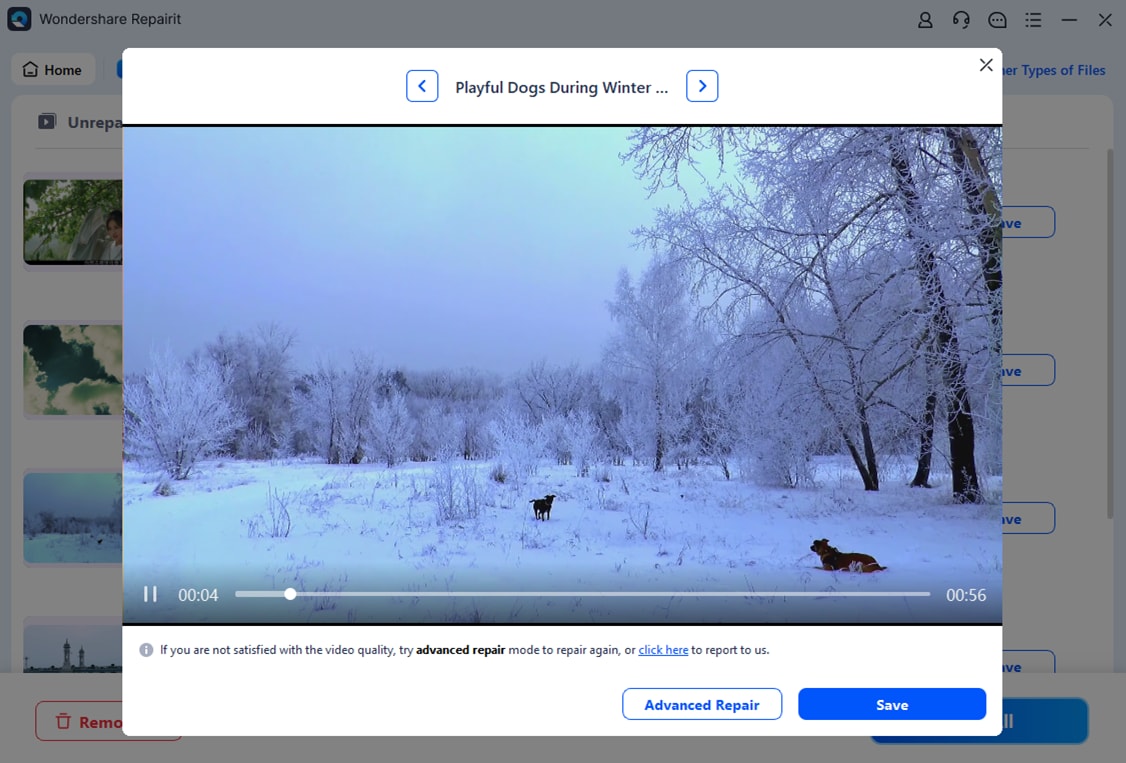
Fix Corrupted Videos Taken with TrueDepth Camera
 Security Verified. Over 7,302,189 people have downloaded it.
Conclusion
In summary, the "A Problem was Detected with the TrueDepth Camera" issue is frustrating and can limit access to the iPhone via Face ID. Therefore, this guide has explained 7 simple and practical ways to regain access to your device, restore Face ID function, and fix the TrueDepth camera error without stress. However, if iOS videos become corrupted due to other system issues, Repairit is recommended.
Frequently Asked Questions
-
1. Can I still unlock my iPhone without Face ID?
Yes, you can use your passcode to unlock the phone safely and access all apps. Moreover, payments and app approvals work with a passcode, so Face ID is not needed. -
2. Will this error affect other camera features?
The front camera usually works for selfies and video calls, so normal use continues. However, Face ID features will remain disabled until the TrueDepth system is fixed properly. -
3. Is this Face ID error permanent?
Not always, because software glitches or dirt can cause it temporarily, and it may disappear later. However, if the hardware is damaged, the error may persist until a professional repair occurs.




