
If you see YouTube’s "Sorry, there was an error licensing this video" message, it usually means YouTube couldn’t verify playback authorization for that video at that moment. This is most often related to region/copyright availability, account or subscription status, device authorization, or a temporary app/browser session problem—not a general "YouTube is down" issue.
This guide explains what the message means, why it happens, which fixes to try first (low-risk steps), and what to do if the error keeps coming back on specific devices like YouTube TV.
Quick Answer: What Does "Error Licensing This Video" Mean?
This message appears when YouTube can’t confirm that your current device/account/session is authorized to play the video (for example due to region restrictions, subscription/account rules, device authorization limits, or an expired/invalid playback session). In some cases, offline downloads can also show licensing errors when the download license expires or your account needs to re-verify access.
Table of Contents
Part 1. Why Does YouTube Show an "Error Licensing This Video" Message?
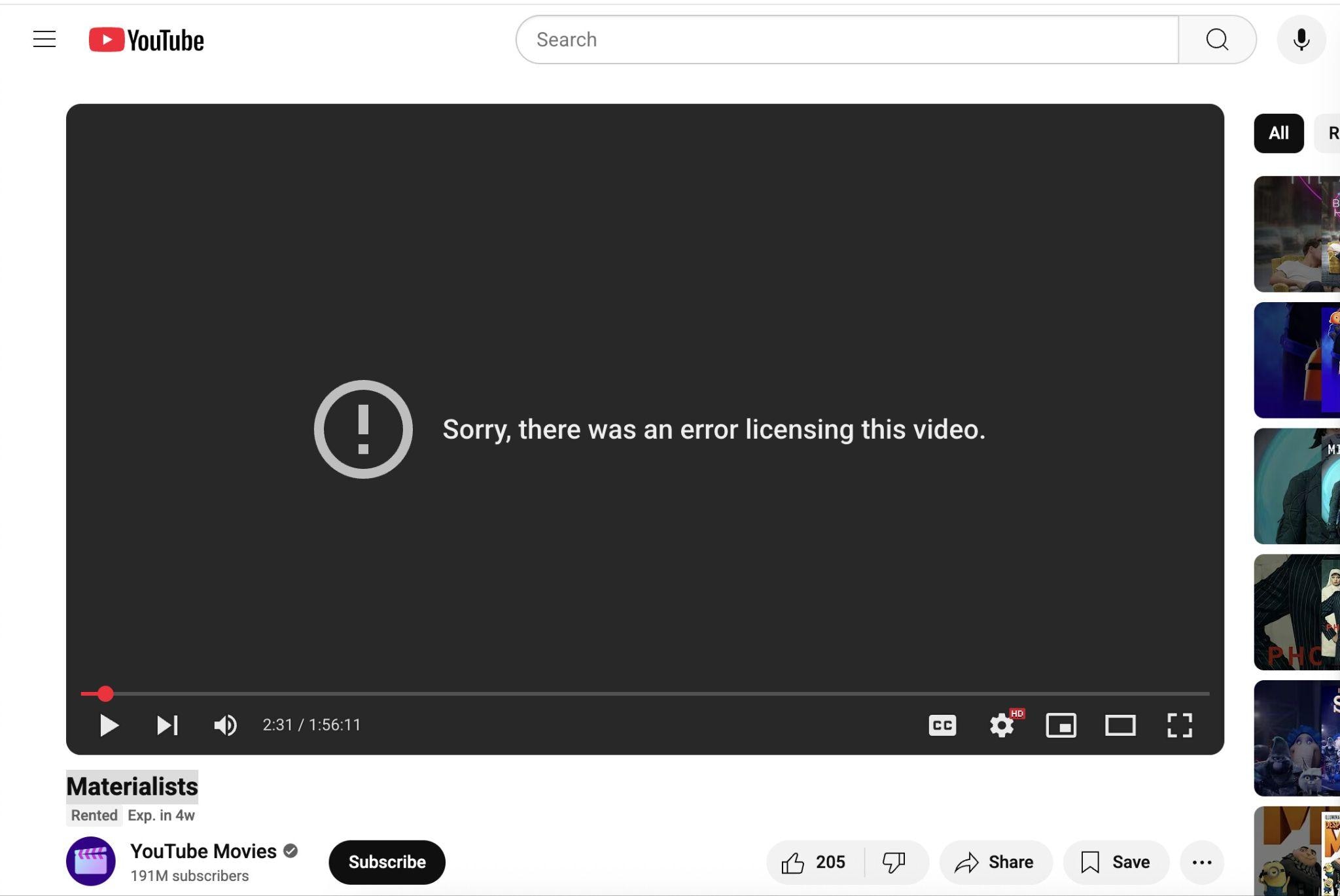
If this error keeps appearing, it’s usually more than a one-time glitch. Common reasons include:
- Regional or copyright restrictions: Some videos are unavailable in certain countries/regions. VPN/proxy routing can also trigger mismatches that cause authorization to fail.
- Account or subscription issues: If your Google account isn’t signed in correctly, your subscription isn’t active, or the content isn’t included in your plan, YouTube may block playback.
- Device authorization rules (especially YouTube TV): Some devices or locations may need re-verification, and playback may fail if the device is not authorized.
- Expired or removed rights: Movies, live events, or paid content can lose availability over time depending on licensing agreements.
- Cache, cookies, or session problems: Corrupted cache, outdated cookies, or an expired login session can prevent YouTube from confirming access.
- Offline/download license issues: Downloads (especially protected content) may stop working if the offline license expires or your account needs to re-check access.
- Network or app/browser glitches: Temporary connectivity issues, server hiccups, or browser/app glitches can interrupt authorization checks.
Part 2. Quick Self-Check: Identify Your Licensing Error Scenario
Use the clues below to quickly choose the right fix path:
- Purchased movie fails on one device only: Likely a device/app session issue → try restart + sign-in refresh + cache.
- Works on mobile data but not on Wi-Fi: Possible network/IP routing restriction → try different network and disable VPN/proxy.
- Only happens on YouTube TV: Often tied to TV app cache, location/device authorization, or subscription rules → try TV cache clear + account check.
- Only one video is affected: Could be video availability/licensing changes → try other videos and re-check region/account.
- Offline/downloaded video shows licensing error: Often an offline license issue → try reconnect internet + re-download.
Part 3. 4 Easy Fixes for YouTube Licensing Error
Now that you know why YouTube licensing errors happen, let’s look at simple fixes that solve most of these issues quickly.
1. Restart Your Device and the YouTube TV App
Restarting your device is usually the quickest and easiest fix. It automatically clears temporary glitches and files that can interfere with YouTube or YouTube TV playback.
Here’s how to restart your device and the YouTube TV app:
Restart YouTube TV on Smart TVs
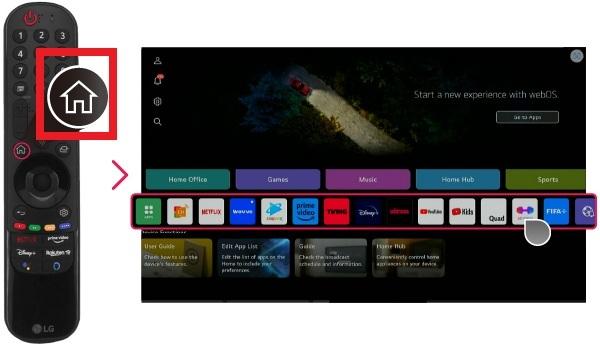
Step 1: Find your remote’s Home button. Exit the YouTube TV app and turn off the TV.
Step 2: Unplug the TV, wait 30-60 seconds, then plug it back in and turn it on.
Step 3: Open YouTube TV and try playing the video again.
Restart on Android TV/Google TV
Step 1: Close the YouTube TV app.
Step 2: Go to Settings, System, and Restart.
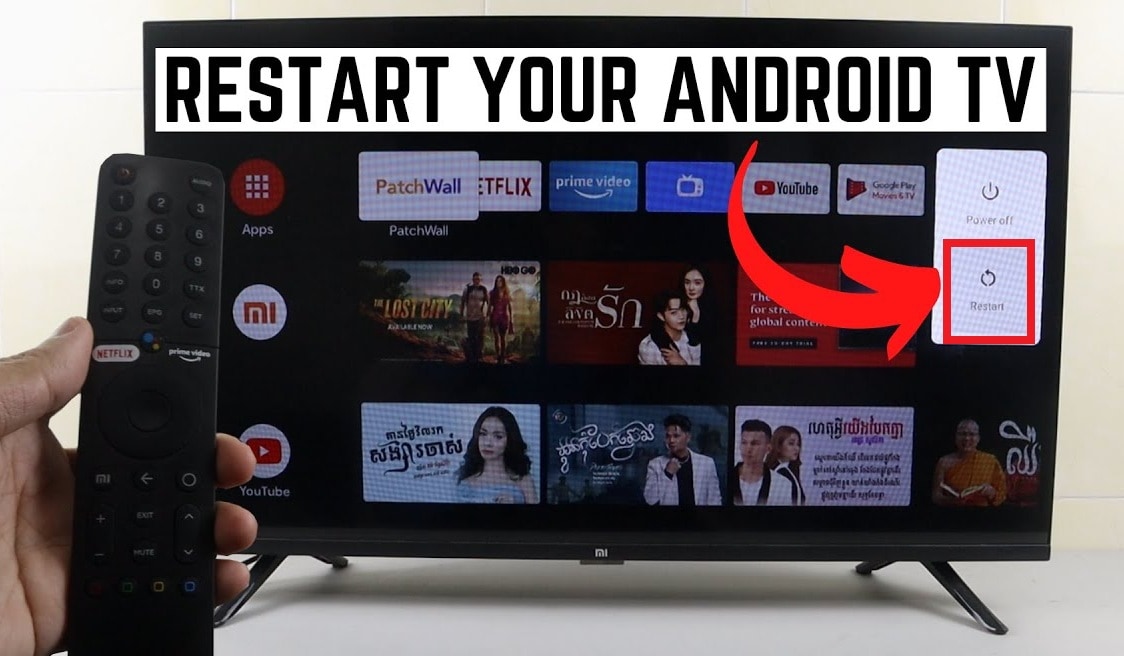
Step 3: When the reboot finishes, open YouTube TV and test playback.
Restart on Apple TV
Step 1: Close the YouTube TV.
Step 2: Go to Settings, System, and Restart.
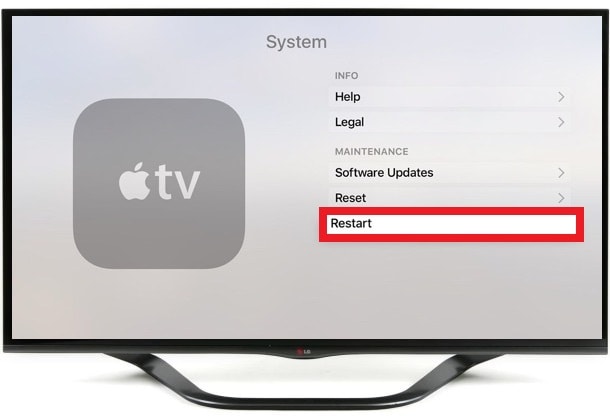
Step 3: Open YouTube TV after a restart and try again.
Restart on Fire TV/Fire Stick
Step 1: Close the YouTube TV app.
Step 2: Go to Settings, My Fire TV, and Restart.
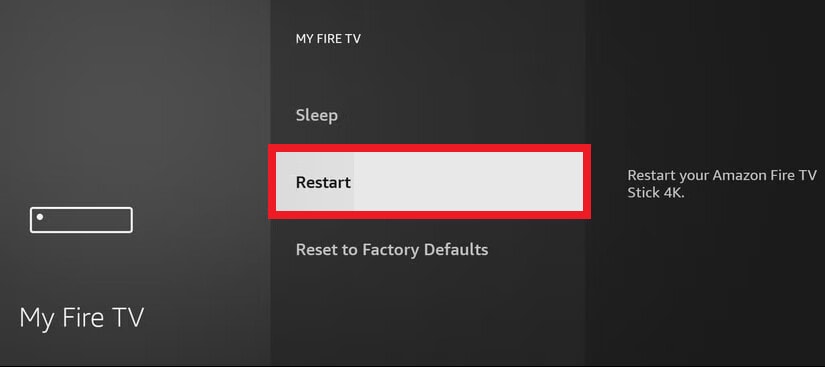
Step 3: Wait for the device to restart. Open YouTube TV and play the video.
Restart on PC or Laptop
Step 1: Close the browser or YouTube TV tab.
Step 2: Restart your computer.
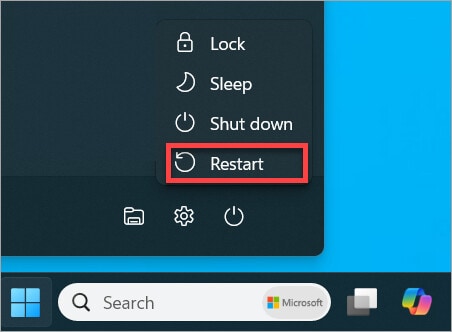
Step 3: Open the browser again and visit YouTube TV. Sign in and test the video.
Restart on Mobile Devices (Android and iPhone/iPad)
Step 1: Close the YouTube TV app.
Step 2: Restart the phone.
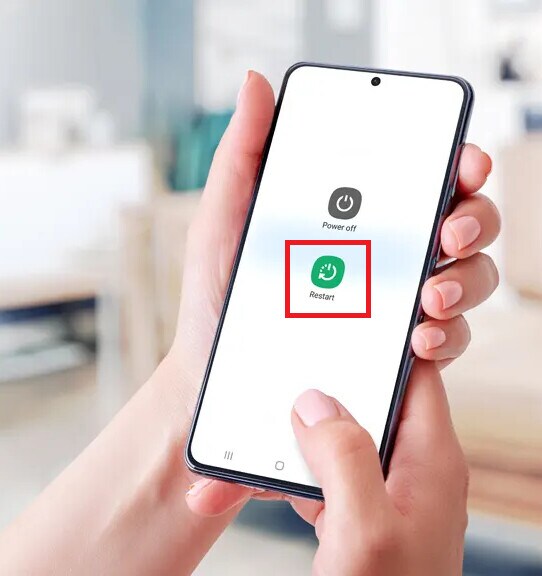
Step 3: Open YouTube TV and try again.
2. Clear the YouTube App Cache or Browser Cookies
Cached files and cookies help apps and websites load faster, but corrupted data can break authorization checks. Deleting the cache on your app or browser removes old data, allowing YouTube to verify your access rights and play the video smoothly.
Here are simple steps to clear the YouTube app cache or browser cookies on different devices.
Android Phones and Tablets
Step 1: Open Settings.
Step 2: Tap Apps or App Management.
Step 3: Select YouTube or YouTube TV.
Step 4: Tap Storage and Clear Cache.
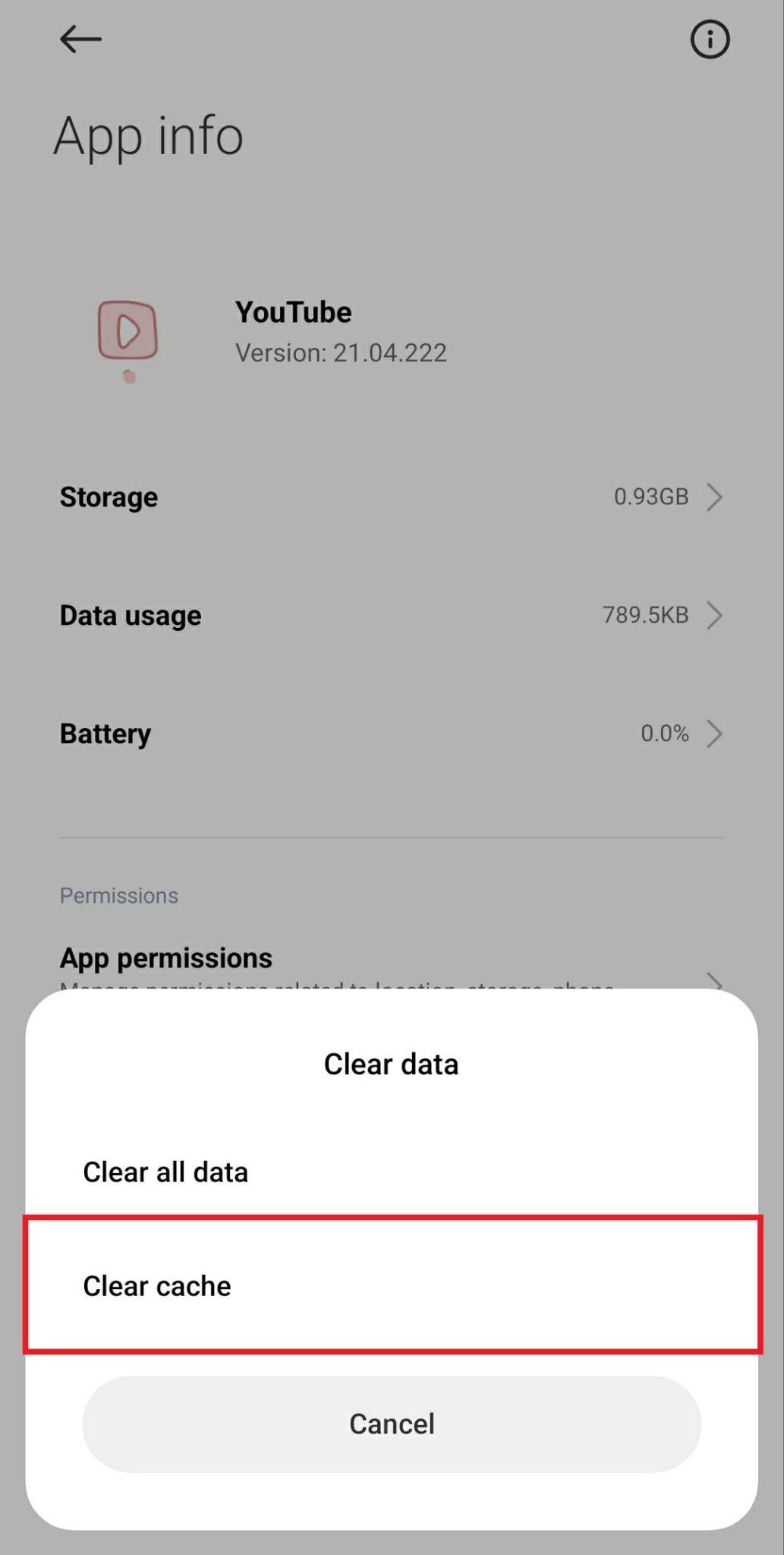
Note: iOS does not allow clearing the cache for apps.
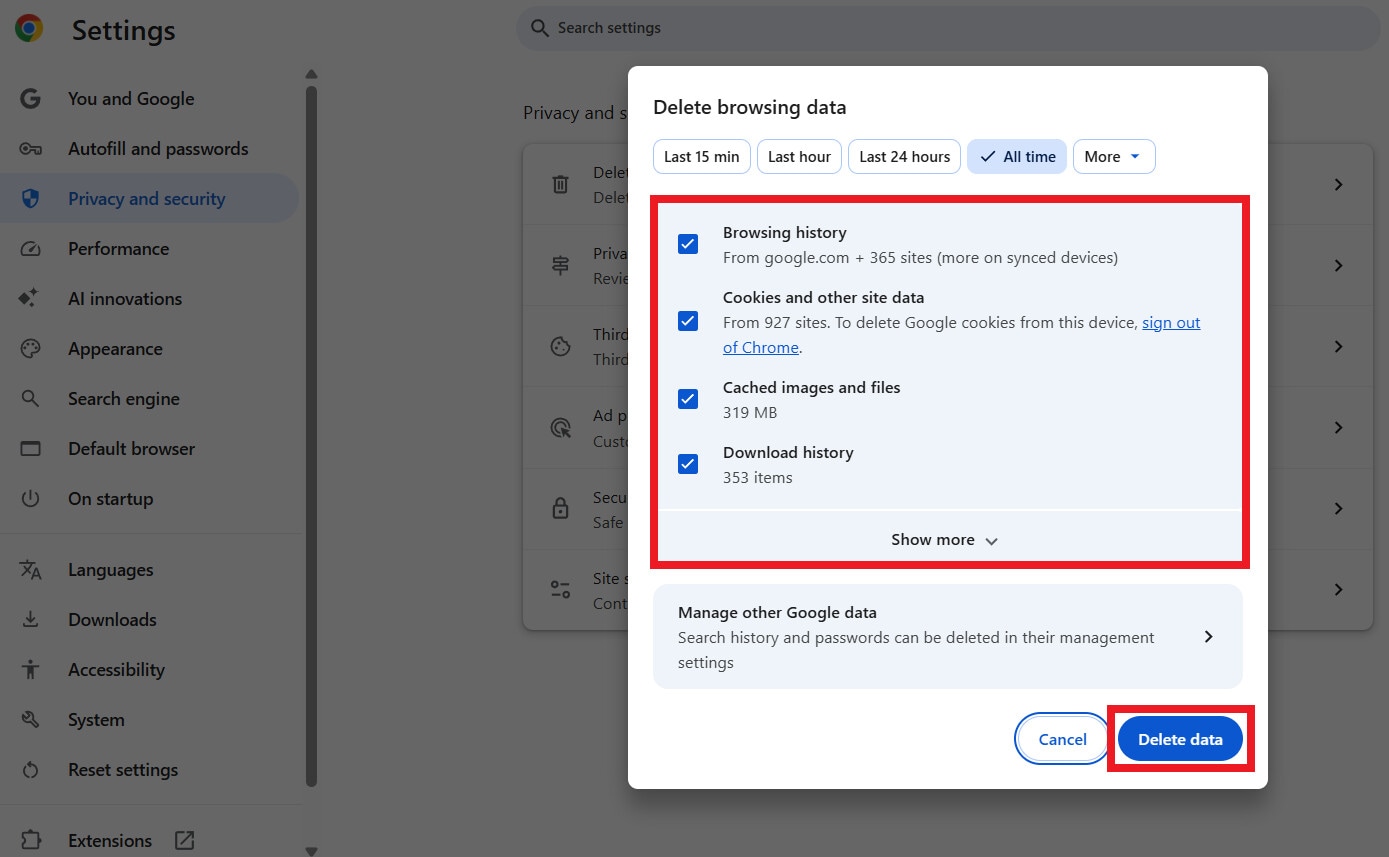
Online Browsers (Chrome/Edge)
Step 1: Open the browser Settings.
Step 2: Go to Privacy and Security.
Step 3: Click Delete browsing data.
Step 4: Select Cookies and cached images/files.
Step 5: Click Delete data, then reload YouTube.
3. Turn Off uBlock or AdBlocker on YouTube
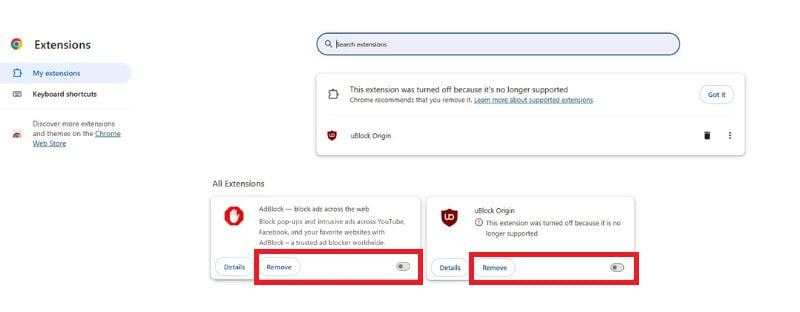
Ad blockers can sometimes interfere with YouTube’s system for checking video rights. If you use uBlock, AdBlock, or similar extensions, try disabling them temporarily. This allows YouTube to run its licensing checks without interruptions, fixing errors that appear during playback.
Follow these steps:
Step 1: Access Chrome and press the three-dot icon in your browser's top-right corner.
Step 2: Go to Extensions and hit Manage Extensions.
Step 3: Find uBlock and AdBlock extensions.
Step 4: Click Remove.
4. Clear TV Cache to Resolve YouTube TV Licensing Errors
Smart TVs store app data to improve performance, but this can include corrupted files that trigger licensing errors. Clearing the cache or reinstalling the YouTube TV app removes these problematic files.
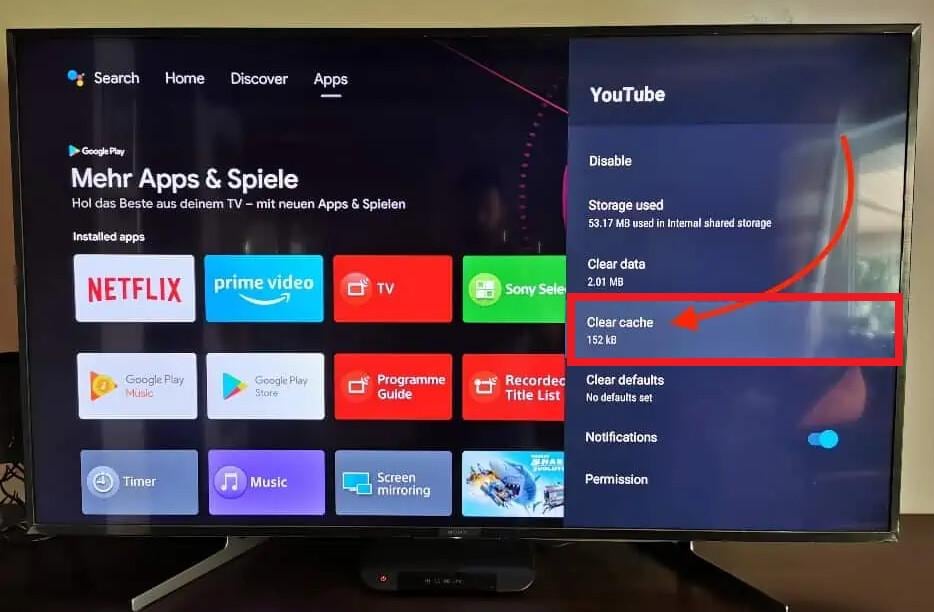
Smart TVs (Android TV/Google TV)
Step 1: Open Settings on your TV.
Step 2: Go to Apps and select YouTube.
Step 3: Choose Clear cache, then confirm.
Fire TV/Fire Stick
Step 1: Press Home and go to Settings.
Step 2: Select Applications, then Manage Installed Applications.
Step 3: Choose the YouTube app, select Clear cache, and confirm.
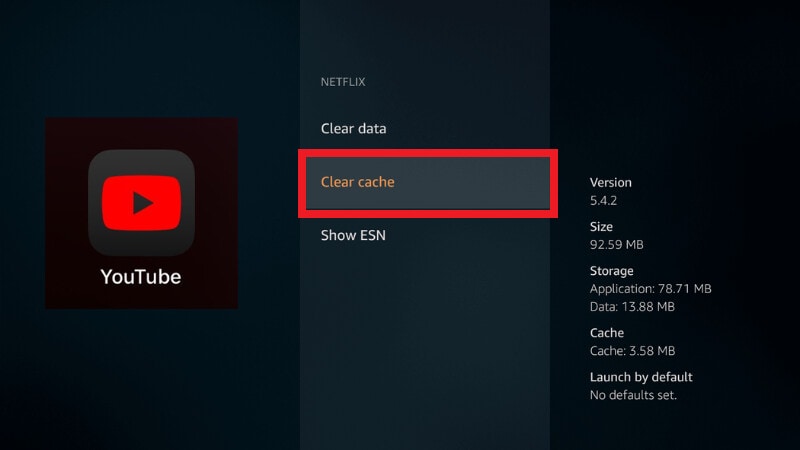
Note: If available, you can also choose Clear all application caches to clear the cache for all apps at once. If the app still has issues, repeat the steps and select Clear data.
Part 4. Fix YouTube Licensing Errors on Downloaded or Saved Videos
Offline and downloaded videos can show the "Error Licensing This Video" for reasons that are different from normal streaming:
- The offline license expired (common for protected content).
- Your account/subscription needs to re-verify access.
- The app cache/session is corrupted.
- The download is incomplete (rare; more common with general downloads than with DRM-protected offline content).
Try these first (recommended order):
- Reconnect to the internet and open YouTube/YouTube TV to refresh authorization.
- Sign out and sign back in to the correct Google account.
- Update the YouTube/YouTube TV app, then retry playback.
- Delete the download and re-download the video inside the app.
Video repair tools are only relevant when you have a normal local video file (e.g., a screen recording, camera footage, or a legally obtained video file) that is already saved on your device but won’t play due to corruption.
They cannot bypass YouTube licensing rules, DRM protection, region restrictions, or subscription limitations.
If you confirmed you have a damaged local video file (not a YouTube offline download), a video repair tool such as Repairit Video Repair can help repair structural corruption (e.g., broken headers/index).

-
Repair damaged videos with all levels of corruption, such as video not playing, video no sound, out-of-sync video or audio, playback errors, header corruption, flickering video, missing video codec, etc.
-
Repair full HD, 4K, and 8K videos and support 20+ popular formats, including MOV, MP4, M2TS, MDT, RSV, WMV, MPEG, DAT, etc.
-
Repair damaged or corrupted videos caused by video compression, system crash, video format change, etc.
-
Repair critically damaged or corrupted RAW/Log/HDR videos from professional cameras such as Blackmagic Design, RED Digital, and ARRI, etc.
-
Repairit has a quick and advanced scanning mode. You can use either depending on the level of corruption the video file has undergone.
-
No limit to the number and size of the repairable videos.
-
Repaired videos are more compatible with professional editing software such as DaVinci, Composer, Final Cut Pro, and Premiere Pro.
-
Support Windows 11/10/8/7/Vista, Windows Server 2003/2008/2012/2016/2019/2022, and macOS 10.12~macOS 15.
Step-by-Step Guide:
Step 1: Open the repair tool and add the corrupted video file.

Step 2: Hit Repair to start fixing the corrupted YouTube video files due to licensing errors

Step 3: If the preview looks good, press Save and pick a new location on your computer.

Part 5. Tips to Avoid YouTube Licensing Errors
These practices help reduce repeat YouTube licensing errors during streaming and YouTube TV playback:
- Use the correct Google account consistently. Always make sure you’re signed in to the account that owns the video, rental, or subscription. Switching accounts frequently can cause authorization mismatches.
- Avoid VPNs or frequent network switching during playback. VPNs, proxies, or rapid switches between Wi-Fi and mobile data can interrupt YouTube’s license verification and trigger playback errors.
- Keep YouTube apps and browsers updated. Outdated apps or browsers may fail newer licensing or DRM checks. Updates often include fixes for authorization and playback bugs.
- Clear cache only when errors repeat. Corrupted app cache or browser cookies can block license validation. Clearing them can help—but do this only if the error keeps returning.
- Limit device hopping for YouTube TV. Frequent switching between TVs, streaming sticks, or locations can temporarily disrupt account or household authorization checks.
- Refresh offline licenses periodically. For downloaded videos, open the YouTube app on a stable internet connection from time to time so licenses can refresh automatically.
- Re-download offline videos that fail repeatedly. If a downloaded video keeps showing licensing errors while others work, deleting and re-downloading it inside the app is often the safest fix.
- Accept content-level restrictions when only one video fails. If all other videos play normally, the issue is likely due to regional or rights changes affecting that specific title—not your device.
Conclusion
Getting the "Sorry, There Was an Error Licensing This Video" message can be overwhelming, but most issues can be fixed with simple steps. You can restart your device, clear caches, or repair corrupted files. By sticking to licensed content, keeping your apps and browsers updated, and checking your account and subscriptions, you can avoid these errors for a smooth and uninterrupted YouTube streaming every time.
FAQs
-
How do I fix YouTube licensing errors on Smart TVs or streaming devices?
You can clear the YouTube app cache, restart the device, or reinstall the app. Also, ensure the device is linked to a stable internet network and logged into the correct Google account. -
Can signing out and back into my Google account solve the error?
Yes. Signing out and signing back in can automatically refresh account authorization and fix errors caused by login or permission issues. -
Why do downloaded YouTube videos sometimes show a licensing error?
Downloaded YouTube videos show a licensing error because the file is DRM-protected or restricted by YouTube. This prevents playback outside the app or authorized platforms. -
Is there a way to check if a video is blocked due to licensing restrictions?
Yes. YouTube will display messages like "This video is not available in your country" or "Video blocked due to copyright" if licensing or regional restrictions apply. Using a VPN does not bypass copyright restrictions.




