
You’re searching on Google, clicking a link, or trying to play a YouTube video, and suddenly Chrome flashes a blunt message: "403 Forbidden". This error isn’t about your internet dropping or Chrome malfunctioning. It’s the server saying: "I understand your request, but I won’t authorize it."
That refusal can come from something small, like an outdated/corrupted site data, or something bigger, like server rules blocking your IP address or account. The good news? Most causes are identifiable and, with the right steps, fixable. This guide walks you through what the error means, why it happens, and how to resolve it.
Table of Contents
Part 1. What Does a 403 Forbidden Error Mean in Chrome?
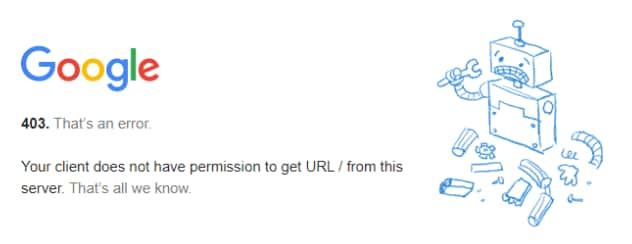
A 403 Forbidden error is part of the 4xx class of HTTP status codes (client-side request responses). In this case, the server understood the request but refused to authorize it. Think of it like arriving at a building where security recognizes you—but you don’t have the right access level to enter.
This is different from other errors:
- 404 Not Found means the page doesn’t exist.
- 500 Internal Server Error means the server itself is malfunctioning.
- 403 Forbidden specifically means access denied.
Chrome often displays this clearly because it shows the server’s response even when the cause is outside the browser.
Part 2. How a 403 Forbidden Error Usually Appears
The wording depends on the site, but the meaning is the same. Common variations include:
- "403 Forbidden"
- "Access denied"
- "You don’t have permission to access this resource."
- "HTTP Error 403 – Forbidden"
Some sites show a branded error page, while others display plain text. On Google services, you may see a 403 when trying to open a restricted resource (for example, a shared document you don’t have permission to access). On YouTube, it may appear when a request is blocked by region/account rules or when a service token/session fails.
The important point: no matter how it’s worded, the server is refusing to let your browser display the requested content.
Part 3. Quick Self-Check: Identify Your 403 Forbidden Scenario
Before applying fixes, narrow down the situation. A few quick checks will point you to the right path:
- URL - Did you mistype the address?
- Account - Are you logged into the correct Google account?
- Network - Are you using a VPN or proxy?
- Scope - Is it one site or many sites?
- Only one site → likely server-side restriction or page-level rule
- Many sites → more likely browser data, extensions, network policy, or IP reputation
- Session - Did your login session expire?
Even small differences (missing file names, incorrect slashes, or opening a folder path like example.com/images/) can trigger a 403 because many servers block directory browsing.
If the error appears on Google services (Drive/Docs/YouTube account-based content), you may be signed into the wrong account or lack permission. Switching accounts or requesting access can resolve it.
Many sites block anonymized IP ranges. If you’re using a VPN/proxy, disconnect and retry.
Signing out and back in refreshes tokens and can clear the error on Google services.
Part 4. How to Fix a 403 Forbidden Error in Chrome (Step-by-Step)
Resolving a 403 error is often a matter of trying simple fixes first, then moving on to more advanced steps if needed. Follow these methods in order, testing after each one to see if the issue is resolved.
Method 1. Reload the Page and Wait Briefly
If the server was overloaded or your request timed out, reloading may clear the error.
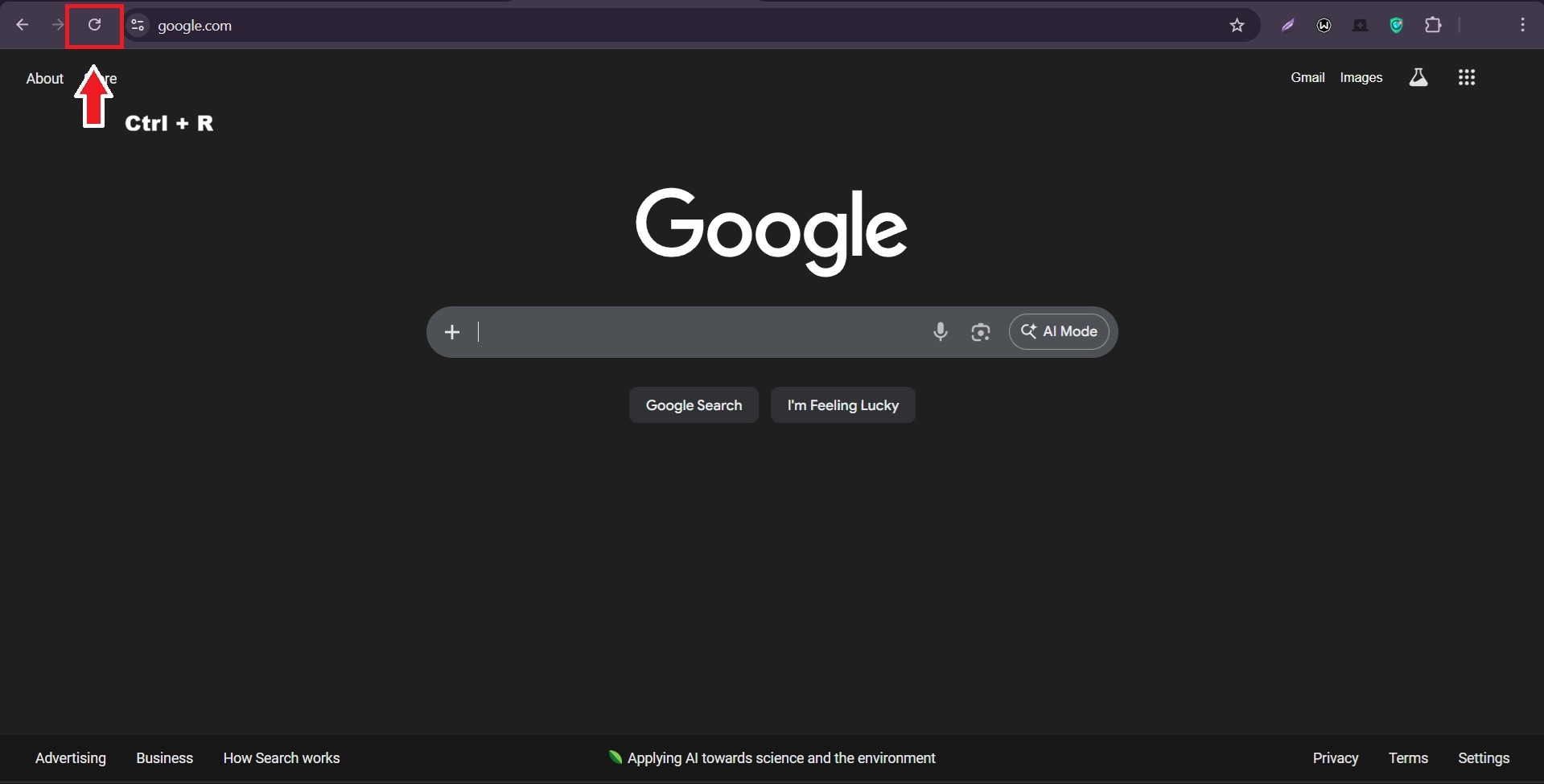
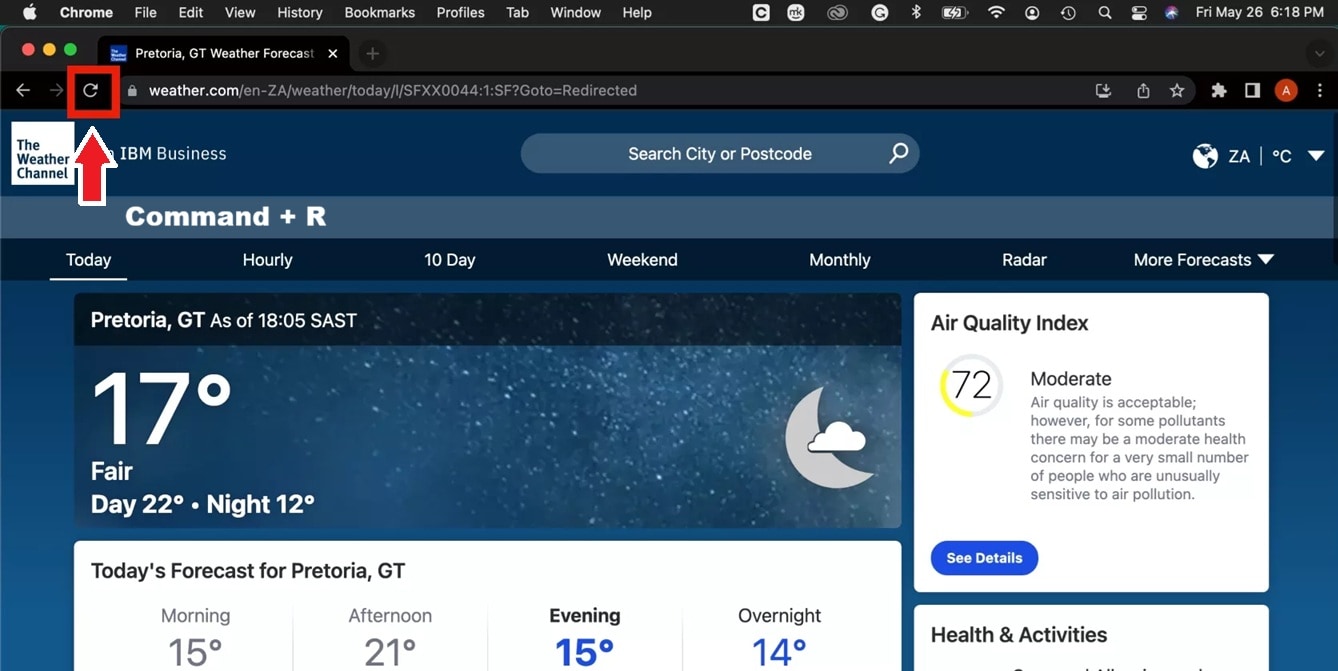
Step 1. Press Ctrl + R (Windows) or Command + R (Mac) to refresh the page.
Step 2. Wait a few seconds, then check if the page loads correctly.
Method 2. Clear Cookies and Cache for the Affected Site Only
Corrupted or outdated cookies can block access.
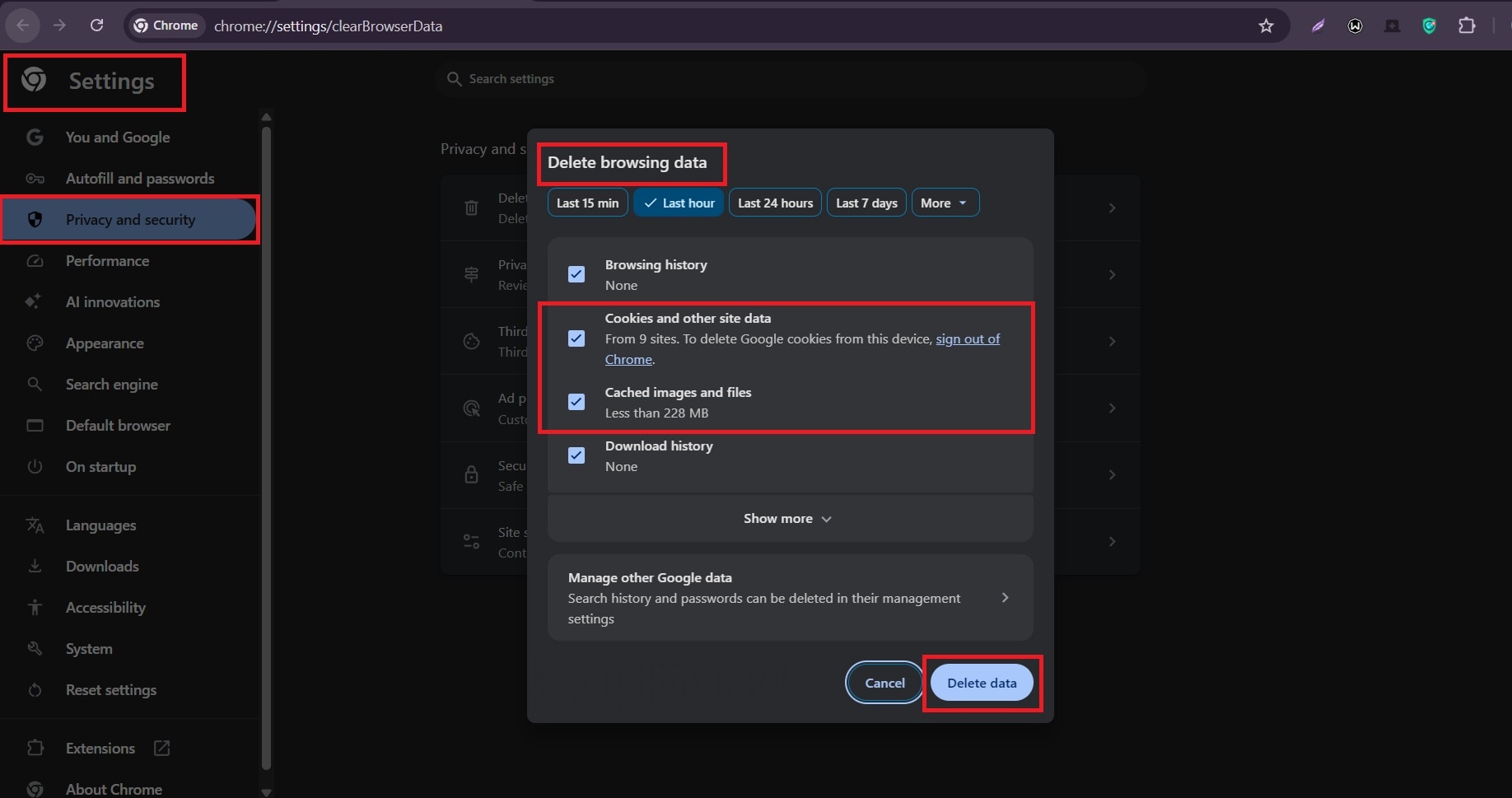
Step 1. Go to Settings.
Step 2. Hover over Privacy and security. Click on Delete browsing data, then choose to clear cookies and cache for the affected site only.
Method 3. Disable Browser Extensions Temporarily
Extensions like ad blockers, VPN plugins, or security tools may interfere with requests.
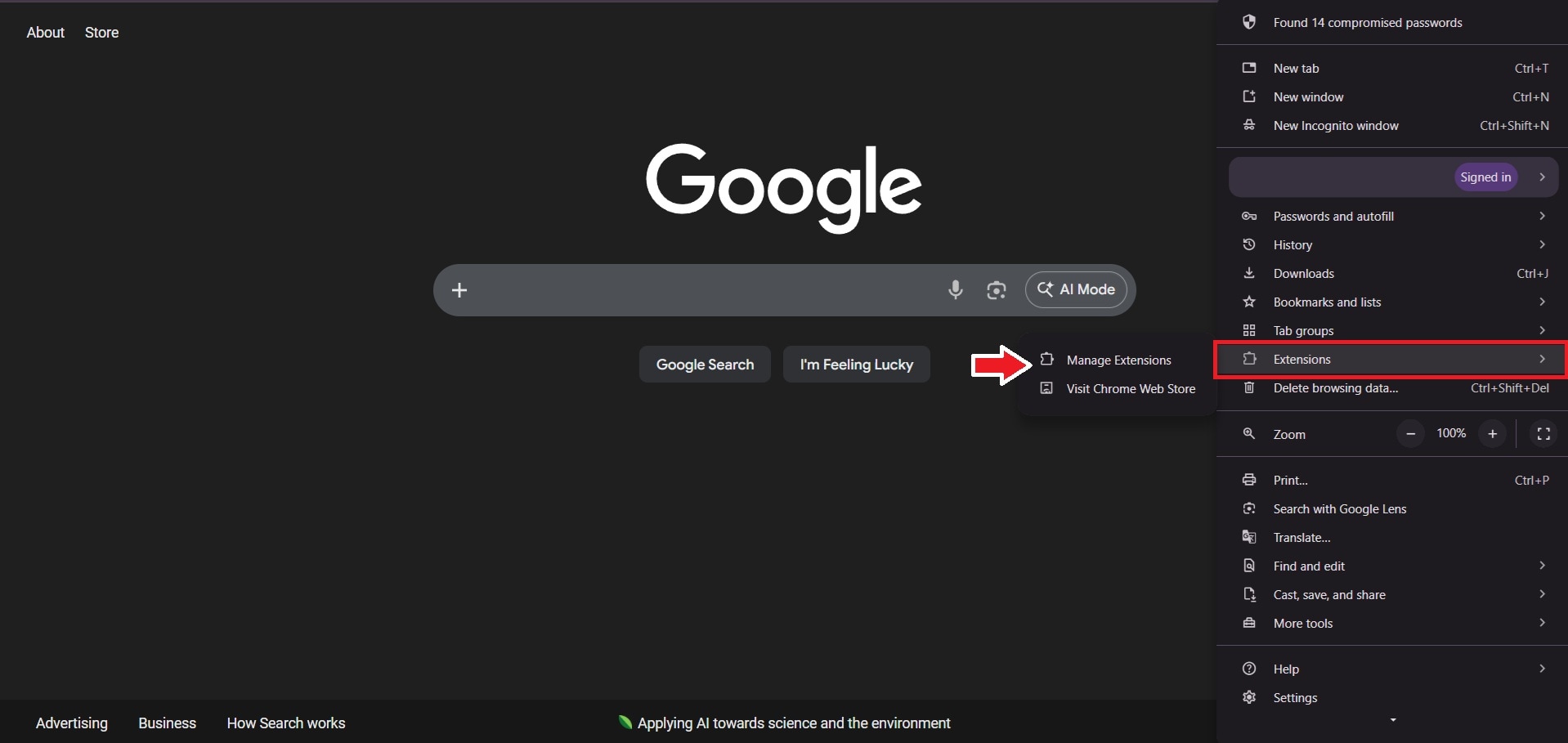
Step 1. Go to Settings.
Step 2. Choose Extensions. Click on Manage Extensions. Disable unnecessary extensions, then reload the page to test.
Method 4. Sign Out and Sign Back Into Your Google Account
If the error appears on Google services, your login session may have expired. Sign out, then sign back in to refresh your authentication tokens.
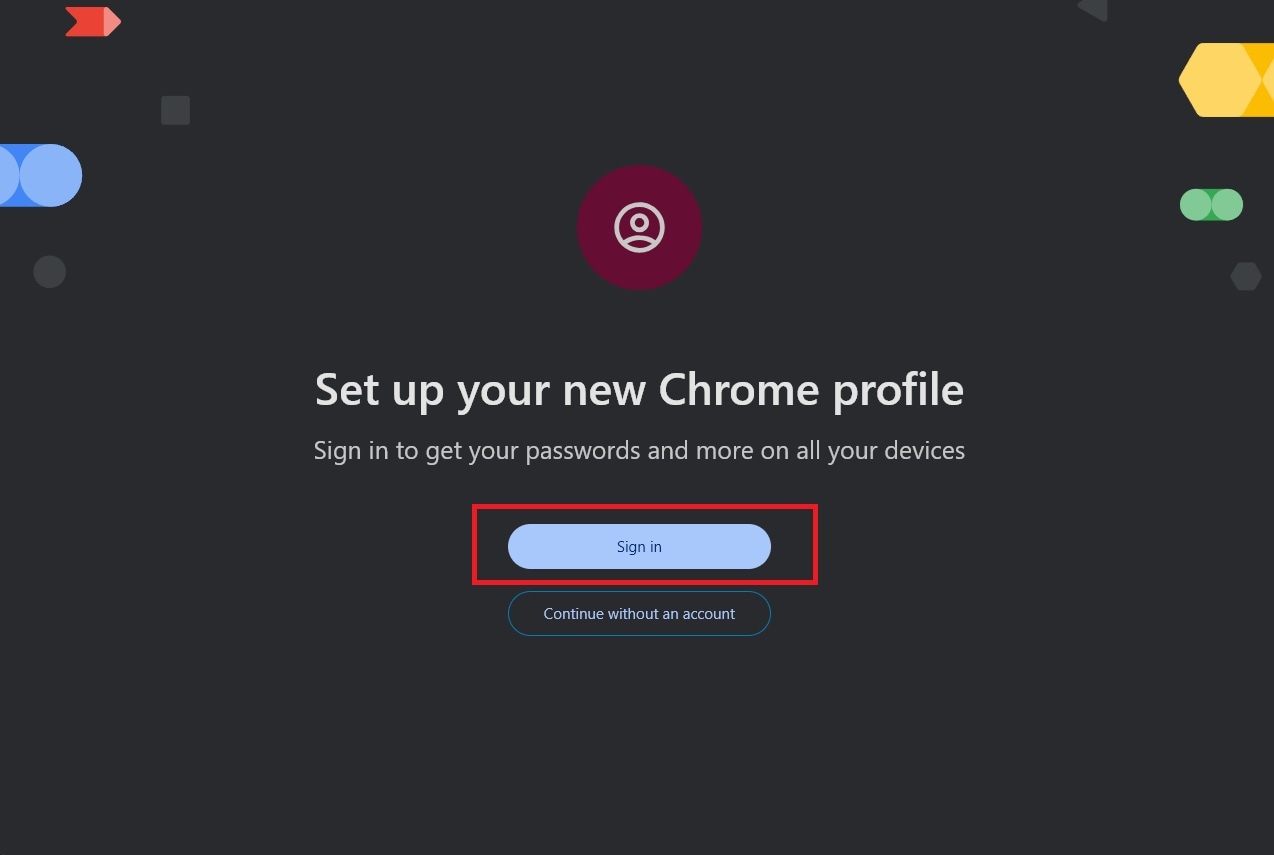
Step 1. Click your profile icon in the top‑right corner and select Sign out.
Step 2. Go back to Google, click Sign in, and enter your account credentials.
Method 5. Turn Off VPN or Proxy Services
Some websites block traffic from anonymized IPs. If you’re already on a VPN → turn it off and retry. If you’re not on a VPN and suspect your IP is blocked → test a different network first (mobile hotspot). VPN is only a diagnostic step.
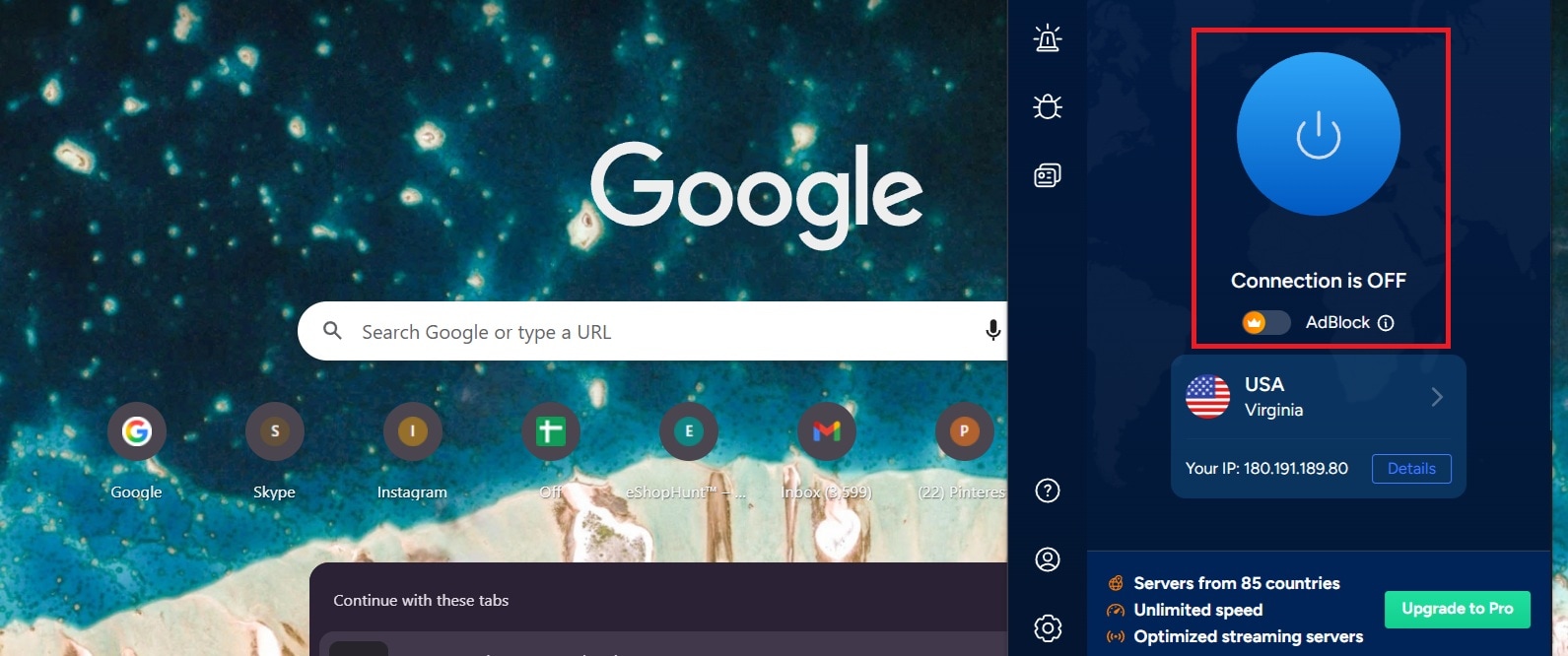
Step 1. Open your VPN or proxy application.
Step 2. Disconnect or turn it off.
Method 6. Try a Different Network or Reset DNS
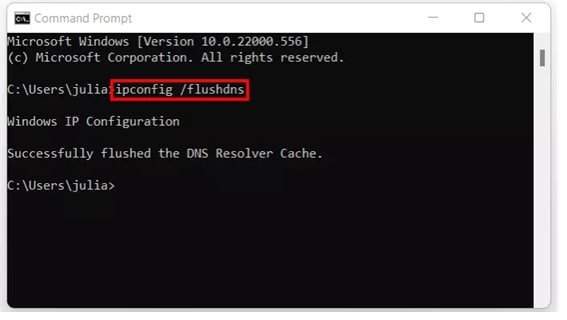
Switching to another Wi‑Fi or mobile network can bypass IP‑based restrictions. You can also reset DNS by opening Command Prompt.
Step 1. Search for Command Prompt on your laptop or PC.
Step 2. Type ipconfig / flushdns.
Part 5. Common Causes of 403 Forbidden Errors in Google Chrome
A 403 usually means the server is blocking your request—but the reason varies. These categories make diagnosis faster:
Browser-level causes
- Corrupted/outdated cookies or cached site data
- Extensions (ad blockers, script blockers, VPN extensions) modify requests
- Expired login session or stale authentication tokens
Network-level causes
- VPN/proxy IP blocked by the site
- ISP/corporate network filtering or security policies
- DNS issues sending requests through an unexpected route
- IP reputation/rate limiting after many rapid requests
Account or policy-level causes
- Google/Workspace permissions (file shared to a different account)
- Region/age policy restrictions (platform-dependent)
- Temporary security blocks triggered by unusual traffic patterns
Part 6. When a 403 Forbidden Error May Affect Downloaded Files (Rare Case)
In most cases, a 403 Forbidden error only blocks access and does not damage files. File-level issues can happen only when a download was interrupted or partially saved before access was denied.
Signs it’s a file issue (not just 403):
- The file is saved locally, but won’t open in multiple apps/players
- The file size looks wrong (very small, 0KB, or incomplete)
- Playback freezes, black screen, or audio-video sync issues (for media files)
Signs it’s NOT a file issue:
- You never got a completed download file
- The website is still blocked, and you’re trying to "repair" access (repair tools can’t do that)
Example: Using Repairit for Corrupted Video Files
Repairit Video Repair is designed for situations where a video file is already downloaded but fails to play due to structural damage. File repair should only be considered if the file does not open in multiple players and browser/network fixes do not resolve the issue.
File repair tools can reconstruct damaged video structures (headers/index). They cannot bypass 403 errors, restore blocked access, or recover data that was never downloaded.

-
Repair damaged videos with all levels of corruption, such as video not playing, video no sound, out-of-sync video or audio, playback errors, header corruption, flickering video, missing video codec, etc.
-
Repair full HD, 4K, and 8K videos and support 20+ popular formats, including MOV, MP4, M2TS, MDT, RSV, WMV, MPEG, DAT, etc.
-
Repair damaged or corrupted videos caused by video compression, system crash, video format change, etc.
-
Repair critically damaged or corrupted RAW/Log/HDR videos from professional cameras such as Blackmagic Design, RED Digital, and ARRI, etc.
-
Repairit has a quick and advanced scanning mode. You can use either depending on the level of corruption the video file has undergone.
-
No limit to the number and size of the repairable videos.
-
Repaired videos are more compatible with professional editing software such as DaVinci, Composer, Final Cut Pro, and Premiere Pro.
-
Support Windows 11/10/8/7/Vista, Windows Server 2003/2008/2012/2016/2019/2022, and macOS 10.12~macOS 15.
Step-by-Step: Repairing a Corrupted File (If Needed)
Step 1. Open the repair tool and import the video file that fails to play or open.
Step 2. Begin the repair to allow the software to analyze and reconstruct damaged video data.
Step 3. Preview the output to confirm playback stability and audio-video alignment. Save the repaired file to a separate location to preserve the original.
Conclusion
A 403 Forbidden error means access is denied—not that Chrome is broken. Most cases are caused by cookies, extensions, VPN/proxy settings, network restrictions, or account permissions. Start with low-risk fixes (refresh, URL check, site data cleanup), then move to extensions and network-level testing.
File repair is only relevant if a download was interrupted and the file is already saved locally but damaged. Otherwise, focus on resolving the access restriction itself.
FAQs
-
What does a 403 Forbidden error mean in Google Chrome?
It means the server received your request but refused permission to access the resource. -
Why does Chrome show a 403 error even when my internet works?
Because the issue is access permissions/restrictions, not connectivity. -
How do I fix a 403 Forbidden error in Chrome?
Start by clearing site data for that domain, disabling extensions, and checking VPN/network/account permissions. -
Can VPNs cause a 403 Forbidden error?
Yes. Some sites block VPN/proxy IP ranges or suspicious traffic sources. -
Can a 403 error damage downloaded files?
Not directly—but if a download is interrupted and saved partially, the local file may become corrupted.




